
Wired business communication · Monaural USB-C
HP Poly Blackwire 5210 Mono USB-C Headset
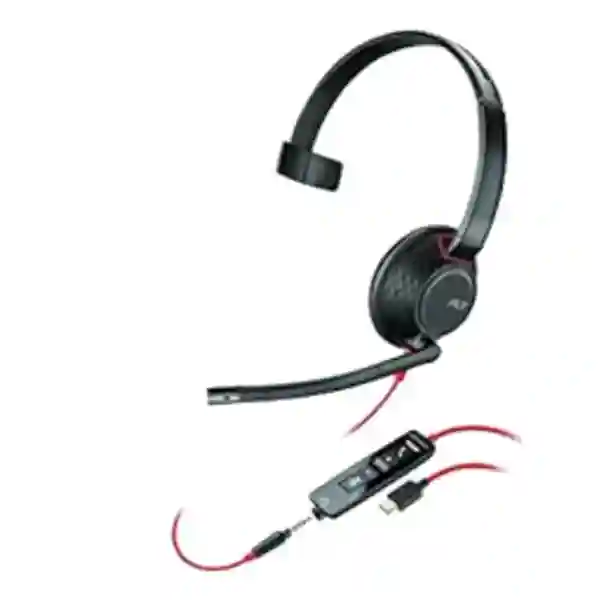
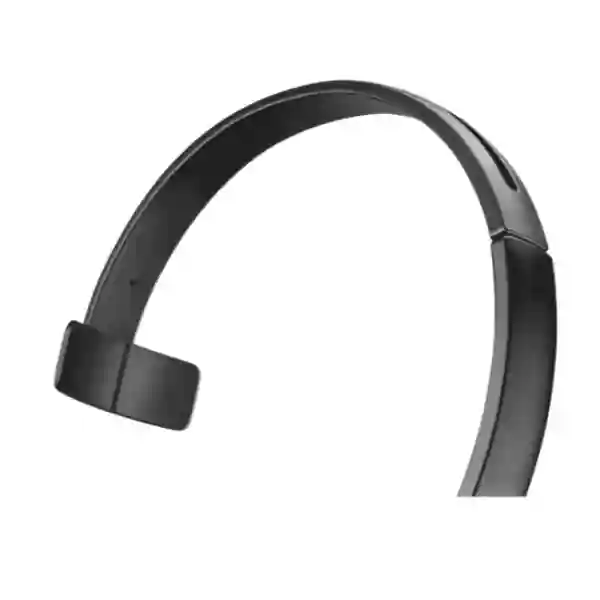
For teams that need dependable desk-based voice communication without losing awareness of the room, the HP Poly Blackwire 5210 Mono USB-C Headset combines a single on-ear speaker, a noise-cancelling boom microphone, inline call controls and USB-C connectivity. It is a practical choice to evaluate for reception desks, customer conversations, help desks and everyday meetings.
The key buying step is to confirm the exact configuration. HP documents a version with an additional 3.5 mm connection and a USB-C-to-USB-A adapter, but accessories and application features must be checked against the actual quoted package. Request the verified variant and a local quotation before ordering.
At a glance: the buying essentials
| Wearing style | Single ear, on-ear (monaural) |
|---|---|
| Main computer connector | Wired USB Type-C |
| Microphone | Noise-cancelling boom |
| Controls | Call answer/end, mute, volume |
| Alternative connections | USB-A adapter and 3.5 mm on the identified HP configuration; verify the quoted variant |
| Deployment | Desk-based calls and collaboration |
| Important limitation | No wireless operation; no two-ear listening |
A headset for calls that must stay clear
A workplace headset has a practical job: it should make incoming speech easy to follow, let the caller hear a natural voice, and avoid interrupting the person using it. The Blackwire 5210 addresses that job with a single on-ear speaker, a boom microphone and a wired computer connection. It is aimed at everyday communication rather than entertainment-first listening.
The main reason to choose this model is the combination of a mono wearing style and dedicated call features. It can suit an employee who speaks with customers while still needing to hear a colleague, a desk phone ringing nearby, or an announcement in the room. Before ordering, confirm that this one-ear arrangement matches the actual workplace.
Who should consider the 5210
The Blackwire 5210 is worth considering for customer service agents, office administrators, coordinators, reception staff, help-desk personnel and employees who attend scheduled online meetings. A person who alternates between a laptop call and face-to-face conversation may value an uncovered ear more than the immersion of a two-ear headset.
A useful buying decision starts with three questions: how often the employee takes calls, how noisy the surrounding workspace is, and whether awareness of people nearby is important. Answering these questions can reveal whether a wired mono headset is a sensible fit or whether a stereo, wireless or more isolating model deserves consideration.
Why a mono headset changes the experience
Monaural means one ear receives headset audio while the other ear remains free. This is not the same as hearing both channels through two speakers. For some offices, the trade-off is desirable because the wearer can remain part of the room while speaking to someone remotely. The design can also feel less enclosed during frequent short calls.
The uncovered ear does not automatically make a headset safer or more comfortable for every task. It also lets surrounding conversation reach the user more easily. In a busy contact centre with constant background noise, a person may prefer both ears covered. Choose the wearing style according to the room and the need for awareness.
When a stereo option may be better
HP identifies the Blackwire 5210 as the monaural option in the 5200 series and the Blackwire 5220 as the stereo alternative. Someone reviewing long recordings, concentrating in a lively open-plan office or listening to detailed media may prefer two earcups. A stereo design can reduce the sense that outside conversation is competing with call audio.
The 5210 still makes good sense when the wearer must listen to nearby colleagues without removing the headset. Neither option should be chosen just because one has a higher model number. Trial a headset in the real working environment, including the busiest part of the day, to compare attention, comfort and call intelligibility.
Wired USB-C for a predictable desk routine
A USB-C wired connection makes the 5210 straightforward to introduce into a computer-based calling routine. Once the operating system recognizes it, the user can choose it as the preferred input and output device in the meeting or calling application. Wired operation avoids a separate headset battery and the daily habit of charging a wireless device.
The trade-off is physical movement. The cable stays connected to a computer, so the headset is suited to seated or desk-adjacent work rather than walking across a building during calls. Check that the USB-C socket is available and supports the headset as an audio device before standardizing a large order.
Checking the physical USB-C port
Not every device with a similar-looking port provides identical accessory behavior. Laptops, desktops, docking stations and mobile devices can apply different software policies, audio-routing preferences and USB restrictions. Begin with a simple direct connection to a supported computer. Then confirm the headset is detected by the operating system and the intended calling software.
For shared workstations, also consider the location of the USB-C port. A port behind the computer may create an awkward cable route; a conveniently located port on the desk or laptop can reduce unnecessary strain. Use an approved docking arrangement only after testing it with the required meetings and calls.
USB-A adapter: verify the package
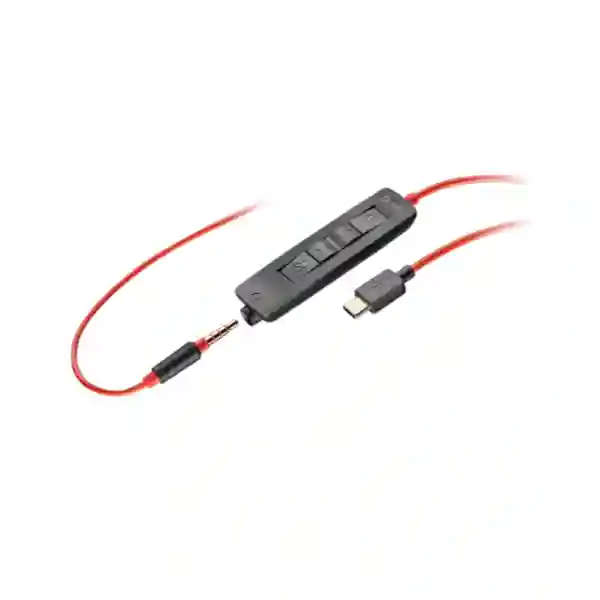
HP publishes a specific Blackwire 5210 USB-C configuration that includes a USB Type-C to Type-A adapter. That is useful where an organization has a mix of newer laptops with USB-C and older systems with USB-A. It can simplify procurement because one verified configuration may cover different computer connections.
However, the short product name alone does not establish what is packed in every regional or bulk variant. Ask for the exact manufacturer configuration and box contents. Do not assume that an adapter shown in a general product photo will be supplied with every quote. If USB-A access matters, make the adapter an explicit purchasing requirement.
Understanding the 3.5 mm connection
HP also documents 3.5 mm audio connectivity for the identified 5210 USB-C plus adapter configuration. That can be useful with a compatible tablet or mobile device that still has a suitable headset socket. It is a physical alternative to the computer’s USB audio connection, not a Bluetooth capability and not an automatic promise of compatibility with every phone.
Confirm that the proposed unit has the detachable or 3.5 mm arrangement described by HP. Some modern phones have no analog audio jack; others use adapters with device-specific behavior. Microphone detection, remote-button features and volume controls may differ between USB and analog use. Test the exact handset before expecting full call control.
Operating systems and application fit
HP lists Windows 10, Windows 11, macOS, Android and iOS in its current specification for the identified 5210 USB-C configuration. That list describes supported operating-system families, not a guarantee that every feature works identically with every device. Software versions, corporate device policies and physical connectors still matter.
For a business deployment, create a compatibility checklist with the actual operating-system version, desktop calling application, available port and audio-device settings. Check a live test call rather than relying solely on whether the computer recognizes the headset. Recognition is the first step; usable two-way conversation is the important result.
Working with meeting and calling platforms
The Blackwire 5200 family is presented by HP for major collaboration environments. Its product materials discuss compatibility and certifications across widely used meeting platforms. Actual certification can vary by exact variant, application and version, so a company should not infer that every available 5210 package has the same software badge or dedicated controls.
Teams, Zoom, browser-based meetings and softphone applications can have different call-control integrations. Test the functions the team relies on: joining meetings, selecting the microphone, adjusting volume, muting, and ending a call. In some applications, audio works normally even when a hardware answer button does not perform an app-specific action.
What the noise-cancelling boom mic does
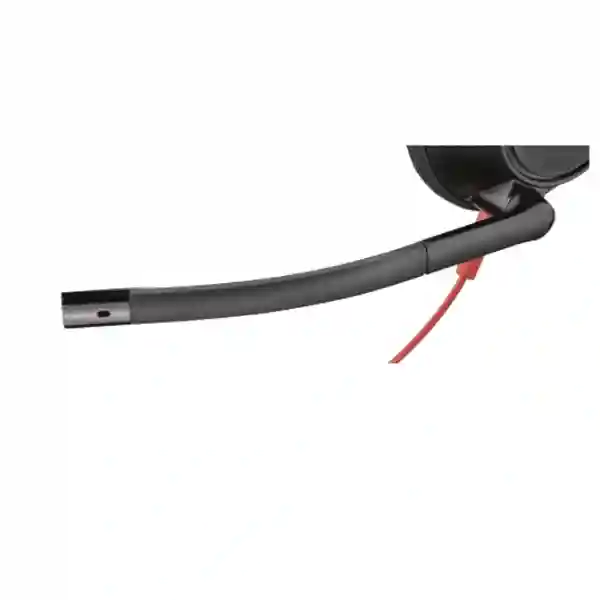
HP specifies a noise-cancelling microphone for this headset. The purpose is to help the person on the other end of the conversation hear speech despite some surrounding noise. That is particularly relevant in a reception area or an office with occasional nearby voices. A boom positions the microphone close to the speaker’s mouth.
Noise reduction is not a guarantee that colleagues, traffic or a fan will disappear from the call. Performance depends on mic position, noise type, room acoustics and the software’s own processing. The most reliable evaluation is a recording or test call made from the desk where the headset will actually be used.
Microphone cancellation is not earcup ANC
Buyers sometimes read noise-cancelling microphone and assume active noise cancellation in the headphone. These are different features. The microphone feature works on the sound sent to other participants. Active noise cancellation is a listening-side feature intended to reduce background sound reaching the wearer’s ears, and it should not be inferred for this mono model.
The 5210’s cushioned on-ear design may provide some passive attenuation on the covered side, but the other ear remains uncovered by design. If listening isolation is the highest priority, assess a different headset category. For a customer-facing desk where room awareness matters, the 5210’s approach may be more appropriate.
Digital Signal Processing for speech
HP describes Digital Signal Processing, or DSP, within the Blackwire 5200 family’s audio design. DSP is part of the electronic treatment of the audio signal, supporting clearer computer-based communication. It complements the physical microphone and its position rather than replacing good speaking technique or proper setup.
If callers complain that a user sounds distant, first check the selected microphone, the boom position and the application input level. Changing network settings or buying extra software is unlikely to help if the wrong microphone is active. Good call quality comes from the entire chain: room, user, device, software and connection.
Dynamic EQ for mixed work
HP also highlights Dynamic EQ, which adjusts sound treatment for different listening needs such as voice calls and media. This can be useful when a worker moves between a meeting, a training clip and ordinary system audio during the day. It is a practical convenience rather than a promise of studio-level music reproduction.
The 5210 is fundamentally a business communication headset with one earcup. Employees whose main duties involve detailed audio production, stereo music checks or immersive media monitoring should consider a headset designed for those workflows. Match the equipment to the task rather than assuming every audio feature has the same value in every department.
Speaker and voice detail
In HP’s current identified configuration, the headset uses an on-ear monaural speaker. HP’s published technical information describes speech and media bandwidth separately in some support materials, reflecting the difference between spoken calls and full-range playback. Numbers help specify a device, but they do not replace an actual listening test.
For evaluation, listen to a quiet colleague, a faster-speaking caller and a call with normal office noise. Verify that the employee can understand speech without keeping the volume uncomfortably high. Also check whether users can hear important room activity while wearing the headset, because that is one of the main reasons to choose mono.
Inline controls for everyday calls
The Blackwire 5210’s inline control module is intended to provide call answer/end, microphone mute and volume adjustment. Putting these functions on the cable gives a worker quick access without searching for an on-screen control during routine conversations. It is particularly helpful when a user manages many short calls across a typical day.
Call answer and end integration depends on the application and connection in use. A function that works in a desktop softphone may not behave the same way through a 3.5 mm analog connection or in an unsupported browser application. During an office trial, test each button with the software that employees actually use.
Why microphone mute deserves testing
Mute is one of the most frequently used headset controls during virtual meetings. It helps staff speak privately to colleagues or pause their microphone while they consult a document. The headset provides a hardware mute control, but the visible mute state inside an application may depend on how that application integrates with the device.
Run a short trial in which one person mutes and unmutes while another participant confirms whether speech is audible. Repeat after switching between calls and meetings. Clear training reduces the risk of speaking while muted or unintentionally transmitting a room conversation. For sensitive discussions, follow organizational privacy procedures rather than relying on a button alone.
SoundGuard Digital: the important condition
HP specifies SoundGuard Digital acoustic protection technology for the relevant Blackwire 5210 configuration. This feature relates to sound exposure and protection rather than microphone cancellation. It should be evaluated as part of a broader approach to sensible listening levels, appropriate work routines and employee audio comfort.
HP’s product footnote says Poly Lens Desktop App is required to enable SoundGuard Digital features. That detail is easy to miss in a short retailer description. An IT team considering the protection feature should verify the supported software, its installation permissions and the configuration used on managed computers. Avoid treating a listed feature as fully configured merely because the headset is plugged in.
Comfort for repeated calls
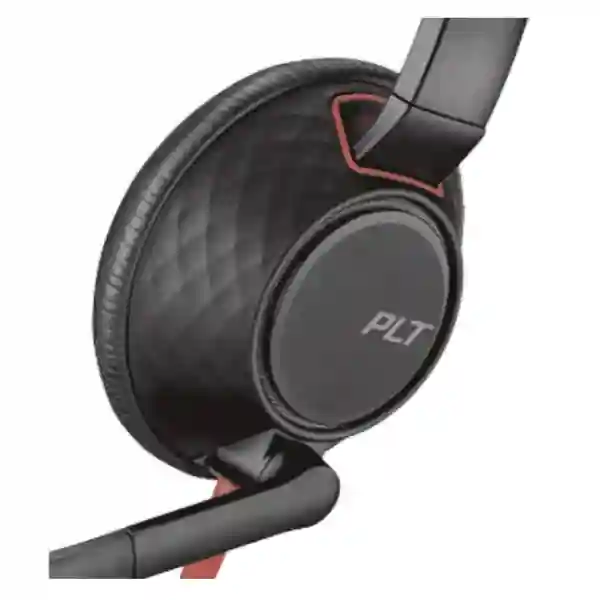
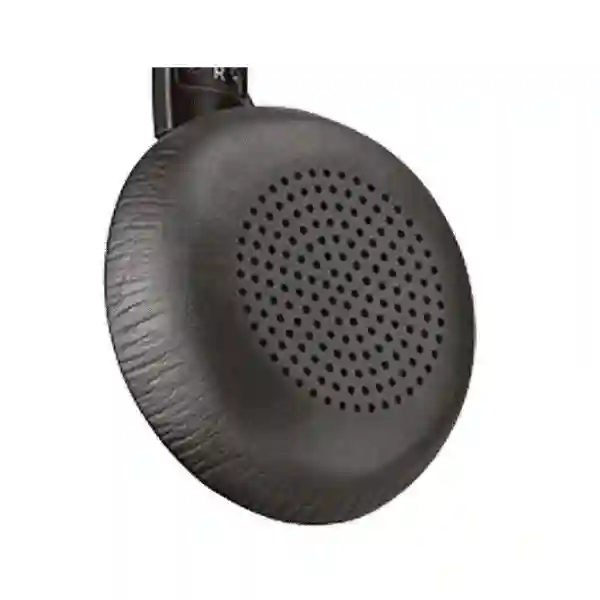
The Blackwire 5200 series is designed around workday comfort, including a cushioned headband and soft ear cushion. The 5210’s single-ear arrangement may appeal to employees who dislike the enclosed feeling of a stereo headset. HP lists the identified retail configuration at approximately 125.4 grams, which can help procurement teams compare physical wearing weight.
Comfort remains personal. Head size, glasses, hair, ear sensitivity and the way the headband is adjusted affect a person’s experience. Invite users to wear a sample through both a short call and a longer meeting. A headset that feels fine for five minutes may reveal pressure points during a full working session.
Adjusting the headband and earcup
A good fit keeps the earcup secure without excessive clamping pressure. Position the headband so the cup rests naturally on the ear, then adjust it to remain stable when the user turns toward a colleague or looks down at documents. Poor fit can make users raise the volume or constantly reposition the unit.
The 5210 is an on-ear design rather than an around-ear sealed headset. It is therefore important to set expectations about outside sound. Staff should not try to create a perfect seal by forcing the earcup against the ear. A well-fitting mono headset balances call audibility with the surrounding awareness that the buyer selected it for.
Positioning the flexible microphone boom
HP lists a 280-degree boom rotation for the identified configuration. That range supports flexible positioning, but the goal is simple: place the microphone close enough to capture the user’s speech without sitting directly in the path of breath. Follow the manufacturer’s guidance for the recommended microphone position and orientation.
During setup, record a sample sentence while adjusting the boom slightly. Speech should be consistent when the person looks at a screen or a document. If the mic is too far away, the voice may sound faint; if it is poorly positioned, breathing or handling noise may become more noticeable. A short demonstration often prevents recurring help-desk tickets.
Managing the cable around the desk
HP’s current specification for the identified retail configuration lists about 217 centimetres from USB connector to headset, with the inline control module along the cable. That length provides flexibility at many desk arrangements, but the route still needs planning around monitor arms, keyboard trays, drawers and standing-desk movement.
Keep the cable clear of rolling-chair wheels, doorways and areas where people walk. Avoid pulling the inline module by its cord or leaving the connector under tension. If a worker frequently changes desks, consider where the headset and cable can be stored between shifts. Practical cable management protects usability more than an impressive specification on paper.
Reception and front-desk situations
Reception desks often combine incoming calls, in-person visitors, scheduling software and occasional conversations with colleagues. A mono headset can let a receptionist hear a caller while staying aware that someone has approached the counter. Inline mute can also be useful when answering a brief in-person question, subject to the application behaving as expected.
The potential drawback is competing sound during peak periods. If several people speak near the counter, the uncovered ear may make it harder to understand the caller. Test the 5210 during a representative busy period, not only in an empty office. The best decision balances hearing the room and hearing the remote person.
Help-desk and support use
IT support staff may move between a remote session, typed instructions and a conversation with a nearby colleague. The 5210 is suited to a desk-based workflow where the employee needs an available ear and a consistent microphone. The wired connection also avoids managing individual headset charging habits across a team.
For a support group, consistency of deployment can be as important as a single user’s preference. Document microphone selection, software permissions, mute behavior and cable routing. If support engineers frequently leave their desks while remaining on calls, a wireless alternative may be more suitable. The 5210’s strength is routine computer communication within reach of the workstation.
Call centres and shared office floors
Call-centre use places special demands on headsets: repeated calls, consistent comfort, clear microphone pickup and rapid user support. The 5210 can be evaluated for roles that need a mono wearing style, but its uncovered ear may be a disadvantage in dense rows of simultaneously speaking agents. Noise-cancelling microphones do not remove the user’s own distraction from nearby voices.
Procurement teams should test a representative sample with the actual call-handling platform and floor layout. Include agents who wear glasses and those who work longer shifts. Confirm how headset assignment, hygiene, call controls and spare equipment will be managed. A successful trial is stronger evidence than a generic claim that a headset suits all call centres.
Hybrid work and home-office use
An employee working between home and an office may appreciate a wired headset that can be packed with a laptop and connected without charging. The 5210 is designed for voice-led tasks such as meetings, customer calls and online collaboration. It can be useful where the worker wants to remain aware of the doorbell or another person in the room.
For shared home environments, mono listening is a trade-off. Background sounds may remain distracting even when remote listeners hear a reasonably clean microphone signal. Choose a quiet position for important calls, close unnecessary notifications and test the microphone from the normal work area. Avoid assuming that noise cancellation makes room preparation unnecessary.
Learning, training and remote instruction
Staff development sessions, internal training and instructor-led calls benefit from a headset whose microphone position stays consistent. The 5210 can be considered for learners or trainers who need to hear a nearby participant while following online material. A physical mute control can support interactive sessions when users know its behavior.
The mono design is less appropriate for courses that require careful left-right audio comparison or uninterrupted attention to rich media. Institutions and business training teams should verify the software, the computer connection and the fit for the intended participant. For shared equipment, add a clear cleaning and storage procedure between users.
Working with docks and shared workstations
Docking stations and hot desks simplify laptop connections, but they introduce another component into the audio path. A headset may work directly in a laptop’s USB-C port while behaving differently through a dock, hub or virtual desktop environment. Test the actual arrangement before rolling the same configuration out across multiple desks.
If several employees use one workstation, agree on how the operating system selects the microphone when someone connects or disconnects the headset. Automatic device switching can be convenient, but it can also leave the application listening to a built-in laptop mic. A brief signed-off setup procedure helps reduce missed calls and one-way-audio incidents.
A practical first-day setup sequence
Connect the headset to the intended computer, then open the system’s sound settings. Select the Blackwire device as the relevant playback and recording device if it is not selected automatically. Next, open the meeting or softphone application and check its independent speaker and microphone choices. Many applications retain their own choices even after system settings change.
Make an internal test call. Ask the other person to describe the voice level and background noise, and check incoming speech at a comfortable volume. Test mute and call-control buttons. Finally, confirm that the user can find the controls without looking away from work. Record any approved application-specific settings so the next workstation is easier to configure.
Troubleshooting when others cannot hear you
The fastest troubleshooting path is to isolate the microphone selection. Confirm the headset is connected, the mute button is not active and the application has permission to access a microphone. Then check that the program uses the headset microphone instead of the computer’s built-in microphone. Make a short test recording before changing more advanced settings.
If speech is still weak, reposition the boom and verify the application input level. Try a direct USB connection rather than an untested hub. Test on another approved computer to distinguish headset hardware from a workstation problem. Escalate through the organization’s support process if it continues; avoid altering security settings or installing unapproved utilities as a shortcut.
Troubleshooting when you cannot hear callers
Start with the headset’s inline volume control, the application volume and the operating system’s output-device selection. A program may send audio to monitor speakers or a docking station even though it uses the headset microphone correctly. Confirm that the intended audio output is selected in both places and that the call has not been accidentally routed elsewhere.
A simple media file can help establish whether the speaker works outside the calling application. If ordinary system audio is audible but meetings are silent, inspect the meeting application’s speaker setting. Check the connector for strain and try a direct supported port. Document the fix if it affects multiple employees using the same workstation image.
Software management and user settings
HP presents Poly Lens tools for supported device settings, updates and fleet visibility. That can be relevant when an IT department wants a more repeatable approach than checking each headset manually. Available features and management rights depend on the supported device, software version and the organization’s policy. They should be validated before being included in an IT standard.
For smaller teams, the essential outcome is simpler: a working microphone, comfortable output level and reliable call routine. IT administrators can evaluate management software later if the scale warrants it. When SoundGuard Digital functions are required, remember HP’s specific Poly Lens Desktop App condition instead of assuming every acoustic feature is active by default.
Care, hygiene and storage
Headsets are personal-contact equipment. Keep the ear cushion, microphone boom and cable clean according to the manufacturer’s care guidance, and avoid soaking electronic components or exposing connectors to cleaning liquid. For shared desks, establish which cleaning materials are approved and when equipment should be inspected or reassigned.
Store the headset where the headband and microphone will not be crushed by laptops, drawers or heavy objects. If the quoted retail package includes a carrying case, it can help protect the unit when staff change work locations. Before ordering replacements or consumables, verify compatibility with the exact headset configuration rather than assuming all Blackwire series accessories are identical.
Selecting the exact purchasing variant
The phrase Blackwire 5210 USB-C identifies the product family and connection type, but procurement documents should go further. HP publishes a particular monaural USB-C plus 3.5 mm plus USB-C/A adapter configuration and a separate bulk configuration. Packaging or included components can differ; retailer labels and old manufacturer codes are not reliable substitutes for an approved exact quotation.
Ask the seller to identify the exact HP configuration, connector, adapter, contents and any application-specific requirement in writing. Treat a manufacturer part number as a product identifier, not automatically as the store’s SKU. For an organization with several computer types, this small step prevents ordering headsets that fit one desk but not another.
What to inspect in the quote
A useful quote states the product name, exact variant, quantity and described accessories. It should distinguish any optional components from those included in the box. The company should separately verify local pricing, applicable taxes, lead time, delivery arrangement and warranty terms for the proposed purchase; none of those commercial details can be assumed from an international product sheet.
If the purchase supports a standard office rollout, request a sample or pilot where practical. Compare audio quality, comfort, integration and help-desk effort rather than looking only at unit cost. A low-priced headset that requires repeated setup assistance can create an avoidable operational burden, while the right configuration can make daily calls more consistent.
A small-team rollout checklist
Start with one user for each major workstation type. Include a USB-C laptop, a USB-A computer when adapter use matters, and any supported tablet or mobile phone requiring 3.5 mm. Test each device with the actual calling application rather than a demonstration screen. Note which cable and adapter the tester used, because those details matter during repeat orders.
Ask each tester whether speech is easy to understand, the microphone captures their voice and the uncovered ear supports their job. Then collect observations about the inline buttons, headband comfort and cable length. Review the results before standardizing a larger quantity. This sequence turns subjective preferences into practical procurement evidence.
A larger deployment checklist
For multiple departments, begin with a device matrix covering computer models, ports, operating systems, collaboration software and any managed desktop restrictions. Identify users who specifically need single-ear awareness and those who require greater isolation. Ordering one headset for every employee may simplify inventory but can reduce suitability for different roles.
Create a short standard operating procedure for selection, connection, cleaning, storage and issue reporting. Where management software is deployed, confirm its supported features and administrative permissions. Keep a record of exact approved headset configurations so future purchases match the tested units. This is especially valuable when bulk, retail and Teams-oriented variants are quoted side by side.
Comparison: 5210 mono versus 5220 stereo
The simplest difference is the wearing style: Blackwire 5210 is the single-ear model and Blackwire 5220 is the two-ear stereo model in HP’s 5200 series. Choose 5210 when awareness of nearby activity is a requirement. Evaluate 5220 when the person values fuller two-ear listening or needs to concentrate on call audio in a distracting room.
Neither is automatically the right answer for every task. Both purchasing paths still require checking the exact connection and accessories. A pilot can compare how quickly users understand callers, whether they need to lift a cup to hear coworkers, and how comfortable they feel after several meetings. Those outcomes are more meaningful than a model-number comparison alone.
Comparison: wired versus wireless for calls
A wired headset is attractive when the employee is primarily at a desk, wants an uncomplicated connection and does not want a charging routine. The Blackwire 5210 serves that pattern. Wired use also makes it easy to see which computer is connected, although software still controls audio routing.
Wireless headsets can be a better choice for employees who need to walk around while staying on a call. They introduce their own considerations, such as battery state, radio environment and supported device pairing. Before comparing prices, decide whether movement beyond the desk is an essential requirement. If not, a well-chosen wired headset may be the simpler tool.
What this model does not promise
The Blackwire 5210 is not a wireless headset, does not cover both ears and should not be presented as an active-noise-cancelling headphone. A microphone designed to reduce captured background noise is not a substitute for a quiet workplace. Published compatibility also does not establish identical call-button behavior across every device and application.
Likewise, international product information cannot prove Tanzanian stock, price, delivery coverage or warranty handling for a particular offer. Buyers should confirm commercial details for the exact quotation. Clear limitations help a purchasing team avoid expensive assumptions and choose a headset that performs the work expected of it.
Why the Tanzania context matters
Businesses in Tanzania may work with mixed generations of office computers, remote meeting participants and varied desk arrangements. The practical question is not whether one connector is modern, but whether the specific headset configuration works across the equipment that the buyer already owns. That makes USB-C availability and the exact USB-A adapter package useful evaluation points.
The same approach applies to shared training rooms, customer support desks and employees working from more than one location. Verify the exact application, connectors, quantity and desired wearing style before purchasing. No particular local stock level, service area, price or delivery promise is implied by the international specification of the Blackwire 5210.
Frequently asked questions
Is the Blackwire 5210 mono or stereo?
It is monaural, meaning the headset has one on-ear speaker. The uncovered ear can help the wearer remain aware of coworkers and nearby activity. If two-ear listening is required, compare a stereo option such as the Blackwire 5220. Whether mono is better depends on the user’s environment.
Is the Blackwire 5210 wireless?
No. The USB-C Blackwire 5210 discussed here is a wired headset. It connects to a compatible device through its supported physical interface, and it is not described by HP as a Bluetooth headset. Employees who need to leave the desk during calls should consider a suitable wireless product instead.
Does it work with USB-A computers?
HP documents a 5210 USB-C retail configuration with a USB-C-to-USB-A adapter. This may support computers with a compatible USB-A port. However, the adapter must be confirmed in the exact package being quoted. Test the headset on the relevant computer and calling application before placing a large order.
Can it connect through a 3.5 mm headset jack?
HP specifies 3.5 mm support for its identified USB-C plus adapter configuration. The quoted variant needs to be checked before relying on that connection. Phones and tablets must have an appropriate compatible audio socket. Analog connection behavior, including remote call controls, may differ from USB use.
Does noise cancelling mean the user hears no office noise?
No. HP describes a noise-cancelling microphone to improve transmitted speech. The Blackwire 5210 remains a mono headset with one ear uncovered, and it is not an active-noise-cancelling, two-ear listening product. Background activity may still be audible to the wearer, especially in a busy room.
Can I use it for Teams or Zoom meetings?
HP presents the Blackwire 5200 series for major collaboration platforms and lists certifications for certain configurations. Ordinary audio may be available on supported systems, but software recognition and integrated hardware call controls are separate questions. Check the exact variant and test mute, audio routing, call answer and end with your installed application.
Does the headset have a mute button?
Yes. HP lists an inline microphone mute function alongside call answer/end and volume controls. The interaction between the hardware mute state and a specific meeting application’s on-screen state can vary. Confirm it during a test call, especially where the employee handles sensitive customer or internal information.
Is the headset appropriate for a busy call centre?
It can be evaluated for roles that benefit from a mono headset, but a crowded call floor may be distracting because one ear is uncovered. Trial the model with real calls, representative noise and normal shift lengths. A stereo design may better suit employees who need greater listening focus.
Does it need charging or batteries?
The model covered here is a wired computer headset, so it does not involve the charging routine associated with wireless headsets. The device still needs a compatible connection and correct software audio settings. Users should ensure the cable is routed safely and is not under tension.
What is SoundGuard Digital?
SoundGuard Digital is an HP-listed acoustic protection technology. HP’s product note states that Poly Lens Desktop App is required to enable SoundGuard Digital features. Organizations interested in those protections should confirm software support and configuration with their IT team rather than assuming every feature operates without setup.
What should I check before ordering for a team?
Confirm the exact manufacturer variant, mono design, computer ports, USB-A adapter need, any 3.5 mm use, intended calling software and quantities. Ask for a quote that spells out supplied accessories and commercial terms. A short sample trial across your main workstation types can reduce the risk of compatibility problems.
Is a local Tanzania price or delivery date confirmed?
Not from the manufacturer specifications used to prepare this description. Price, tax treatment, inventory, dispatch and delivery arrangements depend on the particular offer. Request a quotation for the exact variant and quantity, and confirm all local commercial terms before treating them as agreed.
Request a Blackwire 5210 configuration and quote
For a Tanzania business purchase, ask FourTeck Tanzania to confirm the exact HP Poly Blackwire 5210 Mono USB-C Headset variant, connector options, included adapters, quantities and current commercial terms. Share the computer types and calling applications your team uses so the configuration can be checked before an order.
No stock, price, delivery commitment, local warranty handling or software certification is asserted for an unverified listing. Request confirmation in the quotation.
Reviews
There are no reviews yet.