
HP Poly Sync 10 Microsoft Teams USB Speakerphone
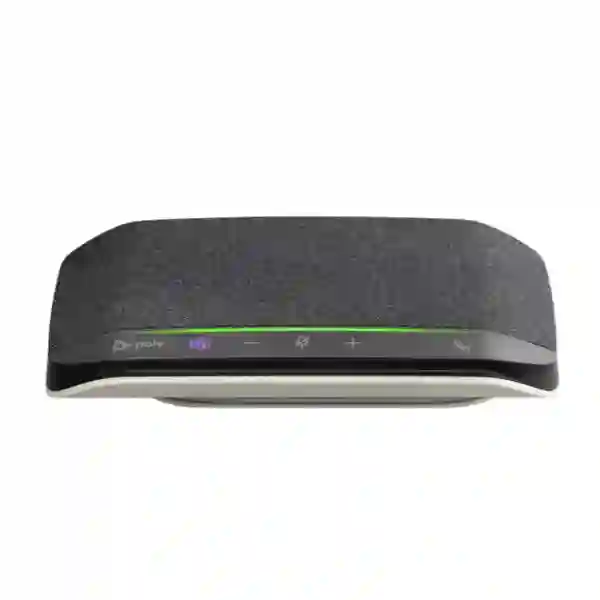
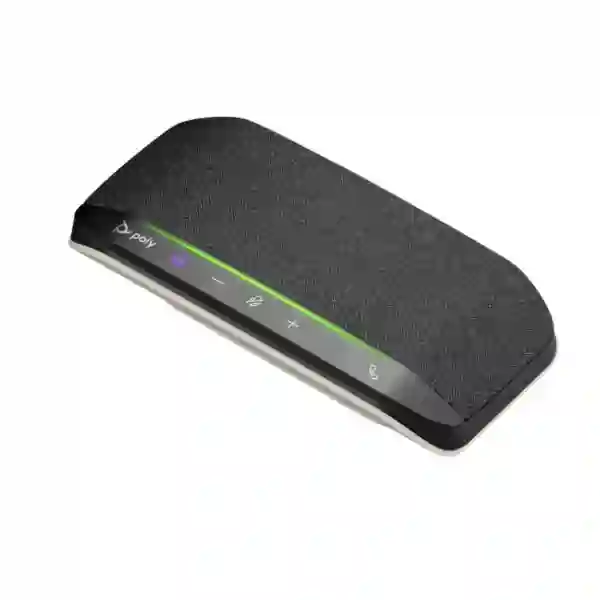
Make laptop meetings easier to hear and manage with a compact, wired speakerphone designed for personal desks and very small meeting spaces. The HP Poly Sync 10 Microsoft Teams USB Speakerphone brings together a steerable two-microphone array, full-duplex audio, noise and echo reduction, convenient touch controls and a dedicated Teams button.
For Tanzania buyers evaluating an open-ear alternative to a headset, start with your room size, computer ports and preferred meeting application. Request a configuration-specific quote from FourTeck Tanzania after confirming the Teams version and your workstation requirements.
Quick fit and feature overview
Buyer note: this is a USB-connected PC audio device, not a standalone phone, Bluetooth speaker or large-room conferencing system. Exact accessories, local availability and quote terms require confirmation.
What is the Poly Sync 10 Microsoft Teams edition?
The HP Poly Sync 10 Microsoft Teams USB Speakerphone is a compact, computer-connected audio device that combines a speaker, microphones and call controls in a single tabletop unit. Rather than holding a phone to your ear or wearing a headset throughout a meeting, you can speak naturally toward the speakerphone while the computer runs the meeting application. The Teams version is specifically intended for people whose daily meeting workflow centres on Microsoft Teams.
This is a personal and small-space solution, not a standalone conference-room system. It does not replace a computer, provide a camera, create a meeting account or make telephone calls on its own. Its purpose is to provide the audio input, audio output and compatible controls for software-based communications. That distinction matters when selecting equipment for a home office, a reception workstation, a compact shared desk or a small discussion table.
Who will benefit most from this speakerphone?
A strong fit is a person who works from a laptop but prefers an open-ear meeting experience. Office administrators, managers, educators, consultants, sales professionals and remote collaborators may all appreciate being able to join a Teams call without wearing headphones. The device can also be convenient when two people seated close together need to listen and contribute to a call from one computer, provided the room remains small and the speakers are within the stated pickup area.
It is less suitable when privacy is essential, when several coworkers are talking close to the desk, or when participants are spread across a long meeting table. In those situations a headset, dedicated meeting-room microphone system or a more capable conference speakerphone may better match the environment. The purchase decision should start with the number of people, where they sit, how noisy the room is and whether everyone is comfortable hearing meeting audio aloud.
- Good match: individual desk, quiet private office, portable laptop workspace or very small huddle setting.
- Check carefully: two or more speakers around one laptop, shared offices, reflective rooms or frequent cross-talk.
- Consider another format: confidential conversations in open-plan offices, large rooms or mobile phone-only use.
Microsoft Teams certification: what it means
The Teams-certified variant is built for use with Microsoft Teams and adds a dedicated Teams touch control to the speakerphone’s call, volume and microphone-mute controls. Microsoft includes the Poly Sync 10 on its published list of certified Teams USB devices. For organisations that use Teams every day, certification provides a clearer basis for choosing a purpose-designed peripheral instead of relying on an ordinary consumer speaker and a separate microphone.
Certification should not be read as a promise that every button will behave identically in every web browser, software version or managed company laptop. The meeting software, device selection, permissions and any applicable organisational policies still matter. The dedicated Teams button is intended to help access the Teams desktop experience, and a Teams-certified model should be specified explicitly when requesting an offer. A visually similar standard or UC variant should not automatically be treated as the same configuration.
Wired USB convenience without Bluetooth pairing
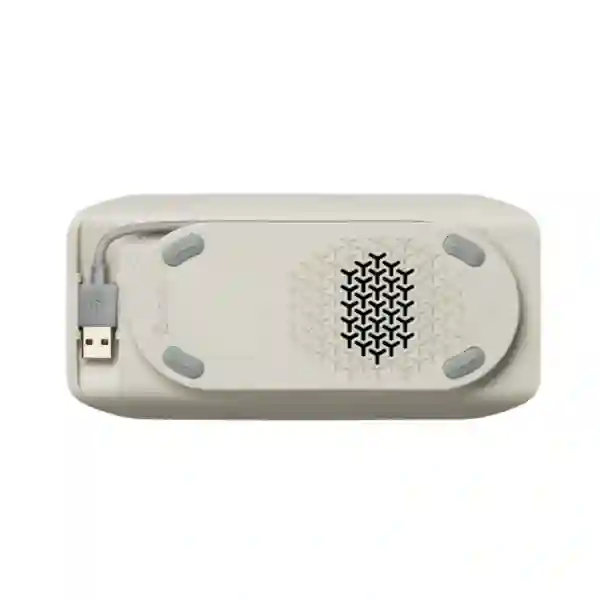
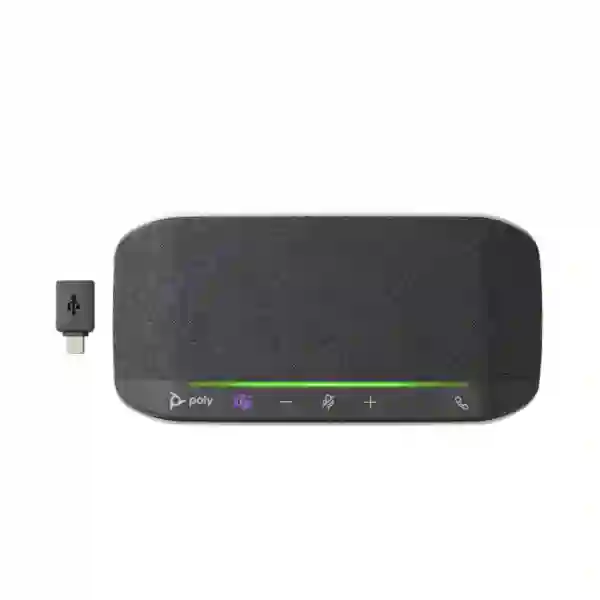
The Poly Sync 10 is a wired USB device. Its integrated USB-A connection is designed to connect the speakerphone to a computer, and HP lists compatibility through a USB-C adapter for computers that use USB-C ports. When planning deployment, check which ports the exact laptop provides, whether the user is connecting through a dock and whether the quoted package includes the adapter required by that laptop. Do not assume a separately photographed accessory appears in every regional bundle.
Wired connectivity avoids the routine tasks associated with Bluetooth discovery, charging or wireless pairing. For a fixed desk, that can simplify the start of a call: connect the unit, select it as the audio device and join. The trade-off is that it stays physically connected to the computer and cannot simply be moved across a room while the meeting continues. Its integrated cable is approximately 71.5 centimetres long, so confirm desk layout and available port placement before ordering for a tightly managed workstation.
How the two-microphone system helps meetings
The speakerphone uses a steerable array of two microphones. HP describes the arrangement as focusing on the user’s voice rather than the surrounding noise, supported by noise and echo reduction. In practical terms, the intended benefit is easier listening for remote colleagues when the user is seated near the device and the local environment is reasonably quiet. It is a more purposeful meeting microphone arrangement than simply turning up a laptop’s built-in microphone sensitivity.
No microphone system can guarantee perfect results in every environment. A loud fan, voices from adjacent desks, heavy traffic noise or a person speaking from beyond the designed pickup area may still affect intelligibility. Rather than buying against a broad promise such as ‘noise-free calls’, consider the actual office noise, the position of the speakerphone and the required pickup distance. A brief live test with a remote colleague is useful when preparing a standard device for a team or office.
Full-duplex audio for conversational flow
Full-duplex audio supports speaking and listening at the same time. This matters in natural meetings because people occasionally interrupt, confirm a point or react while another participant is still talking. A system that cannot handle simultaneous audio well may make conversations feel as though only one side can speak at a time. Full-duplex capability is therefore a meaningful feature for a speakerphone used in collaborative work.
That capability does not eliminate every echo or volume issue. An unusually loud output level, unsuitable positioning or conflicting audio devices can still lead to poor experiences. For the best balance, place the unit on a stable surface, keep the speaker level comfortable and confirm that the same unit is selected for both the microphone and speaker paths when the intended setup uses one device. Test the experience with another meeting participant rather than judging audio quality solely from local playback.
Pickup range and the right room size
HP’s product material describes an approximate microphone pickup range of up to 1.5 metres and an ideal room size of up to about 3 by 3 metres. These are useful planning figures, not a guarantee that every person anywhere within those dimensions will sound equally clear. The actual outcome depends on where participants sit, whether they face the unit, the level of background noise and the acoustic characteristics of the room.
For an individual user seated in front of a laptop, a speakerphone positioned within easy reach usually makes sense. In a very small meeting space, central placement can be appropriate if the participants remain within a practical speaking distance. If the intended installation involves a long table, several people sitting far apart or a busy room where voices compete, select hardware sized for that application instead of stretching the Sync 10 beyond its personal-use design.
Touch controls and visible meeting status
The Sync 10 provides touch-sensitive controls for answering or ending calls, adjusting volume and muting the microphone. The Microsoft Teams version also has a dedicated Teams control. A visible light bar helps users recognise call status without relying exclusively on an on-screen notification. This combination is useful when the computer screen is filled with a presentation or when a user wants to make an immediate adjustment without searching through software menus.
Controls remain part of a larger software workflow. Depending on the communications application, some call-control functions may require appropriate Poly software or may not work in exactly the same way as in Microsoft Teams. The safest operational advice is to learn both the speakerphone controls and the microphone button in the meeting application. During a critical call, confirm the on-screen mute state and ask participants for a quick audio check before presenting.
Audio for calls, webinars and desktop listening
HP positions the Sync 10 for calls and multimedia playback as well as meeting participation. The device has a built-in speaker and amplifier, and the published speaker bandwidth spans 80 Hz to 20 kHz. For users who switch between short online meetings, training sessions and recorded audio, a single desk accessory can be more convenient than repeatedly changing from a laptop speaker to a headset or another audio output.
The core buying reason remains communications clarity, not room-filling entertainment. Audio performance depends on the computer, application and volume settings, and the small enclosure should not be compared directly with a large music speaker. For shared workspaces, keep playback at a level that does not disrupt colleagues. If private listening, immersive music or audio production is the priority, purpose-built headphones or speakers may be more appropriate than a meeting-first USB speakerphone.
Everyday work scenarios in Tanzania
For a professional taking calls from a dedicated home-office desk, this device can provide a simple repeatable setup: connect it to the work computer, select it in Teams and leave it positioned on the desk between calls. Small organisations with laptop-based collaboration may value the ability to equip an individual workstation without planning a full conference-room audiovisual installation. A manager using a private office may appreciate listening hands-free during a scheduled catch-up or training session.
An office with mixed laptop models should first map its USB-A and USB-C requirements. A shared front-desk computer may require an audio device that is easy to explain to new staff, while a quiet training office may prioritise a clear mute control and predictable desktop placement. These are examples of possible use, not claims about local supply, installation service or availability. Actual fit depends on how each organisation holds meetings and whether loudspeaker use is acceptable within its privacy policies.
Set up the speakerphone on a Windows computer
First identify a suitable USB connection and place the speakerphone on a stable, uncluttered desk. Connect its USB-A cable to the computer or use an appropriate USB-C adapter when necessary. Allow the operating system to recognise the device. In Windows sound settings, check that the intended Poly device appears in the playback and input choices, and set the required volume to a comfortable level. If a laptop dock is being used, verify its USB connection can carry the required audio data.
Next open Microsoft Teams and check its device settings before starting an important meeting. Choose the Poly speakerphone for both microphone and speaker when you want the complete meeting audio to pass through it. Use the application’s test feature or make a short test call. Confirm that the remote participant can hear you, that you can hear them and that muting behaves as expected. On a centrally managed computer, device changes may be controlled by IT policy; involve the support team when settings cannot be saved.
Set up the speakerphone with a Mac
On a compatible Mac, connect the speakerphone through an appropriate USB port or adapter. Check the system sound preferences to confirm that the device is available as an input and output option. If another microphone or set of speakers is currently selected, changing the intended devices can prevent the common situation in which audio is heard through one device while speech is captured through another. Ensure that Teams has the necessary microphone permission in macOS.
Open Teams and examine the device configuration before joining a scheduled call. Select the speakerphone as the required audio input and output, adjust the listening level and test microphone pickup from the usual sitting position. Different versions of macOS and Teams may place the settings in different menus, so follow the labels shown on the installed software rather than assuming every screen looks identical. If device recognition fails, try a direct USB connection and verify the operating system and Teams versions.
Practical placement for intelligible audio
A speakerphone works best when it is placed with the actual speaking positions in mind. Keep the unit on a firm desk rather than beneath papers, behind a large monitor or beside an active ventilation outlet. Users should speak at a normal conversational volume within the specified pickup range. In a shared meeting area, avoid putting the device at one end of a table while expecting people at the other end to sound equally clear.
Room acoustics also matter. Hard empty spaces can create reflections, while carpets, furnishings and other soft surfaces may help reduce reverberation. A speakerphone is not a substitute for a well-considered meeting environment. During initial deployment, ask a remote participant how the room sounds, move the unit if necessary and note the best position for colleagues who will use the space later. Simple placement improvements may deliver more benefit than turning the microphone or speaker volume to maximum.
Noise reduction: useful assistance, realistic limits
HP specifies noise and echo reduction, which can help manage some environmental sounds and the feedback path between speaker output and microphone input. This is important for the open-air format: unlike a headset microphone close to a user’s mouth, a desk speakerphone must deal with sounds travelling through the room. A focused microphone array and echo-management processing can make meetings more comfortable when the environment is otherwise suitable.
However, background-noise reduction is not a soundproofing feature. Nearby conversations, construction work, television audio and strong wind can still be heard or interfere with speech. If the team works in a noisy open office, an individual headset may be a better solution for many calls. If the problem is excessive room echo, consider room furnishings and positioning in addition to hardware. Buyers should describe their real acoustic conditions when requesting advice rather than assuming a specification alone resolves the issue.
Privacy and meeting etiquette
Using a speakerphone means meeting audio is audible to people nearby. That can be a benefit during a shared discussion, but it becomes a concern for interviews, personnel conversations, financial details, client information and other confidential topics. Before enabling loudspeaker audio, decide whether the workspace provides sufficient privacy and whether all participants are comfortable with voices being heard in the room.
Use the physical mute control when you need to stop transmitting room audio, and confirm the state in Teams before discussing something privately. Muting the microphone does not stop colleagues nearby from hearing the remote caller through the speaker. For sensitive meetings in a shared workspace, choose a headset or move to a private room. Organisations deploying these devices should include basic privacy guidance in their meeting practices, especially where staff move between home, shared offices and temporary desks.
Choosing a speakerphone instead of a headset
Both speakerphones and headsets can support professional meetings, but they solve different daily problems. A speakerphone leaves the ears uncovered, lets the user move naturally at the desk and can accommodate an additional person nearby. A headset places the sound close to the ears and typically offers a more private listening experience, which is valuable in busy offices and confidential calls. Neither category is automatically better; the environment and type of interaction determine the best fit.
For a manager alone in a quiet private office, open-air audio can make long meetings feel less restrictive. For a call-centre employee taking frequent confidential customer calls, a headset may provide better privacy and consistency. For a group around a large meeting table, a conference-room solution designed for multiple distributed speakers may be more suitable. The Sync 10 makes most sense when the need falls between these situations: a straightforward, wired desk speakerphone for an individual or very small discussion.
Teams model versus a general UC speakerphone
Buyers should pay attention to the version name. Poly Sync 10 family products are available in configurations associated with different collaboration requirements, and the Microsoft Teams-certified model is the subject of this page. A quotation that says only ‘Poly Sync 10’ may not be detailed enough for a business that requires the dedicated Teams control and certification. Ask the supplier to identify the exact version and manufacturer part details before confirming a purchase.
The Teams edition can still act as a USB audio device in compatible computer workflows, but features associated with the Teams button should not be assumed to behave the same way in unrelated calling software. A standard UC configuration may be more relevant when the organisation does not prioritise Teams-specific control. The key questions are which application employees use, whether formal Teams certification is a requirement and how endpoint controls are expected to work. Record those answers before standardising equipment.
Understanding product identifiers and variations
HP identifies the Microsoft Teams-certified version in its product catalogue with the product number 77P34AA. Some HP regional materials also display other manufacturer identifiers for the same family, and packaging or regional catalogues can use different codes. When comparing supplier offers, match the full product name, Teams designation and verified manufacturer information instead of assuming similar-looking descriptions refer to identical bundles.
A manufacturer product number is not the same thing as FourTeck’s inventory SKU. No Tanzania listing SKU has been supplied for this request, so a site-specific SKU should not be invented from an HP model, barcode or third-party retailer code. A careful quote request should also confirm whether a USB-C adapter is included in the offered package, the relevant warranty terms, the exact item colour and any accessories listed on the final invoice. This helps avoid confusion during procurement and deployment.
Technical specifications at a glance
These details describe the Teams-certified product using HP’s published materials. Confirm manufacturer configuration and supplied accessories on any current local quotation. Operating-system support and application behaviour should be verified against your organisation’s actual devices and software.
| Specification | Details |
|---|---|
| Product type | Corded USB speakerphone, Microsoft Teams edition |
| HP catalogue product number | 77P34AA (manufacturer catalogue identifier, not FourTeck SKU) |
| Connection | Integrated USB-A; USB-C adapter compatibility |
| Microphones | Two-microphone steerable array |
| Microphone bandwidth | 100 Hz to 7.8 kHz |
| Speaker bandwidth | 80 Hz to 20 kHz |
| Speaker size | 40 mm per HP current published specification |
| Audio processing | Full-duplex; noise and echo reduction |
| Recommended pickup | Up to approximately 1.5 m |
| Ideal room dimensions | Up to approximately 3 m × 3 m |
| Controls | Answer/end, mute, volume ±, Microsoft Teams |
| Operating systems | Windows 10, Windows 11 and macOS |
| Dimensions | 18.2 × 8.9 × 3.3 cm (W × D × H) |
| Weight | Approximately 0.28 kg |
| Cable length | Approximately 71.5 cm |
| Environmental rating | IP64, as listed by HP |
Device dimensions, cable reach and desk planning
The published approximate dimensions are 18.2 centimetres wide, 8.9 centimetres deep and 3.3 centimetres high, with a device weight of about 280 grams. This makes it physically suited to a desk or compact work surface. The manufacturer describes a cable length of approximately 71.5 centimetres, so a laptop placed several feet away may require a different layout or an approved USB arrangement to keep the speakerphone near the user.
Before ordering units for an office, check where workers place their laptops, how the desks are cabled and whether the USB connection will be directly accessible. A docking station mounted below a desk may introduce an awkward cable path. Avoid positioning the speakerphone where the cable is stretched, pinched by furniture or pulled when the user moves the laptop. A simple desk layout sketch may be helpful when fitting multiple identical workstations, especially where cable trays and shared docking stations are already installed.
Managing Poly peripherals in an organisation
HP and Poly provide desktop software and support documentation for compatible Poly devices, including the Poly Lens ecosystem. For an organisation supporting many workstations, checking device settings and approved update procedures can be more effective than treating every speakerphone as a separate problem. The exact management functionality available can depend on software version, device compatibility and the enterprise deployment environment, so evaluate those capabilities against the official guidance for your fleet.
IT teams should establish a small standard setup procedure: confirm the intended device model, connect by USB, set the operating system input and output, select the device in Teams and perform a two-way test call. Record any software prerequisites or policies that affect call controls. If a pilot reveals consistent problems on a particular laptop model or docking station, resolve them before issuing the same configuration widely. A tested deployment checklist saves users time and reduces avoidable help-desk contacts.
A simple acceptance test before bulk procurement
A good first step for business buyers is to test one unit in the environment where it will normally be used. Confirm the PC recognises the Poly device after connection and again after a restart. Test Teams audio input and output with a colleague at the other end of a call. Check the Teams button where applicable, the microphone mute control, the volume adjustment and the visibility of the status indicators. Confirm that speaking positions remain within the practical pickup range.
Repeat the test under typical noise conditions rather than only in an empty office. Try the actual laptop model, USB port and dock used by employees. If a meeting room will host two participants, seat them where they usually sit and ask the remote listener to judge both voices. Note whether the audio remains understandable when people take turns or briefly overlap. These tests help distinguish a fit problem from a simple settings problem and provide evidence for a more confident purchasing decision.
Common problems and first checks
If the computer cannot see the speakerphone, check that the USB plug is fully seated and that the port is functioning. Try a direct connection to the computer instead of a hub or dock if possible. If the device appears in the operating system but participants cannot hear the user, verify the Teams microphone selection, operating system privacy permissions and current mute state. Also check whether another application is holding the intended audio device.
If the user can transmit but cannot hear others, inspect Teams speaker selection and the computer’s output volume. If a dedicated Teams control appears unresponsive, HP’s user guidance advises checking that the Poly device is selected as the default audio device within Teams. Where touch call controls behave differently in another softphone, check the application’s supported integration and relevant Poly software requirements. Avoid assuming a hardware fault until the software path and USB connection have been tested.
- Device not detected: reseat USB connection, check port and test without a hub.
- No one hears you: inspect microphone choice, system permission and mute status.
- You hear nothing: inspect selected speaker and both system and app volume.
- Teams control differs: use the Teams desktop app and verify device assignment.
IP64 protection and sensible everyday care
HP lists IP64 protection for the Sync 10, indicating resistance to dust ingress and splashing water under defined test conditions. This can be reassuring for a desk accessory that is handled regularly, but it does not make the unit waterproof or suitable for immersion, heavy rain or careless cleaning. Treat the rating as extra resilience in ordinary use, not permission to place liquids over the control surface.
Keep the microphone and speaker openings clear of dust and avoid covering them with documents. When cleaning equipment, follow HP’s current care instructions for the particular model and disconnect the device when appropriate. Do not spray cleaning fluid directly into openings or use harsh chemicals without manufacturer approval. Cables and adapters should be checked for damage as part of workplace equipment care. Maintaining a dry, stable placement is a more reliable plan than relying on any protective rating.
What to verify before requesting a Tanzania quote
Businesses purchasing collaboration equipment benefit from a detailed specification-based request. Give the supplier the full product name, identify that the Teams-certified model is required and state the number of devices being considered. Explain the intended use, number of people per unit, computer operating systems, USB port types and whether any users connect through docks. This information helps distinguish the correct speakerphone from other Poly Sync options and can surface accessory questions before purchase.
Commercial details should be confirmed for the exact Tanzania offer rather than assumed from an overseas product listing. Ask for current price in the applicable currency, availability, lead time, warranty handling and the contents of the supplied package. If procurement is for multiple departments, request written confirmation of version identifiers and accessories so every team receives the intended configuration. No price, local stock level, delivery commitment or Tanzania-specific warranty promise is stated on this page because those details require a current verified quotation.
When a larger meeting solution is the better choice
Not every meeting can be served by one compact USB speakerphone. If six colleagues sit around a long table, some voices may be beyond the Sync 10’s intended pickup area. If a training room includes speakers moving around a presentation area, a fixed tabletop personal device may not capture everyone reliably. If a workplace needs a permanently installed camera, microphones, room displays and meeting-room control, choosing a complete room system is a different design task.
Start by counting regular participants and measuring where they will sit. Consider whether the room is noisy or reverberant, whether people speak from multiple corners and whether the group shares one computer. A personal speakerphone can be the simplest correct answer for a small desk; a larger purpose-built speakerphone or audiovisual solution can be the more economical answer when it avoids repeated frustration and rework. Buyers should prefer a properly sized solution over a device that merely looks convenient.
How to make the buying decision
Focus on five questions: Is Teams your main meeting platform? Does the room match the product’s personal or very-small-room purpose? Is a wired USB connection practical? Is open-air audio appropriate for the conversations involved? Can the correct Teams-certified configuration and any required USB adapter be confirmed on the quote? A yes to these questions suggests the Sync 10 deserves consideration.
Where the answer is uncertain, a short pilot is worth more than an overly broad performance claim. Validate speech clarity from the actual speaking positions, check volume and mute behaviour and confirm compatibility with the organisation’s computers. For a business looking at several units, document the test conditions so a successful result can be repeated. The appropriate next step is to share those requirements with FourTeck Tanzania and request a current, configuration-specific quotation.
Frequently asked questions
These short answers address the practical questions buyers and IT teams commonly need to resolve before choosing a personal USB speakerphone.
Does the HP Poly Sync 10 work with Microsoft Teams?
Yes. The Microsoft Teams version is listed in Microsoft’s certified USB-device programme and has a dedicated Teams touch control. Connect the unit to a compatible computer, select it as the microphone and speaker in Teams and test the configuration. Certification does not remove the need to install and configure the meeting application, maintain suitable permissions or check how particular button actions behave with the deployed software version.
Can I connect it to a USB-C laptop?
The device uses a wired USB-A connection and HP lists support for USB-C connection through an adapter. Check the USB ports fitted to the exact laptop and confirm that the quoted product package includes the necessary adapter. A compatible data-capable adapter should be used. If the computer connects through a dock, verify that the dock passes audio-device data correctly before purchasing a large number of units.
Does the Poly Sync 10 use Bluetooth?
No. The Sync 10 described here is a corded USB speakerphone, not a Bluetooth speakerphone. Its benefit is a direct computer connection without pairing or recharging an internal battery. Buyers who need to move freely around a room or connect wirelessly to a smartphone should assess a different product category rather than assuming the Sync 10 provides wireless operation.
How many people can speak through it?
The Sync 10 is primarily intended for individual use and very small discussions. HP gives a microphone pickup range of up to about 1.5 metres and an ideal room size of about 3 by 3 metres. That information is more useful than an unsupported fixed participant count: how clearly people are captured depends on their distance, seating position, speaking style and surrounding noise.
Can it replace a conference-room audio system?
It can be a simple audio option for a compact meeting area, but it is not designed to replace every room conferencing system. A large room, multiple distant participants, video requirements or complex installed audiovisual equipment can require other hardware. Confirm the expected room dimensions and actual speaking locations, and test with the same number of participants who normally attend meetings.
Does it have a microphone mute button?
Yes. HP lists a touch-sensitive microphone mute control, along with volume and call controls. Users should still check the mute indicator in the meeting application, especially during confidential conversations or when moving between software platforms. Microphone mute stops the intended audio transmission; it does not make sound from remote meeting participants private to people nearby.
Will it work with Windows and macOS?
HP lists Windows 10, Windows 11 and macOS among compatible operating systems for the Teams-certified speakerphone. The full meeting experience also depends on the collaboration application, the installed operating-system version and device permissions. Before standardising a particular company laptop image, run a test with the exact platform and intended Teams version.
Can I use the device for Zoom or other meeting applications?
The speakerphone can provide USB audio in compatible PC applications, and the Sync 10 family is associated with broad collaboration-platform use. However, the Teams-specific button and certain call controls may not behave the same way outside Microsoft Teams. Confirm the specific application and feature requirements before purchase, particularly if employees switch frequently between different meeting tools.
Does noise reduction eliminate sounds from nearby colleagues?
No. The steerable microphones and noise and echo reduction are useful aids, not a guarantee of silence in a noisy office. Nearby conversations or loud mechanical sounds may still affect a call. Choose a quiet position, stay within the intended microphone range and consider a headset for a busy open-plan environment or for calls that demand greater privacy.
How do I stop echo during a meeting?
Start by selecting the Sync 10 as both the intended speaker and microphone, then use a reasonable speaker level. Keep the unit on a stable desk and do not place other active speakers close to it. A remote test call helps show whether the problem is room acoustics, incorrect device selection or a software configuration issue. Built-in echo reduction helps, but it cannot guarantee perfect results in every setup.
Does it need charging or an external power supply?
This is a wired USB speakerphone designed to operate through the connected computer’s USB interface. There is no Bluetooth battery to charge for the normal PC meeting workflow. Check that the selected USB port or dock functions correctly and that the computer remains powered during calls. A speakerphone alone does not provide backup power or internet connectivity.
What is included in the box?
HP’s regional product information lists the Teams-model speakerphone, a user guide and a USB Type-A cable; other documentation discusses an included USB-C adapter. Because listed bundles and packaging details can vary, request confirmation of the exact accessories in the offer you receive. Do not rely only on a generic photo of the product or assume a reseller’s package matches another region’s catalogue.
Is the unit waterproof?
No. HP states an IP64 dust-and-water-resistance rating, which should not be treated as waterproofing against immersion or extensive exposure to liquids. Normal office care is still appropriate: keep drinks away from the openings, avoid damaging the integrated cable and clean the device according to current manufacturer guidance.
How do I know I am ordering the Teams edition?
Use the complete name HP Poly Sync 10 Microsoft Teams Certified Speakerphone and ask the supplier to specify the exact offered version and manufacturer part details. HP lists product number 77P34AA for the Teams-certified configuration in its catalogue. A seller’s own inventory SKU may be different, so check the version description and accessories rather than relying on a number alone.
What should IT test before deploying many units?
Test the exact laptop and operating-system image, USB port or dock, Teams audio selection and call-control behaviour. Check microphone pickup from usual seating positions and repeat the test with ordinary office background noise. Confirm that the device remains available after a restart and that employee instructions clearly describe mute, volume and call controls. Record problems and resolutions before repeating the configuration across the organisation.
Is a headset or speakerphone better for confidential calls?
For confidential meetings in shared areas, a headset is usually the safer listening arrangement because remote voices are not broadcast through a room speaker. A speakerphone can be more comfortable for hands-free discussion in a private office or very small meeting area. The right choice depends on the physical workspace, organisational policies and the sensitivity of the conversation, rather than audio specifications alone.
What is the price of the HP Poly Sync 10 in Tanzania?
A current FourTeck Tanzania price has not been independently verified for this content. Pricing can depend on the exact model configuration, commercial terms and timing. Request a current quotation that identifies the Teams-certified version, quantity and accessories. Also confirm availability, lead time and warranty arrangements in writing rather than using a converted overseas price.
Can I use the Poly Sync 10 without a camera?
Yes. The Sync 10 supplies meeting audio, so a camera is not necessary for voice-only participation. If a meeting requires video, use the computer’s camera or a suitable separate camera while the speakerphone remains selected for the microphone and speaker. The device itself is not a webcam and cannot supply an image stream.
Request a Poly Sync 10 Teams quotation
Tell FourTeck Tanzania how many speakerphones you need, the laptops and USB connectors in use, and whether your team uses the Microsoft Teams desktop application. Specify the Teams-certified model and ask for confirmation of the supplied accessories, current local price, availability, warranty conditions and any delivery arrangements. This helps ensure the quoted equipment matches your actual meeting environment.
Next step: Contact FourTeck Tanzania to request current product and compatibility information.
Reviews
There are no reviews yet.