
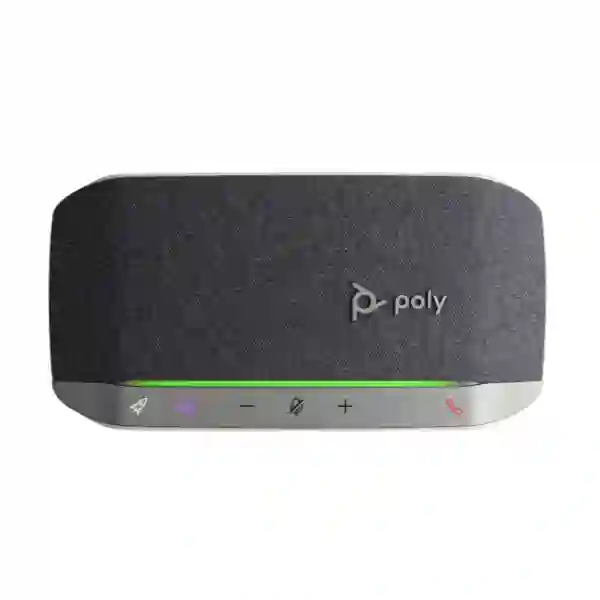
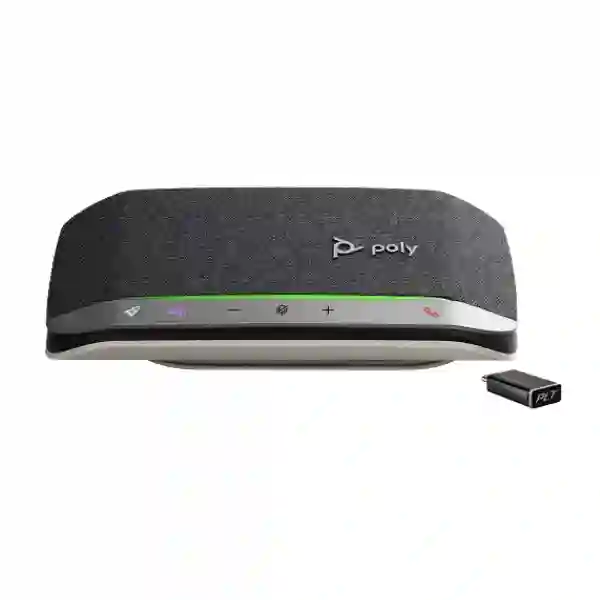
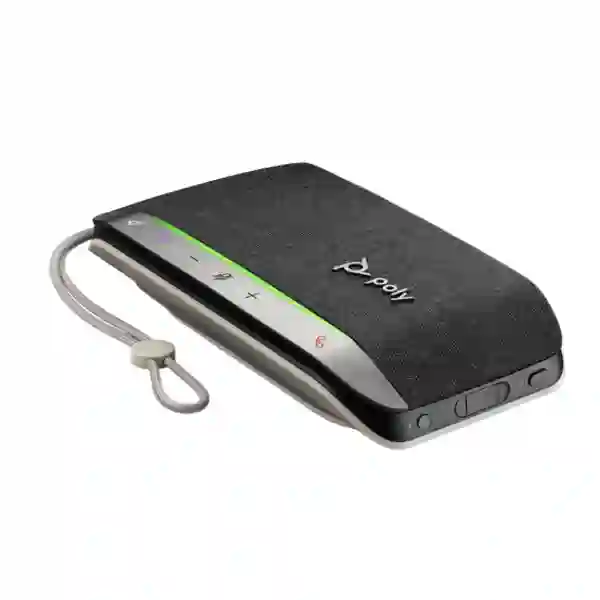
HP Poly Sync 20 Microsoft Teams Speakerphone
Keep the conversation clear at a personal desk or small meeting table. The Microsoft Teams-certified Poly Sync 20 combines USB and Bluetooth connectivity, a three-microphone array, full-duplex audio and simple controls in a compact portable speakerphone.
At a glance
Exact ports, accessories and device labeling depend on the manufacturer variant. The intended listing’s specific model and package contents must be confirmed before purchase.
An easier way to participate in everyday meetings
A laptop’s built-in microphone may be adequate for an occasional call, but it becomes less comfortable when several people gather around one computer, when a presenter moves at a desk, or when a professional spends much of the day in online meetings. The Poly Sync 20 addresses those situations with a dedicated speaker and microphone system that can sit on the work surface. Rather than requiring every participant to lean toward the laptop, it gives the call a central audio point and provides clearly identifiable controls.
The HP Poly Sync 20 Microsoft Teams Speakerphone is best understood as a portable personal and small-group audio device, not as a replacement for a professionally installed boardroom microphone system. It is appropriate to consider for a home office, a shared desk, an individual consultant or a compact meeting table. Before choosing it, look at how many people will speak, how far they will sit from the unit, and whether the computer has the USB connection required by the selected package.
Designed around Microsoft Teams workflows
The Teams-certified edition is useful when Microsoft Teams is the organization’s primary desktop calling and meeting platform. Its dedicated Teams button can bring attention to the desktop application and indicate supported Teams notifications. That makes the device more purpose-built than a generic Bluetooth speaker that happens to produce sound during a call. The certification refers to the appropriate Teams model, however; a standard universal-communications variant should not be described as the same edition merely because it can transmit audio to Teams.
HP’s user guidance adds an important operational detail: the Teams button requires the Microsoft Teams desktop application and is not intended to provide the same control within the Teams mobile application. A laptop user should also select the Poly device as the appropriate microphone and speaker within the desktop meeting settings. This small configuration step prevents a common source of disappointment in which the speakerphone is connected but the meeting still uses the computer’s internal microphone.
Three microphones focused on conversation
A steerable three-microphone array is central to the Sync 20 design. Its purpose is to capture speech while helping manage surrounding distractions, rather than simply raising every sound in the room to the same level. That difference matters when papers move on a desk, an air conditioner is operating, or colleagues need to speak naturally without holding an external microphone. The microphone system is complemented by audio processing intended to improve the clarity of everyday spoken calls.
Position is still critical. Set the speakerphone on a stable surface, avoid placing it behind a laptop screen, and keep it within a sensible speaking distance of participants. Manufacturer materials for the range describe close-range pickup suitable for personal and huddle-room use; that guidance should not be interpreted as a promise that distant voices in a long conference room will be captured equally well. In noisy environments, testing from the intended seating positions is more valuable than relying on a distance specification alone.
Full-duplex sound for natural exchanges
Full-duplex audio is one of the differences between a purpose-built conference speakerphone and a basic portable music speaker. It allows voices from both ends of a conversation to be handled at the same time, supporting more natural exchanges when someone speaks while another person is finishing a sentence. In interviews, project reviews and collaborative discussions, that quality can reduce the repeated interruptions caused by participants having to pause unnaturally for the audio path to switch direction.
The benefit is strongest when the surrounding environment is reasonably controlled. Full-duplex processing cannot make a room with several loud conversations behave like a quiet meeting suite, and the remote party’s microphone and network also affect the result. For a practical evaluation, ask someone on a remote call to interrupt politely, speak from different seats and report whether speech remains intelligible. That exercise reveals more about the actual fit than a speaker-volume demonstration.
A speaker built for spoken audio and everyday playback
The device contains a dedicated speaker, with HP specifying a 40 mm driver in its published Sync 20 information. It is designed to make speech understandable during meetings while remaining useful for appropriate media playback between calls. The larger purpose is not to create a high-volume presentation sound system; it is to offer consistent nearby listening at a workstation or small table. For important calls, the user should choose a comfortable volume that lets speech remain clear without encouraging unnecessary feedback.
There is also a practical privacy distinction. A speakerphone plays the conversation openly into the room, unlike a headset. That is helpful when two or three local colleagues need to hear the same remote participant, but it can be unsuitable where client information, employee matters or confidential discussions might be overheard. Offices using open-plan seating should decide whether a private room or a headset is the better choice for particular meetings. Audio convenience should not override the organization’s confidentiality rules.
USB connectivity for computers
A standard Sync 20 can connect to a compatible computer through its attached USB cable. This is useful on managed office laptops because a wired audio connection is straightforward to recognize, does not depend on phone pairing, and can supply power during a desk-based call. HP publishes USB-A and USB-C product variations within the Teams-certified family, so the correct connector should be confirmed against the particular item being quoted. Do not assume every package has the same plug or the same included adapter.
For an IT deployment, inspect the actual laptop ports and any dock before placing an order. A worker with only USB-C ports needs a USB-C-compatible option or a manufacturer-supported adapter arrangement. A conference space that relies on a docking station may need the speakerphone to be selected again after switching computers. USB audio generally simplifies initial setup, but organizations should still perform a short call test after an operating-system update, a Teams change or a different dock connection.
Bluetooth for mobile flexibility
Bluetooth allows the speakerphone to work with a compatible smartphone without using the computer cable. This makes it useful when a professional joins an audio call from a phone, changes working locations, or wants hands-free calling while reviewing notes. HP specifies Bluetooth 5.1 for documented Sync 20 Teams models. Mobile pairing is a separate choice from the wired computer connection; the fact that both connection types exist should not be interpreted as a guarantee that two independent calls can be mixed together at once.
The first-time mobile setup described by HP is straightforward: turn the device on, hold the Bluetooth control to initiate pairing, then select the speakerphone in the phone’s Bluetooth menu. A successful pairing should be confirmed before the start of a customer meeting. In a shared office, keeping track of which employee’s phone is actively paired can prevent an unexpected call route. Remove old pairings according to the organization’s device handover procedure when reassigning equipment.
Understanding Sync 20 and Sync 20+ versions
The names are similar, but the buying distinction is consequential. The standard Sync 20 is commonly intended for a wired computer USB connection and a Bluetooth connection to a smartphone. Selected Sync 20+ packages add a Bluetooth USB adapter for wireless PC connectivity. That adapter should not be assumed to be included merely because a product title contains the words wireless or Bluetooth. The plus sign and the exact manufacturer reference matter, especially where purchasing teams compare otherwise similar offers.
The Microsoft Teams edition is another separate distinction from a universal-communications edition. A procurement team therefore needs to verify three things independently: Teams or UC control variant, USB-A or USB-C computer connector, and standard or plus adapter bundle. Packaging and manufacturer part numbers may change across product revisions. Asking the seller to state the complete model description and box contents in writing is more reliable than relying on an image that might represent a different member of the family.
What the Teams control can and cannot do
The dedicated Teams control is most valuable when users understand its limits. With the supported desktop application active, the button offers access to Teams and can indicate a relevant meeting or notification. HP documentation explains that the button may pulse purple for supported Teams activity. It is not a general-purpose shortcut that will open every meeting application or perform the same operations within a phone-based Teams session. The feature should be demonstrated in the business’s actual Teams environment before devices are distributed.
If the button does not behave as expected, start with the basics: verify that the supplied model is the Teams edition, open the Teams desktop app, confirm the computer recognizes the speakerphone, and select it as the Teams audio device. Software policies or app versions may affect how device controls work. For standardized deployments, IT can document a simple first-use check that includes the Teams notification state, a mute test and an incoming-call test.
Quick controls without searching through menus
Users can manage common meeting tasks from the speakerphone rather than reaching across the screen for controls. The Sync 20 family provides answer/end, microphone mute, volume adjustment and an additional programmable function control. A separate power control and Bluetooth pairing control serve mobile use. During a live meeting, the ability to mute with a deliberate physical action is especially helpful when colleagues are sharing a desk or when the meeting application is not the foreground window.
Control behavior may vary with the calling software. HP notes that some applications require supporting Poly software for device call controls to be available. For this reason, an organization using several meeting platforms should test the specific tasks employees expect to perform, not merely verify that sound plays. It may be sufficient for the device to act as the selected microphone and speaker even when certain platform-specific call-control features are unavailable. The difference should be explained during deployment.
Visible status information for confidence
A status light bar makes the speakerphone easier to understand at a glance. HP’s user guide describes visual states for connection, active calling and mute, while Teams versions add relevant Teams indications. This helps when a participant wants confirmation that the microphone is muted before speaking privately to someone in the room. The lights are a convenience, however, and participants should still check the meeting application’s own mute state at the start of sensitive sessions.
Status visibility is particularly useful for shared equipment. A new user may be unfamiliar with the sound prompts or may have joined the call from an unfamiliar laptop. A short demonstration of which control is mute, which light indicates the call state and how to adjust volume reduces disruption. Device light meanings can differ between general Bluetooth operation and the Teams-specific adapter or application state, so organizations should use the official guidance for the exact model and connection method.
Battery life for a mobile workday
HP lists up to 20 hours of talk time on documented Sync 20 models. That figure gives a useful sense of the intended portable use case: meetings can continue away from a permanently plugged-in workstation when the battery has been charged. It is an up-to figure under manufacturer conditions, not a promise of identical runtime at maximum speaker volume, with repeated phone charging or with an aging battery. Heavy users should build regular charging into the working routine.
Published charge-time guidance is under four hours for the relevant models, although the supplied power source and device use affect the practical experience. A desk worker can keep the wired connection available so the device is ready for frequent meetings. Someone moving between sites should verify the battery indicator before leaving and carry the required charging arrangement. A routine check before travel avoids discovering too late that a fully portable meeting setup still depends on an available power outlet.
Phone charging as a useful secondary feature
The Sync 20 includes a USB-A port that can provide charging power to a smartphone. This is convenient when a phone is being used for a voice call away from a desk, but it is best viewed as a secondary convenience rather than a dedicated high-capacity power bank. HP specifies that the speakerphone should be powered on and have at least a medium battery level for this charging function. The phone’s own charging cable is required.
The port is for power in this scenario, not a substitute for establishing the phone’s Bluetooth audio connection. A common misunderstanding is that plugging a phone into the speakerphone’s charging port also changes call routing; it does not provide that audio connection. Buyers who expect to charge several devices, run all-day calls and play loud audio should plan a separate charging solution. Keeping that distinction clear protects the speakerphone’s remaining battery for the meeting itself.
Portable design and everyday handling
The speakerphone’s compact form is useful for workers who move between a personal desk, a meeting table and a temporary workspace. HP’s published legacy Teams USB-A specification lists a device weight around 360 grams, illustrating that it is designed to be carried rather than permanently installed. A stable, flat location remains important for audio quality, even when the product is used in a hotel room, at home or during a short office visit.
A portable device should have a simple handling routine. Protect the microphone openings from dust and objects that might block them; avoid bending the integrated cable sharply where it joins the enclosure; and store the device so that its controls are not pressed inadvertently. Where employees share equipment, consider keeping a brief handover note covering charging, pairing and cleaning. These steps are not glamorous, but they make a small audio accessory more dependable over its working life.
What the IP64 rating means in practice
HP lists IP64 in published specifications for the referenced Sync 20 series. The rating is relevant to everyday use because the first digit indicates dust protection and the second refers to resistance to splashing water under a defined test. It does not make the device appropriate for immersion, washing under a tap or operation in every outdoor weather condition. Buyers should not interpret a durability rating as permission to leave an electronic speakerphone exposed to rain.
The best way to apply that specification is modestly: the design is more forgiving of common desk-side conditions than an entirely unprotected item, but it still deserves normal electronics care. Wipe surfaces according to official cleaning guidance, avoid liquids in connectors and dry the exterior before charging. For work in construction, transport or other challenging environments, evaluate whether calls will happen inside a protected office or vehicle, because the speakerphone is not a specialist industrial radio or rugged communication terminal.
A sensible choice for an individual desk
An individual professional can use the speakerphone when they prefer open-ear listening or need to alternate between online meetings and local conversation. For example, an administrator checking a document during a Teams session can keep hands free, adjust volume on the device and quickly confirm the mute state. The setup is more approachable than installing a large meeting-room system, and it avoids the need to wear an over-ear headset throughout every call.
That convenience has a trade-off: an open speakerphone may disturb neighboring desks, especially in a shared office. Someone who works in a crowded call center, a highly confidential role or an environment with constant background conversations may achieve a better outcome with a noise-isolating headset. Selecting an audio product should start with the actual workspace rather than a broad assumption that every professional needs the same form factor.
Small huddle meetings and shared tables
The Sync 20 can be positioned centrally for a compact discussion where a few people sit near the device and one computer hosts the remote call. This setup helps a local team participate without passing a laptop around the table. It can work well for a short supplier discussion, a weekly project update or a remote colleague joining an in-person planning session. Test from each intended seat and make sure nobody’s laptop or papers obstruct the microphones.
The limitation is scale. A long table, many simultaneous speakers or an acoustically difficult room can exceed the practical role of a personal speakerphone. Manufacturer materials describe the range as appropriate for personal and small collaboration spaces rather than large room installations. For larger rooms, the correct buying conversation may involve a dedicated conference microphone system, a video bar or multiple professionally placed audio components. Avoid buying several small speakerphones with an assumption that they will automatically combine into one coordinated room system.
Remote and hybrid work patterns
Hybrid staff often work from more than one location during the same week. The value of a compact USB/Bluetooth speakerphone is that the audio experience can move with the employee, rather than depending entirely on whatever microphone is built into the available laptop. A Teams-focused configuration also reduces changes in routine for staff members who move among a home desk, a meeting room and a temporary workplace while using the same collaboration application.
For organizations in Tanzania, the workplace context can vary widely without requiring speculative claims about any particular city or network provider. A reliable call still depends on a stable internet connection, sufficient upstream bandwidth and reasonable room acoustics. The speakerphone improves the local audio interface; it cannot correct a poor mobile data signal, internet congestion or a distant participant’s faulty microphone. Set expectations accordingly when purchasing equipment for distributed teams.
Using it for training, interviews and consultations
The device can support the audio side of a small remote training session, a candidate interview or a one-to-one consultation. A trainer can place the unit near the presenter, keep documents visible and use the mute and volume controls without navigating several software menus. In an interview, the open speaker can allow two local interviewers to hear the remote candidate together while one computer handles the call. These are practical scenarios rather than guarantees of suitability for every room layout.
For any session involving private data, prepare the environment before joining. Close doors where possible, inform local participants that the call will be audible and obtain required consent before any recording. A speakerphone is not a video camera and does not provide conferencing software licensing, secure storage or a meeting platform subscription. Those parts of the workflow remain separate choices to be managed by the organization’s existing systems and policies.
Computer platforms and business software
HP identifies Windows 10, Windows 11 and macOS compatibility in its published specifications for documented versions. That establishes a useful baseline for typical office computers. Nevertheless, operating-system compatibility should not be confused with full feature parity across all desktop call applications. Basic microphone and speaker operation may be available where platform-specific controls, notification lights or software-managed options behave differently. The exact test should match the employee’s collaboration software and operating environment.
IT administrators should consider restrictions on installing device utilities, app permissions and access to the laptop’s audio settings. HP provides Poly management software for supported configuration and firmware tasks, and some advanced controls may require that software. Managed devices may need an approved deployment pathway before users can make changes. Teams certification is particularly relevant for a standardized Teams workflow, but a well-run pilot remains the most dependable way to confirm an enterprise image, a dock and a particular application version work together.
Working with other meeting applications
Although this is the Microsoft Teams edition, its basic role is still that of a USB and Bluetooth audio device. It may be selected as a microphone and loudspeaker by other conferencing applications that support the relevant audio connection. That can be useful to businesses whose customers send invitations through different platforms. However, a Teams badge should not be read as certification for every other calling service, and the dedicated Teams shortcut should not be expected to control unrelated applications.
When evaluating cross-platform use, distinguish three questions: can the application recognize the audio device, can both parties hear clearly, and do the physical answer, end and mute controls synchronize as the user expects? The first two may succeed while the third requires different software or is not supported for that app. Document those outcomes so users know when to use the device button and when to use the on-screen meeting controls.
Practical room placement and acoustics
Placement frequently matters more than an additional settings menu. For a one-person call, set the speakerphone in front of the user on a firm desk with the microphone area unobstructed. For a small local group, use a central position and invite people to speak in normal voices. Avoid placing the unit beside a vibrating fan, under a pile of cables, behind a laptop screen or directly in the path of noisy equipment. Soft furnishings and moderate room volume can also help with intelligibility.
Before accepting a new setup, perform a two-way speech test with someone outside the room. Ask the remote participant to describe whether voices sound clear from the expected chairs, and test simultaneous speech so the group knows how full-duplex audio behaves. Listen for unexpected echo if another laptop in the room also joins the call with its microphone or speaker enabled. As a rule, use one active room audio source unless the meeting solution is explicitly designed for multiple devices.
Protecting privacy in shared workplaces
A portable speakerphone creates a small shared listening area by design. In an open office that may be excellent for informal check-ins and inconvenient for payroll matters, client negotiations or confidential support discussions. Teams users should decide whether the meeting is appropriate for open playback before selecting the Poly device. If the content requires privacy, moving to a closed room or choosing a headset can be more important than achieving hands-free convenience.
The physical mute control is helpful, but muting should be verified in the application whenever information is sensitive. Remote participants may still see the call as active, and locally audible sound can still be overheard. The product is an audio accessory, not a privacy enforcement system. Businesses preparing shared meeting stations may want a short visible reminder about checking the audio source, closing unused microphones, reviewing recording settings and ending the meeting before leaving the desk.
Preparing a business purchasing checklist
Before requesting a quotation, describe the intended usage rather than only the product name. State whether calls will involve one person or a small local group, whether Microsoft Teams is the primary platform, which computers will be used and whether the device must connect to a phone. Specify the USB port type available on those computers. This helps prevent the common error of receiving an otherwise suitable speakerphone with a connector or accessory bundle that does not match the workplace.
Ask the supplier to identify the exact manufacturer version, any included adapter, the contents of the package and the commercial terms for that listing. Confirm stock, price, any applicable warranty and delivery arrangements directly in the quotation rather than assuming the information from a different market. For a Tanzania deployment, an organization buying for several offices may also want to confirm which locations receive the equipment and who is responsible for first-use setup. None of those commercial details should be guessed from a generic product title.
Planning a small pilot before a larger rollout
When several employees need the same speakerphone, a short pilot can identify practical issues early. Select users with different laptop types, work arrangements and call patterns. Ask each to test Teams audio, microphone mute, volume, USB connection, phone pairing and any expected software controls. Record whether a docking station changes the behavior. A pilot also reveals whether employees prefer an open speakerphone or a headset in their actual workspaces.
Document the results in plain language. For instance, distinguish a driver or app setting that can be corrected from a room-acoustics limitation that requires a different class of device. Train one support contact to demonstrate the Teams button, Bluetooth pairing and device selection. Standardizing the small steps around setup and handover can save more time than focusing only on the initial hardware configuration. If a pilot identifies privacy concerns, address them through seating policy and equipment choice rather than attempting to fix privacy with a volume setting.
Setup checklist for the first Teams call
Start by checking the product edition and computer connector. For a wired PC session, attach the integrated USB cable to a compatible port. Open the Microsoft Teams desktop application, choose the speakerphone for both microphone and speaker, and make a short test call. Check that the other participant can hear speech at a normal distance. Adjust device and application volumes to a comfortable level, then test mute and unmute. If the Teams shortcut is important to the buyer, test it while the desktop app is open.
For a smartphone call, charge and power on the speakerphone, enable pairing through its Bluetooth control and connect from the phone’s Bluetooth menu. Test audio before joining a time-sensitive meeting. When moving between phone and computer workflows, check which device actually owns the active call; do not assume the last-used connection will always be preferred. Users with limited admin permissions should contact IT before installing supporting Poly desktop software. A brief written setup card can make shared-device operation more consistent.
Troubleshooting missing or quiet audio
If the speakerphone is connected but silent, verify the meeting application has selected it for output and microphone input. An operating system can expose several audio devices, including a laptop’s internal microphone, a monitor speaker and a docking station. A Teams call may use one of those defaults even when the Poly hardware is powered on. Check the mute state on both the speakerphone and the app, and perform a fresh test call rather than making large volume changes during a customer conversation.
If the sound is thin, distant or interrupted, reposition the device, reduce nearby noise and check whether several microphones are active in the same room. For Bluetooth use, verify that the intended phone is paired and sufficiently close. For wired use, examine the USB connection and any hub or dock. Restarting the calling application or reconnecting the device may resolve a temporary selection problem, but managed devices should follow IT support policy before any firmware or software changes.
When a headset may be the better tool
A headset is usually preferable for an employee in a busy open-plan office, a user handling confidential conversations or someone who needs to listen without sharing audio with colleagues. A well-fitted headset can also be more consistent when the user must move around while speaking. The Sync 20 is attractive because it frees the ears and can include several nearby people, but those advantages should be considered against the actual need for acoustic privacy and individual isolation from background noise.
A procurement decision does not have to choose a single device style for everyone. Some teams may equip private meeting rooms with compact speakerphones while giving customer-facing staff headsets for routine work. Others may keep a speakerphone as a shared meeting accessory instead of assigning one to each employee. The right arrangement depends on call frequency, confidentiality, desk layout and how much equipment staff are expected to carry.
When a larger room solution may be preferable
If the intended space has a long table, a large number of participants, frequent hybrid board meetings or a need for installed video conferencing, consider equipment designed for that environment. A personal speakerphone does not contain a camera, a room controller or an automatic system for distributing microphones throughout a large room. Increasing the speaker volume cannot compensate for participants sitting too far from its microphone array. Room size, seating layout and echo behavior should drive the selection.
For large or critical meeting spaces, the relevant options may include dedicated conference-room audio, a video bar, expansion microphones or a managed collaboration-room system. Those are different product categories with different installation and support needs. Before escalating, confirm whether the requirement is truly a large-room problem or a small group that simply needs a well-positioned speakerphone. Buying the simplest device that genuinely satisfies the room use case is a better approach than choosing by headline specification alone.
Life-cycle care and repeatable operation
A small meeting accessory is most useful when employees can depend on it from one call to the next. Keep the integrated cable free of sharp strain, protect the speaker and microphones from obstruction, and store the unit away from liquids and excessive heat. Charge the battery as the manufacturer recommends rather than allowing the device to remain unexpectedly depleted. Where the unit is shared, establish responsibility for returning it to a known location and for checking it before important scheduled meetings.
Organizations that manage several devices may also want to record the purchased variant and manufacturer part number, because support instructions can differ between Teams and UC editions or standard and plus packages. Review available official firmware and software guidance under normal IT change-control procedures, not immediately before an important call. If a defect appears, check the actual purchasing documentation and applicable manufacturer or seller terms rather than assuming that information published in another country applies to the Tanzania order.
A buying decision based on real requirements
For a buyer prioritizing a compact, Teams-focused audio device, the Poly Sync 20 offers a credible balance: a three-microphone array, full-duplex conversation, a battery intended for portable calling, wired computer connectivity and smartphone Bluetooth pairing. The dedicated Teams control makes the certified model particularly relevant to Teams-led organizations. Its strengths are most apparent at a personal desk or modest meeting table where participants can sit close to the device and appreciate simple shared audio.
The sensible next step is to request a quotation that identifies the exact model, USB connector and included accessories. Specify whether a Bluetooth USB adapter for the computer is required, and verify the current offer’s commercial and support terms. If the workplace instead needs private calls, more microphone coverage or integrated video, ask for an appropriate alternative rather than forcing the Sync 20 into the wrong role. This way the chosen equipment matches the meeting it must support.
Frequently asked questions
Is the Poly Sync 20 Microsoft Teams edition certified for Teams?
HP identifies dedicated Microsoft Teams-certified Sync 20 variants, which include Teams-specific controls. The exact listing must be the Teams edition rather than a generic UC model. Certification is particularly relevant for desktop Teams use, but it does not eliminate the need to select the speakerphone in the application’s audio settings or to confirm an employer’s particular software configuration.
Does the Teams button work from a smartphone?
HP’s user guide specifies the Teams desktop application for its dedicated Teams-button function and states that the mobile Teams application is not supported for that function. The speakerphone can still connect to a compatible phone through Bluetooth for supported audio calling. Buyers should separate Bluetooth audio support from the desktop-only convenience of the Teams shortcut.
Can the speakerphone connect to a PC without a cable?
The standard Sync 20 is commonly connected to a computer using its integrated USB cable. Selected Sync 20+ packages include a Bluetooth USB adapter for wireless computer audio. Because bundles vary by manufacturer reference and revision, verify the exact package contents before ordering. Bluetooth connectivity to a smartphone alone does not prove that a USB adapter will be supplied for the PC.
How long does a full battery last?
HP publishes a maximum talk-time figure of up to 20 hours for documented Sync 20 variants, with charging guidance of under four hours under stated conditions. Actual runtime changes with use, speaker volume, battery age and any power delivered to a connected phone. Users planning back-to-back meetings should keep a charging routine and check battery state before travelling.
Does it work with a USB-C-only laptop?
There are USB-C versions and newer adapter-equipped variations in the wider Sync 20 family, but the user’s product title does not identify which physical connector is in the intended package. A purchasing team should confirm the exact model and included adapter against the laptop’s ports. Avoid ordering on the assumption that a USB-A model automatically comes with a USB-C adapter.
Is it suitable for a large boardroom?
The product is positioned for personal and small-group audio rather than whole-boardroom coverage. A larger room may place speakers too far from the microphone array or introduce challenging echoes and overlapping voices. Test the actual room and participant layout. If coverage is inadequate, choose an appropriate installed conferencing system or larger-room audio product rather than assuming a higher volume setting will solve the issue.
Can I use it for Zoom or another conferencing app?
It can function as a supported USB or Bluetooth microphone and speaker with compatible applications. Nevertheless, the Microsoft Teams-certified designation and dedicated Teams button should not be treated as certification for other platforms. Basic audio operation, physical call controls and application-specific functions can have different levels of support. Test the software your organization actually uses before standardizing the device.
Can the Sync 20 charge my smartphone?
HP documents a USB-A phone-charging port on the speakerphone. The device needs to be powered on and the remaining speakerphone battery should be at least medium. This connection provides charging power, not the phone’s Bluetooth audio link. A separate phone charging cable is needed. Charging a phone may reduce the battery capacity available for portable calls.
Is an IP64-rated Sync 20 waterproof?
No. IP64 indicates dust protection and resistance to splashing water under defined conditions; it should not be described as waterproof for immersion or washing. The speakerphone remains an electronic office accessory. Avoid exposing its ports to liquid, use ordinary cleaning precautions and choose more specialized equipment if the intended workplace presents extreme moisture or environmental hazards.
What should I confirm before requesting a Tanzania quotation?
Share the exact desired edition, preferred computer USB connector, need for a PC Bluetooth adapter, expected meeting size and main software platform. Request written confirmation of the manufacturer reference, bundle contents, price, any applicable warranty, delivery arrangements and current availability for the actual offer. No commercial terms or local certification should be inferred from specifications published for another country.
Does the unit include video conferencing features?
It handles the audio portion of supported meetings. It does not replace a webcam, display, conferencing computer, meeting room controller or Microsoft Teams subscription. Users may combine it with a laptop’s camera for small video meetings, but the video quality and online meeting features are determined by those separate components and the meeting application.
What if the microphone works but the Teams shortcut does not?
Check that this is the Teams-certified hardware version and that the Teams desktop app is running. Select the Poly speakerphone as the audio device within Teams, then try the control again. HP’s guide specifically calls out default audio-device selection for an unresponsive Teams button. If the issue persists on a managed laptop, involve the IT team and review the current manufacturer support instructions.
Request details for your Teams setup
Ask for a quote for the HP Poly Sync 20 Microsoft Teams Speakerphone that clearly identifies the intended manufacturer variant, computer USB connection, Bluetooth adapter bundle if required, and all applicable local commercial terms. Describe your users, meeting space and calling application so that the product can be evaluated against the real task. No stock, pricing, delivery or warranty terms are assumed here.
Reviews
There are no reviews yet.