
Conference room audio • USB + Bluetooth
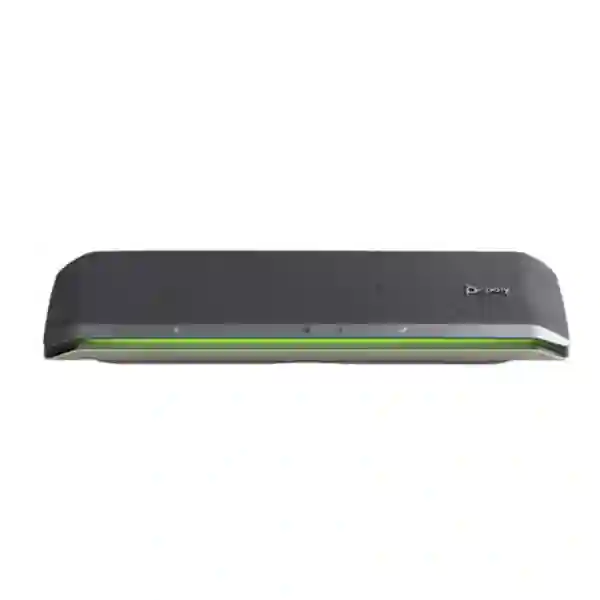
HP Poly Sync 60 USB Bluetooth Conference Speakerphone
Bring the voices at the meeting table into the same conversation with six microphones, twin speakers and flexible connections. Designed for small to medium rooms, with AC power required.
Planning a room in Tanzania? Request the exact edition, confirm the intended room size and check the package contents before ordering.
Quick fit check
- Best evaluated as shared table audio, not a personal pocket speakerphone.
- Uses AC power; USB or Bluetooth provides the audio connection.
- Check exact standard or Teams-specific edition before purchase.
- A separate webcam and suitable meeting computer are needed for video.
A meeting-room speakerphone built for shared conversations
In a shared meeting room, a laptop microphone is often too far from the people at the ends of the table, while a laptop speaker may be difficult to hear across the room. The HP Poly Sync 60 USB Bluetooth Conference Speakerphone addresses that familiar problem with a purpose-built audio device that sits where the participants are. It combines a six-microphone steerable array with two powerful speakers, so local voices can be captured from different positions and remote colleagues can be heard without gathering around a single computer.
This is a practical choice for organisations planning a small or medium conference room, an executive meeting table, or a flexible hybrid-work space. A typical setup uses a computer connected over USB for an online meeting. A smartphone can connect over Bluetooth for supported mobile calling. The objective is straightforward: make the audio part of the meeting easier to manage, while allowing participants to concentrate on the discussion. Ask for the precise variant and included accessories before ordering, because the standard and Microsoft Teams-focused editions are not identical.
The Sync 60 is a room device rather than a pocket-sized, battery-powered travel speakerphone. It requires AC power and benefits from a deliberate table location. That is an advantage when planning a repeatable workplace installation: teams can establish a sensible place for the unit, check cable routing, configure their conferencing applications, and reduce the number of small setup decisions made before every call. For rooms that move between different uses, the USB and Bluetooth options offer useful flexibility without making the speakerphone a complete conferencing system by itself.
Is the Sync 60 right for your meeting room?
HP describes the Sync 60 as suitable for small to medium conference rooms and currently identifies an ideal room size of up to approximately 5 by 5 metres. The stated microphone pickup reach is up to 3 metres. These are useful planning references, not guarantees that every person will sound equally clear in any room of that size. Room shape, seating arrangements, hard reflective surfaces, background noise, and the actual distance between each participant and the unit affect the result.
Before selecting a model, sketch the table and mark the seats that will regularly be used. Look for positions more than 3 metres away, participants who face away from the speakerphone, and noisy equipment close to the centre of the table. A long, narrow boardroom can be harder to cover than a more compact room with the same floor area. If the speakerphone can sit centrally with reasonable clear space around it, its six-microphone arrangement has a better opportunity to collect voices from multiple directions.
Do not choose a conference speakerphone solely by an advertised participant count. A room with six people spread along a long table may be more demanding than a room with more people seated closer together. If the use case involves a large training room, people standing around the perimeter, or a highly reverberant space, consider a room-specific audio design rather than relying on a single table device. The best purchase is the one matched to the geometry and behaviour of the room.
Six microphones help keep the conversation centred on people
The Sync 60 uses a six-microphone steerable array. Rather than depending on the microphone in a single laptop, it is designed to pick up meeting voices across a shared table. HP also describes noise and echo reduction, which can help make speech more intelligible during typical conference calls. These features are useful when participants sit in different directions or move their heads while speaking, but they cannot completely remove loud background conversations, construction noise, or strong room echo.
Microphone placement still matters. Place the unit away from a projector fan, an air-conditioning outlet, a rattling cable tray, or anything that users will repeatedly move. Keep papers and personal items from covering the microphone area. If a participant is presenting while standing at a screen, test that speaking position during a real call. A microphone pickup figure measured under suitable conditions is not a substitute for checking the far end of the conversation in your own room.
An effective test is to ask a remote colleague to listen while participants speak from the nearest seat, both ends of the table, and the normal presentation position. Compare normal speaking voices rather than having everyone project unnaturally. Take note of any inconsistent level or muffled words and adjust placement before considering changes to equipment. With that simple process, a buyer can evaluate the product against daily needs rather than depending on specifications alone.
Twin speakers and full-duplex audio for more natural meetings
Two 50 mm speakers deliver the far-end audio, while the device supports full-duplex communication. Full duplex matters because real meetings are not a sequence of perfectly separated speeches. Participants ask quick questions, acknowledge points, and occasionally begin talking at the same moment. The speakerphone is designed to allow both directions of audio to operate together, helping a conversation feel less like a radio exchange where one side has to stop before the other can begin.
HP also describes a bass-reflex arrangement with dual passive radiators and adaptive gain control. In practical terms, these features support a fuller sound and help the level of spoken contributions remain more consistent. They should not be interpreted as a promise that weak internet audio, a low-quality remote microphone, or excessive local echo will become perfect. The remote participant's equipment and the meeting platform still have a substantial influence on the experience.
For normal workplace use, set the level loud enough for the furthest listening position while avoiding unnecessary volume. Excessive speaker volume can increase the amount of sound returning into the microphones, even when echo control is active. It is also worth testing a recording of spoken dialogue rather than evaluating the device only with music. Conference-room purchasing decisions should be based primarily on the clarity of voices, turn-taking, and comfort over the length of a typical business meeting.
USB connection: a dependable desktop meeting workflow
For computer-based calls, the Sync 60 connects using USB. HP lists compatibility with PCs through a USB Type-A cable or the supplied Type-A to Type-C adapter, and identifies Windows 10, Windows 11, and macOS among supported operating systems. This makes the model a practical candidate for offices that move between different laptops or maintain a fixed meeting-room computer. Confirm the connector arrangement on the exact unit being supplied, particularly when the room relies on docking stations or a single-cable laptop setup.
Once attached to the computer, select the Sync 60 as both microphone and speaker in the operating system or conferencing application. Do this explicitly instead of assuming that the most recently attached device will always be used. Check the test-call function and speak from several seats. If a meeting application is still using the laptop's built-in microphone, the room may sound much worse than expected even though the conference speakerphone is correctly connected.
A wired USB audio path can be appealing for shared rooms because it avoids the uncertainty of pairing a different personal device for every session. However, USB is the audio and data connection, not a replacement for the unit's AC power requirement. Check that the power adapter has a safe, convenient outlet and that the USB lead can reach the meeting computer without being stretched across a walkway. Secure cable routing is part of a usable conference-room installation.
Bluetooth connection: practical support for mobile callers
Bluetooth offers another way to use the Sync 60, particularly when a meeting begins from a supported smartphone rather than the conference-room laptop. HP lists Bluetooth 5.1 and compatibility with smartphones via Bluetooth. This can be useful for a quick telephone discussion around a table or when a visitor needs to bring a mobile call into the room. Pairing and call-control behaviour may differ with the phone, operating system, and calling application, so test the actual device combination used by your staff.
The manufacturer's headline wireless range is up to 30 metres, but that figure should not be treated as a promised working distance through walls or crowded office environments. The most reliable arrangement is to keep the connected phone reasonably close and avoid unnecessary obstacles. In a busy shared office, establish who pairs the device, how a previous connection is disconnected, and whether the room will use private or shared Bluetooth behaviour. These small policies help prevent one person's phone from reconnecting during someone else's meeting.
Bluetooth connectivity does not automatically mean that every computer conferencing arrangement, wireless adapter, or calling platform is supported in the same way. HP identifies an optional BT700 adapter for certain wireless computer workflows; it is not an accessory to assume will be present in every box. If the primary use is video meetings from a laptop, start with the wired USB connection and evaluate Bluetooth as a useful additional option rather than a required feature.
Power requirement: plan for a mains connection
One important difference between the Sync 60 and some smaller Poly Sync models is power. HP's family comparison specifies AC power only for the Sync 60. It is therefore best understood as a conference-room device rather than a speakerphone that can operate for hours away from a power outlet. This matters when outfitting temporary meeting spaces, mobile presentation carts, or tables placed away from the walls. A room can have excellent wireless connectivity and still be unsuitable if it does not offer a safe way to supply power.
Before installation, identify a suitable nearby outlet, check the plug and adapter supplied with the precise regional package, and keep the cable clear of chairs and traffic. Avoid improvising unsafe extension-cable routes through a doorway or across the centre of an occupied room. Where the table has a built-in cable channel, check that the power connector and USB lead can be routed without damage or strain.
If uninterrupted operation is particularly important, consider the power continuity of the entire meeting system: the speakerphone, computer, display, network equipment, and any video accessories. Providing backup for only one item does not preserve a call when another component loses power. The Sync 60 does not eliminate those infrastructure decisions, but its straightforward power arrangement makes them easy to include in a room readiness checklist.
Video meetings and the built-in USB camera pass-through
The Sync 60 includes a USB video camera pass-through connection described by HP. This can simplify some laptop-based meeting arrangements by allowing a supported USB video camera to be attached through the speakerphone's designated port. It is a connection convenience, not an integrated camera. The speakerphone itself does not provide a camera lens, video capture, a room display, or an all-in-one video conferencing codec, and a USB video device is not automatically included with the standard speakerphone package.
Confirm compatibility and cabling before treating the pass-through feature as the centre of your video-room design. The relevant camera must be supported by the computer and the meeting software. You should also verify the exact wiring and any limitations described in the setup guide, especially if the laptop connects through a dock or if the room uses a conferencing appliance rather than a conventional computer. A camera that functions directly in a computer port does not guarantee identical behaviour in every pass-through arrangement.
For many small rooms, a clear division of responsibilities works well: the Sync 60 handles table audio, a separate webcam supplies the picture, the computer runs the meeting, and the display lets everyone see shared material. That modular approach allows audio placement to be optimised independently from the camera view. It is also easier to troubleshoot because you can check the microphone, speaker, camera, network, and meeting software as individual components.
Understand the standard and Microsoft Teams variants
The Sync 60 family includes a standard unified-communications edition and a Microsoft Teams-focused edition. The Teams version is associated with dedicated Teams controls and variant-specific certification. A product name that says only 'Sync 60' is not sufficient evidence that the particular item being offered includes the Teams button or carries the Teams certification. For this listing, the precise part number and edition should be checked before a buyer makes a platform-specific purchasing decision.
If Microsoft Teams is the main application, ask which edition is being quoted and whether any expected control functions depend on it. If staff regularly use different conferencing services, a standard UC-oriented model may be the more relevant option, provided it meets the organisation's required application compatibility. Platform behaviour can also depend on software versions, operating-system audio settings, and administrative policies. Compatibility with a conferencing platform does not necessarily mean that every hardware button has the same function on every edition.
The same careful approach applies to Zoom and other services. Do not treat a retailer's general compatibility statement as a guarantee of a specific certification for the exact variant, especially when that listing may combine several configurations. A sensible procurement question is: which application features must work on day one, and can the supplier identify the exact model that supports them? This keeps the purchase grounded in the organisation's workflow rather than a general badge.
Status lights and controls for a shared table
A conference-room speakerphone is easier to use when attendees can understand its state without opening multiple menus. The Sync 60 provides visible light bars as well as on-device controls for common actions such as adjusting volume, muting and unmuting a microphone, managing calls, and pairing Bluetooth devices. HP also describes voice-level and talker-location indications, with some visual functions requiring activation. The exact control behaviour can depend on configuration and edition.
A simple opening routine can prevent confusion: check which device is connected, confirm the meeting application is using the intended microphone, and make sure the device is not muted. During a call, attendees should know where to look for the mute indication before discussing sensitive matters in the room. When the meeting ends, disconnect any personal smartphone that should not remain associated with a shared device. The controls are most valuable when everyone understands the same routine.
For shared rooms, a short instruction card placed near the meeting table can be more useful than a lengthy technical manual. The card might explain the normal USB connection, how to select the speakerphone in meeting software, what the mute signal looks like, and who to contact if audio is missing. Such guidance helps guests and infrequent users get started while reducing interruptions to office support staff. It also creates consistent behaviour when several departments use the same room.
Connect two units only when the room truly needs them
HP identifies wireless daisy-chaining as a capability of the Sync 60 family. Linking compatible speakerphones can increase coverage for some meeting arrangements, but it should not be interpreted as unlimited extension or an alternative to a carefully engineered audio system. The user guide should be consulted for the supported pairing process, operating modes, software settings, and any practical restrictions that apply to the chosen computer or mobile connection.
A second unit can make sense when the table is longer than a single central speakerphone can handle comfortably. It may be less effective if the primary problem is a very noisy room, poor network quality, loud HVAC equipment, or a distant presenter who is not near either microphone. Test a single unit first, identify the seats that fail the audio check, then decide whether a supported linked arrangement addresses that specific problem. More hardware is useful only when it solves a measured need.
Budget for the complete arrangement, not just an extra speakerphone. A second device requires its own suitable positioning and power provision, as well as a reliable setup procedure. Establish who will connect and test the units and how the room will be returned to its normal configuration after events. For complex boardrooms, spaces with multiple tables, or rooms with acoustic difficulties, a dedicated installed microphone and speaker solution may be a better long-term choice.
What the technical specifications mean in practice
The six-microphone array, 3-metre stated pickup reach, and two 50 mm loudspeakers are the headline audio figures. Together they describe a product intended to serve a table of people, not a single desktop user. The speaker bandwidth listed by HP is 75 Hz to 20 kHz, while the manufacturer's regional specification page lists a microphone bandwidth of 100 Hz to 6.7 kHz for one reference configuration. Those figures help describe the design, but they are not a direct substitute for testing actual speech quality under room conditions.
The speakerphone measures roughly 39.4 cm along its longest side and weighs about 1 kg. It will need a stable surface with clear room for buttons, cable access, and the participants' normal papers or laptops. HP lists a 1.5-metre USB cable in the technical information. If a meeting PC or wall connection is farther away, plan the installation carefully instead of assuming any extension arrangement will give equally reliable results.
For buyers, the most important specification is often the room the device can realistically serve. A well-positioned unit in a compact space may outperform a more expensive product installed badly. Assess microphone reach, placement, power, computer connection, expected application, and whether a camera is required before comparing less important details. If a procurement document requires a particular model identifier, use the supplier's confirmed identifier for the exact unit rather than guessing from a product family name.
Specification snapshot
| Item | HP Poly Sync 60 details |
|---|---|
| Microphones | Six-microphone steerable array |
| Speakers | Two 50 mm speakers; full-duplex audio |
| Pickup | Up to 3 m (room dependent) |
| Ideal room reference | Up to about 5 × 5 m |
| Connections | USB computer audio; Bluetooth 5.1 for compatible smartphones |
| Power | AC power required |
| Cable length | 1.5 m USB lead, per HP specification |
| Dimensions and weight | Approximately 39.4 × 11.6 × 3.7 cm; 1 kg |
| Video | USB camera pass-through; webcam separate |
| Editions | Standard and Microsoft Teams-specific variants |
Specifications are manufacturer reference information. Confirm the exact package, regional configuration and edition when requesting a quote.
A straightforward setup checklist for the first meeting
Start with the physical room. Choose a stable position near the middle of the normal conversation area, connect the manufacturer-specified AC power adapter, and ensure the device does not obstruct the view of the screen. Route the USB cable to the host computer if a wired meeting is planned. Where the room includes a separate webcam, confirm that its intended connection path is supported and that the camera can see the people who need to appear on screen.
On the computer, open the sound settings and select the Sync 60 as the input and output device. Next, open the meeting application and make the same selections there if that application maintains its own audio preferences. Use a test call with a remote listener: speak from different seats, confirm that muting works, and listen for echo, low volume, or intermittent sound. Correct settings and placement issues before the first important client or board meeting.
Finally, document the normal arrangement. If the room is shared, identify where the adapter and USB connector belong, what staff should do when joining a call, and how Bluetooth pairing should be cleared after mobile use. Save any approved configuration notes with the room equipment records. Repeat the test after moving furniture or changing computers, because a small change in physical layout can affect how a microphone picks up voices. A consistent, repeatable setup is a major part of dependable hybrid meetings.
Tanzania business scenarios worth planning for
For a Tanzanian business using a small meeting room for calls with colleagues, clients, or suppliers, the Sync 60 can be evaluated as the table audio component. An executive office may want to hear a remote participant clearly without relying on the laptop's built-in microphone. A professional-services team may need several people to speak naturally during a consultation. An education or training administration team may use a shared room to conduct planning calls, provided the speakerphone is positioned for the relevant people rather than expected to cover an entire classroom.
The context matters more than a city name. Before selecting any conference-room speakerphone, examine the local power arrangement, stability of the internet connection, the software used for calls, and whether the room has a separate webcam or display. Audio performance cannot compensate for a congested connection, repeated power loss, or poor speech quality at the far end of the call. For important meetings, it is sensible to have an agreed fallback method for contacting participants if the primary meeting arrangement stops working.
The product can also be useful where different employees bring different laptops to the same space. A consistent USB audio connection may simplify transitions between users, while Bluetooth can accommodate certain smartphone calls. These are possible use cases, not claims of deployment by any particular Tanzanian organisation or of local stock. When requesting a quotation, ask for the exact edition, local supply terms, and any practical installation assistance applicable to the proposed room.
How it compares with smaller speakerphones
The wider Poly Sync family includes models aimed at more personal or smaller shared spaces. HP positions Sync 20 as a personal portable option, Sync 40 for flexible and huddle rooms, and Sync 60 for small to medium conference rooms. That distinction helps a buyer avoid paying for an oversized room device when one or two people usually join from a desk, or expecting a smaller portable model to cover a wide meeting table.
A key decision factor is whether battery-powered portability matters. The Sync 60 requires AC power, whereas some smaller family models are designed for use in more mobile settings. It also has six microphones and two room-oriented speakers rather than being intended primarily for a single user. If your normal setup is a fixed meeting table with several active speakers, these differences may be relevant. If you travel frequently between locations or need operation without access to power, compare portable alternatives before committing.
The comparison should also consider cables, video needs, application controls, and the way the room is booked. A simple speakerphone may be entirely sufficient for a short internal call, but a frequently used boardroom may benefit from integrated room controls or a dedicated video conferencing solution. Define what problem is being solved, then choose the smallest arrangement that meets the real requirements. More features do not automatically mean an easier meeting experience.
Common audio problems and sensible first checks
If remote attendees cannot hear the room, first check whether the meeting application is using the intended microphone and whether the Sync 60 is muted. Next, confirm that the USB connection is firmly seated and the device is powered. If a smartphone is involved, check which phone is paired and whether another previously paired device is taking control. These basic checks often reveal the difference between a connection problem and a microphone performance problem.
If the far-end voice sounds weak, verify the selected output device and adjust the meeting application and speakerphone volume in a controlled way. For distorted or echoing speech, reduce excessive playback volume, move the unit away from reflective obstacles when practical, and ask the far-end participant to check their own microphone arrangement. A meeting can sound poor because of the room, the network, the other participant, or an incorrect setting even when the conference hardware is functioning properly.
Where difficulties persist, record the exact application, operating system, connection method, and steps that reproduce the issue. Device management or firmware updates may be relevant, but changes should follow current HP Poly guidance and any organisation's IT policies. Avoid changing multiple settings at once, because it then becomes harder to identify the cause. A short test after each adjustment is more useful than a long sequence of untracked changes.
What to confirm before ordering
Begin with the exact device edition. Ask whether the quotation is for the standard Sync 60 or a Microsoft Teams-specific version, and request the manufacturer's identifiable part number for that quoted configuration. Confirm whether the package includes the AC adapter, the USB cable and adapter, user guidance, and any installation accessory listed for the regional package. The device's USB camera pass-through should not be mistaken for an included webcam or a ready-made video conferencing bundle.
Next, specify the room in ordinary terms: approximate dimensions, shape of table, positions of the furthest speakers, number of people usually talking, and whether the meetings use a laptop, a fixed PC, or smartphones. Tell the supplier which meeting application is primary and whether a dedicated hardware Teams control is required. If the plan depends on wireless pairing between two units, request confirmation of the supported configuration and budget for both power connections.
Finally, request confirmation of the quoted price, availability, applicable support and warranty terms, and expected supply arrangements for your location in Tanzania. These are commercial details to verify for the individual offer, not assumptions that follow from a manufacturer specification page. A well-written quotation should make it possible to compare the exact item, package contents, and deployment requirements without guessing about variant, accessories, or service commitments.
Frequently asked questions
Does the HP Poly Sync 60 connect to a laptop with USB?
Yes. HP describes computer connectivity through a USB Type-A cable or Type-A to Type-C adapter. Select the speakerphone as the audio input and output in the computer and meeting application. The unit also needs its AC power connection; do not assume that plugging in the USB cable alone replaces the power adapter.
Can I use the Sync 60 with a smartphone?
The model supports Bluetooth connectivity with compatible smartphones. Actual call controls and application behaviour depend on the phone and software. In a shared room, disconnect personal devices after use and agree on a clear Bluetooth pairing routine to avoid confusing reconnections during later meetings.
How large a room can the Sync 60 cover?
HP states an ideal room size up to approximately 5 by 5 metres and microphone pickup of up to 3 metres. These are planning guidelines, not guaranteed coverage for every seat. Test your actual table layout, background noise, room acoustics, and speaking positions before making a final selection.
Does the Sync 60 have a built-in battery for meetings?
No battery-powered operation should be assumed. HP positions the Sync 60 as AC-power-only in its speakerphone family comparison. Plan a suitable outlet and safe cable route. Buyers who need frequent operation away from mains electricity should investigate a portable model designed for battery use.
Is a video camera included in the speakerphone?
No camera should be assumed as part of this speakerphone offer. The Sync 60 has a USB camera pass-through function for supported arrangements, but the camera is separate equipment. Confirm the camera connection method, compatibility, and any additional cabling when preparing a complete video meeting room.
Is every Sync 60 a Microsoft Teams-certified model?
No. HP distinguishes the standard model from the Teams-oriented edition. A generic Sync 60 product name does not establish that the supplied unit has a Teams button or a specific certification. Ask for the exact edition and manufacturer part number if those capabilities matter to your purchasing decision.
Can two Poly Sync 60 units work together?
The Sync 60 family supports wireless daisy-chaining of compatible units. Follow the relevant HP Poly user guide for supported connection methods and configuration. Linking two units may help particular longer-table arrangements, but it does not remove the need for suitable room acoustics, power, and practical placement.
What information should I include when requesting a quote in Tanzania?
Share the room dimensions, seating layout, preferred conferencing application, whether you use USB or smartphone Bluetooth calls, and whether you also need a webcam. Ask for the exact variant, confirmed package contents, price, availability, and applicable local support terms. Do not rely on an unspecified family name to establish those details.
Request a Poly Sync 60 quotation for your meeting room
Tell FourTeck Tanzania the room size, seating arrangement, conferencing platform, preferred computer or mobile connection, and whether video equipment is also required. Ask for a confirmed product edition, included accessories and current commercial terms before ordering.
Next step: Request a product and room-fit quote.
Reviews
There are no reviews yet.