
Computer audio connectivity • Poly accessory
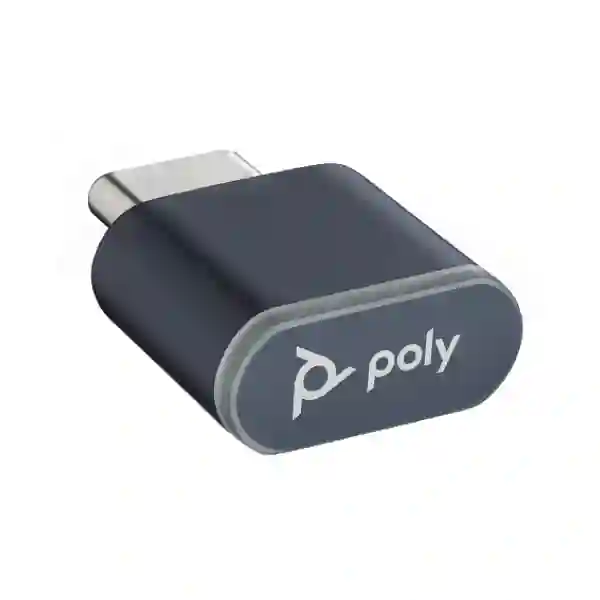
HP Poly BT700 Bluetooth USB-C Adapter
Connect a supported Poly headset or speakerphone to a USB-C equipped computer with the compact BT700 wireless audio adapter. Ideal to consider when replacing a missing dongle or preparing a compatible business-calling workstation. Verify your exact Poly device before purchase.
Who should consider this adapter?
- Owners of a supported Poly headset who need a replacement USB-C BT700 dongle
- IT teams preparing compatible laptop-based workstations for business communications
- Users of supported Poly Sync speakerphones who need an appropriate adapter arrangement
- Buyers comparing USB-C and USB-A versions before placing an equipment request
- Teams seeking a clearer, repeatable pairing and audio troubleshooting process
Technical specifications at a glance
| Product type | Bluetooth USB adapter for compatible Poly audio devices |
|---|---|
| Product name | Poly BT700 USB-C Bluetooth Adapter |
| HP manufacturer product number | 786C5AA |
| Computer connection | USB Type-C |
| Compatible operating systems | Windows; macOS |
| Advertised wireless range | Up to 50 m; environment dependent |
| Bluetooth version | 5.1 |
| Supported profiles | A2DP; AVRCP; HSP |
| Pairing memory | Up to two remembered devices; one active connection |
| Dimensions | 20.52 × 15.2 × 6.8 mm |
| Indicator | Multicolour LED for pairing and audio status |
| Pack contents | BT700 Bluetooth USB Type-C adapter |
Technical information identifies the manufacturer variant; it is not a statement about local stock, warranty or bundled headset availability.
What the BT700 USB-C adapter does for your working day
The HP Poly BT700 USB-C Bluetooth Adapter is a compact computer accessory that creates a dedicated wireless connection between a compatible Poly audio device and a computer. It is particularly useful when a headset is used for frequent online meetings, customer calls, collaboration sessions and audio playback. Instead of relying only on a computer’s integrated Bluetooth connection, the adapter gives the supported Poly device a connection path designed for business communications. The unit plugs into a USB Type-C port and stays small enough for a laptop-based workstation. It is an adapter rather than a complete headset, speakerphone, charger or standalone conference system.
For a buyer in Tanzania, the practical question is whether a specific Poly headset or speakerphone needs a compatible replacement dongle or whether a USB-C equipped computer is being added to an existing work setup. Choosing the correct connector and checking the exact audio-device model is more important than choosing a dongle by appearance alone. This product can support a tidy desk, a repeatable connection process and easier access to relevant device controls when used with supported equipment and software. Ask for compatibility confirmation if your headset’s model designation or current USB adapter is uncertain.
A quick view of the verified hardware
HP identifies this accessory as the Poly BT700 USB-C Bluetooth Adapter, with manufacturer product number 786C5AA. It connects to computers through a USB Type-C port and supports Windows and macOS. HP lists an advertised wireless range of up to 50 metres, with actual performance depending on the environment and the connected equipment. The adapter supports A2DP, AVRCP and HSP Bluetooth profiles. The physical dimensions are approximately 20.52 by 15.2 by 6.8 millimetres, making it a small USB device rather than a cable or external tabletop hub.
The manufacturer’s stated package contains the BT700 Bluetooth USB Type-C adapter. Do not assume that a compatible headset, additional cable, USB-A converter or carrying case is included with this accessory. Its visible status indicator communicates pairing and connection conditions, including headset connection, voice activity and selected communications states. The BT700 can remember two paired devices but connects to one at a time. This distinction matters if users expect it to mix two simultaneous headset audio streams: memorising a second device does not mean serving two active devices concurrently.
Confirm the USB-C version before ordering
The BT700 family includes USB-A and USB-C connection variants. This listing is specifically for USB-C. Look at the computer port before ordering, especially on mixed laptop fleets where some machines have rectangular USB-A sockets and others have compact, reversible USB-C sockets. A device that supports USB-C charging does not automatically make every USB-C receptacle suitable for every accessory; confirm that the intended port is available for normal USB peripherals and is permitted by workplace policy. The BT700 USB-C adapter attaches directly to the computer’s USB-C connection in the ordinary setup.
If an office uses a docking station, consider whether the adapter will remain plugged into the laptop or the dock. The simplest initial test is usually a directly connected, accessible USB-C port where the device can be recognised and its indicator observed. Avoid assuming that every docking station, converter or adapter chain has been qualified for this exact combination. When a purchasing team orders several units for different computers, record the port type and Poly audio-device model for each user. This small compatibility check reduces the chance of receiving the right product family in the wrong physical connector.
Is this a replacement dongle or part of a complete headset kit?
Many supported Poly headsets and speakerphones are sold in configurations that already include a Bluetooth USB adapter. A customer who still has the original working BT700 may not need another one for the same computer. A separate adapter becomes relevant when an original has been misplaced, damaged or allocated elsewhere, or when a workstation needs its own compatible connection accessory. Because packaging varies by headset bundle and model, verify what was supplied with the existing audio product rather than assuming every Bluetooth-enabled Poly headset originally came with this specific USB-C version.
The difference between replacement and upgrade requirements is important. Replacing a missing adapter usually calls for confirmation of the headset model followed by pairing, not simply inserting any generic Bluetooth USB receiver. Equipping a second workstation may call for a decision about where the adapter will stay and whether the headset will need to be reconnected when changing computers. This product is intended as an accessory for compatible systems, so it should not be represented as a universal substitute for unrelated wireless receivers, USB audio sound cards, proprietary DECT bases or adapters supplied by other brands.
Why use a dedicated headset adapter instead of built-in Bluetooth?
A laptop’s integrated Bluetooth radio can be convenient for everyday devices, and direct pairing may already meet a user’s needs. The BT700 is aimed at a different situation: maintaining the supported Poly audio connection as part of a work communication setup. The dedicated adapter can make device recognition and call-control integration more predictable with compatible headsets and communication applications. HP describes benefits around professional voice use, multimedia and connection quality. Those benefits should be understood as product design goals, not a guarantee that every room, computer or call platform will perform identically.
Built-in Bluetooth may lack some of the headset-specific functions expected by a business user, depending on the device and application. For example, an on-headset answer button or mute-state indication may require the correct software integration to work as intended. An adapter alone cannot overcome poor broadband connectivity, a malfunctioning microphone, an incompatible meeting application or interference near the desk. When deciding between direct pairing and the BT700, compare the features that actually matter to the user: reliable device selection, supported call controls, ease of reassignment and the ability for IT staff to assist with configuration.
Understand headset compatibility before purchasing
HP describes the BT700 as suitable for supported Poly Voyager headsets, with examples in the Voyager 4300, Voyager 5200 and Voyager Focus families. These are product families, however, and the suffix or bundle version can affect the correct accessory and supported features. Some headset packages are sold as UC configurations; others are targeted at a particular communications platform. Check the exact model label and the manufacturer’s supported accessory documentation. If there is uncertainty about an older unit, provide its full model name and the details printed on the previous adapter for a compatibility review.
Think of the BT700 as one component in a matched audio system. A headset may turn on normally and connect to a phone by Bluetooth without that proving that it will pair with this computer adapter. Likewise, a product description that mentions Voyager does not automatically mean every historical Voyager headset is supported. Buyers replacing an adapter for a long-serving headset should check the series and generation, not just the brand name. This helps prevent a common purchase mistake: treating all Bluetooth headsets, even devices using the same wireless standard, as interchangeable with all manufacturer’s dongles.
Using BT700 with compatible Poly speakerphones
The BT700 is also relevant to certain Poly Sync speakerphone deployments. HP’s technical guidance identifies the Sync 40 and Sync 60 series among devices designed to work with this adapter. A conference speakerphone brings several people into a meeting through its microphone and loudspeaker, so the purpose of the connection differs from a personal headset even though both can use Bluetooth audio. Before purchasing for a shared room, confirm the exact Sync model and whether it already includes an adapter or uses a preferred wired connection for that room’s computer.
A speakerphone in a shared meeting room should be treated as part of the full room workflow. Determine who connects the computer, how users select input and output devices, and whether the audio device is frequently moved between locations. A replacement adapter is useful only if it suits the speakerphone model and the host computer. It does not provide power for the room’s displays, control a video camera, or replace conferencing software. Where consistent room operation matters, test pairing, the meeting application’s audio settings and the expected microphone behaviour together instead of judging success from the adapter’s indicator alone.
First connection: what to expect
For an already matched headset-and-adapter bundle, the Bluetooth relationship may be established before the user starts. In that case the initial process can be straightforward: power on the supported Poly audio device, insert the BT700 in an available USB-C port, allow the computer to recognise it and observe the connection state. A solid blue indicator is one of the listed connected-idle signals for the adapter. If the audio device announces that a PC connection has been made, that provides another useful indication. The exact prompts and timing can differ by headset.
After the computer recognises the device, make a short controlled test rather than immediately relying on it for an important call. Select the adapter or associated Poly audio endpoint as the microphone and speaker in the operating system and the chosen meeting application. Record whether the participant can hear you clearly, whether you hear them and whether the correct device remains selected after a second call. If the adapter was bought separately, it may not be paired to the headset at all. In that situation, use the manufacturer’s pairing workflow rather than assuming a defective unit.
Pair a separately purchased BT700 using Poly Lens
HP’s pairing instructions direct users to Poly Lens Desktop when a BT700 has to be paired to a supported Poly audio device. Start with the BT700 inserted into the computer and recognised by the operating system. Put the headset or speakerphone into its own Bluetooth pairing mode, following that device’s manual. Open Poly Lens Desktop and navigate to the BT700 entry. Choose the option to pair a new device. The adapter then indicates pairing with a red-and-blue flashing pattern. Complete the pairing process and listen for any confirmation from the audio device.
Successful pairing is typically indicated by the relevant connection prompt and a solid connection LED. If several Poly devices are nearby, take care to place only the intended device in pairing mode. This is especially helpful in a busy office or shared equipment area. If Poly Lens cannot see the adapter, inspect the USB connection and the computer’s device-management restrictions before repeating the attempt. The BT700 pairing method should not be confused with the older BT600 procedure that can involve a recessed physical pairing button. For BT700, the manufacturer’s documented desktop application is the appropriate starting point.
The role of Poly Lens Desktop software
Poly Lens Desktop is relevant because it presents supported Poly devices and provides access to configuration and management functions. For BT700 buyers, its most immediate purpose is enabling a new pairing when a headset and adapter have not previously been matched. Depending on the particular audio-device combination and software version, it can also help with device configuration and keeping supported firmware current. For a business rollout, the application provides a more repeatable process than asking every employee to experiment with general computer Bluetooth menus.
An organisation may restrict software installation or device updates. Before ordering adapters for a controlled corporate fleet, check whether users may install Poly Lens Desktop and whether the IT team will manage configuration centrally. If an adapter is already paired and functioning, users should not assume that every call requires the software to be manually reopened. Conversely, a replacement adapter usually requires a deliberate pairing step. Use manufacturer-supported software versions, follow internal change-control practices and avoid interrupting an important meeting with an unplanned firmware or settings change.
Set up microphone and speaker audio on Windows
On Windows, recognising the USB adapter is only the first part of a successful communications setup. Open the computer’s sound settings and verify which device is used for output and which is used for input. When a headset is connected through the BT700, the operating system or application may show a Poly audio device entry. Choose the intended microphone and speaker, then check that the input level responds when speaking and that a test sound reaches the headset. Application-specific settings can override the system default, so verify both locations if calls do not behave as expected.
Users who move between a laptop screen, a USB dock and an external monitor may accumulate several possible microphones and speakers. A webcam microphone, built-in speakers or monitor audio output can accidentally be selected in place of the headset. The BT700 cannot automatically correct every software choice. For a repeatable office setup, document the normal device names and give users a quick way to test their audio before joining. If policies prevent access to audio controls or USB peripherals, involve the IT administrator rather than assuming that the adapter or headset has failed.
Set up input and output correctly on macOS
On macOS, the same principle applies: the adapter and compatible Poly audio device must be selected for the role the user wants. Confirm that the system lists the expected input and output endpoints, then inspect the audio selections in the meeting or calling application. A successful connection indicator does not necessarily mean that an application has switched away from the Mac’s internal microphone or speakers. Use a short voice recording or built-in application test when available to confirm that the intended microphone captures audio and that playback reaches the headset.
For users who travel with Mac laptops or work from shared desks, simplicity is often the reason to choose a compact USB-C accessory. Even so, USB-C availability varies by machine configuration and connected peripherals. Consider how the adapter will be stored when the computer is packed away, and whether a docking station obscures the status light. If the computer recognises the adapter but an application cannot use the microphone, check operating-system microphone permissions and the application’s own selection. The goal is to diagnose the full audio chain, not just the USB connector.
What the Bluetooth profiles mean to buyers
HP lists A2DP, AVRCP and HSP among the BT700’s supported Bluetooth profiles. They describe different kinds of audio and device interaction. A2DP is associated with stereo audio distribution, AVRCP with aspects of media remote control, and HSP with headset voice functions. These names are useful when an IT team or specialist is investigating device behaviour, but shoppers usually need a more practical answer: whether a particular supported Poly headset can handle the company’s calling and listening workflow through the adapter.
The presence of a Bluetooth profile on the adapter does not promise every command or audio mode in every software application. Headset firmware, operating-system settings and collaboration software all contribute to the final result. Voice-calling modes and music playback can have different priorities, and the computer may switch paths when a call starts or ends. If a person expects studio-quality stereo music while simultaneously using a microphone in a meeting, verify the exact device and application behaviour rather than assuming all Bluetooth modes are equivalent. This is a professional communication accessory, not a general audio-production interface.
Read the BT700 status light with confidence
The adapter’s multicolour LED offers a useful first check while setting up or diagnosing a connection. HP lists flashing red and blue for pairing mode, solid blue for a connected idle headset, flashing blue when the voice link is open and red when a call is muted. A flashing purple state can indicate music streaming. When the headset is not connected, the indicator may be off. These are practical clues that can help a user identify whether pairing has started, a connection exists or an audio activity state has changed.
Some indicator patterns also relate to Microsoft Teams, including purple states for connection and notification behaviour. Do not treat an LED colour as independent proof of a certified meeting-platform deployment or of every softphone integration working. A muted call indicator cannot by itself confirm which physical microphone or application is currently active. For support staff, the light is most useful alongside a brief description of what the user was doing: starting a call, streaming audio, switching applications or pairing a replacement unit. A clear account of that sequence helps isolate configuration issues quickly.
Microsoft Teams, Zoom and other meeting applications
The BT700 is designed with professional calling in mind, and HP’s published guidance discusses its use with common collaboration platforms such as Microsoft Teams, Zoom and Webex. Still, a communication application may need the correct audio-device settings, software integration or headset variant to expose all call-control functions. Being able to hear a meeting is not the same as having every button on the headset recognised by the software. Check the software application, headset model and any UC or platform-specific configuration together.
For Microsoft Teams users, the BT700 has documented indicator states associated with Teams activity. Those states should not be confused with a blanket statement that every headset paired with this adapter is Microsoft Teams certified. If a deployment explicitly requires certification, verify the headset’s exact certified SKU and bundle with the manufacturer before purchasing. For other applications, test the controls that matter to staff, such as answer, end and mute, in the actual software environment. This avoids promising a feature simply because the audio connection itself works.
Wireless range: understand the 50-metre figure
HP specifies a wireless range of up to 50 metres for the USB-C BT700. That figure is a maximum stated capability under suitable conditions, not a guaranteed distance through walls, floors, shelving, machinery or dense office furniture. The connected Poly device, the orientation of the host computer, nearby radios and the physical environment affect the real result. In an open workspace, a user may experience a different connection from someone using the same model across partitions or near several electronic devices.
For offices and support desks, treat the range statement as a planning reference and test the locations where calls actually happen. If staff expect to walk away from a laptop while speaking, check audio quality while moving through their typical path and identify where the connection degrades. Avoid presenting any single distance as suitable for every building. USB placement may matter, particularly when the adapter is blocked by a metal workstation or positioned behind other equipment. Practical acceptance testing is more valuable than promising that the user can take calls from anywhere on the premises.
Two remembered devices does not mean two active connections
The manufacturer states that the BT700 remembers up to two devices but connects to one at a time. For an individual who moves between compatible Poly equipment, remembered pairing information may make it easier to re-establish a previously created relationship. It does not mean the adapter combines two separate headsets, broadcasts the same meeting audio to two users or provides a simultaneous shared audio connection. Those are different requirements that may need other equipment or application features.
Likewise, one user may have a Poly headset paired directly with a smartphone and through the BT700 with a computer, depending on the headset’s capabilities. That headset-side behaviour should not be confused with the BT700 itself connecting to several phones or computers at once. If simultaneous computer and phone use is essential, verify the headset’s supported multipoint features and user guide. Buyers choosing accessories for reception desks, contact centres or shared offices should specify whether they need multiple remembered pairings, two active endpoints or simply a spare adapter for a second workstation.
Use in customer service and contact centre environments
Customer service teams can benefit from a familiar headset setup when agents take frequent calls from computer-based applications. A supported Poly headset paired through the BT700 can provide an accessory path designed for voice communications, but a call centre’s success still depends on its softphone, network, policies and the agent’s headset model. Before a large purchase, test the exact combination during real call handling: can the agent hear clearly, does the microphone remain selected and do required headset controls operate in the organisation’s chosen platform?
Standardising equipment can simplify support, especially if staff work across assigned desks or laptops. It is useful to maintain a record of the installed adapter type and headset model, a known-good pairing process and a procedure for lost or unrecognised dongles. On shared machines, decide whether the adapter belongs to the computer or the user. The BT700 does not provide call recording, queue management, a contact-centre licence or network connectivity. Those capabilities come from the wider communication system and should not be attributed to this small accessory.
Hybrid workers and frequently moved laptops
People who divide their week between home, client locations and office desks often prefer accessories that do not occupy much luggage space. The BT700 USB-C is compact and can be useful alongside a supported headset when the workstation has an available port. Decide whether the adapter should remain in a dedicated computer or travel with the headset. Leaving it inserted may reduce the number of setup steps, but the exposed hardware still needs protection when a laptop is stored in a tightly fitted bag or placed on a stand.
Where several locations are involved, give users a consistent quick-start routine: connect the adapter, power the headset, confirm that the computer and call application select the correct audio devices, then make a short test before a critical conversation. If someone changes computers often, consider how company security policy treats USB accessories and software installation. The adapter supports the wireless headset connection; it does not replace an internet connection, make a conferencing platform available offline or remove the need for suitable working conditions.
Workstation design, docks and USB placement
The adapter is physically small, but its location can influence day-to-day usability. A directly accessible USB-C port lets the user see the status light and remove the unit when necessary. A dock can keep a desk tidy, but it may place the Bluetooth radio behind a monitor, near cabling or below a metal desk. If the dongle is recognised inconsistently, a direct-computer test is a useful early diagnostic step. The correct decision depends on the actual workstation, so a blanket claim of compatibility with every hub would be misleading.
A crowded workstation may also have Wi-Fi equipment, other Bluetooth accessories, wireless input devices and power cables nearby. When symptoms are intermittent rather than constant, compare performance with fewer peripherals connected and with the adapter in a different accessible port where practical. Do not use unnecessary extension hardware solely to conceal the adapter without evaluating its effect. For managed workspaces, an IT-approved docking arrangement makes troubleshooting easier because staff can report the same physical connections and settings each time.
A practical procurement checklist for IT teams
Before purchasing the HP Poly BT700 USB-C Adapter for multiple people, collect a short set of facts from each workstation. Confirm that the intended computer has a usable USB Type-C port, identify the exact Poly headset or speakerphone model, note the operating system and record the collaboration software to be used. Check whether the audio device is already paired to an adapter, whether Poly Lens Desktop can be installed and whether the organisation needs platform-specific call controls. These checks separate basic physical compatibility from advanced workflow requirements.
Also decide how replacements will be tracked. HP product number 786C5AA identifies this manufacturer variant, but a reseller’s internal SKU is a separate listing identifier and should not be assumed. If a team is replacing mixed USB-A and USB-C dongles, count each variant separately. For critical communications users, consider testing a small number of complete workstation combinations before scaling the order. Request a quote using the exact product name and manufacturer number, while confirming quantities, commercial terms and local availability through the appropriate sales channel.
Troubleshooting when the headset will not pair
A pairing issue is not always a failed USB adapter. Start by confirming the computer detects the BT700 in the USB-C port. Power the intended Poly audio device and put it into its documented pairing mode. Open Poly Lens Desktop, select BT700 and use the pairing command. Watch for the flashing red-and-blue indicator. Keep other headsets that may respond to pairing away from the immediate process and allow the selected device to complete its connection. If the process has been interrupted, return both devices to their normal state before attempting the manufacturer’s procedure again.
If the adapter does not appear in Poly Lens, examine whether the USB port is operational and whether corporate endpoint restrictions are interfering. If the adapter is visible but no headset connects, verify the headset model and whether it is in the correct pairing mode. If a different headset connects unexpectedly, review remembered pairings using the supported software process rather than assuming the dongle has been corrupted. Escalate persistent faults with the adapter product number, headset model, operating system and exact symptom so technical support can distinguish compatibility from configuration.
Troubleshooting when a call has no sound
When a connected headset is silent, first determine whether there is a wireless pairing problem or simply the wrong audio device selected. A connected status indicator suggests that some connection exists, but the microphone or speaker may still be assigned elsewhere. Check the system’s input and output device settings, then check the equivalent selections in the meeting application. Confirm that hardware and application volume controls are not turned down and that the headset microphone is not muted. A short test call is generally more informative than changing several settings at once.
If callers can hear the user but the user cannot hear them, concentrate on playback routing and volume. If the user hears callers but cannot be heard, concentrate on input selection, permissions and mute status. If speech breaks up only when moving away from the desk, consider radio range and obstructions. Document which test changes the symptom. Avoid resetting all connected devices immediately, as that can erase useful information and introduce another pairing task. The objective is to identify the specific failed link in the audio chain.
Call quality depends on the whole communications system
A high-quality Bluetooth adapter cannot correct every reason for poor calls. Even with a compatible headset, conversations can be affected by broadband instability, high network latency, a noisy room, a defective headset microphone or a crowded wireless environment. The BT700’s role is to provide the supported local wireless audio link to the computer. It does not accelerate the internet service, add acoustic treatment to a workplace or guarantee that every conversation will be uninterrupted. Buyers planning important customer-facing calls should assess these factors separately.
An effective acceptance test has several parts. Verify that speech is understandable in both directions, audio starts reliably after the meeting application opens, mute and answer controls behave as required and calls remain stable while the user works at the expected distance from the computer. Repeat the test with the actual conferencing software rather than only playing a music clip. This distinguishes music streaming from bidirectional voice performance. If the setup involves a virtual desktop or remotely hosted calling service, include that environment in the test instead of extrapolating from a local machine.
Security, workplace policy and shared equipment
Using a Bluetooth accessory in an organisation raises practical questions about who may pair devices and who is permitted to install configuration software. The BT700 is not a replacement for endpoint security controls or company access policies. Treat it as an authorised USB peripheral and apply the same workplace review used for other audio devices. In a shared office, make sure the intended headset is the one paired to the adapter, particularly when several similar Poly devices are nearby. A clear ownership and pairing procedure reduces accidental connection to an unwanted device.
For meeting rooms and hot desks, also consider confidentiality. Staff should verify which microphone is active before discussing sensitive information, and shared speakerphones should be disconnected or muted when not intended for use. A status light helps, but it is not a complete privacy control. Follow organisational policies for meeting applications, recording and device handling. When a device is reassigned to another employee, review its existing pairings through approved software and test the new combination. Do not assume that the adapter will automatically enforce privacy or access restrictions on its own.
Care, storage and support information
The BT700 USB-C is a small electronic adapter, so routine care mainly concerns its connector and physical handling. Insert it gently into a compatible USB-C port without forcing the orientation or placing sideways pressure on the unit. Avoid using a damaged port, and do not leave the adapter exposed where it may be knocked during transport. If the unit is regularly removed, store it in a protective compartment where it is less likely to be lost. Keep it away from liquids and avoid attempting to open or modify the housing.
Before cleaning or troubleshooting the computer’s USB connection, follow the computer manufacturer’s safety instructions and workplace IT policy. If a device becomes unreliable after a software or firmware change, record what changed and consult current manufacturer guidance. Keep the exact manufacturer product number, the associated headset model and the computer operating-system version available when requesting help. This information is considerably more useful than a general report that Bluetooth has stopped working. Any questions about warranty or service conditions should be addressed through the verified sales and support arrangements for the actual purchase.
Choosing USB-C BT700 versus other connection options
The USB-C BT700 is the right category to investigate when the computer has USB-C and the existing Poly audio device is specifically supported. It should not be selected simply because it has the words Bluetooth and USB in its name. A computer requiring USB-A may be better matched to the manufacturer’s USB-A BT700 variant. A headset that already has a suitable working adapter might need no additional accessory. A wired USB headset may offer another practical option where wireless mobility is unnecessary or local USB policies make pairing difficult.
Other products may use different proprietary radio systems or adapters, and matching the brand does not eliminate model-by-model checking. A DECT headset base, a generic Bluetooth dongle, a USB audio interface and a Poly BT700 solve different connectivity requirements. For long-term procurement, consider the entire communications experience: fit with the current headset, support for the chosen platform, software management and how easily a replacement can be installed. Choosing the appropriate connection category at the start saves more effort than trying to compensate for an incompatible adapter later.
Buying guidance for organisations in Tanzania
For buyers in Tanzania, the useful product decision is grounded in the equipment already in service. Offices, support centres, remote workers and meeting-room teams may need spare or replacement BT700 adapters, but the appropriate accessory depends on the actual Poly model and workstation connections. Ask the relevant purchasing or IT representative to identify the computer’s USB port and the headset or speakerphone’s exact model before requesting pricing. This avoids confusion between the BT700 USB-A and USB-C variants and reduces delays caused by compatibility questions.
Do not infer local stock, a delivery date, a specific warranty, a price in Tanzanian shillings or a regulatory certification from this general product description. Those commercial details must be confirmed for the exact offer. If an organisation intends to standardise adapters across many employees, it can request a compatibility review covering supported headsets, operating systems and communication software before ordering. The aim is to provide a clear, relevant technical description and a practical quote request, rather than to claim a level of local availability or service coverage that has not been verified.
What to confirm before requesting a quotation
A useful quotation request for this product should name the HP Poly BT700 USB-C Bluetooth Adapter and include manufacturer product number 786C5AA. State the quantity required, whether the units will replace missing dongles or support new workstations, and the exact Poly headsets or speakerphones to be paired. If the deployment involves an enterprise application such as Microsoft Teams, mention whether headset call controls or a specific certified bundle are important. These details help distinguish the physical adapter from a full headset kit and reveal potential compatibility questions early.
Where the equipment will be deployed across several users, explain whether every user has a dedicated laptop or whether desks are shared. Confirm that the computers run supported operating systems and have accessible USB-C ports. For spare units, consider how they will be labelled and stored after delivery. Before committing to procurement, ask for confirmation of current commercial terms and any applicable local fulfillment information. No price, stock commitment, installation promise or warranty entitlement is implied by this technical content. The next step is a quote and an exact-model compatibility check.
Frequently asked questions
Is the HP Poly BT700 USB-C adapter a complete headset?
No. It is the computer-side Bluetooth USB adapter, not a headset or speakerphone. HP identifies the included item as the BT700 USB Type-C adapter. You need a separately obtained, compatible Poly audio device to use it for calls or listening. A replacement purchase is therefore different from buying a new headset bundle.
Can I use this BT700 on a laptop with only USB-A ports?
This particular model uses USB Type-C. HP has a distinct BT700 USB-A version, so the safest selection is the correct physical connector for the computer. Do not assume that a third-party converter is qualified for your working setup. Check the port and exact accessory variant before ordering.
Will it connect to every Bluetooth headset?
No universal compatibility should be assumed. The BT700 is intended for supported Poly audio products, including selected Voyager headsets and Sync speakerphones. Compatibility is model-specific. Provide the exact headset or speakerphone model and any previous adapter details if the replacement choice is uncertain.
Does the adapter support Windows and Mac computers?
HP lists both Windows and macOS as compatible operating systems for this model. The computer needs a usable USB-C port. Application settings, permission controls and corporate software policies may still affect configuration, so check the complete workstation combination for critical calling.
How do I pair a replacement BT700 to my headset?
Insert the adapter, put the compatible Poly device in pairing mode and use Poly Lens Desktop to select BT700 and start pairing. The adapter flashes red and blue while pairing. Follow the audio device’s own instructions and confirm that the connection completes before testing a meeting application.
How far can I move from my computer?
HP advertises up to 50 metres of wireless range. This is a stated maximum rather than a promise for every building. Walls, workstation placement, interference and the particular connected headset can reduce practical range. Test the intended walking area with an active call before relying on it.
Can I connect two headsets at the same time?
HP says the BT700 remembers up to two paired devices but connects to one at a time. It is not a two-person audio splitter or a simultaneous dual-headset conferencing solution. A requirement for multiple active listeners should be considered separately.
Will the headset answer and mute calls in Microsoft Teams or another softphone?
Some call-control functions are available with supported Poly devices and correctly configured applications, but not every headset, software version or bundle has identical behaviour. Test the exact combination. An LED state associated with Microsoft Teams does not by itself establish certification for the whole headset kit.
What if the adapter connects but my microphone does not work?
Check the operating system’s microphone selection and permission settings, then check the audio input chosen in the calling application. Confirm that the headset is not muted and that another microphone has not been selected by default. If needed, use Poly Lens Desktop and the manufacturer’s guidance to review the pairing.
Can I purchase this as a spare for a meeting-room speakerphone?
Possibly, if the room uses a supported Poly speakerphone such as a compatible model in the Sync 40 or Sync 60 series. Verify the exact model and its original connection arrangement first. A spare adapter does not replace the speakerphone itself or the room’s meeting software.
Is a price or Tanzanian stock level confirmed here?
No. The description is about the product and verified technical fit. Current Tanzania pricing, taxes, stock, delivery and warranty terms require confirmation for a specific quotation. Avoid treating another country’s online listing as evidence of local availability or the terms of a FourTeck purchase.
Request a BT700 USB-C compatibility check and quote
Provide the HP manufacturer product number 786C5AA, your exact Poly headset or speakerphone model, computer operating system, USB port type and required quantity. Ask for confirmation of model fit, current Tanzania commercial terms and any applicable support or delivery conditions before ordering.
The adapter is sold as an accessory. Headset compatibility, local availability, pricing and warranties must be confirmed for the specific offer.
Reviews
There are no reviews yet.