
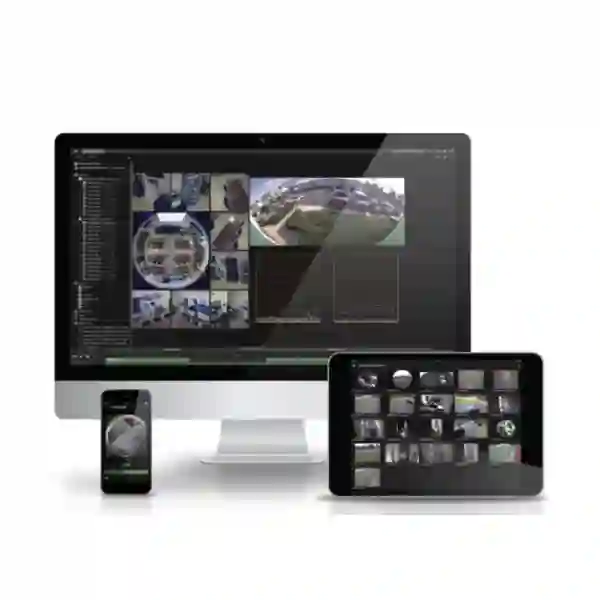
Hanwha WAVE Mobile for Wisenet WAVE CCTV Systems
Hanwha WAVE Mobile helps authorized users check their Wisenet WAVE video management system from a compatible Android phone, iPhone, or tablet. Instead of returning to a monitoring workstation for every routine check, an operator can inspect live camera views, search existing recordings, and respond to supported events while away from the desk. The app is a companion to an operating Wisenet WAVE system, not a stand-alone recorder or a replacement for the server that manages cameras and video archives.
For businesses reviewing CCTV mobile access in Tanzania, the key decision is not simply whether an application can be installed. Confirm that the site uses Wisenet WAVE, that the mobile device and server versions are compatible, that the account has suitable permissions, and that the network can sustain the viewing experience you need. Ask FourTeck Tanzania about WAVE Mobile compatibility and deployment considerations before planning wider access for staff.
What the mobile client helps you do
Live monitoring
View authorized cameras and switch between available views.
Video investigation
Search and play footage already retained by the WAVE system.
Camera interaction
Use supported PTZ controls, fisheye dewarping and two-way audio.
Event awareness
Receive configured mobile notifications with a cloud login.
Remote connections
Use WAVE Sync or an appropriately configured direct connection.
Important: WAVE Mobile requires a compatible operating Wisenet WAVE system and a permitted account. Hardware capabilities, software versions and connection method determine the features available at a particular site.
Understand the software before you deploy
WAVE Mobile is the mobile client for Hanwha Vision’s Wisenet WAVE video management software. The cameras connect to a WAVE-managed surveillance environment, and that environment provides the streams, permissions and recordings the mobile client can access. A mobile phone does not become the central storage device merely because a user opens live video. This distinction matters when preparing a proposal, assigning responsibility for recording reliability, or deciding how much of a site must remain online during an outage.
Think of the WAVE server as the operational foundation and WAVE Mobile as an additional viewing and interaction point. The server, camera connectivity, configured archive, user account and network all influence what the operator sees. If one of these elements is missing, installing the app alone will not create the absent capability. Buyers should ask which cameras are actually enrolled in the VMS, who maintains the server, and what retention arrangements are in place.
WAVE Mobile versus Wisenet Mobile
Two Hanwha applications have similar names but serve different deployment paths. Wisenet WAVE Mobile, shown in app stores as Wisenet WAVE, is intended to connect to a WAVE VMS system. The separate Wisenet Mobile application is associated with supported Hanwha network recorders and related surveillance devices. A business with only an NVR should not assume that the WAVE client will discover that recorder or provide the same registration and event workflow as the recorder-focused app.
Before recommending an application, identify the recording platform rather than relying on camera brand alone. A Hanwha camera can be part of a WAVE-managed site, a recorder-based site or another approved integration. The correct mobile experience follows the actual system architecture. This simple check prevents confusion over login credentials, QR registration instructions, notification setup, licensing expectations and whether a server installation is required.
Who benefits from mobile surveillance access?
A business owner may need a quick picture of activity at an entrance, an operations manager may want to check movement at a loading bay, and an appointed security supervisor may need to revisit a specific event without sitting at the main workstation. WAVE Mobile is especially relevant when these people already have an authorized role in a Wisenet WAVE deployment and need controlled visibility outside the monitoring room. It supports situational awareness; it does not remove the need for trained on-site response procedures.
Choose access according to the job. Someone verifying that a delivery reached a reception point may need a small camera set and live view only. An investigator may need permission to search a retained archive. A site supervisor may be allowed to use a supported PTZ camera or operate a configured soft trigger. Avoid issuing broad privileges merely because the phone is carried by a senior employee. Match each use case with the minimum practical permissions.
How WAVE Mobile fits into the full system
A typical deployment begins with IP cameras and a functioning WAVE media server. The server manages the connected devices and recorded material according to the system configuration. Operators can use a desktop client for more extensive configuration and investigation, while mobile users connect through the WAVE Mobile application to view the resources their accounts permit. Where WAVE Sync is enabled, cloud-associated access can simplify reaching the system across networks without conventional port-forwarding setup.
The connections involved are not all the same. Camera-to-server traffic, server-to-storage activity, server-to-cloud signalling and phone-to-server video streaming can have different bandwidth and availability requirements. Mobile streaming may be affected by both the site’s uplink and the phone’s current internet connection. A deployment design should consider the entire route rather than blaming the mobile client when an image is slow or unavailable.
Live camera viewing on a phone
Live view gives an authorized user a direct way to look at the current camera picture from the system. For everyday checks, that may mean confirming whether a gate is clear, seeing activity at a counter, or identifying which area needs an operator’s attention. The mobile screen is smaller than a control-room display, so practical layouts, useful camera names and disciplined choices about simultaneous views can be more important than simply showing the greatest number of feeds.
Image quality is influenced by the camera stream, server processing, decoding capability and network conditions. Hanwha documents server-side transcoding as a way to optimize mobile speed and quality, but results depend on the configuration and the environment. Test typical viewing conditions with the actual phones staff will use. Evaluate camera startup time, picture clarity, ease of switching sites and whether the operator can recognize relevant details on a small display.
Review recorded video without returning to the control room
WAVE Mobile supports searching and playing video from the system’s archive. This is useful when a manager needs to check what happened before arriving at a location, or when an authorized investigator needs to examine the period surrounding a report. The footage must already have been recorded and retained by the WAVE installation. If the archive never captured a camera, the relevant time has expired, or the user lacks permission, the phone cannot recover material that is not available in the system.
Good results start with a consistent process: identify the camera, confirm the approximate time, account for the system’s configured time zone, and narrow the review to the relevant interval. For important incidents, follow your organization’s evidence handling procedure rather than relying on an informal phone viewing session. The mobile client can support an initial assessment; retention, preservation, formal export and controlled access should be planned as part of the wider VMS workflow.
Smart Motion Search and targeted review
Hanwha identifies Smart Motion Search as a WAVE Mobile capability when that function is available and activated. It can help a user concentrate on recorded intervals associated with motion instead of watching a long period minute by minute. On a suitable system, users can search the broader recorded picture or focus on a particular area. A useful example is reviewing movement near a service door while avoiding unrelated activity elsewhere in the scene.
Motion search should not be described as a guarantee that every significant event will be identified. Results depend on the video, configured detection behavior, software support and available archive. Small, distant or obscured subjects can be harder to assess than obvious movement, and motion is not the same thing as proof of a security incident. Use a search result as a starting point, then inspect the surrounding footage before drawing conclusions.
PTZ cameras and presets
Where the connected camera and account support it, WAVE Mobile lets an operator control pan, tilt and zoom functions and use available presets. This can be helpful when the fixed view does not reveal enough context, such as a wide parking area or a large warehouse aisle. Presets make it easier to return to an established viewpoint rather than repeatedly adjusting the camera by hand. Exact controls depend on the camera model, integration and permissions.
PTZ operation also requires a sensible site policy. Moving a camera changes what it observes at that moment, and multiple users may have competing priorities. For critical locations, decide who is allowed to reposition cameras, what preset should be restored, and when a fixed overview camera is still needed. Mobile PTZ is a practical operator tool, but should be integrated into the surveillance design rather than treated as a substitute for adequate camera coverage.
Fisheye dewarping for wide-area cameras
Hanwha specifies built-in fisheye dewarping for WAVE Mobile. A compatible fisheye camera captures a broad field of view that can appear distorted when shown as a raw circular image. Dewarping changes the presentation so an operator can examine parts of the scene in a more familiar perspective. This may help with open retail floors, halls or other areas where a wide-angle camera has been selected as part of the coverage plan.
The benefit depends on the source camera, the recording format, the app version and the person’s viewing task. Dewarping cannot create details that the sensor did not capture, and a broad scene may contain less subject detail at a distance than a dedicated close-up camera. Buyers should request a demonstration using the actual camera family and intended scene. Judge whether faces, objects and movements can be assessed adequately for that site’s legitimate purpose.
Two-way audio and controlled interaction
WAVE Mobile includes two-way audio for systems and devices where audio support is configured. In a suitable deployment, a user may be able to communicate through an integrated microphone-and-speaker path rather than relying only on video. Some operational environments use this for visitor assistance or a controlled communication point. The presence of the feature in the application does not mean every connected camera has audio hardware or that every account can use it.
Audio functions should be evaluated against practical and privacy requirements. Confirm the connected device supports the intended direction of communication, the server and user permissions expose the feature, and the connection is reliable enough for understandable speech. Establish who may speak through the system and for what purpose. Do not assume recording of audio, local legal authorization, acoustic quality or emergency-call suitability merely because the interface presents an audio button.
Soft triggers and event-driven actions
A soft trigger is an on-screen operator action that can be linked to a configured event rule or action inside Wisenet WAVE. Hanwha lists soft triggers among the mobile client’s functions. In practice, the meaning of a particular button is determined by the WAVE system administrator, not by a universal function hard-coded into every installation. For example, an authorized operator might be given a site-specific action relevant to an incident workflow if that action has been configured and tested.
Treat trigger design as a controlled configuration task. Before exposing an action to phones, document what it does, which device or rule it affects, which roles may use it, and how success or failure will be verified. A button that influences an output or another integrated system deserves special attention. Do not present mobile soft triggers as guaranteed door control, alarm integration or automated intervention without confirming the exact devices and programmed rules.
Mobile push notifications: what must be configured
WAVE Mobile can receive push notifications, but alerts require more than installing the application. Hanwha’s WAVE documentation explains that mobile notification delivery uses a cloud login and a system event action that sends a mobile notification to the intended user. The user also needs the relevant phone notification permissions and appropriate access to the cloud-connected system. An installation with no suitable rule or an account that is not properly connected should not be expected to produce alerts automatically.
Plan notifications around events worth acting on. An administrator can decide which supported event types should lead to a mobile notification and which users should receive it. Excessive alerts can distract staff; missing or incorrectly targeted alerts can leave them unaware of important activity. Test a real example event, check delivery to the intended account, and confirm the organization’s response procedure. A push notification is an awareness aid, not a guaranteed life-safety or emergency response channel.
Notifications feed and changing mobile features
Recent Wisenet WAVE mobile release information describes a consolidated feed that helps users review push notifications they may have missed. This can be useful when a phone has been unattended or when several accessible sites generate messages. The current app stores also describe layout improvements and, on supported Android builds, camera grouping features. These capabilities demonstrate why deployment notes and screenshots should be version-aware rather than copied from older training materials.
Not every feature is available on every combination of WAVE server, mobile build, operating system and access model. A notification history feed is not the same as a guaranteed incident database, and the appearance of a capability in a release note does not establish that an older installed client supports it. Before rollout, record the exact app and server versions and verify the functions users need. Update instructions after significant software changes.
What WAVE Sync changes for remote access
WAVE Sync provides a cloud-associated route for users to connect to Wisenet WAVE systems, including systems that would otherwise be awkward to reach through network address translation. Hanwha describes WAVE Sync as reducing the need to set up conventional port-forwarding for supported remote connections. It can also help users access multiple associated systems through a cloud account. This makes it a relevant option for managers who need remote visibility without manually remembering every site’s connection details.
WAVE Sync does not eliminate dependence on the internet, the server, or network security decisions. The site still needs a working WAVE installation and the required connectivity for its chosen access method. Cloud-linked access should be approved by the organization’s security policy and tested against its own firewall, DNS and outbound-connection environment. Confirm who owns the cloud organization, which users are invited, and how access will be revoked when a staff member changes role.
Local access, cloud access and direct remote connections
A phone may reach a WAVE installation over an appropriate local network, through WAVE Sync when it is configured, or through a deliberately administered remote path with the necessary networking. These connection choices have different operational and security implications. Local viewing can be useful for staff on an authorized site network; cloud access supports distributed work; a direct remote configuration may require specialist firewall or network administration. The best choice depends on the customer’s network design and risk appetite.
Do not expose a server indiscriminately to the public internet just to make a phone connect. Start by evaluating WAVE Sync and the organization’s approved remote-access standards, then document the selected architecture. Confirm account authentication, certificate handling, network ownership and logs where applicable. Test both normal use and what happens when the site’s internet link fails. A usable local connection during one type of outage does not imply that off-site users can continue viewing remotely.
Before installing the app: a readiness checklist
A short readiness review avoids many frustrating mobile deployments. First confirm the system is genuinely Wisenet WAVE, identify the running server release, and verify that the mobile build supports it. Next make sure the intended cameras are visible to an authorized desktop operator and that the server has stable network access. Decide which users need mobile access and what tasks they must perform. Only then select the phone platform and download the official Wisenet WAVE application from its device store.
The administrator should also confirm whether WAVE Sync is active, whether the intended account is a cloud or local user, and whether remote access is allowed under the organization’s policy. For archive work, check that recordings actually exist and are retained long enough for the use case. For notifications, prepare a suitable event rule and test account. For audio and PTZ, verify the exact camera’s capability and the user’s permission before promising either feature to staff.
A practical first-use sequence
Begin with the current official Wisenet WAVE app listing for the phone’s operating system. Install the application through the supported store rather than through an unknown download package. With the site administrator, choose the authorized connection method and sign in using the account type prepared for that system. Select a permitted site and check that the camera list and live picture are present. Start with a small test group before inviting a whole department.
Next, verify that the user can see only the cameras required for the role. Open a recording from a known time, try switching views and test a supported camera interaction if appropriate. If push alerts are planned, make sure phone notifications are enabled and cause a controlled test event. Finally, document the app build, server build, account role, connection method and any limitations found. A repeatable acceptance test is more valuable than a one-time successful screenshot.
Accounts and least-privilege permissions
A secure mobile rollout starts with individual identities rather than a shared password used by several staff members. Wisenet WAVE distinguishes different user and cloud-account arrangements, and an administrator can configure which resources and functions a user may access. For a business with multiple departments, that means the reception team need not automatically see warehouse cameras, while a manager who only reviews live video need not have broader control permissions. Actual role options depend on system configuration and version.
Plan an access lifecycle: who requests entry, who approves it, what role is assigned, how regularly it is reviewed and how it is removed. Include lost phones and departing employees in this policy. Changing a phone is not merely an application installation task if the user account remains authorized elsewhere. A good operational review includes visible camera lists, access boundaries and the supported method for revoking credentials or cloud membership.
Security and privacy considerations
Surveillance video can contain identifiable people, sensitive operational routines and commercial information. A mobile client makes footage convenient to view, which also increases the importance of deciding where, when and by whom it may be accessed. Apply device screen locks, current operating-system updates and the organization’s approved authentication standards. Avoid sending passwords or video clips through unapproved chat channels. Lost or shared phones should trigger an access review promptly.
For a Tanzania deployment, assess the applicable privacy, employment and security rules for the specific site and its camera locations. This page does not claim that any installation automatically meets a legal or regulatory requirement. The business should define legitimate monitoring purposes, signage and notice where needed, access retention and evidence-handling responsibilities. If remote access crosses organizational or geographic boundaries, review that choice with the relevant data protection and security stakeholders.
Bandwidth, latency and data consumption
A clear live picture requires a usable data path between the video source and the phone. The camera stream, requested resolution, number of simultaneous views and whether the server transcodes the media all affect the load. A mobile operator who opens many cameras at once can place different demands on the system than someone who checks one entrance for a few seconds. Network conditions may change as a phone moves between Wi-Fi and mobile data.
For reliable results, test representative scenarios rather than treating a nominal internet speed as a guarantee. Include busy-hour site uplink conditions, the actual number of intended viewers and the phone models the business plans to support. Consider whether smaller viewing layouts are acceptable on constrained links. Make sure users know that watching continuous high-quality video can consume substantial mobile data. A remote viewing service should be designed with bandwidth headroom and a clear fallback process.
Power and connectivity planning in Tanzania
Mobile surveillance access is only useful while the underlying system continues to operate. For businesses planning WAVE Mobile use in Tanzania, examine the site’s power continuity, recording server availability, camera network, local switching and internet uplink. A phone with strong mobile coverage cannot retrieve fresh footage if the camera or VMS server has lost power. Similarly, remote viewing may fail when a site’s internet service is unavailable even while local recording equipment remains operational.
Ask the installation team to identify which devices require backup power and which links represent single points of failure. Consider how the business will respond to temporary disconnections, who checks that recording has resumed and how operators will distinguish an unavailable camera from a closed application. Where more than one internet route is proposed, validate the design and cost for the actual site rather than assuming universal network availability. No operator or provider performance is promised here.
Recording capacity and retention are separate decisions
WAVE Mobile provides access to recordings that the WAVE deployment has already stored, but it does not set the organization’s retention policy simply by being installed. Storage needs depend on camera quantity, recording schedules, bitrate, compression, motion patterns and the required period of history. A site may have excellent live viewing while retaining only a short archive. Conversely, a large archive may be difficult to search effectively without clear camera names and timestamp discipline.
When preparing a quote, define the investigation questions the business needs to answer. Is the goal to review the previous shift, the previous week or an extended incident window? Is continuous recording required, or is event-based recording appropriate under the site’s policy? Who must preserve footage when an incident occurs? These questions belong to the WAVE server and recording design. Do not confuse an app-store installation with a recording-storage purchase.
Mobile software and server version compatibility
Hanwha updates WAVE Mobile and the wider Wisenet WAVE platform, and supported phone operating systems change over time. Release information for the iOS client has included changes to supported operating-system generations and warnings about older WAVE server compatibility. An Android device may also be affected by processor architecture and application build requirements. Therefore, a phone that worked with one release is not proof that a different version will work in the same way.
Use the current official app-store requirements and Hanwha compatibility guidance when approving a rollout. Record the installed server version, app version, device operating system and features required for the project. Test planned updates with a representative device before upgrading a large number of phones. If an old server cannot be updated immediately, establish a supported interim access approach with the system administrator instead of assuming perpetual compatibility.
Licensing, downloads and total project cost
The Wisenet WAVE mobile application is listed as a free download in the major app stores. That fact should not be confused with the licensing or service requirements of the overall WAVE video management installation. Recording, advanced functions and system expansion may involve licences or services under the relevant WAVE software model and release. Hanwha’s WAVE documentation distinguishes live viewing capability from the rights needed to record camera video.
A meaningful project estimate therefore separates the mobile client from the rest of the solution. Identify existing WAVE server capacity, camera licences or recording services, storage, connectivity, cybersecurity work, training and any professional configuration effort. A customer who already operates WAVE may only need compatibility and access setup; a customer without WAVE is evaluating a larger VMS deployment. Do not assume this product page includes a server licence, camera hardware, an installation package or a fixed local price.
Retail shops and customer-facing premises
For a shop using Wisenet WAVE, authorized staff may want to review a sales-floor entrance, check activity near a receiving door or revisit an agreed incident period. WAVE Mobile can make these routine checks more convenient when the manager is not at the main monitoring screen. A practical mobile layout should prioritize the cameras that answer genuine questions. It should not overwhelm a small phone screen with every possible feed.
A retail deployment should also consider the privacy of customers and employees, how long footage is kept, and who is allowed to search recordings. Configure alerts only for meaningful events, rather than turning every small movement into a phone notification. If a camera covers a public-facing area, assess whether the selected angle gives enough detail for the intended purpose without collecting unnecessary information. Good camera placement and sensible recording practices remain more important than the choice of app alone.
Warehouses, loading bays and industrial sites
Large operational sites often involve movement over broad areas, changing delivery schedules and several teams with different responsibilities. A WAVE system may contain fixed overview cameras, targeted entrance cameras and suitable PTZ units. WAVE Mobile can help an authorized supervisor inspect the correct area quickly, while the VMS archive provides the basis for later review. The mobile client is particularly useful for an initial check when the control room is not immediately accessible.
The challenge is distinguishing monitoring convenience from operational control. A phone-based view may not reveal small details in a distant vehicle, and a short video clip should not be treated as a complete incident record. Agree which cameras answer which questions, and review lighting, field of view and wireless or internet conditions at the site. If the workflow involves equipment or controlled access systems, validate every integration independently before putting actions on an operator’s phone.
Offices, campuses and multi-building facilities
An office or campus can have several zones that need different users and operating schedules. In a WAVE environment, mobile access may be useful for approved facilities staff checking a reception point, a perimeter view or a maintenance-related event. Good camera names and group structures make a difference because the operator needs to locate the correct scene quickly. A role should expose only the cameras relevant to that person’s responsibilities.
When designing access, examine whether one central system or several separate systems are involved. WAVE Sync may simplify access to associated sites, but each system still needs sound administration and connectivity. For locations with shared use, review how access is granted to contractors or short-term staff and how it ends. Avoid giving temporary visitors broad access to unrelated cameras. Test the mobile layout from the actual work areas rather than only on the installer’s office network.
Multi-site management and delegated supervision
A business operating more than one location may need occasional visibility across separate WAVE systems. Hanwha describes WAVE Sync as a way to associate multiple systems with an account and connect through the mobile client. That can reduce the friction of checking the appropriate site, but it should not be mistaken for a guarantee that every location has identical features or quality. Each site retains its own camera deployment, software versions and network conditions.
Assign local responsibility even when remote managers can view multiple locations. Someone must respond to on-site events, maintain the server, check recording health and update user access. Develop common naming rules and a standard acceptance checklist while allowing differences in local requirements. For a new site, verify the connection and permissions individually. The value of a multi-site view comes from a clear escalation process, not merely from a longer list of cameras on a phone.
Education and shared facilities
Where a school, training facility or another shared property has a legitimate Wisenet WAVE surveillance requirement, mobile viewing can assist designated administrators in checking the condition of entry points and shared areas. However, environments involving children, visitors or vulnerable people require especially careful privacy and authorization decisions. A viewing app should not encourage unrestricted access simply because the video system is capable of displaying more cameras.
Define why each camera exists, who may access the view and what the institution will do if an incident is reported. Limit access to the relevant roles and retain a documented review process for recordings. A phone may help an authorized person understand an unfolding situation, but it cannot replace appropriate staff procedures, site safety planning or lawful handling of personal information. Confirm applicable policies and legal requirements for the particular organization.
Routine monitoring versus formal investigation
Routine monitoring usually asks a short question: is a door clear, is a delivery taking place, or should an on-site colleague investigate something? A phone can be a convenient answer surface. Formal investigation is different. It may require exact time correlation, multiple camera views, preservation of original footage, documented access and a controlled export process. The WAVE desktop environment and the organization’s established evidence procedure may be more appropriate for these deeper tasks.
Use mobile footage as a prompt for further action, not as a substitute for confirming the entire chain of events. When an incident occurs, record the approximate time and location, determine which cameras may be relevant and ask an authorized operator to preserve material under the site’s rules. Ensure there is a plan for archived footage that approaches its retention limit. A useful deployment tells people when to stop browsing on the phone and escalate to the evidence custodian.
Troubleshooting connection and performance issues
If the app cannot connect, establish whether the fault concerns the mobile device, the user account, the WAVE server or the network path. Begin by confirming the system works for a known authorized desktop user and that the server is online. Check the phone’s internet connection, the account’s intended access method and the app-to-server version pairing. For cloud-connected access, confirm the site is associated with WAVE Sync and that the user’s cloud authorization is still valid.
If a camera list appears but footage will not play, the issue may be closer to stream availability, permissions, decoding or network throughput. Try a single known camera, compare local and remote connections where permitted, and record the exact symptoms and time. For delayed or missing notifications, check the event rule, cloud sign-in and phone permission settings. Hanwha provides guidance for collecting WAVE Mobile diagnostic logs when support needs to investigate crashes or connectivity problems; share logs only through authorized support channels.
What to review during a demonstration
A useful demonstration should show the buyer’s real workflow instead of only opening an attractive sample camera. Ask to see a live view on the phone model likely to be used, switch to an archived clip, locate a relevant moment and return to the main view. If PTZ or fisheye cameras are part of the project, test those particular functions. Demonstrate how the app behaves when the network is weaker and when a user has only limited camera permissions.
If alerts are a purchasing priority, request a configured test event with a mobile notification delivered to an authorized device. Ask the presenter to explain who creates that rule and how recipients are managed. Compare the expected tasks with the site’s normal operating procedures and note any missing permissions or network work. Finally, check what happens when the account is removed. A successful demonstration should make the intended capabilities, dependencies and limitations equally clear.
How to compare with other mobile CCTV options
The most useful comparison is not a generic claim that one app is better than another. Start with the system already installed. A customer using Wisenet WAVE should evaluate WAVE Mobile against the required mobile tasks, while a customer with a Hanwha recorder must check the appropriate recorder-oriented application. A business considering a new VMS should compare camera compatibility, user administration, recording needs, integration requirements, ease of investigation and support arrangements across the complete solution.
Also distinguish basic viewing from workflow capability. Many apps can display a live picture, but a larger organization may need clearly scoped accounts, archived-video search, event rules, multi-site access and repeatable support procedures. Conversely, a small site may not need a complex server-based platform at all. Avoid choosing a VMS on the strength of a phone screenshot; choose the architecture that solves the actual operational problem within a realistic budget and support model.
Information to prepare before seeking guidance
When contacting FourTeck Tanzania about Hanwha WAVE Mobile, provide a concise description of the existing surveillance environment. State whether Wisenet WAVE is already installed, which server version is running if known, the approximate number of cameras and the phone operating systems users rely on. Explain whether users need local monitoring, off-site access, archived-video search, alerts or specific camera controls. This context helps frame an accurate compatibility discussion without guessing equipment or licence requirements.
Also share the type of network connection available at the site, whether WAVE Sync is allowed by policy, and how many staff members are intended to use the application. Do not include personal passwords, actual video evidence or licence keys in a public enquiry. Technical documents and sensitive access details should be exchanged only through an approved channel. If the current system is an NVR rather than WAVE VMS, say so early because it changes the recommended app and setup path.
Deployment decision guide for buyers
If Wisenet WAVE is already operational, the immediate priority is to verify mobile compatibility, accounts and network reachability. If WAVE is planned but not yet installed, address recording design, supported cameras, server placement, storage capacity and licence or service requirements first. If the customer has only a conventional NVR, confirm the device family and whether Wisenet Mobile or another officially supported client is the appropriate choice. These three situations should not be bundled into one standard quote.
For every scenario, define the business objective and a realistic acceptance test. Consider how quickly users should be able to locate a camera, how far back the archive must go and which alerts matter. Identify the administrator responsible for changes and the person accountable for responding to events. A successful outcome is a documented, supportable workflow that staff can use safely—not simply the presence of another app icon on a phone.
Frequently asked questions
Is Hanwha WAVE Mobile the same as Wisenet Mobile? No. WAVE Mobile is the companion client for Wisenet WAVE VMS. Wisenet Mobile is a different Hanwha app associated with supported recorder and camera workflows. Confirm the recording system before installing.
Can I view cameras while away from the site? Yes, when your WAVE system, authorized account and network connection are configured for remote access. WAVE Sync is one supported approach; performance still depends on connectivity.
Do I need a WAVE server? WAVE Mobile accesses a Wisenet WAVE environment. It does not independently replace the media server, camera integration or recording archive. A stand-alone recorder installation may require a different mobile application.
Can the app show old footage? It can search and play recordings that remain available in the WAVE system’s archive and are permitted for your user account. It cannot retrieve footage that was never recorded or is no longer retained.
Will motion notifications arrive automatically? No. Suitable system events and mobile-notification actions must be configured, the intended user must be signed in through the supported cloud route and device permissions must allow notifications.
Does it work with PTZ and fisheye cameras? Hanwha lists PTZ control, presets and fisheye dewarping among the mobile functions. The actual result depends on the connected camera, permissions, integration and software versions.
Can users talk through a camera? Two-way audio is supported where the camera, associated equipment, server and role allow it. Check the device hardware and configuration instead of assuming every feed includes audio.
Is the mobile app free? The official app stores list the Wisenet WAVE client as a free download. Recording licences, services, servers, cameras, storage and setup are separate commercial considerations.
Does WAVE Mobile administer the system? The mobile client is primarily for viewing, search and supported interactions. Use the appropriate WAVE desktop or administrative interface for server, camera, user and recording administration.
Will it work on any Android phone or iPhone? Supported operating systems and server combinations change with releases. Check Hanwha’s current guidance and the actual app-store listing for the specific device and WAVE server.
Can it monitor several sites? WAVE Sync supports access to associated WAVE systems, subject to the user’s permissions and each site’s connectivity. Multi-site access does not guarantee identical camera features or recording retention everywhere.
What information is needed for a compatibility enquiry? Provide the WAVE server version, phone operating systems, desired functions, number of users, camera details if relevant and proposed connection method. Never share passwords in an open enquiry.
Next step: confirm your WAVE Mobile fit
Hanwha WAVE Mobile can make an established Wisenet WAVE surveillance installation easier to access for authorized users. Its strongest value appears when the system’s camera views, archive, event rules and user roles have already been designed around a real operational need. The app is not a shortcut around planning reliable recording, appropriate permissions or dependable network access. It should be introduced as one carefully governed part of the wider surveillance system.
Contact FourTeck Tanzania to discuss your current Wisenet WAVE setup or planned project, and request guidance on mobile compatibility and the decisions to verify before deployment. Share the server version and intended tasks rather than sensitive credentials. The next practical milestone is a small, documented pilot using a real camera, a permitted user account, an archive search and any required notification workflow. No local price, stock, installation scope or support response time is claimed on this page.
Important compatibility reminder
Confirm your VMS platform, mobile operating system, server version, camera capabilities, permissions, network access and recording entitlements before rollout. Specifications and supported versions may change with manufacturer releases. This page does not represent a confirmed stock item, price, service coverage, warranty, legal certification or installation commitment in Tanzania.
Reviews
There are no reviews yet.