
Security display | 19-inch LED | Tanzania product enquiry
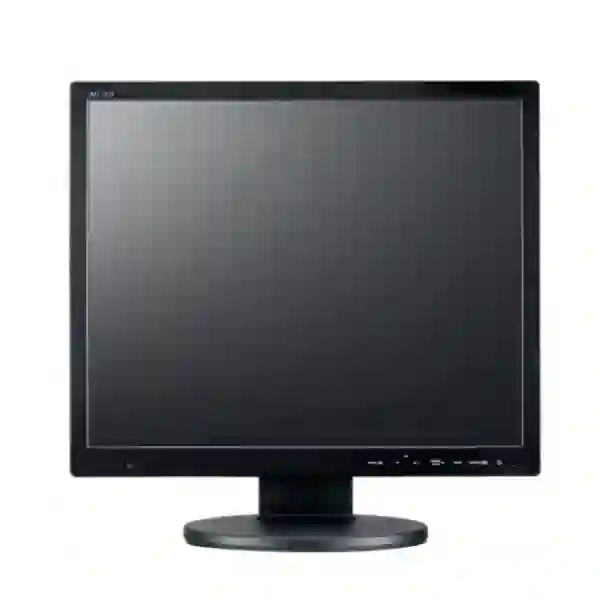
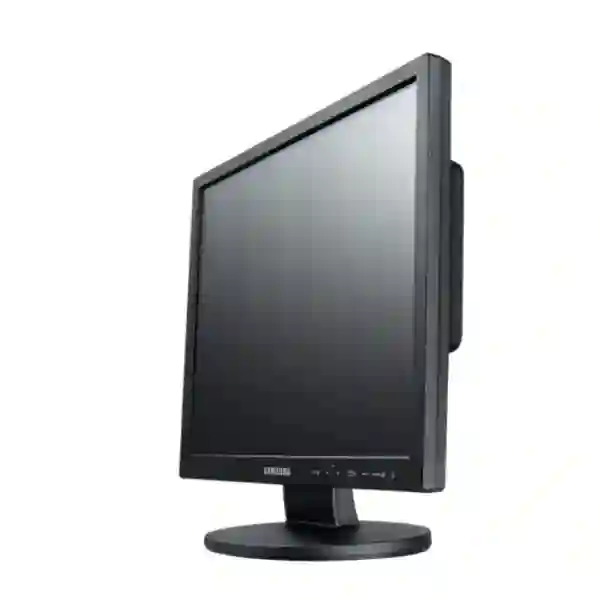
Hanwha SMT-1935 19-inch CCTV Monitor
A compact surveillance monitor for supported DVR, NVR and analogue video sources. Compare video inputs, screen resolution, mounting choices and practical installation requirements before requesting a quotation for the exact setup.
At a glance: suitability and the next step
The Hanwha SMT-1935 is a dedicated 19-inch LED surveillance display. Its best-fit application is an installation that needs a small monitor and can provide one of the screen’s documented video formats. HDMI, VGA and traditional composite BNC sources are relevant; an Ethernet-based camera stream needs a separate compatible decoder or recorder. The maximum panel resolution is 1280 × 1024, so buyers requiring native Full HD or 4K display detail should consider a different screen.
For a quotation, supply the DVR or NVR model, preferred video connection, intended camera layout, mounting preference and site conditions. Have the exact package contents and current commercial terms confirmed for the Tanzania order. No local price, stock, warranty or delivery promise is assumed here.
Verified technical specification
| Feature | SMT-1935 specification |
|---|---|
| Display | 19-inch LED |
| Maximum panel resolution | 1280 × 1024 pixels |
| Manufacturer-stated aspect ratio | 4:3; verify output scaling in practice |
| Brightness / contrast | 250 cd/m² / 1000:1 |
| Response time | 5 ms |
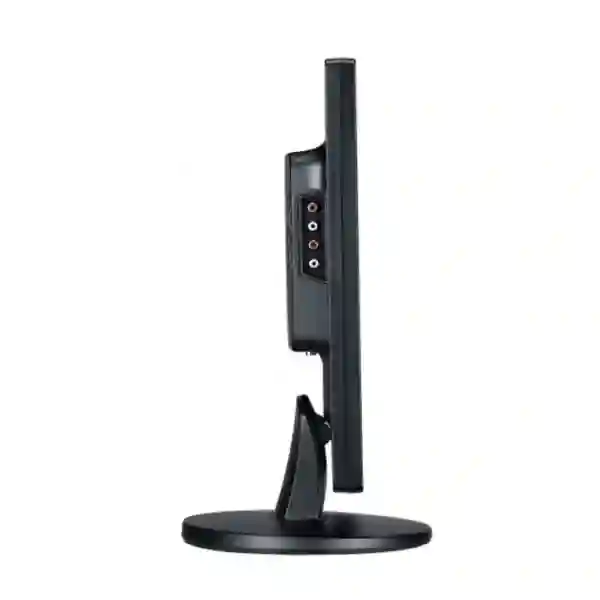
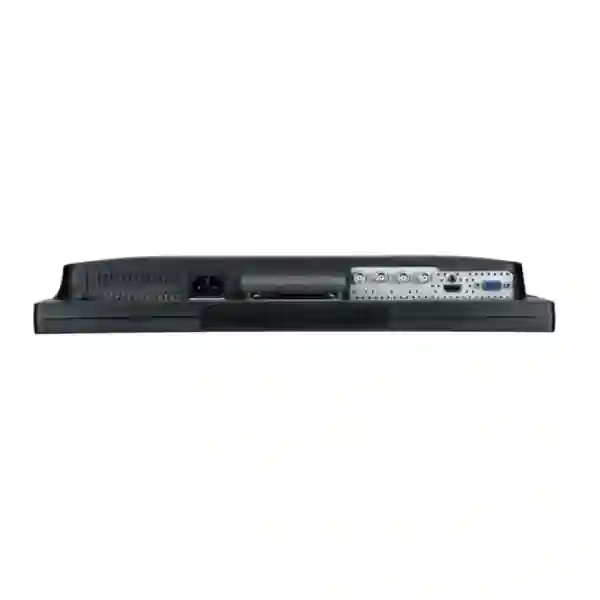
| Composite video | Two BNC inputs and two loop-through outputs; NTSC/PAL |
| Other video inputs | One HDMI and one VGA input |
| Audio | Two RCA audio inputs; two built-in 1 W speakers |
| VESA interface | 100 × 100 mm |
| Power | AC 100–240 V, 50/60 Hz; maximum 22 W |
| Operating conditions | 0–40°C; 20–90% humidity, non-condensing |
| Dimensions with stand | 412 × 406.5 × 217.4 mm, per manufacturer datasheet |
Specifications are based on Hanwha Vision product information and its SMT-1935 datasheet. Verify source timing, regional accessory package and current commercial arrangements for the specific order.
Who this monitor is for
A monitoring screen has a straightforward job: show the right camera or recorder output at the moment it is needed. The SMT-1935 suits buyers who want a dedicated, relatively compact display for a security desk, a small control position or a local equipment room. Its combination of digital and composite video connections is especially relevant when an installation includes equipment from more than one generation. Rather than paying attention to promotional phrases alone, begin with the source equipment, the viewing distance, the number of camera pictures to be watched and the space available for a screen.
This product is best assessed as one component of a surveillance solution, not as the surveillance solution itself. It can display supported signals supplied by a DVR, NVR or another appropriate video source. It cannot record evidence, provide network camera management, store footage, or substitute for the operating interface of a recorder. If a buyer needs one screen for a reception counter or a local video check, its size can be useful. If dozens of cameras must remain visible continuously, a bigger or higher-resolution monitor may be more appropriate.
What the 19-inch format contributes
A 19-inch monitor can be easier to accommodate where a broad television would dominate the counter or obstruct a visitor-facing workspace. The smaller format helps keep the operator close to the image, particularly when the display is placed beside a telephone, access-control workstation or recorder keyboard. It also makes it simpler to allocate a specific screen to one important entry point or a small set of cameras. These are space-planning benefits rather than a guarantee that every camera image will be legible at every viewing distance.
Before choosing this size, sketch the actual workplace. Consider whether operators are seated or standing, how far their eyes will be from the screen, and whether they need to identify small details or simply observe activity. A small display viewed from across a large security room will not offer the same experience as one positioned within normal desk-viewing range. Test the planned split-screen layout with real footage whenever possible. The decision should be driven by operational visibility, not by diagonal screen size in isolation.
Resolution: what 1280 by 1024 really means
The specified maximum display resolution is 1280 × 1024 pixels. That is often called SXGA, and it gives the monitor a more square working area than many modern widescreen displays. It can be useful for certain traditional CCTV layouts, status screens and older security interfaces. However, the panel is not a native Full HD 1920 × 1080 screen and is not a 4K monitor. A high-resolution camera or recorder cannot make this screen display more physical pixels than the panel contains.
Resolution matters most when several pictures share the same screen. A four-camera mosaic divides the available picture area among the camera feeds; a larger mosaic divides it further. The recorder may be capturing high-detail footage even when its live-view tiles appear small on the monitor. For incident investigation, operators may need to enlarge a camera view or export recordings for examination on another suitable display. Confirm that the chosen monitor is sufficient for live situational awareness, and keep recording quality and evidence review requirements separate.
Understanding the stated aspect ratio
Hanwha’s published specification describes a 4:3 aspect ratio, while its maximum pixel matrix is listed as 1280 × 1024. Those two descriptions can look inconsistent because the numerical pixel ratio of 1280 to 1024 is 5:4. The safe purchasing approach is to check how the monitor handles the actual output formats used by the recorder, rather than assuming that every source image will occupy the screen without scaling or borders. This distinction is particularly important when a recorder has a widescreen user interface.
Ask the installer to demonstrate the selected video output with the desired camera grid. Look for circles becoming oval, people appearing unusually wide, or parts of the interface being cropped. Some installations benefit from a particular recorder output mode, on-screen display setting, or a source-side aspect-ratio adjustment. A correct layout is one in which operators see the complete relevant image without misleading distortion. The monitor’s documented format capabilities should guide the initial setup, but a practical test remains the final check.
Brightness and contrast in everyday use
The manufacturer specifies brightness of 250 cd/m² and a 1000:1 contrast ratio. These figures describe the display’s stated characteristics; they do not guarantee identical visibility in every room. A counter facing a bright window can demand a different placement from a shaded monitoring office. Reflections, ambient light and the operator’s viewing angle may matter as much as nominal brightness. Avoid positioning the screen where sunlight or powerful ceiling lights make important camera details difficult to see.
A useful commissioning test is to show typical daytime and nighttime camera scenes under the room’s actual lighting. Adjust picture controls conservatively, avoiding excessive brightness that washes out pale surfaces or a dark setting that hides shadow detail. The screen cannot create information that the camera has not captured, so image problems should be traced through camera exposure, recording settings, cabling and display adjustments. Treat brightness and contrast as aids to a usable workstation, not as substitutes for correct camera placement and configuration.
Response time and motion expectations
A specified 5 ms response time is one of the SMT-1935’s published display characteristics. It may be useful for showing movement in live CCTV scenes, such as people crossing a doorway or vehicles entering a compound. Yet response time is only one part of perceived motion quality. Camera frame rate, exposure duration, recorder processing, network delivery and video-output settings all affect what the operator actually sees. A fast panel cannot repair a camera feed that is delayed, blurred or being delivered at a low frame rate.
When motion is a buying priority, arrange a demonstration with footage similar to the site’s real conditions. Observe how quickly activity enters the picture, whether a camera grid refreshes evenly, and how clearly objects remain visible under changing light. If the scene looks smeared, investigate the capture and transmission chain before attributing the result to the monitor. The display is the last stage of a larger system, and meaningful performance assessment should follow the signal from the camera through to the operator.
HDMI connection planning
The HDMI input provides a convenient route for a compatible digital video source, commonly a security recorder with an HDMI display output. It can reduce the need for analogue conversion where the recorder and monitor support a common timing mode. The key word is compatible. The published SMT-1935 datasheet identifies specific HDMI video formats, so the presence of an HDMI socket does not mean every modern 1080p or 4K signal will be accepted as supplied. Check the recorder’s configurable output modes before committing to the monitor.
For a new installation, identify the exact recorder model, its firmware and the planned HDMI output resolution. If a recorder is set to a format outside the monitor’s supported input modes, a blank or unstable picture may occur. Change the output to a mutually supported format using an appropriate temporary display or the recorder’s setup procedure, then test the final connection. Avoid assuming that HDMI cable quality alone will solve a timing mismatch. Preserve access to the recorder’s configuration in case a future reset changes its display mode.
VGA for compatible legacy equipment
The SMT-1935 also supplies an analogue RGB VGA input through a 15-pin D-sub connection. VGA remains relevant in security environments containing older DVRs, workstations or appliances that predate widespread HDMI adoption. A working VGA path can help extend an existing installation without immediately replacing functioning recorder hardware. However, source and display still need compatible video timing, suitable cable quality and correct connection selection. It is not enough to know only that both devices have blue VGA-style connectors.
Keep the VGA run practical and inspect connectors for bent pins, loose screws and mechanical strain. Poor analogue cabling can show up as soft text, shadowing, colour shifts or intermittent synchronization. Use an appropriate supported computer or recorder resolution and then check the monitor’s picture-position controls if available. Where an installation has both HDMI and VGA output choices, compare the real interface on each rather than assuming one connector is universally preferable. The most suitable connection is the one that works reliably with the existing equipment.
BNC composite input for traditional CCTV
Two BNC composite video inputs allow the monitor to work with appropriate analogue video sources. This can be valuable when diagnosing a traditional CCTV installation or giving an operator direct access to a supported composite feed. BNC is a physical connector type, however, and it should not be confused with an assurance of compatibility with every technology that also uses coaxial cable. Modern HD-over-coax formats and standard composite video are not interchangeable simply because their plugs may look similar.
Before wiring a camera directly, establish what video standard the source produces. The manufacturer’s datasheet describes NTSC and PAL composite support, which is different from receiving an arbitrary AHD, TVI, CVI or SDI signal. A source needing conversion should be assessed with a properly specified converter or with the recorder that already decodes that camera format. This check can prevent an apparently correct cable from ending in a blank screen. Document the signal type as well as the connector type in the installation plan.
What the BNC loop-through outputs do
The monitor includes two composite video input paths with corresponding loop-through outputs, described by Hanwha as two video inputs and two video outputs. Loop-through is useful when a compatible analogue signal needs to continue onward to another device. It is not an extra camera decoder, network output, image recorder or automatic video distributor for all source types. The function belongs to the analogue signal path and should be planned within the requirements of the connected equipment.
A technician should verify the complete signal chain before relying on loop-through in an operational system. Identify the source, monitor input, downstream device and the intended termination arrangement. Improper loading, unexpected disconnection or the wrong termination method can affect analogue picture quality. If the feed is important, test the downstream picture with the display connected and under the anticipated power conditions. For a growing installation, compare this approach with a dedicated video distribution method that fits the signal type and reliability requirement.
Audio capability and its limits
The manufacturer lists two RCA-type audio inputs and two built-in speakers rated at 1 W each. That can be useful when an operator needs a modest level of audio monitoring from a compatible source in a small room. It does not establish that every camera installation carries audio or that every video input transports usable sound. Audio depends on the camera, microphone, recorder, connection method, source selection and relevant privacy practices at the installation site.
Before adding sound to a security desk, clarify whether audio is actually required for the operational task. If it is, check source output level, connector choice and the monitoring environment rather than judging the system by speaker wattage alone. In a noisy industrial area, the built-in speakers may not meet the listening requirement; in a quiet reception, they may be adequate for occasional checks. Follow the site’s rules and applicable requirements around audio capture and monitoring. No audio recording feature is implied by the monitor itself.
Connecting an existing DVR
An existing digital video recorder is often the first equipment to assess when considering the SMT-1935. Record the DVR brand and exact model, locate its display outputs, and determine which selectable formats they support. Check whether the recorder’s on-screen menus can be accessed at the resolution the monitor will show. The aim is not merely to produce a picture, but to keep the menu labels, camera names and playback controls readable enough for routine operation.
If the DVR has a compatible HDMI or VGA output, a direct connection may be suitable. If it presents only composite video, verify the relevant analogue path and picture expectations. Check whether the recorder can show single-camera and multi-camera modes at a practical size. Existing CCTV installations sometimes contain equipment with unusual output settings or legacy cabling, so a small compatibility trial can be more useful than broad assurances. Note the successful input, output timing and settings in the handover record.
Connecting an NVR or an IP-camera system
An NVR commonly provides a local video display output even though its cameras communicate over an IP network. The SMT-1935 may serve as a screen for an NVR when the recorder’s local output format is supported. The important distinction is that HDMI or VGA displays the recorder’s already-generated user interface. The monitor is not, by itself, an IP camera endpoint, a network decoder or a device that logs in to camera streams over Ethernet.
For an IP surveillance deployment, choose the NVR or workstation first, then validate the screen connected to its output. Decide how many streams operators need to see, whether live view and playback are both required, and whether a 19-inch SXGA panel can present enough information. IP camera recording resolutions can exceed the monitor’s native resolution without making the recording invalid; the live image will simply be represented within the display’s available pixels. If the purpose is detailed footage review, consider a higher-resolution review station.
Reception and entrance monitoring
A reception desk may need a focused view of the main entrance, vehicle gate or visitor waiting area. In this context a compact security monitor can be more useful than a large screen competing with the receptionist’s working space. The display should be positioned so the operator can glance at it without turning away from visitors or covering important paperwork. The SMT-1935’s mix of connection options can help during a retrofit where an older recorder already exists.
Design the workflow around the human task. Decide which camera should appear by default, whether a split view makes sense, and how staff will enlarge an image or request playback. Staff should not have to navigate complex menus just to check an entry event. Confirm that live images remain visible under normal room lighting. Mount and cable the screen so it does not create a snag hazard around the counter. A good monitoring station supports attention and response rather than adding another cluttered device.
Guard desks and local security points
Small guard stations frequently have limited desk depth and multiple items competing for power sockets and space. A compact monitor can be assigned to a nearby gate, an indoor corridor or a local DVR interface. The screen size can suit short viewing distances, but a 19-inch display is not automatically sufficient for a guard expected to oversee a large multi-camera estate. The correct choice depends on the number of views and what action the guard is expected to take from them.
Think through ordinary shift work: day versus night, seated versus standing observation, changing lighting, and periods when staff need to consult recorded footage. Check the most demanding camera scene rather than the easiest sample. Operators may also require a clear way to switch sources and know when a camera is offline. Arrange the video and power cables to minimize accidental disturbance. These practical decisions often have more influence on daily usefulness than a catalogue feature list.
Equipment rooms and service testing
For an installer or maintenance technician, a dedicated monitor can help inspect a recorder interface without taking over an office computer’s display. The SMT-1935 can be considered for a fixed diagnostic position if the equipment outputs one of its accepted signal formats. Its analogue composite connections are especially relevant in sites with older CCTV infrastructure, where troubleshooting might require separating a source problem from a recorder or distribution problem.
A testing monitor should be selected for the equipment actually maintained. List the sources likely to be connected, from composite feeds to VGA or HDMI outputs, then verify their formats. Do not assume the screen can connect directly to every coax-based camera system. Labelling ports and documenting the normal input selection can shorten future service visits. For frequently moved tools, consider transport protection and connector wear; a monitor designed for fixed installation should not be treated as an indestructible portable tester.
Desktop positioning and stand checks
A desk installation begins with the monitor’s footprint, not just the diagonal dimension. Hanwha publishes dimensions of approximately 412 × 406.5 × 217.4 mm with a stand and 412 × 347 × 59.4 mm without one. These figures help an installer judge counter depth, clearance and the proximity of other equipment. Allow space behind the monitor for connector bends, ventilation and maintenance access rather than pushing the housing tight against a wall.
Confirm the exact package before purchase. Published product documentation illustrates a desktop stand configuration, while individual reseller listings can describe different accessory bundles. The content here therefore does not guarantee that a stand, specific cables or other items are included in a local quotation. Ask the supplier to list what will be delivered, including the base or wall bracket, suitable power lead and any required interconnection cables. Check stability on the proposed surface and keep the display out of crowded pedestrian movement areas.
Wall mounting and VESA compatibility
The published VESA mounting interface is 100 × 100 mm. This provides a basis for selecting a compatible bracket where a wall position would improve visibility or conserve desk space. The pattern alone is not a complete mounting specification. Bracket load rating, screw engagement, wall construction, maintenance access, cable routing and viewing height all require attention. A mount that fits the holes but is unsuitable for the supporting surface is not an acceptable installation.
Plan the monitor height around the regular viewer’s eye line and the direction of incoming light. Ensure the bracket allows the cables to connect without tight bends or excessive pressure on the sockets. If the monitor is installed above a desk, avoid a position that forces long periods of neck extension. In a public-facing area, also consider the likelihood of accidental contact and the need for tamper-resistant routing. Verify the bracket, fixings and wall suitability independently before installation.
Power supply and consumption
Hanwha specifies AC 100–240 V at 50/60 Hz and a maximum power consumption of 22 W for the SMT-1935. This wide input-voltage rating is useful when planning a compatible mains connection, but the installation still requires a suitable plug, safe outlet and local electrical practices. Do not equate a monitor’s modest wattage with a complete estimate for the CCTV system; cameras, recorder, network equipment and storage may consume considerably more power.
Where continuity matters, consider the whole monitoring chain when selecting backup power. A powered display provides little value if the DVR, NVR or upstream network equipment has lost power. Conversely, a working recorder may continue capturing images even while a local monitor is off, depending on the system design. Identify which functions truly need uninterrupted operation and size any backup equipment using measured or documented loads for every connected device. The monitor’s 22 W maximum is one input into that calculation, not a system-wide guarantee.
Temperature, humidity and ventilation
The manufacturer’s published operating range is 0°C to 40°C with 20% to 90% relative humidity under non-condensing conditions. This matters when equipment is placed in a warm security kiosk, an unconditioned equipment room or a location affected by seasonal humidity. The specification does not mean that the monitor is weatherproof, suitable for outdoor exposure, or protected against condensation. Dust, direct sun and blocked ventilation can also undermine the reliability of an otherwise sensible installation.
Assess the temperature near the actual screen, not only the general room. Consider what happens when doors are closed, ventilation fans are stopped, or the workstation is left unattended. If the conditions may exceed the stated limits, choose a better environment or a display specifically rated for the application. Protect the screen from water ingress and cleaning sprays. Allow accessible ventilation and avoid enclosing it in a tight cabinet without an appropriate thermal design. For exposed guard posts, an indoor-rated monitor may need a different mounting location altogether.
Picture-quality commissioning steps
Commission the screen using the normal source that will remain connected after handover. First select the correct input and check that the video signal is stable. Then confirm the recorder’s output format, its scaling and the arrangement of any camera tiles. Display scenes with people, vehicles, text labels and both bright and dark areas. Look for stretching, cropping, clipped menus and unusually small camera labels. A technically present picture is not the same thing as an operationally useful picture.
Next evaluate the display at the desk’s normal viewing distance and from any secondary position where staff may need to look at it. Check the image under daylight and after dark if room lighting changes significantly. If analogue video is involved, inspect for noise, rolling images or incorrect termination. Record the final source settings and input choice. A simple commissioning note can save future operators from repeating the entire setup if someone changes the recorder’s display resolution or replaces a cable.
Troubleshooting a blank screen
When a monitor shows no image, start with the elementary checks: mains supply, power indicator, selected input and securely seated cable. Verify that the source equipment is on and is actually producing a video output. If the display works with one source but not another, the problem may be an unsupported timing mode rather than a hardware fault. For HDMI or VGA, the recorder’s output configuration and the monitor’s supported formats need to overlap.
For composite BNC connections, confirm that the source is genuine compatible analogue video and that the cable is connected to an input rather than a loop-through output. A connector with the right shape does not prove that the video standard is supported. Check another known working source where safe to do so and follow the manufacturer’s troubleshooting guidance. Avoid repeated unplanned switching or physical cable changes on a critical monitoring desk without informing the operator. Document what changed so a service technician can reproduce the result.
Investigating fuzzy, cropped or distorted images
A fuzzy image can originate from the camera, compression, a poor connection, a scaled recorder output or the monitor’s own picture settings. Start by comparing a single-camera view with the multi-camera grid, then compare live view and recorded playback where appropriate. If small interface text is fuzzy over VGA, inspect the physical connection and video timing. If the picture looks stretched, investigate aspect-ratio handling. If the picture is cropped, check the recorder’s output and the monitor’s available display controls.
Remember that a 1280 × 1024 panel cannot reproduce every pixel from a modern high-resolution camera. Reducing several images to fit a small screen inevitably removes visible detail from each tile. That is not necessarily a defect: it may be an acceptable compromise for monitoring entrances or movement. For investigations requiring fine detail, use a suitable playback or export workflow rather than expecting the local monitor to stand in for full-resolution evidence. Define what operators must see before deciding whether the picture is adequate.
Cable routing and physical reliability
A secure display installation depends on ordinary physical details. Use cables that match the chosen signal interface and route them away from points where chairs, doors or cleaning tools can catch them. Avoid tight bends immediately behind the monitor. Keep source labels readable and provide enough cable slack for safe servicing without creating hanging loops. For a wall-mounted screen, plan the cable exit and bracket movement before attaching the display.
Where several similar cables arrive at a desk, label the ends and identify the normal video source. This makes it easier to distinguish a recorder failure from a disconnected local monitor. Analogue coaxial links deserve particular attention to connector condition and proper signal handling. HDMI and VGA connections likewise benefit from strain relief and appropriate lengths for the environment. Do not advertise an arbitrary maximum cable run without an engineered solution: distance, cable construction, interference and source equipment can all influence reliable operation.
Daily operation and user handover
A handover should tell the operator what the monitor is meant to show and what to do if it does not. Include the normal input, the recorder or camera source, the expected camera layout and a simple fault-reporting route. If the monitor is connected to a DVR or NVR, show staff how to request full-screen viewing and playback using that recorder’s authorized controls. Do not assume that knowing how to power on a monitor is enough to run a surveillance position effectively.
Where the workstation changes hands between shifts, a short labelled instruction can reduce avoidable changes to input and picture settings. Explain that shutting off the display is not necessarily the same as stopping the recording system, and that a live screen is not proof footage is being recorded correctly. Recording health and retention must be checked at the recorder level. Separate routine operator actions from technician-only configuration changes so that maintenance remains orderly and incidents are not complicated by accidental settings changes.
Cleaning and ongoing maintenance
The protection glass identified in Hanwha’s datasheet can help with the everyday handling demands of a security workstation, but it should not be mistaken for a weatherproof or impact-proof enclosure. Follow the manufacturer’s care instructions and use suitable cleaning methods that do not introduce moisture into vents or connectors. Dust around the workstation and cables should be addressed through normal housekeeping and planned equipment checks rather than aggressive cleaning while power connections are exposed.
Periodically inspect the mounting arrangement, cables, power lead and image quality. Verify that the monitor still shows the intended source after recorder maintenance or software changes. A firmware update to connected equipment may alter its display defaults; recheck the output format if the picture disappears after service. Where video must remain available, schedule maintenance with the responsible staff and maintain an appropriate backup viewing process. The aim is predictable daily operation, not merely keeping a screen switched on indefinitely.
Security, privacy and access considerations
A CCTV display is often located where other people can see it. Position the monitor so it supports legitimate monitoring without exposing sensitive images to unnecessary viewers. For visitor areas, consider what a customer, contractor or passer-by can see from the public side of the counter. A screen that is correctly positioned for the operator may also need a different angle to protect private or security-sensitive information. These are workstation-design decisions rather than features built into the SMT-1935.
Access to recordings and camera settings should be controlled through the connected surveillance equipment and the organization’s procedures. The monitor does not provide user accounts, retention rules or an audit trail merely because it shows a video image. Make sure staff understand the distinction between viewing footage and administering the recorder. Review the site’s own legal and operational requirements for surveillance, including any handling of audio or personal information. The display should form one clearly understood part of a managed system.
Choosing between this and a widescreen monitor
The SMT-1935 is appealing when a compact near-square screen and mixed connectivity match the installation. A modern widescreen Full HD or higher-resolution monitor may be better when the operator needs many simultaneous camera tiles, a wide NVR interface or detailed playback at a larger viewing distance. Neither format is universally superior. The correct comparison should use the camera layout, the recorder’s supported outputs, the available desk space and the way the screen will be used during a typical shift.
Do not select solely by the word ‘HD’ appearing in a catalogue description. Compare the exact pixel matrix, physical size, accepted input formats and mounting arrangement. For an older composite-based site, the SMT-1935’s BNC inputs may be more relevant than a modern monitor’s extra pixels. For a newly built all-IP system, a wider screen may make everyday multi-camera navigation easier. If the requirements are uncertain, test representative footage on candidate displays before deciding. A practical demonstration frequently reveals issues a list of specifications cannot.
Compatibility questions before ordering
A buyer should be able to answer a short set of questions before requesting the exact monitor: Which device will feed the screen? Will the connection use HDMI, VGA or composite BNC? What video timing is available from that device? How many camera views must remain visible? Is the task live monitoring, playback review, or occasional system testing? Where will the screen be installed, and is a desktop base or VESA bracket required?
Then address the less visible details. Is there enough ventilation and protection from moisture? Is an appropriate mains supply and cable available? Does the recorder’s interface remain readable on 1280 × 1024? Will audio be required and, if so, from what source? Does the package quotation explicitly identify accessories? These checks reduce the risk of buying a technically sound product for an unsuitable deployment. They also create a useful record for a future service technician or replacement purchase.
Buying considerations for Tanzania
For a Tanzania-based procurement, keep the quotation linked to the actual installation requirements rather than making assumptions about local inventory. Ask for confirmation of the exact model, current commercial availability, supported configuration, included accessories, after-sales arrangements and any site-specific installation scope. The published manufacturer specification verifies the model’s capabilities; it does not establish FourTeck Tanzania stock, delivery coverage, price, warranty terms or an installer appointment. Those details need a current verified quote.
An organized request can include photos or model numbers of the existing DVR or NVR, the desired camera grid, a description of the installation environment and the preferred mounting arrangement. State whether the monitor will replace an existing display or support a new system. This allows a supplier to identify any format mismatch, bracket requirement or cable issue before supply. Where the site is remote or access is restricted, clarify who will perform installation and testing. No location-specific service promise should be inferred from this general product guidance.
Cost, value and the complete system
The useful purchase price of a surveillance monitor cannot be assessed in isolation from the work required to install it properly. Consider appropriate signal cables, bracket or desktop base, power arrangements, any necessary conversion equipment, configuration time and testing. A monitor that connects directly to an existing supported output may be economical to deploy; one requiring substantial conversion and reconfiguration may be less attractive than a different model. Request itemized scope so comparisons reflect the same deliverables.
Also consider whether the selected screen will meet the operational requirement for several years. If camera numbers are likely to rise, check how the viewing arrangement would change and whether there will be space for a second monitor or a larger replacement. If the site’s recording system already offers high-resolution playback, retaining a compact live monitor while using a separate review station may be sensible. The objective is a dependable end-to-end workflow, not simply the lowest monitor price or the largest quoted diagonal.
When another display should be considered
Consider a different monitor when operators must see a large multi-camera grid, read detailed on-screen menus from a distance, or work with a recorder that cannot output a supported signal format. Similarly, if a new system requires native 1080p or 4K detail on the local display, the SMT-1935’s 1280 × 1024 panel does not satisfy that requirement. A room with uncontrolled outdoor exposure or temperatures outside the stated operating range also calls for an environment-appropriate solution.
A replacement choice should be evaluated against the same source and installation facts: accepted inputs, actual pixel resolution, brightness, physical size, power, mount and work pattern. Do not interpret a larger number of pixels as proof that every old composite camera will look better. Nor should older equipment force the selection of a small screen if a recorder can supply a more suitable output to a modern display. The most effective design gives staff an appropriately sized, readable and reliable image for their real task.
A practical installation sequence
Begin by recording the display source and the intended use. Inspect the site for a stable surface or suitable wall mount, safe electrical connection, ventilation and acceptable viewing angle. Confirm the accessories that will be supplied. Then connect the selected video path with equipment powered down where required by the relevant manuals and site procedure. Restore power, select the correct monitor input and configure the source to an accepted output format.
Complete the setup with picture checks, source switching where relevant, operator viewing tests and a brief handover. For composite installations, confirm signal format and downstream loop-through behavior if that feature is used. For recorder-based systems, test both live view and menu navigation, and check the desired camera layouts. Record the working settings and identify the appropriate person to contact for changes. This sequence makes it easier to find problems early, before the monitor becomes part of an everyday security routine.
Final decision guidance
Choose the Hanwha SMT-1935 when the site genuinely benefits from a compact 19-inch LED security display, the connected video source can deliver a supported signal, and the available resolution is suitable for the monitoring task. Its HDMI, VGA and analogue BNC paths can be valuable in mixed or legacy CCTV estates. Its published brightness, contrast, response time and VESA interface provide concrete starting points for evaluation. The installation outcome still depends on the recorder, cabling, viewing arrangement and physical environment.
Before approving supply, verify the exact source compatibility, the accessories in the quotation, the local commercial terms and the planned commissioning tests. Ask for a product quote that lists the intended DVR or NVR connection, mounting method and any additional equipment needed. If the monitoring requirement calls for native Full HD, a large multi-camera wall or direct IP camera decoding, request a different suitable solution rather than expecting this monitor to perform functions it does not provide. A clear brief is the quickest route to a useful and supportable purchase.
Frequently asked questions
Is the Hanwha SMT-1935 a 19-inch CCTV monitor?
Yes. Hanwha Vision identifies the SMT-1935 as a 19-inch LED monitor, and its video connections are relevant to security surveillance environments. It is a display rather than a recorder. Before purchase, confirm the source equipment and the intended camera layout. A small security counter and a large control wall have different screen requirements.
Does it have native Full HD resolution?
No. The specified maximum resolution is 1280 × 1024. It does not have a native 1920 × 1080 or 3840 × 2160 pixel panel. A recorder can still store higher-resolution video independently of what this monitor displays. Choose a higher-resolution screen if fine detail on the local display is central to the task.
Can it connect to a DVR or NVR?
It can display a compatible DVR or NVR output through a supported interface and video format. HDMI and VGA are potential connection paths, but a matching connector alone does not guarantee a matching signal mode. Check the exact recorder model and output settings. The display does not replace the recorder’s storage, management or playback functions.
Can an IP camera plug directly into it?
The SMT-1935 is not described as a network-connected IP camera decoder. An IP camera usually needs a compatible NVR, decoder or computer that produces a display signal for the monitor. Confirm the end-to-end design with the installer. Do not assume the monitor can browse a network or independently authenticate to a camera.
What do two BNC inputs and two outputs mean?
The product has two composite video input paths with corresponding loop-through outputs. These are for suitable analogue video signals and downstream loop-through arrangements, not four independent camera inputs or digital network ports. Check the signal standard and termination plan. A BNC plug by itself does not establish compatibility with HD-over-coax camera formats.
Is it suitable for an AHD, TVI or CVI camera?
Do not assume direct compatibility. Hanwha documents NTSC/PAL composite support for this monitor. AHD, TVI and CVI are different video formats even though they may use coaxial cable and BNC connectors. An appropriate compatible recorder or conversion stage may be needed. Verify the camera output mode before purchase or installation.
Does the SMT-1935 include speakers?
The manufacturer lists two built-in 1 W speakers and RCA audio input connections. Whether sound is available depends on the connected source and its configuration. These speakers may suit modest local listening, but their presence does not imply that the monitor records sound or that every camera feed contains audio. Confirm site policies before enabling audio monitoring.
Can the monitor be wall mounted?
Hanwha specifies a 100 × 100 mm VESA mounting interface and identifies wall mounting as an option. Select a bracket with an appropriate load rating and suitable fixing arrangement. The hole pattern is only one part of safe mounting. Also check wall structure, cable clearance, screen height and whether the quoted product package includes the required accessories.
How much power does it use?
The published maximum power consumption is 22 W, with an AC 100–240 V, 50/60 Hz input specification. That figure applies to the monitor, not to a complete DVR or NVR system. If backup power is required, account for the recorder, cameras, networking devices and any other equipment that must remain active during an outage.
Can I use it in an outdoor guard booth?
Only when the actual environment remains within the manufacturer’s published limits and the installation is protected appropriately. Its listed operating range is 0°C to 40°C with non-condensing humidity. It is not described as a weatherproof outdoor display. Check sunlight, rain exposure, condensation, ventilation and electrical safety before choosing a location.
Is a desktop stand supplied?
The manufacturer’s materials show dimensions with and without a stand, but the exact accessories supplied can vary by quotation or reseller package. Confirm the delivery contents, mounting base, cables and power lead on the specific Tanzania quotation rather than relying on a photograph or an unrelated reseller description. If wall mounting is planned, confirm the bracket separately.
How can I request the right product quotation?
Provide the exact model name, the source DVR or NVR details, the proposed input connection, the viewing distance, the planned camera grid and the intended mounting arrangement. Request confirmation of availability, included accessories, commercial terms and any installation work. This helps identify compatibility or accessory gaps before an order is placed and avoids unverified assumptions about local stock or pricing.
Request a compatibility-led SMT-1935 quotation
Share the monitor model, your recorder or video-source details, preferred HDMI, VGA or BNC connection, target camera layout, mounting arrangement and installation environment. Request confirmation of supported signal formats, package contents and current Tanzania commercial terms before ordering.
Ask FourTeck Tanzania for a quotation and product suitability review. A verified quotation should identify the supplied model and any accessories or work required for your specific site.
Reviews
There are no reviews yet.