
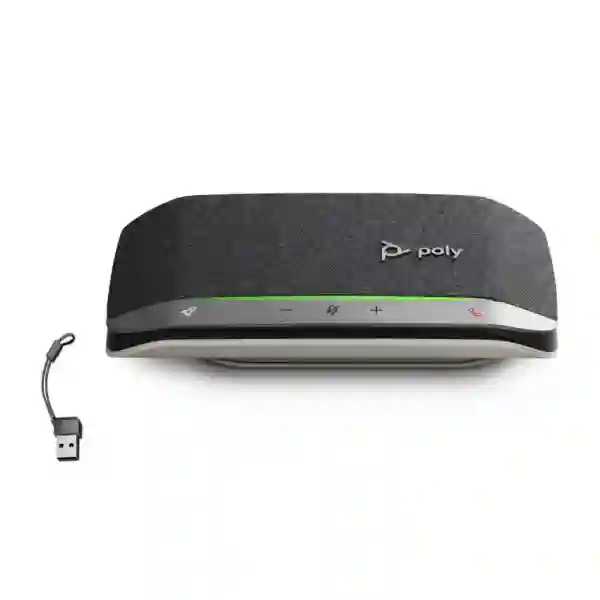
HP Poly Sync 20 USB Bluetooth Speakerphone
The HP Poly Sync 20 USB Bluetooth Speakerphone is a portable audio solution for professionals who want to hear and be heard during laptop and smartphone calls. It combines a steerable three-microphone array, full-duplex audio, and noise and echo reduction with easy controls in a device made for flexible work. It is particularly useful at personal desks and in quiet small-group discussions, where a built-in laptop microphone may not be well positioned.
Connect a suitable model to a computer through its integrated USB connection, or use Bluetooth with a compatible smartphone. HP rates the rechargeable battery for up to 20 hours of talk time, and the speakerphone can be carried between workspaces. To choose correctly, confirm whether you need a USB-A or USB-C variant, a Teams-specific configuration, or a Sync 20+ package with a computer Bluetooth adapter. Request a configuration-specific quote rather than relying on the family name alone.
Key features at a glance
A practical upgrade from a laptop’s built-in audio
Laptop speakers and microphones are convenient, but they are not always positioned well for business conversations. A keyboard, fan, open window, or colleague speaking nearby can make remote meetings harder than they need to be. The HP Poly Sync 20 USB Bluetooth Speakerphone brings the speaker, microphones, and meeting controls into a single portable device that can sit where the discussion happens. It is designed for people who want to speak naturally without wearing a headset throughout the working day, especially when shifting between a desk, a home office, and a temporary meeting space.
The advantage is not simply louder sound. The three-microphone array is intended to focus on voices, while noise and echo reduction help limit distracting audio sent to other participants. Full-duplex operation supports more natural exchanges when people speak at the same time. An integrated USB connection can serve a computer, while Bluetooth makes mobile-phone use straightforward. For teams evaluating conferencing equipment in Tanzania, that combination offers a sensible personal-audio option without turning a small workspace into a permanently installed conference room.
The Sync 20 is a personal and small-group speakerphone, not a substitute for every meeting-room system. Its performance still depends on acoustics, seating position, the calling application, and network quality. Buyers should also distinguish the basic Sync 20 from Sync 20+ versions and Microsoft Teams variants before placing an order, because the cable connector, bundled computer Bluetooth adapter, and dedicated collaboration features can differ.
Who benefits most from a portable speakerphone?
The strongest use case is a professional who joins voice or video meetings regularly and prefers an open-ear experience. A consultant can place the device on a desk, use the laptop for video, and maintain a comfortable speaking posture. An administrator who moves between offices can carry the same speakerphone rather than depend on whatever microphone is installed in each computer. A manager reviewing documents with a colleague can let both people participate without sharing a headset or crowding around a laptop screen.
Hybrid workers also benefit when their daily routine alternates between computer calls and smartphone conversations. The USB and Bluetooth options reduce the need to buy separate audio devices for every environment. A small project team might use the Sync 20 for a short check-in in a quiet room, provided everyone is reasonably close to the unit. This is particularly useful when a permanent desk phone or dedicated room audio installation would be unnecessary for the task.
There are important boundaries. A shared, noisy office may call for a headset to preserve privacy and prevent the meeting audio from disturbing colleagues. A boardroom with many seats should use conferencing equipment designed for longer pickup distances and broader coverage. If an organization has strict device-management requirements, the IT team should confirm the exact model and software policies rather than assume that every Sync 20 variant has the same provisioning options.
Three microphones, one clear meeting objective
The Poly Sync 20 uses a steerable three-microphone array. Instead of relying on the small microphone built into a laptop bezel, the speakerphone captures speech from a device placed near the participants. HP describes this array as a way to prioritize voices and reduce unwanted room sounds. For the person on the far end of the call, the goal is intelligibility: recognizing words, following explanations, and avoiding repeated requests to speak again. It is a practical benefit during client discussions, internal reviews, training calls, and routine coordination.
Microphone placement remains important. Set the speakerphone on a stable, open surface rather than behind a computer screen, inside a cabinet, or beside a loud cooling fan. The device should not be hidden under papers or positioned where people will brush against it while taking notes. If two participants share the device, place it between them and avoid having one person sit significantly farther away. A tabletop location often offers a more consistent pickup position than a laptop microphone aimed at a single user.
Noise reduction is not a guarantee of silence. Sudden impacts, traffic, overlapping conversations, and strong room reverberation can still affect the outgoing signal. The clearest results come from pairing the device’s microphone processing with sensible meeting etiquette: close unnecessary applications that produce alerts, minimize nearby distractions, and ask remote attendees whether the microphone level is comfortable.
Full-duplex conversation and echo reduction
Some speakerphone experiences feel awkward because participants are forced into a stop-and-start pattern. One person begins talking, the other tries to respond, and part of the second voice disappears. Full-duplex audio addresses this problem by supporting simultaneous speech and listening. The Poly Sync 20 includes full-duplex capability, which is useful when a discussion involves quick questions, confirmations, or naturally overlapping remarks. It makes the conversation feel less like using a two-way radio and more like people speaking across a table.
Echo reduction serves a different purpose. When incoming audio is played through a loudspeaker, a nearby microphone can pick it up and send it back to the other participants. A conferencing speakerphone is engineered to limit that feedback loop. This is especially useful when you need the freedom of a loudspeaker rather than a headset. The feature helps, but does not eliminate every possible acoustic issue; the room, volume setting, application processing, and placement can all influence the outcome.
For practical use, begin a meeting at moderate volume and raise it only as needed. Avoid running the laptop speakers and the Poly speakerphone as simultaneous output devices. In the meeting application, select the Poly device deliberately for both microphone and speaker, then conduct a brief test call. If participants report echo, check for another connected speaker or microphone before assuming the speakerphone itself is defective.
A compact speaker built for speech and everyday listening
Audio for a meeting must reproduce speech clearly, but many users also listen to training material, recorded presentations, podcasts, or occasional music. The Sync 20 combines a 40 mm loudspeaker with dual passive radiators and a manufacturer-stated speaker bandwidth of 80 Hz to 20 kHz on the documented models. The design aims for richer audio than a basic laptop speaker while keeping the device compact enough to move between workspaces. Volume controls are located on the unit so the user does not need to search through computer menus mid-conversation.
This does not make the Sync 20 a dedicated entertainment system. It is primarily a communications product with additional general-audio usefulness. Buyers looking for deep stereo sound, room-filling background music, or production monitoring should evaluate specialized speakers instead. For the intended purpose, focus on voice clarity, ease of operation, microphone performance, and portability rather than judging the unit solely by how forcefully it reproduces bass.
A practical evaluation can use the calls your team actually makes. Play back a recorded training segment, join a test meeting with a colleague, and assess clarity at the volume you would use in the normal workspace. Test both listening and speaking because a device can sound good to the person in the room while delivering less satisfactory microphone audio to the remote participant.
USB connectivity for laptop and desktop meetings
For a computer-based meeting, the wired USB connection is the straightforward choice. The standard Poly Sync 20 family includes models with an integrated USB-A or USB-C connection, while certain newer packages use an adapter arrangement. The precise connector is determined by the variant being purchased, not by the generic family name. When the correct connection is available, users can select the speakerphone as the computer’s audio input and output device, then choose it again inside the conferencing application if necessary.
Wired use can simplify a desk setup because it avoids maintaining a separate wireless link between the speakerphone and the computer. It can also be helpful for shared meeting spaces where people temporarily connect their own laptops. However, the presence of a USB connector does not mean that any cable adapter, docking station, restricted workstation, or operating system will behave identically. The actual device, available port, host permissions, and software configuration still matter.
Before purchasing for multiple staff members, inspect the laptops in use. Count USB-A and USB-C ports, consider whether docks already occupy them, and check whether a cable can reach a sensible tabletop position. For organizations standardizing on USB-C-only computers, selecting the correct Sync 20 version up front is better than relying on an unverified adapter supplied later. The included cable and accessories should be confirmed against the exact ordering configuration.
Bluetooth for mobile-phone calls
The Poly Sync 20 supports Bluetooth connectivity for a compatible smartphone. That means a user can put the phone down, take part in a hands-free conversation, and use the speakerphone controls without keeping the handset against an ear. HP specifies Bluetooth 5.1 for the documented Sync 20 models. It is particularly useful for mobile work, quick supplier calls, or situations where the smartphone is the primary communications device rather than a notebook computer.
Bluetooth introduces a few normal considerations. A successful pairing does not mean the phone will automatically route every application to the speakerphone. During a call, the phone or app may still show its own audio-routing menu. Nearby wireless activity, the location of the phone, battery level, and the way an application handles audio can also change the experience. If you move between mobile calls and laptop meetings, verify which device currently owns the audio connection before starting an important conversation.
The distinction between Bluetooth on a phone and wireless use on a computer is essential. The standard Sync 20 is presented by HP as connecting to the computer by USB and to a smartphone by Bluetooth. Sync 20+ packages add a Bluetooth USB adapter for computer use. Do not assume that the standard model includes a dongle merely because the product name mentions Bluetooth. Check the exact contents when planning a wireless computer deployment.
Battery life that supports flexible working
The integrated rechargeable lithium-ion battery is rated by HP for up to 20 hours of talk time under the manufacturer’s conditions. This gives the Sync 20 a useful degree of independence from a desk connection when paired with a smartphone. It can accompany a professional between rooms or be used during a working session without immediately searching for a power outlet. HP lists a charging time of under four hours for the documented USB-A product, giving users a reasonable planning reference for normal charging routines.
The phrase up to is important. Actual runtime depends on listening volume, call activity, wireless conditions, battery age, and whether the device is also being used to provide power to another device. An organization should not promise a specific number of full working days between charges. Instead, treat the figure as a maximum product rating and establish a charging routine that matches the actual workload. Wired computer use may provide a more convenient arrangement for prolonged desk sessions.
For people who travel between assignments, battery readiness is part of meeting readiness. Check the charge before leaving, keep the correct cable accessible, and avoid allowing the device to run down just before an important external call. A portable speakerphone is most useful when its connectivity and power needs have been considered together, rather than discovered a few minutes before the meeting.
Smartphone charging: useful, but understand the limits
An additional convenience is the speakerphone’s smartphone-charging capability through its USB-A charging port on documented models. This can help keep a compatible phone operational when its battery is low, especially when a meeting is already in progress. It is a welcome secondary function for someone who uses the Sync 20 with a mobile device through Bluetooth and wants to reduce the number of accessories spread across a small workstation.
Charging another device naturally draws power from the available energy budget. It can reduce the speakerphone’s battery runtime and should not be understood as a replacement for a dedicated high-capacity power bank. The appropriate phone cable may also depend on the smartphone. Check the actual product configuration and charging guidance before making this a required part of a deployment. HP’s feature information confirms the function, but it does not establish that every smartphone or charging method will behave identically.
For business continuity, use the charging port as an occasional convenience rather than the primary charging plan for a long workday. When a meeting is business-critical, keep both the speakerphone and smartphone adequately charged. This is especially relevant if the same phone is handling the mobile-data connection: a power interruption should not create simultaneous communication and battery problems.
Simple controls and visible call status
The Sync 20 places essential call functions on the device. Documented touch controls include answer and end call, mute, and volume adjustment, along with a programmable function button. Physical controls provide power and Bluetooth pairing. The visible light bar provides call-status feedback, allowing users to recognize changes without constantly searching for an on-screen indicator. This arrangement is especially valuable when a laptop screen is being shared or a presentation occupies the entire display.
A mute control deserves particular attention in business meetings. It allows a participant to stop transmitting audio when discussing a sensitive matter with someone in the room, responding to an interruption, or stepping away briefly. Still, muting should be verified in the application when confidentiality matters. Some meeting software, phone calls, or device configurations may handle control synchronization differently. A quick glance at the call status and an explicit test avoid confusion.
The programmable button is useful when its behavior is configured appropriately for the user’s setup. Depending on supported software and configuration, it may be assigned a preferred function. However, not every function is available in every environment. Teams-specific button behavior and certification are variant-dependent. An IT department rolling out multiple units should agree on sensible button settings and provide a short user guide so staff members are not left guessing what a control does.
Use it with familiar meeting applications
Most buyers select a speakerphone to work alongside a conferencing platform rather than to replace one. The Poly Sync 20 is designed for common computer and mobile communication workflows. It can function as the microphone and speaker while the application manages invitations, participants, video, screen sharing, recording, and meeting controls. A suitable USB connection and correctly selected audio device are often more important to success than a long list of application logos.
For Microsoft Teams environments, verify whether the exact unit is a standard UC configuration or a Microsoft Teams-certified version. HP offers specific Teams models within the Sync 20 family, and the presence or behavior of a dedicated Teams button must not be assumed for a generic Sync 20 listing. Similarly, any certification for another communications platform should be matched to the exact SKU or manufacturer’s part number and relevant software requirements before procurement.
Teams that use several applications should perform a practical acceptance test in each one. Join a short call, confirm the microphone selection, confirm that audio returns through the Poly speaker, test mute and volume, and check what happens when another application requests the microphone. This small exercise is more dependable than treating broad platform compatibility as a promise that every advanced feature will work without configuration.
Desk, home office, and quiet huddle scenarios
At a personal desk, place the speakerphone directly ahead of the user or slightly to the side of the keyboard, leaving the microphones unobstructed. When a video camera sits above the screen, this position keeps the voice source reasonably close to the natural speaking direction. The device’s modest footprint suits workstations where a permanent conference-room microphone would be excessive. Because the meeting sound is audible in the space, a reasonably private area remains preferable.
For a home office, the same setup works for interviews, supplier discussions, online training, and internal status meetings. Close doors where practical and take care with reflective hard surfaces. A small amount of attention to the room can make a bigger difference than endlessly increasing the device volume. When children, television audio, or other unpredictable sounds are present, a headset may still be the better choice for confidential or highly focused calls.
In a quiet huddle setting, the Sync 20 can let a few people participate around a table. HP’s technical guidance describes a microphone pickup range of up to approximately two metres and a small-room use case. These are planning references, not guaranteed intelligibility at every seat. If participants are widely spread out, the room is reverberant, or many people need to speak, consider a device specifically built for a larger room rather than stretching a personal speakerphone beyond its intended role.
Portability, dimensions, and physical resilience
The documented USB-A model measures approximately 18.2 by 9.5 by 3.4 centimetres and weighs about 360 grams. That is small enough for many laptop bags or desk drawers and makes the Sync 20 easier to move than a fixed conference unit. HP lists a travel case and lanyard among the packaged accessories for the referenced standard model. Buyers should nevertheless verify the actual box contents for the exact product offered, especially if buying in quantity or across mixed variants.
IP64 is another useful design characteristic. The rating indicates dust-tight construction and protection against splashing water under defined test conditions. It can provide reassurance during normal mobile work, but it does not mean the speakerphone is waterproof for immersion, suitable for heavy rain, or protected against every kind of spill. Avoid exposing the charging connections to moisture and follow the manufacturer’s cleaning guidance. The device should be handled as professional electronics, not outdoor rugged equipment.
A practical travel routine is simple: disconnect or stow the cable neatly, avoid placing heavy equipment on the speaker grille, and keep the speakerphone in a protective compartment. Inspect USB connectors before attaching them to a computer. A portable device gives the greatest value when it arrives ready for a meeting rather than with a damaged cable or blocked microphone opening.
Setting up the speakerphone on a Windows computer
Start by identifying the connector on the specific unit and connecting it to an appropriate computer port. Allow the operating system to detect the audio device. Open Windows sound settings and select the Poly speakerphone as the desired input and output where applicable. Next, enter the meeting application’s audio or device settings and choose the same Poly device for the microphone and speaker. Some applications retain the previous device selection even after Windows recognizes a newly connected accessory.
Make a short test call before an important presentation. Speak at the distance and volume you would normally use, then ask another participant to confirm speech clarity. Check that the incoming voice plays through the speakerphone and not simultaneously through laptop speakers. Test the mute control, adjust volume conservatively, and confirm that the operating system has granted the meeting application microphone access. These checks usually take less effort than troubleshooting during a live client discussion.
For IT-managed Windows devices, restrictions may affect new USB peripherals, application permissions, or audio routing through docks. The speakerphone’s basic audio function does not automatically bypass an organization’s security policies. If the device is visible in Windows but unavailable in the meeting application, inspect the application permissions and device selection first. Use approved HP Poly support material for firmware or device-management questions instead of installing unknown utilities.
Using the Sync 20 with a Mac or shared workstation
The documented family also supports macOS. As on Windows, the most reliable starting point is to connect the correct USB version, select the speakerphone in the computer’s sound controls, and then choose it within the calling application. The exact appearance of settings will depend on the operating-system release and conferencing software. Where a Mac has only USB-C ports, ensure the purchased speakerphone configuration or approved adapter matches those ports rather than assuming a USB-A cable can connect directly.
A shared workstation introduces another challenge: the last user may have left an application pointed at a different microphone, webcam, or output device. Establish a simple join-meeting checklist. Verify the selected speaker, microphone, and mute state; check the charging cable if the speakerphone is being moved; and ask the remote participants whether your audio is comfortable. If several employees use the same device, cleanliness and cable handling matter as much as the software settings.
Avoid claiming that every advanced application command is identical across operating systems. Core speakerphone use and collaboration-specific control integration are different levels of compatibility. For business procurement, test the exact conferencing app, operating system, and intended USB hardware combination before committing to a broad fleet.
Connecting to a smartphone and avoiding audio-routing surprises
For mobile use, power the speakerphone on and initiate Bluetooth pairing with the device’s pairing control. On the smartphone, open its Bluetooth settings, locate the Poly speakerphone when it appears, and approve the pairing. Once connected, place a short call or play a suitable audio sample to confirm that the phone is routing sound to the speakerphone. During the call, you may need to select the Bluetooth audio device from the application’s audio-output options.
Keep the phone close enough for a stable wireless connection. Although manufacturer specifications for the documented version describe a substantial potential wireless range, actual results vary with walls, interference, the phone, and how the work area is arranged. For a sensitive client call, do not put the phone several rooms away simply because a maximum distance appears on a specification sheet. Test in the intended environment and prefer a stable position over chasing an advertised range figure.
If mobile audio suddenly returns to the handset, review the call’s current audio output and the Bluetooth connection status. A recent connection to a car system, earbuds, or another accessory may have changed the preferred audio route. If pairing needs to be repeated, follow the official HP Poly instructions for the relevant device version. Avoid resetting multiple devices blindly, because the problem may simply be an application preference rather than a failed Bluetooth connection.
Choosing between Sync 20 and Sync 20+
The name difference is small, but the purchasing implication matters. HP describes the standard Poly Sync 20 as a USB-connected computer speakerphone with Bluetooth for smartphone use. Poly Sync 20+ packages add a Bluetooth USB adapter to support a managed wireless computer connection. Manufacturer material refers to different adapter generations across product configurations and documentation, so the bundled adapter’s precise model should always be confirmed from the current exact-part listing. Do not advertise a BT600 or BT700 dongle as included with a generic Sync 20 unless the selected package confirms it.
A desk-based user who normally connects one laptop may be well served by the basic Sync 20. Someone who requires freedom from the computer’s USB cable should investigate the Sync 20+ version and the relevant adapter, host port, and software requirements. Both types retain the general objective of portable, personal conferencing audio; the difference is not a promise that every call will sound different. It is primarily about the connection method and supplied hardware.
There are also USB-A, USB-C, and Teams-related options. Buying by an abbreviated product title alone can lead to a connector mismatch or a missing accessory. Ask the seller to identify the exact manufacturer part number and complete carton contents in the quote. Organizations ordering several units should record the approved configuration so future replacement purchases remain consistent.
Standard UC versus Microsoft Teams-specific models
The term UC is commonly used for unified communications configurations intended for use across a range of communication applications. The Sync 20 family includes standard and Microsoft Teams-certified versions. A Teams-specific variant may include dedicated controls or integration intended for that environment, but it should be identified by its own manufacturer product information. The general product family name is not enough to prove that a particular unit holds every platform certification or contains a Teams button.
For an organization that uses Microsoft Teams exclusively, the specific Teams model may be appropriate if the verified features align with the team’s workflow. A business that moves frequently between several calling applications might prioritize basic audio operation and cross-platform testing rather than the presence of one dedicated shortcut. Neither purchasing decision should be based solely on a logo or a marketing phrase; the real requirement is dependable microphone, speaker, and control behavior during the meetings staff members actually hold.
Procurement teams should record three details for every proposed configuration: the exact Poly or HP part number, the cable connector or computer wireless-adapter package, and any platform-specific certification needed. If an external tender requires documented certification, request the manufacturer-backed specification for that exact model. This prevents a generic description from becoming an unsupported promise in an IT purchase order.
How the Sync 20 compares with other audio choices
Compared with the microphones and speakers built into many laptops, the Sync 20 gives users a dedicated conferencing device with a three-microphone array, a visible call-status indicator, and controls placed where they are easy to reach. It also makes the audio system less dependent on the position of the laptop lid. That can be useful when a laptop is connected to an external monitor or moved around the desk. Whether the improvement is significant depends on the quality of the computer’s existing hardware and the working environment.
A headset addresses a different problem. Because it places the microphone close to one person’s mouth and keeps incoming audio near the ears, it is often better for shared offices, confidential discussions, or spaces with constant background noise. The Sync 20 is better suited to someone who wants to hear the room, avoid wearing earphones, and occasionally allow another person to join the conversation. A business may reasonably equip employees with both choices for different working conditions.
For larger meetings, compare the Sync 20 with equipment designed for huddle rooms or conference rooms, such as larger models within HP Poly’s speakerphone range. A personal speakerphone should not be selected solely because it is less expensive or more portable. Estimate the typical number of people, seating distance, acoustic conditions, and available connection hardware. Room suitability is more important than buying the smallest device that can technically play conference audio.
A purchase checklist for Tanzanian businesses
Start with the exact use case: one remote worker, a mobile professional, or a small group around a table. Next confirm the host devices, whether the connection must be USB or wireless to a computer, and whether smartphones will also be involved. Check operating systems and the meeting applications used by staff. Make a list of any required certification or centralized configuration features. These questions will narrow the appropriate Sync 20 variant far more effectively than choosing from a generic catalogue title.
Then request the manufacturer part number, USB connector type, color where relevant, package contents, and the inclusion or exclusion of a Bluetooth computer adapter. Confirm the vendor’s current quote, payment terms, and availability separately. For this Tanzania-targeted listing, no local price, stock quantity, warranty entitlement, delivery window, or regulatory approval is assumed. Those details need confirmation for the actual offer and customer location rather than extrapolation from international pages.
Finally, test a sample in the real environment where possible. Have an employee use the selected device for a typical client meeting, make a smartphone call, and check the microphone in the usual room. This identifies practical issues such as unsuitable cable reach or audible room noise before several units are ordered. For a corporate purchase, document the approved configuration and the procedure for basic support.
Meeting preparation that protects the customer experience
A well-designed speakerphone works best within a simple meeting routine. Before a client presentation, connect the device, check its power level, and ensure it is selected in the conferencing application. Position it on a stable, unobstructed surface near the speaker. Review the volume and mute state before admitting participants. If sharing a laptop with several people, decide who will operate the call controls so that accidental mute changes do not interrupt the discussion.
During the meeting, speak toward the normal discussion area and avoid leaning over the device or tapping the tabletop beside it. If a second person joins, adjust the placement so both voices are reasonably near the microphones. When the far-end participant asks for repetition, first check the room, speaker position, and internet connection rather than instantly increasing microphone gain. Too much gain can amplify unwanted room noise. Consider a headset if confidentiality becomes important or the meeting shifts into a busy environment.
After the call, disconnect from the conferencing application, confirm that screen sharing and recording have stopped where relevant, and store the speakerphone properly. If used as a shared office asset, return it with a charged battery and accessible cable. These small operating habits create a more dependable conferencing experience than relying on hardware features alone.
Troubleshooting sound, microphone, and connection issues
If the other participants cannot hear you, first confirm that the speakerphone is not muted. Then inspect the meeting application’s selected microphone and the computer’s operating-system permissions. A device can be recognized by the operating system while the calling application continues to use the laptop’s internal microphone. Try a brief test recording or a call with a colleague. Check that the cable is firmly connected and that the correct USB port is being used.
If you hear no incoming audio, inspect the speaker setting inside the app, then the computer’s output controls and the speakerphone’s volume. Disconnect other audio accessories temporarily if they are taking priority. For Bluetooth use, verify the mobile device is still paired and that the active call has selected the speakerphone for its output. If a Windows or Mac update has changed audio defaults, reselect the device rather than assuming the hardware has failed.
For complaints about echo or intermittent speech, reduce the room volume, move the speakerphone away from reflective or noisy objects, and avoid simultaneously using other speakers and microphones. A poor internet connection can produce breaks that resemble microphone faults. Compare behavior on a second call or app when appropriate. Firmware and advanced configuration questions should follow official HP Poly support guidance for the exact model, not unsupported third-party download links.
Care, cleaning, and long-term operation
A shared speakerphone should be easy to find, ready to use, and physically clean. Wipe surfaces according to the manufacturer’s instructions, keeping liquids away from connectors and openings. Do not immerse the device or spray cleaning products directly into the microphone or speaker areas. The IP64 rating is not permission to wash it under a tap. When storing it, make sure the USB cable is not sharply bent or trapped beneath heavy equipment.
Rechargeable batteries change over time, so charging behavior should be monitored rather than assuming the original maximum runtime will last forever. Avoid leaving the device completely discharged for long periods if the manufacturer’s guidance advises against it. For a shared pool of devices, establish a basic schedule for checking charge, cable condition, and availability. Where security policies restrict updates, route firmware maintenance through the authorized IT process.
The goal is predictable everyday operation, not a complicated maintenance program. A named storage location, a straightforward connection guide, and a periodic test call are usually enough to catch common problems early. If the hardware develops a fault, record the exact model identification and symptom before approaching the supplier or manufacturer support channel.
What to confirm before requesting a quotation
To obtain an accurate quotation, specify that the intended product is the HP Poly Sync 20 USB Bluetooth Speakerphone and explain whether you require USB-A, USB-C, or a package with a computer Bluetooth adapter. State whether a Teams-specific version is required. Include the number of users or units and the main host devices so the configuration can be reviewed consistently. This is more helpful than requesting only a generic wireless conference speaker, because similar product names can refer to different combinations of hardware.
Ask for a written confirmation of the exact model identifier and the accessories supplied. Where employees have USB-C-only laptops, make that a clear requirement. Where a computer must connect wirelessly, ask specifically about the Sync 20+ package rather than presuming the standard unit has an included dongle. If you are comparing alternatives, describe the room and typical number of participants; a larger audio solution may be more appropriate.
FourTeck Tanzania can be approached for a product enquiry or quote review. Actual price, availability, local fulfilment arrangements, and applicable commercial terms should be confirmed as part of that enquiry. No quantity discount, on-site installation, or lead time is promised by this product description.
Frequently asked questions
What is the HP Poly Sync 20 used for?
It is a portable USB and Bluetooth speakerphone intended for calls, online meetings, and everyday voice collaboration. A user places it on a desk or small meeting table, selects it as the microphone and speaker, and speaks naturally without wearing a headset. It is particularly suited to personal workspaces and limited small-group discussions. It is not a standalone conferencing service and does not create meeting invitations or replace the software used for video calls.
Does the standard Sync 20 connect wirelessly to a laptop?
The standard Sync 20 is described by HP as using USB for computer connections and Bluetooth for smartphone connections. Sync 20+ packages include a Bluetooth USB adapter for supported wireless computer operation. A computer may have its own Bluetooth capability, but that does not establish the exact supported or bundled configuration for this listing. If wireless laptop use is essential, verify the specific Sync 20+ package and adapter before buying.
Can I use it with a USB-C-only computer?
USB-C versions and adapter-based packages exist within the product family. However, some Sync 20 variants have an integrated USB-A cable, so the generic product name is insufficient to confirm direct USB-C connection. Check the exact manufacturer part number, connector, included adapters, and host requirements. For a large rollout, test the proposed configuration with the organization’s actual laptop and docking-station models.
How many microphones does it have?
HP specifies a three-microphone steerable array for the Poly Sync 20. The array works with the device’s noise and echo reduction features to help capture speech for conferencing. Microphone effectiveness is influenced by distance, furniture, background noise, and room acoustics. Place the speakerphone near participants on an open surface, and test with a remote colleague before treating a new room arrangement as meeting-ready.
What is its rated battery life?
The manufacturer rates the device for up to 20 hours of talk time under specified conditions. That should be understood as an upper-limit specification, not a guarantee for every day of use. Higher speaker volume, wireless activity, battery age, and charging a phone can influence practical runtime. Recharge the device before important mobile meetings and confirm that the cable and power arrangement suit the intended setup.
Is the Poly Sync 20 waterproof?
No. The documented IP64 rating means the device has defined dust protection and resistance to splashing water. It is not rated for immersion and should not be treated as weatherproof equipment for outdoor use. Keep moisture away from ports, avoid liquid cleaning sprays, and follow the manufacturer’s care instructions. A protective case remains sensible when moving it between workplaces.
Can several people use one speakerphone?
A small number of people can share a Sync 20 in a quiet, compact space if they sit reasonably close to the microphones. HP’s product guidance describes a personal speakerphone with an approximate two-metre microphone pickup reference. Real intelligibility varies with acoustics and seating, so this is not a guarantee for every meeting table. Larger rooms and groups should be evaluated for a dedicated conference-room solution.
Does every Sync 20 include a Microsoft Teams button?
No such assumption should be made from the family name alone. The Sync 20 range includes standard and Microsoft Teams-specific variants. Dedicated button behavior and applicable certification depend on the selected configuration. Before ordering for an organization that requires Teams certification, verify the exact part number and manufacturer documentation for that variant, rather than relying on a general catalogue image.
Can it charge my smartphone?
HP documents a USB-A smartphone-charging capability on relevant Sync 20 models. The function can be useful during mobile work, but it consumes the available battery energy and should not replace a normal charging plan. Cable type and compatibility depend on the phone and speakerphone package. Confirm the actual model and use a suitable cable; do not assume it will provide the same charging performance as a dedicated power bank.
What information should I provide when requesting a quote in Tanzania?
Specify the desired unit quantity, USB-A or USB-C preference, whether a computer Bluetooth adapter is required, and whether a Microsoft Teams-specific model is essential. Mention the laptop and mobile-phone devices in use and whether the equipment is for an individual or a small meeting space. Ask the supplier to confirm the exact manufacturer part number, included accessories, current availability, price, and applicable commercial terms before placing the order.
Request the right Poly Sync 20 configuration
Ask FourTeck Tanzania about the HP Poly Sync 20 USB Bluetooth Speakerphone for your working environment. Share the quantity, host devices, preferred USB connector, and whether a computer Bluetooth adapter or Microsoft Teams-specific model is required. Request confirmation of the exact manufacturer part number, included accessories, quotation, and current commercial terms before committing to a purchase.
Reviews
There are no reviews yet.