
Small-room USB video conferencing
HP Poly Studio R30 USB Video Bar
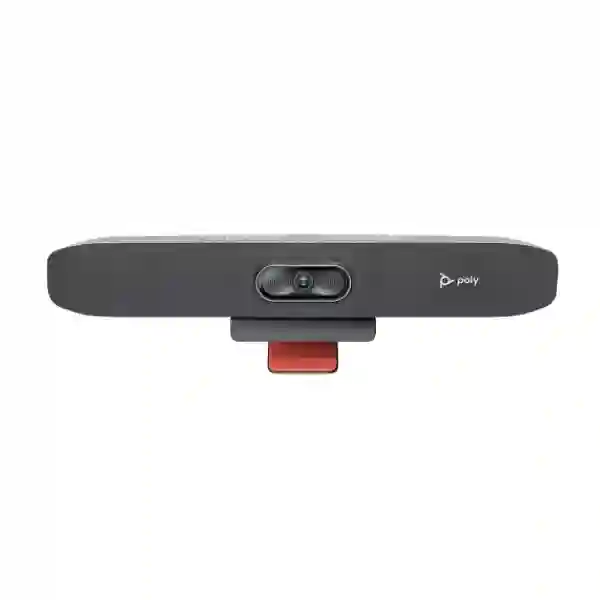
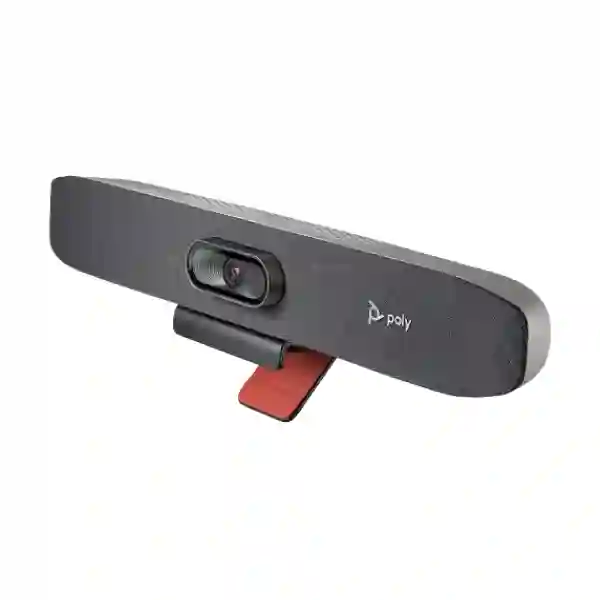
Bring everyone into the conversation with an integrated 4K-capable camera, intelligent framing, three beamforming microphones and a speaker in one small-room USB video bar.
Designed for rooms using a laptop or room PC, the Poly Studio R30 is a practical upgrade when a built-in laptop webcam and microphone cannot adequately cover a shared meeting table. It connects to a host computer; it does not independently run meeting software. Ask FourTeck Tanzania to help clarify the exact equipment needed for your room, including mounting, cabling, computer and display connections.
Verified specifications for room planners
These are device capabilities, not a promise that every conferencing application, connection, accessory or room will deliver the maximum specification.
| Recommended deployment | Small meeting room, connected to a laptop or room computer |
|---|---|
| Camera | 8 MP single-lens, up to 3840 × 2160 (4K UHD) |
| Viewing angle | 120° diagonal / 110° horizontal |
| Framing | Poly DirectorAI: group, people, speaker and presenter modes |
| Audio | Three-element beamforming microphone array; integrated single speaker |
| Pickup reference | Up to 4.57 m / 15 ft |
| USB / power | USB Type-C device connection; external 12 V / 3 A supply |
| Included connectivity | 5 m USB Type-C-to-Type-A cable (USB 2.0) |
| Conferencing | Microsoft Teams and Zoom certification; standard USB audio/video interoperability |
| Mounting in standard package | Monitor clamp; optional compatible wall/VESA options |
A small-room video bar built around the people in the room
A good conference room should let participants concentrate on decisions rather than on a camera that cannot see the whole table or a laptop microphone placed too far from the people speaking. The HP Poly Studio R30 USB Video Bar addresses this specific problem: it brings an integrated camera, microphones and speaker into a single USB-connected device intended for small rooms. A host laptop or room computer runs the meeting application, while the video bar supplies the room-facing audio and video. This makes the buying proposition different from a simple personal webcam and different again from a self-contained meeting-room appliance.
For organisations planning meeting spaces in Tanzania, the first question is not whether the specification sheet says 4K. It is whether the device suits the number of participants, seating arrangement, acoustic conditions, computer platform and meeting workflow. The R30 is worth considering for an existing small meeting room that already has a display and a suitable computer or for a bring-your-own-device room where users connect their own laptops. Confirm the full room design before ordering; the video bar does not replace a display, computer, internet connection or meeting-service subscription.
At a glance: the practical specifications
HP describes a single-lens 8 MP camera with up to 3840 × 2160 capture capability and a video frame rate specification of 30 frames per second. Its view spans 120 degrees diagonally and 110 degrees horizontally. Those measurements describe different axes, so they should not be treated as contradictory or interchanged. Digital zoom is specified at 5x without tracking or 4x during automatic tracking. Poly DirectorAI offers group, people and speaker framing as well as presenter tracking, allowing the video composition to respond to activity rather than remaining fixed throughout every call.
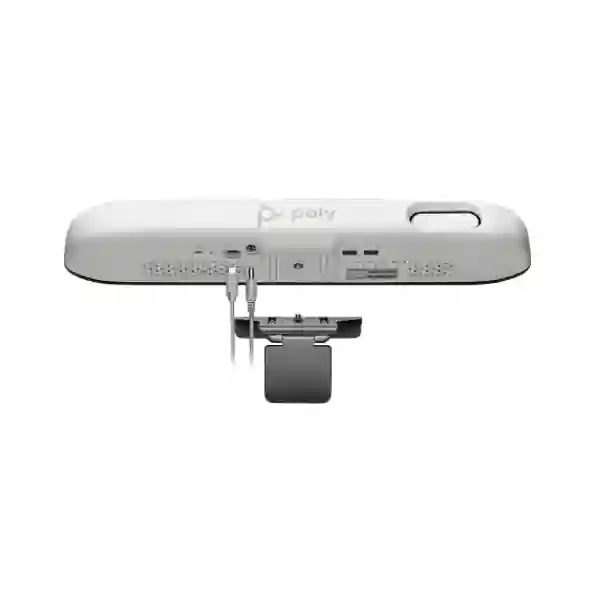
Audio hardware comprises a three-element beamforming microphone array and one integrated speaker. HP specifies microphone pickup up to 4.57 metres, but that is a design reference rather than a promise of perfect voice capture through barriers, noise or reflections. The standard interface includes a USB Type-C connection, two USB Type-A 2.0 ports and an external power input. An included five-metre USB Type-C to Type-A cable helps route a connection to a computer. The standard package and regional variation should be confirmed on the exact quotation.
Who should consider the R30?
The clearest fit is a huddle room or compact conference room where several people need to appear in one shot, hear a remote team and contribute speech without passing around a headset. Typical use cases include a project review with colleagues joining remotely, a small management discussion, a meeting with an external client, a hybrid training session with a handful of in-room attendees or a recurring operational call. It is useful when the room is shared by employees rather than assigned to one person’s desk.
HP categorises the Studio R30 as a small-room solution, and its support information identifies a typical three-to-five-person setting. Treat that as a planning guide rather than a strict participant limit. A long table, very wide seating angle, people facing away from the camera or multiple sources of noise can matter more than headcount alone. If participants sit far beyond the stated microphone pickup range, or if the room needs distributed microphones and multiple speakers, a larger or more expandable system is a better starting point.
What makes a USB video bar different?
A USB video bar functions as peripheral hardware attached to a host computer. For the R30, the USB connection carries the camera and audio device functionality, while external power supplies the bar. The conferencing application runs on the computer, not independently on the R30. This matters when specifying equipment for a room that must work with different meeting platforms, because the computer and its accounts determine which application joins a call. It also matters for support: an application sign-in issue is not necessarily a fault with the camera or microphones.
A typical setup has a display for the people in the room, a laptop or dedicated room PC, the R30 mounted near the display and working internet access. The video bar is selected as the camera, microphone and speaker in the meeting app. Screen-sharing may use the app’s software features or a separate display connection from the computer. Do not assume the R30 itself is an HDMI switch, a standalone room controller or a wireless presentation system. Those are separate design functions and may require additional equipment.
Understand the 4K camera claim before buying
The R30 contains hardware capable of 4K UHD video, but a 4K camera does not mean every online meeting will be transmitted, received or displayed at 4K. Actual resolution depends on the conferencing service, its current settings and policies, processing resources, connection bandwidth and the computer’s USB path. In many day-to-day meetings, the platform may negotiate a lower resolution. Higher camera capability can still be useful for image detail and intelligent framing, but it should not be sold as a guaranteed 4K call experience.
There is an important cabling distinction. HP’s user guide explains that the supplied long USB cable is USB 2.0 for practical deployment over a greater distance. For a 4K workflow, HP specifies a suitable USB 3.0 cable, a compatible USB 3.0 computer connection, a capable PC, a 4K display and a conferencing client that supports 4K. Buyers should confirm the required cable length and data capability during room planning. A cable with the correct plug shape is not automatically capable of the same data performance, and an untested third-party adaptor can introduce additional uncertainty.
How wide-angle coverage changes seating plans
A 120-degree diagonal field of view helps include people sitting to the sides of a short table without positioning the camera far away. The horizontal specification is 110 degrees, which is the more useful number when checking how far left and right the view reaches. A wide lens is especially valuable in a narrow room where the camera is installed close to the participants. It does not eliminate the need to check the actual seating plan, lens height and position of the display.
A practical test is to mark every normal seat, mount the bar in the proposed location and review the live image with people occupying the edge positions. Check that heads are not cropped when participants lean forward, that the closest people do not dominate the picture and that the farthest seats remain comfortably visible. A larger nominal field of view cannot fix a camera blocked by a high monitor, an awkward wall position or a table arranged outside the useful viewing area. Solve the geometry first, then fine-tune the framing features.
Poly DirectorAI: useful framing without a camera operator
Poly DirectorAI is the manufacturer’s smart camera framing technology. The R30 supports modes including group framing, people framing, speaker framing and presenter tracking. Group framing is helpful when the priority is seeing everyone at the table. Speaker framing can draw attention to the current speaker, while presenter tracking is relevant to a person who stands or moves during an explanation. The appropriate mode depends on how a team communicates and on the expectations of remote participants.
Automatic framing should be treated as an adjustable tool rather than an outcome that works identically in every meeting. Overlapping speech, rapid movement, side conversations and people entering or leaving the picture can affect camera decisions. For formal meetings where a stable wide shot is preferred, a fixed or less dynamic framing mode may be more comfortable. During commissioning, test the modes with real participants instead of selecting a setting solely from a product description. Explain to room users how they can change the configuration if the behaviour does not suit a particular call.
Three microphones, one speaker and real room acoustics
The Studio R30 uses three beamforming microphone elements intended to capture people speaking within a small room. Beamforming helps the device focus its audio pickup, while HP’s published pickup range is up to 4.57 metres. That figure should be understood alongside normal speech volume, participant orientation and ambient noise. A participant speaking softly from an adjoining space or behind an acoustic obstruction may not sound the same as someone seated clearly at the table.
The integrated speaker handles the voices of remote participants and keeps the installation simpler than a system made from separate tabletop speakers and microphones. HP describes it as a single speaker, not a stereo room system. In many small rooms that is appropriate, but a room with difficult acoustics, a very long table or hearing requirements that call for distributed sound should be evaluated more carefully. During an acceptance test, have a remote caller listen to each seat and have local participants judge voice intelligibility from the speaker at the expected listening volume.
NoiseBlockAI and Acoustic Fence: what they help with
HP specifies Poly NoiseBlockAI and Poly Acoustic Fence audio technologies for the R30. The purpose is to reduce the impact of unwanted sound and help keep the conversation focused on relevant speech. In a real office, that could mean coping better with keyboard noise, intermittent activity nearby or sound that is not coming from the meeting participants. These functions are valuable where a room is close to a shared workspace, but they should not be described as a guarantee that every background sound disappears.
The most reliable improvement still comes from a suitable room. Shut the door where appropriate, reduce fan noise, position participants within the useful microphone area and avoid highly reflective walls where possible. Test with a remote listener because audio that sounds quiet inside the room can sound distracting at the other end of the call. If a site regularly experiences loud machinery, open-plan conversations or excessive echo, basic room treatment or a different microphone design may be needed in addition to processing features.
Bring-your-own-device meetings without making users learn new hardware
In a BYOD room, an employee or visitor brings a compatible laptop that already has the required meeting application and account. They connect the computer to the R30 over USB, select the device for camera, microphone and speaker, connect the computer to the room display as appropriate and join their scheduled meeting. This arrangement can suit teams that use more than one video conferencing service because the application choice remains on the host computer. It also avoids requiring every person to learn a separate standalone room interface.
BYOD success depends on friction-free cables and clear instructions. Place the USB lead where the meeting host can reach it without pulling equipment across the table. Check whether users have USB-A, USB-C or only dock connections and provide an approved connection plan that preserves required data capability. If the display needs HDMI or another input, specify that separately. Keep the room instructions simple: connect the computer, choose the R30 in the app, check the mute state and test audio before inviting participants to speak.
Microsoft Teams, Zoom and other meeting applications
HP identifies the Studio R30 as certified for Microsoft Teams and Zoom, and it documents compatibility with applications supporting standard USB audio and video drivers. This makes it a flexible peripheral for PC-based conferencing. However, device certification does not mean every feature is available in every application or that every room licensing model is included with the hardware. Platform behaviour, automated controls and supported resolutions can vary according to application version, host operating system and organisational policy.
Before standardising a room, ask the IT team which platforms employees use and whether the host computers are centrally managed. Test the exact application versions and USB configuration planned for deployment. If a buyer wants a permanently signed-in Teams Room or Zoom Room with a dedicated touch controller, specify the complete room-computer and software solution rather than assuming that a USB bar alone provides that experience. The R30 can be part of a PC-based room configuration, but the rest of that configuration needs its own review.
Manage settings and firmware with Poly software
HP lists Poly Lens as the management software family for the R30 and also describes the Poly Studio App for configuration. Depending on the deployment and supported software release, administrators may use available tools to inspect device status, adjust behaviour and manage updates. This is especially relevant to organisations with several meeting rooms, where inconsistent settings can create user confusion even when the hardware is identical. Establish who owns the device configuration before the room enters everyday service.
Good administration includes recording the room name, computer details, installed device firmware, framing preference, audio settings and any approved management policy. Follow current manufacturer guidance for the device and software rather than relying on an older screenshot or someone else’s settings. Test a firmware change on a suitable room before rolling it out widely. For laptops used by visitors, consider the difference between settings stored on the bar and settings controlled by each user’s meeting application. This helps explain why two users may see different video or microphone options.
Mounting, dimensions and camera position
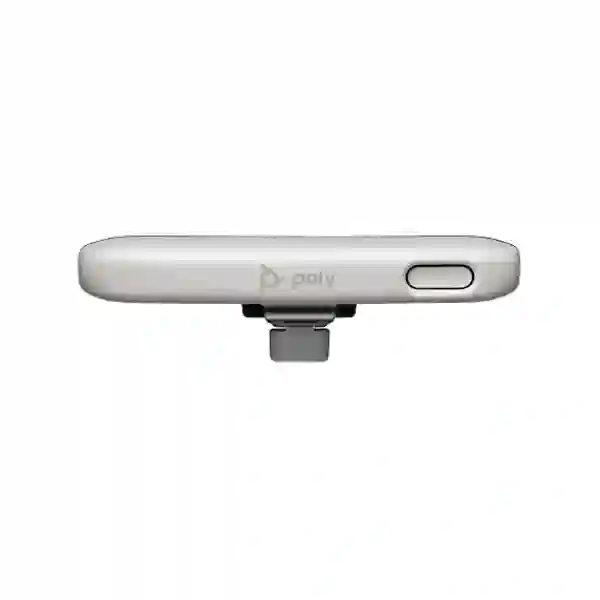
HP lists the R30 at approximately 445 mm wide. It supplies a monitor clamp with the standard package and describes options for tripod-ready installation and separately available wall or VESA mounting accessories. The device dimensions are approximately 445 × 86 × 81 mm with the monitor clamp, according to the regional specification. Check the physical display and its surround before deciding where the unit should sit. A mounting concept that looks good on paper may interfere with the screen, a shelf or nearby controls.
For most rooms, position the bar close to the main display so remote viewers see participants looking in a natural direction while they watch the screen. Avoid an extreme camera angle from high above or below the group. Account for ventilation, cable strain relief and the need to reach the removable privacy cap when the room is not in use. If a wall mount, VESA bracket or tripod is proposed, request confirmation that the selected accessory is suitable for the exact R30 variant and that it is included in the quoted scope, rather than treating every possible mounting option as an in-box item.
Lighting and the background are part of the specification
Even a capable conference camera will struggle to show people naturally when a bright window sits directly behind them or when faces are underexposed. Place lighting so it illuminates participants evenly without glaring into the lens. Where the room has strong daylight, blinds or shades may help maintain a consistent image during morning and afternoon meetings. A subtle, uncluttered background also makes the video easier to follow and allows the camera to concentrate on people instead of distracting visual details.
Before buying extra equipment, perform a simple trial with the room’s normal lighting switched on and off. Look at faces from the first and last seats, not only the person closest to the display. Check how the room appears when participants open a door or turn on a projector. If presenter tracking will be used, identify the area where the presenter normally stands and make sure lighting is consistent across that space. Camera settings can improve a picture, but correcting a difficult lighting arrangement is often the more dependable investment.
Cabling and connectivity: specify the entire path
The standard product connects to a computer by USB and uses an external power adaptor. HP lists a USB Type-C port with 5 Gbps signalling capability, two USB 2.0 Type-A ports and an external power input on the unit. These are device connection specifications; they are not a guarantee that any dock, extender, hub or cable will deliver every supported feature. A room may appear fully connected while still negotiating a lower USB mode, which can limit achievable image resolution or cause intermittent audio behaviour.
The five-metre included Type-C-to-Type-A cable is useful when the laptop point is not immediately beside the display, but it is specified as USB 2.0. The R30 user guide explains that a 4K path requires USB 3.0 equipment as well as the other necessary host and application capabilities. If the planned room layout needs a different cable, confirm its verified electrical and data specifications, length and compatibility before deployment. Do not assume an arbitrary long cable will work because it fits the connectors. For complex cable runs, have the installer validate the whole chain in a realistic test call.
Power, internet and continuity planning in Tanzania
The R30 uses an external supply specified by HP at 12 V / 3 A. That does not remove the need to consider the electrical supply for the room computer, display and network equipment. In any location where continuity matters, plan how a power interruption would affect a meeting and decide whether suitable backup power is needed for the complete working system. A UPS for one device alone is not a complete continuity plan if the router, computer or display still turns off during an outage.
Online meeting performance also depends on a reliable internet connection and the policy of the chosen conferencing service. Check available upstream bandwidth, wireless congestion, network security restrictions and the computer’s connection method. These are deployment considerations rather than claims about a particular Tanzanian service provider. The R30 is a USB audio/video peripheral, not an internet router. If remote teams complain about frozen images or delayed speech, check the host computer and network path before concluding that the video bar itself is faulty.
Privacy, access and comfortable everyday use
The standard box includes a removable privacy cap for the lens. This is useful in a shared room because people can physically cover the camera when video is not required. Establish a straightforward practice for removing it before a call and replacing it after use. The product also has a Kensington-style lock slot according to HP documentation, which may help with physical security planning. Security is broader than a camera cap, however: computer sign-in, application permissions, meeting invitations and software updates remain separate responsibilities.
For a shared meeting space, display a short instruction card explaining how users select the camera and microphone, how the mute indicator works and whom to contact if something fails. Keep passwords and administrative setup information away from public room notices. If the room is used for confidential discussions, review how remote participants are admitted to calls and whether any recording is authorised by the organisation. The video bar can support a well-run room, but it cannot make meeting governance decisions on behalf of the people using it.
Know what is in the standard box
HP’s regional specification for the standard Poly Studio R30 package lists the video bar, monitor clamp, AC power adaptor, power cable, five-metre USB Type-C-to-Type-A cable, setup sheet and removable privacy cap. This is a practical starting package for mounting the bar near a display and connecting it to a host computer. It does not automatically include the display, a room computer, a dedicated meeting controller, a wall bracket, a docking station or a service subscription. Ask the supplier to identify these separately if they are part of the intended solution.
There is also a distinct Studio R30 Plus solution described by HP, which combines the R30 with an HP USB-C Dock G5 and a Poly Bluetooth remote control. Do not confuse that bundle with the basic Studio R30 video bar. If you need a single-cable laptop workflow or physical remote controls, ask for the exact variant and bill of materials. Some accessories may be available separately, and regional packaging can differ. A written, itemised quotation is the safest way to avoid purchasing a video bar when the actual requirement is a complete room bundle.
When the R30 is the right choice—and when it is not
The R30 is a strong candidate when the room is genuinely small, participants sit within a reasonable audio range, the organisation already uses PC-based meeting software and a simple USB peripheral is desired. It is also attractive when a room switches between different employees’ laptops and the team wants better group framing and speech capture than a laptop webcam usually provides. The integrated design reduces the number of separate audio components that must be placed around a short table.
It may not be the appropriate choice for a long boardroom, a divisible training room, a high-noise environment or a space where microphones must extend to distant seats. It also may not satisfy a requirement for a fully autonomous room appliance with built-in meeting sign-in and a touch controller. In those cases, investigate larger-room products, expandable microphone systems or a complete room kit. Compare the total deployment rather than only the camera resolution: mounting, cables, control, audio coverage, user training and support are part of the useful solution.
Three practical examples of room design
Example one is a compact office meeting room with four seats, one display and a shared room PC. The R30 can be mounted near the screen, attached to the PC over USB and selected in the installed meeting app. A permanently available room computer reduces the need for every attendee to plug in a laptop, but it also introduces account, software update and support responsibilities. The buyer should confirm who maintains that computer and how meetings will be launched.
Example two is a flexible client-meeting room where a visitor brings a laptop. The video bar supplies group audio and video while the visitor’s own application connects to the meeting. The design needs a clearly labelled accessible USB connection and a separate, understandable display connection. Example three is a small internal training area where one person presents while others sit nearby. Presenter tracking may make movement easier to follow, but the final design should be tested for the presenter’s walking area and whether everyone can still be heard. Each example depends on room conditions; none is a promise of a particular service package.
Buyer checklist before requesting a quotation
Start with the people and their working pattern. Record the expected number of participants, the room dimensions, table shape and positions of the farthest seats. Note whether most calls involve one regular host, several employee laptops or a permanently assigned room PC. Identify the meeting applications currently in use and whether the organisation requires a dedicated room controller. These choices affect the rest of the bill of materials and reveal whether a USB video bar is enough.
Then record the physical and technical constraints: display size and inputs, mounting surface, distance to the computer, available USB ports, power outlets, network reliability, existing acoustic problems and lighting direction. Decide whether an ordinary video meeting is sufficient or whether 4K operation is a specific tested requirement. Ask for a quotation that identifies the exact R30 package, accessories, cable type and length, configuration assistance if required and the intended test procedure. Do not infer price, availability or local service coverage from the product name alone; those details require confirmation for the actual purchase.
A straightforward installation sequence
First, agree on a position for the display, camera and normal participants. Second, attach the supplied monitor clamp or the separately selected compatible mount, taking care not to obstruct the display or put stress on the device. Third, connect the manufacturer’s power supply and the specified USB cable to the room computer or laptop. Fourth, start a supported conferencing application and select Poly Studio R30 as the camera, microphone and speaker. Using the same device for input and output also helps avoid configuration issues with echo cancellation and mute indication.
Fifth, inspect the picture while someone sits at each expected position. Set a suitable framing mode and check whether the camera behaves comfortably when participants take turns speaking. Sixth, perform an actual call to someone outside the room. That person should confirm that far-side voices remain understandable and that there is no disruptive echo, clipping or constant background noise. Finally, document the settings and leave an instruction card. If 4K is required, validate the USB 3.0 path, host, application and display conditions explicitly instead of assuming success from the camera model.
Acceptance testing should reflect real meetings
A room is not ready merely because its camera light turns on. Test a normal meeting with all seats occupied and the door in the position it will usually be left. Ask each participant to speak at normal volume. Record whether remote listeners can distinguish individual speakers, whether local participants hear them clearly and whether the automatic framing moves in a helpful way. Repeat the check with the equipment connected exactly as end users will connect it, including any dock, extension or display adaptor.
Also test ordinary mistakes: a laptop joining with its internal microphone selected, a privacy cap left in place or the wrong speaker selected in the application. Make sure the room instructions explain how to recover without requiring a specialist for every meeting. For a managed organisation, confirm that IT can identify the installed firmware and has an agreed process for updates. Keep the test results with the room asset record so changes in performance can be investigated against a known working configuration rather than guesswork.
Troubleshooting: solve the most common setup problems
If the remote party cannot see the room, check that the privacy cap is removed, the bar has power, the USB connection is secure and the meeting app has selected the R30 camera. If the picture appears but remote participants cannot hear anyone, inspect the application’s microphone selection and mute state. If the room cannot hear the far side, confirm speaker selection, application volume and the computer’s audio output settings. Selecting the R30 for both microphone and speaker is a useful baseline when diagnosing audio issues.
If an advertised 4K capability is not available, verify the conferencing platform’s supported resolution and the complete USB data path, including the supplied USB 2.0 cable limitation. If tracking is distracting, review the current Poly DirectorAI mode or choose a steadier composition. If calls stutter or disconnect while local audio/video devices otherwise work, investigate the host computer and network as well. When problems persist, consult current HP support documentation for the applicable firmware and software version instead of experimenting with unknown accessories or unsupported settings.
Plan for the equipment’s full working life
Shared room technology is used by many people, sometimes with little notice before an important meeting. A small amount of planned maintenance helps keep it predictable. Assign ownership for the USB cable, mount, privacy cap, computer operating system and conferencing software. Keep the device and lens clean using manufacturer-appropriate methods, check that connectors remain secure and periodically run a short test call. Review software and firmware updates in a controlled way, especially when several rooms use the same standard configuration.
For budgeting, think beyond the bar itself. The real cost of a working room may include a suitable display, computer or dock, mounting accessory, cables, power continuity arrangement, software subscription and installation effort. Some organisations will need configuration support or end-user instruction as well. Ask FourTeck Tanzania to distinguish hardware supplied from optional services and to confirm any local commercial terms in writing. This protects the buying decision from assumptions about stock, warranty handling, delivery or installation that a manufacturer specification cannot establish.
Frequently asked questions
These answers address the most important differences between a video bar, a complete meeting-room system and a computer-based conferencing setup.
Is the HP Poly Studio R30 a standalone video meeting system?
No. The R30 is a USB camera, microphone and speaker peripheral for a compatible computer. The computer runs the conferencing software and signs in to the service. A display and network connection are also needed for a typical room setup. If you want a dedicated room computer or touch controller, specify those components as part of a complete solution.
How many people is it designed to serve?
HP positions the R30 for small rooms, with support material describing a typical three-to-five-person environment. Exact suitability depends on the width and depth of the room, table arrangement and distance from the microphones. A short table with clear sight lines is different from a large room with scattered seats. Test the farthest seats rather than relying on a headcount alone.
Does the camera support 4K UHD?
Yes. The camera hardware is specified at up to 3840 × 2160 resolution. A full 4K workflow additionally needs a suitable USB 3.0 cable, computer port and processing capability, compatible display and conferencing software that supports the required resolution. The standard five-metre cable is USB 2.0, and conferencing services may operate below 4K depending on their own requirements.
What is the viewing angle?
HP specifies a 120-degree diagonal field of view and a 110-degree horizontal field of view. The horizontal figure is especially useful for arranging seats across a small table, while the diagonal figure describes the full corner-to-corner coverage. The actual composition changes with mounting position, room geometry, camera framing mode and any digital zoom in use.
Can the camera follow the person speaking?
The Studio R30 includes Poly DirectorAI modes such as speaker framing and presenter tracking, in addition to group and people framing. These functions adjust video composition automatically. Their usefulness depends on how participants move and speak, and settings may need adjustment. A fixed or wide group view can sometimes be preferable when multiple people speak at once.
What microphones and speaker are included?
The video bar has a three-element beamforming microphone array and one integrated speaker. HP specifies microphone pickup up to 4.57 metres under its published conditions. That number is not a guarantee of intelligibility in noisy or echoing rooms. The best way to confirm suitability is to conduct a two-way call using normal seating positions and speaking levels.
Will it work with Microsoft Teams or Zoom?
HP documents Microsoft Teams and Zoom certification for the R30. The bar also uses standard USB audio/video device functionality that may support other compatible conferencing software. Meeting app version, host operating system, configuration and the platform’s own feature rules still matter. Verify the full workflow your organisation uses rather than assuming every function is identical across platforms.
Is the Bluetooth remote included?
Do not assume the standard R30 package includes a Bluetooth remote. HP describes the R30 Plus as a separate solution that combines the video bar with a USB-C docking station and remote. The base R30 packaging published by HP lists the monitor clamp, power equipment, USB cable, privacy cap and setup sheet. Ask for an itemised quotation identifying the exact bundle and any optional accessories.
Can the R30 connect to a television through HDMI alone?
No. The R30’s camera and audio functionality is designed for connection to a computer through USB. The room computer can be connected to a suitable display using its own video output and any necessary adapters. Do not specify an HDMI-only path to the R30 expecting it to host meetings or independently drive a television.
How is the R30 mounted?
The standard kit includes a monitor clamp, and HP also identifies compatible optional wall and VESA mounting accessories. Select the mounting method according to the display, furniture, line of sight and cable route. Verify accessory compatibility and whether it is included in the proposed package before purchase. The bar should normally be positioned close to the main screen at a comfortable viewing angle.
Can it reduce background noise?
HP includes Poly NoiseBlockAI and Acoustic Fence audio processing to help reduce distracting sounds. Performance varies with the nature and volume of the noise and with room acoustics. These tools should complement, not replace, sensible room design. A quiet meeting space with good microphone placement remains the best foundation for intelligible remote conversations.
What is supplied in the box?
HP’s published standard package includes the Poly Studio R30 bar, monitor clamp, AC adaptor, power cable, five-metre USB Type-C-to-Type-A cable, setup sheet and removable privacy cap. Exact packaging should be confirmed for the variant being quoted. A computer, display, meeting account and separately selected mounts or docks should not be presumed to be included.
Can FourTeck Tanzania quote a complete small-room setup?
Ask FourTeck Tanzania to review the requirement and confirm the scope of its quotation. Share your room size, typical attendance, computer or BYOD preference, meeting software, display connection, mount preference and any cabling constraints. The quotation should identify the hardware and optional services actually offered. Do not assume a particular price, stock status, delivery schedule or installation coverage until FourTeck confirms it.
Request a Poly Studio R30 quotation in Tanzania
Tell FourTeck Tanzania how many people normally use the room, which meeting platforms you need, whether a room PC or visiting laptop will host the calls and how far the camera will be from the computer. Include your preferred mounting method, display connection and any important acoustic or power considerations. That information supports an itemised discussion of the base R30, any necessary accessory and the full room setup.
Contact FourTeck Tanzania to confirm the exact configuration, quotation and applicable commercial terms before placing an order.
Reviews
There are no reviews yet.