
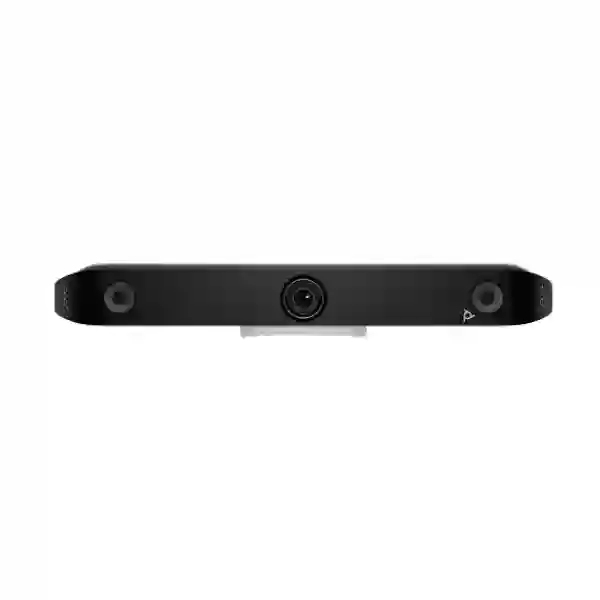
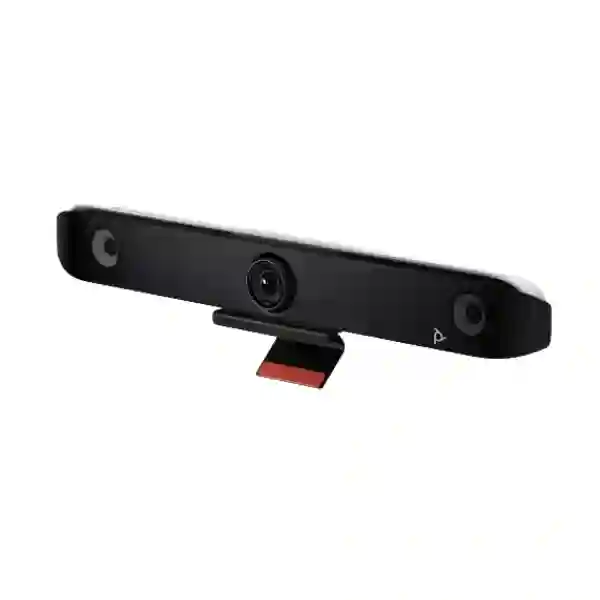
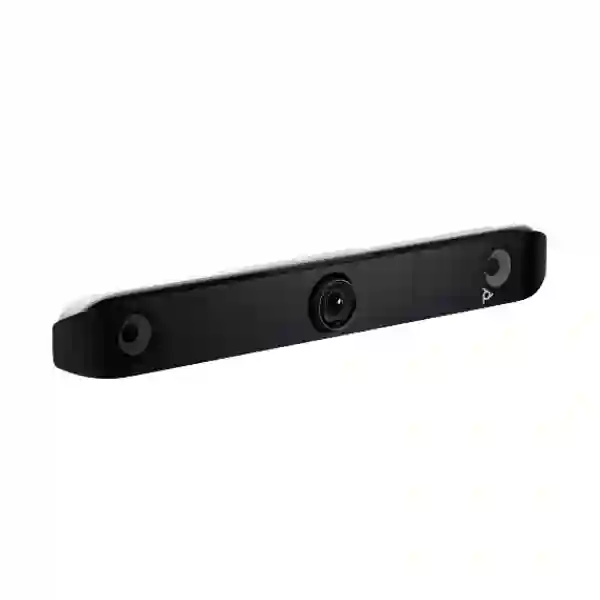
HP Poly Studio V52 USB Video Bar
Give meeting participants a clearer view and a more focused conversation in medium-sized rooms. The HP Poly Studio V52 combines a 20 MP 4K camera, Poly DirectorAI intelligent framing, integrated microphones, stereo speakers and USB connectivity in one conferencing bar. It is designed for meetings hosted on a connected computer, making it suitable for a bring-your-own-device room or a PC-based meeting space.
Planning a meeting room in Tanzania? Request a configuration and quotation for the video bar, suitable host computer, display connection, mounting and any required audio expansion. Final pricing, supply, installation scope and warranty terms should be confirmed in the quotation.
Product at a glance
The key buying question is not simply whether the camera is 4K. It is whether your room uses a connected computer, how people sit around the table, and how the screen, audio and meeting platform will be managed.
- Room role. HP positions the Studio V52 for medium rooms, with 6 to 9 participants given as guidance rather than a universal capacity guarantee.
- Camera and framing. A 20 MP single-lens camera supports 4K UHD video, 95-degree horizontal and 110-degree diagonal field of view, 5x digital zoom and Poly DirectorAI framing modes.
- Sound and voice. Built-in stereo speakers and a four-microphone arrangement are paired with acoustic echo cancellation, NoiseBlockAI and Acoustic Fence.
- Microphone reach. HP specifies pickup up to 6.09 metres (20 feet) under its stated conditions; room acoustics and seating still require assessment.
- Connection model. A USB-C connection makes the bar an audio-video peripheral for a connected laptop or room PC. The conferencing application runs on that computer.
- Meeting platforms. HP lists certifications for Microsoft Teams, Zoom and Google Meet. Confirm the intended room-computer configuration and software requirements before ordering.
Who should choose the HP Poly Studio V52?
The Poly Studio V52 is a strong candidate for organisations that already use laptops or dedicated room PCs to host online meetings and want to standardise the camera, microphones and speakers in a medium conference room. It replaces an untidy collection of individual webcams and desk speakers with one purpose-built audio-video endpoint. This can make a shared meeting room easier to understand for staff and simpler to configure consistently across several rooms.
Typical buyers include IT teams preparing shared collaboration rooms, office managers refreshing meeting spaces, education or training teams running hybrid discussions, and project teams that regularly bring remote colleagues into room-based meetings. The most natural usage pattern is a host computer connected to the V52 over USB, with that same computer running the meeting application and driving the room display by a suitable separate display connection.
HP identifies a medium-room reference capacity of six to nine people. Use that figure as a starting point, not as a promise that every nine-seat room will perform equally. A long narrow table, reflective walls, open doors, air-conditioning noise, daylight behind attendees and the location of the farthest seat can all make a room harder to cover than its nominal seat count suggests.
The V52 is less suitable when the buyer expects a completely self-contained meeting appliance with built-in conferencing applications and no external meeting computer. It is also not the automatic answer for a very large boardroom, an auditorium or a classroom that needs a close-up view of a distant lecturer. Those needs justify reviewing a different room architecture, additional audio equipment or another camera class.
Understand the USB video-bar architecture before buying
The simplest way to understand the Studio V52 is to separate the meeting computer from the meeting peripherals. The bar captures video and sound and plays remote participants through its integrated speakers. The connected computer supplies the application, the user account, the meeting controls and the display output. This separation is important in procurement because the bar by itself is not a substitute for a laptop, mini-PC or a complete computer-based room system.
For a bring-your-own-device arrangement, a meeting organiser brings a compatible computer to the room, connects the USB cable and selects the Poly camera, microphone and speaker within the meeting software. The participant may also connect a separate cable or approved dock to the room display. In a fixed-room arrangement, the V52 remains attached to a managed computer and users launch meetings through the room solution configured by the IT team.
Neither approach is automatically better. BYOD can give departments flexibility when people use several collaboration platforms. A fixed room PC can reduce cable handling and give IT more control over software versions, sign-in and support. The decision should be based on how frequently a room is booked, the skill level of typical users, the security model and the expected meeting experience.
The HP Poly Studio V52 USB Video Bar is therefore best evaluated as part of a meeting-room system rather than as a standalone gadget. Confirm the host, display, USB pathway, network, power, mounting, platform and support plan together, and the purchase will be easier to deploy successfully.
Camera quality: 4K detail without losing the room
At the centre of the V52 is a single-lens 20-megapixel camera with 4K UHD capability. HP specifies a video format up to 3840 by 2160 at 30 frames per second, subject to the chosen USB mode, host and application. A high-resolution capture system can give intelligent framing more image information to work with, particularly when the picture is cropped to focus on fewer participants.
The lens covers approximately 95 degrees horizontally and 110 degrees diagonally. These measurements describe different angles and should not be confused. Horizontal field of view is often the more practical figure when estimating how much of a seated group will fit across a table. Even a wide field of view cannot solve every placement problem; camera height, distance from participants and the table shape determine how naturally faces appear.
HP lists 5x digital zoom rather than optical zoom. Digital framing and zoom can make a person more prominent in the output, but magnifying a cropped portion of the original sensor image is not the same as moving an optical lens closer. Buyers who need legible detail on distant objects, whiteboards or equipment demonstrations should test the actual viewing task instead of relying on the zoom ratio alone.
A meeting platform may limit transmitted resolution, frame rate or picture detail according to its service settings, subscription, hardware, bandwidth or adaptive video policies. A 4K-capable camera does not mean every remote person will receive a continuous 4K stream. Better results usually come from the whole chain: lighting, camera placement, host performance, network stability and reasonable expectations about what remote participants need to see.
Poly DirectorAI: framing that follows the conversation
Poly DirectorAI is a major reason to evaluate the Studio V52 instead of treating it as a conventional USB webcam. HP identifies speaker framing, people framing, group framing and DirectorAI Perimeter as available smart-camera functions. These modes allow a room administrator or user to adapt the view to the way a team holds its meetings, rather than always presenting an unchanging wide shot.
Group framing is useful when the priority is showing everyone around a table. A tighter people-oriented view can help remote participants see facial expressions without relying on a manually operated camera. Speaker framing can draw attention toward the person who is contributing, making a discussion easier to follow when several attendees are in one room. The right choice depends on the meeting style; rapid exchanges may benefit from a less dynamic view than a structured presentation.
DirectorAI Perimeter provides a way to define the framing area. That can be valuable when doors, corridors or passers-by sit within the wide camera view and should not become part of the visual focus. The feature is not a replacement for sensible physical privacy arrangements. Meeting owners still need to position the camera responsibly and select the appropriate settings for participants and visitors.
AI framing reduces some routine adjustments, but it does not eliminate the need for an initial walkthrough. Test seated participants at the extreme left and right, a standing presenter, people entering and leaving, and mixed speech from opposite ends of the table. That short acceptance test often reveals whether the chosen framing mode genuinely improves the room.
Audio designed around real meetings
Meeting quality depends at least as much on sound as on camera sharpness. HP specifies two MEMS microphones and two second-order microphones in the Studio V52, with a stated pickup range up to 6.09 metres. This is an equipment specification, not a guarantee that every whisper at the maximum distance will sound equally clear. The table layout, microphone orientation, room noise and speaking style can change the experience significantly.
The V52 includes full-duplex audio, acoustic echo cancellation and automatic gain control. Full-duplex operation supports natural overlapping conversation, while echo cancellation is intended to reduce the remote participant hearing their own voice returned from the room. Automatic gain control helps manage changes in received voice level, although careful speaker placement and sensible volume settings are still important.
Poly NoiseBlockAI is designed to reduce non-speech distractions, and Poly Acoustic Fence helps focus pickup on the intended conversation area. These technologies can improve intelligibility when keyboards, ventilation and activity outside the meeting area create background noise. They do not make an acoustically poor room silent, nor should they be used as a substitute for closing a noisy doorway or addressing loud reverberation.
Two integrated speakers provide playback for remote voices. HP lists maximum speaker output as 2 x 20 W in the model specifications. For procurement, wattage should not be treated as a promise of usable loudness at every seat. A more helpful check is whether speech remains comfortable and intelligible at the far end of the table without excessive volume or audible echo.
If the table is unusually long, participants face away from the bar or acoustic treatment is limited, investigate a supported expansion microphone option for the exact configuration. Verify accessory compatibility, connection method and availability before ordering. One good site test with the people who will actually use the space is more informative than an audio specification read in isolation.
Plan the room, not just the product
Start by mapping the layout on paper. Mark the display wall, likely bar position, all seats, the farthest participant, doors, windows, power outlets and the path between the table and the computer. A V52 mounted too high above a large display may produce an unnatural downward view of people. A bar too low behind a laptop screen may hide faces. Mounting should bring the camera close to the eye level of seated participants as far as the furniture and display allow.
The horizontal view is wide, but there is no need to force every chair against a wall just to make the scene look impressive. The practical target is a comfortable perspective that lets remote attendees identify speakers, see important expressions and maintain context. For a rectangular table, verify that people seated close to the camera do not dominate the frame while those at the far end appear excessively small.
Check ambient light at the time meetings commonly occur. Bright windows immediately behind a speaker can create difficult contrast. Where possible, place light on faces and avoid directly pointing the camera toward a window. Moderate, consistent illumination helps camera processing more than simply turning on every light in the room. If staff present whiteboards, test whether reflections and small writing remain usable for remote attendees.
The V52 measures approximately 769.5 mm wide, 115.2 mm deep and 103 mm high, with a device weight of about 2.54 kg. Check that the chosen display or mounting system can accommodate the width without obstructing ventilation, screen controls or other equipment. The box includes a monitor clamp, while other placement accessories should be verified separately for the intended mounting surface.
Acoustics are worth attention before buying extra equipment. Bare glass, tiled floors and long empty rooms can create reflections that undermine speech clarity. Soft furnishings or suitable acoustic treatment, sensible loudspeaker volume and keeping microphones away from mechanical noise can improve the result. Plan a quick recorded test from the farthest seat and repeat it with several people speaking in turn.
Bring-your-own-device rooms: a practical workflow
In a BYOD room, the person running the meeting should encounter as few ambiguous choices as possible. Place the USB-C connector where it can be reached without moving furniture and label it as the video bar connection. If the room screen needs a separate display lead, label that connection too. A clear one-page instruction beside the table is often more useful than a complicated set of undocumented adapters.
When the laptop is connected, confirm that the conferencing application uses the Poly Studio V52 for camera, microphone and speaker output. Applications may retain a previous headset or webcam selection, which can make the bar appear defective even when it is operating normally. Staff should learn to inspect the three device settings before escalating a support ticket.
BYOD also introduces variability: different computer operating systems, permissions, USB ports, docks, power settings and video-conferencing application versions can affect the experience. Test the device mix that actually exists in the organisation. For example, if several colleagues use USB-C docks or company laptops with restricted peripheral permissions, include those combinations in commissioning rather than assuming one successful laptop test covers everyone.
The point of a USB room is flexibility, not zero responsibility. Define who owns the connecting cables, who replaces damaged leads, who changes device settings and who verifies that a meeting starts correctly after a software update. For busy rooms, keep the joining instructions visible, make the connection accessible and periodically inspect the cable strain relief and mounting position.
Dedicated room PCs: consistency for frequent meetings
A fixed computer-based room solution can provide a more repeatable experience when the same space hosts meetings throughout the working day. In that design, the Studio V52 remains connected to the managed room computer, and the computer runs the approved meeting-room software and drives the screen. The bar supplies the audio and video. A controller or room scheduling interface may be part of the wider solution, but it should not be assumed to be included with the V52.
Before building a standard room image, confirm the selected meeting platform, supported operating-system version, licensing and any certified room-compute or controller requirements. The product’s certification listings do not automatically certify every improvised combination of PC, software and peripherals. For a formally managed Teams Rooms or Zoom Rooms environment, verify the complete bill of materials against the platform’s applicable requirements.
A dedicated PC also makes it easier to organise security policies, local access, user sign-in, scheduled maintenance and remote support. However, it adds a device that needs software updates, network access and lifecycle management. Include those ongoing responsibilities in the project budget instead of comparing the video bar’s purchase price alone against a complete room appliance.
Ports and cabling: an important specification caveat
The Studio V52 provides a USB Type-C connection rated for 5 Gbps signalling. HP also lists an Ethernet port, a microphone expansion connection, USB Type-A ports and HDMI-labelled interfaces. These names do not mean that every connector is enabled for ordinary conferencing or that each operates like the port with the same label on a laptop.
The most important limitation is the HDMI arrangement: HP specifies two HDMI outputs for provisioning support only and an HDMI input that is not supported. Do not plan a meeting room on the assumption that a monitor will receive the live laptop display through the video bar. In a typical USB room, the host computer or approved dock sends video to the room display through its own suitable connection.
The two USB Type-A ports are disabled by default and can be enabled through appropriate Poly software configuration. HP’s product footnote restricts their peripheral role to mouse and keyboard use. Do not promise that they will function as general expansion ports for storage, extra cameras or display adapters. The RJ-11 connector is associated with external microphone expansion; compatibility must be checked for the exact accessory.
The RJ-45 Ethernet interface and wireless capabilities support device networking and administration under applicable settings. They should not be confused with a standalone service that streams meetings without a host. Likewise, the Bluetooth specification does not make the unit a general-purpose Bluetooth loudspeaker; HP notes that Bluetooth audio sink operation is not supported.
Make a simple cable drawing before installation: power to the bar, USB-C from the bar to the host, display output from the host to the screen, and any required network connection. This prevents a common purchasing mistake in which the bar arrives but the team has not accounted for a computer-to-display cable, a suitable dock or enough power outlets.
Microsoft Teams, Zoom and Google Meet
HP lists the Studio V52 as certified for Microsoft Teams, Zoom and Google Meet in USB device mode. For a business standardising on these services, that is a useful starting point when choosing a room peripheral. Certification is still different from guaranteeing that every meeting account, software version, operating system, accessory or room-compute bundle will work without configuration.
The connected host remains central. If the company changes its primary conferencing application, the USB bar can remain part of the room while the host runs a different supported service, subject to that service’s compatibility and policy requirements. This is particularly relevant for organisations whose teams regularly join meetings hosted by customers, suppliers and partners using different platforms.
Before deployment, check that the conferencing application detects the correct camera, microphone and playback device, permits access under the organisation’s device policy, and uses the desired input and output levels. If the business uses a dedicated certified room system rather than an ordinary laptop session, validate the complete platform-specific configuration instead of relying on the product name alone.
Do not confuse a logo on a product listing with a subscription. The V52 is hardware, not an included Teams, Zoom or Google Meet plan. Any room-compute hardware, software licensing, meeting services, accounts and ongoing cloud subscriptions should be assessed and priced separately if the deployment requires them.
Device management and operational support
The V52 is listed among devices supported by Poly Lens, and HP identifies Poly Lens Cloud for management. Depending on the deployed software, network access and management model, IT teams can use supported tools to view device information, manage settings and coordinate software maintenance. The precise available management functions should be confirmed for the installed firmware and integration environment.
For one meeting room, an administrator may prefer to document a local baseline: firmware version, camera mode, microphone gain, audio output, display arrangement and platform device selections. For several rooms, a consistent configuration record and management process becomes more important. That reduces the chance that an informal adjustment in one room produces a different experience from the other rooms.
Agree on a maintenance window for firmware and host-computer updates. Test video, audio and application joining after significant changes; update release notes may include improvements or changes that affect existing settings. Identify who can change camera framing policies and whether helpdesk staff can recover the room without requiring privileged access on a user’s personal computer.
For procurement, request a support plan that distinguishes faults in the video bar from problems with meeting software, network quality, room-compute hardware and display equipment. Troubleshooting will be faster when someone has recorded the full signal path and the accepted configuration. If remote management is required, confirm its connectivity and security prerequisites before treating it as an available service.
Privacy, security and physical controls
A conference-room camera is part of a shared workplace and should be deployed with appropriate privacy expectations. HP includes an attachable privacy cover with the V52. Establish a practical rule for when it is placed over the lens and who checks that the camera is disabled or covered after sensitive conversations. Also consider the direction of the camera and whether the framing area includes visitors or spaces outside the meeting room.
The device specifications describe security-management capabilities including authenticated administrative access, local password policies and AES encryption mechanisms. These should be treated as product capabilities rather than proof that the entire organisation’s room is automatically secure. The host operating system, meeting application, network segment, management accounts and room-controller configuration all remain part of the overall security posture.
An IT review should cover who has administrator privileges, how credentials are maintained, whether firmware is kept current and how devices are recovered after staff changes. On shared computers, avoid leaving personal meeting accounts signed in unintentionally. Align equipment settings with the company’s retention, recording and participant-consent policies rather than assuming that the video bar makes those decisions.
Tanzania-focused purchasing and deployment considerations
For a project in Tanzania, specify the actual meeting environment before asking for a quotation. A compact office room, a corporate branch meeting space, a training facility and a boardroom can share a nominal seat count but differ considerably in table length, noise levels and the availability of managed IT support. The quote should describe the planned room size, participants, applications, connectivity, host-computer approach and mounting location.
For organisations that rely on internet meetings, service consistency is important. Assess connection reliability, available upload capacity, local network congestion and the effect of multiple simultaneous video calls. Confirm how the business will handle a temporary connection disruption, especially when a meeting is time-critical. The V52 provides high-quality capture hardware, but it cannot remove limitations imposed by the internet connection or the remote meeting platform.
Power planning matters as well. HP specifies an external power supply, with published input characteristics that include 230 V at 50/60 Hz. The final installed power cable, plug arrangement, earthing and any power protection should be checked against the equipment supplied and the actual site. If uninterrupted meeting operation is required, assess backup power for the full chain: bar, room computer, display and networking equipment, rather than protecting the camera alone.
Ask for clarity on the commercial scope: Is the quotation for the V52 bar only, or does it also include a host computer, controller, mounting accessories, display leads, expansion microphone, configuration and user orientation? Request written confirmation of lead time, local fulfilment, support responsibilities and warranty applicability for the exact unit being offered. These details should not be assumed from the manufacturer’s international product specification.
For multi-room deployments, a pilot room helps avoid repeating the same mistake at several sites. Test camera framing, voice pickup, display cables and IT management in one representative location. Record which settings worked and adjust the standard layout before purchasing additional room packages. This is especially useful when buildings have different table styles, power arrangements or existing meeting-room computers.
A practical pre-installation checklist
A useful commissioning test uses a real meeting with remote attendees. The goal is not only to see that the device powers on but to confirm that normal staff can start a call, share content, be heard and recover from common connection errors.
- Confirm room type. Record approximate dimensions, seating positions, typical attendance and the farthest speaker; compare them with HP medium-room guidance.
- Choose the host. Decide whether a user laptop or a fixed managed PC will run meetings and check the intended conferencing software and permissions.
- Plan the display. Arrange a direct host-to-display connection, since the V52 HDMI ports are not normal meeting display outputs.
- Check physical placement. Measure the available bar mounting area, display clearance, cable path, nearby windows and line of sight to every seat.
- Verify audio. Test the quietest expected speaker, multiple simultaneous participants, door noise and far-end table positions before accepting the room.
- Document controls. Specify who owns updates, management access, device selection, cable replacement and first-line meeting support.
- Agree on supply. Verify exact supplied package contents, compatible accessories, warranty conditions, availability and installation scope in writing.
Compare the V52 with the right type of alternative
If a project needs a small huddle room rather than a medium table, the right comparison is with smaller USB video bars. A compact unit may be easier to mount and more economical if the camera and microphone coverage are sufficient. Buying a larger model merely because it has stronger headline specifications can add cost without improving the experience in a very small space.
If the room is genuinely large or has a long distance between the bar and participants, evaluate a large-room system or a modular combination of camera and audio components. Coverage matters more than the product category label. Consider how far the farthest participant sits, whether microphones can be expanded, and whether the camera captures the whole table without producing tiny faces.
If staff want a room that runs meetings without a laptop or separate room PC, compare with an appliance-style collaboration bar such as HP Poly’s Studio X family rather than buying the V52 and discovering its missing host requirement afterwards. Appliance architecture may simplify some user interactions but also introduces its own platform, licensing, administration and lifecycle decisions.
If the room will serve several platforms, users bringing laptops, or a centrally managed room PC, the USB architecture may be an advantage. Buyers should compare total system cost, not just the sticker price of each bar. Include compute, controllers, mounts, displays, cabling, microphones, support and user training in the comparison so that the alternatives are evaluated on the same scope.
Business scenarios where the V52 can make sense
Department meetings: a shared office meeting room that routinely hosts six to nine staff can benefit from one fixed camera and audio endpoint, especially when several people join remotely. Group framing keeps the whole table visible; speaker-focused views can suit more structured discussions. A fixed PC setup is worth assessing where the same room is used repeatedly through the day.
Customer and partner calls: client-facing teams sometimes use different conferencing services depending on who sends the invitation. A USB bar connected to the host computer gives them one familiar in-room camera and audio interface while the application remains on the user’s computer. Verify that external calls comply with company sign-in and device security policies.
Hybrid project reviews: engineering, administration or operations teams may discuss slides, schedules and plans with colleagues in another location. The video bar handles the room’s participants; screen sharing is performed through the connected meeting computer. Arrange the screen layout so people can follow content and still see remote attendees without constantly changing windows.
Training discussions and interviews: smart framing can make a medium room more natural for people joining from elsewhere. However, if the primary use is to capture a distant whiteboard, detailed demonstrations or a large audience, specify those special visual and audio needs upfront. A conference bar is not automatically a lecture-capture or broadcast-production solution.
Verified technical specifications
These are manufacturer-published model specifications. The final quotation should confirm the exact regional product configuration, selected accessories, host and application compatibility. Availability and local warranty coverage are not implied by this table.
| Manufacturer and model | HP Poly Studio V52 USB Video Bar; HP product number A09D4AA is a manufacturer identifier, not the Tanzania listing SKU. |
|---|---|
| Room reference | Medium conference rooms, typically 6–9 people according to HP guidance. |
| Camera | Single-lens 20 MP; 4K UHD up to 3840 × 2160 and 30 fps in supported formats. |
| Field of view | 95° horizontal / 110° diagonal. |
| Zoom and framing | 5x digital zoom; Poly DirectorAI speaker, people and group framing plus perimeter options. |
| Microphones | Two MEMS plus two second-order microphones; pickup specified up to 6.09 m / 20 ft. |
| Audio | Dual integrated speakers; 2 × 20 W maximum specified output; full duplex, echo cancellation, NoiseBlockAI, Acoustic Fence and AGC. |
| Primary host connection | USB Type-C at 5 Gbps signalling rate; USB device mode. |
| Other ports | RJ-45 network; RJ-11 external microphone; two USB-A ports disabled by default; HDMI outputs for provisioning only; HDMI input unsupported. |
| Management | Poly Lens-supported device; confirm desired functions for software and firmware versions. |
| Size and device weight | 769.5 × 115.2 × 103 mm; approximately 2.54 kg. |
| Power and environment | External power supply; published 230 V 50/60 Hz input condition; operating range 0–40°C. |
| Certifications listed by HP | Microsoft Teams, Zoom and Google Meet for the published USB device configuration. |
What is included and what to budget separately
HP’s published package list includes the Poly Studio V52, monitor clamp, attachable privacy cover, quick-start guide, warranty and product notices, power adapter, power cable, HDMI cable, USB-C to USB-C cable, and safety and compliance documentation. Included power-cable variants can differ by country. Confirm package contents against the quotation and the actual regional configuration before treating every accessory as guaranteed.
A complete meeting room may require a laptop or fixed mini-PC, a display, a suitable computer-to-display cable or docking arrangement, mounting hardware other than the supplied clamp, network access and possibly an additional microphone. Software subscriptions, room licenses, installation labour and support arrangements may also sit outside the video bar’s supply price.
The presence of an HDMI cable in a manufacturer’s box list does not change the published limitation on the V52’s HDMI ports. The bar’s HDMI outputs are identified for provisioning, while the HDMI input is unsupported. Work with the integrator to ensure the room-display path is designed around the host computer. This distinction avoids a seemingly minor cabling issue becoming a major frustration on installation day.
For a fair comparison between offers, ask for an itemised bill of materials and state which party is responsible for configuration, platform enrolment and testing. A lower equipment-only quote is not necessarily a lower-cost completed room if additional computing and integration work is still needed.
Frequently asked questions about the Poly Studio V52
Is the HP Poly Studio V52 suitable for a medium meeting room?
Yes. HP categorises the Studio V52 as a medium-room USB video bar and lists six to nine people as typical room guidance. Confirm suitability by checking your table length, seat positions, camera placement, room acoustics and the distance to the farthest speaker. A room with nine tightly grouped seats differs from a long boardroom with nine widely spaced seats. A short trial using real participants is the best final fit check.
Does the Poly Studio V52 work without a computer?
No. It is a USB video bar operating as a device attached to a host computer. A laptop, desktop or compatible room PC runs the meeting software and provides meeting controls. The V52 supplies its camera, microphone and speakers to that computer. If your requirement is a meeting-room appliance that runs its own conferencing app, assess a different architecture before ordering.
Is the V52 a 4K video conferencing camera?
The hardware includes a 20 MP camera with support for 4K UHD capture and published video formats up to 30 frames per second. The video resolution actually sent to remote participants can be lower because it also depends on the host, USB mode, meeting service, configuration, bandwidth and adaptive call conditions. Treat 4K as a camera capability rather than a guarantee of 4K delivery in every meeting.
What is the field of view of the Poly Studio V52?
HP publishes a 95-degree horizontal field of view and a 110-degree diagonal field of view. These figures are not contradictory; they measure different directions through the same lens. For seating layout, horizontal coverage is particularly useful because it tells you how much width the camera can capture. Before mounting, test the closest seats and the outermost seated participants.
Does the V52 have optical zoom?
No. HP specifies 5x digital zoom. This is useful for changing the apparent framing and bringing attention to people, but it is not the same as optical magnification by a moving lens. A room that needs sharp close-ups of distant documents or equipment may need a specialist camera or a different arrangement. Test the intended visual task at the actual seating distance.
How far can the microphones pick up voices?
HP specifies a microphone pickup range up to 6.09 metres, or approximately 20 feet. This is a manufacturer performance figure and should not be treated as identical speech quality at every position in every room. Noise, reverberation, the number of speakers and the position of participants can affect results. If distant attendees are hard to hear, review acoustic improvements and verified expansion-microphone options.
What does Poly DirectorAI do?
Poly DirectorAI provides smart camera framing, including speaker framing, people framing and group framing. HP also describes a perimeter feature for limiting the area the camera should consider. These choices support different types of meeting, from group discussions to structured presentations. The best mode depends on how participants move and speak. Configure and test the selected mode instead of assuming automatic framing always improves every meeting.
Are Microsoft Teams, Zoom and Google Meet supported?
HP lists the Studio V52 as certified for Microsoft Teams, Zoom and Google Meet in its supported USB device configuration. The actual meeting application is run on the connected computer. Check the software edition, account requirements, operating system, room-PC configuration and any platform-specific certification conditions. Hardware certification does not mean the purchase includes a conferencing subscription or room license.
Can I connect the V52 directly to a TV using HDMI?
Do not design the room that way. HP identifies two HDMI output ports for provisioning support only and states that the HDMI input is not supported. For normal meetings, the connected host computer should provide the video path to the display through a suitable cable or approved dock. The Studio V52’s USB connection carries the conferencing camera and audio functions to the host.
Is the USB-C cable the only connection needed?
The V52 connects to a host over USB-C for its main video and audio role, but the complete room normally also needs the bar’s external power connection and a way to drive the display from the host. Network or accessory connections depend on the design. For a BYOD space, users may need a separate computer-to-screen cable. Check each connection in a room wiring plan before installation.
Can the Poly Studio V52 be managed remotely?
HP lists Poly Lens Cloud as a device-management option and includes the V52 in its supported device information. Available monitoring, configuration and update features depend on onboarding, firmware, software and network conditions. An IT team planning a multi-room rollout should verify the exact capabilities it needs, establish access policies and document configuration baselines. Remote management is a design requirement to confirm, not something to assume is active out of the box.
Does the V52 support extra microphones?
The model includes a connection associated with external microphone expansion, and HP describes optional audio accessories for relevant configurations. Whether an accessory is appropriate depends on the exact product version, supported part, firmware and room layout. Buyers should obtain a verified compatibility recommendation and assess the audio need in the intended room. Do not assume an arbitrary USB microphone or connector adapter will be supported.
Is a monitor mount included?
HP’s published box contents include a monitor clamp along with an attachable privacy cover, power adapter and cables. The best mounting arrangement still depends on display size, placement, structural support and camera sightline. Wall, table or alternative mounts may need separate purchasing. Confirm the delivered package and the accessory compatibility before placing an order.
Does the video bar include the meeting display, PC or licenses?
The HP Poly Studio V52 is an audio-video peripheral, not a complete room-compute and display package by default. The manufacturer’s published box list does not include a meeting-room PC, room display or application subscription. If your room needs these components, request a complete bill of materials with the items and configuration services shown separately. This makes both price comparison and deployment responsibility easier.
What should a Tanzania business provide when requesting a quote?
Share the number and approximate dimensions of the rooms, typical occupancy, preferred platform, intended laptop or room-PC arrangement, display size and available mounting surface. Mention any existing equipment, unusual table length, weak audio positions and remote-management needs. Request confirmation of the full supply scope, supported accessories, lead time, installation services, support and applicable warranty terms rather than assuming local stock or service coverage.
What should be checked during commissioning?
Check that every seat is visible, the framing mode behaves appropriately, quiet speakers are intelligible and remote voices are comfortable to hear. Confirm that the connected computer sees the correct Poly camera, microphone and speakers, that screen sharing works through the intended display path, and that common meetings can be joined without unnecessary steps. Document settings, cables, responsibilities and a simple recovery procedure before declaring the room ready.
Request an HP Poly Studio V52 quotation for your room
Tell FourTeck Tanzania how many people use the room, how they connect to meetings and what display and computer equipment are already installed. Request a configuration that clearly identifies the V52 video bar, host computer requirements, display connectivity, mounting, audio expansion if needed and commissioning responsibilities.
Ask for confirmation of actual pricing, product supply, accessory compatibility, expected fulfilment, local support arrangements and warranty terms for the specific offer. A correctly specified room solution is more valuable than choosing by camera resolution alone.
Reviews
There are no reviews yet.