
Wired collaboration audio | Tanzania buyer guide
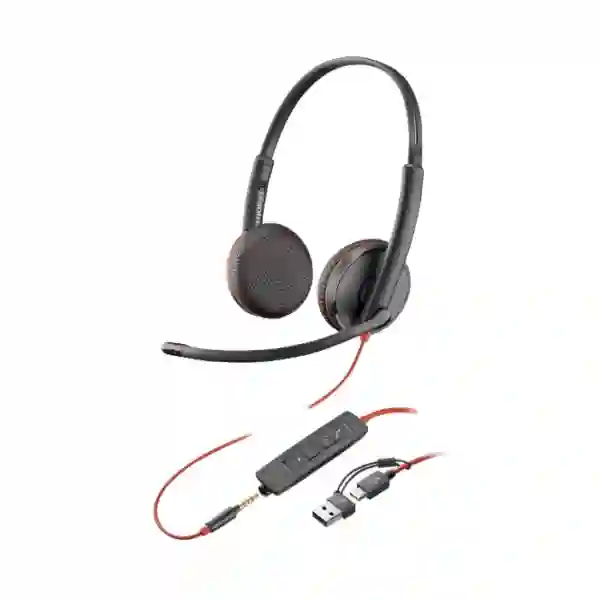
HP Poly Blackwire 3225 Stereo USB-A Headset with 3.5 mm Connector
A practical on-ear stereo headset for computer calls, virtual meetings and everyday speech communication. Choose USB-A for compatible computer audio and supported inline controls, or the 3.5 mm connector for compatible device audio when headset call-control buttons are not required.
Request a quotation for the exact USB-A + 3.5 mm configuration from FourTeck Tanzania.
Quick buying overview
This product is best assessed as a corded desktop communication headset with an additional analogue audio option. Its most important buying distinction is that the physical inline call controls are not available through 3.5 mm. Verify the connection, the calling software and the exact product variant before you approve a quote.
| Connection | USB Type-A; 3.5 mm audio |
|---|---|
| Listening design | On-ear stereo, 28 mm speakers |
| Microphone | Noise-cancelling boom microphone |
| Audio processing | Dynamic EQ and digital signal processing |
| Acoustic protection | Poly SoundGuard |
| Ear cushion surface | Artificial leather |
| Documented weight | 64 g without cable; 87 g with cable |
| Operating systems | Windows 10, Windows 11 and macOS listed by HP |
| Important limitation | No inline call-control functionality via 3.5 mm |
A headset chosen around your working day
When a workday moves between customer calls, online meetings and short training videos, a headset should make those transitions straightforward. The HP Poly Blackwire 3225 Stereo USB-A Headset is designed around that practical need. Its wired stereo construction keeps both ears supplied with incoming audio, while the adjustable microphone boom helps place speech pickup close to the user. For a computer-based employee, the USB-A connection creates a familiar desk setup. The alternative 3.5 mm audio connection is valuable when a compatible mobile device or tablet must be used instead.
This is a communication tool rather than a lifestyle wireless headset. Its appeal is consistency, straightforward physical controls in the supported USB setup, and a compact on-ear form. An organisation evaluating headsets for several employees should start with the devices and software already in use, not just the headset name. Checking the port, connection method and call-control expectations before purchasing is more helpful than assuming every device or conferencing program behaves identically. FourTeck Tanzania can be asked to confirm the precise product variant and purchasing details.
The key features in practical terms
The defining combination is stereo listening, wired USB-A computer connectivity and a separate 3.5 mm audio option. The Blackwire 3225 has a flexible boom microphone and manufacturer-described noise cancellation in the microphone path. That makes it relevant for ordinary office conversations where the speaker’s voice should remain the focus. HP also documents Dynamic EQ, digital signal processing and SoundGuard acoustic protection. These technologies have different purposes: signal processing shapes the audio experience, while acoustic protection addresses excessive incoming sound. None should be described as a promise to eliminate surrounding office noise.
Everyday ergonomics matter as much as specifications. The headband adjusts, the ear cushions sit on the ears, and the headset can be folded flat for carrying as described in HP product literature. The inline unit offers call, volume and microphone mute controls under compatible USB conditions. These are particularly helpful for workers who need to respond quickly without searching for small buttons on screen. Buyers should nevertheless verify which functions their softphone exposes to the headset before standardising on the model across a team.
USB-A connection: the primary desktop workflow
Choose the USB-A connection for a computer workstation that has an available USB Type-A port. It is the most relevant way to take advantage of the headset’s inline controller and its integration with supported calling software. A typical setup means connecting the headset, choosing it as the computer’s input and output audio device, then placing a test call. The physical mute and volume controls can reduce reliance on the mouse during a busy conversation. If the computer has only USB-C sockets, do not assume a USB-A plug will fit without a separately verified compatible adapter.
USB connectivity should not be confused with universal application support. Some softphones need Poly software or additional settings before the call button and mute controls work with that application. An IT administrator can test a representative workstation first, checking audio input, audio output and button actions independently. The headset may deliver audio even if a software integration does not respond to an answer or end command. That distinction helps purchasing teams avoid treating a missing on-screen action as a defective speaker or microphone.
3.5 mm connection: flexible, with an important trade-off
The 3.5 mm connector provides a different route to audio on devices that have a compatible headset socket. It can be useful for an employee who uses a suitably equipped phone or tablet as well as a USB-A computer. Before depending on this option, check the device’s port and audio-input support: not every socket or adapter handles both headphones and microphone in the same way. A modern phone without a built-in 3.5 mm socket may need a suitable accessory, which should be evaluated separately rather than assumed to be included with this headset.
HP’s Blackwire 3200 user guide specifically notes that headset call-control functionality is unavailable through the 3.5 mm connection. This is a material buying consideration. A user may be able to hear and speak through a compatible device but should use that device’s own interface to answer, end or manage calls. The inline USB controls are therefore not an equivalent substitute when switching to the analogue connector. Teams expecting identical button behaviour across desktop and phone use should validate their exact use case before ordering.
Stereo listening and when it helps
Two earcups deliver left and right audio instead of sending sound to only one ear. That can make a meeting, recorded training session or multimedia presentation feel more balanced, especially when a listener wants both ears dedicated to the session. HP specifies 28 mm speakers and separate frequency ranges for speech and media modes. Those figures establish that the headset is designed to handle both spoken communication and general computer audio. They do not mean that it is a studio-monitoring device or a substitute for specialised hearing protection.
Stereo also brings an environmental trade-off. In a reception area where employees must remain alert to visitors, a single-ear model may sometimes be a more suitable choice. In a desk-based role centred on remote conversations, stereo may be preferable. The right decision depends on work duties, staff preferences and surrounding safety requirements. A purchasing manager can compare a few representative employees’ feedback on audio clarity, situational awareness and comfort before committing to a wider deployment.
The noise-cancelling boom microphone
A communication headset is judged by what the person at the other end of the call hears. The Blackwire 3225 includes a boom microphone with noise-cancelling technology intended to improve speech capture in normal working surroundings. Positioning remains essential: the microphone should sit near the corner of the mouth rather than pointed toward a keyboard or shirt collar. HP’s user guide recommends approximately two finger widths between the boom and the corner of the mouth. A short test recording is a simple way to check placement and volume.
Noise-cancelling microphone technology is not the same as active noise cancellation for the listener’s ears. The product should not be purchased on an assumption that office conversations, traffic or machinery will disappear from the wearer’s hearing. Instead, judge it as a wired headset with microphone-side noise management, and check performance in the actual workspace. Busy call centres can still benefit from sensible seating layouts, manageable background music and a properly configured conferencing application. The microphone helps a system; it does not replace good acoustic practices.
Dynamic EQ, digital processing and speech quality
HP describes Dynamic EQ and digital signal processing as part of the Blackwire 3225 audio design. In practical language, the headset is intended to support the differing demands of telephone-style speech and computer media playback. For example, a staff member may take a voice call, review a recorded demonstration and return to their next appointment without changing equipment. The product’s wideband speech capability is relevant here, although the quality of a real call also depends on the application, network, microphone position and audio settings at both ends.
Avoid interpreting processing features as a universal guarantee of crystal-clear calls. If a colleague reports distant, distorted or inconsistent speech, first inspect the microphone position, the selected input device and application microphone gain. In shared offices, evaluate a headset during the kinds of meetings staff actually attend. A brief test with a colleague in another room can reveal more about a deployment than a specification sheet alone. Realistic testing should include speaking softly, turning the head and using the intended conferencing platform.
Inline controller and everyday call handling
The inline USB controller offers a call button, volume up, volume down and microphone mute. Indicator behaviour described in the HP guide includes green lights for incoming or active calls and a red light when the headset is muted. These visual cues can be useful when someone is following a presentation while also participating in a conversation. Volume buttons adjust listening level, while mute is intended to stop the microphone transmitting during the current call. Users should still confirm their status within the calling application during important meetings.
Button actions depend on the connection and the software. Supported USB use can enable answering, ending and other functions, but some applications require Poly Lens Desktop or an administrator’s configuration. The 3.5 mm connection does not provide headset call control. That difference needs to be explained during onboarding, particularly when one employee frequently switches between a laptop and phone. A short instructions card beside a shared workstation can prevent mistaken assumptions about mute status and make the transition easier for new users.
Checking your meeting and softphone applications
Many organisations choose headsets around their video meeting or cloud calling software. The correct assessment is not simply whether a computer can play sound: audio routing, microphone selection and physical call-control integration are separate questions. Start with the program employees actually use. Confirm the USB headset appears in that program’s settings, place an inbound and outbound test call, and check the mute indicators. If a specific call-button feature is business-critical, obtain current compatibility guidance for that software and the exact headset configuration.
HP’s product datasheet references collaboration software certifications for particular environments, but those references are not a promise that every edition, operating-system version or third-party application will expose all controls. Software vendors can also change their integration behaviour. IT teams should treat certification as a useful starting point rather than a substitute for testing. For shared meeting rooms, verify how the headset behaves when the application starts, after a computer restarts, and when the user changes between a browser-based meeting and an installed client.
Fit, headband adjustment and wearing comfort
The headset uses an adjustable headband and on-ear cushions with an artificial-leather surface. The design allows wearers to position the earcups over the centre of the ears and adjust the band to a comfortable fit. HP lists a weight of 64 g without cable and 87 g with cable for the documented USB-A product. Weight is a useful reference when comparing corded equipment, but individual comfort also depends on head shape, glasses, hair and the length of a working session. A sample fitting is recommended for teams that wear headsets for extended periods.
A boom microphone can be worn on either side according to HP’s fitting guide, with careful rotation and gentle adjustment. Staff should avoid sharply bending or twisting the assembly beyond its intended movement. An on-ear cushion makes contact with the outer ear, so some users may prefer more frequent breaks than others. Purchasing decisions should recognise these differences, particularly when employees have long calling schedules. A short trial that includes a complete working shift offers more meaningful feedback than a few minutes of use at a desk.
Corded reliability without wireless administration
A wired headset does not need Bluetooth pairing or a headset battery charge cycle before a normal call. For managed desktops this can be appealing: an employee connects the device and uses the computer audio configuration rather than maintaining a separate wireless link. It is also easier to keep a fixed work position and a predictable USB device name. Those are operational advantages of corded design, not proof that every call will be uninterrupted. Computer power, software, the internet connection and the cable itself remain possible points of failure.
The trade-off is physical range. The cable must reach the workstation without catching on chair wheels, lifting from the desk or creating a trip risk. An employee who regularly walks around during meetings may value wireless mobility more than a desk-focused USB headset. A service counter or call handling station with defined work positions may prefer the corded approach. Consider how the person works first, then choose the connectivity category instead of assuming wireless is always better or that wired is always simpler.
Port and cable planning before you order
HP’s documented USB-A variant includes a USB Type-A cable and the headset’s 3.5 mm connection option. The datasheet specifies approximately 227 cm of total USB-to-headset cable length, including the run to and from the inline module. That helps estimate whether the employee can sit comfortably with the computer under the desk. Measurements are still worth checking against your actual workstation because a cable that is long enough in theory can be awkward when routed around a monitor arm, drawer or cable-management channel.
Procurement teams should record whether each workstation has an accessible USB-A port and whether a mobile device has a suitable 3.5 mm headset socket. Do not assume a USB-C headset or universal adapter is inside this particular package. Also confirm the product variant if a supplier offers several Blackwire 3225 configurations with similar names. Distinguishing USB-A from USB-C at ordering stage is far less disruptive than arranging exchanges after equipment reaches individual offices or remote employees.
For customer service and call handling desks
Customer service users often need a predictable microphone, uncomplicated mute access and a comfortable position for a sequence of calls. The Blackwire 3225 fits a desktop-focused use case when the computer has USB-A and the softphone supports the required features. Stereo listening can help keep the caller’s voice prominent, while the boom allows the wearer to place the microphone consistently. Supervisors can use the same setup checklist across teams: confirm microphone input, verify listening level, place a test call and demonstrate mute before the employee begins a shift.
A good headset is only part of a contact-centre setup. Workstations should also have reliable connectivity, a sensible volume policy and a quiet enough environment for productive discussions. Staff should be coached not to rely on microphone processing to solve every surrounding noise problem. If an organisation uses shared desks or shift changes, a clear cleaning and assignment procedure helps maintain hygiene. For bulk deployment, test the selected communications platform with a sample group rather than presuming every call control will work in every software version.
For hybrid office staff and home working
A hybrid worker may use the same headset at a dedicated office desk and a home computer. A corded USB-A setup can reduce daily pairing steps, provided both computers have the correct port and recognise the device. The stereo construction supports scheduled calls as well as recorded learning materials, and the 3.5 mm option may be useful for occasional compatible-device listening. The headset is not a multi-device wireless switcher, however. Users should understand which plug is active and which device is currently handling the call.
Home environments vary: a laptop may sit close to a fan, a television or an open window. To improve the experience, place the boom properly, select the headset microphone rather than the built-in laptop microphone and manage background sounds where practical. When moving to a different computer, check the meeting application’s device settings again. A simple user guide can reduce help-desk enquiries about the wrong microphone being selected or call buttons failing because the headset is connected by 3.5 mm instead of USB.
For teaching, webinars and remote training
Online trainers and learners often move between listening and speaking. Stereo output can help a presenter review material while the noise-cancelling boom provides a dedicated voice input for participation. A physical mute button, in a compatible USB workflow, can make it easier to pause the microphone while students or colleagues are speaking. The headset can also suit recorded demonstrations and standard computer audio. It is important to test a webinar platform before an important session because it may handle USB call controls differently from a familiar office softphone.
For a school, training team or workplace learning department, consider more than the headset’s technical specifications. Confirm each computer port type, the permitted audio devices in managed software, and who is responsible for fitting and cleaning equipment between users. A shared teaching desk may need a shorter cable route or a clearly labelled audio connection. For remote participants, a one-minute audio test at the start of a class can prevent avoidable interruptions. The device should be positioned for speech intelligibility rather than worn with its microphone away from the mouth.
For reception, administration and mixed-duty roles
Administrative employees may answer calls, work on documents and speak with colleagues nearby. For them, the Blackwire 3225 offers a practical blend of dedicated computer audio and an adjustable microphone. The on-ear stereo format is useful when a conversation requires focus, but it may be less appropriate when the employee must continuously monitor a busy physical counter. In those environments a mono headset or a different wearing arrangement might better support awareness of visitors and instructions from colleagues.
Before choosing a standard headset for every role, group staff by actual tasks. A finance assistant attending frequent remote meetings may value two-ear listening. A front desk employee who spends much of the shift greeting people face to face may prefer the flexibility of one uncovered ear. A procurement decision should therefore allow for different roles rather than forcing identical equipment on everyone. Testing one or two representative cases can reveal practical issues that generic product labels such as ‘office headset’ do not answer.
Blackwire 3225 versus nearby headset choices
The Blackwire naming family includes models with different ear configurations and connection options, so the final digits and connector description matter. A buyer considering a simpler USB stereo model should check whether a separate 3.5 mm connection is actually needed. That is one of the reasons to consider this 3225 configuration. If the organisation never uses tablets or other compatible analogue-headset devices, the extra connection option may be less important than the fit, price and call software support of available alternatives.
Do not rely on a product photograph alone to distinguish a USB-A version from a USB-C version. Compare the exact written configuration, manufacturer documentation and the supplied product code where available. Likewise, ‘stereo’ refers to listening through two earcups; it does not prove that a model has extra active noise cancellation or an additional microphone array. When comparing quotes, ask suppliers to state the connector type, included items and warranty terms for the specific quotation rather than using a shared family description.
USB-A versus USB-C: avoid an easy purchase mistake
USB-A and USB-C refer to physically different connectors. This particular requested version is the USB-A model with an additional 3.5 mm connector option; it should not be renamed as a USB-C product just because other Blackwire 3225 configurations exist. Inventory descriptions sometimes combine several versions in a single line, which can create confusion. The safe approach is to check the product name and the exact connector shown in the technical documentation for the unit being quoted.
An organisation replacing desktop computers with newer laptops should review its port roadmap. Buying USB-A headsets for computers that have only USB-C can create avoidable adapter dependence. Conversely, existing desktops with accessible USB-A ports may be a straightforward match for this model. Adapters can be evaluated where appropriate, but their inclusion or performance must not be assumed from the headset title. Documenting the expected computer population and the required headset interface before purchase helps avoid inconsistent rollouts.
A realistic approach to microphone and audio testing
Run a short acceptance test on the equipment your staff will actually use. First, connect through USB-A and select the headset for both input and output. Ask another person to call from a separate device, speak at a normal level and check whether the voice sounds clear. Then use the headset mute control and verify that the other person cannot hear the speaker. Adjust the listening volume cautiously and record whether the intended call button performs the required action in the specific application.
Next, if the 3.5 mm mode is part of the purchasing reason, test it independently on a compatible phone or tablet. Confirm that the device recognises the headset for the intended audio functions and remember that inline call control is not available in this mode. Repeat the test while seated in a realistic environment, including nearby keyboard activity and ordinary room sounds. This process helps distinguish compatibility limitations from genuine product faults and makes the final order more likely to meet employee expectations.
Setting up the headset on a Windows computer
Connect the headset through an available USB-A port and let Windows detect it. Open the system sound settings and check that the intended headset is chosen as the output device and as the microphone input. Then open the meeting or calling application’s audio settings; some applications retain a previous microphone choice even after Windows has recognised a new headset. Make a test call and check the listening level, microphone gain and mute state. Start with a moderate volume rather than turning sound up to compensate for background office noise.
If an answer or end button is not responding, it does not automatically mean the USB audio path is faulty. The application may not support the control without additional integration, or administrator policies may prevent installation of configuration software. HP’s user guide notes that Poly Lens Desktop may be needed for certain softphones. An IT administrator should assess supported software, permissions and update policy on managed PCs. The practical goal is to make the intended functions work consistently without requiring employees to change security settings themselves.
Setting up the headset on a Mac
On a compatible macOS computer with USB-A access, connect the headset and check the sound input and output selections in system settings. Then verify those settings inside the actual conferencing or softphone application. USB audio can work while a program continues to use the computer’s internal microphone, so checking both locations matters. Place a test call with a colleague and listen for comfortable, intelligible speech. Confirm whether the app and headset buttons interact as expected, including what happens when the user mutes from within the meeting interface.
A laptop with only USB-C ports needs a separately appropriate connection solution; the requested USB-A version cannot plug directly into a different-shaped port. The operating-system name alone does not guarantee that every headset feature will work with every program. If an organisation supplies standard Mac configurations, testing one with the exact app version and settings is more reliable than assuming behaviour from a general compatibility list. The same principle applies to remote employees installing meeting software on their own devices.
Using the analogue connector with phones and tablets
For a compatible phone or tablet, use the 3.5 mm connection rather than trying to insert USB-A into a device without the relevant interface. Check the device manufacturer’s headset requirements first, including whether its socket supports a microphone. An audio-only socket or an unsuitable adapter can let someone hear sound but not transmit speech. After connecting, make a brief call or recording and verify both directions. The headset’s boom should be positioned near the mouth in the same way it would be for a computer call.
The key operational limitation deserves repeating because it affects buying decisions: HP says the 3.5 mm connection does not support the headset’s inline call controls. Users must therefore rely on their device or application interface for call management. A team planning frequent phone use should consider whether that behaviour is acceptable. This is not a wireless headset that pairs with multiple devices simultaneously; using one connector is a deliberate physical choice, with functions determined by the chosen device and audio path.
Troubleshooting if callers cannot hear you
Begin by checking that the microphone is not muted. On a compatible USB call, look at the inline control’s mute indication as well as the application icon. Next, check the input device inside the computer’s sound settings and the app itself. Many laptops have built-in microphones, and the software may have retained that device rather than switching to the headset. Move the boom toward the corner of the mouth, roughly two finger widths away, then use a recording or test call to see whether the level improves.
If the problem happens only over 3.5 mm, verify that the mobile device’s socket or adapter supports the headset microphone and that the plug is firmly seated. If the problem happens only in one softphone, test another supported audio application to narrow down whether the issue is the headset or the software configuration. Avoid immediately raising microphone gain to an extreme setting, because that can create distortion or unwanted noise. A systematic sequence of checks is usually faster than changing many settings at once.
Troubleshooting low volume, distortion or echo
If speech is difficult to hear, inspect the listening volume on the headset and inside the computer or calling application. A low setting in either place can reduce the final sound. Also confirm the correct output device is selected, because a computer may still be playing sound through a monitor or internal speaker. In analogue mode, ensure the connector is properly inserted and the receiving device is configured for the intended output. A simple local audio test helps establish whether the issue occurs only during network calls.
Distortion and echo may result from excessive volume, a poorly placed microphone or an application’s audio processing. Lower the listening level, reposition the boom and retest with a colleague in a quiet area. Where software offers automatic microphone processing, compare the practical result without making unsupported claims about a perfect setting. If an issue follows one cable or computer, isolate that component before replacing the headset. HP’s user guide also recommends checking the connection between the 3.5 mm plug and inline controller if audio behaves unexpectedly.
Care, storage and safe day-to-day use
A shared or frequently transported headset lasts longer when users handle the cable and microphone gently. Avoid pulling the lead by the wire, trapping it under chair wheels, or forcing the boom beyond its intended travel. When the device is not being used, keep it in a clean, dry location away from drinks and sharp desk edges. Use cleaning methods and materials compatible with the manufacturer’s guidance; do not soak the ear cushions or apply aggressive chemicals without checking they are appropriate for the surfaces.
Hearing comfort also needs attention. Start at a low volume, raise it only as needed and avoid prolonged listening at unnecessarily high levels. HP documents SoundGuard acoustic protection, but that feature is not a reason to listen at extreme volume or ignore symptoms of discomfort. Employees should take breaks as appropriate and report damaged plugs or cable insulation rather than continuing to use compromised equipment. Organisations with shared devices can include headset condition, cleanliness and cable routing in their routine workstation checks.
Planning a consistent multi-user deployment
A rollout across multiple workstations is easier when the purchasing team agrees on requirements in advance. Build a small compatibility matrix covering computer model, available USB-A port, operating system, calling application and whether the 3.5 mm option is required. Test one headset with each important workstation profile and record the result. Confirm headset audio, microphone capture, mute and call-button behaviour separately. This avoids treating a successful music playback test as evidence that all softphone integration features will necessarily work.
IT administrators may also want an onboarding note showing how to choose the headset in system and application settings. A support contact should know which software version is installed and whether Poly management software is permitted under company policy. For shared desks, include hygiene and cable-storage expectations. These procedures matter more than elaborate specifications for their own sake. The aim is that each employee can put on the headset, join a call and communicate confidently without repeatedly escalating basic setup issues.
Purchase considerations for buyers in Tanzania
When sourcing a headset for use in Tanzania, focus the enquiry on the exact technical configuration and the seller’s confirmed commercial terms. Ask for the USB-A plus 3.5 mm variant specifically, and request confirmation of included items before approving a quote. If an office uses both desktop and laptop fleets, share the connection requirements with the supplier so the proposed product can be checked against the machines. Where a headset is intended for a calling platform, describe the program and operating system instead of asking only whether the product is ‘compatible’.
Price, stock, delivery options, tax treatment and warranty handling must be confirmed for the actual quotation rather than inferred from a listing in another country. The manufacturer’s product literature identifies warranty information for the documented variant, but local transaction and support arrangements may differ. This page therefore does not claim a Tanzania selling price, immediate availability or a specific delivery window. Ask FourTeck Tanzania to confirm the current offer and the exact headset configuration relevant to your business or individual workstation.
Questions to include in your quotation request
A concise purchase request should identify the model, required connector, number of users and the equipment to which each headset will connect. For a typical office, useful details include whether the desktops have free USB-A ports, whether staff ever need the 3.5 mm connection, and which calling software they use. If physical call buttons are important, state which actions must work and ask for any software requirements. This gives the supplier a practical way to confirm suitability instead of assuming a generic stereo headset will meet every team’s needs.
The quote should also make the supplied configuration unambiguous. Similar Blackwire family names may refer to different connectors or packaging options, so request the manufacturer’s product identifier for the exact unit proposed and compare it with the offer. Verify the return process, commercial warranty terms, order quantity, lead time and any relevant taxes directly. These are questions, not representations that a particular service or condition is currently available. Careful written confirmation makes purchasing more predictable for both single-device buyers and larger IT departments.
Frequently asked questions
Does this headset connect by USB-A and 3.5 mm?
Yes. The documented Blackwire 3225 USB-A configuration offers wired USB Type-A for a suitable computer and a 3.5 mm audio option for compatible equipment. The available functions differ between these connection methods, so check the target device’s audio ports and requirements before ordering.
Will the inline buttons work when I use the 3.5 mm connector?
No. HP’s Blackwire 3200 user guide says headset call-control functionality is not available through the 3.5 mm connection. Use the connected phone or other device’s own interface to manage the call. The presence of an inline controller should not be treated as proof that it operates in analogue mode.
Is the Blackwire 3225 a stereo headset?
Yes. It has two on-ear listening cups for stereo sound. Stereo describes the listening arrangement, not active noise cancellation for the wearer. Buyers who need to hear people in the surrounding room should consider whether a two-ear model matches their duties.
Does the headset have a noise-cancelling microphone?
HP identifies a noise-cancelling boom microphone for the Blackwire 3225. It is intended to support clearer voice capture, but performance still depends on microphone placement, surrounding sound, software and call conditions. It is not a promise that all background noise will be removed.
Does it connect through Bluetooth?
No. This requested configuration is corded and provides USB-A and 3.5 mm connections. It is suitable for customers who prefer a wired desktop arrangement without wireless pairing or a headset battery. If walking around during calls is essential, compare wireless alternatives separately.
Can I use it with Windows and macOS?
HP lists Windows 10, Windows 11 and macOS among compatible operating systems for the documented model. Check that your computer has an appropriate physical port and that your calling software selects the headset as both microphone and speaker. Individual application controls may require further setup.
Are Microsoft Teams, Zoom and other softphones guaranteed to support every button?
No universal guarantee should be assumed. Basic USB audio and advanced call-control integration are separate capabilities. Some softphones may require Poly software or different settings, and vendors can change behaviour. Test the exact application, operating-system version and headset configuration if button integration is important.
Can I use this with a phone that lacks a 3.5 mm jack?
Not directly through a nonexistent audio socket. A suitable, separately verified adapter or a different headset configuration may be needed. Check the phone’s audio and microphone requirements before relying on an accessory. Do not assume a phone adapter or USB-C cable is supplied with this USB-A product.
What is the difference between the Blackwire 3220 and 3225?
The 3225 configuration described here is notable for its additional 3.5 mm connection option alongside the USB-A computer connection. Other family models and versions vary, so compare exact manufacturer documentation rather than treating every Blackwire name as the same headset. Select based on port needs and user requirements.
Are the ear cushions suitable for extended workdays?
The headset uses an adjustable headband and on-ear cushions with an artificial-leather surface. Fit is individual, so users who wear glasses or take long consecutive calls should trial the headset for a realistic period. Schedule listening breaks and use comfortable volume levels rather than assuming one design fits everyone.
What if my microphone works but the call button does not?
Check whether the headset is connected by USB-A rather than 3.5 mm, then review the calling application’s supported headset controls. HP notes that some softphones require Poly Lens Desktop for certain call-control functions. Ask your IT administrator before installing software on a managed computer.
Can I order it at a stated Tanzania price?
A verified price for the FourTeck Tanzania listing has not been supplied here. Request a current quotation for the exact USB-A plus 3.5 mm variant, including any applicable local commercial terms. Do not rely on prices shown by sellers in other markets to establish this listing’s price, stock or delivery availability.
Request the right Blackwire 3225 configuration
Tell FourTeck Tanzania how many headsets you need, which computers or compatible 3.5 mm devices staff use, and whether USB call-button integration is required. Request confirmation of the exact variant, included components, local price, warranty arrangements and delivery terms before you buy. A specific quote is the correct place to establish current commercial details; no unverified stock or price is represented on this page.
Contact FourTeck Tanzania for a quotation and compatibility confirmation.
Reviews
There are no reviews yet.