
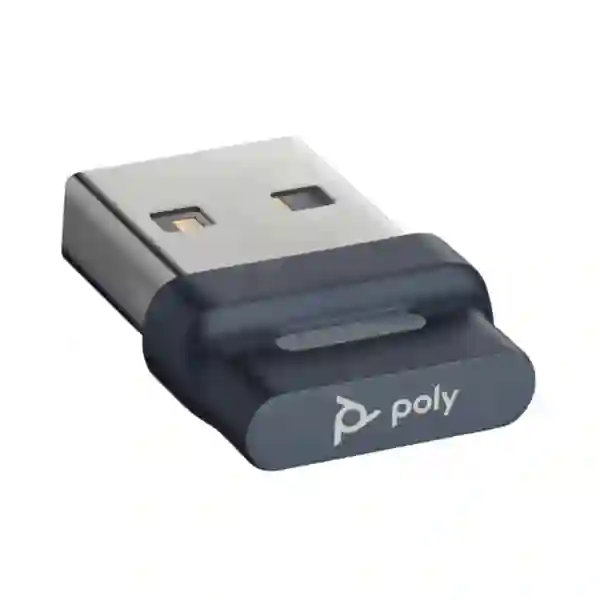
HP Poly BT700 USB-A Bluetooth Adapter
Connect a compatible Poly wireless headset or supported audio device to a Windows or macOS computer using a compact USB-A Bluetooth 5.1 adapter. Check your headset model and USB port before ordering this standalone accessory.
Is this the right adapter for your headset?
The HP Poly BT700 USB-A Bluetooth Adapter is intended for compatible Poly wireless audio equipment connected to a Windows or macOS computer with a USB Type-A port. It remembers two paired devices but uses one active link at a time. Verify the exact Poly headset model, host connector and preferred calling software before requesting a purchase quote.
For buyers in Tanzania, this page supplies manufacturer-verified technical guidance without guessing local stock, pricing or warranty coverage. The best first step is to identify the correct variant and send your device details for a suitability and commercial-terms check.
Verified technical specifications
| Brand | HP Poly |
|---|---|
| Model | BT700 USB-A Bluetooth Adapter |
| HP product number | 786C4AA |
| Manufacturer product number | 217877-01 |
| Host connection | USB Type-A |
| Wireless standard | Bluetooth 5.1 |
| Listed operating systems | Windows; macOS |
| Published range | Up to 50 m under suitable conditions |
| Pairing | Remembers up to 2 devices; 1 connected at a time |
| Profiles | A2DP, AVRCP, HSP |
| Dimensions | 21.25 × 15.4 × 5.4 mm |
| Box contents | BT700 Bluetooth USB Adapter |
Source basis: official HP product specifications. Range is a published maximum, not a site-specific performance promise.
A focused wireless audio connection for your computer
The HP Poly BT700 USB-A Bluetooth Adapter is for buyers who already use, or plan to use, a compatible Poly wireless headset with a computer. It creates a dedicated Bluetooth audio link through a USB Type-A port rather than relying on the computer’s built-in Bluetooth radio. For a person joining calls from a laptop or working at a fixed desk, that means the accessory is part of the headset-to-computer connection, not a replacement headset, speaker or microphone. If your existing BT700 is misplaced or you are checking an appropriate adapter for a supported device, start by matching the headset model and USB connector.
An adapter is a small purchase with important compatibility consequences. A USB-A connector, recognized operating system and the right Poly audio device all matter. The BT700 uses Bluetooth 5.1, and HP describes a maximum wireless range of up to 50 metres; real-world distance depends on the headset, building and surrounding radio conditions. HP also says the adapter remembers two paired devices but connects to only one at a time. This page explains those differences before you request a quotation, so the choice reflects your actual workplace setup rather than a generic Bluetooth claim.
What comes in the package—and what does not
HP lists the BT700 Bluetooth USB Adapter as the item in the box for this product. Do not assume a wireless headset, charging stand, USB extension cable, carry case or any additional conferencing equipment is supplied with the standalone adapter. A product photo may show an example computer or audio device for context, but it is the separately specified adapter that the product identification describes. This distinction is particularly important when replacing a missing dongle from a headset kit: the replacement is an accessory intended to work with a compatible audio product already in use.
Before ordering, identify the HP product number on the quote and packaging and confirm that you are selecting the USB-A variation. HP identifies the USB-A BT700 as product number 786C4AA and separately lists manufacturer product number 217877-01. Neither number should be confused with a FourTeck stock keeping unit unless such a retailer-specific identifier is explicitly provided. If you are purchasing for several workstations, check the required quantity against the number of users who need adapters rather than estimating from the number of headsets owned by the company.
USB Type-A compatibility check
The physical connection is USB Type-A. It is intended for a compatible Windows or macOS computer with an available USB-A port. Many desktops have a straightforward full-size port; some modern thin laptops expose only USB-C sockets. The shape of the port is therefore the first buying test, not merely the operating system written on the computer. The USB-A BT700 will not plug directly into a USB-C-only socket without an appropriate separate connection method, and a different native USB-C BT700 version may be more suitable when that is the computer’s primary connector.
Check where the adapter will be connected during normal use. A docking station may have USB-A ports while the laptop itself does not, and that may determine whether the adapter remains at the workstation or travels with the employee. If a hub or dock is involved, confirm that it passes supported USB audio devices reliably; the dock’s presence alone does not verify a headset pairing. For shared equipment, record which workstation uses each adapter. This makes it easier to keep the correct headset with the correct USB audio endpoint and reduces confusion during future support calls.
Windows and macOS: supported platforms, practical checks
HP identifies Windows and macOS as compatible operating-system families for the BT700 USB-A. This describes the host platform, not a promise that every release, managed device policy, virtual desktop environment or conferencing application has been tested with every headset. In a workplace with centrally managed computers, your IT team may restrict installation of device-management software or access to peripheral settings. Confirm any applicable endpoint policy before distributing adapters, especially if the plan involves pairing several headsets or maintaining them through an approved management process.
After connecting the adapter, select the intended audio endpoint in the operating system and, when necessary, in the calling application. Computer speakers, built-in microphones, docking-station audio and the Poly headset can appear as separate choices. A headset that seems connected yet produces no call audio may simply not be the selected output or input. Make a short test call after installation rather than treating a USB connection sound as proof of complete audio configuration. This small verification can save considerable time when the device is later used during an important meeting.
Bluetooth 5.1: what the version tells you
HP specifies Bluetooth 5.1 for the BT700 USB-A adapter. That identifies the wireless connection technology used by the accessory, but it is not a standalone measure of microphone quality, call performance or feature support on every headset. Results also depend on the connected Poly audio product, how the computer handles USB sound, and which communication program is in use. Bluetooth 5.1 should therefore be treated as a verified technical specification rather than as an unconditional promise of better audio in every environment or an assurance of compatibility with any Bluetooth accessory.
For a buyer comparing Bluetooth equipment, the central distinction is purpose. A general-purpose Bluetooth USB receiver may be designed to connect different types of peripherals, while the BT700 is positioned in Poly’s professional audio ecosystem. Do not choose it as a default solution for wireless keyboards, game controllers, printers or unspecified earbuds. Ask instead whether the particular Poly headset or speakerphone is supported and whether the adapter provides the calling workflow required. Those questions establish useful compatibility much more effectively than comparing Bluetooth version numbers in isolation.
Understanding the stated 50-metre range
HP lists wireless range as up to 50 metres. This is a maximum specification under suitable conditions, not a guarantee that a user can walk 50 metres through multiple rooms and keep a perfect call. The real signal path may pass through walls, metal furniture, glass partitions or other obstacles; both the adapter and headset also influence the link. Treat the number as a reference point when planning a workspace, and test the actual route a user expects to walk while speaking. A clear desk-to-headset path is different from an obstructed corridor or equipment room.
If movement is an essential part of the workday, ask how far employees really need to travel from the computer. Some users only move from chair to filing cabinet, while others leave their desk for a nearby meeting area. A call-quality check in the intended environment matters more than treating the published maximum as a floor-plan guarantee. Place the computer or dock sensibly, keep the adapter away from obvious obstructions where practical, and confirm that the headset remains within its own supported operating conditions. Neither Bluetooth range nor signal quality should be described as unrestricted.
Two remembered devices versus one active connection
The BT700 can remember up to two paired devices and connects to one at a time, according to HP. This is a pairing-memory feature, not two simultaneous audio streams or conference bridging between headsets. It may help a user manage compatible Poly audio devices across a particular workflow, but an active connection still needs to be understood as one connected audio device at any instant. If an office needs two staff members to speak at once through separate headsets, plan for the correct conferencing arrangement rather than assuming one USB dongle will serve both as concurrent endpoints.
Pairing memory can also create confusion when accessories are moved among desks. A previously remembered headset may be powered on nearby while someone attempts to pair another. For clear troubleshooting, switch off unnecessary paired audio devices and identify the intended headset before starting a new pairing process. IT teams can record which dongle belongs to which headset or employee, particularly after replacement or reallocation. This prevents the mistaken assumption that remembering two devices makes the adapter suitable for two permanently active users or multiple simultaneous calls.
Bluetooth audio profiles explained
HP publishes A2DP, AVRCP and HSP as supported Bluetooth profiles for the BT700 USB-A. A2DP is associated with audio distribution, AVRCP with media playback controls, and HSP with headset-related audio operation. Those names describe supported functions at a technical level; they do not mean that every application will expose every control, that every headset supports the same interaction, or that music and microphone audio will always have identical characteristics. A prospective buyer should evaluate the actual Poly device and the applications used in the organization.
For example, someone who mainly listens to training materials may care most about reliable playback and the correct sound-output setting. A help-desk agent may prioritize microphone selection, muting and incoming-call behavior. The adapter is only one component in those use cases. Headset firmware, the computer’s operating system, app permissions and installed desktop software may all affect the final experience. Use the stated profiles to understand the accessory’s intended audio role, but validate call controls and user expectations on the complete setup before a larger deployment.
Which Poly headsets should be checked
HP’s Poly product documentation associates the BT700 with selected Voyager headsets and Poly Sync speakerphone families. That association should not be interpreted as universal compatibility with every product ever sold under the Poly or Plantronics brands. Devices vary by model, revision, software and package configuration. Before purchasing a replacement adapter, read the headset’s exact model marking and review the applicable current compatibility information. Where a headset originally shipped with a BT700, confirm whether you need the USB-A replacement rather than a different connector or a bundled configuration.
Useful examples to investigate include supported Voyager Focus 2 and Voyager 5200 configurations, as well as relevant Poly Sync products. These are model families for a compatibility check, not an unconditional statement that every version or region-specific kit will pair in the same way. If you know the headset’s product identifier, provide it with your enquiry. It is more precise than saying you have a Poly headset with a black or silver design. Buyers of older audio devices should pay particular attention to current support documentation before assuming interoperability.
Why it is not a universal Bluetooth receiver
A common buying mistake is to search for a Bluetooth dongle and assume every adapter serves the same purpose. The BT700 is designed around supported Poly audio devices and their computer-calling workflows. It is not appropriately described as a general-purpose Bluetooth adapter for phones, mice, keyboards, wireless gamepads or arbitrary third-party earbuds. Even when another peripheral supports Bluetooth, matching radio technology does not establish that it can be paired to this product or used through its intended software and USB audio interface.
If your requirement is to add generic Bluetooth capability to a desktop for several unrelated accessories, choose and evaluate a suitable general-purpose solution instead. If your requirement is to reconnect a supported Poly wireless headset to a Windows or macOS computer, the BT700 may be the relevant category. The distinction protects buyers from ordering a device that appears technically similar but does not accomplish the actual task. When uncertain, make the exact headset model, operating system, USB socket and intended calling application part of the pre-purchase discussion.
Why a dedicated headset adapter may be useful
A dedicated USB audio adapter provides a defined connection point for a compatible Poly headset on the computer. For an employee who moves between an office workstation and an approved home setup, the ability to identify the intended USB audio endpoint can make support and configuration more predictable. This is not a claim that the adapter will fix every radio-interference or software problem. It is an explanation of why an enterprise may prefer a known headset-and-adapter combination instead of asking every user to pair through whatever built-in Bluetooth hardware the host device happens to provide.
The advantage depends on proper deployment. An administrator must still confirm compatibility, connect the dongle to a suitable USB port, complete the headset pairing and choose the right input and output devices. Operating-system updates and meeting-app settings may require attention later. A dedicated accessory is also physically small, so labeling or asset tracking can be worthwhile for businesses that support many employees. When deployed thoughtfully, the adapter can be treated as a managed part of the audio setup rather than an anonymous USB accessory.
Calls, online meetings and voice applications
Many buyers investigate the BT700 because they depend on voice calls or online meetings. The product can form the computer-to-Poly-headset connection, but it does not replace the meeting service, internet connection, application license or headset microphone. Make sure the intended conferencing application can select the Poly USB audio endpoint as both speaker and microphone. Then verify that sound flows correctly in both directions. A simple test should include joining a call, speaking normally, listening to another participant and checking that mute status behaves as expected.
A person making frequent client calls may care about a repeatable connection routine more than about a long list of wireless specifications. For that user, it is sensible to keep an agreed configuration, avoid unnecessary changes during working hours and know where to check the audio settings if the application selects the wrong endpoint. In a larger office, document the test used by support staff so that a headset problem can be distinguished from a network issue, application setting or an unrelated computer microphone.
Audio for learning, media and recorded sessions
A Poly wireless headset used with the BT700 may also serve as a listening device for training videos, recorded briefings and supported media playback. HP lists A2DP and AVRCP among its Bluetooth profiles, which is relevant when considering audio playback and compatible controls. Nevertheless, the headset, media software and device settings determine the actual listener experience. Do not assume the adapter provides its own speaker, storage, media application or independent playback function. It carries the relationship between the connected computer and compatible Poly audio device.
In a workplace with both call and media requirements, test the transition between them. A user might finish a voice meeting and start an instructional video, or receive an incoming call while listening to material. Confirm that the selected audio outputs are still correct and that the supported headset controls behave acceptably in the applications concerned. If the workflow depends on seamless switching or specific call-control integrations, verify the precise headset and software combination rather than assuming that the existence of media profiles establishes a guaranteed result.
Microsoft Teams and status indications
HP’s technical specification includes LED indications associated with Microsoft Teams, including a solid purple state for a connected Teams condition and a pulsing purple state for a notification. Those visual codes are useful diagnostic clues, but they should not be transformed into an unsupported claim that every BT700 and Poly-headset combination is formally certified for every version of Teams. The complete device configuration, application and appropriate model variant still matter. Teams-related features should be checked against the exact equipment and the current organizational software setup.
The same caution applies to other unified communications applications. A headset can be connected at the USB-audio level even if particular application-specific buttons, notifications or integrations need additional confirmation. A user should validate the meeting platform that is actually deployed, not merely recognize a familiar icon or LED colour. For procurement teams, state the required platform in the quote request. For IT teams, test microphone, speaker, mute and any necessary call controls before distributing the equipment to employees who depend on those features every day.
LED signals for faster support conversations
The adapter has a conferencing status LED. HP describes flashing red and blue in pairing mode, red during a muted call, flashing blue when a voice link is open, and solid blue while a connected headset is idle. HP also describes flashing purple during music streaming and several purple indications associated with Microsoft Teams. These colours offer practical information when someone reports that the dongle is connected but the headset seems inactive. Users should still check the current support guide for their device and software, because an LED observation is not a complete fault diagnosis.
For help-desk staff, asking what colour is visible can narrow a conversation quickly. No light may indicate that the headset is not connected; a pairing flash suggests the adapter is awaiting the relevant audio device. An LED indicating an active link does not prove that the calling application selected the correct input or that the microphone is functioning as expected. Combine the status with checks of the USB port, headset power, desktop application and operating-system sound settings. This method avoids treating a single colour as a definitive explanation for every issue.
Initial setup: prepare the workspace
Begin with an available USB-A port on a supported Windows or macOS computer, the compatible Poly headset or speakerphone, and the relevant current HP Poly desktop management software. HP’s support guidance identifies HP Poly Studio Desktop for pairing with BT700; some earlier documentation refers to Poly Lens Desktop, so use current manufacturer instructions for the exact deployment. Ensure the audio device has sufficient power and is not already engaged in an unintended connection. If your computer is managed by an organization, arrange any permitted software installation or approval through its IT process.
Before starting, close unnecessary audio sessions and decide which headset is being paired. If several identical headsets are on nearby desks, checking each device’s physical identifier can prevent pairing the wrong one. Insert the BT700 into a suitable USB-A port and allow the computer to recognize it. Do not remove the adapter simply because a connection notification appears; the next task is to establish or confirm the link to the intended audio device. A controlled setup at the desk is preferable to trying a first-time pairing process during a live customer call.
Pairing the adapter to a Poly audio device
For a headset that is not already paired to the adapter, place the headset or supported audio device into its pairing mode according to its own instructions. Then open the applicable HP Poly desktop application and select the BT700. Follow the current pairing control shown by the software, such as its option to pair a new device. HP’s guidance describes the dongle flashing red and blue during pairing and a solid connection indication when pairing succeeds. Exact menu labels may change with the desktop software version, so follow the installed application’s current instructions.
If no device is found, avoid immediately concluding that the dongle is defective. Confirm that the intended Poly product supports this adapter and is actually advertising itself for pairing. Switch off other remembered headsets if necessary, check whether software is blocked by the computer’s security policy, and retry the documented procedure once the conditions are correct. After pairing, verify that the headset can receive and transmit audio through the computer. This final test is essential: an apparent pairing success does not by itself verify the selected microphone, speaker or meeting-app configuration.
Selecting the correct speaker and microphone
On Windows, check the system sound or audio device settings and select the Poly BT700 endpoint where appropriate. On macOS, check the sound input and output selections. A device may be recognized by the operating system while a call application continues using the laptop microphone or speakers. Look at the application’s own audio controls as well, because conferencing programs often maintain independent device choices. Use a test call or recording where permitted to confirm that the microphone input originates from the expected Poly headset and that playback reaches the intended earpiece.
When audio appears on the wrong device, first inspect selections rather than repeatedly disconnecting and reconnecting the dongle. A newly attached USB dock, display or external webcam may introduce additional audio endpoints. Some applications may revert to a previously used default, especially after software updates or workstation changes. Document a simple recovery path that users can follow: confirm headset power, check the BT700 connection, choose the right system devices, then choose the same devices inside the meeting application. This is usually more informative than treating every symptom as wireless interference.
Re-pairing after a replacement or workstation change
A replacement adapter is not necessarily paired to the user’s existing headset when it arrives. Some headset bundles are shipped already associated with their included dongle, while a separately obtained accessory may need a fresh pairing step. Determine whether you are replacing the USB adapter, the headset or both, and then use the current supported pairing process. Having the correct audio device model and access to the relevant desktop application makes this task more straightforward than attempting to pair several nearby devices by trial and error.
When hardware is reassigned to another employee, account for remembered pairings and workplace privacy practices. Disconnect and reconfigure the equipment according to the organization’s asset policy so a former user’s headset does not accidentally connect nearby. Remember that the BT700 can retain two paired devices but use one at a time. Labeling replacement accessories and recording the change in a service ticket helps future troubleshooting. No employee should have to discover that their adapter is still associated with the wrong headset minutes before a scheduled meeting.
Troubleshooting when there is no sound
Start with the most observable elements. Is the headset powered and charged? Is the BT700 physically inserted in an appropriate USB-A port? Does the adapter show a connected or pairing status? Does the operating system detect a Poly audio endpoint? If these checks pass, look at the sound output and input selections and at the conferencing application separately. A wrong output device can create silence even when the wireless link is healthy, while an incorrect microphone selection can make the user audible only through the laptop’s built-in microphone.
If the problem begins after changing desks, investigate the port, dock and application configuration that changed. A controlled direct connection to a suitable computer port can help isolate a suspected hub problem when allowed by IT policy. If the computer recognizes the dongle but not the intended headset, verify compatibility and re-pair using official instructions. Avoid installing unrelated Bluetooth drivers or resetting settings blindly. Note the symptoms, LED state, headset model, operating system and application involved so support can identify the fault without repeating the same basic checks.
Troubleshooting distorted or interrupted audio
Choppy audio can arise from different causes, so it should not automatically be blamed on the BT700. Bluetooth signal quality, workstation placement, headset condition, computer load, microphone settings and the internet connection may all affect the perceived result of a call. First distinguish local audio playback from a remote conversation. If music or a local recording is clear but remote participants sound broken, investigate the communication application and network path as well as the wireless headset link. If all audio breaks up near a particular desk, examine the immediate physical environment.
Test the headset at normal working distance, not only while standing beside the laptop. Look for metal obstructions, multiple closely packed radio devices and unusual placement of the USB adapter behind a desktop chassis. Check that the headset is sufficiently charged and review current software or firmware guidance for the supported devices. Do not promise that moving a dongle or updating software will cure every issue. A disciplined comparison of conditions and a repeatable audio test give a business a much better basis for deciding whether the problem is equipment, configuration or connectivity.
Interference, placement and real-world radio conditions
The published wireless range is best understood as a capability under suitable conditions. Office layouts may include reinforced walls, electrical equipment, dense seating, metal shelving and numerous wireless devices. Those surroundings can influence a Bluetooth connection. For a desktop user, the practical distance may be just a few metres; a mobile employee might want to walk into an adjacent room. Neither scenario should be judged only by the headline range. A quick test with the intended Poly headset in the actual workspace will show whether the configuration meets the user’s daily movement requirement.
USB positioning can matter too. A tiny adapter placed behind a large metal computer case can face a different physical environment from one connected at the side of a laptop. Use an appropriately located available port and follow workplace cable and equipment rules. Do not add third-party extension arrangements without verifying that they are suitable for the host system. If problems are frequent, record the location, time and affected devices; patterns help separate a persistent hardware issue from a location-specific radio problem. Performance should be evaluated where people work, not inferred from a laboratory maximum.
USB-A BT700 versus the USB-C option
USB-A and USB-C refer to connector formats, not to different categories of calling software. The BT700 family has distinct connector versions, so choose the one that matches the computer’s available ports and intended workstation arrangement. A desktop with full-size USB-A sockets can use the USB-A product described here. A modern laptop with only USB-C may be better served by the appropriate USB-C version after compatibility checks. Do not assume a photograph of a dongle reveals the connector reliably; confirm the variant from the product name and manufacturer identification.
For mixed fleets, avoid buying one connector type for every user without checking the actual equipment. A company may have older desktops, new laptops and shared docks with different socket arrangements. A useful procurement worksheet records host model, available port, headset model and required adapter version. This also helps support teams avoid attaching an unsuitable dongle to a device through an improvised chain of adapters. Connector planning is a simple step, but it affects whether the product can be used immediately when issued to the employee.
BT700 versus older adapter generations
Some workplaces already use older Poly or Plantronics USB audio adapters, including devices in the BT600 family. The existence of a newer model does not mean every existing deployment needs automatic replacement. Evaluate whether the current headset works, whether its supported adapter and firmware are still appropriate, and whether a new adapter addresses an actual operational requirement. The BT700 USB-A has its own published Bluetooth 5.1 specification and product identifiers, but compatibility and available features must be checked for each headset before a substitution is approved.
An organization’s replacement decision may be driven by loss, damage, a new computer port arrangement or a headset compatibility requirement rather than by upgrading for its own sake. Avoid promising a universal improvement in audio quality merely because a model number is higher. If the existing setup is stable, explain what outcome the proposed change is expected to produce. When support teams compare two generations, they should test the same headset, calling software and workstation conditions so that any difference is meaningful and not caused by unrelated configuration changes.
Home-office and hybrid-working scenarios
For hybrid staff, the BT700 may be part of a familiar headset setup across approved work locations. A user who carries a laptop between home and office should know whether the dongle travels with the laptop or remains in a dock at a particular desk. Keeping that routine consistent can reduce the time spent looking for a missing USB accessory. Because the adapter is compact, it is also easy to overlook when packing equipment. A simple accessory check alongside the headset, laptop power supply and required business credentials can make travel preparation more reliable.
Remote work also introduces variables beyond the adapter. Home Wi-Fi quality, conferencing app updates, room noise and computer audio settings can affect a meeting. The BT700 does not supply an internet connection or improve bandwidth. Its role is limited to the supported local audio link between host and Poly device. For a Tanzania-based organization supporting remote employees, encourage users to test both local headset connectivity and the network-based meeting service separately. That distinction helps identify the right support team and prevents unnecessary replacement purchases when the real issue lies elsewhere.
Reception, contact-centre and customer-support desks
Reception teams and customer-support staff may spend much of the day on voice communication, making dependable audio device selection especially important. A supported Poly headset and BT700 can form part of a computer-based calling environment, subject to compatibility with the actual communications platform. Before rollout, test audio through the specific softphone or meeting application that employees use. Confirm whether the workflow needs call-answer controls, mute synchronization or other app-specific features and check support for the exact equipment rather than assuming all functions accompany any USB audio device.
At busy desks, spare adapters are useful only when they are the correct model and can be paired with the intended headset. A documented swap process should include connecting the USB accessory, pairing where required, selecting the right audio endpoint and checking a sample call. Staff should also know how to report intermittent problems without interrupting another employee’s setup. Treating the dongle as part of the user’s assigned audio kit can simplify inventory control. It also helps supervisors distinguish a missing accessory from a software issue when an agent cannot start a shift.
Shared desks, meeting spaces and equipment checkout
Hot-desking arrangements create a different need from permanent personal workstations. A shared USB-A dock may connect different laptops during the day, and workers may bring their own Poly headsets. The BT700’s memory for two paired devices does not make it a multi-user conferencing system. A predictable process is required so each person knows which adapter and headset should be associated. Some organizations may choose individually assigned dongles; others may manage fixed desk kits. The best arrangement depends on compatibility, user privacy, support procedures and the cost of reconfiguring devices.
If a dongle is checked out from a central equipment pool, record its identifying information and pairing state. When returned, inspect the accessory and follow the organization’s approved procedure for removing or changing pairings. A simple sign-out record can help prevent a headset from reconnecting to an adapter in a nearby room. Shared meeting areas should also use the correct dedicated room-audio solution when several attendees need to speak. The BT700 is intended as an audio-device adapter, not a substitute for a purpose-built conference room microphone or shared speaker system.
IT rollout checklist for several employees
A business purchasing several BT700 adapters should collect a short but precise list of requirements. Record the exact Poly headset or speakerphone model, computer operating system, USB-A port availability, calling platform and whether users need to install approved desktop software. Then test one representative configuration before committing to a broad distribution. This approach is especially valuable when devices were purchased in different years or employees use multiple laptop generations. One successful demonstration does not automatically verify an entire mixed fleet, but it can reveal the questions that need to be checked across the remaining equipment.
For ongoing support, define who owns pairing, firmware maintenance, user guidance and accessory replacement. A concise internal guide can describe what the adapter’s LED indicates, where employees choose their audio devices and when to contact IT. Record the HP product number so purchasing can identify the correct variant in future requests. If the deployment includes desktop restrictions or virtualized applications, add a separate test for those configurations. These steps turn a small device into a manageable part of the workplace audio environment instead of leaving each user to solve unfamiliar problems independently.
Security and managed-device considerations
The BT700 is a local wireless audio accessory, but managed computers may still apply controls over USB peripherals and installation of desktop utilities. Before deployment, verify whether the organization permits the relevant HP Poly software and whether support staff have the required rights to pair or maintain equipment. Do not advise users to bypass company policies or install unapproved utilities in order to make an adapter work. Security requirements vary across organizations, so the correct approach is to involve the device-management team before assigning the product to employees who use restricted endpoints.
Physical handling is also relevant. A small USB device can be lost when a laptop is moved or a shared desk is cleared. Maintain sensible inventory records and follow the organization’s approved process when reallocating or retiring an accessory that can remember headset pairings. Avoid making claims that the adapter encrypts every voice workflow end to end or satisfies a particular industry compliance standard without manufacturer and deployment-specific evidence. Security of a call depends on several systems, including applications, networks, accounts and endpoint controls, not simply on the Bluetooth adapter version.
Updates and manufacturer software guidance
Manufacturer software and support instructions may change over time. Current HP guidance references HP Poly Studio Desktop for pairing the BT700, while earlier Poly documentation may use the name Poly Lens Desktop. Follow the current manufacturer-supported instructions appropriate to the installed environment instead of choosing an arbitrary download from a search result. Your IT department may package or approve its own release. The adapter and headset may also have version-specific requirements, which should be checked against support documentation for the exact models used.
For a business rollout, schedule any necessary changes through the normal maintenance process and test calling afterward. Avoid updating many devices during active customer-service shifts without a verified rollback or support plan. If the user experiences a new problem after an operating-system change, record the versions of the computer OS, Poly utility and communication application before troubleshooting. This information helps establish whether the symptom is widespread or specific to one setup. The device should be maintained as an accessory in a complete communications workflow, not as an isolated gadget.
Dimensions, portability and physical care
HP’s published dimensions for the USB-A adapter are approximately 21.25 by 15.4 by 5.4 millimetres. Its compact form helps minimize the space occupied around a laptop or desktop port and can suit a user who wants to leave the accessory connected during routine desk work. It is still a protruding USB device and should not be treated as indestructible. Check the available clearance around tightly spaced ports, docking equipment or laptop sleeves. When moving equipment, prevent pressure on the adapter or accidental impacts against the connector.
Good handling practices are simple. Do not force the connector into a socket that is the wrong shape, and avoid placing heavy equipment against the dongle. If an accessory appears physically bent, damaged or unusually loose, stop using it and ask the relevant support team to assess the situation. Keep the adapter together with its assigned headset information so that the correct unit is available if the computer changes. Portability makes the BT700 convenient, but also makes good labeling and careful storage useful in teams that regularly move between work areas.
Buying for a Tanzania business
For a Tanzania-focused purchase, the most useful enquiry identifies what must work rather than requesting a generic Bluetooth USB stick. State the HP Poly BT700 USB-A Bluetooth Adapter by name and provide the HP product number 786C4AA where possible. Include your headset model, computer type, required quantity and whether the accessory is a replacement for a lost adapter or part of a new deployment. That information can help the seller check the requested product variation and flag any compatibility question before a quotation is finalized.
Price in Tanzanian shillings, local stock, delivery coverage, lead time and warranty terms should be confirmed for the actual offer rather than inferred from international product pages. There is no verified Tanzania price or stock statement in this description. If your organization needs a written quotation, include contact details through its approved enquiry channel and specify any purchasing documentation your team requires. For a larger order, ask whether the selected adapter has been validated with your exact headset fleet. Commercial terms should be determined by the seller’s current confirmed offer, not generic specifications copied from another market.
Before requesting a quotation
A useful purchase request can be short and specific: confirm that the product is the BT700 USB-A rather than USB-C, that the headset is supported, and that the computer provides a usable Type-A connection. Explain whether you need a single replacement or several accessories for employees. If device management is relevant, mention Windows or macOS and the organization’s restrictions on installing desktop software. There is no reason to provide passwords, personal account credentials or confidential calling information to establish basic hardware compatibility.
For replacement purchases, share the model printed on the headset or its verified equipment record, not an assumption based on appearance. For new deployments, request a suitability check before deciding quantities. Also clarify any accessories that will be purchased separately, since the listed box contents specify the adapter itself. A clear enquiry helps distinguish a dongle problem from a missing headset, an unsupported connector or an application setup issue. It is the simplest way to move from product research to an informed buying decision.
A straightforward acceptance test after delivery
When the correct adapter is received, compare the identification and connector against the order confirmation before starting setup. Check that the USB plug is undamaged and can be inserted normally. On the intended supported computer, establish the documented pairing with the correct Poly audio device. Verify recognition of the BT700 in the system audio selections, then set the desired input and output. A headset that plays music but cannot transmit microphone audio has not yet passed a complete business calling test.
Finish with a practical scenario that resembles daily work: join a permitted test meeting, speak and listen, check mute behavior and move within the user’s normal working area. Observe the LED if troubleshooting is needed. Record any unexpected results with the exact headset model, computer OS, meeting application and location. For multiple units, retain a sample acceptance checklist so that future deployments are evaluated consistently. This helps detect a compatibility or configuration question early instead of after several employees have started depending on the setup.
When another product may be a better choice
The BT700 USB-A should not be selected merely because it appears in a list of Bluetooth accessories. If your computer has only USB-C ports, first investigate the appropriate connector variant. If the intended accessory is a wireless keyboard, mouse or unknown third-party headset, a general-purpose Bluetooth adapter or another audio solution may be the correct category. If a team needs a meeting-room microphone to serve multiple people, look at products designed for room conferencing rather than expecting a single headset dongle to provide that function.
Likewise, a user who needs a complete headset must purchase the headset itself; the standalone BT700 does not contain earpieces or a wearable microphone. A computer without a working USB port may require attention to the host connection before an audio adapter can be used. A call that fails because of network instability may not be improved by replacing a healthy dongle. Matching the purchase to the actual problem reduces unnecessary spending and makes it more likely that the resulting setup will satisfy the people who use it.
Summary for decision-makers
The decision is best framed around four questions: do you have a compatible Poly audio product, does the computer provide USB-A, is the target host Windows or macOS, and is the intended conferencing workflow supported? HP specifies Bluetooth 5.1, a wireless range of up to 50 metres in suitable conditions, and memory for two devices with one active connection. Those are useful facts, but none substitutes for the headset and software compatibility check. The product is a small connection accessory with a defined role in the audio setup.
For individual users, verifying the headset model before purchase is often enough to prevent a wrong order. For organizations, add a standard pairing and acceptance test so help-desk staff can manage the product consistently. Buyers in Tanzania should request confirmed local price, availability and applicable commercial terms instead of relying on unverified claims. If the described use case fits your requirement, prepare a quotation enquiry with the USB-A variant, HP product number and exact headset details. That provides a clear next step without implying that stock or compatibility has already been guaranteed.
Frequently asked questions
Is the HP Poly BT700 USB-A a complete wireless headset?
No. This listing is for the standalone USB-A Bluetooth adapter. HP lists the BT700 adapter as the item supplied, not an earpiece, boom microphone or charging stand. If you need a complete headset, identify and purchase the compatible headset separately. When ordering a replacement dongle, check the headset model first so that the adapter is appropriate for the equipment you already own.
Can I use it with a computer that has only USB-C?
The product described here has a USB Type-A connector and therefore does not plug directly into a USB-C-only port. Check whether the computer has a suitable USB-A port elsewhere or whether the proper BT700 USB-C variant is a better purchase. Do not choose the version based only on a picture; confirm the manufacturer’s product identification and the physical socket available on the intended workstation.
Does the BT700 connect two headsets at the same time?
No. HP states that the adapter can remember up to two paired devices but connects to one at a time. This does not provide simultaneous headset audio for two users. If multiple people need to participate through separate audio devices, determine the right arrangement in the calling application and choose suitable equipment rather than using the adapter’s pairing-memory specification as a guarantee.
Will any Bluetooth headset work with it?
Do not assume so. The BT700 is intended for compatible Poly audio devices. Sharing a Bluetooth standard with another headset does not establish support for pairing or call control. Check the exact model against current HP Poly compatibility instructions, especially for older devices and third-party headsets. Provide the full model name with your purchasing enquiry if you are seeking a replacement for an existing setup.
Is a Bluetooth mouse or keyboard compatible?
The BT700 should not be marketed as a universal Bluetooth USB receiver. Its intended function concerns supported Poly headsets and audio equipment. A mouse, keyboard, game controller or other generic Bluetooth peripheral calls for a product specifically designed and supported for that purpose. If your requirement is broad Bluetooth connectivity rather than professional headset audio, investigate a general-purpose solution instead.
Does it work with Windows?
HP lists Windows as a compatible operating-system family for the USB-A BT700. Your computer must also provide an appropriate USB Type-A connection, and the chosen Poly audio device must be supported. Managed PC restrictions or application-specific behavior can still affect installation. After setup, confirm that the operating system and meeting software both select the intended BT700 audio endpoint.
Does it work with macOS?
Yes, macOS is included in HP’s listed compatible operating systems. Compatibility should still be assessed for the exact Poly headset and host configuration. Select the correct input and output devices in macOS sound settings and within any communication application you use. If pairing is required, follow the current HP Poly desktop software instructions appropriate to the system.
What is the stated wireless range?
HP specifies up to 50 metres for the BT700 USB-A. This is a stated maximum rather than a promise of equivalent performance through walls, furniture or radio interference. The connected headset, workspace layout and signal conditions can influence usable distance. Test the actual work area if employees need to move away from their desks while remaining on a call.
What Bluetooth version does the product use?
The USB-A BT700 uses Bluetooth 5.1 according to HP’s product specification. Version information helps identify the accessory but does not by itself certify compatibility with all headsets or prove a particular voice-quality result. The complete headset, host and application combination should be checked. HP also lists A2DP, AVRCP and HSP as supported Bluetooth profiles.
How do I pair a replacement adapter?
Use the current HP Poly desktop pairing instructions for the exact supported headset. HP guidance describes selecting the BT700 in its desktop application, putting the Poly audio device into pairing mode and initiating the pairing procedure. During pairing, the adapter can flash red and blue. After connection, verify both speaker and microphone operation rather than relying only on the visible connection status.
What does a solid blue indicator mean?
HP describes solid blue as an idle state with the headset connected. Flashing red and blue indicates pairing mode, while other colours can relate to voice, music or supported conferencing status. LED observations are a helpful starting point but do not prove that a call application has selected the correct microphone and speaker. Check audio settings if sound is still missing.
Can I use the BT700 for Microsoft Teams calls?
HP’s specification includes LED conditions associated with Microsoft Teams. This is useful context but not a blanket guarantee that all headset variants, platforms or features are certified together. Verify the exact Poly audio product, application configuration and required calling controls. Even when the computer recognizes the dongle, the application still needs to use the intended input and output endpoints.
Why can I hear others but they cannot hear me?
The microphone may not be selected inside the operating system or the calling application, even though the headset is connected for playback. Check the BT700 connection, headset microphone status, mute controls and the application’s input-device setting. Test the microphone in a permitted diagnostic call. If the issue persists, record the headset model, OS and app version for support rather than assuming the adapter is faulty.
Can I leave it plugged into my laptop?
HP describes a compact form factor suitable for leaving the adapter in a laptop or PC during ordinary use. Nevertheless, a small USB plug can be damaged by pressure when equipment is transported or placed in a tight sleeve. Check clearance and follow your organization’s handling guidance. If removing the adapter, store it with the associated headset to reduce the chance of losing it.
Is a headset included in the adapter package?
No headset is listed in HP’s box contents for the standalone BT700 USB-A adapter. Confirm with the current seller what is included in its exact offer, particularly if the website image shows additional equipment. When replacing a missing dongle, ensure you still have the compatible headset and can access any required pairing software before ordering.
Is it suitable for a shared office desk?
It may suit a controlled shared-desk audio workflow, but its memory for two paired devices does not support two simultaneous users. Define whether adapters are assigned to individuals or to workstations, and document the supported headset pairing process. Shared equipment should be reallocated according to company IT and privacy procedures. Test each user configuration before relying on it for customer calls.
Is there a verified Tanzania price?
No price in Tanzanian shillings is stated here because no current exact-listing price has been verified. Request a quotation for the BT700 USB-A identified by HP product number 786C4AA and specify the quantity needed. Any local stock, delivery, payment or warranty terms should be confirmed by the seller for the actual offer rather than inferred from international product information.
What should I tell the seller before ordering?
Provide the full model name or HP product number for the desired BT700 variant, the compatible Poly headset model, your computer’s port type and operating system, and the quantity required. State whether this is a replacement for lost equipment or part of a new office deployment. This makes it easier to identify a connector or pairing issue before purchasing.
Request a BT700 USB-A quotation
Ask for the HP Poly BT700 Bluetooth USB-A Adapter, HP product number 786C4AA. Include your Poly headset or speakerphone model, Windows or macOS computer details, required quantity and whether this is a replacement accessory. Request confirmation of the correct variant, availability, local price and any applicable support terms before purchase.
No unverified stock, delivery commitment, approval, certification or local price is implied.
Reviews
There are no reviews yet.