
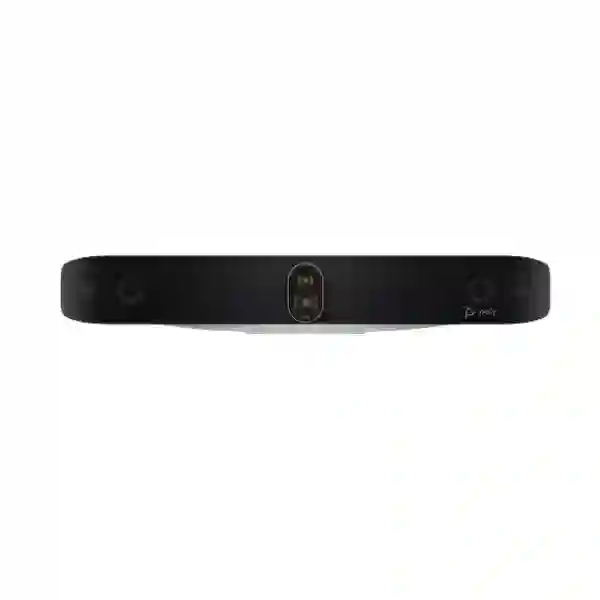
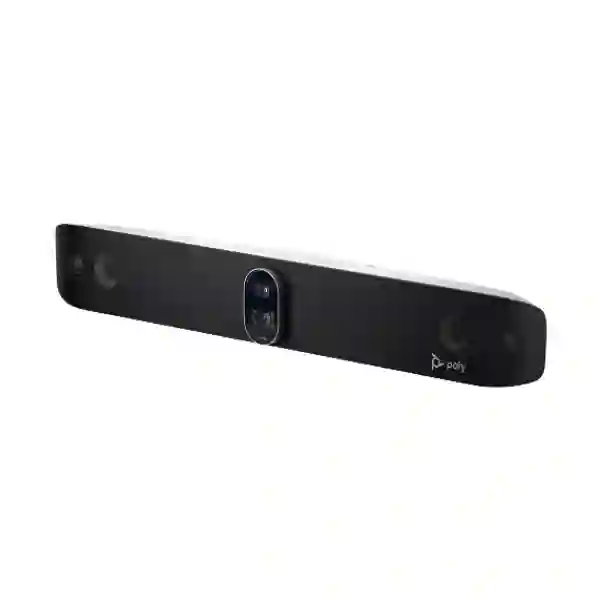
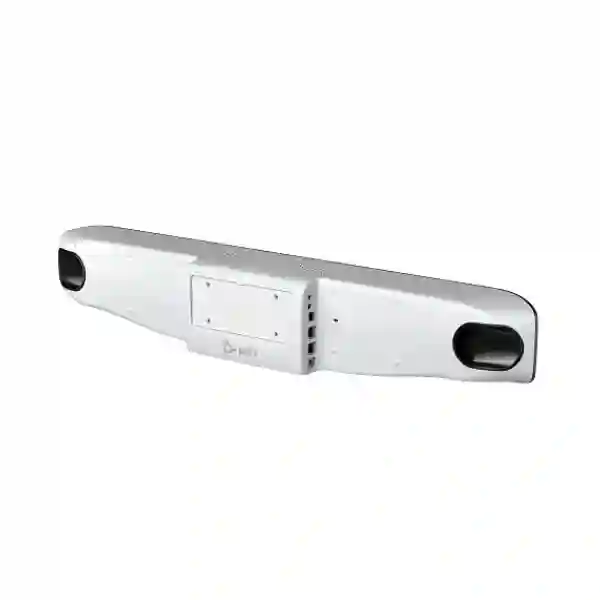
HP Poly Studio V72 USB Video Bar
Bring remote participants closer to the conversation with dual 20 MP 4K cameras, intelligent Poly DirectorAI framing and integrated audio built for large PC-based or BYOD meeting rooms. Designed to connect to a compatible computer over USB, the V72 provides a premium meeting-room camera, microphone and speaker experience without pretending to be a stand-alone conferencing computer.
Quick product snapshot
Room fit
Large meeting rooms with a compatible conferencing computer or BYOD setup.
Video
Dual 20 MP, 4K UHD camera sensors; Poly DirectorAI speaker, people and group framing.
Sound
Integrated microphones and dual-speaker design, with NoiseBlockAI and Acoustic Fence.
Connectivity
USB-C 5 Gbps device connection; HDMI ports are not general meeting-room video I/O.
Platform
Microsoft Teams USB peripheral and Zoom certification; Google Meet compatibility through a host.
Management
Poly Lens support; optional Poly peripherals require compatibility and local availability checks.
Buyer note: confirm the regional configuration, included accessories and the complete room design before ordering. No Tanzania price, stock status or delivery terms are assumed.
Built for large rooms where every participant matters
A meeting room can look impressive while still producing a poor remote experience. People sitting at the edges become hard to see, quiet participants sound distant, and every meeting starts with someone searching for the right camera or microphone. The HP Poly Studio V72 USB Video Bar addresses that practical problem with a dual-camera system, integrated room audio and intelligent framing in a single USB peripheral. It is designed for large conference spaces that use a connected computer or bring-your-own-device approach rather than relying on the video bar to run conferencing applications independently.
For an organisation evaluating video conferencing equipment in Tanzania, the first decision is not simply whether a camera offers 4K. It is whether the meeting space has the right seating layout, display position, host computer and platform workflow. A correctly specified V72 can simplify the front-of-room setup, but the overall experience still depends on the room, the connected computer, the meeting application and the underlying internet connection. This guide explains how to evaluate those elements before requesting a quotation.
What makes the dual-camera design useful?
The Studio V72 contains two 20-megapixel camera sensors, each associated with a different field of view. HP specifies 120 degrees horizontal for the wide view and 70 degrees horizontal for the narrower view, with 140 degrees and 78 degrees respectively on the diagonal. The two perspectives give the intelligent framing system useful visual choices in a large room. A broad shot can establish who is present, while a tighter composition can make a person speaking at a distance more prominent to remote attendees. This is more useful than relying exclusively on a fixed, wide room image.
HP lists 4K UHD camera resolution of 3840 × 2160, a fixed-focus optical design and up to 7.3× digital zoom. Those details describe the imaging capabilities of the hardware; they do not promise that every conferencing service will transmit a 4K meeting stream. Application settings, subscription or service support, USB bandwidth, host processing and network conditions can influence the picture that a remote participant receives. When comparing options, ask to test the exact conferencing application that your teams use rather than judging the sensor specification alone.
How Poly DirectorAI supports more natural meetings
Poly DirectorAI is the framing technology associated with the Studio V72. HP identifies speaker framing, people framing and group framing as supported camera functions. Group framing helps the camera compose a view that includes the participants; people framing can give remote viewers a clearer look at individuals; speaker framing shifts emphasis toward the current contributor. These modes address a familiar problem in boardrooms: distant participants should not be reduced to tiny figures simply because the table is long. The value is the composition of the meeting, not a promise that software can replace good room design.
Framing behaviour should be checked against your real seating plan. A U-shaped table, classroom layout, long rectangular board table and furniture arranged around movable clusters can produce different results. Verify how people at the extreme edges look, how the camera handles someone walking near the front and how it behaves when several people speak in quick succession. It is also worth checking that the automatic camera choices suit the meeting culture. Some teams prefer a stable group view during presentations; others prioritise close views in executive discussions.
Clear audio starts with how people sit and speak
For hybrid meetings, intelligible speech is often more valuable than maximum picture resolution. The V72 combines two MEMS microphones and two second-order microphones, according to HP's technical specifications, with an advertised pickup range of up to 7.62 metres (25 feet). The bar also incorporates a dual-speaker audio system. These built-in components reduce the number of separate devices needed in a typical room, but they should be evaluated against actual distance, background noise and acoustics rather than treating the stated pickup range as a guaranteed result for every participant.
A large hard-floored room with glass walls behaves differently from a carpeted meeting space with acoustic panels. Air-conditioning noise, loud projectors, corridor sounds and several simultaneous speakers can affect perceived clarity. When planning the room, identify the farthest speaking seat, listen for reverberation and run a call with a remote colleague. Ask that colleague whether the quietest contributor is intelligible without raising their voice. That simple test is more informative than checking whether the microphone icon is visible in an application.
NoiseBlockAI and Acoustic Fence: what they do
HP Poly NoiseBlockAI uses audio processing to reduce distracting sounds during calls, while Poly Acoustic Fence is intended to focus pickup on the relevant conversation area. Both can improve the signal presented to remote participants in offices where keyboard tapping, incidental discussion or ambient noise compete with meeting speech. They are especially relevant when a video bar is placed near a busy corridor or a meeting room has multiple sources of background sound. Their purpose is to support conversation clarity, not to make a room acoustically isolated.
Think of these features as tools within a complete audio plan. Before installation, consider door seals, HVAC placement, hard reflecting surfaces and where participants normally sit. If a room doubles as a training area, test the voice of a presenter standing at the side or near a whiteboard. Always review audio performance from the far end of a real call; sound from the V72's local speakers alone cannot reveal what remote participants hear. Adjusting seating and microphone coverage can matter more than any software setting.
Which room layouts suit the Studio V72?
HP positions this model for large rooms, but the number of chairs is not a universal compatibility rating. A shallow room with twelve seats spread across a wide table creates different camera requirements from a narrow room with the same number of seats arranged in two long rows. The wide 120-degree horizontal field of view helps accommodate people near the sides; the narrower perspective offers an option for subjects farther away. The best fit depends on the distance from camera to faces, where the display is mounted, how participants move and what the room is used for.
Start with a dimensioned floor plan rather than a headcount. Mark the front wall, the furthest seat, expected presenter positions, light sources and the location of the meeting computer. Check whether participants will normally look toward the display or turn sideways to face one another. For rooms with exceptionally long tables, irregular seating or significant reverberation, ask for an assessment of additional microphones, camera angles or a more bespoke AV approach. Do not assume the V72 alone is sufficient merely because the room is described as a boardroom.
Microsoft Teams: a USB-peripheral approach
HP states that the V72 is certified by Microsoft Teams as a USB peripheral for large rooms. It can be attached to a suitable computer so Teams uses the video bar's camera, microphone and speaker functions. That makes the device relevant both to selected PC-based room configurations and to staff who bring a computer into a meeting. The crucial distinction is that a USB video bar is not the same thing as an independent Microsoft Teams Rooms computer. The host and any required room software, accounts and licences have to be planned as separate elements.
Before committing, decide whether the room will have a dedicated PC or a laptop connected by a meeting participant. A dedicated PC-based Microsoft Teams Rooms design may require platform-specific hardware and software configuration beyond the bar itself. For laptop-driven meetings, standard device selection and the relevant meeting application may be enough for basic audio and video. Certification should not be interpreted as approval of every arbitrary host or accessory combination. Validate the proposed room bundle and any controller with the applicable platform documentation.
Zoom: certification with a host-based setup
The Studio V72 is also listed by HP as Zoom certified. In a typical USB setup, the conferencing computer runs the meeting or room software while the V72 provides video and audio input and output. This can be attractive for organisations that want a consistent Zoom meeting experience without relying on the laptop's small webcam and speakers. The approach also allows a room to use a common front-of-room video device while planning the computer and display components independently.
If you intend to build a dedicated Zoom Rooms environment, do not price the bar as though it is the entire system. Confirm the required computing device, room account or licence, control method, display configuration and any certified ancillary equipment. If you plan to use employee laptops instead, confirm how USB access will be made convenient at the table and whether the meeting application automatically recognises the room audio and camera. Test host changes between users because those handoffs are a recurring source of frustration in shared spaces.
Google Meet and other browser-based meeting tools
HP describes the V72 as compatible with Google Meet, while its explicit certifications are for Microsoft Teams and Zoom. The distinction matters. Compatibility over USB means a suitable host computer and supported meeting software can use the bar's audio and video functions; it does not mean the V72 is independently running Google Meet or that every Google Meet room-hardware integration is certified. Some buyers use several meeting services each week, making straightforward USB peripheral behaviour more important than a single-brand workflow.
For mixed-platform organisations, conduct a short interoperability test on the actual computers that employees bring. Check camera selection, microphone selection, speaker routing, mute behaviour, browser permissions and whether disconnecting one laptop leaves the next user with a predictable setup. Avoid claiming universal support for every operating system or future application version. Confirm the current host requirements and the requirements of any dedicated room system separately, particularly where central management and remote updates are important.
BYOD versus a permanently connected room computer
A bring-your-own-device arrangement gives meeting hosts flexibility: they can bring a laptop, connect the V72 over USB and use their preferred conferencing application. That flexibility works best when the tabletop connection is clearly labelled, power and display connections are easy to reach, and staff know how to select room devices. The risk is variation between laptops. Different USB ports, adapters, operating systems and privacy settings can change how quickly a meeting begins. A successful BYOD room needs a repeatable physical connection workflow rather than an assumption that everyone will troubleshoot their own equipment.
A dedicated room PC reduces device variability because the V72 remains attached to a managed computer. However, it introduces responsibilities for operating-system maintenance, platform accounts, peripheral management and user control. Consider whether staff need to join external meeting services, who is authorised to update room software and how a meeting is started without an IT technician. For organisations with many rooms, standardising one tested configuration may be easier to support than allowing each room to evolve differently.
Technical specifications at a glance
The values below are based on HP product information for the standard Studio V72 family. Exact regional configurations and compatible host environments must be confirmed for the unit supplied; this table is a starting point for specification review, not an installation certificate.
| Product family | HP Poly Studio V72 USB video bar |
|---|---|
| Intended deployment | Large rooms; host-based USB conferencing |
| Cameras | Dual 20 MP, 4K UHD (3840 × 2160); fixed focus |
| Horizontal views | 120° wide / 70° narrow |
| Diagonal views | 140° wide / 78° narrow |
| Digital zoom | Up to 7.3× |
| Smart framing | Poly DirectorAI: speaker, people, group framing |
| Microphones | Two MEMS and two second-order microphones |
| Advertised pickup | Up to 7.62 m / 25 ft |
| Audio processing | Poly NoiseBlockAI, Acoustic Fence |
| Host port | 1 × USB-C, 5 Gbps signaling |
| Other interfaces | LAN, LLN, 2 × USB-A disabled by default; additional provisioned/unsupported ports |
| HDMI limitation | HDMI outputs for provisioning only; HDMI input unsupported |
| Device management | Poly Lens Cloud / Poly Lens Room |
| Operating environment | 0–40°C; 15–80% operating relative humidity |
| Approximate size | 840.18 × 135.4 × 117.93 mm |
| Approximate weight | 3.307 kg |
| Power | External supply |
| Certification | Microsoft Teams USB peripheral for large rooms; Zoom |
| Other service compatibility | Google Meet through a compatible host |
USB-C is the meeting connection; HDMI has important limits
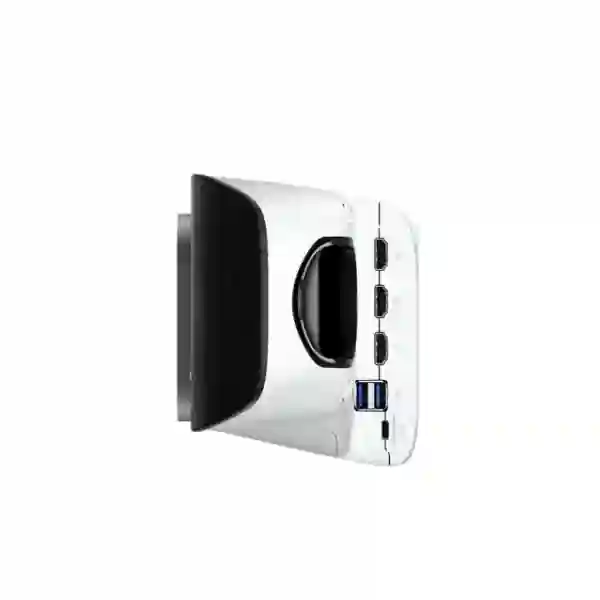
One of the most important purchasing details is the role of the ports. HP specifies one 5 Gbps USB Type-C connection for the V72's USB-device workflow. The same specification lists two HDMI 2.0 outputs for provisioning support only and an HDMI 1.4 input that is not supported. Those HDMI connectors should not be planned as ordinary presentation inputs or everyday outputs to room displays. A laptop may therefore need a separate display path through a suitable HDMI lead, docking station or other approved AV equipment.
This catches buyers who assume that the bar functions as a complete audio-video switching hub. It does not remove the need to decide how slides reach the screen. Draw a simple connection diagram before installation: show the host computer, V72 USB connection, one or more displays, power socket, any room controller and network connection. Then consider cable length, strain relief and whether a laptop user can connect both the video bar and the display without awkward adapters. Ask the installer to demonstrate screen sharing and camera audio in the same test meeting.
Network ports, Wi-Fi and local device configuration
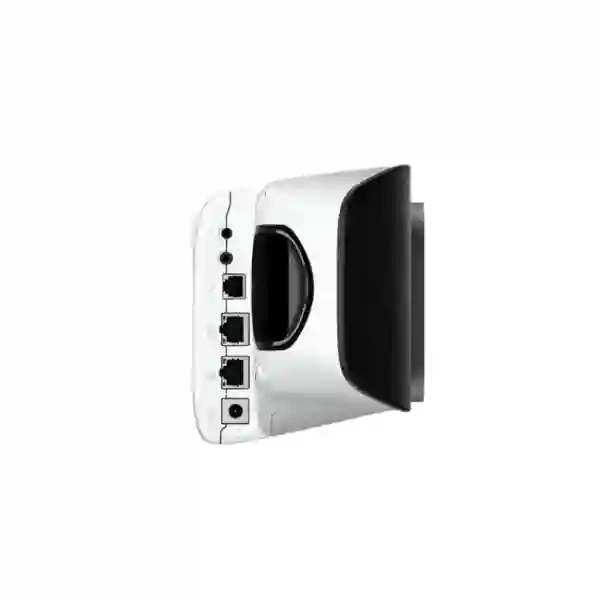
HP lists a LAN RJ-45 connection as well as wireless technologies in the standard specification. Those interfaces can be relevant to provisioning, administration and management, but the bar still needs a suitable host for its normal USB conferencing role. A network cable attached to the video bar should not be mistaken for a replacement for the computer or the conferencing application. Where IT policies restrict wireless equipment, confirm the exact regional version being quoted and its management interfaces; product variants can differ, and a feature on one edition should not be assumed across every part number.
The technical specification also identifies additional interfaces such as an LLN RJ-45 port for supported Poly peripheral use, an RJ-11 connection and two USB Type-A ports. HP states that the USB-A ports are disabled by default and may be enabled in Poly Lens; its store documentation limits their supported peripheral use. Treat these as managed-device connections rather than open-ended laptop docking ports. Ask the project team to document which ports are needed and to avoid planning installations around interfaces the manufacturer labels as unsupported.
Expansion options for demanding rooms
Not every large meeting space is an exact match for the integrated microphone and camera position. HP identifies supported Poly peripherals, including Poly Studio E360 and Poly Studio Table Microphone, subject to regional availability and separate purchase. The concept is useful: a rear or alternative camera angle can help represent participants in room layouts that are not easily captured from the front, while an appropriate table microphone can address challenging voice pickup positions. Nevertheless, compatibility needs to be checked for the intended software configuration and specific product versions before extras are ordered.
An expansion decision should follow a room test. If participants at the far end are consistently difficult to hear, document where and why. If the front camera misses people writing on a side wall, document that visual requirement. Then assess whether the supported accessory resolves the problem or whether the room needs a more comprehensive integrated system. Do not assume an optional microphone is included with the base V72, that every Poly camera can be attached, or that these accessories are available in Tanzania without a current verified quotation.
Poly Lens for maintaining meeting-room equipment
For IT teams, deployment is only the first part of the purchase. A meeting room can be installed correctly and then degrade as settings drift, firmware becomes outdated or a device is disconnected during furniture changes. HP positions Poly Lens as its management environment for configuration, updates and visibility across supported Poly devices. The V72 product information identifies Poly Lens Cloud and Poly Lens Room. This can help organisations with multiple rooms create a more consistent support process instead of relying entirely on users to report faults.
The scope of management depends on the selected software, host, registration and deployment architecture. Confirm the current requirements for the exact room build before promising automated monitoring or remote control. Assign responsibility for updates and establish a procedure for testing a firmware change on one room before rolling it across the estate. Keep a basic asset register with location, serial number, connection diagram and approved configuration. Good documentation often delivers more day-to-day value than a long list of optional settings that nobody maintains.
Security and privacy are operational decisions too
The manufacturer describes an integrated privacy shutter for the camera and lists security management controls such as password-policy configuration, security profiles, secure defaults and TLS-supported remote logging. These are helpful capabilities, especially where rooms host confidential discussions, but their effectiveness depends on how administrators configure and maintain the system. Security should be designed across the complete room: host computer, meeting account, network segment, device settings, physical access and any management portal.
Work with your information-security team to decide who may administer the bar, how credentials are stored and whether room systems share administrative accounts. Consider whether the room needs a guest workflow, how the host computer is locked between meetings and how camera and microphone permissions are explained to staff. Test that the privacy shutter behaves as expected when the room is idle. Where a business has formal procurement requirements, request the manufacturer's current security and lifecycle information for the exact variant rather than relying on an informal assurance.
Power, temperature and installation environment
The V72 uses an external power supply; the USB cable is not a substitute for its normal power connection. HP specifies an operating temperature range of 0 to 40°C and relative operating humidity of 15% to 80%. Those are equipment limits, not a guarantee that every hot or humid location is suitable. Plan the bar away from direct water exposure and consider heat buildup around tightly enclosed display mounts. A stable room environment helps protect a professional conferencing investment, particularly where meeting spaces have long periods without air conditioning.
For a Tanzania deployment, also evaluate power continuity and the network that carries the actual conference call. If outages or voltage fluctuations are part of the building's risk profile, ask a qualified installer to assess appropriately rated protection or backup for the room computer, display, bar and networking hardware. Avoid assuming a standard UPS can run the full room without first checking loads and runtime. Ensure electrical installation, cable management and mounting are carried out by competent personnel using the correct local requirements.
Dimensions, positioning and physical fit
HP lists the standard V72 chassis at approximately 840.18 mm wide, 135.4 mm deep and 117.93 mm high, with a weight around 3.307 kg. That is a substantial front-of-room component and should be considered alongside the display dimensions, wall construction and aesthetic requirements. Before installation, measure available clearance above or below the screen and check whether the camera view will be blocked by a lectern, table monitor or decorative element. Positioning the bar to capture natural sight lines is generally better than hiding it in a corner solely for appearance.
The manufacturer's package includes a wall mount kit in the listed configuration, but the suitability of the supplied hardware depends on the supporting surface and local installation details. The mount must be secure, accessible for service and compatible with cable routing. A future display replacement may change camera height or sight lines, so record the designed mounting position. If the room has movable furniture, verify at least two likely seating configurations rather than tuning the camera for one photograph of the boardroom.
What is included with the standard listed package?
HP's Africa product specification identifies the Studio V72 bar, wall mount kit, quick-start guide, external AC power adapter, USB Type-C to USB Type-C cable, HDMI cable, Ethernet cable and power cable among the standard package contents. Regional localisation can affect exactly which power cord or other items are supplied, so the final quotation should list the contents of the specific unit being offered. A manufacturer package list is useful for planning, but it should not be treated as proof of what any local seller currently has in stock.
The host computer, room display, conferencing software and licence, touch controller, additional table microphone, supplementary camera, installation work and supporting AV switchgear are not automatically part of the standard video bar purchase. Request a clear, line-item bill of materials. A complete quotation lets you distinguish a bar-only supply from a meeting-ready room package and reduces the chance that a technically sound product arrives without the components required to operate it in the space.
Meeting-room use cases that benefit from a V72
Executive board meetings often include people spread around a long table, with remote attendees needing to identify speakers and read facial expressions. The V72's dual-camera views and automated framing can help produce a more useful composition than a laptop webcam at the end of the table. Evaluate the quietest seat and the lowest camera angle before approving the room. A separate display connection should remain available for financial presentations or shared documents.
Project and operations meetings tend to switch rapidly between people speaking, content on a screen and hybrid discussion. A host-based USB design can suit teams that alternate between Microsoft Teams and Zoom, provided the computer and display arrangement are made simple. In training rooms, presenters may move away from the table. That makes a live test of microphone performance and camera framing especially important. A classroom-style seating plan can require a different setup from a conventional boardroom even when the floor area is similar.
Professional-services firms may value the option to create consistent, managed conferencing rooms without committing every space to one isolated meeting appliance. Educational and administrative teams may value repeatable USB connections and straightforward guest participation. In both cases, the procurement question should include support ownership: who checks the equipment before an important call, who handles a failed laptop connection and who is responsible for updates after installation? These operational details determine whether the technical features translate into reliable daily use.
Studio V72 versus Studio V52: which size is appropriate?
HP positions the Studio V52 for medium rooms and the Studio V72 for large rooms. In the manufacturer's comparative guidance, the V52 has a 20 MP 4K camera with a 95-degree horizontal field of view and an advertised audio pickup range of up to 6.09 metres (20 feet). The V72 moves to dual 20 MP cameras with 120-degree wide and 70-degree narrow horizontal views, plus an advertised pickup range of up to 7.62 metres (25 feet). Those differences can be meaningful for larger seating arrangements or meetings that benefit from both broad and close framing perspectives.
The V72 is not automatically the better purchase for every room. A compact room may not need its camera coverage or physical width; using a device scaled to the space can be more economical and simpler to mount. Conversely, choosing a smaller bar for a large room because its camera sensor also says 4K can produce disappointing visibility and pickup. Measure the room, map the furthest seat and evaluate the importance of automatic framing. Select the device that satisfies that real layout, not the one with the most impressive specification on paper.
Studio V72 versus Studio X72: understand the architecture
The V72 belongs to HP Poly's USB video bar range, while the Studio X72 is an all-in-one video bar with its own platform architecture. This is an important distinction for buyers who describe every conference bar as a stand-alone meeting system. The V72 normally depends on a connected computer to run the conferencing application; it provides the room's camera, microphone and speaker functions. The X72 is designed around an integrated appliance approach and can be relevant when a team wants a different operating model.
Neither architecture is universally superior. A USB V72 can be appropriate where employees frequently change meeting services, use personal laptops or already have a managed PC-based room environment. An all-in-one approach may appeal when dedicated meeting workflows and appliance management are prioritised. Compare the complete solution cost, supported application modes, update process, integration options and meeting-start experience. Do not compare only the appearance of the bars or assume the same accessories, licences and control methods apply to both products.
Practical preparation before the installation day
Begin with a written room brief. Identify the wall where the display will sit, the people who will normally speak, the expected meeting services and whether staff will use a dedicated room PC or bring laptops. Confirm the nearest power location and the path for USB, display and network cabling. If the room has large windows, check whether strong backlight falls behind seated participants. If it contains hard, reflective surfaces, consider whether simple acoustic improvements are needed before judging the microphone's performance.
Next, define who approves the room design and the acceptance test. A technical integrator may demonstrate connectivity, while an office manager checks that guests can use the room without instructions from IT. Include at least one test with a remote participant, one screen-sharing demonstration, a test from the furthest seat and a host-device change. Record the outcome and retain the intended settings. The goal is not merely to show that the bar powers on; it is to prove that the most common meeting tasks work consistently.
A simple installation and acceptance-test sequence
A successful installation proceeds in a deliberate order. First, inspect the unit and verify that the supplied variant matches the approved quotation. Next, fit the mount to a suitable surface and position the camera so people near both ends of the table remain visible. Connect the external power supply and the designated USB host, keeping cables secured and accessible. Connect the computer to the room display through a supported separate path, then select the V72's devices in the meeting software and establish the desired camera mode.
Once a meeting starts, have a remote colleague verify both wide-room and closer framing, check intelligibility from several seats and confirm speaker output at a comfortable level. Test microphone muting and the camera privacy function. If Poly Lens is part of the management design, confirm enrollment and update responsibilities with the IT team. Finally, show a non-technical staff member how to start a meeting and share content. Their experience often reveals overlooked issues such as hidden cables, confusing source selections or an inaccessible power switch.
Pre-purchase checklist
Confirm intended use
USB bar with an external computer, not a stand-alone room operating system.
Map the room
Front wall, farthest seat, windows, acoustic surfaces and presenter movement.
Choose platforms
Microsoft Teams, Zoom, Google Meet or a tested mixed-platform workflow.
Design display cabling
A separate host-to-screen path; do not use provisioning-only HDMI for meeting output.
Review audio coverage
Test quiet speakers, distant seats and the impact of ambient noise.
Specify extras
Only compatible cameras, microphones and room controls; verify local availability.
Plan support
Management enrollment, updates, support owner and acceptance criteria.
Request full quote
Exact model variant, included contents, exclusions and local commercial terms.
Connectivity and internet considerations in Tanzania
The V72 handles in-room audio and video, but internet performance is determined by the meeting host and the network it uses. A powerful camera will not correct an unstable uplink, severe packet loss or a congested Wi-Fi network. Plan room connectivity according to the conferencing platform's published requirements and the number of concurrent meetings your site expects to run. If several rooms start video calls at once, test network capacity under realistic load instead of assuming that a single successful test call represents the whole office.
For critical meetings, evaluate the reliability of the primary connection, the building's internal cabling and the power source feeding the network equipment. Where business continuity is essential, your IT team may consider appropriate redundancy; the design and cost will depend on local providers and the site. No particular telecommunications operator, service level or regional installation coverage is assumed here. The useful purchasing question is whether your existing infrastructure will support the meeting workflow after the room equipment is installed.
Operating the room after deployment
Meeting-room reliability usually improves when there is a simple owner and a predictable routine. Put a discreet quick-start instruction near the connection point describing where the USB cable goes, how the screen is selected and how users choose the room's microphone and speaker. Provide a named internal contact for support rather than telling visitors to restart everything. If a meeting fails to start, a short checklist can help establish whether the issue is the host computer, meeting application, display connection, video bar or wider network.
Treat maintenance as a planned activity. Check cables and mounting periodically, review device health through the chosen management method and schedule software changes around business-critical events. Keep administrator access restricted. When changing the furniture layout or adding a display, repeat the original camera and microphone acceptance tests. A conference room is a system: changing one component can affect the experience of everyone joining remotely. Good operations protect the benefit of the original investment.
How to compare a complete quotation
When requesting a price for the Studio V72, specify whether you need only the USB bar or a complete room solution. Include approximate room dimensions, a basic seating diagram, the number and type of displays and your conferencing platform. State whether a computer is already available and whether extra microphones, cameras or control devices are under consideration. Ask the supplier to identify the exact manufacturer product variant and the accessories assumed in the scope. Different localised part numbers or radio configurations may have different characteristics.
A strong quotation separates equipment from installation, configuration, training and any ongoing services. It identifies items that are excluded, including room PCs, conferencing licences, network work and power protection if applicable. Check that the proposed display connection is technically valid rather than relying on the bar's provisioning-only HDMI ports. Request current information on local availability, delivery, applicable warranty terms and support arrangements from the quoting team; none is assumed on this page. That information is more useful for purchasing than an unverified advertised local price.
Common reasons to choose a different solution
The V72 may not be ideal if there is no suitable computer available and the team wants a self-contained appliance that independently runs the meeting application. It may also be unnecessarily large for a small huddle room. A venue with unusually difficult acoustics or a very long, complex table could need a more customised microphone arrangement. A room that requires sophisticated content switching, multiple source inputs or specialised presentation workflows will need a properly designed AV system rather than assuming that the USB bar's connectors solve everything.
It can also be sensible to postpone a purchase until the organisation has clarified whether its standard meeting service is Teams, Zoom or a mix of applications. Without that decision, the IT team may underestimate room-compute, controller or licensing needs. The right product should simplify daily operation and fit the long-term support model. If the meeting environment is uncertain, a short technical consultation and room survey are valuable steps before selecting hardware from a catalogue.
Frequently asked questions
Is the HP Poly Studio V72 a complete standalone video conferencing system?
No. It is primarily a USB video bar that provides the camera, microphones and speakers for a compatible host computer. The host runs the conference application. A complete room may also require a display, conferencing software, controller and appropriate cabling. Buyers who want a self-contained appliance should compare the relevant all-in-one product architecture.
Is the Studio V72 suitable for a large conference or boardroom?
HP positions it for large rooms and lists microphone pickup of up to 7.62 metres, with two camera views. Suitability still depends on seating distance, acoustics, lighting and the position of the front-of-room display. A room plan and live audio test are preferable to a decision based only on the seating capacity.
Does the V72 work with Microsoft Teams and Zoom?
HP identifies the Studio V72 as certified for Microsoft Teams as a USB peripheral for large rooms and certified for Zoom. The host and any required room software or licences remain separate considerations. The certification does not automatically validate every possible room-computer, controller or accessory combination.
Can it be used with Google Meet?
HP identifies compatibility with Google Meet through a suitable connected computer. That is different from asserting that the V72 itself runs Google Meet or that every dedicated Google Meet room arrangement is certified. Check the proposed host, meeting software and current service requirements for the actual deployment.
What is the camera resolution of the Studio V72?
The bar uses two 20 MP camera sensors with 4K UHD resolution stated at 3840 × 2160. Its wide and narrow cameras have different fields of view. Actual resolution visible to remote participants depends on the meeting software, host and network, so do not assume every call is delivered in 4K.
What is the maximum microphone pickup range?
HP specifies pickup of up to 7.62 metres, or 25 feet. This is a manufacturer specification rather than a guarantee of speech quality in every room. Reverberation, competing noise, speaker volume and how furniture is arranged affect real performance. Test the farthest and quietest seats during commissioning.
Can the V72 connect directly to a room display using HDMI?
The listed HDMI outputs are designated for provisioning support only, and the listed HDMI input is unsupported. Do not design an everyday presentation route through those ports. Connect the host computer to the room display through an appropriate separate display path and confirm the final cabling arrangement before installation.
Can extra microphones or cameras be added?
HP identifies selected expansion peripherals, including Poly Studio Table Microphone and Poly Studio E360, subject to configuration, regional availability and separate purchase. Confirm compatibility of the exact accessory and room setup before buying. Optional expansion equipment should be specified because the base bar does not automatically include it.
Does the bar need a computer and its own power supply?
For normal USB conferencing use, a compatible computer runs the application and the V72 supplies the room audio and video. HP lists an external power supply, so the USB connection should not be assumed to power the full bar. Confirm the correct power cable and host requirements for the quoted regional unit.
What is Poly Lens used for?
Poly Lens supports configuration, software updates and IT visibility for supported Poly devices. The specific management workflow depends on the host, software setup and enrollment. Organisations with more than one meeting room should define update responsibility, access controls and a tested room configuration before rollout.
Does the product include a meeting-room PC or Teams Rooms licence?
The manufacturer-listed standard package is centred on the video bar, mounting accessories, power supply and cables. It does not establish that a conferencing PC, room software licence or touch controller is included. Request a complete line-item quotation and check every component needed for the room workflow.
How do I request a Tanzania quotation for the Studio V72?
Prepare the room dimensions, seating layout, preferred collaboration platform and whether you need a bar-only unit or a complete installed room. Share those details with FourTeck Tanzania through its normal enquiry channel and request confirmation of the exact part number, local availability, included accessories, warranty terms and any implementation scope.
Plan your Studio V72 meeting room
Ask FourTeck Tanzania for a quotation that matches the way your organisation actually meets. Share your room size, seating layout, collaboration platforms and whether you need the USB bar alone or a complete PC-based or BYOD room design. Request confirmation of the product variant, compatible accessories, local commercial terms and what the installation scope includes.
Use the website’s existing enquiry or contact channel. A direct product enquiry link is intentionally not included because no verified local destination was available for this request.
Reviews
There are no reviews yet.