
HP Poly Studio X52 All-in-One Video Bar
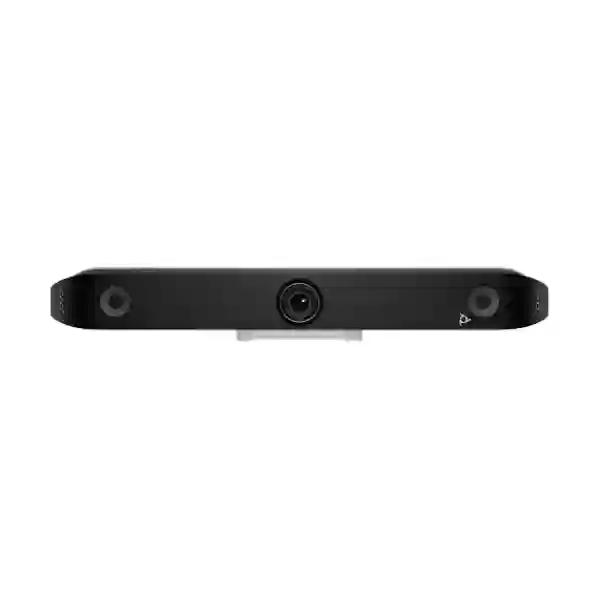
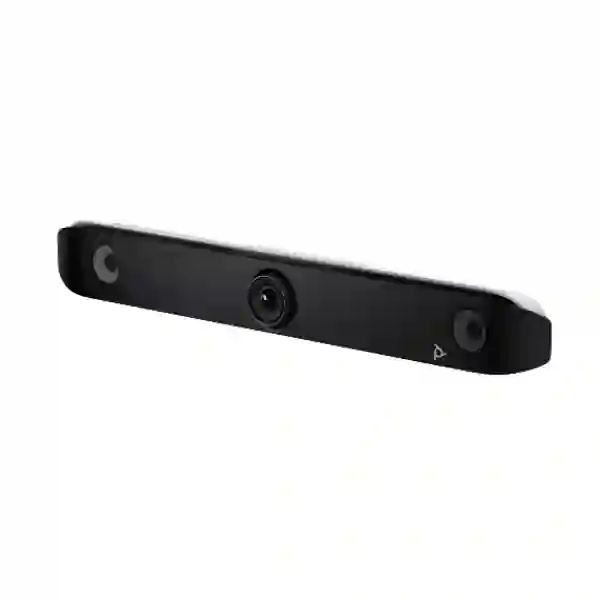
Equip a medium meeting room with integrated 4K-capable video, intelligent camera framing, built-in microphones and stereo speakers. The HP Poly Studio X52 is designed to make hybrid meetings easier to run, whether your organisation uses a configured room platform or connects a laptop for a call.
Review room size, platform mode, content-sharing needs and bundle contents before requesting a quotation. FourTeck Tanzania can be contacted for an offer and configuration discussion; pricing, availability and service terms must be confirmed for the exact request.
At a glance: features that matter
Technical essentials
Specifications describe HP’s Studio X52 product family and may vary by part number, installed software or collaboration provider. Check the quoted regional configuration and its compatibility before purchasing.
Why the Studio X52 belongs in a medium meeting room
The HP Poly Studio X52 is an integrated video conferencing system designed for the gap between a small huddle space and a large boardroom. Instead of assembling a separate camera, microphone array, loudspeakers and room computer, a team can equip a suitable meeting room with a single bar that combines these core functions. Built-in conferencing applications support a dedicated room experience, while USB Device Mode provides an alternative when a laptop is expected to run the call. That flexibility matters when employees host different kinds of meetings throughout the week.
The most useful purchasing question is not whether a camera has a large megapixel number, but whether everyone at the table can be seen, heard and included. For a medium-sized room, assess the distance of the furthest chair, how wide the seating area is, whether participants speak toward the screen, and whether glass walls or hard floors create distracting reflections. The X52 can simplify hardware, but its result still depends on practical room layout and configuration.
A well-equipped room should reduce the time spent finding adapters, choosing microphones and asking remote colleagues whether the meeting is audible. The X52 is intended to provide a consistent starting point for that experience. It is particularly relevant to organisations equipping several similar meeting spaces and wanting predictable room controls, a familiar joining process and central device management. Confirm the intended conferencing platform and bar-only versus controller bundle before asking for a quotation.
Room capacity, table geometry and sightlines
HP categorises the Studio X52 for medium rooms, with a representative capacity of six to nine participants. That is a room-planning guide rather than a promise that every layout with nine chairs will perform identically. A narrow rectangular table, a horseshoe layout and a wide conference table place people at different distances and angles from the lens. Begin with the room plan and an actual seating diagram. Measure the distance from the proposed mounting position to the nearest and most distant speaking positions.
The manufacturer describes a horizontal camera field of view of 95 degrees and a microphone pickup specification of up to approximately 6.09 metres. These are useful starting points, not substitutes for testing acoustics and framing. A seat close to the bar but far to the side may challenge framing, while someone directly opposite the bar may be visible but seated beyond the room’s ideal acoustic envelope. Room dimensions, placement, background noise, soft furnishings and speaking style all influence the effective meeting experience.
For an office in Tanzania planning a new meeting room, arrange the table and main display before finalising cable routes or wall fittings. Leave a clear camera view, avoid bright windows directly behind people and provide adequate light on faces. A quick demonstration with participants occupying every intended seat is more informative than judging performance from an empty room. If the room is unusually long, wide or used for large audiences, consider a larger or more modular solution instead of relying on a nominal seat count.
4K optics, smart framing and natural eye contact
The Studio X52 uses a single-lens 20-megapixel camera with 4K Ultra HD capture capability, a 95-degree horizontal field of view and up to 5x digital zoom. This specification gives the system visual detail for a medium table, but the outgoing resolution experienced by another participant can vary by conferencing application, network conditions, service plan, device software and call settings. Do not interpret the camera specification as a guarantee that every Teams, Zoom or Google Meet call will stream in 4K.
Poly DirectorAI offers intelligent camera behaviours such as group framing, speaker framing and people framing, with available options depending on software version and mode. Group framing aims to keep the meeting participants together in the image; speaker-oriented framing can shift attention toward the person talking. People framing helps remote colleagues follow the conversation when several people are present. These functions are designed to improve engagement, not to replace careful placement of the bar or good lighting.
During a pilot, test a quiet discussion, an active roundtable and a presentation where one person stands up. Check whether the transitions are comfortable, whether people near the image edges remain visible and whether the selected view feels natural to remote attendees. Digital zoom crops the captured image; it is not the same as optical magnification. When a room is large enough that aggressive cropping becomes necessary, that is a sign to reconsider room sizing rather than simply increasing zoom.
Microphones, stereo speakers and speech intelligibility
The built-in audio system includes multiple microphones and dual speakers rated by HP at 2 x 20 W RMS. HP also identifies full-duplex audio, acoustic echo cancellation, Poly NoiseBlockAI and Poly Acoustic Fence technologies. In practical terms, the objective is to make speech easier to follow while reducing unwanted sounds and echo. The microphones and speakers are designed as part of the same video bar, avoiding an assortment of desktop devices with separate power and software settings.
Noise management is helpful for offices where air-conditioning, corridor activity or nearby conversations can be heard. Acoustic Fence is intended to limit distracting sounds outside the desired pickup area; NoiseBlockAI helps suppress certain non-speech noises. Neither feature can rescue a room with extreme reverberation, open doors beside the table or overlapping speech from several distant participants. If remote attendees regularly ask for repetition, address furniture, room surfaces, speaker behaviour and microphone placement as well as software settings.
Assess audio by having the person at the far end of the table speak at a normal volume, then repeat the test from both corners. Ask a remote listener about intelligibility, changes in volume and whether words disappear when people interrupt one another. Test playback volume at comfortable levels, not just maximum loudness. The published microphone pickup limit describes a capability under suitable conditions; the actual usable range depends on noise, acoustics and platform processing. Some layouts may call for compatible expansion audio after confirming current accessory support.
Choose between a dedicated room appliance and laptop USB mode
The X52’s two main deployment approaches solve different problems. In a dedicated-room arrangement, compatible meeting applications operate on the video bar and the room can be configured for a consistent meeting provider. Users interact with the room display and an appropriate controller rather than bringing a dedicated meeting computer. This approach suits scheduled meeting spaces where the business has standardised on a collaboration platform and wants a familiar join procedure for staff and visitors.
USB Device Mode takes a different approach: a connected laptop or computer uses the X52 as an audio and video peripheral. The meeting application runs on that computer, which may suit organisations that need flexibility between services or have users who already work from their own conferencing software. Before procurement, confirm the exact supported USB connection workflow and cable arrangement for the intended software release, because entering Device Mode and handling display content can require more than simply connecting a generic cable.
Do not assume that every service is available as an identical built-in application or that USB mode and a native room mode deliver the same features. The appropriate operating mode is governed by the current HP Poly software, the conferencing provider, certification status, account eligibility and administrative policy. Choose a primary workflow first, then document the fallback workflow. This avoids the common mistake of buying the hardware before the organisation has decided who owns the room account, how guests join and what users should see when they enter.
Microsoft Teams, Zoom, Google Meet and other meeting services
HP identifies the Studio X52 with Microsoft Teams, Zoom and Google Meet certifications in its product information, while additional interoperability is described through supported native applications, Poly Video App capabilities and USB Device Mode. These statements should be read in the context of the installed software version and current provider support. Firmware generations and platform certification requirements can change, so a precise proposal should specify the intended conferencing mode and software release rather than treating the entire device family as universally interchangeable.
For a Microsoft Teams environment, investigate how the device will be provisioned as a Teams Rooms endpoint, what Microsoft room licensing is appropriate and how the account will be secured. For Zoom Rooms, confirm the room account, scheduling expectations, controller requirements and features supported by the selected build. For Google Meet, check the exact device, firmware and licensing conditions against the current supported deployment matrix. A room kit is not a substitute for the relevant service account or subscription.
For mixed-platform offices, distinguish between meetings the device can host natively and meetings best joined from an employee laptop. The difference affects meeting invitations, one-touch joining, calendar integration, content sharing and help-desk support. Ask IT to test a real invitation from each service that the organisation uses, including guest meetings initiated by customers or partners. A device that supports several workflows can be valuable, but users should not be expected to improvise a new setup during an important client call.
Share presentations and plan one or two room displays
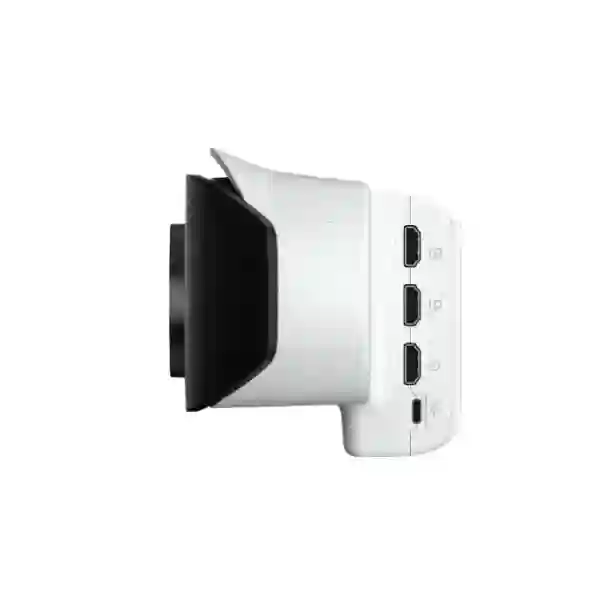
The X52 provides one HDMI 2.0 input and two HDMI 2.0 video outputs, along with USB connectivity. The HDMI input supports a wired source for content sharing in supported configurations. Apple AirPlay, Miracast and digital whiteboarding are also listed in HP’s content-sharing capabilities, with availability depending on provider mode and configuration. These options can help participants put a slide deck, spreadsheet or project view on the room display, but they should be evaluated with the exact laptop and service combination used by employees.
Dual display capability can help separate remote faces from shared material, particularly when the presenter needs to maintain eye contact while reviewing a document. Nevertheless, two HDMI outputs do not guarantee the same split-screen behaviour across every meeting platform. Confirm supported display counts, layout choices, screen resolution and cable lengths for the selected meeting mode. Check that the chosen display sizes remain legible from the far end of the table, especially for financial tables and technical diagrams.
Plan how a guest shares content before the room is fitted out. If a guest laptop has only USB-C, determine whether the user needs a suitable display adapter, a supported wireless share method or the organisation’s approved dock. Test both Windows and Mac laptops when both are common. Wireless sharing should be reviewed against security and network policies; a wired HDMI option may be simpler for visitors. Provide one clear instruction in the room so presenters do not waste the first ten minutes troubleshooting.
Ports, mounting, cable routes and installation sequence
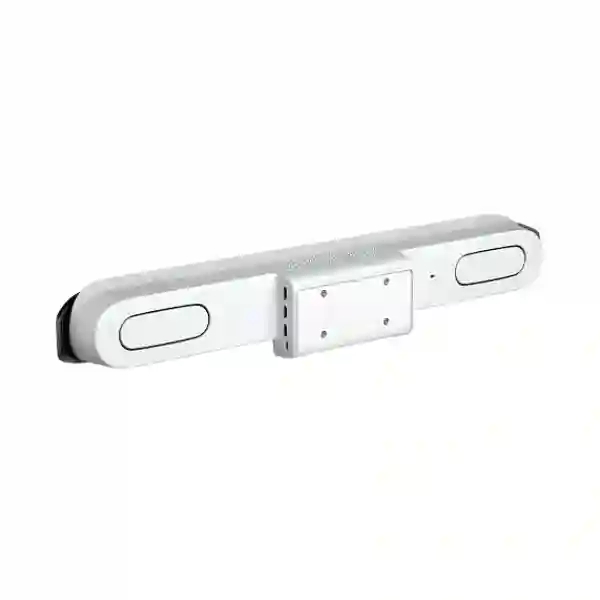
The standard X52 design has one HDMI input, two HDMI outputs, one USB-C port, two USB-A ports, one Ethernet RJ-45 connection and a line input for an optional microphone. HP lists dimensions of approximately 769.5 x 115.2 x 103 mm and a device weight of around 2.54 kg. These details help a facilities team assess clearance below a display, support structure and cable access. Port capability does not establish that every accessory is supported; validate any external audio or camera device against the current Poly compatibility documentation.
Mounting above or below a display is principally a sightline decision. Aim to keep the camera near the visual line of sight for seated participants, and verify that the mount does not obstruct the screen, ventilation or access to the lens cover. Power is supplied using an external adapter; it should not be assumed that the X52 itself is powered through the Ethernet cable. Controller power and networking may have different requirements, which is especially important if a TC10 is part of the proposed bundle.
A clean installation sequence starts with a room survey, display and bracket confirmation, network and power planning, then initial setup and live call testing. Before closing cable trays, verify the source-to-display wiring, each HDMI output, the Ethernet connection and the intended USB Device Mode connection. Leave safe access for service and ensure the device can be restarted without dismantling the installation. Identify who will store configuration credentials, and record the software version and room name in the handover documents.
Network quality matters more than a headline camera resolution
Video meetings depend on sustained upstream and downstream connectivity, stable latency and low packet loss. A device can feature a sophisticated camera and still deliver an inconsistent call if the meeting room shares a congested internet link with large backups or downloads. The X52 includes wired gigabit Ethernet connectivity and network features described in HP’s technical documentation. For a fixed meeting room, a well-managed wired connection is usually the most predictable foundation, although permitted wireless operation depends on provider mode.
Before deployment, review the organisation’s firewall, DNS, DHCP, proxy, time synchronisation, quality-of-service and cloud-service requirements with IT. Determine whether the meeting traffic travels through a local internet connection, a central office gateway or a VPN. When a room uses a touch controller, confirm the controller’s networking and pairing prerequisites as well. A practical commissioning test should include camera and content sharing while the rest of the office is experiencing normal network activity.
In Tanzania, businesses may operate across sites with different connectivity conditions, so it is sensible to test the actual office circuit rather than relying only on its advertised speed. Check congestion during busy working hours, arrangements for failover connectivity and how a meeting recovers after a brief interruption. Do not size a solution from a single bandwidth figure alone; the requirements vary with call resolution, number of participants, content sharing and meeting provider. Plan the room against the platform’s current network guidance.
Electricity, ventilation and everyday physical reliability
HP specifies an external auto-sensing power supply for the Studio X52 and an operating temperature range of 0 to 40 degrees Celsius. A reliable socket, suitable cable management and adequate ventilation are essential to a stable installation. Where an office experiences power interruptions, IT may choose to evaluate a correctly sized uninterruptible power supply for the bar, display, network switch, controller and internet access equipment. Backup power for the camera alone does not preserve a meeting if the router or display shuts down.
Install the device away from direct sunlight, water, excessive dust and heat sources. Leave the ventilation arrangement recommended by the manufacturer unobstructed, and do not hide the unit in sealed cabinetry merely to simplify the room appearance. Check whether the mounting surface can safely support both the device and its bracket. The lens privacy cover and Kensington lock slot are physical features, but room policies should also address who may enter, when the camera is active and what equipment can be connected.
A business procuring equipment for offices in Tanzania should verify the exact supplied power cord, plug arrangement, installation accessories and local electrical suitability of the quoted configuration. Manufacturer part numbers and box contents can differ between a bar-only package and a controller kit or a regional version. A purchase order should state the desired package, compatible controller if required, installation responsibilities and acceptance testing. Do not infer a specific warranty, importer, stock position or delivery schedule from global product specifications.
Touch controls, TC10 options and what is actually in the box
The Poly TC10 is a touch controller that can simplify room interaction, but it should not be assumed to accompany every Studio X52 purchase. HP separately lists an X52 bar-only product and an X52 with TC10 controller kit. A controller can matter for users who want a convenient surface to start a meeting, manage calls or interact with the room’s configured workflow. Its functions depend on the conferencing mode and software version, and controller compatibility should be checked before placing an order.
If an organisation has a reception-managed boardroom or meeting rooms used by many departments, a familiar controller interface can reduce the need to ask IT for help. A room used mainly for laptop-based ad hoc calls may instead prioritise the USB workflow. There is no universal answer: the best control model follows how the room is booked, which application it uses and who normally enters first. Decide whether a controller belongs on the table or in a dedicated location where the network and power requirements are satisfied.
When requesting a quotation, ask whether it covers the video bar only or an explicitly named bundle, and confirm included mounting hardware, power accessories, HDMI cables and controller equipment. Verify what is included with the exact regional part number rather than assuming the contents of one international listing apply to another. Also ask whether provider subscriptions and on-site setup are separate items. Distinguishing hardware, subscriptions and services at quotation stage makes it easier to compare proposals on the same basis.
Privacy, access control and administrative security
Meeting-room equipment often sits on a corporate network and may be connected to calendar services, user accounts or management systems. That makes security setup a normal part of deployment, not an optional feature for later. The X52 has a physical lens cover and HP documents administrative security capabilities, but an organisation still needs to set its own policies for access, software maintenance and room identities. A visible privacy cover can help users understand the camera’s physical state when the device is not needed.
Configure administrative access under the current HP Poly guidance and replace initial credentials as required during commissioning. Restrict room accounts to the permissions they need, review the organisation’s meeting provider policies and make an agreed person responsible for updates. If Poly Lens or another management method is used, evaluate the organisation’s data governance and approved cloud access before enrolment. Check logs and device inventory practices against internal privacy requirements without implying that particular settings automatically satisfy any local law.
People may discuss confidential projects or customer information in a meeting room, so operational etiquette matters as well. Provide a clear method to end calls, disable microphones when appropriate and prevent the next group from inheriting an active session. Explain who can make configuration changes and how incidents are reported. Buyers should seek current security and compliance documentation for the deployed software and services rather than treating a published technical specification as a guarantee of compliance with every regulatory or organisational requirement.
Poly Lens, firmware management and ongoing support
HP describes Poly Lens as a device-management option for visibility and remote administration. This can be useful when an IT team has more than one X52 or supports meeting rooms in different buildings. Instead of relying entirely on a colleague to describe a fault over the telephone, administrators can use supported management features to review devices and coordinate configuration. The exact telemetry, remote actions and management availability depend on software, service terms and the environment in which the device is deployed.
Create a simple maintenance routine before the device is handed to employees. Record the model, serial number, room location, date of installation, conferencing provider, controller type, current software and administrator contact. Agree a policy for software upgrades and test critical meeting workflows after planned changes. Room appliances are not install-and-forget products: the conferencing platforms evolve, providers adjust certification requirements and new firmware may change supported features or user interfaces.
For multi-site organisations, standardising room names, cable labels and acceptance checklists pays off when a replacement or upgrade is needed. The support team should know how to restart the bar safely, collect relevant diagnostics and escalate an unresolved platform issue. When requesting supplier assistance, include the installed software version, the exact operating mode, a description of the symptom and whether the same problem occurs in USB Device Mode. This shortens diagnosis and avoids unnecessary hardware replacement.
A practical room experience for employees and guests
A successful deployment is judged by whether people can hold a meeting without an expert standing beside the screen. Agree what a user should do in the first thirty seconds: enter the room, identify the correct meeting, join, confirm audio and share a presentation if necessary. Document the one primary joining method for the room. If the office supports multiple platforms, provide a separate, concise guest or laptop procedure rather than a long set of technical instructions pasted beside the display.
During user acceptance testing, invite people who did not configure the system. Ask them to join a scheduled call, mute and unmute, change camera framing when permitted, share a laptop screen and leave the meeting completely. Repeat with a guest outside the organisation. This test exposes practical issues such as a controller placed out of reach, ambiguous audio selection, poor display readability and cable connectors that are difficult to access. These problems are often inexpensive to fix before the handover.
Remember that a conference room is also a physical environment. Keep the table clear of unnecessary cables, position speakers and the camera so participants face the remote group naturally, and make sure the room can be used by people with different comfort and accessibility needs. If the system is deployed across several offices, adopt a common sign-in and help-desk process. Consistency matters as much as the specifications on the product sheet.
Buying scenarios for Tanzanian organisations
A professional services firm may need a reliable medium conference room for client discussions and project reviews. For that case, concentrate on clear speech from every chair, an uncomplicated way to join external invitations and dependable document sharing. An education or training team may care more about keeping a presenter in view and ensuring remote attendees can follow a presentation. A leadership team may prefer a booked room with a defined meeting account, touch control and a simple two-display layout.
Organisations with several sites may use the X52 as a repeatable standard for medium meeting rooms. The procurement decision then extends beyond a single device: select a consistent software release, document network prerequisites, create a room naming convention and identify who handles first-line support. If some rooms are smaller or much larger, evaluate them separately. A standard model can reduce support variation, but forcing the same hardware into every space may produce worse outcomes than a small set of well-defined room profiles.
When gathering quotations in Tanzania, describe the room’s dimensions, approximate seating arrangement, existing displays, connectivity, conferencing service and any required controller. Include whether the organisation wants supply only, physical installation, configuration, training or ongoing support, and ask prospective suppliers to separate those components. This approach makes the offer easier to assess and discourages assumptions about local stock, installation coverage or turnaround times that have not been confirmed for the transaction.
Studio X52 compared with smaller or larger alternatives
The X52 should be selected for its intended meeting-room role, not merely because it sits in the middle of an equipment range. A compact huddle room often benefits from a wider field of view and a device sized for people sitting close to the display. HP positions the Poly Studio X32 for smaller spaces and describes a 120-degree horizontal camera field of view. By contrast, the X52’s 95-degree field of view is paired with an overall design aimed at medium meeting rooms.
For a larger boardroom, unusual seating arrangement or deeper room, the Poly Studio X72 may be a more appropriate starting point. HP describes it with dual-camera optics and a large-room positioning. However, the choice also depends on where people sit, whether the installation needs advanced microphones, whether external cameras are required and which collaboration platform is used. A more expensive bar is not automatically a better fit if a room layout or noisy environment remains unresolved.
A useful comparison should include room geometry, microphone tests, camera view at the closest and farthest seats, available controller and accessory options, platform support on the proposed firmware, and the total installed cost. Include displays, brackets, cable runs, network changes, room licenses and support in that calculation. The best choice is the system that supports the actual meeting workflow with a clear growth path, rather than the device with the largest specification on paper.
Procurement checklist and acceptance criteria
Before approving a purchase, confirm seven items in writing: the exact bar-only or kit configuration; intended meeting platform and software mode; room dimensions and seating arrangement; display quantity and HDMI requirements; network, firewall and power readiness; any touch controller or audio accessories; and who performs configuration and training. These are separate decisions. A quotation that lists only the video bar model does not answer how the room will operate, especially if the organisation expects a turnkey collaboration space.
During commissioning, check the camera image with all seats occupied, sound pickup from the farthest chair, speaker volume and echo, local and guest meeting joins, presentation sharing, optional second-display operation, privacy controls and administrator access. Have a remote participant judge the quality; a test conducted only inside the meeting room will miss some issues. Record any limitation found and whether it reflects room acoustics, network conditions, meeting-provider policy or an equipment setting.
Request a handover containing the installed configuration, supported connection instructions, safe maintenance procedure, support contact and the list of purchased hardware and services. Confirm applicable warranty terms for the exact quotation rather than inferring commercial terms from another region. Also confirm procurement documents and installation responsibilities. A good sign-off process leaves employees with a usable room and gives IT enough information to maintain it without reconstructing the original deployment.
Common setup problems and how to investigate them
If remote participants cannot hear the room clearly, first check the selected microphone in the meeting application and whether the X52 is muted. Then compare pickup from a near and far seat, and listen for reverberation from hard surfaces or unexpected background noise. If people in the room hear an echo, check the audio path and ensure a laptop is not simultaneously playing through another speaker or microphone. An equipment reset is rarely the most informative first troubleshooting step.
If the camera does not appear on a connected laptop, confirm that the X52 is in the intended USB Device Mode and that the required USB connection is correctly installed. Review application device permissions and select the Poly video and audio endpoints explicitly. For problems in a dedicated room mode, check the room account, date and time, software version, network connectivity and meeting-provider status. A successful local camera preview does not prove that the cloud joining configuration is correct.
If screen sharing fails, isolate the path: test the HDMI input with a known-good laptop and cable, then test the corresponding sharing function in the selected provider mode. Check whether the display itself uses the expected input and whether the room supports the desired dual-screen arrangement. Maintain a brief issue log showing the exact reproduction steps, software release and whether the fault is intermittent. These observations are much more useful to support teams than a generic report that the video bar is not working.
Frequently asked questions
Is the Poly Studio X52 designed for a small or medium room?
HP positions the X52 for medium-sized rooms and identifies a representative six-to-nine-person room category. Actual suitability depends on seating geometry, camera placement and acoustics. Start with the distance from the bar to the furthest chair and test all seats. A very compact huddle room may benefit from a different camera field of view, while an unusually wide or deep room may need a larger solution.
Does the Studio X52 need a separate PC for every meeting?
Not necessarily. The product supports built-in conferencing workflows when configured for an appropriate room provider, and it also offers USB Device Mode for meetings run on a connected computer. The intended service, licenses and installed software determine how those workflows operate. Choosing a dedicated-room setup does not remove the need for displays, network access or correct service-account configuration.
Can the X52 be used with Microsoft Teams?
HP lists Microsoft Teams certification for the Studio X52. A reliable deployment still needs the correct Teams Rooms mode, a suitable room account and any licensing required by Microsoft. Check certification against the exact firmware and platform version that will be installed. If employees also need to host meetings from other apps, plan the alternate USB or guest-join workflow during design.
Does it support Zoom Rooms and Google Meet?
HP identifies Zoom and Google Meet in the X52’s platform information, but deployment must follow the current support and certification conditions for each provider. Confirm the selected operating mode, controller requirements, account subscriptions and software support before purchasing. Features available in one provider’s room mode should not automatically be assumed to work in another.
Is the X52 a genuine 4K video system?
It incorporates a 20 MP camera with 4K Ultra HD capability. That describes hardware capture capability, not an unconditional promise of 4K output in every call. The transmitted resolution can depend on provider limitations, software version, call settings, bandwidth and other conditions. Buyers who need a specific output quality should test the intended application and confirm the supported call modes.
How far can the built-in microphones pick up voices?
HP specifies microphone pickup up to approximately 6.09 metres under suitable conditions. Speech clarity at that distance depends on noise, room reflections, participant volume and how the room is arranged. For a practical evaluation, ask a remote colleague to listen while people speak normally from the farthest and most lateral seats. Treat that test as more meaningful than distance alone.
Does the X52 automatically follow the person speaking?
Poly DirectorAI includes smart-framing capabilities such as speaker framing, group framing and people framing. The selected mode and current software determine which behaviours are available. Speaker-oriented framing can help remote participants focus on the active contributor, while group framing may suit a discussion with several speakers. Test these modes with real participants so changes in framing feel appropriate.
Is the TC10 touch controller included?
Not in every package. The X52 is offered in bar-only configurations as well as specific bundles that include a TC10 controller. Ask for the exact manufacturer configuration and a written list of box contents. If your room relies on a touch controller, include its compatible software, network and power requirements in the quotation rather than assuming it can be added without any other planning.
Can I connect two screens to the video bar?
The X52 includes two HDMI video outputs, providing a hardware basis for dual-display room layouts. The exact way participant video and shared content appear depends on conferencing mode, display settings and the installed software. Test the desired arrangement in the target service. Two physical outputs are not by themselves a guarantee that every platform has identical dual-monitor functionality.
Can visitors share presentations from their laptops?
The X52 offers an HDMI content input and HP lists additional sharing capabilities such as AirPlay and Miracast in supported environments. Whether a particular guest can share wirelessly depends on device compatibility, network policy and provider mode. A wired presentation path with the right adapter can be an important backup. Confirm the room instructions using the laptop types visitors actually bring.
Can employees use the bar with a laptop meeting application?
Yes, the product supports USB Device Mode so a connected computer can use the conferencing hardware in supported configurations. The user may still need to place the bar in Device Mode and connect appropriate cables before selecting its camera, microphone and speakers in the application. This workflow is useful for meetings where the laptop runs the preferred software, but it should be tested before training employees.
What network connection should be prepared?
The X52 has an Ethernet port, and managed wired connectivity is a sensible default for a fixed conference room. Some wireless options depend on the software and meeting provider, so do not assume Wi-Fi can replace Ethernet in every mode. IT should verify DNS, DHCP, time, firewall access and real-world call performance. Controller pairing and management services may have separate prerequisites.
What should be checked before ordering for Tanzania?
Specify the exact hardware bundle, intended meeting service, room size, displays, controller, installation scope and power-accessory requirements. Ask for written confirmation of local price, availability, supply terms and any support or warranty obligations for the proposed item. These are commercial facts that vary by seller and quotation; global manufacturer technical pages do not establish them for a particular Tanzania order.
How should the room be tested before handover?
Run a genuine remote call with every chair occupied. Test speaker volume, microphone pickup, camera framing, guest invitations, content sharing, mute controls and the complete end-call sequence. Try the normal office internet link during busy hours and document the firmware and configuration. If USB mode or a second display is part of the intended workflow, test that as well. Users should also be able to complete the process without an installer directing each step.
Request a Poly Studio X52 quotation for Tanzania
Share your room dimensions, approximate participant count, preferred collaboration platform, display setup and whether you require a TC10 controller. Request an itemised quote for the specific video bar or kit together with any agreed accessories and installation services.
Contact FourTeck Tanzania to discuss the right configuration and confirm current commercial details.
Reviews
There are no reviews yet.