
HP Poly TC10 Touch Controller for Meeting Rooms and Scheduling
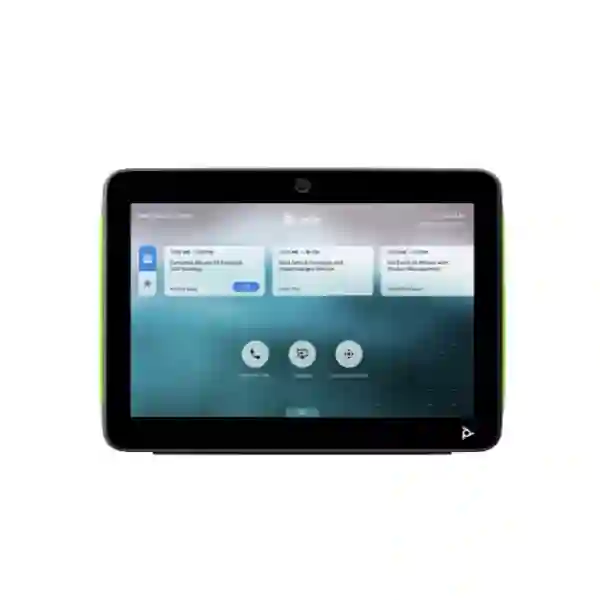
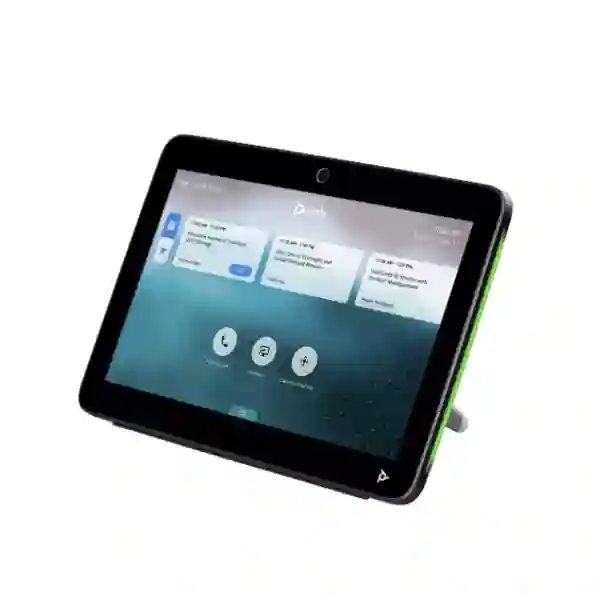
Put a clear, dedicated control surface where people need it: at the conference table for supported meeting control or outside the door for room scheduling. The HP Poly TC10 Touch Controller combines a 10.1-inch touchscreen, single-cable PoE networking and flexible mounting. Verify your exact Teams or Zoom configuration, existing room hardware and service entitlements before purchase.
Quick facts
- Display: 10.1-inch IPS, 1280 × 800, 16:10.
- Power and network: 1 RJ-45; IEEE 802.3at class 0 Power over Ethernet.
- Main roles: Supported in-room meeting controller or standalone scheduling panel.
- Platform planning: Supported Microsoft Teams Rooms and Zoom Rooms configurations; verify versions and accounts.
- Mounting: Table or wall arrangements; confirm suitable accessories for glass.
- Important limit: Does not replace conferencing camera, audio equipment or room service licences.
A practical answer for meeting-room buyers
The HP Poly TC10 Touch Controller is for organisations that want a dedicated way to manage a meeting room rather than relying on a participant’s laptop or an improvised tablet. Its purpose is deliberately focused: present the right controls at the point of use. On a meeting table, it can give participants a consistent interface for supported conference-room workflows. Outside the door, an appropriately configured unit can show bookings and room availability. This distinction matters because these are different deployments, with different software and account requirements.
A buyer should begin with the room’s existing platform and the intended location, not with the diagonal display size alone. An excellent scheduling display cannot compensate for an incompatible room system, and a conference controller is of limited value without a supported conferencing setup. The TC10 is a dedicated IP endpoint; it is not a general-purpose portable computer, television, video camera or USB controller for every laptop. Before purchasing, identify the room’s supported platform, whether the deployment is controller or scheduler, and who will administer it after installation. Those three decisions determine the configuration, network preparation and accessories needed.
Choose the job: room controller or scheduling panel
The two main jobs of the TC10 are complementary but should not be treated as identical. Inside a conference room, the touch controller can be paired with a compatible Poly video system and used to operate the selected conferencing experience. Typical user tasks include joining an upcoming meeting, controlling an active call and accessing sharing options provided by the room platform. The video system remains responsible for the rest of the meeting-room experience.
Outside a meeting room, the device can be deployed in standalone scheduling mode for supported applications. It becomes a useful sign at the door rather than a tabletop command surface. Staff can check whether the space is occupied or reserved, and eligible scheduling integrations can allow bookings or other room-management actions. The exact workflow depends on the service, account permissions and application configuration.
Decide which function is the primary requirement before ordering. A room that needs both an inside controller and an outside scheduling panel may need separate devices and a separate deployment plan. Avoid assuming that changing modes is a casual daily end-user feature; switching roles can involve administrative configuration, application settings and service sign-in.
Room scheduling that people can understand
A room-booking panel reduces the small but familiar uncertainties of shared offices. Colleagues can approach a room and see whether it is reserved rather than opening several calendars and guessing. The TC10 uses a readable touch display and multi-colour edge status lights in relevant modes, creating a visual cue that can be understood without standing directly in front of the screen. The available information depends on the connected scheduling service and how its calendar resources are managed.
For a successful installation, create a reliable calendar resource for every bookable room. Agree on room naming, who is allowed to reserve space, how recurring reservations work and how conflicts will be handled. Check whether colleagues should be allowed to book immediately from the panel, extend a meeting or release a booking; these functions vary by platform and policy. Do not advertise advanced behaviour until it is configured and tested.
A scheduling panel is particularly useful where rooms are shared across departments or visitors often use unfamiliar spaces. It is less valuable when the organisation has no room calendar discipline. Accurate underlying bookings, agreed policies and staff training are as important as the physical hardware.
In-room control without relying on someone’s laptop
For an equipped conference room, a permanent touch controller creates a predictable starting point. People enter the room, find the control surface in the same place and use the interface associated with the installed conferencing system. This may simplify common actions such as joining a calendar meeting, initiating an allowed call or operating sharing features. The available buttons are determined by the selected provider and room-system software rather than by the panel alone.
The TC10 works as part of an environment. You still need the compatible video bar or other supported room system, a working display, appropriate audio pickup, speakers, network connectivity and the service accounts required by the conferencing provider. If a buyer only has a television and a laptop, the TC10 should not be presented as a complete standalone video-conferencing installation. Confirm the entire proposed bill of materials.
Place the control panel where seated participants can reach it without leaning across microphones, cables or documents. For a long table, assess whether the control location makes sense for all users and whether the room platform supports the desired quantity of controllers. A good deployment reduces confusion, not merely cabling.
Using TC10 with Microsoft Teams
Microsoft Teams use requires a careful distinction between meeting control and scheduling. HP documentation describes the TC10 as a controller in supported Microsoft Teams Rooms on Android configurations when paired appropriately to a compatible Poly video system. This gives users an interface for the Teams room experience, but it does not mean the TC10 can be attached to any Windows PC, arbitrary Android device or unmanaged display and automatically become a Teams controller.
As a standalone Microsoft Teams Panel, the TC10 can be installed outside the room for the supported scheduling experience. That configuration requires the suitable Microsoft account, licensing and room-resource setup. A panel license and a Teams Rooms deployment should not be assumed interchangeable. Administrators should verify current Microsoft licensing, certified device status, application versions and policy requirements for the precise use case.
Teams organisations should also test sign-in, conditional access, room account naming, calendar synchronisation and any required management functions. A panel that shows the wrong time zone or a controller that cannot connect to its room undermines user confidence. Treat the product as one part of a managed Teams Rooms design rather than a stand-alone Teams subscription or meeting service.
Using TC10 with Zoom Rooms
For Zoom Rooms deployments, the TC10 offers controller and scheduling possibilities that suit different physical positions. In a compatible room, users may operate Zoom meeting tasks using the supported controller application. At the entrance, a TC10 running Zoom Rooms Scheduler can display booking information and give eligible users scheduling actions. HP’s product material identifies Zoom certification, but certification does not remove the need for the proper Zoom account, configuration and current compatibility verification.
Ask whether the installation is for an existing Zoom Room, an expansion of a managed estate or a new meeting-space project. Confirm the Zoom Rooms software and account entitlements, the room’s calendar integration, panel sign-in method and the intended management approach. Depending on the selected Zoom deployment, the controller may operate alongside a Poly room system or in an appropriate standalone configuration; the exact combination must be validated against current administrator guidance.
Testing should include a scheduled meeting, an ad-hoc meeting where permitted, booking display, network restoration and a user sign-out scenario. This is more useful than relying only on a product page’s certification badge. Staff should know whom to contact if the panel reports that a room is unavailable or the account needs attention.
Compatibility comes before screen size
HP’s administrator documentation identifies compatible Poly video-system families including G7500, Studio G62 and several Studio X devices, with support dependent on software and selected provider mode. The published device list is a useful starting point, not a promise that every historic firmware combination will work indefinitely. Room computers and specialised conferencing bundles can have different pairing methods. Always check the exact model and release combination against current HP guidance.
An organisation replacing an older controller should document the current room platform, software version and controller provisioning before choosing the TC10. Do not assume an existing controller uses the same app, cable path or operating-system requirements. If the room uses a third-party platform, request evidence of the specific supported operating mode rather than treating a broad interoperability statement as blanket compatibility.
Ask the technical owner to approve a compatibility matrix with one line per room: video appliance or compute hardware, provider, software, controller role, account requirement and network assumptions. This simple record prevents a common purchasing mistake: a device is technically capable, but not compatible with the exact installed configuration. Software support and lifecycle information should be checked again near installation.
A 10.1-inch touch display built for shared rooms
The TC10 has a 10.1-inch IPS display with a native resolution of 1280 × 800 pixels, a 16:10 aspect ratio and stated typical brightness of 300 nits. These specifications support an interface large enough for clear room controls and scheduling information at normal viewing distances. The screen is intended for touch interaction, not for displaying the meeting video feed as an alternative to the room monitor.
The right mounting height and angle depend on use. On a table, make sure seated users can read and reach the display comfortably. As a corridor-side scheduling panel, confirm that the relevant information is visible from the natural approach path and that the display is not obscured by a door frame or furniture. Assess potential reflections, especially opposite bright windows or lighting fixtures.
The built-in proximity-related capabilities and air-quality sensor listed by HP should not be sold as a substitute for dedicated building-management sensors. Whether particular sensor functions appear to users depends on software and supported applications. Plan around the proven room-control and scheduling roles first, then treat any additional device features as deployment-specific capabilities to verify.
One Ethernet connection for data and power
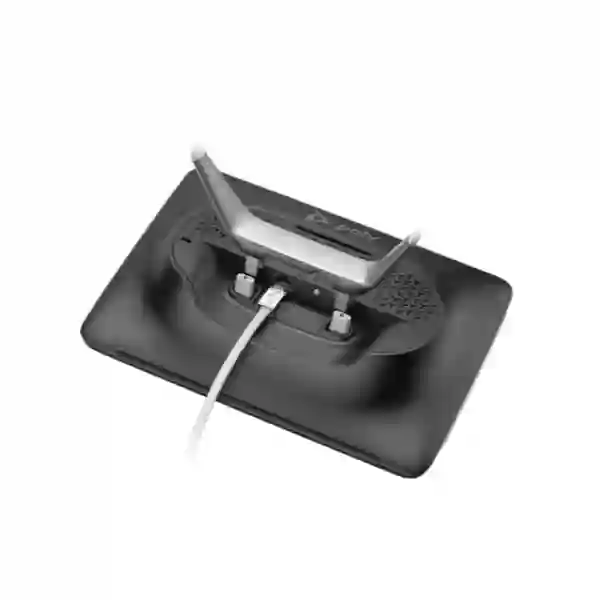
The TC10’s published external connection is one RJ-45 network port. It uses Power over Ethernet compatible with IEEE 802.3at class 0, allowing power and data over the network cable. This can simplify a tabletop or wall installation and avoids treating a separate wall charger as the normal power source. The switch port, cable and network design still need to be suitable; the panel will not operate simply because a non-PoE Ethernet socket is available.
Where an existing network port does not deliver the required power, HP’s guidance describes using an appropriate PoE injector. Any injector arrangement needs safe mains power, an appropriate Ethernet connection and sufficient attention to cable routing. Confirm switch power budgets for multiple panels rather than assuming every labelled PoE switch has unlimited capacity.
When measuring a route to a conference table or wall, consider accessible maintenance paths, cable management, building finishes and furniture movement. A single visible cable is an advantage only if the hidden route is supportable. A network technician should verify port configuration and power negotiation before the final panel is mounted, avoiding disruptive removal if the endpoint fails to start.
Network connectivity and reliable pairing
A controller is part of the room network. It needs a suitable IP address, correct service connectivity and the ability to communicate with the equipment or platform it is meant to control. HP guidance for paired IP controllers highlights network separation and blocked traffic as possible causes of discovery or pairing problems. In practice, network administrators should establish the intended VLAN, DNS, DHCP, time services, firewall policy and update access before deployment.
Do not blindly open ports across the whole corporate network. Build the required communication policy from current vendor documentation, apply the organisation’s security standards and test with the exact room equipment. Some paired systems need appropriate device discovery and local connectivity that a segmented guest network deliberately blocks. The solution is a documented approved network path, not bypassing controls.
After configuration, test what happens when the network switch restarts, a room device reboots or the conferencing service temporarily loses connectivity. Verify how the panel reconnects and whether users see an understandable state. Document the network switch, physical port, device identity and responsible support team for every installation. These records often save more troubleshooting time than adding another technical feature.
Security, credentials and administration
A room controller is an enterprise endpoint and should be managed like one. Assign ownership to an IT or audiovisual team, maintain an inventory and establish a process for firmware and application updates. HP lists Poly Lens among the management tools associated with the TC10, and vendor documentation also describes provider-side administration for relevant Teams and Zoom modes. The actual tools available depend on configuration and software.
Use dedicated room or device accounts where required, follow the collaboration provider’s current authentication guidance and restrict administrator access. Avoid displaying confidential sign-in information on a public scheduling panel, sharing reusable passwords in installation photographs or writing credentials on labels beneath the device. If a room changes department, carefully review its calendar resource and access policy rather than reusing stale assignments.
A useful operational policy covers who can change room settings, who approves updates, how failed sign-ins are handled and when equipment is retired. Before a factory reset, record configuration and recovery steps because resetting can remove the existing device settings. The physical Kensington-style security provision noted in HP specifications can be considered within the broader installation security plan, but is not a substitute for protecting accounts and network access.
Wall, glass and tabletop placement
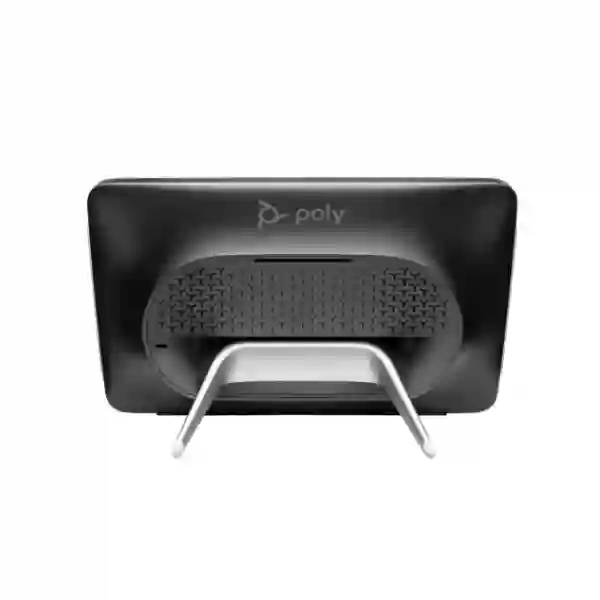
HP describes versatile positioning with a table stand and wall mounting provisions, while product material also refers to glass installation. Selection depends on whether the TC10 is a controller that meeting participants need to touch or a scheduling panel that visitors should see before opening a room. The best position for one role can be unsuitable for the other.
For tabletop control, consider sightlines, cable exit direction, furniture power and whether people seated on either side can reach the interface. Avoid placing the stand where beverages are regularly positioned or where a chair can pull the Ethernet cable. For a wall-mounted scheduling panel, plan height, approach, door swing, wall material and the visible status indicator. Glass mounting should be assessed with compatible approved accessories and the building’s installation rules; do not assume the standard wall kit alone is sufficient for every glass surface.
A professional fit-out also considers accessibility, vandalism risk, cleaning access and the ability to remove the controller for service. Confirm the selected colour and exact variant on the quotation. The user has not specified black or white, so the final purchase specification should make that choice explicit rather than leaving it to chance.
Product specifications worth checking
The verified core specification set is useful for planning: a 10.1-inch IPS touchscreen; 1280 × 800 native resolution; 16:10 aspect ratio; 300-nit typical brightness; one RJ-45 external network port; and IEEE 802.3at class 0 PoE power. HP specifies overall device dimensions of 260 × 184 × 64 mm and a weight of 1.27 kg for its published black model information. These numbers assist with fit-out design and cable planning, though installation clearances depend on the selected mounting approach.
HP’s material also identifies an operating temperature range of 0 to 40 degrees Celsius and a stated operating humidity range of 15 to 80 percent. They are device operating conditions, not evidence that a particular site is suitable. Keep panels away from weather exposure, unmanaged moisture and excessive heat. The TC10 is an indoor collaboration device and should not be described as a weatherproof outdoor room-signage product.
A published box-content list includes the controller, table stand, wall-mount kit, mounting hardware and an RJ-45 cable, alongside documentation items. Confirm final regional bundle contents for the exact quoted part number. Do not infer included installation labour, an Ethernet switch or a PoE injector from the accessory list.
Fit for organisations working in Tanzania
For organisations procuring equipment for offices, schools, conference facilities or institutions in Tanzania, the practical questions are the same ones that determine a successful installation elsewhere: Is the selected room-platform configuration supported? Does the planned location have a compliant PoE network connection? Does the booking system reflect how teams actually use shared space? These questions are more valuable than a generic promise of improved productivity.
Local deployment planning should take account of each building’s network infrastructure, internet connection, electrical continuity and existing room equipment. A room controller may remain powered through a protected network switch, while an unprotected video bar or display may still be unavailable during a building power interruption. Map all dependencies rather than assuming that PoE alone makes the conference-room solution resilient.
Avoid making an unverified assumption about the availability of any product variant, import timing, price, installation service, local certification or warranty handling. Request a written quotation for the exact configuration and agree on testing, commissioning and responsibility for ongoing updates. Whether the project has one meeting room or many, planning for actual user workflows produces a more dependable result than simply counting screens.
Planning one room versus a multi-room estate
A single room installation needs a clear role, compatible platform and network connection. An office with several rooms adds other responsibilities: standardised naming, centralised account administration, device inventories, consistent training and a defined support model. The TC10 can form one element of a consistent approach, but each room still needs the right equipment and licensing.
Develop a room schedule showing room name, capacity, control-panel location, video system, application, network port, resource account, mounting surface and assigned support owner. This becomes the commissioning checklist and future troubleshooting reference. Decide whether panels outside similarly sized spaces should have the same visual placement and booking policy. Inconsistent policies can confuse employees even when every panel works technically.
For deployment across multiple floors, create a small pilot before ordering the whole estate. Use the pilot to test user behaviour, signage readability, security approvals, power and meeting start experience. Capture issues and refine the standard. A phased approach is particularly useful where rooms have been equipped at different times and may contain different generations of video hardware. Standardisation should not force a configuration unsupported by an older room.
Pre-installation survey and stakeholder decisions
Before anyone drills a wall or orders an accessory, walk the room with its users and technical owner. Establish whether the main complaint is difficulty starting meetings, unclear booking information or inconsistent operation across several rooms. These are related but different needs. A TC10 is an appropriate candidate when its supported control or scheduling interface addresses the actual problem.
Inspect the display, video equipment, microphone placement, speaker coverage, network port and physical route to the intended panel position. Check the conferencing platform and software versions, the responsible calendar service and any existing room resource. Ask the facilities team about mounting permissions and any restrictions on glass, corridor clearances or building finishes.
Agree on acceptance criteria in advance. Examples include the ability to join an authorised test meeting, correct room status outside a door, expected account recovery procedures and readable information at the chosen location. Record what is not included in the project, such as upgrading cameras, installing a new managed switch or creating Microsoft or Zoom subscriptions. Clear boundaries allow purchasing and support teams to make an informed decision rather than discovering dependencies after the panel arrives.
Installation and first-time configuration
Begin installation with a confirmed network port that provides the required PoE power. Connect the controller with a suitable Ethernet cable and follow the current HP setup guidance for the installed software release. The configuration pathway depends on whether the device is a standalone scheduling panel or a paired room controller. These modes should not be selected on intuition; match the approved room design.
For standalone scheduling, choose the supported scheduling provider, complete the appropriate sign-in and connect the intended room calendar or resource according to the provider’s instructions. For a paired controller, establish connectivity with the compatible room system, verify any pairing prompts and confirm the conferencing provider selected for that system. On first use, allow required software updates to complete before declaring the device operational.
Finally, install or secure the selected mounting arrangement and dress the cable without creating sharp bends or pulling against the connector. Capture the device serial number, final room assignment and installed software version in the support inventory. A configuration that works once in front of the installer is only the beginning; it should also be recoverable and maintainable by the organisation’s own support team.
Commissioning and acceptance testing
Test the complete experience with someone who has never configured the product. For an inside controller, provide an authorised meeting invitation and ask the user to join the room, identify the mute and sharing controls provided by the platform, and finish the meeting. Verify that the room display and audio equipment behave correctly. An attractive touchscreen cannot compensate for a broken microphone path or a missing meeting invitation.
For a scheduling panel, create a test reservation, observe its status, confirm that meeting details reflect the correct room resource and test any permitted on-panel booking action. Then change or cancel the reservation and confirm the display updates as expected. If the organisation uses multiple calendars or policies, test a realistic scenario for each intended group.
Conduct a recovery test by restarting relevant network or room equipment under controlled conditions. Check time-zone settings, daylight-saving policy where applicable, software update status and the assigned support process. Record outcomes and unresolved exceptions in a handover note. A documented acceptance test protects the buyer and installation team by making the expected result objective, specific and repeatable.
Making the panel easy for everyday users
End users should not need to understand PoE, pairing protocols or room-account licensing to begin a meeting. The interface should be in a consistent location, have an easily understood room label and display the application that the organisation actually uses. A short room guide can explain how to join scheduled meetings, start permitted ad-hoc sessions and report a problem when a device is offline.
Training should be practical rather than promotional. Demonstrate common tasks with an example booking and allow participants to use the panel themselves. Explain which meeting controls belong on the TC10 and which remain on the room display or connected system. If the installed configuration does not offer a feature shown in generic marketing photographs, say so clearly.
For a scheduling panel, communicate the rules for booking, releasing and extending rooms. Staff may otherwise view the hardware as unreliable when the underlying policy is the real constraint. Provide a support contact through the organisation’s normal process and teach users not to attempt an unapproved factory reset or service-account sign-out. A few minutes of task-based orientation can avoid repeated support calls.
Ongoing maintenance and software changes
Collaboration platforms evolve. Microsoft Teams Rooms, Zoom Rooms, Poly device software and connected room systems can each receive updates on different schedules. A working configuration today can require additional verification before a future update. Establish a change-control practice that reviews vendor notices and tests significant changes in a representative room before wide deployment.
Use management capabilities supported by the installed configuration to track device health and software. HP identifies Poly Lens as a management option, while Microsoft and Zoom offer their own device-administration paths for applicable modes. Verify exactly which monitoring, remote administration and reporting functions are available in your selected software release rather than promising a universal dashboard.
Routine checks should include room calendar accuracy, service-account access, touch response, PoE connectivity, physical condition and the state of any related video equipment. Keep records of configuration changes and known-good versions. When replacing a room video system, revisit TC10 compatibility before reusing the controller. An annual hardware inventory is useful, but the appropriate software inspection frequency should follow the organisation’s operational risk and vendor guidance.
Troubleshooting symptoms without unsafe shortcuts
If the TC10 does not power on, first inspect the Ethernet cable and confirm that the connected switch or injector supplies the required PoE standard and sufficient budget. Do not assume that a lit network socket guarantees correct power delivery. If the screen powers on but fails to pair, compare the approved network configuration and the connected room system’s operating status.
HP guidance describes cases where VLAN or subnet separation and blocked traffic can interfere with discovery or pairing. Troubleshoot against the documented network architecture rather than disabling enterprise firewall controls broadly. If the device shows the wrong room or incorrect schedule, verify the room resource, signed-in account and relevant service synchronization before replacing hardware.
If touch controls behave unexpectedly after an update, capture the software version and consult the current vendor release notes for the exact room configuration. Restart procedures and factory-reset steps exist, but resets may remove settings and should be a controlled action. Escalate recurring faults with the device identity, room-system details, time of incident and reproducible symptoms. Good diagnostic records make support more effective than random configuration changes.
What the TC10 does not include
The TC10 is a touch-control and scheduling endpoint, not a complete conferencing room. It does not supply a camera, ceiling microphones, a meeting display, conference speakers, a general-purpose room computer or the collaboration subscription. A procurement quote should separate those elements clearly so the customer can understand the actual project scope.
The PoE requirement is another important boundary. A standard network socket without suitable PoE power is not enough unless a correctly specified injector or other approved solution is added. Similarly, the presence of a touchscreen does not mean arbitrary Android apps or laptop applications can be installed and controlled. Functionality follows the supported firmware, collaboration provider and deployment mode.
Some published materials list sensors and room-control integrations, but their usable functions may vary according to software and the surrounding system. They should be evaluated as specific requirements, not assumed from a brochure feature list. An experienced buyer should ask for a demonstration of critical workflows with a matching room configuration and request written confirmation of compatibility before placing a multi-room order.
How to evaluate total deployment cost
The panel price is only one part of an informed purchasing decision. Depending on the project, the budget may also need a compatible room video solution, network-switch capacity, Ethernet cabling, mounting work, wall or glass accessories, licensing, meeting-calendar setup and commissioning. Existing infrastructure can reduce some requirements, but only a site survey can establish what is already usable.
Separate one-time hardware and installation costs from recurring platform subscriptions and maintenance responsibilities. The organisation may already own some Teams or Zoom entitlements, but those need to be checked for the exact room role and account type. Avoid treating a manufacturer’s regional recommended price or a third-party retailer’s listing as a verified Tanzania selling price. A quotation should specify currency, model variant, scope and any applicable commercial terms.
For multi-room projects, factor in the cost of naming, configuring, documenting and supporting each room. A lower-cost panel that cannot integrate with the chosen platform may be more expensive operationally than a verified solution. The best comparison is therefore between complete usable room designs, not isolated screen prices.
Comparing a dedicated panel with alternatives
Some teams consider using a shared tablet for meeting controls, while others compare touch controllers from different room-system manufacturers. The right comparison starts with integration. A dedicated platform-compatible controller is designed for a supported management and pairing approach, whereas a generic tablet may depend on separately managed software, charging and mounting arrangements. Neither approach should be assumed superior for every project.
When comparing the TC10 with an older Poly controller, assess display readability, current software compatibility, room-platform support, physical installation and any scheduling requirement. If the current hardware reliably supports the needed workflows, upgrading solely for screen size may not be necessary. Conversely, an organisation standardising new spaces may value a panel that can fit both room-control and scheduling designs across supported configurations.
When assessing alternatives from other manufacturers, compare certified compatibility with the actual room hardware first. Then examine user workflow, network power, mounting, management and procurement support. Screenshots and headline measurements are helpful but do not validate an installation. Seek a documented end-to-end solution that meets the organisation’s real conference-room operating needs.
Common use cases and why they differ
In a corporate boardroom with a compatible room system, the TC10 can provide a permanent control point so guests and employees do not depend on a meeting organiser’s laptop for basic room operation. The main design question is whether the configured platform exposes all required meeting functions and whether the panel is reachable from the primary seating position.
In a shared training room, a scheduling panel outside the door can communicate the current booking while a separate in-room solution handles presentations and video calls. In an educational or institutional building, administrators may place greater emphasis on predictable booking rules and restricted account permissions. In a distributed office, IT teams may prioritise consistent room naming, change management and inventory.
These scenarios illustrate planning choices; they are not claims that the product guarantees a particular result or that any specified Tanzania institution currently uses it. The same equipment may be appropriate in several environments, but the right configuration depends on platform entitlement, room ownership, network design and daily behaviour. Choose the outcome first, then the role and supporting equipment.
A buyer’s compatibility and procurement checklist
Ask the project owner to record the exact room hardware model and its currently installed software, the required collaboration provider, the desired TC10 operating mode and the necessary service accounts. Confirm whether the organisation needs meeting control inside the room or scheduling outside it, and whether separate panels are planned for the two locations. Obtain explicit compatibility confirmation for the intended setup rather than relying on a generic feature summary.
Verify the available PoE switch port and budget, route to the final panel position, mounting surface, accessible viewing height and any security policies for device enrolment. Agree on software-update ownership and the procedure for recovering an account or replacing the hardware. If the site has more than one conference room, document differences between room types before treating them as identical.
Finally, request a written quote specifying the exact colour or variant, supplied accessories, required additional infrastructure, any licences and the scope of installation or training. Review commercial and warranty terms in that quote instead of assuming those details from an overseas listing. These checks make a purchasing decision easier to explain to IT, procurement, facilities and the people who will actually use the rooms.
A practical deployment sequence
A clear order of work keeps a meeting-room control project manageable. First, identify the problem that the panel should solve and confirm which role matches that need. Second, inventory the relevant room equipment and collaboration service. Third, verify compatibility and licensing with current supplier documentation. Fourth, approve the mounting point and PoE network design. Fifth, configure the device and test it against realistic meetings or room bookings. Finally, hand over administrator access, device information and troubleshooting guidance.
This sequence is deliberately conservative: it puts feasibility before physical installation. Installing a panel first and then discovering an unsupported account or network constraint can cause avoidable rework. It also creates a written trail that is useful when an organisation adds rooms later.
For larger estates, repeat the sequence in a pilot, record lessons and use a controlled template for subsequent installations. Do not copy sensitive credentials between rooms or assume that all rooms have the same firmware. A standard process with room-specific verification combines the benefits of consistency and technical accuracy.
Questions to resolve before accepting the quotation
A useful supplier conversation should cover the physical controller and the working room design separately. Which Poly or other supported room equipment will the TC10 control? Which application and software versions are approved? Is the panel expected to be paired, to act as a standalone scheduler or to work in another currently documented mode? What licences and resource accounts are needed, and who supplies them?
Ask how power and network connectivity will reach the device. Confirm whether the installer will provide suitable PoE, approved mounting and cable concealment or whether these are customer responsibilities. If the panel will sit outside a room, identify the calendar service and who maintains booking permissions. If it will sit on the table, identify who will verify meeting joins, audio behaviour and sharing in the completed room.
Document acceptance testing, training, configuration handover, update responsibilities and fault escalation before signing off. These are practical purchasing questions, not hidden technical add-ons. A clear response turns a touchscreen purchase into a supported collaboration-room deployment with defined expectations for everyone involved.
Frequently asked questions
Is the HP Poly TC10 Touch Controller a complete video conferencing system?
No. It provides a touch interface for supported room control and scheduling roles. A functioning video meeting may also require a compatible room system, camera, microphones, speakers, screen, network and appropriate service account. Ask for a full room equipment list if you are building a new conference room. Purchasing the controller alone does not automatically provide video calling, and the actual software interface depends on the configured provider.
Can I use the TC10 as a meeting-room booking display?
Yes, in a supported standalone scheduling mode. The device can be positioned outside a meeting space to display room booking information through a suitable Microsoft Teams or Zoom scheduling configuration. A working calendar resource, correct permissions, networking and the applicable service entitlement are necessary. Confirm which on-panel actions are enabled by policy, including any quick booking or check-in features, before demonstrating the finished room.
Does the TC10 support Microsoft Teams Rooms?
HP describes support for Microsoft Teams Rooms control in compatible paired configurations and Microsoft Teams Panel scheduling in standalone mode. Those are distinct use cases. Current supported device versions, software, licensing and accounts must be validated against official HP and Microsoft guidance for the exact installation. A general claim of Teams support should never be interpreted as guaranteed compatibility with every Windows room PC, video bar or personal Teams subscription.
Can the TC10 operate with Zoom Rooms?
The device is designed for supported Zoom Rooms controller and scheduler workflows, and HP documents Zoom certification. Actual deployment requires a correctly configured Zoom Rooms environment and suitable software, accounts and network access. The in-room controller role and corridor scheduling role have different user experiences. Before buying, determine which one is needed and test the intended actions using a matching configuration rather than assuming every Zoom feature is available in both modes.
Does the TC10 need Wi-Fi or a power adapter?
The published connection and power arrangement uses a wired RJ-45 Ethernet port with IEEE 802.3at PoE, providing data and power through the cable. Plan a PoE-capable network switch or an appropriately specified injector where needed. Do not assume a normal non-PoE network port will supply power. Ask the installer to check cable condition, switch budget and final physical route, especially where the panel will be wall mounted.
Can I mount it on a table or wall?
HP describes table and wall mounting arrangements and also references glass positioning with suitable arrangements. The correct approach depends on where users need to interact with the panel and what the mounting surface allows. Confirm the supplied hardware and any additional approved accessory for the exact variant. Check sightlines, cable exit, maintenance access and facility permissions before installation. Do not improvise a glass mount using hardware intended for a different surface.
Can it show whether a room is occupied?
In appropriate room-scheduling modes, the TC10 display and multi-colour status indicators can communicate room availability. The information is only as dependable as the connected booking system, resource-account configuration and software state. If a team regularly uses rooms without reserving them, the calendar may not represent actual occupancy. Set clear booking policies and test the panel’s state against real calendar changes before relying on it to manage shared spaces.
Can one TC10 control every meeting-room brand?
No. The device is not a universal controller for arbitrary cameras, displays, computers and conferencing systems. HP documents specific supported room-system families and provider configurations. Compatibility changes with software releases and the particular room architecture. Identify the hardware and software already installed, then verify the exact combination with current manufacturer guidance. A list of supported collaboration services is not proof that any unrelated room appliance will pair with the controller.
Is a separate Teams or Zoom licence required?
Applicable accounts and licensing depend on the chosen provider, room system and role. A Teams meeting-room controller and a Teams room-scheduling panel can have different account or entitlement requirements, as can Zoom controller and scheduler modes. Confirm the current licensing terms with the service administrator before purchase. The TC10 hardware should not be described as including all collaboration subscriptions unless a specific commercial bundle explicitly confirms them.
Does it work during an internet or power outage?
The panel needs suitable PoE power and the network services required by its configured application. Some local screen or system behaviours may remain available under particular conditions, but cloud meetings, bookings and synchronisation can be affected by connectivity failures. A protected PoE switch does not keep the room video system or internet connection alive by itself. Review power continuity and network reliability across the complete meeting-room setup rather than assuming uninterrupted operation.
What should I verify before ordering for Tanzania?
Confirm the exact device variant, the chosen role, compatible room hardware, current software and service licensing. Ask the site team to confirm an IEEE 802.3at PoE connection at the intended mounting point. Request a written quotation covering the product, any network or mounting extras, commissioning and applicable commercial terms. Do not rely on overseas prices or unverified statements about local stock, delivery or warranties when making a procurement decision.
How should an IT team maintain the TC10?
Assign responsibility for hardware inventory, software updates, account access, room configuration and fault escalation. Supported HP and collaboration-provider management tools may assist, depending on the deployment. Keep a documented room name, device identifier, software version, network port and recovery process. Test significant updates in a representative installation before wide rollout and avoid unplanned factory resets. A documented support owner is especially important when facilities and IT share responsibility for meeting spaces.
What is the difference between the TC10 and a tablet?
The TC10 is a dedicated touchscreen endpoint intended for supported collaboration-room tasks and network deployment. A general tablet can run many unrelated apps, but its integration, mounting, charging and management approach will differ. The deciding factor is not simply screen size or price. Check whether the intended room platform officially supports the control surface, whether the operating mode provides the required features and how the device will be administered over time.
Does it include a mount, cables and video equipment?
HP’s published package information includes the controller, a table stand, wall-mount kit, mounting hardware and an RJ-45 cable, plus documentation-related items. The exact regional bundle should be confirmed with the quoted part number. A controller purchase does not imply that the room camera, microphones, speakers, display, network switch, PoE injector, service subscription or installation work are included. Ask for itemised scope and a list of any components to be provided by the customer.
Can we use one panel for several rooms?
A panel is configured for a specific control or scheduling workflow and should not be assumed to operate as a roaming universal console. For rooms with separate booking calendars or video systems, plan and verify the appropriate number and placement of devices. An outside scheduling panel normally represents its assigned space. Multiple-controller arrangements inside one room can have their own support limits. Confirm the desired architecture with current system documentation rather than sizing the project by intuition.
Accessibility and room etiquette
Consider users approaching a scheduling panel from different directions, people with limited mobility and visitors unfamiliar with the premises. A panel should not block accessible routes, be hidden behind furniture or require someone to reach across a hazard to interact with it. Readability depends on actual mounting height, lighting and placement; check these conditions with representative users. Status lights are convenient but should not be the only way to convey important booking information if the application offers readable text.
For an in-room controller, the team should agree who may change room settings and whether guests can operate it without administrator credentials. For an outside panel, explain the difference between a calendar reservation and someone physically entering the space. Consistent room etiquette helps prevent staff from blaming the device when a booking rule was not followed. Organisations should review accessibility needs against the specific software interface and their applicable workplace requirements rather than assuming the hardware alone satisfies every policy.
Handover documents that remain useful
An installation is easier to support when it comes with a simple record. Capture the room name, controller model, hardware variant, serial number, software build, assigned application, mode, mounting location, network switch port, IP assignment policy and responsible administrator. Avoid putting actual passwords into an unsecured handover document. Include a floor-plan reference where multiple similar rooms make device identification difficult.
The handover should show how an authorised administrator can check the device status, request assistance, review updates and restore service. Note any dependent accounts and their business owner without recording confidential tokens. Include accepted tests and known limitations, such as a booking action that the organisation intentionally disabled. When equipment is relocated or a room is renamed, update the record. This modest discipline reduces ambiguity when an external installer is no longer on site or the internal support team changes.
Cabling and facilities coordination
Facilities and networking teams should agree the route from the switch to the panel before wall finishing or furniture installation. The connection must be physically reachable for maintenance and should avoid exposed loops that can be pulled, cut or pinched. Where a controller is fitted on a meeting table, the cable path should tolerate ordinary chair movement and table use. In a corridor, any exposed hardware should comply with the building’s safety and appearance requirements.
If a cable requires a new conduit, wall penetration or routing through a restricted building area, obtain relevant permission before installation. Do not design a PoE connection using an unsuitable improvised extension. Also consider room changes: movable partitions, door replacements and reconfigured furniture can alter the best panel position. A well-documented cable path helps ensure the installation can be repaired rather than treated as disposable hardware.
Calendar resource governance
A reliable scheduling panel requires well-managed calendars. Assign a named owner to each room resource and define a process for creating or changing room names. Decide who may book, who may cancel, how far ahead reservations can be made and how conflicts will be resolved. These policies should be reflected in the collaboration service and communicated to staff. The device presents the resulting information; it does not independently establish business rules.
If an organisation changes from one calendar platform or identity domain to another, review the device account, resource mappings and policy controls. An apparently empty schedule can mean an incorrect resource assignment rather than an empty room. Test meeting time, duration, cancellation and time-zone behaviour after configuration changes. Keep personal or confidential meeting details hidden according to organisational privacy policy. In environments with visitors, ensure the screen shows only information approved for public display.
Evaluating display visibility in real conditions
A screen specification is useful only when paired with its physical surroundings. The TC10’s published 10.1-inch IPS panel and 300-nit typical brightness give a starting point, but lighting, reflections and user position influence actual legibility. Inspect the room during normal working hours, not solely when lights are dimmed for an installation demonstration. Corridor daylight may differ greatly from conditions at a conference table.
Choose a location where a user can read the next action without stepping into a doorway or disturbing seated colleagues. Test touch interaction with the final mounting angle. Avoid assuming that the largest possible screen is always the best interface: correct software, obvious button placement and readable room names often matter more. If a building requires specialised accessibility accommodations, assess the live software experience with relevant users and adapt the room design as necessary.
Connectivity checks for network administrators
At the network design stage, reserve or identify the intended physical switch ports and ensure their PoE capability and total budget support the planned devices. Document which VLAN will serve the controllers and what trusted services must be reachable. Review DNS resolution, network time, supported discovery traffic, certificates and any proxy or outbound access requirements imposed by the organisation. These are configuration topics to validate, not a reason to relax enterprise security.
Run a pilot test using the same network segmentation and account policies planned for production. Successful setup on a technician’s temporary flat network does not prove that the device will work after deployment to a restricted room VLAN. Coordinate software updates with change windows and verify that the panel remains paired after network maintenance. Troubleshooting should begin with an approved connectivity test and the current manufacturer’s requirements, not guesswork about opening arbitrary ports.
Account recovery and ownership changes
Meeting spaces may outlast the employee who originally configured them. Ensure the organisation, not an individual employee, owns the relevant room resources and administrative recovery path. Document who can reset credentials, reassign a device and contact the collaboration provider. An employee leaving the company should not make the room controller unusable because only that person’s private account was used for setup.
When a department relocates, identify whether the controller, its calendar resource and the room-system account should move together. If the panel is reassigned, back up relevant non-secret configuration information, follow vendor-supported sign-out or reset procedures and verify the new assignment through acceptance tests. Protect any data on screen during the transition. Clear ownership prevents a hardware replacement from becoming an identity-access incident.
Support escalation and fault categorisation
Classify incidents before dispatching replacement equipment. A blank display suggests checking PoE and cabling; an incorrect booking suggests account or calendar configuration; a pairing problem suggests room-system compatibility or network communication; and missing meeting controls may indicate the selected application mode. These categories direct each issue to the correct owner more quickly.
Create a small escalation map listing first-line support, IT networking, collaboration administration, room-system support and facilities. An external service provider, where contracted, should receive only the relevant configuration details and logs through approved channels. Track recurring incidents by room rather than relying on anecdotal reports. If similar failures occur after a release update, compare versions and follow official release guidance before applying another change. This disciplined process is a practical advantage in any estate with shared technology.
How to make purchasing acceptance measurable
A useful purchase specification names outcomes that can be tested. For an inside controller, require a successful join to an authorised scheduled test meeting on the agreed platform, functioning controls relevant to the contracted workflow and recovery after an ordinary reboot. For an outside scheduler, require accurate room identity, visible status, correct timing and the permitted booking action if that functionality is within scope.
Also require the installer to demonstrate network power, secure mounting and configuration ownership. The acceptance sheet should include the room identifier, test date, result, known exceptions and the person who approved the outcome. Avoid adding unverified product claims to acceptance criteria; instead define what the finished solution must actually do. This transforms an ambiguous promise such as easy meeting management into an auditable deployment result.
Questions for future expansion
If the organisation expects to add conference rooms, ask whether the chosen controller design can be repeated without changing the network or account model. Can new room resources be provisioned through an established process? Is there sufficient PoE capacity? Will the same video-system family be used in new rooms, and what is the support path if models change? Are there standard names and meeting policies?
Expansion planning should not lock the buyer into hardware merely because it is already in one room. Re-evaluate the current product and collaboration-provider compatibility for every new installation phase. A room may need a different controller if its underlying video platform changes. Maintain a list of requirements that matter to users, such as a clear start button, visible room availability and simple recovery. Technology selection then remains tied to operational value, not habit.
Request a configuration-specific quote
Tell FourTeck Tanzania whether you need a tabletop room controller or an outside-room scheduling panel, the room platform you use, your current video equipment and the intended mounting location. Request confirmation of compatibility, PoE requirements, exact variant, applicable licences and the full quoted scope. No stock level, local price or delivery promise is assumed here.
Reviews
There are no reviews yet.