
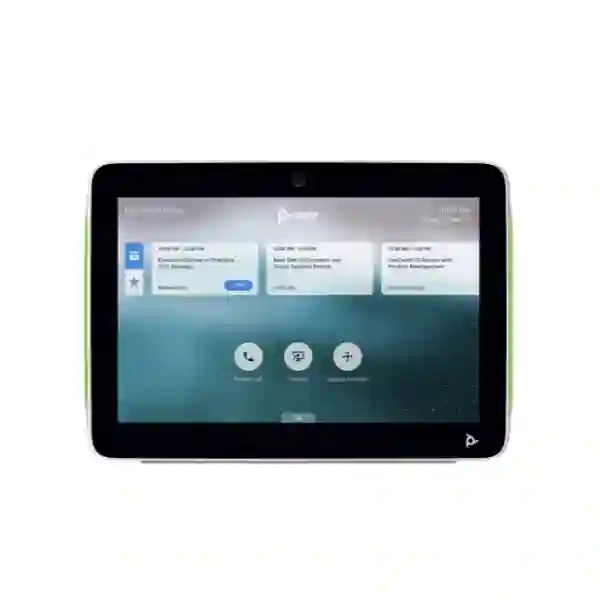
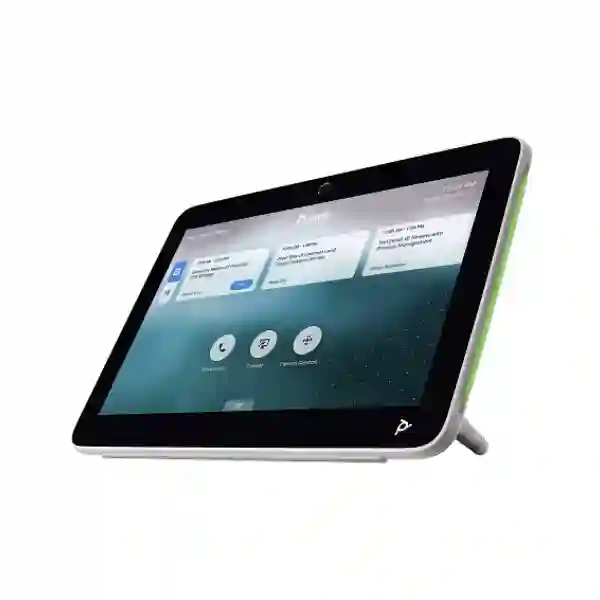
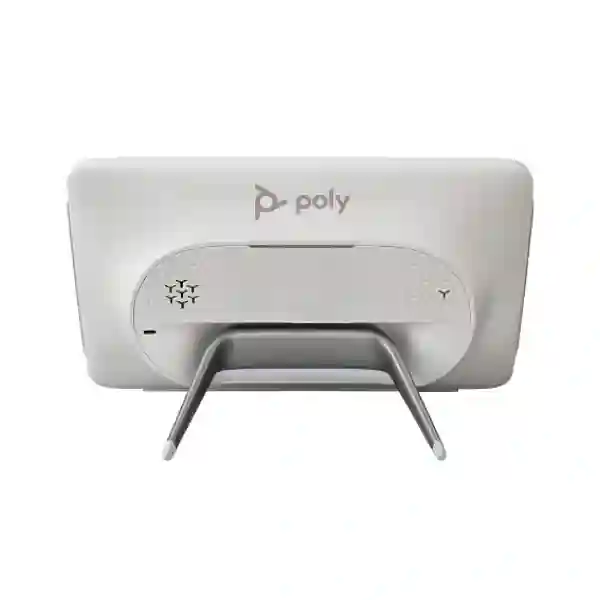
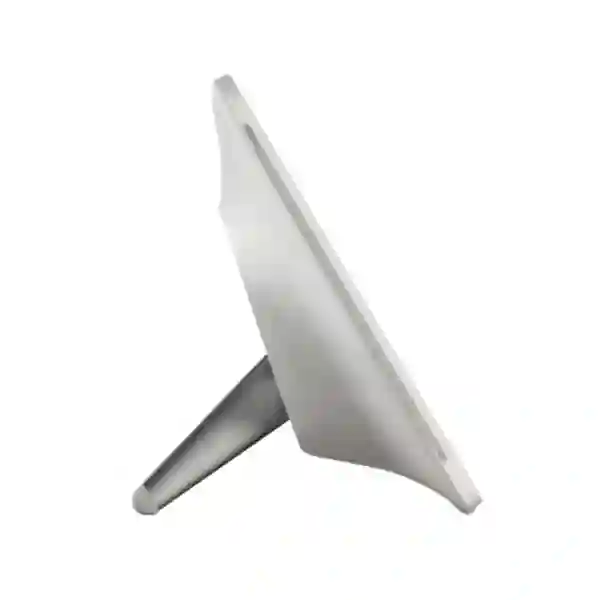
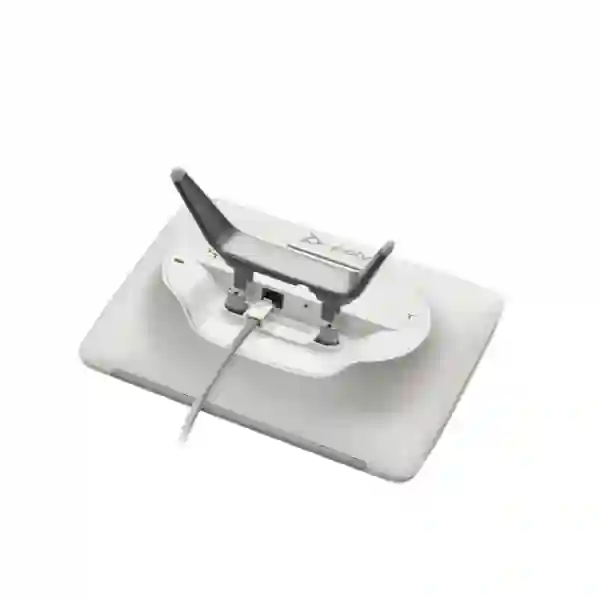
HP Poly TC8 Touch Controller
Make compatible Poly video meetings easier to operate from the table. The HP Poly TC8 Touch Controller combines an 8-inch touch interface, single-cable PoE connectivity and supported meeting controls for eligible Poly Studio X and G7500 room solutions. Choose it after checking your video system, software version, platform mode and network readiness.
Important: the TC8 is a touch controller, not a standalone video bar or meeting computer. Ask for compatibility confirmation and a current Tanzania quotation before ordering.
What the Poly TC8 adds to a meeting room
The HP Poly TC8 Touch Controller is intended for a very specific job: giving the people sitting in a meeting room a dependable place to operate a supported Poly video conferencing system. Instead of asking the presenter to find controls on a television or navigate an unrelated computer, the controller sits on the table where participants can see the available meeting actions. It is particularly useful where a room has already been designed around a Poly Studio X video bar or a Poly G7500 codec.
The distinction between controlling a meeting and running a meeting is important. The TC8 does not replace the room camera, microphones, loudspeakers, displays, or core video system. It communicates with the compatible Poly equipment that provides those functions. The exact buttons, menus, and meeting experience are determined by the paired video system, its operating mode, the conferencing service, and the software versions installed.
For a new project, decide on the room video system and collaboration platform first, then specify a controller that the deployment supports. For an existing room, record the video system model and firmware before ordering a replacement TC8. This sequence helps avoid buying a capable touch panel that cannot complete the intended room setup without additional hardware or configuration.
At-a-glance verified specifications
These figures describe the TC8 hardware characteristics published in HP Poly product materials. They are not a promise that a specific regional package, reseller listing, or installation service includes every accessory. Confirm the precise quoted part variant and the contents supplied with that variant.
Power, network connectivity, and room-system compatibility matter more in procurement than the controller’s screen size alone. A buyer comparing several room-control options should check these integration details early, while the network and meeting platform can still be planned together.
| Product role | Tabletop touch controller for supported Poly video conferencing systems |
|---|---|
| Touch display | 8-inch IPS, capacitive multi-touch |
| Display resolution | WXGA 1280 × 800; 16:10 aspect ratio |
| Network interface | RJ-45 Ethernet |
| Power input | Power over Ethernet, IEEE 802.3af Class 3 |
| Physical size | 205 × 123 × 79 mm |
| Device weight | Approximately 812 g |
| Operating temperature | 0 °C to 40 °C |
| Security feature | Kensington-style security lock provision |
| Commonly documented package | TC8, RJ-45 cable, setup information and warranty documentation; verify exact quoted bundle |
Which Poly video systems should you check?
HP Poly documentation identifies the TC8 with the Poly G7500 and supported members of the Poly Studio X family. Established configurations include the Studio X30 and Studio X50, while HP administrator documentation also discusses pairing with Studio X52 and Studio X70 in applicable software releases. Compatibility is not a blanket guarantee for every product carrying the Studio name or every generation of Poly hardware. Treat the official compatibility guide for the exact installed device and software release as the deciding reference.
When replacing an older controller, note the model printed on the room video device, its management interface version, the configured conferencing mode, and whether an existing touch controller is paired. A room labelled ‘Poly’ may contain a very different architecture from the one the TC8 expects. Some installations are appliance-based; others rely on a PC or another controller family. Similar-looking touch panels are not necessarily interchangeable.
The controller’s pairing relationship is with the supported video system, not with a random room display. An HDMI screen, a USB camera, or a generic laptop does not become a TC8-compatible room system by sharing the same meeting platform. Buyers should confirm the full equipment chain rather than relying on the name of one application or connector.
For multiroom sites, make a room-by-room compatibility matrix. Two meeting rooms may both use Microsoft Teams but have different Poly generations, firmware levels, and network policies. Recording those differences before procurement makes replacement planning and spare-device decisions more reliable.
How the TC8 works with Microsoft Teams and Zoom
Depending on the paired Poly video system and its supported configuration, the TC8 can display a conferencing interface associated with Microsoft Teams or Zoom Rooms. HP lists Teams and Zoom certification information for the TC8 product family, but real-world functionality still depends on the complete room solution. Certification of a controller does not independently confirm that an older video bar, a particular software build, or a specific tenant configuration will support every desired feature.
The controller may provide a meeting calendar view, call actions, or other application-specific controls when those capabilities are supported and correctly configured. Expect differences between Poly Video Mode and third-party partner modes. A control available on one mode should not be assumed to appear on another, even though the touch hardware is the same.
Before purchase, decide whether the room is primarily a Teams room, a Zoom Room, or another supported Poly deployment. Verify the exact application support, account configuration, required room licences, supported login workflow, and device software together. The TC8 itself is not a substitute for the appropriate meeting subscription, room account, or video hardware.
If your organisation anticipates changing collaboration platforms later, include that possibility in the solution review. Platform transitions can require configuration changes, software updates, device eligibility checks, and user retraining. A future platform plan should be based on current manufacturer compatibility rather than an assumption that all meeting services are interchangeable.
A dedicated interface for common meeting actions
A touch controller is valuable when its interface helps people complete ordinary meeting tasks with fewer instructions. On a supported configuration, the TC8 can provide access to call joining, ending a meeting, participant-related actions, content-sharing controls, and suitable room settings. Which actions appear depends on the video system and chosen conferencing application.
For participants, the practical benefit is consistency. The controller remains in the room even when a presenter changes laptop or a visitor uses the space. A clearly positioned panel makes it easier to find the correct meeting controls without handling the room’s network configuration or manually operating every connected peripheral.
For the IT team, the benefit is a standardised room-control surface. Meeting support becomes easier to document when room users are guided to one predictable interface. Standardisation does not remove the need for working audio, video, network connectivity or room licences; it simply separates routine user interaction from deeper configuration tasks.
- Start or join a supported scheduled meeting using the room’s configured meeting experience.
- Manage in-call actions that the paired system and selected collaboration mode expose.
- Access supported content-sharing, camera or layout controls without moving to the front display.
- Provide a familiar tabletop control point for staff and visiting participants.
Display design and tabletop ergonomics
The TC8 uses an 8-inch IPS screen with 1280 × 800 resolution and a 16:10 display format. The capacitive multi-touch panel is designed for direct interaction with meeting controls, while the integrated stand gives it a natural tabletop position. The screen is not intended to replace the room’s main video display or act as a presentation monitor.
Where the device sits is as important as its specification. Position it where the meeting organiser can reach it without obscuring a notebook or covering the microphones of other equipment. On a large boardroom table, a single central panel may be less accessible than a panel positioned near the principal meeting seat; site planning should reflect how people actually use the room.
Think about cable entry and visibility before finalising the table layout. A short loose cable across a walking route can create an avoidable problem, while a neat route to a PoE network outlet makes the room more professional. Avoid positions where drinks, paper stacks, bright reflections, or an inaccessible power/data outlet interfere with everyday operation.
Choose an appropriate cleaning method from HP Poly’s current care instructions. The screen is a shared workplace touch surface, so routine cleaning and thoughtful placement are sensible maintenance considerations. Do not improvise abrasive cleaning or expose the controller to liquids, heavy heat, or environments outside its specified operating conditions.
One-cable installation: what Power over Ethernet means
Power over Ethernet lets an appropriate network connection deliver the electricity needed by the touch controller as well as its data path. The TC8 supports IEEE 802.3af Class 3 PoE through its RJ-45 network connection. In a compatible installation, that avoids a separate power lead across the meeting table and makes the physical design easier to maintain.
The Ethernet connection must come from a PoE-capable network port or an approved, correctly specified PoE injector arrangement. A standard non-PoE Ethernet port will not supply the required power simply because an RJ-45 cable fits. Check the switch model, port configuration, available PoE power budget, cable condition, and length against your installation design.
For centrally managed buildings, coordinate the controller port with the network team before installation. VLAN assignment, access controls, switch policies, and device discovery influence whether the controller can find its paired video system. The simple-looking cable does not eliminate network design; it makes the electrical connection more convenient.
If the room has no spare PoE port, identify that gap before the purchasing decision. An injector may solve the power requirement where approved and correctly designed, but it must still fit the organisation’s power, safety, cabling, and network standards. Do not assume a generic phone charger or unrelated wall adapter is a supported substitute.
Network prerequisites and discovery planning
The TC8 operates as a network-connected controller. Successful pairing therefore involves more than applying power. HP guidance for TC8 pairing references connecting the controller and its video system within the appropriate network environment, including same-subnet placement in common setups and ensuring required discovery or communication traffic is not blocked.
In practice, a managed corporate network may segment conferencing devices into specific VLANs, enforce 802.1X or other access policies, and restrict multicast or local discovery. Those choices can be appropriate for security, but the meeting-room design must account for the communication requirements published for the actual Poly software release. An installer should not disable security controls indiscriminately to make pairing work.
Work with the network administrator to confirm addressing, DHCP or approved static settings, routing and firewall policies where relevant, DNS and time services, and the correct PoE port. The exact list will depend on the video system and deployment mode. Keep a record of the room’s approved network settings so future maintenance does not depend on guesswork.
For a meeting estate spread across offices, test the configuration in one representative room before rolling it out widely. A successful first pairing in a simple test environment does not necessarily prove that all remote networks, switch types, or room configurations will behave the same way.
A practical installation workflow
Use this sequence as a planning framework, not as a substitute for the current manufacturer installation guide. Specific pairing screens, upgrade steps and network requirements can vary by VideoOS and TCOS release. If the room is in production, plan any change in an agreed maintenance window so an unexpected software mismatch does not interrupt meetings.
After setup, capture a small handover record: installed model, controller location, software versions, network contact, room platform, and a basic set of user instructions. Keeping this record with the room asset list makes future troubleshooting faster and reduces dependence on the original installer.
- Identify the room system. Record the exact Poly Studio X or G7500 model, its software release, configured conferencing mode, and any current controller. Confirm that the planned TC8 is supported by that combination before connecting equipment.
- Prepare PoE and LAN access. Arrange a suitable RJ-45 network connection with IEEE 802.3af Class 3 power. Check the switch or injector, cable route, network policies and placement near the meeting table.
- Connect and power the TC8. Use the prescribed Poly connection method and allow the controller to start. Follow the on-screen guidance and the release-specific setup instructions instead of relying on screenshots from another firmware generation.
- Discover and pair the video system. Follow the pairing process supported by the target Poly device. Confirm the intended system is selected, especially when several similarly named video endpoints are on the network.
- Confirm software and conferencing mode. Check whether the controller or video device requests a supported update, and verify that the chosen Teams, Zoom or Poly mode displays the expected room-control interface.
- Test the complete meeting. Run a test call or scheduled meeting, validate audio and video on the primary system, exercise the controls available on the TC8, and document the working setup for support teams.
Pairing reliability and software alignment
The TC8 is part of a wider Poly room system, and software on both sides matters. HP Poly has documented cases where touch-controller software and video-system software must be appropriately aligned to avoid pairing or synchronisation issues. In some release paths, upgrading the controller at the correct point of the setup process is an explicit recommendation.
This is why a controller that powers up but does not display the intended room interface should not immediately be labelled defective. The cause may be a pairing state, a network policy, a discovery condition, a software mismatch, or an unsupported combination of hardware and conferencing mode. Troubleshooting should follow the system’s actual software release documentation.
When planning upgrades across several rooms, record the baseline and target versions and test them as a supported combination. An update to the video bar can affect connected devices, so the change plan should include the controller, available rollback guidance, and a way to verify the room after the upgrade.
A replacement controller may need to be paired again rather than behaving as an automatic drop-in. Before removing an old device, note its relationship to the video system and any configuration that must be preserved. This is particularly important for rooms that depend on scheduled meetings throughout the business day.
What the TC8 does not replace
The TC8 does not turn a television into a video conferencing system. It is not a standalone Windows or Android meeting computer for arbitrary applications, and it is not the room’s primary camera, microphone, speakerphone, codec or video display. The supported Poly endpoint supplies the underlying conferencing functions.
Likewise, the TC8 should not be bought as an alternative to a room scheduler without verifying the precise controller’s capabilities. Products in the Poly controller family can have different screen sizes, mounting choices, scheduling functions and operating modes. A feature offered by a different controller is not automatically present on the TC8.
The physical presence of Ethernet does not mean the panel is an all-purpose IP control surface for every AV device in a building. Some Poly ecosystems support approved integration scenarios, but those require product-specific documentation and compatible configurations. Request an integration assessment if control of lighting, blinds, projectors or third-party room systems is part of the project.
Thinking in terms of the entire room solution keeps expectations realistic. The TC8 can simplify interaction with the compatible system, but clear audio, good camera coverage, reliable internet, platform administration and user training are separate requirements that still deserve attention.
Meeting-room scenarios where a tabletop controller helps
These examples describe ways to plan the user experience, not guaranteed productivity gains. The value comes from a sensible combination of equipment, room layout, configuration, and instructions. Assess the actual working pattern before choosing one arrangement for every space.
Executive and board meetings
A dedicated interface can keep meeting actions close to the chairperson or organiser rather than requiring someone to stand at the front display. Confirm visibility and reach for the actual seating arrangement.
Hybrid team meetings
Teams may change presenters frequently. A fixed room controller can provide a familiar place for supported meeting actions while laptops handle presentation content through the system’s approved sharing workflow.
Training and education rooms
Presenters often need to manage a session while remaining near their notes. The tabletop controller can reduce unnecessary trips to the display, provided room audio, video and content distribution are designed separately.
Client and visitor meeting spaces
A consistent interface helps visitors use a room without learning the full administration system. Signage and a simple one-page instruction card can make the configured meeting process clearer.
Multiroom office deployments
Standard controller placement and documented configuration can simplify user orientation and internal support. Each room still needs a compatibility check, particularly where equipment generations differ.
Choosing between TC8 and a different controller
The TC8 is a focused tabletop solution with an 8-inch display and IEEE 802.3af PoE. If the installation chiefly needs a nearby touch interface for an already compatible Poly video system, this may be the relevant class of product to evaluate. A different controller can be more suitable when the brief includes additional display space, wall placement, room booking panels, or a different meeting-system architecture.
Poly’s TC10 belongs to a different controller design and may be considered in room projects where its supported features better match the requirement. However, do not choose based on product family naming alone. Confirm the specific TC10 deployment mode, room-system compatibility, mounting accessories, power needs and the required scheduling functionality with current HP Poly guidance.
Other brands’ touch panels should not be assumed to pair natively with Poly VideoOS merely because they use Ethernet or show similar meeting controls. Compatibility involves device software, ecosystem management, security policies and approved integrations. If a room uses another video platform, specify a controller for that platform rather than treating the TC8 as universal.
A useful procurement comparison asks four questions: Does it connect to our exact endpoint? Can it provide the controls we need in our chosen meeting mode? Can our network and room furniture support it? Can our support team manage it throughout its useful life? Those questions are more reliable than choosing solely by screen size or appearance.
Tanzania procurement and installation considerations
For a buyer in Tanzania, the most useful first step is to validate the configuration rather than assume that a listed controller includes every component required for a functional conference room. Ask for a quotation tied to the exact TC8 hardware variant and the existing or proposed Poly video system. State whether the deployment is a new room, a controller replacement, or an upgrade to a room with an established software baseline.
Confirm the required PoE switching or injector arrangement and who will provide the network cable route. If the building uses centrally managed switches, arrange approval for the switch port and network settings before the installation date. If an IT contractor and an AV contractor share responsibilities, agree who owns pairing, user acceptance testing, and post-installation configuration records.
Internet stability and electrical continuity affect the overall conferencing experience, although the TC8 itself is not the component that determines internet capacity. Where power interruptions are a concern, evaluate continuity for the PoE switch, main Poly video system, displays, internet equipment and any other essential room components as one system-level requirement.
Do not infer local stock, shipping time, installation coverage, taxes, regional certification, or warranty fulfilment from an international product description. Those commercial details should be confirmed in the current quote and purchase terms. This page intentionally does not state a Tanzanian shilling price because a verified local listing price was not supplied.
Planning the full room bill of materials
A successful meeting-room project usually requires several items beyond the controller. Depending on the target architecture, these may include the compatible Poly video bar or codec, an appropriate video display, camera and microphone arrangements, audio output, approved cabling, network connectivity, power infrastructure, and room-platform administration. The exact equipment list varies by room size and chosen system.
When requesting a quotation, ask the supplier to separate the controller from any video system, switch, injector, mounting, cabling and commissioning service. That allows a buyer to see which costs are associated with the TC8 itself and which belong to the wider project. It also helps when the customer already owns some of the components.
Include software readiness in the bill of materials discussion. A physically complete installation may still lack a working meeting experience if device versions are unsupported, network traffic is blocked or collaboration platform accounts are not prepared. A plan that includes commissioning and testing is more useful than a parts list alone.
Finally, document which accessories and services are included in the quoted bundle. Manufacturers and resellers can describe different regional product variants, while installation scope and support responsibilities may be separate commercial items. Avoid assuming that a standard product box includes a PoE injector, a Poly video bar, or onsite commissioning.
What is normally supplied and what to confirm
HP Poly lists the TC8 controller, an RJ-45 cable, and setup or warranty documentation among standard package contents in its published specifications. Packaging can vary by regional part identifier or commercial bundle, so the current quotation should identify the exact contents. Do not assume the device comes with an unrelated room system or additional installation services.
Before placing an order, verify whether your room already has a suitable PoE port, an accessible cable route, and the correct Poly endpoint. If not, request those components separately. Also confirm whether the purchase is intended as a replacement for an existing TC8 or part of a brand-new room solution, because the supporting work can differ substantially.
Record the hardware identifier on the supplier’s quote and the delivered carton. Manufacturer part identifiers, a retailer’s order reference and the FourTeck website’s SKU are not necessarily the same. A local listing SKU should be entered only after it has been supplied and verified for the precise target listing.
Physical security, care and room readiness
Shared rooms benefit from simple physical-security measures. The TC8 hardware includes a security-lock provision that can be considered where devices are used by many people. The suitability of a particular lock, cable and attachment arrangement should be checked against the room furniture and the device, rather than assumed from a generic accessory description.
The specified operating temperature range is 0 °C to 40 °C. Avoid placing the device where direct sun, ventilation outlets, excess heat or spilled liquids can affect it. A meeting-room table may appear benign, but the controller still needs normal care and an appropriately managed environment.
Choose the placement with accessibility in mind. People should be able to read and operate the panel from a comfortable position without stretching across a large table. Consider left- and right-handed users, wheelchair access, seating plans and whether the controller’s cable might create clutter or obstruct papers.
Security also includes software and network management. Restrict administrative access according to the organisation’s policy, maintain supported software and keep a record of the controller’s asset ownership. Physical locking alone is not a substitute for appropriate network controls or application-level administration.
Operations and handover after installation
Once the TC8 is paired and a test meeting succeeds, hand over more than the hardware. Users need to know which button starts the expected meeting, how to access the supported content-sharing workflow, and whom to contact if the screen shows an unfamiliar state. A concise room guide is often more valuable than a long technical manual for everyday participants.
IT staff should receive the installed system inventory, relevant software versions, network location, management responsibility and a record of how the controller was paired. If an organisation runs several identical rooms, keep a standard commissioning checklist while also documenting room-specific exceptions.
Training can be brief but should be practical. Ask a representative user to join a meeting, adjust a supported control, and finish the call without technical assistance. If the process is confusing, improve the room’s instructions or configuration rather than assuming everyone will learn it automatically.
Introduce a simple ownership process for changes. Platform account changes, video-system upgrades, switch replacements and table relocations can affect the controller indirectly. A named internal team or service partner should know how to assess those changes before they interrupt a booked room.
Troubleshooting: when the controller does not behave as expected
Use factory restoration only when warranted by the official support process and your own change procedure. Resetting can remove pairing state or configuration and create more work. For persistent faults, capture the exact model, software version, symptoms and recent changes before escalating to the responsible support provider.
- Screen remains dark. Check whether the designated Ethernet port supplies appropriate PoE, whether the cable is sound, and whether the switch port is enabled. Confirm the power design before declaring a hardware fault.
- No compatible room system appears. Verify the target Poly model and software, correct network addressing, approved discovery and pairing conditions, and whether the controller is already paired to a different system.
- Pairing fails or repeatedly disconnects. Review the HP Poly guidance for the installed VideoOS and TCOS versions, network policies, subnet configuration, and any release-specific upgrade requirements. Document error messages before resetting devices.
- Expected Teams or Zoom controls are missing. Confirm the video system’s selected partner mode, room account or application configuration, and official eligibility of the hardware and software combination.
- A meeting connects but audio or video fails. Investigate the core room system, camera, microphones, speaker path, meeting service and network performance. The TC8 is the control interface, not the source of every media signal.
- Problems appear after an update. Compare current versions with the approved deployment baseline and consult the corresponding HP Poly release guidance. Avoid unplanned downgrades or resets on production rooms.
Configuration, privacy and responsible administration
The controller can make a conferencing system easier to operate, but the broader solution still handles meeting identities, invitations, recordings, cameras and participant controls according to the selected platform. Review these behaviours in the complete system rather than assuming that security is determined by the touch panel alone.
Keep administrative credentials away from publicly visible room instructions. Give meeting participants the controls necessary to use the room while applying normal access policies to management interfaces. If integration with another room system is proposed, review the privileges and network communication it requires before approving the design.
Consider how meeting information is presented on a shared table device. Calendar integration and one-touch meeting workflows can be useful, but they should be configured to align with the organisation’s privacy and booking practices. Users should understand whether a room display or controller can reveal meeting titles or other details.
When equipment is moved, decommissioned or replaced, follow the supported unpairing and device-management procedures. Update asset records and remove obsolete network assignments or management relationships. This protects operational clarity and helps prevent confusion when the same controller is redeployed.
A framework for larger rollouts
For an organisation deploying several Poly rooms, start with a representative pilot rather than purchasing all controllers on the assumption that every room is identical. Choose rooms that reflect the main equipment generations, network locations and conferencing modes. Validate the controller behaviour under real scheduling and meeting conditions.
After the pilot, record a repeatable configuration standard for port provisioning, device naming, software approval, mounting position, and acceptance testing. This allows new rooms to use a predictable process while preserving the ability to handle special cases, such as a different table layout or a legacy Poly endpoint.
Consider spares and support responsibilities based on room criticality. A high-use executive room may justify a stronger restoration plan than a seldom-used huddle room. Whether a spare TC8 can be paired quickly depends on compatibility, configuration and support arrangements; do not treat it as a universal hot-swap accessory.
At scale, planning the total cost includes device procurement, PoE connectivity, configuration effort, user training, change management and lifecycle support. Those factors can outweigh small differences between touch-panel purchase prices, particularly where room downtime has a significant effect on the organisation.
Questions to settle before requesting a quote
These questions do not have to turn the purchase into a complex engineering exercise. They simply establish whether the controller matches the job and whether the room is ready for it. A supplier can respond more accurately when the buyer includes the video-system model and meeting-platform details with the inquiry.
For a replacement request, a photograph or inventory record of the existing device label and the room system’s model is often more helpful than a broad description such as ‘Poly meeting tablet’. Share administrative credentials or sensitive configuration data only through an approved secure support channel.
- Which exact Poly video system will the TC8 control, and what version of its operating software is installed?
- Is the room using Poly Video Mode, Microsoft Teams, Zoom Rooms or another supported partner mode?
- Does the network provide a suitable IEEE 802.3af Class 3 PoE connection where the panel will sit?
- Has IT confirmed discovery, addressing, VLAN and security policies for the controller and paired system?
- Will the product be a new installation, replacement controller or expansion within an existing estate?
- Who is responsible for pairing, initial software updates, acceptance testing and documentation?
- Which manufacturer part variant, package contents and local commercial terms appear on the quotation?
- Are there accessibility, table-positioning, security lock or cable-management requirements?
- How will room users be trained, and who will maintain the setup after commissioning?
Frequently asked questions
Is the HP Poly TC8 Touch Controller a video conferencing system?
No. It is a network-connected control panel for compatible Poly video conferencing hardware. The paired video system provides the main conferencing functions, while the TC8 presents supported room controls.
How large is the TC8 screen?
The controller uses an 8-inch IPS capacitive multi-touch display with a native WXGA resolution of 1280 × 800 pixels and a 16:10 aspect ratio.
Can the TC8 be powered from a normal Ethernet socket?
The Ethernet source must provide suitable Power over Ethernet, specified as IEEE 802.3af Class 3, or be part of an approved injector arrangement. A non-PoE socket does not power the device by itself.
Does the TC8 work with Poly Studio X30 or X50?
These systems appear in Poly’s published TC8 compatibility information. Confirm the exact installed video software and meeting mode before ordering or replacing a controller.
Can it be used with Studio X52, X70 or G7500?
HP documentation discusses TC8 pairing with these Poly systems in supported releases. The current compatibility guidance and your installed software remain the final checks for a specific room.
Will Microsoft Teams or Zoom Rooms run on it?
The TC8 can serve as a controller in eligible Poly Teams or Zoom room configurations. The complete video system, approved software, platform settings and appropriate room account determine the available experience.
Can I connect the TC8 directly to a laptop with USB?
It is not designed as a generic USB touch console for an arbitrary laptop. Its normal control relationship is network-based with a supported Poly video system. The diagnostic interface should not be treated as a general-purpose meeting connection.
Is a PoE injector included in the standard box?
The commonly documented contents mention the TC8, RJ-45 cable, and setup or warranty information; an injector should not be assumed. Check the exact quoted regional package and power design.
Can the TC8 control meeting-room lighting or blinds?
Do not assume universal building-control functions. Any AV or environmental control integration should be checked against the supported Poly configuration and the specific third-party system before procurement.
What should I do if it turns on but will not pair?
Check supported model and software versions, network addressing and discovery, current pairing state, and HP’s release-specific guidance. Avoid resetting production devices before recording symptoms and configuration.
Is the TC8 suitable for every Poly meeting system?
No. Product-family branding alone is not proof of compatibility. Verify the exact Poly endpoint and its software, particularly when considering older systems or PC-based room solutions.
Is a Tanzania price or stock status confirmed?
No local price or stock status is stated here because those details have not been verified for the exact Tanzania listing. Request a current quotation and confirm the order terms.
What information should I send for an accurate quotation?
Provide the exact video system model, installed software if known, Teams or Zoom deployment preference, number of rooms, PoE readiness, and whether you need controller-only supply or a broader installation scope.
Request a compatibility check and quotation
The HP Poly TC8 Touch Controller is best selected as part of a confirmed Poly room configuration. Before ordering, check the actual endpoint, software release, platform mode and PoE network readiness. These details establish whether the controller is appropriate for your existing installation or planned meeting room.
Contact FourTeck Tanzania to request a quotation and a product-fit review. Include the room video hardware model, the meeting platform, the number of controllers required, and any installation or network constraints. Ask for confirmation of the exact supplied variant, package contents, commercial terms and availability before making a purchasing decision.
Where the room design is still being developed, request a room-level bill of materials rather than assuming the controller is the only component required. A documented, compatible deployment is the most useful outcome of the purchasing process.
Reviews
There are no reviews yet.