
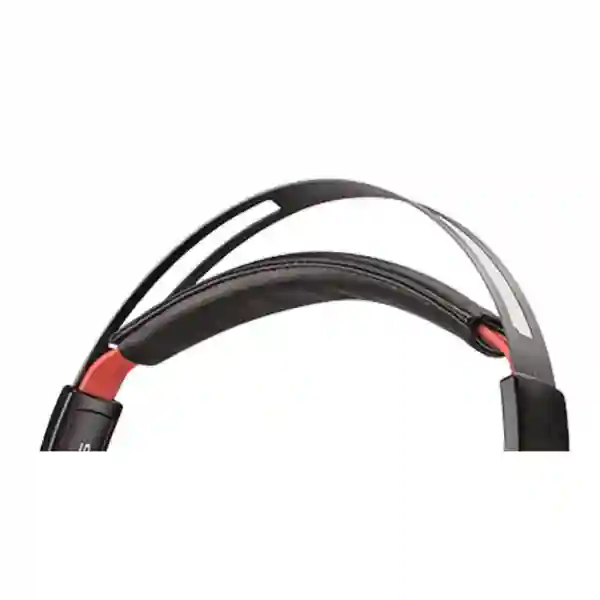
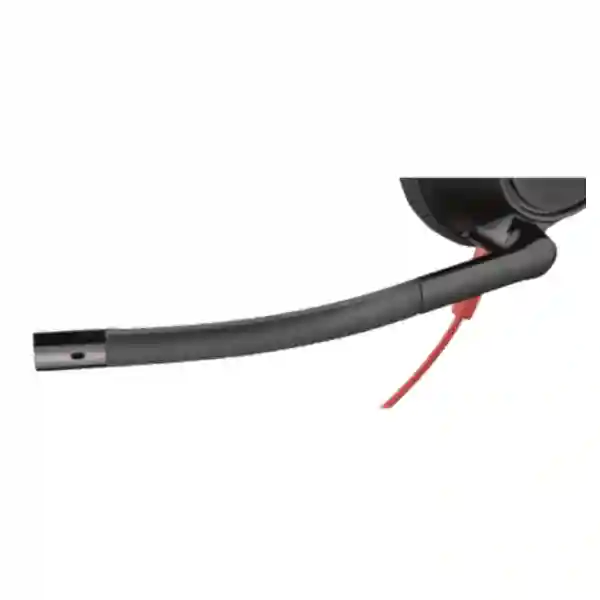
HP Poly Blackwire 5220 Stereo USB-A Headset
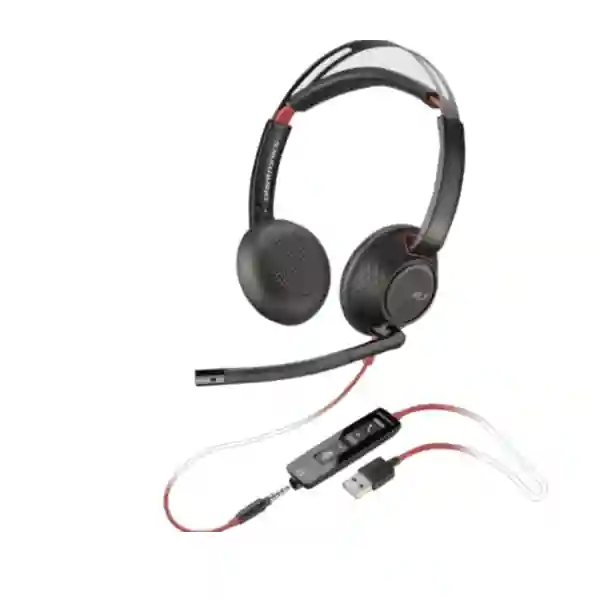
If you need dependable two-ear audio for meetings, customer calls and computer-based work, the HP Poly Blackwire 5220 Stereo USB-A Headset is a practical option to evaluate. The wired design combines a noise-reducing boom microphone, cushioned on-ear stereo listening, USB-A connectivity and easy-to-reach controls for common call tasks. It also has a separate 3.5 mm audio option for compatible devices. This page explains the benefits, limits and setup considerations so buyers in Tanzania can check whether the exact USB-A version matches their desks, devices and calling software before requesting a quote.
Quick answer: is this the headset for your team?
Choose this model when staff make frequent computer calls from USB-A-equipped workstations and prefer stereo listening, a boom microphone and physical USB call controls. Check the exact softphone integration before a larger rollout. Consider a different design if users need wireless freedom, native USB-C, mono room awareness, or active noise cancellation for what they hear. A current supplier quote should confirm the exact variant, commercial terms and included accessories.
At-a-glance technical details
| Product family | HP Poly Blackwire 5200 |
|---|---|
| Product type | Wired stereo, on-ear business headset |
| Computer interface | USB Type-A |
| Additional audio interface | 3.5 mm connection for compatible devices |
| Microphone | Adjustable boom with noise-reducing processing |
| Listening design | Two on-ear speakers with cushioned pads |
| Inline USB controls | Call answer/end, mute and volume; software support varies |
| Speaker drivers | 28 mm, per HP family documentation |
| Cable length | Approximately 217 cm total USB-to-headset |
| Active noise cancellation for listener | No; passive cushion isolation only |
| Intended use | Computer calls, video meetings, training and work audio |
| Manufacturer identification | Confirm the exact supplied product number before ordering |
| Local commercial details | Request current quotation, availability and supplier terms |
Specifications summarise the Blackwire 5220 USB-A family. Confirm exact product number and regional package content with the quoted item. No local pricing or stock information has been assumed.
Built for conversations that matter
A useful business headset should make everyday communication easier, not add another layer of complexity. The HP Poly Blackwire 5220 Stereo USB-A Headset is a wired, dual-ear model for people who spend substantial time speaking and listening through a computer. Its boom microphone is designed to reduce the pickup of nearby noise, while the cushioned on-ear speakers help the wearer concentrate on the conversation. For a purchaser comparing office audio equipment in Tanzania, the main attraction is straightforward: a familiar USB-A connection for compatible computers, a separate 3.5 mm connection for suitable other devices, and physical controls for routine call tasks.
The Blackwire 5220 is particularly worth considering where employees alternate between meetings, customer conversations, online instruction, and recorded audio. It is not a wireless headset, and it is not a substitute for soundproofing a busy workplace. Its advantages come from its predictable wired connection, adjustable fit, and the ability to make speaking and listening more manageable. The most suitable purchase depends on the exact ports of each device, the collaboration software in use, the user’s preference for two earpieces, and how long the headset will be worn each day.
The essentials in plain language
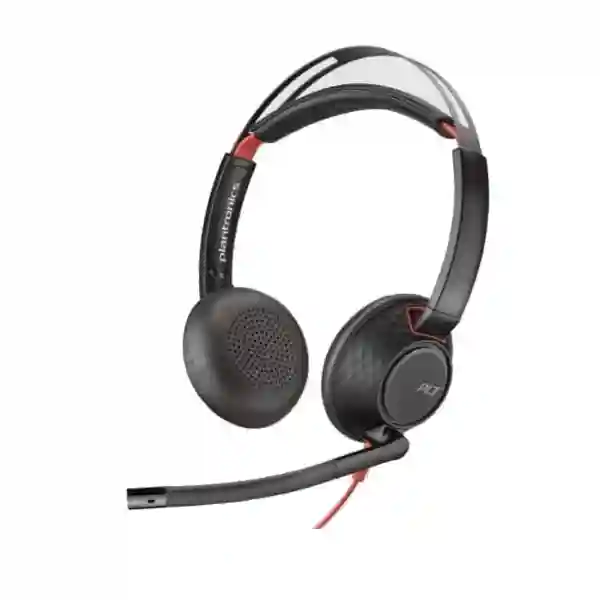
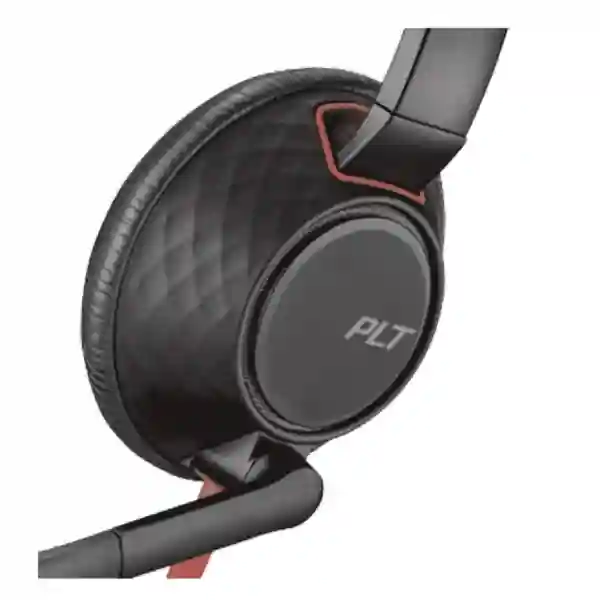
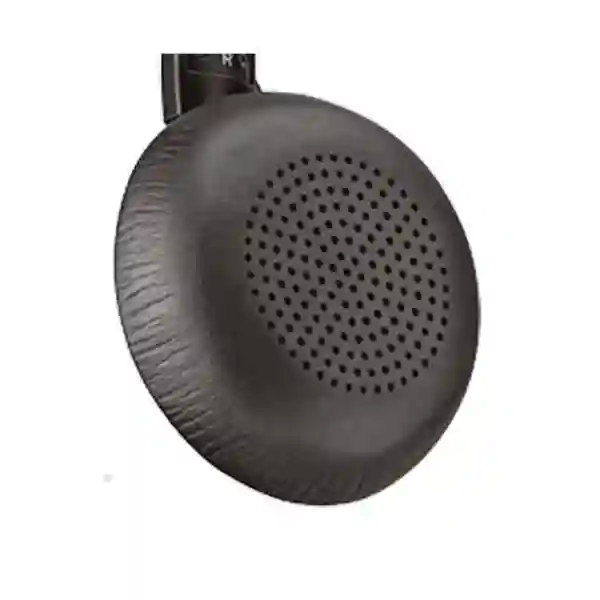
This is a stereo headset, meaning there is one listening earpiece on each side of the head. The design is on-ear rather than a large around-ear gaming style. A flexible boom positions the microphone near the mouth so that normal speech can be captured without relying on a laptop’s distant built-in microphone. The ear cushions use a soft artificial-leather surface, and the adjustable cushioned headband provides a way to tailor the fit. The headset can be folded relatively flat for carrying or storage, and manufacturer documentation for the series identifies a carrying case as a supplied accessory.
The USB-A version is intended to connect to a compatible computer through a standard rectangular USB Type-A port. The model family also supports a 3.5 mm audio connection for compatible devices with the correct combined headset jack. These are different operating paths, and the inline control behaviour is not identical between them. A prospective buyer should not assume that a phone with USB-C only or a laptop with USB-C only can accept the USB-A connector without a suitable adapter or an alternative headset version. Always confirm the exact connector before purchasing for a team.
Why USB-A is still a practical office choice
Many desktop computers, docking stations, workstations, and business laptops offer conventional USB-A ports. Where these ports are available, a wired USB headset provides a simple route for computer audio without Bluetooth pairing or managing a headset battery. That can help in shared-desk environments where equipment is reconnected between shifts, or in offices where users prefer a fixed workstation arrangement. For video meetings, USB also keeps headset selection within the operating system’s usual audio-device settings. The result can be convenient, provided the computer has an available working port and its administrator permits external audio devices.
Port planning matters more than marketing terms. A modern compact laptop may have only USB-C connections, and a docking station may be placed too far from the desk user for convenient cabling. A USB-A hub or adapter might work in some setups, but compatibility and physical strain on connectors should be checked rather than promised. If most new company devices are USB-C, a native USB-C headset or a manufacturer-specified combination model might be a more consistent purchase. The appropriate decision is not which connector is newest; it is which connector matches the devices employees actually use.
What the 3.5 mm connection adds
The separate 3.5 mm audio path can help users move from a computer to a compatible tablet, phone, or other device with a combined headset audio socket. This is useful for staff who take a computer-based conference call during one part of the day and listen to training material on another compatible device later. The physical headphone jack must support the necessary headset functions, and some mobile products no longer contain that jack. Compatibility should be checked for both the device model and the connector arrangement instead of assuming that every 3.5 mm socket handles headphones and a microphone alike.
Importantly, the manufacturer’s user guide explains that headset call-control functionality is not available through the 3.5 mm connection in the same way as it is through the USB controller. For this reason, purchasing decisions should be based on the intended primary connection. Choose USB-A when the requirement is computer calling with supported inline functions; regard 3.5 mm as a useful alternative audio connection for a compatible device. Do not treat the presence of two connection types as evidence of simultaneous connection to two devices, automatic call switching, or an integrated multi-device mixer.
Microphone clarity without exaggerated promises
In a busy office, the microphone is often more important than the speaker specification. Colleagues and customers need speech that they can understand, especially when conversations involve names, numbers, appointment details, or troubleshooting instructions. The Blackwire 5220 uses a boom microphone with noise-reducing processing intended to help focus on speech and reduce competing ambient sound. HP also describes digital signal processing and dynamic equalisation within the Blackwire 5200 family. These are useful communication-oriented features, not a guarantee that every surrounding conversation, fan, street sound, or keyboard tap will disappear from the call.
Microphone positioning remains essential. Set the headband comfortably, then bring the boom close enough for clear speech without letting it rub against the face. Avoid placing the microphone directly in the breath stream, which can create distracting bursts. A short test recording in the actual office is more informative than relying on an advertisement. If the room is exceptionally noisy, consider changes to desk placement, acoustic separation, speaking etiquette, or a different headset class. Clearer sound is a combination of equipment, environment, software configuration, and user technique.
Stereo listening and concentration
With speakers on both ears, this model can suit employees who prefer to hear meeting participants and training audio through a balanced stereo arrangement. The soft cushions provide passive reduction of some environmental sound by physically sitting against the ears. That can make it easier to follow a remote speaker in a moderately busy room, though the result varies with fit, noise type, and individual preference. Stereo sound is also useful when the same headset is used for authorised learning videos, webinars, or general computer audio between calls.
Passive sound reduction should not be confused with active noise cancellation. The microphone has noise-reduction capabilities, but the Blackwire 5220 is not an active-noise-cancelling listening headset. It does not create the same isolation as a purpose-built ANC over-ear design. In workplaces where employees must hear a nearby colleague or remain aware of announcements, a dual-ear headset may not be the ideal wearing style. A mono alternative can be better for roles requiring regular awareness of the surrounding room. The right choice balances attention, comfort, communication quality, and local safety procedures.
Comfort for longer working sessions
A headset may look suitable in a specification table yet become uncomfortable after repeated meetings. The Blackwire 5200 family places emphasis on an adjustable, cushioned headband and comfortable on-ear pads. The Blackwire 5220’s two-ear design distributes the listening experience across both sides, and its relatively compact construction is convenient for desk work. Nevertheless, people differ in head size, eyeglass fit, hairstyle, skin sensitivity, and tolerance for pressure on the ears. These factors influence the experience more than a simple claim such as ‘all-day comfort’ can capture.
For a larger team, a practical evaluation is to let representative users wear the headset during normal work sessions before standardising the model. Ask whether the ear pads become warm, whether the headband needs frequent adjustment, and whether the boom stays in a useful position. Staff who remove and replace headsets repeatedly may value an easy fit more than someone who remains on one long call. Encourage regular breaks in accordance with workplace practice and comfortable volume levels. Fold and store the headset appropriately rather than leaving it where the cable may be caught or the pads compressed.
Inline call controls at the desk
The USB inline control unit puts key actions within reach without requiring the user to search for small buttons in a meeting window. Manufacturer information lists call answer or end, microphone mute, and volume adjustment. That is valuable when a customer asks a confidential question, when a participant needs to step away briefly, or when the sound level must be adjusted during a call. Physical mute access can make conversations feel more controlled, particularly for staff who spend much of the day moving between calls and note-taking.
However, software integration determines the exact behaviour. HP’s Blackwire 5200 user guide states that headset call control depends on a compatible softphone, and some software requires supporting HP software. A button that works in one application may not automatically perform the same action in another. The operating system’s volume control and the meeting application’s internal mute state should also be checked together. Before a major deployment, test the actual call platform, any browser-based contact-centre application, and the headset’s buttons so users receive accurate instructions about how to mute and end a call.
Setting up a Windows or Mac computer
Start by identifying an accessible USB-A socket on the computer or appropriate docking station. Connect the headset and allow the operating system to recognise it. In Windows or macOS audio settings, select the headset as the preferred output device and microphone input for the intended work application. Next open the communication platform’s device settings and select the same headset for speaker and microphone functions. These steps are ordinary system setup guidance, not a promise that every custom application or managed company computer will support the device without configuration.
Make a test call before using the headset in an important conversation. Listen for clear playback, check that the microphone captures the speaker at a normal speaking level, and verify that the correct device is selected after reconnecting a docking station. If a laptop still uses its built-in microphone, change the application’s input choice and retest. Consider a staff-facing quick-start card that identifies the mute button, volume control, correct USB port, and location of the application’s audio test. A few minutes of consistent onboarding can reduce repeat support requests.
Collaboration software and softphone checks
The Blackwire 5200 series is positioned by HP for use with business collaboration platforms. Documentation for the relevant USB-A family identifies interoperability with widely used meeting and calling environments, but organisations should distinguish compatibility from the exact certification of the item being quoted. Certification, dedicated-button behaviour, available integrations, and supported versions can vary between product identifiers, software releases, and headset variants. A purchasing team should confirm the specific manufacturer product number and the vendor’s current compatibility information when a platform requirement is mandatory.
The realistic way to validate a deployment is to test the workflow that employees actually follow. Join a representative video meeting, receive a softphone call, put a caller on mute, and observe whether application controls stay in sync with the headset. If the environment includes a browser dialler, hosted telephony client, virtual desktop, or remote session, verify how USB audio is passed through that environment. Use IT-approved software, and do not assume that a headset alone adds telephony features such as recording, call queues, transfer functions, or a cloud phone system. It is an audio endpoint, not a phone service.
Clear communication for customer-facing teams
Reception teams, support desks, internal help desks, reservation staff, and customer service personnel can all benefit from a dedicated microphone close to the mouth. A headset frees the hands for entering information, reading instructions, and updating customer records while speaking. The stereo format may also help a user concentrate during sustained conversation. For a small organisation introducing structured calling practices, a consistent headset model simplifies training because team members learn one familiar set of controls and one basic method for positioning the microphone.
It is important to separate the hardware from the quality of the business process. The headset cannot repair poor internet connectivity, unstable calling software, inadequate staffing, or unclear procedures. If employees have complaints about calls breaking up, investigate the network connection, softphone configuration, and device selection as well as the headset. Where customer privacy matters, ensure discussions are conducted in an appropriate setting and observe the organisation’s information-handling rules. Better equipment supports reliable conversations, but professional customer service also depends on people, systems, and the environment.
Remote work and home offices
A home office often combines meetings, focused computer work, and occasional movement between devices. In this environment, the wired Blackwire 5220 can be attractive to users who want predictable computer connectivity without depending on a wireless charge cycle. The microphone boom is useful when speaking through a laptop that otherwise might pick up room reflections or distant voices. The 3.5 mm option can broaden usefulness where an additional device has a suitable audio socket. The headphone arrangement also helps keep meeting audio private from other people nearby, although it does not stop spoken words being overheard.
Users should plan cable placement carefully. Place the computer or docking station where the headset cable reaches comfortably without stretching across a walking area, dragging over sharp edges, or pulling on the port. If an employee switches frequently between a desk and another room during calls, the wired nature of this product is a limitation rather than a benefit. A wireless alternative may be worth evaluating for mobility, while a USB headset remains a sensible choice for an established work position. Select for actual work patterns, not simply for an impressive feature list.
Online training, classrooms and webinars
Teaching, learning, induction sessions, and remote workshops create different audio demands from a short customer call. Participants may need to listen for extended periods, contribute questions, and play short media clips. Stereo listening can make speech and instructional material easier to follow through both ears, and the microphone offers a dedicated voice input when the user needs to speak. The straightforward wired setup is useful in environments where devices are issued to staff or learners who should be able to start a session using familiar computer controls.
For shared training rooms, confirm the platform’s audio settings each time the workstation changes users. A headset that is physically connected does not always become the selected audio device. Instructors should check the microphone before the session and choose a moderate listening level. Where many headsets are stored or shared, establish an appropriate cleaning and individual-use policy for ear cushions. Students and staff with accessibility requirements may need an alternative fit, ear arrangement, or assistive device. The Blackwire 5220 is an option to evaluate, not a universal accommodation for every learner.
A practical option for standardised IT equipment
For an IT administrator responsible for many employees, consistency has operational value. A common wired headset model allows support teams to produce one setup guide, maintain common troubleshooting steps, and keep user training concise. The USB-A connection matches many established desktops and docking solutions, while the lack of a headset battery removes charging schedules from the rollout plan. HP describes software tools for compatible Poly devices, including endpoint configuration and management capabilities. The precise functions available for this headset should be checked against the organisation’s supported software environment.
Before placing a bulk order, complete a small pilot using representative devices and workflows. Include at least one desktop, a docked laptop, and the softphone application used for real calls. Verify whether security policies permit the necessary software installation, which controls work without optional utilities, and how a headset behaves after a system reboot. Record the relevant manufacturer product number for procurement, because similar Blackwire 5220 USB-A, USB-C, and adapter combinations can appear in catalogues. It is better to discover connector or software mismatches in a pilot than after equipment has been issued to a department.
USB-A versus USB-C: buy the correct variant
The names in the Blackwire 5200 family can be confusing because different listings describe USB-A, USB-C, and newer USB-C products with tethered USB-A adapters. The requested item here is the stereo USB-A headset, not a promise that a USB-C connector is included. Manufacturer and retailer materials also show several part numbers across the product family and distribution regions. As a result, a purchaser should ask the supplier to quote the exact product identifier, connector configuration, and included accessories rather than relying on a broad family name alone.
If current workstations have open USB-A ports, the USB-A version may minimise adapters and reduce the number of small accessories employees need to retain. If laptops have only USB-C connections, choose a verified USB-C model or an approved adapter arrangement instead. A 3.5 mm plug should not be mistaken for a USB-C substitute. Consider future device replacement plans as well as the hardware in use today. A department that is about to adopt USB-C-only laptops might make a different choice from an office keeping USB-A desktops for several years.
Stereo versus mono: an everyday decision
A dual-ear stereo headset such as the Blackwire 5220 makes sense when users want to focus on a call or listen to learning content without relying on external speakers. Both ears receive audio, and the cushions can reduce some incidental surrounding sound passively. This arrangement may feel suitable for a remote support specialist handling continuous conversations, a staff member working in an open-plan environment, or a person joining frequent video meetings. That is a use-case recommendation, not a measurable guarantee of better concentration for every user.
A mono headset leaves one ear uncovered and may suit a receptionist who must speak with visitors or a colleague who needs to hear room announcements. The Blackwire 5210 is a related mono model in the same family, but it is a different item and should be requested separately. Some workers prefer larger over-ear cushions or active noise cancellation instead. A good procurement comparison asks employees about surrounding awareness, ambient noise, comfort, computer ports, and headset-sharing requirements. Choose the wearing style that suits the job and the person rather than assuming that two earpieces are automatically better.
What noise reduction does not solve
Buyers often see the phrase ‘noise cancelling’ and imagine the complete removal of office sound. The distinction is essential: noise reduction at the boom microphone is intended to improve what the other caller hears, whereas active noise cancellation for the listener requires a different system. The Blackwire 5220 has on-ear cushions that provide some passive sound isolation, but it should not be described as a listening headset with active noise cancellation. This matters in busy service areas, shared rooms, and open-plan workplaces where the type of noise can vary considerably.
The headset also cannot resolve distorted speech caused by an overloaded network or a poorly configured calling application. If the voice sounds choppy to remote participants, first check call quality metrics where available, internet stability, the microphone selected by the app, and whether another program is using audio enhancement features. Avoid increasing microphone gain excessively, as that may amplify unwanted noise. The best possible call involves proper microphone placement, sensible workstation ergonomics, working software, and a suitable environment. Equipment is one element in that system, not a substitute for the others.
A reliable daily calling routine
Before the first call, check that the headset is attached securely and that no application update has changed the selected microphone. Confirm that the boom is positioned correctly and the listening volume is comfortable. When a conversation begins, speak at a natural level and use the physical mute button where the active application supports it. If there is any doubt about whether mute is engaged, verify the call application’s on-screen indicator. This is especially important when discussing account details or speaking privately to a colleague while another party remains connected.
At the end of a call, close it through the application or a supported inline control and confirm that the session has actually ended. Do not pull out the headset immediately before an important transfer or before an audio recording is complete. In a shared office, place the headset on a clean desk stand or in its case rather than leaving it with the cable tightly wrapped around the ear cups. Encouraging a predictable routine protects the equipment, reduces avoidable call interruptions, and helps employees feel more confident when using professional communications tools.
Everyday care and storage
The headset’s ear pads, cable, control unit, and connectors all benefit from reasonable everyday care. Keep liquids away from the inline controls and USB connector, wipe surfaces using methods approved by the organisation and product guidance, and avoid spraying cleaning fluid directly into openings. Before cleaning, disconnect the headset from the computer if the chosen method requires it. Inspect the cable regularly for twists, tight bends, or wear near connection points. A cable that has been pinched by a chair or desk can create problems that look like a software fault.
The fold-flat design and carrying case are convenient when a headset needs to be taken between suitable work locations. Keep the boom in a safe position during storage and do not place heavy objects on the earpieces. For shared equipment, establish a hygiene policy and ask staff to report damaged ear cushions or inconsistent audio promptly. Replacement-part availability should be verified separately for the exact product and market rather than assumed. Well-maintained equipment can be easier for IT teams to diagnose and more pleasant for employees to use day after day.
Troubleshooting: no sound or microphone
If a user cannot hear a meeting, first check whether the computer recognises the headset and whether sound is being sent to the correct playback device. Verify the USB connection, headset volume, application volume, and any other output selected by the operating system. Disconnecting and reconnecting the cable may help identify a loose connection, but avoid repeated forceful insertion. If a docking station or hub is in use, test a known working port when organisational policy permits. For 3.5 mm operation, confirm that the socket supports the necessary headset audio path.
If participants cannot hear the wearer, check the physical microphone mute setting and the meeting application’s own mute button. Confirm that the application’s selected input is the headset rather than a laptop microphone or a disconnected device. Make a short local test recording if permitted. Then compare performance in a second approved application to determine whether the problem is device-wide or application-specific. If call-control keys do not work, consult the supported software requirements instead of immediately declaring the unit defective. Escalate unresolved audio or physical faults through the organisation’s ordinary IT or supplier support procedure.
Tanzania purchasing considerations
When sourcing headsets for a business, school, training centre, or other organisation in Tanzania, evaluate the exact connector mix across the devices being used. A quote request should identify how many users need stereo headsets, which computer and mobile devices they use, the preferred interface, and the collaboration platform to be supported. These details make it easier to distinguish the requested USB-A version from other Blackwire 5220 variants. Ask for the proposed manufacturer identifier and a description of what is included in the box before approving a purchase order.
Commercial information must be confirmed for the actual offer. Price in Tanzanian shillings, local stock, delivery arrangements, warranty handling, and lead time should come from the seller’s current quotation rather than an assumed price from another country. If a business is purchasing in phases, it can be useful to test a small number of headsets first and then confirm that the later batch matches the approved configuration. For workplaces using remote calling services, internet and application quality also deserve attention, but the headset itself does not require a special telecommunications subscription simply to function as a computer audio device.
How to evaluate a demonstration unit
A short demonstration can reveal important differences between a headset’s published capabilities and the experience in a real environment. Start with a normal call from the main workstation and confirm the other participant hears speech clearly. Then test a moderately noisy office situation without creating unsafe volumes or disrupting colleagues. Listen for speech intelligibility, observe whether the microphone position stays stable, and try the mute and answer controls in the company’s actual application. Ask a second user to repeat the same test so that fit and communication preferences are not judged by only one individual.
Next verify the device connections, not just sound. Confirm USB-A operation on the target computer, test the separate 3.5 mm path on an appropriate device if it will be used, and check whether any required adapters are included or must be sourced separately. Review cable routing on the workstation and the comfort of the headset during a representative meeting. Finally, write down the exact model and any application limitations discovered. This simple evidence-based evaluation gives a procurement team far more useful guidance than choosing from a product title or a single technical feature.
Decision checklist before requesting a quotation
The most important question is whether the Blackwire 5220 solves the user’s actual problem. It can be a sensible choice for wired computer calls when the user needs stereo listening, a boom microphone, practical physical controls, and compatibility with an available USB-A port. It is less suitable if the wearer must move freely around the office during calls, requires native USB-C on every device, or specifically needs active noise cancellation for what they hear. A worker who must listen to nearby colleagues continuously may also prefer a mono configuration.
Include the required quantity, device operating systems, USB ports, calling platform, intended daily usage, and any specific accessibility or hygiene needs in the purchasing brief. Request confirmation of the exact variant, included carrying case or other accessories, and applicable supplier terms. Do not assume a particular availability status, advertised discount, or warranty service in Tanzania without a current written offer. For an organisation placing a larger order, trial use and IT compatibility checking should be part of the buying process. Those steps help ensure the purchased hardware is genuinely practical once it reaches employees.
Frequently asked questions
Is the HP Poly Blackwire 5220 a wired or wireless headset?
It is a wired headset. The requested USB-A model connects to a compatible computer through USB Type-A and also offers a separate 3.5 mm audio connection for suitable devices. It is not a Bluetooth headset and does not provide cable-free movement around the office. That makes it appealing for fixed desks but less suitable for users who regularly walk while speaking.
Does it offer active noise cancellation for my ears?
No. The Blackwire 5220 should not be marketed as an active-noise-cancelling listening headset. Its cushions provide passive isolation from some environmental sound, while the boom microphone includes noise-reducing capabilities intended to improve speech pickup. Buyers who need strong electronic isolation of environmental noise should compare a headset specifically designed with active noise cancellation for the wearer.
Can I connect it to a USB-C-only laptop?
The requested version has USB-A as its computer connector. A USB-C-only laptop will need a suitable compatible connection solution or a different Blackwire variant designed for USB-C. Do not assume an adapter is included with the USB-A item. Confirm the exact manufacturer identifier and connection arrangement in the quotation before ordering for a fleet of modern laptops.
Will it work with Microsoft Teams or other meeting software?
The Blackwire 5200 family is intended for business collaboration, and manufacturer information discusses leading meeting platforms. However, the exact certification and hardware-button behaviour need verification against the headset variant, current application version, and company computer policies. Audio may function even where particular call-control integrations do not. A small test with the team’s actual applications is the safest way to confirm compatibility.
Can the 3.5 mm connection be used on a mobile phone?
It may be used with a suitable device that has a compatible combined 3.5 mm headset socket. Many modern phones lack this port, and some adapters or sockets have different microphone support. The manufacturer’s user guide also says the 3.5 mm connection does not provide the same headset call-control functionality. Confirm the phone’s jack specification before relying on it for calls.
Does the headset have a noise-cancelling microphone?
Yes, HP describes noise cancellation and speech-oriented processing within this headset family. A boom microphone allows the wearer to position the voice pickup close to the mouth. This can help on typical office calls, but it cannot completely remove nearby voices or every environmental sound. Correct positioning, application audio settings, and the surrounding room all affect how clearly other people hear the speaker.
Does the inline mute button work everywhere?
No single behaviour should be assumed for every software application. The USB inline controller offers mute, volume, and call functions, but call-button integration depends on a compatible softphone and can require supporting software. The 3.5 mm audio route does not offer the same inline call-control functionality. Check the application mute indicator during a trial and give users platform-specific instructions.
Is stereo better than mono for office workers?
Neither is universally better. Stereo gives audio through both ears and can help a person focus on remote conversation or training content. Mono leaves one ear available to hear office colleagues or visitors. A customer-support specialist handling long calls may favour stereo, while a front-desk employee could prefer mono. Consider role, comfort, surrounding awareness, and worker preference rather than choosing only by specification.
Does the headset need charging or batteries?
No headset battery charging is needed for ordinary wired operation. When used through its intended connection, it is powered as a wired audio accessory. This removes a charging task from daily work, although users remain connected to the computer or other compatible device by cable. Organisations should still check computer compatibility and cable placement to avoid tugging on ports or creating desk clutter.
What is the approximate cable length?
HP’s documentation for the USB-A Blackwire 5220 family specifies a total USB-to-headset cable length of approximately 217 cm, with separate sections on either side of the inline control unit. For a particular purchase, verify the exact quoted variant and consider where the computer or docking station sits. A generous cable can improve reach at a desk, but it also needs tidy routing away from walking routes.
What should I check if no one can hear me?
First verify that the headset is selected as the microphone in both operating system and meeting application settings. Check the physical mute button and the application’s on-screen mute state. Move the boom to a suitable position near the mouth and make a short approved test recording. If the problem occurs in one application only, investigate that application’s permissions or device settings before assuming the headset is faulty.
Is this model suitable for a call centre in Tanzania?
It can be considered for a call-centre or customer-service role that uses compatible USB-A computers and business calling software. Its wired connection, stereo listening, boom microphone, and inline controls address common desk-calling needs. Suitability still depends on the exact softphone, background noise, worker comfort, and organisational requirements. Ask for a small real-workflow trial before ordering headsets for a larger customer-facing team.
What is included with the headset?
Manufacturer information for the Blackwire 5220 USB-A family identifies the headset and a carrying case, with supporting documentation listed for certain product versions. Package contents can vary by product number or distribution configuration. Check the supplier’s current offer for the exact item rather than assuming that an adapter, accessory, or special bundle is included simply because it appears with another Blackwire 5220 listing.
Where can I check the price or availability in Tanzania?
Ask FourTeck Tanzania to confirm the price, exact variant, availability, delivery arrangements, and applicable terms in a current quotation. No price or stock status is asserted on this page because those commercial details have not been verified for this specific listing. Include your quantity, computer port requirements, and intended collaboration software so the response can address the correct headset configuration.
How should an IT team deploy this headset to multiple users?
Confirm the exact USB-A variant, test a representative workstation and meeting platform, and create a concise setup guide. Include selecting the audio input and output, using mute, positioning the microphone, and reporting problems. Decide how shared units will be cleaned and stored. If device-management software is planned, confirm that the relevant headset and operating system are supported before making the tool a deployment requirement.
Request a Blackwire 5220 USB-A quotation
Tell FourTeck Tanzania how many HP Poly Blackwire 5220 Stereo USB-A Headsets you need, which computers and calling platforms your team uses, and whether 3.5 mm device compatibility is required. Ask for confirmation of the exact manufacturer product number, included accessories, current price, availability, delivery arrangements and applicable supplier terms. For larger teams, request clarification of any compatibility questions before purchasing.
Reviews
There are no reviews yet.