
Ubiquiti AmpliFi HD Mesh Router AFi-R
A standalone Wi-Fi 5 router with a color touchscreen, four Gigabit LAN ports and options for compatible AmpliFi mesh expansion. Explore whether its straightforward design fits your Tanzania home or small office before requesting a quote.
Key specifications at a glance
| Wi-Fi generation | Dual-band Wi-Fi 5 (802.11ac) |
|---|---|
| Wireless speed rating | 1,750 Mbps (manufacturer specification; not a real-world guarantee) |
| Wired network | 1 × Gigabit WAN; 4 × Gigabit LAN |
| Touchscreen | 1.6-inch full-color, 240 × 240 pixels |
| Max. power consumption | 11 W |
| Dimensions | 99.5 × 97.8 × 99.6 mm |
| Weight | 410 g |
| Operating environment | -10 to 55°C; 5–95% noncondensing humidity |
Published technical specifications describe the AFi-R hardware. Performance, compatibility and offer contents should be checked for each installation.
What the AFi-R is designed to solve
A single wireless router often has to serve devices scattered across rooms, behind interior walls and on different floors. The AmpliFi HD Mesh Router AFi-R addresses that everyday networking challenge with a compact dual-band router that can begin as one access point and expand into a compatible mesh arrangement. For a buyer in Tanzania choosing Wi-Fi for a home, apartment, study, reception area or modest workplace, the most important decision is not the largest number printed on a box. It is whether the router fits the floor plan, the internet connection, the wired equipment and the household’s normal usage pattern. The AFi-R is a sensible candidate when clear management, a distinctive touchscreen and the option to grow coverage matter more than having the newest wireless generation. It is a Wi-Fi 5 device, not a Wi-Fi 6 or Wi-Fi 7 router. That distinction matters if the network will support many demanding clients or the owner expects the latest security and radio features.
This listing describes the individual router rather than the complete AmpliFi HD kit. A buyer receiving one AFi-R should not expect additional wireless mesh points in the carton. The router itself provides wireless connectivity, a Gigabit Ethernet internet input and four Gigabit Ethernet outputs for fixed devices. If a large house needs stronger coverage at its far end, additional compatible AmpliFi equipment may be appropriate, subject to compatibility and configuration checks. The purchasing objective should be reliable usable coverage in the occupied rooms, not an unsupported promise that any one device can cover every building. Ask for advice with a simple floor plan, approximate wall construction and a list of devices that need Ethernet before deciding how many nodes are required.
Standalone router versus complete mesh system
The model suffix is central to an accurate purchase. AFi-R identifies the stand-alone AmpliFi HD Mesh Router. The separately marketed AFi-HD system includes the router together with two wireless mesh points. These product configurations should not be treated as interchangeable, even though buyers may see their names in related search results. A single AFi-R can create a wireless network on its own; expansion requires other suitable hardware. Buying the router alone can be a practical starting point for a compact floor plan where measured coverage is already satisfactory. Purchasing a multi-node solution may be more suitable where several rooms consistently receive weak signal.
A mesh network improves coverage by placing additional participating wireless nodes where they can communicate with the main router and reach clients that otherwise struggle. It does not create extra speed from the internet provider and cannot compensate for every structural obstacle. Placement matters because a mesh node in an area where the signal is already extremely weak may have a poor connection back to the main router. Consider testing the signal in an intermediate room before placing an extender at the very edge of coverage. The AmpliFi support documentation also describes using supported standalone AmpliFi routers as mesh points, sometimes referred to as router-as-mesh-point configurations. Confirm exact models and firmware before planning any mixed generation installation.
Dual-band Wi-Fi 5 in practical terms
The AFi-R uses 802.11ac Wi-Fi, commonly known as Wi-Fi 5, and has dual-band wireless capability. The 2.4 GHz band is useful for legacy devices and situations where a signal needs to pass through more obstacles, although it can be affected by congestion from neighboring networks and household electronics. The 5 GHz band is often better suited to higher-throughput connections at shorter ranges, where walls and distance are less limiting. A practical installation makes both bands available and checks where phones, laptops, televisions and other client devices actually connect. Some older smart-home devices require special attention during setup because they use 2.4 GHz only.
The manufacturer’s quoted maximum radio speed of 1,750 Mbps is a rated wireless figure, not a promise of that speed on a single device or on an internet download. Client capability, channel conditions, interference, distance, building materials, mesh topology and the service provider’s plan all influence the experience. A smartphone with modest radio hardware cannot obtain the same throughput as a well-equipped nearby computer simply because both join the same network. Treat the rating as a technical specification used for comparison among products of similar generations. If an application requires predictable high throughput, an Ethernet connection to one of the router’s Gigabit LAN ports is generally worth evaluating before changing wireless settings.
Ethernet connectivity for fixed equipment
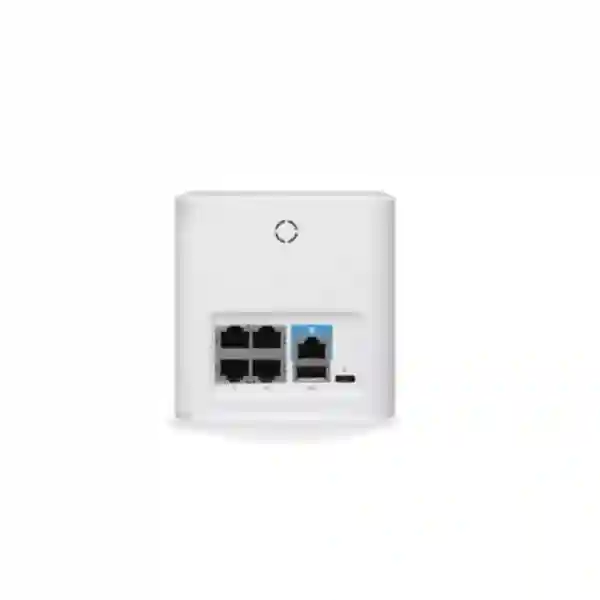
The router includes one Gigabit RJ45 WAN port and four Gigabit RJ45 LAN ports. The WAN port accepts an Ethernet connection from a suitable upstream modem, optical network terminal or service-provider gateway. The LAN ports allow fixed devices such as a desktop computer, printer, networked television, game console or other Ethernet-capable equipment to connect without using wireless airtime. Four LAN ports are useful in smaller installations where several devices can sit near the main router. For a bigger wired network, an appropriately specified Ethernet switch may be considered, but the switch and additional cables are separate planning items.
Gigabit describes the Ethernet link capability, not guaranteed internet throughput, and the end-to-end speed still depends on the provider service, routing conditions, devices and cables. Use reliable Ethernet patch cables and avoid tight bends or damaged connectors. Place the AFi-R near a safe power source and where a short cable can reach the internet handoff without putting the router behind metal furniture. The device has a USB connector described in its quick start documentation as reserved for future use; buyers should not treat that port as a confirmed USB storage server, printer-sharing service or mobile-modem connection. This distinction prevents choosing the product for a feature the manufacturer’s instructions do not promise.
Touchscreen and everyday visibility
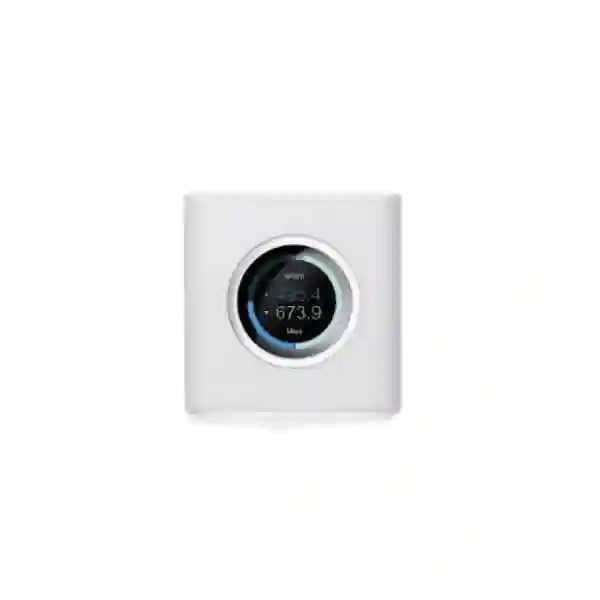
Unlike many basic routers that conceal most status information behind a browser login, the AFi-R has a compact full-color touchscreen on the front of its cube-shaped body. Its manufacturer-listed diagonal display size is 40.6 millimeters, or approximately 1.6 inches, with a 240 by 240 pixel resolution. The touchscreen creates an approachable point of interaction and makes the product easy to identify in a living room or workspace. A bottom LED light is also part of the design. The AmpliFi guidance describes adjustable brightness for the touchscreen and LED through its app.
The display is helpful for at-a-glance interaction, but it is not a substitute for network planning or proper account security. Its compact size also means that administration, diagnostics and more detailed settings are better handled from the supported management application or interface. Owners placing the router in a bedroom or other low-light space may wish to adjust illumination to avoid unnecessary light at night. Owners in shared offices may prefer to position the touchscreen where it can be seen by a responsible administrator rather than any passer-by. Prioritize airflow, stable power and signal placement over positioning the device merely as a decorative screen. The cube is small, but leaving it tucked inside a closed cabinet can compromise the quality of the wireless environment.
Planning coverage before purchase
A useful buying conversation starts with a sketch of the property. Record the number of floors, major reinforced walls, concrete partitions, corridors and existing internet entry point. Mark where the most important devices are used, especially video meeting desks, streaming displays and any home-office workstation. An apartment with relatively open internal rooms may need only the standalone AFi-R. A larger or more divided property may benefit from additional compatible mesh nodes. Do not rely on universal square-meter coverage promises: the same wireless product can perform very differently in two buildings with the same footprint.
A staged approach avoids unnecessary purchases. Begin with the router in a reasonably central open location within reach of the WAN cable. Verify internet access close to the router, then walk through the building and test the rooms where reliable service matters. Note whether weak performance occurs only on one client or across several devices. If the main router is performing well but one area remains poor, that is a stronger reason to investigate an additional node. If the connection is weak even beside the main router, troubleshoot the modem, provider service, cabling and configuration before buying more wireless hardware. This separates an internet problem from an indoor Wi-Fi coverage problem and makes expansion decisions more economical.
Mesh expansion and backhaul choices
AmpliFi describes the AFi-R as a unit that can participate in multi-hop, self-healing wireless mesh coverage with other compatible AmpliFi routers. In everyday terms, mesh equipment creates paths through compatible nodes so wireless devices can be served beyond the range of a single well-placed router. The wireless connection between nodes is commonly called backhaul. Where available, a wired connection between supported router units can provide a more consistent backhaul path because it does not rely on the same indoor radio conditions. AmpliFi publishes specific instructions for Ethernet backhaul configurations using supported devices.
Compatibility cannot be assumed across every AmpliFi family. Manufacturer support identifies the HD, Instant and Gamer models as compatible within certain mesh configurations, while Alien-family equipment has different compatibility requirements. Before ordering an extra node, check the model code, whether it is intended to operate as a router or a mesh point, the exact deployment method and current guidance. A wired mesh design also needs Ethernet runs to the right locations. Wireless expansion is easier where no cables exist, but each hop should be assessed for signal quality. Neither mesh nor backhaul can overcome an unstable upstream service. A thoughtful network diagram showing the internet handoff, principal router and any secondary nodes can save repeated installation visits or purchases of unnecessary equipment.
Setup with the AmpliFi application
The AFi-R quick start guide documents setup through the AmpliFi mobile application for supported iPhone and Android devices. It also describes a non-app setup path using a computer or tablet connected to the router’s default wireless setup network. This provides flexibility to owners who prefer a phone-guided installation and those who need to begin from another device. The basic physical sequence is straightforward: position the unit, connect the incoming Ethernet service to the WAN port, connect its appropriate power adapter and follow the configuration prompts. A working provider connection and the correct provider-side network details may still be necessary.
Choose a distinctive wireless network name and a strong password that is not reused for unrelated accounts. Record the administrator credentials in a secure location rather than on a note beside the device. The first installation should include a firmware review using the supported interface, a connectivity check on both wired and wireless devices and a short walk around the important rooms. The app includes an overview of network status and connected clients, along with diagnostic and performance features described in the manufacturer’s guidance. These tools can help identify whether an issue lies with Wi-Fi conditions or the internet link. If the provider supplies a combined modem/router, determine whether the AmpliFi should perform routing or operate in bridge mode before making advanced changes.
Router mode and bridge mode explained
Many homes receive internet through an existing gateway that already performs routing, provides DHCP addresses and perhaps broadcasts Wi-Fi. Adding another router without planning can create two routing layers and make some applications harder to configure. AmpliFi offers bridge mode for situations where an upstream router remains responsible for core routing duties. Manufacturer instructions describe connecting the main router’s LAN port to the AmpliFi WAN port when the AmpliFi is used in bridge mode. This arrangement can be useful when the provider gateway must stay in charge of the network or when a managed network already exists.
Bridge mode is not simply a stronger Wi-Fi setting; it changes the device’s role. Certain router-based features, including some routing controls, are unavailable when the AFi-R is no longer acting as the main router. If port forwarding is required, for example, that configuration belongs on the active routing device rather than an AmpliFi unit operating in bridge mode. Before installation, identify which box supplies local IP addresses, which handles internet authentication and whether another network device already controls the firewall. Buyers who need advanced enterprise routing, complex segmentation or centrally managed access policies should compare the AFi-R with equipment specifically built for those workloads instead of assuming a consumer mesh product offers every business networking capability.
Guest access and responsible sharing
Guest access is especially useful when relatives, clients or temporary visitors need Wi-Fi without being given the password used by the main household network. AmpliFi documents a guest network feature in its management interface, including controls around guest access. The exact behavior and security options depend on the installed firmware and configuration. Before offering access in a public-facing environment, review how guest devices are isolated, how the password is shared and whether the connection has enough capacity for expected demand. A small meeting room with a handful of visitors has different needs from a public venue with many short-term users.
The key benefit is simpler separation of everyday access and visitor credentials, not guaranteed compliance with any particular corporate security framework. Where customer information, payment systems or sensitive work files are present, assess the entire network architecture, including switches, client permissions and gateway policies. A guest network can be one useful layer but is not a replacement for appropriate business-grade segmentation and access governance. Periodically review connected devices, retire credentials that have been widely circulated and update firmware through supported channels. If the site requires captive portals, detailed user accounting or extensive multi-location policy management, verify those requirements separately before selecting this router. Avoid placing operational demands on a home-focused product that have not been confirmed by its documentation.
Family devices and home network routines
Modern households often connect several different types of device at once: phones, laptops, televisions, tablets, game consoles and smart-home appliances. AFi-R is designed to give these clients a common managed wireless connection while supporting nearby wired devices. AmpliFi documentation describes family profiles and scheduling features in its application. Such controls can be useful for establishing periods when selected devices should not use the internet, provided the devices are correctly assigned and the current firmware exposes the required settings. Families should test any schedule with the actual device mix rather than assuming every household member uses only one identifiable client.
Some applications need a consistently available connection, including home security equipment, remote-work tools and smart-home hubs. Before applying schedules or pauses, separate essential devices from optional entertainment endpoints and document any time-sensitive requirements. A router cannot by itself decide whether an online service is suitable for children, protect every user from phishing or replace endpoint controls. Keep client operating systems updated and use strong account security on the services being accessed. The purpose of network management is to make connectivity easier to understand and administer, not to imply that all digital safety questions can be solved at the router. For families moving from a basic provider Wi-Fi box, the touchscreen and AmpliFi management experience may still provide a more approachable way to supervise familiar devices.
Small office and work-from-home suitability
A small office may need reliable calls, cloud applications, email, web browsing and a limited number of wired computers. AFi-R can serve such a setting where the workload is moderate, the floor plan fits a standalone router or appropriately expanded mesh and the organization does not require advanced enterprise controls. Its four Gigabit LAN ports are useful for stable workstation connections, while dual-band Wi-Fi can serve staff phones and portable laptops. Simple management also helps an owner or administrator who does not need a large network controller. The correct purchase depends on actual traffic, security needs and continuity expectations.
For businesses, list important applications before choosing equipment. Video meetings depend on latency, stable upstream bandwidth and end-to-end service quality, not simply the router’s quoted radio speed. Shared printers may benefit from wired access, while visitor devices should be considered separately from operational systems. If the site hosts critical transactions, many concurrent users, numerous access points or a managed voice deployment, a business-grade platform may be more suitable. An office with strict VLAN, centralized authentication, detailed monitoring or audit requirements should confirm those capabilities in writing against the proposed architecture. The AFi-R is best positioned as a convenient consumer-oriented mesh router that can also suit uncomplicated small professional environments, not as an automatic replacement for a managed enterprise network.
Internet service and Tanzania installation context
The AFi-R connects to an internet service through Ethernet at its WAN port. It does not create an internet subscription and should not be described as containing a built-in fiber optical terminal, cellular modem or SIM-based mobile broadband service. An installer should first identify the handoff provided by the selected service provider. It may be an Ethernet port on an optical network terminal, an existing gateway or another suitable upstream device. Check whether the provider expects DHCP, PPPoE, static addressing or a specific connection arrangement; settings vary between services and contracts. The installation should be planned around the confirmed upstream equipment, not around assumptions about a particular Tanzanian operator.
Power continuity is another practical consideration. If the property frequently experiences interruptions, the router and the modem or optical terminal both need an appropriately specified backup strategy for the internet connection to remain available. A battery-backed router alone cannot keep an unpowered upstream terminal operating. The power adapter supplied for the exact product variant should be checked for local mains suitability before connection. The device’s listed power consumption is low, but backup selection should account for all devices, adapter ratings and desired runtime. No claim about local certification, official approval, delivery, installation service or warranty is made here because those commercial and regulatory details need verification for the offered unit and sales channel.
Physical placement and thermal environment
The router is a small white cube measuring approximately 99.5 by 97.8 by 99.6 millimeters and weighing around 410 grams according to the manufacturer. Its compact shape can sit on a shelf or table without the visually prominent external antennas found on some other routers. Small dimensions do not mean placement is irrelevant. Wireless signals can be weakened by reinforced concrete, appliances, large metal items, enclosed cabinets and dense building layouts. Keep the AFi-R upright on a stable surface with reasonable ventilation, and give it some distance from equipment that can cause radio interference.
The manufacturer lists an operating temperature range of minus 10 to 55 degrees Celsius and a noncondensing humidity range of 5 to 95 percent. These are product operating specifications, not an invitation to expose the unit to rain, direct outdoor weather or persistent moisture. Locate the router indoors where its adapter, Ethernet cabling and ventilation can remain safe. In warmer environments, do not stack it directly on a hot set-top box, power supply or amplifier. If the internet cable enters a property near an exterior wall, consider extending Ethernet to a better indoor router position rather than leaving the wireless radio at the least effective corner of the building. A short, thoughtful placement exercise often provides more value than repeatedly changing wireless settings after the network is in use.
Security choices and firmware upkeep
The published AFi-R product specification lists WPA2-PSK wireless security with AES/TKIP information. Do not purchase this model assuming it offers the latest Wi-Fi 6-era radio capabilities or a particular WPA3 implementation without checking exact firmware documentation. For a typical household, a long unique Wi-Fi passphrase, trusted administration access and regular software reviews form an important basic security foundation. Use the strongest compatible security settings supported by the installed configuration, and reconsider old client devices that require weaker legacy modes. Separate guest access where practical and avoid sharing administrative credentials broadly.
Firmware is relevant both for maintenance and for compatibility with other AmpliFi nodes. The manufacturer publishes firmware release notes and instructions for updating supported devices. Before purchasing a unit, especially one offered from older inventory or as a replacement, confirm the hardware condition, supplied accessories and suitability of the currently supported firmware. Do not assume a device has been updated because it powers on and connects to the internet. After configuration, check whether the intended mesh participants join correctly and whether any feature depends on a specific software version. If the owner needs compliance with a formal organizational security policy, the technical team should evaluate the router’s documented controls against that policy rather than relying on consumer marketing language.
Understanding the 1,750 Mbps rating
Wireless speed labels are often misunderstood. The manufacturer’s 1,750 Mbps figure is an advertised radio-speed specification for the AFi-R, not a speed test result from a Tanzanian broadband connection and not a guarantee that a single phone will transfer data at that rate. Real applications operate over many protocol layers. Air time is shared, signal quality changes, and protocol overhead reduces data throughput. Different client radios support different numbers of spatial streams, channel widths and modulation rates. Network congestion can also affect performance when several neighboring routers are using nearby wireless channels.
A practical buyer should match expectations to the service and devices. Someone with a modest broadband package who mainly watches online video and browses the web may value wider useful coverage more than a newer peak-speed category. Someone transferring large local files or purchasing a very fast fiber service may find the limits of Wi-Fi 5 more relevant. Wired Gigabit ports can be valuable for fixed endpoints, but routing throughput, ISP service and external network quality still matter. When assessing any installation, use representative tests at several locations and at more than one time of day. Record wired and wireless results separately. This creates an evidence-based picture rather than using a single headline number as the sole purchasing argument.
When a newer router may be preferable
AFi-R remains an identifiable AmpliFi HD model, but it is based on the Wi-Fi 5 standard. A buyer building a new, high-density network should compare it with newer Wi-Fi 6 or Wi-Fi 7 options. Modern alternatives may offer improved efficiency for many client devices, newer radio features and different security capabilities, although benefits depend on the client hardware and deployment. If future upgrades to faster internet service are likely, comparing router capacity and wired interfaces is especially important. The most recent product category is not automatically needed for every household, but it deserves consideration when the installation is expected to last several years.
Likewise, a premises that needs multiple managed access points, fine-grained network segmentation, advanced security controls or centralized business monitoring may be better served by a separate business networking solution. That decision should be based on a written list of functional requirements and an appropriate design, not brand familiarity alone. The AmpliFi HD AFi-R is most compelling where straightforward setup, a visible display, the established AmpliFi ecosystem and optional compatible mesh expansion are the real priorities. Its limitations should be clearly stated so that buyers who require newer standards or complex controls can choose confidently without discovering an avoidable mismatch after installation.
Equipment supplied and accessory checks
The official AFi-R quick start guide identifies an AmpliFi Router, power adapter and Ethernet cable as package contents. Before accepting a delivered unit, check that the supplied accessories match the specific regional package and that the adapter has the correct specifications for safe use. Packaging can differ by variant or condition, and any second-hand or open-box offer should disclose missing accessories before purchase. The product code should match AFi-R where the buyer expects the standalone router. Do not confuse a replacement router unit, a mesh point or a complete mesh bundle simply because they share the AmpliFi branding.
Buyers should also identify what is not established by the product specification. There is no confirmed Tanzania listing price, local stock quantity, importer status, shipping promise or seller warranty included in this content. Those details should be provided by the actual sales offer. Extra mesh equipment, switches, longer Ethernet runs, power backup equipment and any professional installation are separate scope decisions unless an individual quotation explicitly bundles them. A thorough purchase check compares the exact model, unit condition, accessories, intended deployment, firmware requirements and total cost of the network. This is more useful than comparing headline wireless speed alone, especially when one offer includes only the router and another offer includes multiple mesh nodes.
A practical installation checklist
Start by confirming the precise model on the unit and the internet handoff type. Place the router in a safe location where the WAN cable and adapter reach without strain. Attach the incoming Ethernet connection to the dedicated WAN socket, connect the power adapter and use the supported application or setup network to create an administrator configuration. Choose a suitable wireless name and strong credentials. Verify that the router receives internet connectivity and that a wired laptop can access the network through a LAN port. Only then assess the strength and behavior of wireless devices throughout the property.
After basic service is stable, check for supported firmware updates, choose guest and family settings if needed and test applications that matter most. Where a second compatible node is planned, follow the manufacturer’s pairing sequence rather than mixing arbitrary devices or joining an old setup without resetting and reviewing the intended topology. Test the mesh connection quality, not only whether the secondary node appears online. Keep a secure record of network settings, provider information and the reason for any bridge-mode decision. Finally, document the original router location and any weak areas so later changes can be compared with a known working baseline. This checklist helps a homeowner or small IT administrator obtain a repeatable outcome without promising that every broadband provider uses identical settings.
Troubleshooting poor coverage or connectivity
If a device reports weak Wi-Fi, begin by testing close to the AFi-R. If performance improves dramatically nearby, investigate walls, distance and competing wireless networks. If the problem follows one laptop or phone but not other nearby clients, focus on that device’s Wi-Fi hardware, operating system and settings. If all clients disconnect at once, inspect the internet handoff, power and router status before purchasing an extender. Distinguishing these failure types prevents replacing hardware for a service-provider outage or a damaged cable.
For a wireless mesh installation, the secondary node’s connection to the primary unit is just as important as the signal from the secondary node to the client. Move the mesh node to a location with a solid upstream connection rather than simply the most distant room. Where supported, investigate a wired backhaul connection for greater consistency. The AmpliFi app has documented diagnostic and performance functions that can help investigate WAN and network state. Take note of the firmware version and recent configuration changes when contacting support. If the router is in bridge mode, remember that the main upstream gateway controls functions such as routing and address assignment. Troubleshooting should therefore include both devices rather than treating the AmpliFi unit as the only possible source of trouble.
Who should choose this router
The best fit is a customer who wants a straightforward, well-presented Wi-Fi 5 router for a manageable home or simple small-office network and appreciates the ability to expand into compatible AmpliFi mesh coverage. The AFi-R is also relevant to owners who already have suitable AmpliFi HD-family hardware and need a compatible standalone router, subject to model and firmware checks. The four Gigabit LAN connections add value where a handful of stationary devices should connect over Ethernet. The touchscreen and app make the equipment approachable for users who prefer clear status information.
It is a less convincing choice when the project requires the latest wireless standard, formal enterprise network controls, assured large-site capacity or a built-in 4G/5G modem. It is also important not to mistake a single router sale for a complete multi-node kit. Consider the actual building layout, equipment already owned, application needs and commercial quote together. Before ordering for a Tanzania installation, request confirmation of the exact AFi-R configuration, included accessories, price and local support terms from the seller. The appropriate next step is to compare the intended use with these documented specifications and obtain a quote that reflects the real network design rather than an assumed coverage area.
Frequently asked questions
Is AFi-R a complete mesh kit?
No. AFi-R is the standalone AmpliFi HD Mesh Router. The separately named AFi-HD system is marketed as a kit with additional wireless mesh points. Check what the individual offer includes before buying.
Does the AFi-R support Wi-Fi 6?
No. Its published radio standard is 802.11ac, commonly called Wi-Fi 5. A buyer requiring Wi-Fi 6 or Wi-Fi 7 should compare newer models.
Can I connect a desktop computer by cable?
Yes. Four Gigabit RJ45 LAN ports are provided for wired devices. A separate Gigabit WAN port connects to the upstream internet equipment.
Will the router improve my internet plan speed?
The router cannot make the internet subscription faster. It may help improve indoor wireless distribution where existing Wi-Fi is the bottleneck, but actual performance depends on the provider service and network conditions.
Can I add more Wi-Fi coverage later?
Compatible AmpliFi mesh devices can extend coverage, but additional equipment is not assumed to be included. Verify the exact model, pairing mode and firmware before purchasing expansion nodes.
Can I use an existing ISP gateway?
Often yes, depending on the gateway and its configuration. AmpliFi documents bridge mode for installations in which another router handles core routing duties. Confirm the correct network topology with the provider.
Does it contain a SIM slot?
The published interface list identifies Ethernet networking and Wi-Fi, not an integrated cellular modem or SIM internet connection. Use an appropriate upstream service device for the internet handoff.
What does the touchscreen do?
The front has a 1.6-inch color touchscreen for interaction and status display. The AmpliFi management application provides additional settings and diagnostics.
Can the USB connector share files?
The official quick start guide describes the USB port as reserved for future use. Do not purchase this router on the assumption that USB storage or printer sharing is supported.
Is the advertised 1,750 Mbps an internet guarantee?
No. It is a rated radio specification. Actual speeds depend on client hardware, channel conditions, network design, provider performance and other factors.
Is it suitable for a two-storey house?
Possibly, but the building’s construction and router position strongly affect the result. Test likely coverage and plan suitable additional compatible mesh nodes if important rooms receive poor signal.
Does it include a power adapter?
The manufacturer’s AFi-R quick start package list includes a power adapter and Ethernet cable. Confirm the exact regional package and condition of the specific unit being sold.
Can I use it for business Wi-Fi?
It may suit a straightforward small office with moderate requirements. Advanced enterprise security, segmentation and large multi-site management should be evaluated against a dedicated business networking platform.
How should I position the router?
Place it indoors, upright, in an open ventilated location with a stable power connection and a sensible path to the internet cable. Avoid enclosed metal cabinets and major sources of interference.
What security does the published specification describe?
The published specification lists WPA2-PSK with AES/TKIP information. Confirm supported firmware and configuration details instead of assuming unlisted newer security features.
What is the local Tanzania price?
No verified Tanzania price has been supplied for this listing. Request a current quote specifying model, accessories, any taxes, delivery and applicable support terms.
Request a quote for the AFi-R
Tell FourTeck Tanzania whether you need the standalone router for one area or a network design with additional compatible mesh equipment. Include the number of floors, the approximate building layout, the upstream internet connection and any equipment that needs Ethernet. Ask for confirmation of the exact model, accessories, current price, availability and commercial terms.
Enquire about the Ubiquiti AmpliFi HD Mesh Router AFi-R and a configuration suited to your premises.
Reviews
There are no reviews yet.