
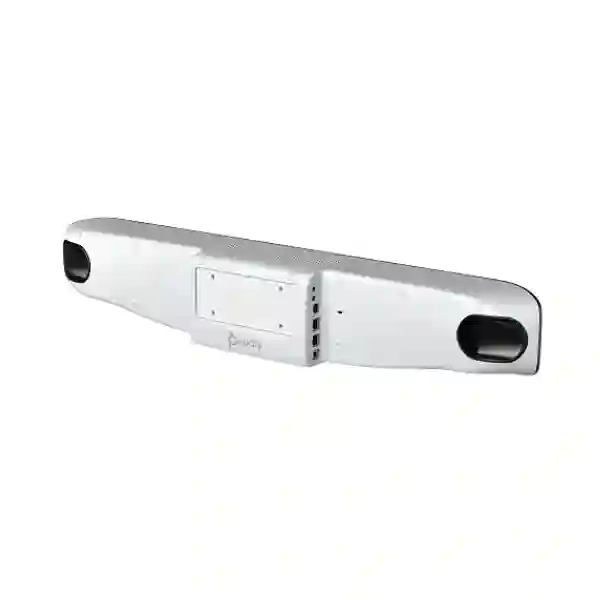
HP Poly Studio X72 All-in-One Video Bar
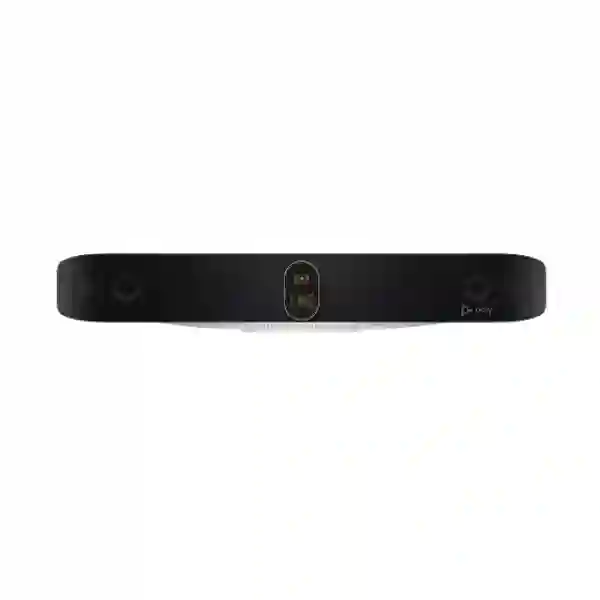
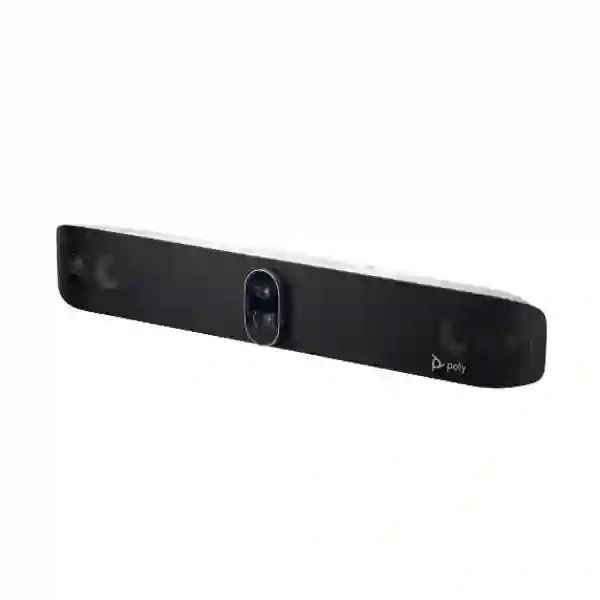
Bring the people at both ends of a long conference table into the conversation. The HP Poly Studio X72 All-in-One Video Bar combines dual 20 MP cameras, intelligent framing, beamforming audio, stereo speakers, and built-in conferencing capabilities for large meeting rooms.
For a Tanzania-based organisation planning a boardroom, executive meeting space, training venue or hybrid collaboration room, the essential question is not simply whether a bar has 4K cameras. It is whether the complete room can see, hear, share content and join the required meeting service reliably. Review the room and platform considerations below, then request a configuration-specific quote.
The essentials at a glance
- Designed by HP Poly for large meeting rooms; HP illustrates a typical room footprint of approximately 28 × 15 ft (8.5 × 4.6 m). Actual suitability depends on layout, acoustics and seating.
- Dual 20 MP camera sensors, with approximately 120° wide and 70° narrow horizontal fields of view and Poly DirectorAI intelligent framing.
- Four built-in microphones across MEMS and second-order designs, with a stated pickup range of up to 25 ft (7.6 m), plus integrated two-way stereo speakers.
- Meeting options include supported native Microsoft Teams Rooms, Zoom Rooms and Google Meet experiences, Poly Video mode and USB Device mode; service and software requirements apply.
- Two native HDMI video outputs, one HDMI content input, USB connections, wired networking, optional compatible extensions and HP Poly Lens administration.
- Controller, accessory, platform-license and support-package inclusion must be confirmed against the exact quoted configuration; the standard bar is not automatically the TC10 controller kit.
What problem does this video bar solve?
A large conference table introduces two conflicting visual needs. People close to the screen must fit within a wide view, while people at the far end need to be shown at a useful scale. A single ultrawide camera may capture everyone but leave distant faces small. HP Poly addresses this through two lenses with distinct viewing angles, assisted by software-based framing. In practical terms, the system is intended to make a longer meeting room easier to follow rather than merely recording an overview of the table.
The same room also has an audio challenge. Participants may speak from different seats and from varying distances, while laptops, air conditioning, side conversations and room reflections compete with speech. The X72 brings its microphone array and speaker system into one centrally managed device, combining voice pickup and noise-treatment technologies with intelligent camera behaviour. However, the sound quality experienced by remote attendees still depends on the room’s acoustic conditions and the quality of the network.
For purchasing teams, the central advantage is an integrated room endpoint that can operate without a separate meeting-room PC in supported native app modes. That can reduce the number of visible components, while still allowing a laptop-based workflow in USB Device mode. Integration is not the same as a complete installed room: suitable displays, mounting, control, electricity, connectivity, user accounts and any expansion devices must be planned separately.
Room size: where the X72 makes sense
HP positions the X72 above its smaller Studio X family devices for large rooms and illustrates a space around 28 feet long by 15 feet wide. That is a planning reference, not a hard occupancy guarantee. A narrow room with a long central table behaves differently from a square room, a tiered training room or an executive suite with seats along multiple walls. The field of view, camera height, distance to the furthest speaker and where people actually sit matter more than the label on the meeting-room door.
Measure the front wall to the furthest normal seating position and record table length, seating angles and display positions. Note whether people face the camera while speaking or will routinely turn toward a whiteboard or side monitor. A wide lens can include people near the screen, while a narrower lens can provide better perspective for more distant participants. Intelligent framing can improve composition, but it cannot overcome a blocked line of sight or make every unusual table layout equivalent.
Sound coverage deserves its own assessment. HP lists microphone pickup of up to 25 feet; this describes a specification under intended conditions, not a promise that every soft-spoken participant in every reflective room will be equally clear. If the last chairs are beyond practical pickup distance, if there are noisy ventilation outlets, or if tables are arranged in a horseshoe, evaluate compatible expansion audio or a custom room solution before settling on a hardware bill of materials.
Dual cameras: wide coverage and distant detail
The X72 uses two 20-megapixel cameras, each associated with 4K imaging capabilities. HP specifies horizontal viewing angles of approximately 120 degrees and 70 degrees, corresponding to diagonal fields of view of about 140 degrees and 78 degrees. The wide perspective is useful when participants are seated close to the display or spread across the front portion of a room. The tighter perspective addresses the other end of a long table, where faces can otherwise appear very small.
These numbers have distinct meanings. A field-of-view angle describes how much space the lens can take in from its installed position; it does not specify that the entire field will look equally detailed to remote participants. Sensor resolution describes source image capture, not necessarily the resolution that a service will send during every call. HP publishes video modes and frame-rate capabilities, but actual meeting output also depends on the selected platform, software, negotiated call quality and available bandwidth.
For comparison during room planning, place a person at the nearest corner seat and another at the furthest seat. Ask whether the wide framing includes the near participant without distortion or awkward cropping, and whether a narrow view keeps distant expressions intelligible. That demonstration will tell a buyer much more than looking only at headline megapixels. The dual-camera arrangement is valuable because it provides two perspectives for the framing system to work with.
Poly DirectorAI: framing that follows the meeting
Poly DirectorAI is HP Poly’s intelligent camera-framing technology. For the X72, HP identifies group framing, speaker framing and people framing capabilities. Rather than requiring someone to manually reposition the camera for every change in conversation, these modes can alter composition to show the group, the active speaker or individuals more effectively. This is especially relevant to large executive meetings, where a conversation moves among several seats throughout an hour.
Framing should be selected according to the meeting format. A group view is often preferable for a training session, formal review or presentation where the remote audience needs to see everyone at once. Speaker-focused behaviour may help during a discussion with one participant contributing at a time. People framing can improve the feeling of inclusion for remote attendees, but it may not be the most appropriate presentation for every meeting or recording workflow.
During commissioning, test each framing mode with real occupants rather than relying on an empty-room preview. Include people sitting still, speaking from the far end, standing briefly and sharing the floor. Confirm how the framing behaves when two people speak close together and whether the organisation prefers a predictable wide group shot in formal board meetings. Camera intelligence helps, but meeting owners should understand which available mode best suits the room’s operating style.
Built-in microphones and stereo sound
HP lists two MEMS microphones and two second-order microphones for the X72, along with an up-to-25-foot microphone pickup specification. The physical arrangement and audio processing are intended to capture voices from a substantial meeting space. HP also describes two-way stereo speakers with tweeters and bass ports, providing an integrated playback system rather than requiring a separate tabletop speakerphone for the baseline room setup.
Consider the experience in both directions. Local participants need enough clean speaker output to understand distant colleagues without turning the volume excessively high. Remote participants need intelligible speech that remains steady when the speaker changes seats. Microphone distance, room reflection, volume level and display-wall placement can affect that experience. Even an advanced device can sound poor when its microphones are blocked, when ventilation sits directly beside it or when hard surfaces create sustained echoes.
A useful acceptance test is to run a call with one participant in the near seat, one in the middle and one at the most distant normal seat. Have each person speak at a comfortable conversation level rather than projecting their voice. Ask a remote colleague to compare intelligibility and loudness between positions. Repeat the test while the room’s ventilation is running and while content is displayed. These checks convert a manufacturer pickup number into evidence that the actual room is ready.
NoiseBlockAI and Acoustic Fence: practical audio expectations
Poly NoiseBlockAI is designed to identify and suppress distracting non-speech sounds, while Poly Acoustic Fence technology is intended to help define the relevant acoustic area. Automatic gain control is among the listed audio features. Together these capabilities can make meetings more focused, especially when ordinary office sounds occur during calls. They do not transform an acoustically difficult space into a treated recording studio, and performance will vary with the setting and operating mode.
Typical disturbances include keyboard taps, movement of documents, nearby hallway activity and fan noise. Intelligent filtering can help reduce some of these distractions, yet it is still sensible to control avoidable noise physically. Choose a quiet display wall where possible, avoid mounting the bar directly next to a strong air outlet, use soft materials where the room is excessively reflective and position seating to reduce overlapping conversations. Audio design and the bar’s processing should complement each other.
Use a short test plan rather than assuming a feature name equals an outcome. Test the normal quiet-room conversation, then a scenario with ventilation, presentation equipment and a person moving papers. Evaluate whether the remote side hears words clearly, whether speech is ever clipped and whether more than one speaker can participate naturally. The correct solution for a room is the one that passes these use cases, not simply the one advertising the largest number of microphones.
Native meeting apps: a room without a dedicated PC
The X72 is an all-in-one video endpoint with its own supported meeting-platform modes. In those configurations, users can join meetings through the room system rather than starting the call from a separately installed conference-room computer. HP lists Microsoft Teams, Zoom and Google Meet certification for the device. The precise app experience, subscription requirements, administrative controls and supported features remain governed by the chosen collaboration service and the software version deployed.
Organisations should identify their primary meeting platform before selecting a controller and approving a deployment. A room that mostly hosts internal Microsoft Teams meetings has different workflow priorities from a client-facing room that frequently receives Zoom invitations. Businesses that routinely participate in several services may need to consider USB Device mode and any supported interoperation workflow. A promise that a bar can join many platforms does not mean every external invitation behaves identically or every feature can be used across services.
The most reliable design starts with an actual calendar invitation, a genuine user account and the planned meeting control method. Validate whether the room joins with a tap, how the meeting roster appears, how content is shared and what happens if the meeting is hosted on an alternative service. This approach avoids choosing hardware based solely on certification logos and then discovering at handover that the daily operating steps are unfamiliar to the team.
Microsoft Teams Rooms planning
HP identifies the X72 as certified for Microsoft Teams use, making it a relevant candidate where an organisation standardises its meeting rooms around Teams. The intended experience is that staff enter the room, find the scheduled session and join through the room’s supported interface. For users, the value is consistency with meetings that already appear in their working calendar. For IT teams, the value is the possibility of a managed, purpose-built endpoint instead of an improvised desktop setup.
Before purchase, confirm the current Teams Rooms licensing requirements, supported controller pairing, device-management approach and any organisation-specific meeting policies. Check whether guests must wait in a lobby, whether the room needs a dedicated resource account and which content-sharing workflow staff will use. Some features depend on Microsoft service settings or ongoing certification rules, so a device specification cannot replace a configuration review for the tenant.
Test the actual office workflow: a recurring internal meeting, a guest meeting created by an external partner, a presentation with slides and a meeting that runs longer than scheduled. Confirm the room is not blocked by authentication prompts or unsuitable security defaults, and document who supports it when a user cannot join. This makes a Teams room useful to its occupants rather than a technically correct but operationally difficult installation.
Zoom Rooms and Google Meet planning
HP also lists Zoom and Google Meet among the X72’s certified collaboration environments. For an organisation already using one of those services, a supported native configuration can keep the meeting room aligned with the platform familiar to employees. The important commercial distinction is that the video bar provides the room hardware and supported operating modes; it does not remove the need to verify service subscriptions, meeting-room account rules or any accessory needed for the preferred touch workflow.
Zoom-focused deployments should establish the expected display layout, control method and use of content during a call. HP describes a third-display extension in Zoom mode using a separately sold compatible USB adapter. That possibility should not be confused with a promise of three directly connected HDMI outputs, because the bar’s published native port list includes two HDMI outputs. A third-screen arrangement must be reviewed for the exact version, adapter and room layout.
For Google Meet or mixed service environments, confirm which current deployment modes are supported and how they are managed before finalising the design. Test routine joins, guest access, presentation sharing and device behaviour after software updates. When different teams use different platforms, document the preferred method for each one rather than assuming employees will immediately know when to use the built-in meeting application and when to connect a laptop.
USB Device mode for laptop-led collaboration
USB Device mode allows the X72 to act as a conference-room audio and video device for a compatible connected computer. This can be valuable when an employee receives an invitation to an unfamiliar conferencing platform or needs to present from software that is already running on their laptop. Instead of moving to a separate webcam or speakerphone, the meeting can make use of the room’s installed camera, microphone and speaker hardware through the supported USB workflow.
USB mode and native appliance mode solve different problems. The native configuration aims to give the room an independent, familiar meeting experience. Laptop-led conferencing gives the participant direct control over the meeting application, but it introduces user-device considerations such as operating-system permissions, meeting-software selection and physical connection. The room should make these differences obvious through clear instructions near the display or controller.
During a demonstration, test the types of laptops actually used by the organisation and the conferencing clients that matter. Confirm the required cable and adapter arrangement, where participants can place their laptops and how USB camera and microphone permissions are handled. Avoid promising that every USB-C port or adapter can carry every signal in every configuration. A verified connection diagram is a more useful purchasing deliverable than a generic statement of plug-and-play compatibility.
Poly Video mode and standards-based calling
Beyond major meeting-platform applications, the X72 supports Poly Video mode. HP lists H.323 and SIP capabilities in its published network specifications for Poly application video mode. These standards-based options may be relevant to businesses that connect to established video infrastructure or partner organisations with compatible conferencing systems. They provide another planning path, but they are not a guarantee of interoperability with every legacy installation or private calling environment.
When evaluating standards-based calls, IT teams should identify the destination system, addressing method, network path, firewall requirements, call-routing rules and applicable authentication or security expectations. Cross-organisation calls may require coordination with both parties. Test incoming and outgoing calling as well as presentation sharing, because connectivity for voice and video does not necessarily confirm that every meeting feature is available.
Care is needed when interpreting specifications across operating modes. Capabilities listed for the device’s Poly application mode may not be supported identically by native Teams, Zoom, Google Meet or USB configurations. Product planning should distinguish the hardware capability from the meeting software’s current feature set. This reduces avoidable procurement risk for organisations migrating from an existing SIP-based estate to a cloud collaboration service.
Presentation sharing: HDMI, wireless options and workflows
Real boardroom meetings are rarely just faces on a screen. Employees frequently need to show a slide deck, spreadsheet, design drawing or project dashboard to everyone on the call. HP lists HDMI input, Apple AirPlay, Miracast and digital whiteboarding among the X72’s content-sharing capabilities. These options offer a basis for creating more than one presentation workflow, depending on the meeting application, user’s device and current software behaviour.
A physical HDMI input can be attractive in spaces hosting visiting speakers, because it gives meeting organisers a clearly defined cable connection. Wireless presentation can reduce cable handling but depends on compatible client devices and the room’s network and security configuration. Neither method should be assumed to work automatically for every guest device. The correct choice depends on who presents most often and whether guests can join the organisation’s wireless environment.
Before a deployment is signed off, test a standard corporate Windows laptop, any Mac device commonly used by the team and a visiting guest scenario. Check video and audio content where relevant, confirm which display shows the shared material and ensure the remote audience can read detailed information. A spreadsheet with small figures is a better real-world test than a single large presentation title, because text readability reveals whether the chosen display and call settings meet the room’s purpose.
One or two displays: plan the viewing experience
The X72 includes two HDMI video outputs according to HP’s technical specification. That supports room designs in which people video and meeting content can be organised across suitable connected displays, subject to the conferencing platform’s layouts and supported modes. For a boardroom, a pair of correctly sized displays can make it easier for participants to follow a shared document without losing sight of remote colleagues.
Display selection must be grounded in viewing distance. A small screen at the front of a long room can be difficult for participants at the far end, even when the camera and audio are excellent. Choose appropriate screen sizes, mounting heights and sight lines, and avoid placing the video bar where it obscures important content. Consider whether the front-row participants need to turn awkwardly toward a side screen while speaking, because that may affect camera framing.
For rooms considering a third screen, separate native HDMI connectivity from software- and accessory-dependent expansion. HP documents a possible third-display Zoom configuration using an optional USB adapter, which needs its own compatibility check. Plan the whole display topology in advance, including cable routes, mounting, power sockets and how the chosen meeting service handles the different views. The best layout is the one the occupants can use without technical intervention.
Expansion for unusual or growing spaces
Although the X72 is an integrated video bar, HP also discusses extending compatible camera and microphone coverage with supported Poly peripherals. This is useful where a long table, secondary seating area or specialised meeting format goes beyond the ideal coverage of the standard bar. Certain expansion possibilities may involve Ethernet-connected devices, compatible audio hardware and operating-mode requirements rather than connecting any camera or microphone that happens to have a familiar plug.
Expansion should start with the problem it is meant to solve. If a far-side participant cannot be heard clearly, add-on microphones or an audio redesign may matter more than another camera. If the camera cannot see a presentation area or a side table, a compatible secondary camera may be the relevant consideration. A room with a large audience, multiple teaching positions and ceiling audio may call for a more modular design rather than continued additions to a single bar.
Because compatibility evolves with Poly VideoOS releases and platform support policies, verify the exact peripheral model, connection type, number of devices and supported service mode against current HP Poly documentation before ordering. Do not assume that a peripheral functioning in one provider mode works the same way in all others. A signed-off expansion diagram should list each device, where it will be mounted, the cable path and the practical reason for including it.
Controllers, touch panels and bundle differences
An all-in-one video bar and a full room kit are not necessarily the same purchase. HP lists a standard Studio X72 bar and a distinct X72-with-TC10 Controller Kit as separate product configurations. A touch controller may make everyday room operation much easier by placing meeting controls at a convenient seat or table position. However, the mere presence of a compatible controller in a product family does not mean it is included with the standard bar.
Purchasing teams should request an itemised quote stating whether a controller is included, whether required mounting hardware and power accessories are included and which model of each item will be supplied. The controller’s network and power method should also be confirmed. If the room already uses a supported controller, verify its pairing and software eligibility rather than assuming every earlier accessory remains compatible indefinitely.
User experience should drive the controller decision. In a shared executive boardroom, a dedicated interface may reduce confusion for visitors and support staff. In a less formal room, existing meeting procedures and platform options may influence the preferred setup. Either way, take a photograph or schematic of the intended tabletop location, confirm cable concealment and test the full join, volume, mute and leave-meeting sequence before declaring the room complete.
HP Poly Lens and life after installation
Conference-room hardware becomes an operational service as soon as people depend on it for scheduled meetings. HP Poly Lens provides management capabilities for supported Poly devices, including visibility, configuration, updates and administrative information. For an IT department with several rooms, consistent policies and documented device status are often just as important as camera quality. A room that works today but becomes difficult to maintain can generate repeated interruptions.
Before deployment, agree who will administer the bar, how it will be enrolled, which network paths are required and what the update process will look like. Decide whether firmware changes are applied during maintenance windows and whether a pilot room should receive updates before the rest of the estate. HP Poly’s current release notes and compatibility documentation are relevant because available modes, connected peripherals and issue fixes may change between software versions.
Monitoring also requires practical operating procedures. Record the device’s room name, physical location, asset reference, installed software version, platform mode and support owner. Create a short method for reporting problems: whether participants can hear the remote side, whether video is missing, whether content fails to share and whether the room can connect to the network. This information helps an administrator distinguish a service or connectivity problem from a device issue.
Security and privacy in a shared meeting room
An executive meeting room may host commercially sensitive conversations, confidential documents and external participants. The X72 includes an integrated electronic camera privacy shutter, and HP publishes security-management capabilities for the system. These features are useful foundations, but privacy depends on the complete configuration: administrative credentials, platform permissions, room access rules, software maintenance and the behaviour of users joining or sharing meetings.
Create clear ownership for administrator accounts and avoid leaving a shared default password in room documentation. Confirm how staff recognise camera and microphone states, and which privacy expectations apply when the room is idle. Where meeting invitations involve outside organisations, review guest access, recording controls and the company’s policies on displaying confidential information. A device with an integrated shutter still needs sensible security settings and user awareness.
IT reviewers should also assess network segmentation, firewall rules, update sources, certificate requirements, identity controls and the management method expected by the chosen collaboration platform. HP publishes support for several enterprise security features, but not all deployment conditions will be identical. A procurement decision should therefore include a security acceptance step appropriate to the organisation, especially if the room is used for finance, leadership, legal or regulated business discussions.
Network readiness for Tanzanian organisations
For a room deployed in Tanzania, network reliability should be treated as a project requirement rather than an afterthought. Even when the video bar is capable of high-resolution calling, users only receive the quality that the actual connection and meeting platform can sustain. International participants, busy office networks, packet loss and congestion can affect meetings. The device’s published support for wired Ethernet, wireless networking and loss-recovery technologies does not remove the need to test the intended site.
Where practical, plan a managed wired Ethernet connection to the meeting-room endpoint. Confirm switching capacity, IP addressing, DNS, firewall policies and any required access to the chosen cloud meeting and management services. Ask the network team to evaluate how peak office traffic affects latency, packet loss and available upstream capacity. A large monitor displaying crisp video on a local test does not demonstrate that a live business call will be equally clear.
A useful acceptance exercise is to make calls at the times when the room will be heavily used, including normal business hours and times of expected cross-border meetings. Repeat with multiple participants and content sharing. Document the symptoms of a degraded connection so room users know whom to contact. Avoid basing a network design solely on a minimum codec bit-rate figure: real deployments also require sufficient headroom, service-specific network paths and stable operation.
Power, environment and installation conditions
HP specifies an external auto-sensing power supply for the Studio X72 and provides a power adapter with the standard package. The bar is not simply an unpowered camera that can be mounted anywhere without electrical planning. A proper installation must account for the electrical outlet, safe cable routing, cable protection, the display’s own supply and the position of any controller or network accessories.
If a site’s power supply is interrupted, a meeting can still be lost even when the communications hardware is performing correctly. Organisations should evaluate appropriate power protection and continuity measures as part of their room infrastructure rather than assuming these are bundled with the bar. The same applies to wired internet equipment, network switches and displays. These supporting systems form a single user experience during a scheduled meeting.
HP lists a 0–40°C operating-temperature range for the product. Consider ventilation and ambient temperatures at the actual mounting position, particularly in rooms with limited cooling or enclosed display cabinetry. Leave appropriate physical access for installation and maintenance. Before final handover, inspect the mounting, the camera’s clear sight line, ventilation, cable strain relief and the ability to restart or service the unit without disturbing the room unnecessarily.
Mounting position and meeting-room ergonomics
The X72 is approximately 840 mm wide and is intended to sit at the display wall, typically around the visual centre of the room. HP lists a wall mount kit among the contents of the standard bar package. That is useful for initial planning, but the final installation method should be checked against wall construction, available clearance and the precise display arrangement. A supplied wall mount is not proof that every desired VESA or stand configuration is included.
Camera height influences how natural the meeting appears. An excessively elevated camera can make distant participants look down toward the far side of the table, while a camera mounted too low may be blocked by laptop screens, tabletop objects or people seated in front. Consider display height and the eye line of normal seated participants. The goal is a face-to-face perspective as close to natural conversation as the room permits.
Before drilling or routing cables, stage a temporary test using the expected seating arrangement. Show how the wide and narrow camera views frame the closest seats, the centre seats and the farthest seats. Check whether reflections from windows, bright backlighting or glass partitions impair the image. The correct physical position often makes a more meaningful difference than adding unnecessary accessories to compensate for an awkward mounting decision.
Everyday operation: make the room easy to use
The first minute of a meeting sets the tone. A room that requires multiple remote controls, several unfamiliar menus or an IT call before every session will underperform even if the camera and speakers are technically excellent. The X72’s supported native platform approach can simplify the experience, but only when the room account, display startup, meeting controller and user instructions are configured together.
Create a simple operating guide near the room entrance or control point. It should explain how to join the primary platform, select the microphone and camera if a laptop is used, share a presentation, mute the room and leave a call. Avoid placing credentials on public signage. For multi-service rooms, show two distinct workflows rather than a vague instruction to open the appropriate meeting app.
Invite a staff member who did not participate in the installation to complete an ordinary meeting without help. Ask whether the controls were clear and whether the on-screen layout made sense. If they struggle, improve labels, access or default settings before handover. This type of user acceptance test is inexpensive compared with the time lost when senior staff, visiting clients or instructors need technical assistance during a live meeting.
Boardrooms, training spaces and hybrid work
In an executive boardroom, the value of the X72 is the ability to support discussion among people seated at different distances from the front display. Use group framing for formal reviews and consider speaker-centred views for interactive conversations. A second display may support simultaneous remote participants and confidential presentation material, depending on the meeting service’s sharing and screen-layout capabilities.
In a training or project-review room, content legibility and repeatable presentation workflows are often the critical factors. Instructors may need to show a document, live demonstration or design, then return to a participant discussion. Confirm that the installed system can handle the planned input methods and that the view of the presenter remains useful. If the instructor regularly moves across a broad stage or multiple teaching positions, investigate whether this fixed bar or a modular camera system is the more appropriate design.
For hybrid departmental meetings, the key objective is inclusion: remote colleagues should be able to identify who is speaking, understand voices from the far end of the table and see the material being discussed. Intelligent framing and audio processing help, but facilitation still matters. Participants should avoid talking over each other, announce when sharing new content and choose a room layout that respects both in-room and remote attendees. Technology works best alongside a simple meeting practice.
Studio X72 versus X52, X32 and other room designs
Within HP Poly’s Studio X line, the X72 is the large-room choice with two camera sensors and a longer published microphone reach. The X52 is oriented toward medium rooms and has a single-camera configuration, while the X32 addresses smaller rooms. A smaller unit can be a better purchase for a compact meeting space: extra camera hardware and higher-end room coverage are not inherently valuable when every seat is already close to the device.
The distinction between an all-in-one X-series video bar and a USB-focused video bar also matters. An organisation that always launches its meetings from a room PC or laptop may value a USB-only product category, whereas a room designed for a managed native meeting app may benefit from the X72’s appliance functionality. A comparison should account for the full room workflow, not just headline camera figures, price or physical appearance.
For unusually large, divided or complex spaces, a modular room solution with separately placed microphones and cameras may provide more control than a single integrated device. That approach introduces installation and management complexity but can suit specialised acoustics and multiple camera positions. The right decision depends on room geometry, seating, collaboration platform, budget and the cost of operating the room over time. Ask for a side-by-side room design if the choice is uncertain.
What the published specifications mean for a buyer
HP lists the standard X72 configuration under manufacturer reference A4LZ8AA in its regional product specifications. This manufacturer reference helps distinguish the standard video bar from a controller bundle, but it should not be treated as an unverified FourTeck Tanzania listing SKU. The physical product is black, approximately 840.18 × 135.4 × 117.93 mm, and weighs approximately 3.3 kg. Dimensions matter when selecting the mounting position and ensuring that the unit fits beneath the intended display.
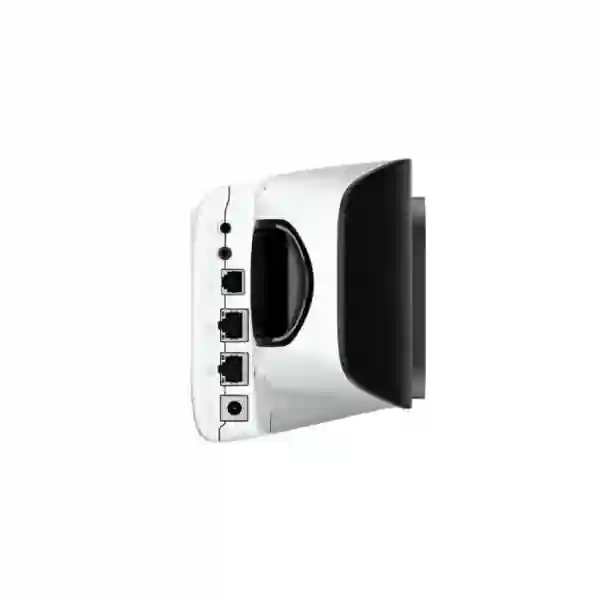
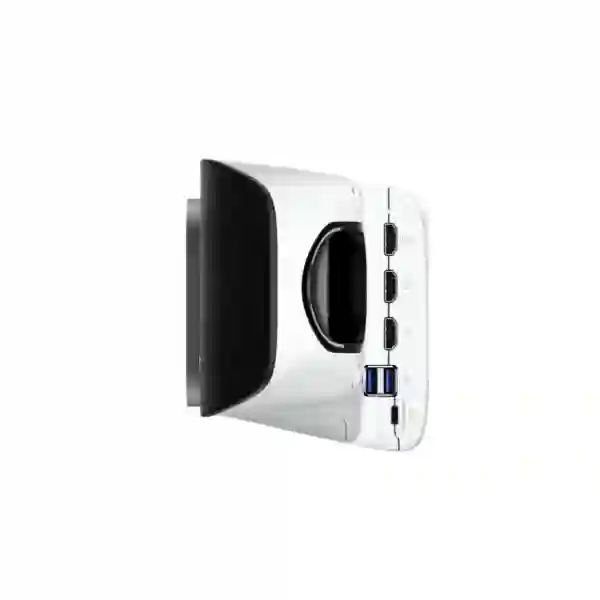
The connection inventory includes two HDMI 2.0 outputs, one HDMI 1.4 input, one USB-C 5Gbps connection, two USB-A 5Gbps connections, line audio connections and gigabit-class wired Ethernet. HP also lists Wi-Fi and Bluetooth capabilities. These ports support a range of planned deployments, but the role of individual connectors can depend on system mode, software and supported peripherals. Ask an installer to provide an exact port-to-device drawing for the proposed setup.
HP publishes a maximum 7.3x digital zoom figure, integrated privacy-shutter capability and multiple video codec options. When assessing these details, distinguish an image-capture capability from a guaranteed call experience. Meeting platforms may adjust transmitted resolution and frame rate, and HP’s published sources describe different performance contexts. For an executive procurement decision, the most useful proof is a live room demonstration with the actual calling service and an agreed acceptance checklist.
Technical snapshot for specification review
| Item | Published HP Poly information |
|---|---|
| Intended use | Large meeting rooms; HP planning reference about 28 × 15 ft |
| Cameras | Dual 20 MP; approx. 120° and 70° horizontal viewing angles |
| Smart framing | Poly DirectorAI group, speaker and people framing |
| Digital zoom | Up to 7.3× |
| Microphones | 2 MEMS plus 2 second-order; up to 25 ft (7.6 m) pickup |
| Audio features | Poly NoiseBlockAI, Acoustic Fence, automatic gain control, stereo speakers |
| Meeting modes | Supported native platform modes, Poly Video mode, USB Device mode |
| Native video connections | 2 HDMI outputs and 1 HDMI input |
| USB ports | 1 USB-C 5Gbps and 2 USB-A 5Gbps |
| Networking | 10/100/1000 Ethernet; supported Wi-Fi and Bluetooth |
| Physical dimensions | Approx. 840.18 × 135.4 × 117.93 mm |
| Standard package | Video bar, wall mount kit, two HDMI cables, AC adapter, power cable |
Specification and feature availability can vary by software mode, service terms and selected configuration. Confirm the exact supplied variant before purchase.
How to estimate the full project cost
Buying a video bar is only one element of an operational meeting-room budget. A practical quotation may need to cover the bar itself, compatible controller if required, displays, mounting work, cables, network preparation, power protection, platform licensing, additional microphones or cameras, configuration, user training and ongoing support. Some of these items may already exist in the organisation; others depend entirely on the intended use. Avoid assuming that a photograph of an installed room shows only the items delivered in the base product box.
Ask for an itemised bill of materials with the exact variant and manufacturer part references. Separate required items from optional improvements so decision-makers can understand the value of each addition. A controller should be justified by the daily user workflow; extra microphones should be justified by an audio-coverage test; an additional display should be justified by the way people need to see content. This makes budget changes easier to evaluate during approval.
For Tanzania purchasing, request a formal local quote rather than converting an overseas advertised price or assuming local stock. Commercial terms, warranty handling, delivery logistics, taxes and installation arrangements must be confirmed for the actual transaction. No Tanzania price, stock position, lead time, installation entitlement or local warranty condition is asserted on this page. These details should be provided and documented by the seller for the exact requested configuration.
A buyer’s room-assessment checklist
Start with the room dimensions, typical number of people and table layout. Sketch where each participant sits relative to the proposed bar, and mark any whiteboards, side displays, windows and obstructions. Identify the furthest participant and the closest seats on the sides of the table. Note which meetings will be held there: executive reviews, sales calls, training sessions, cross-office discussions or hybrid board meetings. This information will help determine whether the X72’s dual-camera design is appropriate.
Next confirm the primary conferencing platform, typical guest platforms, required room account, expected content-sharing devices, number of displays and whether a tabletop controller is preferred. Involve the IT administrator who owns the collaboration service, not only the team purchasing the hardware. Confirm networking, credentials, platform licensing and an update policy. A room can fail to join a meeting because of software permissions even when every hardware connection is correct.
Finally review electrical power, cooling, mounting, cable management, acoustic conditions and support responsibilities. Define a short acceptance test that the installing team can demonstrate before sign-off. Include a call to a remote participant, a near-seat and far-seat audio test, a screen-sharing test, camera-framing options, microphone mute status, room-controller operation and a restart or recovery procedure. These checks reduce unexpected costs after installation.
Implementation steps from site survey to handover
Step one is a room survey and use-case agreement. Record the actual dimensions, seating, displays and platform requirements. Step two is a configuration decision: standard bar or bar with supported control accessories, number and size of screens, mounting method and any audio or camera extensions. Step three is an IT readiness review covering network access, software mode, accounts, security responsibilities and any licenses associated with the meeting platform.
Step four is the physical installation, including safe mounting, power, display connections, network connectivity and controller positioning. Step five is software configuration and commissioning. Establish the intended room mode, check current recommended firmware, enrol the device in the management workflow if applicable and confirm that relevant features operate as expected. No particular firmware version should be specified without comparing the hardware and platform against current HP Poly guidance.
Step six is user acceptance and documented handover. Give a short operating guide to the team, demonstrate a normal call, show how to share content and identify the first support contact. Preserve the as-installed configuration and a list of accessories. For organisations with multiple rooms, use the pilot room’s findings to standardise cable paths, controller labels, meeting templates and maintenance procedures. A repeatable deployment method usually matters more than the appearance of a single showcase room.
Software maintenance and future compatibility
Video-conferencing products live in an environment where platform apps, cloud services and device software change regularly. HP Poly publishes VideoOS release information and separate compatibility guidance for devices and supported peripherals. That means today’s successful deployment should have a manageable update process, especially when it serves a critical executive room. A change to meeting authentication or an unsupported peripheral combination can be disruptive even though the underlying bar remains physically sound.
Do not select an X72 solely on a statement that it works with a named platform. Check the current certification and supported operating mode for the organisation’s account and planned software baseline. If the room uses external microphones, cameras, a touch panel or an unusual display arrangement, ensure each component is tested under the actual planned configuration. This matters particularly when mixing recently purchased peripherals with equipment retained from an earlier room.
Define who approves updates and who is authorised to change room settings. Keep a simple fallback procedure if a meeting application becomes unavailable or a device needs reconfiguration. Where USB Device mode is part of the approved workflow, ensure the required connection instructions are available. A good long-term purchase is not just hardware that starts a meeting today; it is hardware that the organisation can keep secure, supported and predictable as its collaboration environment evolves.
What to confirm about the package
HP’s listed standard package contains the Poly Studio X72 video bar, wall mount kit, two HDMI cables, AC power adapter and power cable. This is a useful planning baseline, not a statement about stock or the exact box supplied under every regional distributor arrangement. If a quoted bundle includes a touch controller, additional microphones, specialised mounting bracket or expanded support, those items should be shown separately or clearly identified in the bundle’s official configuration.
The exact electrical power cable, mounting accessories and any locally required adapters should be confirmed in the written quote. A controller or optional microphone should never be assumed to be included just because the product family supports it. The same applies to meeting-service subscriptions and professional installation. A buyer should be able to compare the offered contents line by line with the intended room bill of materials before approving an order.
Where an organisation is replacing another video-conferencing system, ask which existing components are being retained and which are being replaced. A display, tabletop cable system or network switch may be reusable if technically appropriate, but compatibility needs to be checked. Reusing equipment without testing can create a false economy. The goal is a clear list of the items actually needed to deliver a functional, maintainable room.
Frequently asked questions about Poly Studio X72
Is the HP Poly Studio X72 suitable for a large boardroom?
Yes, HP positions it for large meeting rooms and gives an illustrative footprint of roughly 28 × 15 feet. Actual suitability should be verified against the room’s seating geometry, acoustics, distance to the furthest chair and how people use the room. An unusually wide or divided boardroom may require a more modular design.
Does the X72 have two cameras?
Yes. HP specifies two 20 MP cameras with approximately 120-degree and 70-degree horizontal fields of view. The wide and narrower views help the intelligent framing system handle people seated near the display as well as participants farther down a long table.
Can it run Microsoft Teams Rooms without a separate PC?
The X72 supports certified native meeting-platform modes, including Microsoft Teams, and is designed to operate as a room endpoint without a separate conference PC in the supported configurations. Appropriate licensing, account setup, controller compatibility and software requirements still need verification.
Does it work with Zoom Rooms and Google Meet?
HP lists Zoom and Google Meet among the X72’s certified platforms. Confirm the currently supported configuration, subscription requirements and features of the service being deployed. An organisation hosting meetings across several services should test its actual invitations and workflows.
Can employees connect a laptop?
The device provides a USB Device mode for compatible laptop-led conferencing. This is distinct from running a native meeting app on the bar itself. Check the planned cable or adapter arrangement, client software and camera and microphone permissions with the laptops used in the organisation.
Is a Poly TC10 touch controller included?
Not necessarily. HP identifies a separate Studio X72 with TC10 Controller Kit, distinct from the standard video bar. Ask for an itemised quote specifying whether a controller is included, its model and the accessories needed for installation.
What microphone range does HP publish?
HP lists up to 25 feet, approximately 7.6 metres. The practical result depends on acoustics, seating, ventilation and speaking volume. If the last normal chair is difficult to hear, assess compatible microphone expansion or an alternative room-audio layout.
Can it use two displays?
Yes. The published hardware includes two HDMI video outputs. The content arrangement and meeting layouts depend on the active application. HP also describes a specific third-display possibility in Zoom mode using an optional compatible USB adapter; this is not a third native HDMI output.
Does the product share presentations wirelessly?
HP lists AirPlay and Miracast among supported content-sharing methods, as well as an HDMI input. Whether a particular device can share successfully depends on the current software, network conditions, platform workflow and the presenter’s hardware. Test common guest devices before commissioning.
Can extra microphones or cameras be attached?
HP describes support for selected compatible Poly peripherals and expansion scenarios. Compatibility, connection method and permissible combinations vary with software and provider modes. Request a verified design for the exact accessory models rather than assuming that all USB or IP peripherals are interchangeable.
Is an internet connection all that is needed for installation?
No. A working room also needs suitable displays, power, physical placement, required platform accounts and licenses, correct network policies, any chosen controller and tested presentation workflows. A live acceptance call should verify the entire system under realistic room conditions.
What is the price of the X72 in Tanzania?
A local product price has not been verified for this listing. Request a written quote for the exact bar or controller bundle, with any additional displays, accessories, implementation services, commercial terms and applicable local charges clearly identified.
What is included in the standard X72 box?
HP lists the video bar, wall mount kit, two HDMI cables, AC adapter and power cable. The presence of a TC10 controller or extra expansion microphone should be verified against the specific quotation and regional package.
How does the X72 differ from a smaller Poly video bar?
The X72 is positioned for larger rooms and has dual cameras plus a longer published microphone reach. Studio X52 and X32 models are intended for medium and smaller spaces, respectively. Choose based on where people sit and whether the room genuinely needs the additional coverage.
Can FourTeck confirm installation, stock and support?
These are quotation-specific commercial and service questions. This page does not assert stock, installation availability, geographic coverage, response time or local warranty terms. Request written confirmation for the intended delivery location and exact configuration before placing an order.
Plan the right HP Poly Studio X72 room
For a Tanzania-based organisation evaluating a large-room video-conferencing system, the next practical step is a configuration review and written quotation. Provide the room measurements, seating layout, principal meeting platform, display requirements and whether a tabletop controller or optional expansion audio is needed. These details make it possible to distinguish the standard bar from the complete solution the room requires.
Request an itemised proposal for the exact product variant, included accessories, implementation scope and commercial terms. Confirm local price, stock, warranty handling, delivery and installation arrangements before ordering. No unverified availability, location-specific service or response-time commitment is implied. The aim is a boardroom where people can see, hear and participate naturally, with a supportable setup for the IT team.
Reviews
There are no reviews yet.