
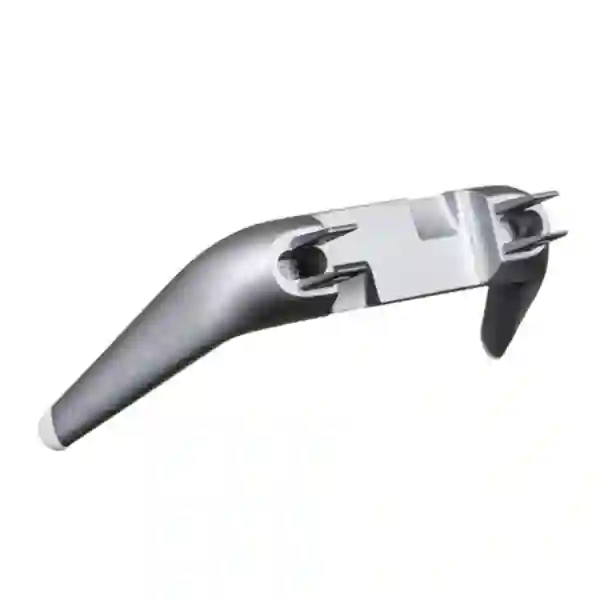
HP POLY · TOUCH CONTROLLER MOUNTING ACCESSORY
HP Poly TC10 Table Stand
Give a compatible Poly TC10 a practical tabletop position for meeting-room use. This stand-only accessory supports an existing controller on a suitable flat surface. Check your controller model and current package contents before requesting a replacement or additional stand.
HP accessory reference: 874P7AA · Controller and room software not included by this product description
At a glance
- Designed for tabletop positioning of the Poly TC10
- Useful for replacement, spare part or approved desktop configuration
- Passive mechanical accessory, not an electronic control device
- Check whether your complete TC10 kit already included a stand
- Request exact quotation scope and current Tanzania terms
What you are purchasing
This product is the tabletop stand accessory for the Poly TC10 touch controller. Its function is physical positioning: it supports a compatible TC10 on an appropriate horizontal surface where people can see and operate the separate touchscreen. The stand does not display meetings, run scheduling software, connect calls or supply network power. Those capabilities depend on a functioning TC10 device and its room configuration. Buyers should therefore describe this item as a stand-only accessory when preparing an enquiry or purchase order.
A replacement stand can be useful when a room controller is already operating but its original tabletop support is missing. It can also be relevant when a room is reorganized from a different mounting arrangement to a suitable tabletop position. Neither use case should be confused with ordering a complete Poly TC10. Specify the device model and exact physical need first, then ask for confirmation of the offered accessory and its package contents. This distinction protects a budget from unnecessary complete-device purchases and prevents a stand-only quotation from being mistaken for an electronic room controller.
Exact product identification
The separate HP Poly TC10 Table Stand has manufacturer reference 874P7AA in HP accessory documentation. Use that reference when distinguishing the item from a TC10 touchscreen controller, a wall-mount accessory or another product in the Poly collaboration range. The manufacturer reference is not being presented as a verified FourTeck Tanzania internal SKU. A local inventory SKU must come from the target listing, and no such listing-specific identifier has been supplied for this request.
Confirm the actual TC10 name on the device or reliable equipment inventory rather than relying on the phrase “Poly touch panel.” Different controllers may have different attachment points and dimensions. A screen that looks similar may require another dedicated mount. If the identification is uncertain, obtain the device label and a clear image of its rear mounting interface for the project technician. Proper identification before purchase is more dependable than attempting to adapt a stand after it arrives. It is also valuable when the room equipment was inherited from another office, contractor or facilities team.
Why a dedicated tabletop stand matters
A meeting-room controller is only useful if people can locate, read and operate it without disturbing other equipment. A correctly chosen stand helps establish an intentional position on the room table instead of leaving the touchscreen unsupported or resting awkwardly among laptops, microphones and notepads. It can make the screen approachable from a designated user position while keeping the controller within the practical flow of a meeting. The actual benefit depends on the room layout and suitable assembly, not on an unsupported promise of universal ergonomics.
Think about who usually starts the meeting, whose seat is nearest the controls and where the connecting cable enters the furniture. A mount may be physically compatible yet poorly placed if the normal operator must lean across the table or move a laptop each time. Choose the location through a short real-world test with users. The stand is one component of that arrangement; good sightlines, clear reach and sensible cable routing make the complete setup practical.
What is not included by definition
The words “table stand” do not mean the item includes a Poly TC10 touchscreen, meeting-room video bar, conferencing computer, network switch, PoE injector, software licence or room-booking subscription. The accessory is mechanical. Any screen, network or meeting feature described in the wider TC10 product family belongs to the separate hardware and supported software environment. Keep those distinctions visible on quotations because a small physical accessory can otherwise be confused with the much broader room solution.
Do not assume a stand-only box contains the network cable, wall-mount kit or fittings that HP lists with certain complete controller packages. The precise contents of an individual stand offer should be confirmed by the supplying party. This is especially important when replacing a component after a building move: the technician may need small pieces that were not kept with the original unit. Request the scope of supply in writing rather than reconstructing it from a generic image or a complete-controller datasheet.
Check the controller package before ordering
HP’s published TC10 controller specifications list a table stand among the accessories supplied in certain complete TC10 boxes. This means a brand-new controller purchase may already cover the tabletop mount needed for an ordinary installation. Before adding a separate accessory line, check the actual kit quotation, packing list and equipment already received. The existence of the stand in HP’s published package contents does not prove that every retailer bundle, used device or separately supplied package has identical components.
For a room that has been operating for some time, search the retained equipment carton or spare-parts storage area. A wall-mounted controller may still have its original desk stand stored elsewhere. For a replacement, document whether the old stand is damaged, missing or unsuitable for the proposed room position. For new deployments across several rooms, repeat that check for each controller bundle. Recording what was already supplied prevents duplicated purchasing and creates a useful inventory for future room changes.
Tabletop positions and viewing angle
HP’s documentation for TC10 tabletop configurations describes positions of 30 degrees and 60 degrees. Its desktop setup illustrations show the stand attached in alternative arrangements. These are documented configuration choices, not a claim that the stand has an unrestricted hinge, infinite angles or universal movement. Select the supported assembly orientation according to the applicable manufacturer instructions, then inspect whether the screen is readable from its intended operating position. Do not force a mount beyond its illustrated attachment method.
A useful angle depends on seating height, table height, display glare and the operator’s position. Test the controller under ordinary room lighting before deciding the setup is complete. A panel may look clear from the installation technician’s standing position but be difficult to read for a seated meeting host. Equally, a comfortable seated position might not work if participants usually stand at a lectern. Use the permitted tabletop configuration and adjust the room placement as needed; avoid making unsupported claims about anti-glare coatings or adjustable ranges supplied by the stand.
Compatibility and attachment points
Compatibility should be based on the Poly TC10 model and its intended mounting interface. The stand is not a general tablet holder and should not be described as suitable for every Poly controller, room scheduler or touchscreen with a comparable screen size. Confirm that the controller housing and attachment points are intact before trying to install a replacement. If a unit has a damaged rear interface, changing the stand alone may not restore a reliable physical connection.
Follow the official TC10 setup guidance during assembly. It illustrates how the controller and stand are joined in desktop configurations, as well as where the controller connection is located. Avoid improvising screws, adhesives or adapters that are not specified for the installation. A technician should stop when the parts do not align naturally rather than applying extra force. This protects the device from damage and makes acceptance checks more meaningful. The objective is not merely that the unit can be propped up, but that it sits in the documented physical arrangement.
Choosing the table location
Select a stable, suitable, horizontal surface and leave clear space around the controller. The chosen position should not rest on loose papers, obstruct a built-in power outlet or balance close to the edge of a table. Look for laptop cables, microphone bases, desk hatches and equipment that commonly move during meetings. A practical room survey can reveal issues that a product photograph will not show. Check the table with chairs pulled in and normal meeting materials in place.
For larger rooms, the exact center of the table is not necessarily the best choice. A designated meeting host may need the controller at one end. In a small meeting room, a position next to the display-facing seat may be easier to use. A room that is reconfigured frequently needs an agreed process for managing the controller and its cable when furniture moves. The stand should support a coherent workflow, not become an object that staff repeatedly push aside because its place was never planned.
Screen reach and user access
Meeting rooms serve people with different seating positions and ways of operating equipment. A controller on a stand should be placed so the intended user can see its display and touch the controls without excessive reach or contact with adjacent equipment. Review the route from the normal operating seat to the panel. Does a microphone sit in the way? Is the device hidden behind a laptop screen? Does the host need to cross another person’s workspace to operate it?
Accessibility is a room-design question, not a certification that can be inferred from the stand alone. Where an organization has specific reach or accessibility requirements, assess the full installation and user population. The appropriate physical placement may change with the table, chair height or other furniture. A desktop location that works for one meeting group may be unsuitable for another. Conduct a practical acceptance check with the room’s intended users rather than assuming every tabletop arrangement provides equivalent access.
Lighting and screen visibility
Screens that look clear in a sales photograph may behave differently under real overhead lighting, reflected daylight and presentation conditions. Before finalizing the TC10 location, check the view from the operating seat while the room lights and blinds are in their normal positions. Consider whether direct reflections will cover important onscreen controls. If the screen is difficult to read, try an alternative supported tabletop orientation or a better location on the table.
Do not claim the table stand eliminates reflections or changes the display’s brightness. It changes the physical position from which the controller is viewed. The touchscreen’s actual display behavior is determined by the separate TC10 device. A room setup that considers light, viewing position and the user’s reach will generally be more useful than one planned solely around symmetry or where a cable happens to emerge from the tabletop.
Ethernet cable planning
The separate Poly TC10 controller uses a network connection and supported Power over Ethernet arrangements. The stand itself has no PoE interface, electrical input, switching function or charger. Its installation should nevertheless be planned alongside the controller’s cabling because moving the panel from wall to table can change the cable path. Identify the connection location, proposed desk opening and nearest suitable network route before choosing the final spot.
Avoid cable tension, sharp bends, loose sections across walking paths and areas where chairs or table mechanisms could catch the lead. Leave appropriate access for service so a technician can inspect the connection without pulling against it. Ask IT to verify the supported network and power setup for the TC10, not for the stand. A missing network connection, blank display or failed room application will not be fixed by purchasing this mechanical accessory; those symptoms require separate endpoint or network troubleshooting.
Installing the accessory
Begin by confirming the controller model, checking the accessory for visible damage and reviewing the current HP Poly installation instructions. Prepare a clean, stable work area and arrange the parts required by the specific mounting method. Follow the official desktop assembly illustrations rather than attempting to infer the attachment sequence from a product image. If the stand or controller appears damaged or the parts do not engage as documented, stop and ask a qualified technician to inspect the issue.
Once the supported configuration is assembled, position the device on the chosen table and route the TC10 cable without obvious strain. Test whether the screen can be touched in normal use without unwanted shifting. Then ask the room systems team to check the controller’s actual operation on its configured platform. A successful software test is not a substitute for inspecting the physical setup, and a stable stand does not establish that software or networking has been configured correctly. Record the finished placement for later maintenance.
Using a TC10 for in-room meeting control
In supported deployments, the TC10 serves as a meeting-room control interface. A tabletop position is often evaluated from the place where a host starts the meeting and manages the room’s configured controls. The stand can support the device in that location, but it does not enable any particular meeting platform, video feature, calendar function or conferencing licence. The installed TC10 and its broader solution determine which controls appear.
During room planning, identify the expected meeting host and the actions they normally perform. If the controller is out of reach when people are seated, staff may move it or strain its cable. If it sits among documents and personal devices, the touch surface can become difficult to find. Choose a consistent place and include it in room instructions. A small physical setup decision can affect user confidence without the stand itself adding electronic capability.
Using a TC10 for room scheduling
Some TC10 configurations support room scheduling, which presents a different physical placement question. A scheduler used by someone checking availability outside a meeting room may be better suited to an entrance-facing mounting location than a stand on an indoor conference table. The table stand can physically support the device where tabletop use is appropriate, but it does not select scheduling mode or provide calendar integration. Those are features of the separate system.
Ask where a user would naturally look before entering the room. If the requirement is corridor visibility, review manufacturer-supported mounting options and site surfaces. If the panel is instead intended for reception or a desk-based booking workflow, evaluate its actual location, display visibility and permitted application. The distinction between an in-room control panel and an entrance scheduler should be settled before buying a mounting accessory, not after installers discover that the display faces the wrong users.
Small huddle rooms
A huddle room may have a table that is already crowded with laptops and personal devices. A TC10 stand is most helpful when the controller receives a defined position that remains available even with every seat occupied. Check whether the table has enough clear area for normal use and whether the network lead can be routed neatly. The chosen location should not require another participant to move their equipment for the host to reach the interface.
Look at the room in its busiest normal state, not just when it is empty. A table that seems spacious can fill quickly with notebooks, drinks and charging cables. Position the touchscreen away from areas where people frequently place items. If the table is too small for a practical desktop placement, consider whether a different supported mounting arrangement better satisfies the room need. The stand is useful only when it improves the room’s everyday operation.
Boardrooms and long tables
A large boardroom usually has multiple seats, display systems, microphones and tabletop connection points. Choosing a TC10 position should involve the intended meeting operator, AV support and facilities. The controller is not automatically most usable when placed at the center of a long table. A defined host position can reduce unnecessary reaching and make operation predictable. Consider whether presentation equipment or refreshments regularly occupy the same part of the table.
A floor plan or photograph showing the planned position can help during procurement and handover. Check whether the table includes cable hatches and how the network lead will reach the controller without interfering with microphone cables or laptop connections. If the room is rearranged for special events, document whether the panel remains fixed at one seat or is moved only under a controlled procedure. Proper planning prevents routine room changes from becoming a source of accidental cable damage.
Training rooms and flexible spaces
Training rooms often change between group tables, classroom rows and presentation layouts. A tabletop TC10 arrangement should have a clear procedure for those changes. Staff need to know whether the controller stays in a defined position, is removed by AV support or moves with a designated table. The stand should not be assumed to provide a portable mobile kit or a secure latch for transport. A controller left on a folding table can be at risk during room rearrangement.
Plan who will manage the Ethernet cable during reconfiguration and where the controller can be safely kept when the room furniture changes. After each reset, check that the panel is once again visible, reachable and connected as intended. Training-room users may be unfamiliar with the equipment, so a simple label or room instruction may help identify the proper control point. This is a facilities and operating practice, not a special software feature of the table stand.
Tabletop versus wall mounting
A desktop stand prioritizes a horizontal-surface position, usually suited to someone already seated or standing at a meeting table. A wall-mount solution can free table space and place a screen near a door or defined wall control point. HP’s TC10 guidance covers multiple physical mounting arrangements, but choosing between them depends on room use, cabling and the actual surface. A stand should not be described as a replacement for a wall bracket when the project requires a secured wall installation.
Evaluate the user approach and service access for each option. If the intended user is outside the room, a table may be the wrong location. If the operator works from a conference desk, tabletop access may be practical. If furniture is frequently rearranged or the room has strict physical security requirements, a more fixed placement may be preferable. The correct choice is based on the installation, not a claim that one mounting type is superior in every environment.
Tabletop versus glass mounting
Meeting rooms with glazed partitions may require the interface near a glass entrance. That situation creates different placement and attachment requirements from positioning a TC10 on a desk. A dedicated table stand is intended for an appropriate horizontal surface, while glass-mount solutions require their own approved accessories and suitable surfaces. The two options should not be treated as interchangeable simply because they support the same overall device family.
Before selecting hardware, establish whether the screen should be seen from inside the room, outside it or both. Confirm the desired operating height and available cable path, then ask the installer which manufacturer-supported mounting approach fits the site. Do not improvise by attaching a tabletop stand to glass or another vertical surface. If the room configuration changes, reassess both the physical mounting accessory and the controller’s purpose.
Replacement versus spare purchase
A replacement stand addresses an existing missing or damaged physical component. A spare stand is inventory held for a future known requirement. A conversion stand may be purchased because a previously wall-mounted TC10 is being placed on a meeting table. These three purchase reasons should be documented separately. Doing so helps clarify urgency, quantity and the parts that must be included with a stand-only offer.
For replacements, inspect the rear attachment area of the TC10 before ordering, especially if the original support broke. A damaged controller housing may require more than a new stand. For spare purchases, check the actual count of compatible devices rather than stocking a broad range of generic mounts. For a room conversion, prepare a quick placement and cable plan. Each route is reasonable when it solves a verified need, but the supporting checks are not identical.
Handling and routine maintenance
A tabletop touch panel is likely to be approached by users, cleaners and support personnel. Establish a straightforward handling process. Do not pull the controller by its network lead, force the display beyond supported positions or treat the stand as a lifting handle without specific approval from the applicable manufacturer instructions. Look for obvious changes in fit, unexpected rocking or damaged attachment parts during normal equipment checks.
Cleaning methods should follow the latest relevant HP Poly guidance for the installed device and the workplace’s furniture materials. Do not spray liquids toward electronic connectors or assume that a passive mount makes the complete controller resistant to moisture. Ensure cleaners know where the panel belongs after routine work. A brief maintenance note can record whether a problem concerns the mount, the screen, the cable or software, making support calls more precise and avoiding unnecessary replacement purchases.
Physical security and shared access
A device on a table may be accessible to visitors, cleaners or people rearranging furniture. Decide whether that suits the room’s security and operating rules. HP documents a Kensington-style security slot on the TC10 controller, but that controller feature does not establish that the separate table stand includes a lock or theft-resistant mechanism. Do not quote the stand as tamper-proof, fixed or security-certified without explicit evidence for the exact accessory.
Physical placement is one part of security; the electronic controller’s permissions and network settings are separate matters. If the site requires fixed positioning, discuss an appropriate mounting arrangement rather than assuming a desk stand satisfies the rule. Where a tabletop configuration is acceptable, give users clear instructions not to disconnect or move it casually. Such a procedure may reduce accidents but is not a substitute for hardware security where actual risk assessments require it.
IT, AV and facilities responsibilities
A successful installation connects three sets of decisions. The AV team determines where the control interface is useful and checks the device assembly. IT confirms the controller’s appropriate network and power arrangement. Facilities approves the furniture position, cable route and room-handling process. Procurement must make sure the quoted item is the desired stand rather than the entire controller. These tasks are related but should not be assigned to the accessory itself as claimed features.
A practical handover record can identify the room, the TC10 model, mount position, responsible installer and acceptance date. Include the network route and any room reset rules that staff should follow. If the controller later moves, the record makes the original setup easier to understand. Coordination is particularly useful when one contractor supports the meeting platform and another maintains furniture or cabling. The table stand is a small component that benefits from a clearly owned installation.
Tanzania purchasing context
For a Tanzanian business planning a meeting-room installation, begin with the exact requirement and ask for a current itemized quotation. Include the product name, manufacturer reference 874P7AA, quantity and existing controller information. Describe whether the accessory is for replacement, a new room or a change from another mounting position. If the room is already wired, say where the TC10 is expected to sit. Specific information helps the supplier respond with the correct component and relevant terms.
Do not infer Tanzanian price, tax treatment, delivery time, availability, warranty or installation coverage from overseas retail offers. Those details must be verified for the actual local quotation. If several meeting rooms are involved, prepare a room-by-room list and check which TC10 packages already include stands. A consolidated request can still distinguish each room’s needs without claiming that stock or service is available at a particular city. Ask FourTeck to confirm the commercial terms rather than assuming them.
Quality-check the delivered stand
On receipt, compare the supplied item and its packaging with the approved stand-only quotation. Look for obvious transport damage and verify any accessories explicitly listed in the particular offer. Do not use the published box contents of a complete TC10 touchscreen as proof that a separately purchased stand includes the same parts. If the order specifies fittings or other pieces, verify those exact components. Resolve discrepancies before the item is modified or installed.
After assembly, confirm that a known-compatible TC10 is supported using the manufacturer’s documented method and that the resulting desktop position is practical. Inspect the cable route, surrounding furniture and normal user reach. Then test the separate controller on its configured room system. Record any instability or damage instead of accepting the equipment because the screen turns on. Physical acceptance and electronic function are distinct checks, and both matter for a usable meeting-room endpoint.
Common ordering mistakes
One mistake is buying a complete controller because staff report that the TC10 “needs a stand.” Another is requesting a stand without checking the original controller package, which may already have included the accessory. Other risks include selecting a mount for a different Poly model, assuming cables and fittings are bundled, or mistaking an overseas distributor’s stock identifier for a verified local SKU. A careful requisition avoids most of these errors.
A further mistake is treating a physical mount as the solution to a network or software failure. If the TC10 cannot power on, connect or display its configured controls, the issue needs endpoint troubleshooting. If the rear housing is damaged, a new stand may not attach correctly. Match the remedy to the actual fault, confirm the controller model and request the exact supplier scope. An accurate purchase is one that addresses a real physical installation need.
When a different product may be needed
The table stand may be unsuitable if the controller must face people in a corridor, if no safe horizontal surface exists or if the site requires a fixed mounting method. A room without a TC10 device needs much more than a stand to deploy meeting control. A controller with a malfunctioning display or damaged enclosure may require repair or replacement instead of another support accessory. Changing a conferencing platform can also require separate compatibility review, unrelated to this passive stand.
Before purchasing, ask whether the desired result is better controller placement, a repaired physical attachment, a room scheduling display or a working electronic control system. Those goals can sound similar in a brief procurement note but require different items or actions. The HP Poly TC10 Table Stand is the appropriate focus when a compatible TC10 specifically needs tabletop support. Otherwise, document the broader requirement and seek a quotation for the correct solution.
Preparing the quote request
A useful enquiry states the product name, manufacturer part 874P7AA, required quantity and whether the TC10 is already owned. It describes the intended room, where the unit will be placed and whether any original mounting pieces are missing. If possible, attach the room inventory or a clear device-label photograph through an approved communication channel. Ask the supplier to confirm the exact offered accessory and list what is physically included.
For installations spanning more than one room, specify which rooms require new stands and which controller packages may already provide them. Ask separately about commercial terms, delivery details and any installation work required. Do not assume that an accessory purchase automatically includes endpoint configuration, cables, PoE work or room-system licensing. A precise request makes supplier responses easier to compare and gives the eventual installer a clear statement of the physical scope.
Room handover and future changes
When installation is complete, document the tabletop position and the selected supported orientation. Record where the Ethernet lead runs and who is authorized to move the controller when furniture changes. A simple photograph of the final arrangement may be enough to help future room support. Without that record, users can gradually shift the panel to less suitable locations, creating the same problems the stand was purchased to solve.
Review the arrangement after a furniture replacement or major room reconfiguration. The controller may still work electronically but be difficult to reach from a new seating layout. A stand does not guarantee that every future room design will be suitable. Keeping model, manufacturer reference and mounting notes in the equipment inventory helps procurement and support teams make the next decision from evidence rather than memory. This is especially valuable for shared spaces with several responsible teams.
Detailed buyer and installer checklist
Verify the model at the source
Read the actual device label or the room inventory before requesting a mount. “Touch controller” is too broad a description for reliable accessory procurement. Ask the requester to identify Poly TC10 and, where needed, show the rear attachment interface. If a different model is installed, stop and choose its corresponding manufacturer-supported mount. This one check reduces fit problems before shipping and helps procurement distinguish mechanical accessories from complete electronic endpoints.
Check existing accessories
Look in the original controller box, equipment storage cabinet and room handover record. HP lists a stand with certain complete TC10 packages. A suitable component might already be on site even when the controller is currently wall-mounted. If it is missing, state that clearly. If it is broken, retain enough information to describe the failure. Reusing a correct existing accessory can avoid unnecessary replacement, but never reuse a damaged piece without technician approval.
Survey the tabletop
Look at the actual desk with chairs pulled in, microphones connected and laptops in their normal positions. Identify a place that remains accessible under realistic meeting conditions. The stand should not block a cable hatch or force the controller close to an unsupported edge. Note any table movement or folding mechanism. A convenient location on a completely empty conference table may be inconvenient once the room is occupied, so assess a typical session.
Map the network route
Before relocating a TC10 from wall to desk, identify the permitted Ethernet and PoE path for the separate controller. The stand does not provide power or cable extension. Check where the cable enters the furniture and whether a service loop is needed. Do not place a loose lead across a walkway or an area where chairs move. Ask IT or the installer to approve changes to the network path.
Review two documented orientations
HP’s TC10 documentation describes two tabletop positioning angles in a supported configuration. Test the relevant permitted orientation at the actual seating height and light level. If neither position provides usable sightlines at the proposed location, consider moving the controller or reassessing the mounting approach. Do not modify the accessory to force an intermediate angle, and do not promise adjustment features that are not documented for the exact assembly.
Separate mechanical and electronic faults
A wobbling or missing stand is a different problem from a blank touchscreen. Ask whether the device is physically unsupported, fails to power on, has a disconnected cable or is missing a meeting-room application. The answers guide the appropriate support team. Purchasing a stand is reasonable only for a mechanical support need. It will not activate software, correct network provisioning or repair a defective electronic panel.
Define the operator
Name the person or role that normally starts meetings and operates the touch panel. A designated host seat may be a better reference than the geometrical center of the table. For a scheduling display used at the entrance, a tabletop position inside the room may not solve the requirement. The way people approach the interface should drive the mounting decision before the accessory becomes part of a quote.
Clarify package contents
Ask what is included with the stand-only offer. The full controller’s published packing list is not the packing list for every separately sold accessory. If a technician needs small components for attachment, confirm whether those are included or already retained at the site. Record the offered scope in the purchase approval. This avoids discovering an incomplete arrangement only when the installer arrives.
Document acceptance criteria
At installation handover, verify physical fit, practical stability on the intended table, clear cable routing, screen reach and normal user visibility. Then verify the separate controller’s configured room functions with the relevant systems team. A working meeting interface cannot substitute for a sound physical installation, and a correctly placed stand cannot substitute for system configuration. Record both checks so future maintenance has a useful baseline.
Plan maintenance ownership
Decide who can adjust or move the controller and who should respond when its stand appears loose. In a shared facility, cleaning staff, AV support and IT may all interact with the room. A brief room note can prevent the panel from being casually pulled across the table by its cable. When damage occurs, record whether the stand or device housing is affected before replacing hardware.
Assess physical security
A controller on a table may be more accessible to casual handling than one fixed to a wall. Consider the site’s visitor traffic, furniture layout and security policy. Do not assume the accessory includes a lock simply because the separate TC10 controller has a documented security slot. When fixed positioning is essential, request an appropriate manufacturer-supported mounting approach. A passive stand should not be sold as an anti-theft device without explicit specification.
Compare like-for-like quotes
When evaluating suppliers, make sure every offer refers to a stand-only Poly TC10 accessory with a matching scope. A quotation that includes a complete controller is not a meaningful price comparison against the mount alone. Ask for clear descriptions, quantities, included fittings if stated and current terms. Avoid copying foreign prices into a Tanzanian listing. The correct local price and any delivery provisions must come from the specific supplier offer.
Keep regional claims specific
Do not infer local stock, coverage, installation support or delivery time from the existence of a global HP product reference. FourTeck’s Tanzania quotation should be the source for any actual commercial commitment. If the project spans multiple rooms, explain the requirements and let the supplier verify what can be provided. This preserves clarity for customers and prevents a product page from making unsupported promises about a location or service.
Protect the controller during moves
If furniture is moved regularly, arrange who disconnects or secures the TC10 first. A tabletop stand is not automatically a transport mount. When the table is pushed or folded, the device and cable may be exposed to pulling or impact. Update the room reset instructions and inspect the setup after reconfiguration. If the application genuinely requires portable hardware, review the complete product design instead of assuming the passive stand provides mobility.
Record the completed setup
A short handover note should include the TC10 model, stand accessory reference, room number, intended operating position and the person responsible for changes. Include a photo of the placed controller where allowed. These records make it easier to replace missing parts and preserve a working position after office moves. The objective is simple: provide enough information for a later technician to understand why the mount was chosen and how it is used.
Frequently asked questions
Is this the TC10 touchscreen?
No. This product concerns the dedicated tabletop stand accessory, not the electronic controller.
What is its manufacturer part number?
HP identifies the Poly TC10 Table Stand by manufacturer reference 874P7AA. This is not a verified local store SKU.
Does a complete TC10 include a stand?
HP lists a table stand with certain complete TC10 controller packages. Confirm the exact package before ordering another.
Does the stand work with a TC8 or another controller?
Do not assume so. This accessory is identified for Poly TC10. Check the exact model and mounting interface.
Does it require a power adapter?
The stand itself is passive. Power and network requirements belong to the separate TC10 controller.
Does it supply PoE?
No. The separate TC10 supports PoE in documented configurations; the stand is not a power or network device.
Can it activate room scheduling?
No. Scheduling availability depends on the TC10 and its supported software setup, not the mounting stand.
Can I select a viewing angle?
HP documents 30- and 60-degree TC10 tabletop configurations. Follow the appropriate official assembly instructions.
Does it come with an Ethernet cable?
Do not assume a separately offered stand includes the accessories listed with a complete TC10 controller package.
Can it fix a non-working TC10?
Only a mechanical support problem may be addressed by the stand. Electronic faults require separate troubleshooting.
Where should it be installed?
On an appropriate stable horizontal surface where intended users can see and reach the compatible controller.
Is it suitable for an entrance scheduler?
The required location depends on the room workflow. A wall or glass mounting approach may better suit corridor-facing use.
Is the stand a universal tablet mount?
No. It is a product-specific TC10 accessory, not a universal screen holder.
Are prices and availability in Tanzania confirmed?
No. Request current itemized commercial terms from FourTeck rather than relying on an unverified local claim.
Can I move a wall-installed TC10 onto the table?
Assess controller compatibility, documented attachment steps, tabletop conditions and the network path before making a change.
What details should I send for a quote?
Provide the product name, manufacturer reference 874P7AA, quantity, existing controller model and reason for purchase.
Request a TC10 Table Stand quotation
Ask FourTeck for an itemized quote for the HP Poly TC10 Table Stand (manufacturer reference 874P7AA). Include your required quantity, the Poly TC10 model in use and whether this is a replacement, spare or new tabletop configuration. Confirm the actual included components, installation requirements and current Tanzania commercial terms before purchase.
Request the correct stand-only accessory for your Poly TC10.
Reviews
There are no reviews yet.