
Hanwha Vision • Security control accessories
Hanwha SPC-2001 3D USB Joystick Controller
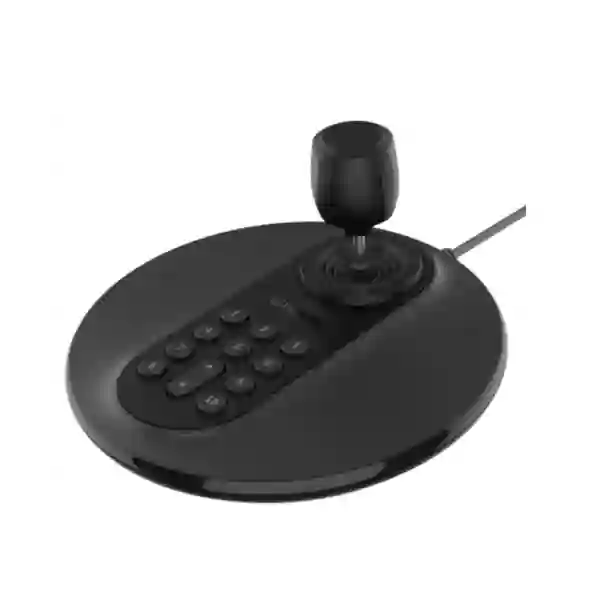
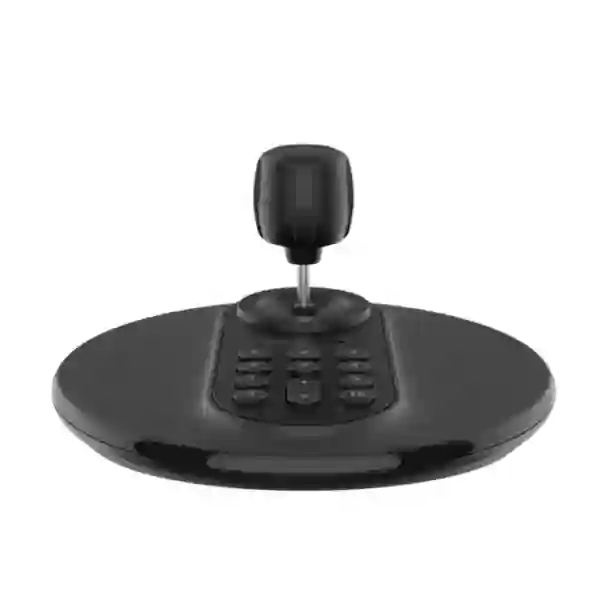
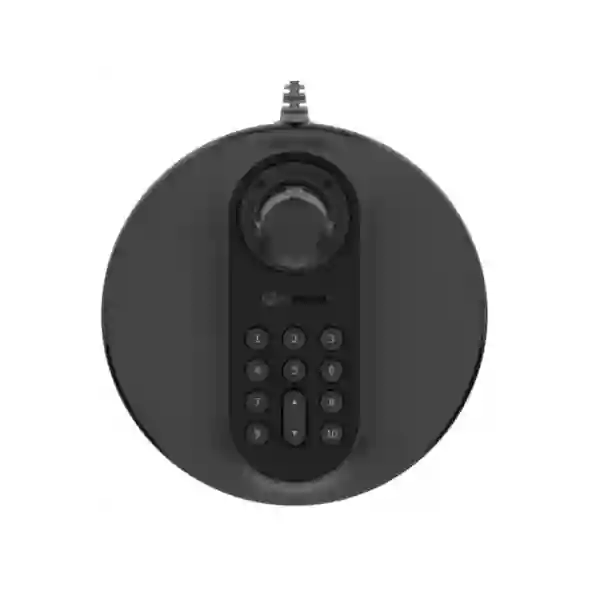
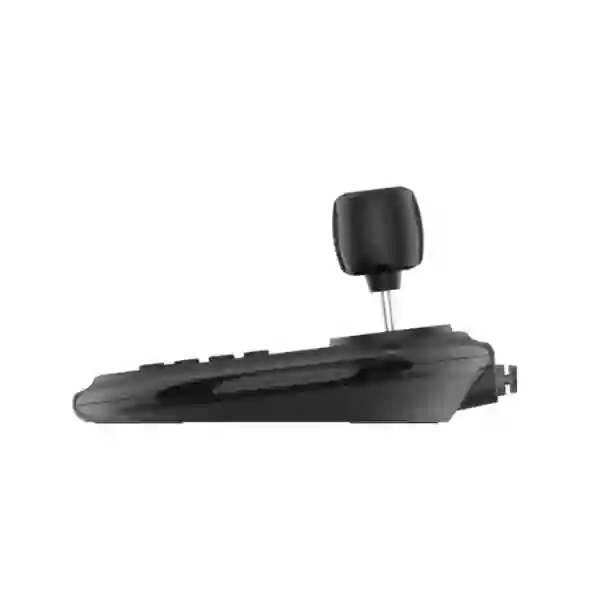
Give supported PTZ surveillance operations a dedicated physical control surface. The Hanwha SPC-2001 combines a three-axis Hall-effect joystick, twelve buttons and USB connectivity for compatible monitoring software and selected recorder workflows. Confirm your exact host and camera system before ordering for Tanzania.
Key capabilities at a glance
3-axis Hall-effect joystick
For directional physical input in supported PTZ workflows.
Twelve buttons
Application-dependent control actions and mode functions.
USB-powered desktop design
Four-pin USB Type-A interface, with nominal 5 V DC supplied by the host.
Compatibility must be checked
PC software and supported direct-to-NVR use are different deployment paths.
Need a straightforward buying answer? Use this joystick when compatible software or an explicitly supported NVR will interpret the USB input and the operator regularly moves PTZ cameras. Do not order on the assumption that every recorder USB port or every camera brand supports it.
Official SPC-2001 technical specifications
These specifications describe the hardware itself. They should not be confused with compatibility promises for an entire surveillance installation.
| Characteristic | Manufacturer specification |
|---|---|
| Model | Hanwha Vision SPC-2001 |
| Product type | USB three-axis joystick controller |
| Joystick mechanism | Hall-effect, three axes |
| Buttons | 12 |
| Interface | Four-pin USB Type-A |
| Input software driver | Standard DirectX DirectInput drivers |
| Nominal operating voltage | 5 V DC via USB (±0.5 V) |
| Operating current | 50 mA |
| Operating temperature | 0 °C to +40 °C |
| Operating humidity | 20% to 85% RH |
| Dimensions (W × H × D) | 182 × 182 × 106 mm |
| Weight | 405 g |
| Cable length | 2 m |
| Housing | ABS |
| Colour | Black |
Technical specifications are based on Hanwha Vision product documentation. Exact host functions must be checked against the connected product’s manual.
Before you buy: six practical checks
1. Confirm the exact controlling host
Write down whether the USB connector terminates at a supported PC running Wisenet Viewer, SSM or another verified VMS, or at an NVR with direct controller support. Record complete model and version identifiers.
2. Define the camera actions that matter
Separate required pan, tilt and optical zoom from nice-to-have preset access, layout switching and navigation. State which cameras support each action, so the acceptance test follows the actual project.
3. Test the real user account
Use an ordinary operator account rather than assuming an administrator’s successful test proves every shift will work. Verify PTZ permissions, camera selection and access restrictions under the account intended for daily use.
4. Measure the physical installation
Check the 182 × 182 mm desk footprint, the 106 mm device height and the route of the two-metre USB cable. Plan a protected surface where the mouse remains reachable and the cable is not under tension.
5. Document the working configuration
Record the software build, recorder firmware when relevant, controller settings, chosen operating mode and effective button map. Save the results alongside the site handover and training material.
6. Clarify commercial terms independently
Ask for a current Tanzania-specific quotation identifying the exact model, quantity, supplied items and any associated integration services. Do not use overseas retail pricing to infer local cost or availability.
A practical answer for PTZ operators
The Hanwha SPC-2001 is a desktop USB joystick for operators who need a tactile way to move compatible pan, tilt and zoom cameras. It is most relevant when live monitoring involves following movement, changing a viewpoint or responding to an incident while a video management application remains open. Rather than replacing the cameras, recorder or management software, it adds a physical input method to an already compatible surveillance environment.
A good buying decision starts with the software or recorder that will receive the joystick commands. Hanwha lists PC-based compatibility with systems including SSM and Wisenet Viewer, while separate manufacturer information addresses particular direct-to-NVR deployments. The controller should be selected for the complete workflow, not simply because the camera has a PTZ motor. Ask which application, release and device model will interpret its inputs before purchasing.
What the controller changes at an operator desk
During an active monitoring shift, mouse-driven camera movement can require switching between a video tile, an on-screen control panel and other application windows. A joystick can make selected camera movements more direct once the host application is correctly configured. That difference matters most for frequently used live views; an operator who rarely moves a fixed camera may gain little from a separate control surface.
The SPC-2001 does not provide video decoding, recording storage or an independent network path to a camera. A compatible PC application or supported recorder remains responsible for selecting camera feeds, controlling permissions and sending PTZ commands. Treat the joystick as an input accessory. That distinction helps buyers avoid expecting a USB peripheral to manage an entire CCTV installation on its own.
Understanding three-axis movement
The stated Hall-effect three-axis joystick gives the operator three physical dimensions of input. In a supported PTZ workflow, these can correspond to horizontal pan, vertical tilt and zoom interaction. The exact response, direction and availability depend on the camera and the connected host system. A functional test should therefore include slow directional movement, return to centre and the intended zoom command rather than just confirming that the USB device appears.
A three-axis control can be valuable when tracking activity across an entrance, yard or production space because the operator need not continuously drag a software slider. Nevertheless, a joystick cannot add optical zoom to a camera that lacks it or override configured movement limits. Camera motion speed, latency and preset behavior must still be assessed as properties of the camera-plus-software installation.
Hall-effect control without exaggerated claims
Hanwha specifies a Hall-effect mechanism for the three-axis joystick. This identifies the input technology used by the controller, but it should not be converted into unsupported promises about lifetime, accuracy, ruggedness or maintenance-free operation. For procurement, the stronger fact is that this is the manufacturer’s specified control design for the model. Practical feel should be assessed by the people who will use it every day.
Ask an installer to demonstrate small directional adjustments, a controlled sweep and a return to neutral. If movement overshoots the area of interest, investigate camera control settings, connection delay and operator technique before assuming a physical defect. Different camera models can respond differently to the same operator gesture, so a demonstration with the actual intended camera is more informative than a generic desktop demonstration.
The role of twelve buttons
The manufacturer specifies twelve buttons, allowing a supported application to expose functions beyond directional movement. However, the meaning of each button is not universal. It may change between Wisenet Viewer, SSM and supported NVR environments, and it can depend on mode. Buyers should not assume that twelve buttons guarantee twelve freely programmable actions or that every camera preset can be reached in every deployment.
During commissioning, prepare a short operator card listing the actual functions available on the installed software version. Include the buttons used to enter or leave PTZ mode, choose a live layout or invoke presets where supported. Check those assignments against the relevant host manual. Clear documentation reduces errors when several operators share one monitoring station or when a new colleague takes over a shift.
USB Type-A and electrical requirements
SPC-2001 uses a four-pin USB Type-A connection and receives its operating power through USB. Hanwha specifies nominal 5 V DC with an allowed variation of 0.5 V and an operating current of 50 mA. In a conventional supported installation, buyers should plan for an accessible USB connection on the controlling PC or supported recorder, not for a separate mains power supply or network cable to the joystick.
A free-looking USB port is not sufficient proof of functional compatibility. Some recorders offer USB ports for storage, mouse devices or service operations without supporting this controller. Confirm the recorder’s exact documentation before ordering. If a workstation uses docking stations, hubs or extended cables, evaluate their device handling in a real test and avoid assuming that every adapter will behave identically.
A two-metre cable in the real layout
Hanwha lists a cable length of two metres. That is a useful starting point for a desktop console beside a monitor and PC, but it may be restrictive in a deep control desk or a shared equipment rack arrangement. Measure the actual cable route, not only the straight-line distance between the joystick and USB port. Leave enough slack for comfortable placement and for service access.
If an extension is contemplated, verify the complete connection using the same controller and host because an untested chain introduces another variable. A neat, protected route also reduces accidental disconnection during a live shift. The cable should not cross walkways, get trapped under furniture or bear the weight of the controller. Stable placement is part of reliable operation, not merely a cosmetic detail.
Dimensions, weight and desk fit
The stated dimensions are 182 × 182 × 106 mm, and the specified weight is 405 g. These figures help teams plan keyboard space, mouse clearance and the relationship between the operator’s chair and viewing screens. The dimensions describe the device, not an installation template or mounting specification. Do not assume the unit is suitable for wall, vehicle or rack mounting without separate verified hardware guidance.
A joystick works best when its operator can move it comfortably without reaching past keyboards, radios or other controls. Before procuring several units, mark out the footprint on a typical desk and observe the intended movement path. This simple exercise helps determine whether a dedicated PTZ station, a shared workstation or a larger console arrangement will give personnel the least obstructed workflow.
Specified operating environment
The official environmental specification is 0 °C to +40 °C and 20% to 85% relative humidity. That describes the manufacturer’s operating conditions for the unit; it does not establish outdoor suitability, waterproofing or protection against dust and liquid spills. The controller belongs in an appropriate sheltered operating area unless other manufacturer documentation explicitly supports a different use.
For deployment planning in Tanzania, consider the actual room temperature and humidity rather than assuming every surveillance room is air-conditioned. Direct sun on a console, poorly ventilated enclosures or damp service rooms may create unsuitable conditions. Where the operating site is particularly hot or dusty, plan a protected operator space and confirm environmental suitability before procurement.
How Wisenet Viewer fits
Hanwha’s Wisenet Viewer documentation identifies SPC-2000 and SPC-2001 among supported controllers for specified software versions and describes controller setup within local system settings. The manual also documents PTZ and screen-related operation. This provides a credible PC-based use case, but users must still validate their installed release, operating system and connected recorder configuration. Product naming alone is not a substitute for a version check.
A sensible evaluation uses the actual viewer installation and one representative camera. First ensure the application recognizes the controller, then enable the applicable option, select a live camera and test the functions expected by the control-room team. Record which controls are available and whether they work consistently. These steps turn a broad compatibility statement into evidence specific to the planned installation.
Wisenet Viewer modes and operator expectations
In documented Wisenet Viewer configurations, the controller can operate in PTZ and screen modes. PTZ mode concentrates on camera movement and camera-specific operations, while the screen-oriented mode changes the way the application display is navigated. Button behavior is defined by the viewer manual, not by a universal hardware convention. Training should therefore make mode changes visible and repeatable.
An operator may otherwise think a camera has stopped responding when the controller has merely been placed in another mode. During handover, demonstrate how to identify the selected camera, enter PTZ mode, perform a movement and return to the normal screen workflow. Keep the documented key assignments near the console. This is especially important when users move between mouse control and joystick control during one incident.
SSM and other PC-based workflows
Hanwha also identifies SSM as a relevant PC-based management environment for SPC-2001. The value of this path depends on how that organisation uses SSM, what version is installed and which supported functions the operator needs. A joystick may be worthwhile for a live-monitoring desk that frequently operates PTZ cameras, whereas a workstation used mainly for playback or reporting may not require the same input device.
Do not assume button maps, preset handling or window navigation match Wisenet Viewer exactly. Ask the integrator to use the correct SSM console documentation for the deployed version and to demonstrate the complete operation. The purchasing decision should be based on the specific job to be performed, including camera selection, movement, zoom and recovery from a mistaken mode change.
Wisenet WAVE and version checks
Hanwha’s regional product information also describes PTZ control scenarios involving Wisenet WAVE VMS. That gives the model a possible role in a WAVE-based desk, but it does not verify every release, operating-system combination, camera or controller function. If WAVE is the intended software, check the current vendor compatibility documentation for that exact version and arrange a practical acceptance test.
A useful test includes discovery of the USB device, control of the selected PTZ stream, zoom response and behavior after the VMS is restarted. It should also clarify which functions still require a mouse or keyboard. Do not budget for a joystick as though it replaces application licensing, workstation setup or ordinary VMS administration. It complements those elements only where the installation supports it.
Direct NVR connection is conditional
The USB ports of a recorder do not automatically guarantee SPC-2001 support. Hanwha support guidance distinguishes the traditional PC-and-CMS arrangement from certain x86 Intel-based NVR products and cites PRN-6400 as an example of direct-USB compatibility. This is a model-specific distinction, not a promise that the controller will function with all Hanwha recorders or with recorders from other brands.
For buyers using an NVR without a separate operating PC, the recorder model and its firmware should be confirmed before purchasing. Ask for the exact NVR manual and its joystick-related instructions, including USB recognition and permitted controls. Where there is uncertainty, a demonstration on the intended recorder is safer than relying on the presence of a USB socket or a general statement about PTZ support.
PTZ and general-control modes on a supported NVR
A Hanwha support article explains that, in its documented NVR workflow, button 9 switches between PTZ and general-control modes. It notes that a camera may still need to be selected with the mouse before joystick PTZ operation. General-control actions include functions such as changing a layout or opening search, with certain tasks still requiring mouse input. These examples are tied to the documented environment.
The operational lesson is important: a USB joystick is not necessarily a self-contained replacement for an NVR mouse. Plan desk space and staff training accordingly. Because recorder interfaces and firmware may vary, verify the current exact-model manual rather than treating a support article’s button map as a universal specification for every installation.
Two credible deployment architectures
The first architecture uses SPC-2001 connected by USB to a compatible monitoring PC. The PC runs a supported Hanwha application, displays the camera feeds and processes the controller’s input. The second possible architecture uses a supported NVR that explicitly accepts the controller directly through USB. Both are genuine concepts, but they have different compatibility tests, cabling arrangements and responsibilities.
Choose the route that already fits the site’s control workflow. If staff monitor several locations through a PC client, the PC-based path may align naturally with the existing interface. If staff primarily use an NVR’s local monitor, confirm direct-controller support for that recorder before choosing the second path. Neither architecture eliminates the requirement for compatible PTZ cameras and appropriate user permissions.
Distinguish controller support from camera support
There are several compatibility layers to examine separately. First, the host device must recognise SPC-2001. Second, the management application or NVR must support the controller’s input mapping. Third, the target camera must expose the PTZ operations required by the operator. Finally, the configured user account must have permission to issue those operations. A failure at any layer can look like a defective joystick.
A successful procurement test should therefore avoid a vague statement such as ‘USB connected’. Instead, document the host model and version, application settings, camera models, user role and observed results for pan, tilt, zoom and other critical actions. That record provides a basis for commissioning, staff training and future software upgrades.
Physical PTZ versus digital viewing
An operator might move a mechanical PTZ camera, call a camera preset or perform digital movement inside an image, depending on the camera and software. These are different functions, even when the on-screen result appears similar. SPC-2001 is an input controller; it cannot transform a fixed lens into an optical PTZ camera or add motorised movement to hardware that does not contain it.
Before purchase, list the actual cameras expected to respond and the available commands on each one. A system with mixed fixed and PTZ cameras may have only a subset of views suitable for joystick movement. Knowing that subset helps the customer estimate real operator value and avoids assigning hardware to workstations where most footage remains fixed.
Camera selection before movement
A joystick can only control the intended camera reliably when the host software has identified the active stream or tile. In some supported NVR guidance, selecting that camera remains a mouse action. On a multi-camera wall, this creates a potential operator error: a movement command may go to a camera other than the one the operator was watching. A clear selection routine is therefore part of safe use.
During commissioning, rehearse changing from one camera to another and confirm the system’s visual indication of the active tile. Staff should learn to glance at the selected camera name or border before moving the joystick. That small habit can prevent misplaced camera views during busy periods and can help preserve coverage of important fixed areas.
Presets and repeatable viewpoints
Many PTZ workflows use camera presets to return quickly to a gate, doorway or other repeatedly monitored area. Whether a specific preset can be triggered by an SPC-2001 button depends on the host application and camera configuration. Hanwha’s Wisenet Viewer manual describes preset-related button operations for supported mode and camera combinations, but that should not be generalised to all environments.
For an installation that relies on presets, define the desired views and verify how they are saved and recalled in the actual software. Test one preset at a time, then document the final key assignments. An operator should know whether an action moves a mechanical camera, switches a software layout or has no effect in the current mode. Clear labels matter more than a long list of theoretical capabilities.
When a mouse remains essential
The SPC-2001 is best understood as a complement to the established operator interface. Staff may still need a mouse for selecting cameras, adjusting settings, responding to dialogs, changing permissions or performing export tasks. Hanwha’s NVR support notes explicitly identify some functions that retain a mouse dependency. A buyer should not count the controller as a complete keyboard-and-mouse replacement.
A well-designed desk therefore places the joystick where it can be used without making the mouse difficult to reach. Standardise the arrangement across similar consoles so that relief operators can move between them easily. If the task involves frequent reporting, investigation or complex playback, test whether the joystick materially improves that particular part of the day.
Control-room incident response
Consider a monitoring operator observing an access route. An event draws attention to a compatible PTZ camera, the operator selects that live view and uses the joystick to follow the area of interest. The value is not a promise of automatic tracking or faster detection; it is the ability to issue manual camera movements through a dedicated physical control where the complete system supports those movements.
For incident-response procedures, decide who is authorised to move each camera and how the team preserves coverage of other zones. A PTZ lens aimed at one incident may no longer show its usual overview. Site procedures should define when to return to an agreed preset and how to coordinate with fixed overview cameras. Good operational discipline is as important as the joystick itself.
Reception, security desks and building entrances
At a reception or guard desk, the relevant question is whether staff routinely need to inspect a changing scene with an existing PTZ camera. For example, an operator may need to look across an entrance approach or return to a known view. The joystick can be a useful option for those actions, provided the workstation and camera are compatible and staff have been trained.
Where the viewing task is limited to a handful of fixed cameras, spending on a joystick may deliver little benefit. The design decision should follow an observation of the daily workflow, including how often views change, how many operators share the seat and whether the software already provides comfortable on-screen controls. Equipment should solve a documented need, not merely add another desk accessory.
Warehouses, yards and logistics facilities
Large facilities can have extensive sight lines and several points of activity, making manual PTZ control relevant in some surveillance designs. A joystick may help an operator inspect a loading area or follow movement between monitored zones. However, the controller does not extend camera range, improve low-light imaging or compensate for a poor camera placement plan. Those are separate system design questions.
Assess the actual PTZ coverage and the positions that need inspection. Test how quickly the chosen camera responds to a change of direction and whether the operator can return to an overview without losing context. If the surveillance room is distant from the equipment cabinet, keep the controller’s USB cable length and workstation layout in mind early in the design.
Campuses, institutions and shared teams
Sites with multiple security personnel may need consistent button instructions and predictable desk arrangements across shifts. A controller can become useful in a shared operations room, but it should not rely on one person’s undocumented knowledge. Create a one-page operating guide that identifies the applicable software, active-camera selection method, PTZ mode, zoom control and escalation procedure for an unresponsive camera.
The team should also understand how permissions affect results. A user may be allowed to view a feed but not move its PTZ camera. That restriction is a system-level security decision rather than a physical limitation of the SPC-2001. Role-based testing helps distinguish access issues from joystick or USB faults before an operator needs the function during an incident.
An acceptance test before a larger order
When several monitoring desks are planned, run a pilot with one representative workstation, one controller and the actual camera mix. Record the software build, operating system, recorder model, USB connection path and each observed button function. Test in normal operational conditions rather than only at an installer’s bench, because software focus, multi-monitor layouts and user permissions can change the experience.
Give the pilot to the people who will operate it and ask them to perform realistic tasks. Can they select the correct live view, pan deliberately, zoom as intended and return to an overview? Do they understand which controls require a mouse? A successful pilot is more meaningful than simply seeing a connected USB device in the operating system.
Step one: capture the existing system
Before installation, note the make and exact model of the NVR or PC, the installed VMS or CMS name and version, the camera models and the operating-system environment. Determine whether the controller will attach to a PC or directly to an NVR. Those details define which manufacturer manual should be used and whether the intended architecture has documented support.
Also identify the designated operator account and the tasks it must perform. This prevents a technician from testing only with a highly privileged administrator account and overlooking restrictions faced by daily staff. Record the test camera and an accepted starting viewpoint so that everyone evaluates the same behavior.
Step two: prepare the desk and connection
Position the controller on a stable, protected surface with unobstructed movement around the joystick. Check that the listed two-metre USB cable reaches the intended port without tension. For a PC-based installation, use the supported connection and software sequence described by the relevant Hanwha instructions. Avoid adding untested hubs, adapters or extensions to the first commissioning attempt.
Keep the original keyboard and mouse available. Confirm that the host has the necessary application installed and that the correct cameras already display and respond to ordinary software PTZ commands. If those base functions fail, correct the host or camera issue first. The controller should be tested only after the underlying camera-control path is working.
Step three: enable and identify the controller
In a Wisenet Viewer environment, use the applicable local system settings to enable the supported controller, following the manual for the installed version. The older official manual notes that a controller connected before application launch can be recognised. Because workflows can change by release, follow the current instructions for the exact software instead of assuming every installation sequence is identical.
Confirm recognition from within the intended application or supported NVR interface, not solely from a generic operating-system device list. Then identify the available operating modes and test a basic motion command on a suitable camera. If recognition succeeds but movement does not, investigate camera selection, permissions and mode before changing hardware.
Step four: map controls and record results
Create a commissioning sheet with separate rows for pan left and right, tilt up and down, zoom, neutral return, mode change, camera selection and any preset or layout operation the site actually needs. Mark each as supported and tested, unsupported or requiring a mouse. This avoids implying that every possible software function is automatically assigned to the twelve hardware buttons.
Repeat the critical commands with the normal operator account and after an application restart. If multiple cameras have different capabilities, test more than one representative camera. Store the completed results alongside the system documentation so future integrators can understand the original working configuration without guessing at button numbers or software versions.
Troubleshooting USB recognition
If the controller does not appear in the intended host application, first confirm the architecture is supported for the exact model and version. Inspect the USB connection and try an appropriate known-working host port where permitted. Check the application’s controller setting and the recommended connection or startup sequence. A supported Windows or Linux viewer path should not be assumed to behave the same on every other operating system.
Avoid making several changes at once. Change one variable, observe the result and record it. That method helps distinguish a physical connection issue from an application setting, compatibility mismatch or permission problem. If the NVR model is undocumented for direct control, the appropriate next step may be to re-evaluate the architecture rather than endlessly swapping ports.
Troubleshooting movement and zoom
If a host detects SPC-2001 but the selected camera does not move, first establish that the camera supports the requested PTZ action. Confirm that the correct tile is selected, that PTZ mode is active and that the user has control privileges. Test movement with the application’s normal on-screen controls. A failure there indicates that the issue may lie beyond the joystick itself.
If manual software control works, compare the actual controller button map with the manufacturer’s guide for the deployed application. Check zoom separately from pan and tilt, because the mechanisms and supported camera actions may differ. Record repeatable symptoms with model and version details before escalating to an integrator or vendor support channel.
Understanding response time and control feel
Operators sometimes describe a joystick as slow or too sensitive when the underlying issue is how the camera, VMS and network respond to commands. The SPC-2001 specification does not establish an end-to-end latency figure for a deployed surveillance system. Any claim about instant response or high-speed tracking would require testing on the actual cameras and infrastructure rather than inference from the joystick alone.
An acceptance test should include short and long movement commands and a check of how quickly the camera returns to an expected viewpoint. Document whether movement is predictable under the site’s normal operating load. If motion is inconsistent, examine the complete path from the host application through the recorder or network to the camera, using normal support procedures.
Security and user permissions
A physical controller does not change the need for secure surveillance-system administration. The connected VMS, CMS or NVR should enforce the appropriate access permissions and be maintained under the organisation’s approved security procedures. Avoid granting all operators administrator privileges merely to make PTZ commands work. Instead, establish which role needs which cameras and functions.
Where camera movement is shared by several workstations, document the site’s rules for taking control and restoring a view. The exact arbitration behavior depends on the software and cameras involved and should be verified. A successful joystick deployment is not only technically functional; it also fits the site’s audit, access-control and incident-handling expectations.
Handling, cleaning and workspace care
The housing material is specified as ABS, with a polycarbonate handle and rubber button cover. Those details describe construction; they do not confer a particular environmental protection rating. Keep food, liquids and loose debris away from the controller, and follow the manufacturer’s maintenance guidance for safe handling and cleaning. Avoid using a cleaning chemical or method that has not been approved for the equipment.
Inspect the desk cable path during routine workstation checks and ensure the controller is not pulled against a table edge. When a joystick behaves unexpectedly, record the symptoms rather than applying force to the mechanism. Site operators should know who to contact for a fault and should retain a mouse-based fallback workflow where the system permits it.
Comparing a USB joystick with a full controller keyboard
Some control rooms require a dedicated controller with additional keys, screens or network and serial control options. SPC-2001 is not automatically equivalent to those larger solutions. It is a compact USB joystick designed for supported host-driven workflows. An important practical distinction is that Hanwha’s current specification lists USB Type-A, not an independent RS-485 or RS-422 connection on this model.
If the requirement includes direct serial control of cameras, extensive stand-alone switching or use without a compatible PC or recorder, investigate a different product class. Compare options by actual installation architecture, supported camera family and required functions rather than by terms such as ‘PTZ controller’ alone. A product with more controls is not necessarily more useful for a workstation that needs only occasional manual camera movement.
Questions for a Tanzania purchasing enquiry
Customers planning a deployment in Tanzania should prepare the exact SPC-2001 model requirement, host software or recorder details, camera list, intended quantity and desired installation arrangement. This information helps establish suitability before commercial terms are discussed. In particular, state whether the unit must connect to a Windows or Linux monitoring workstation or directly to an NVR, as this changes compatibility checks.
Pricing, stock, delivery timelines, warranty terms, import-related charges and service arrangements are not established by the manufacturer’s technical specification. These should be confirmed through an actual Tanzania quotation for the intended supply. The page therefore does not present an unverified local price or promise immediate availability. The practical next step is to request product and compatibility confirmation against the real system.
Procurement checklist for integrators
A complete enquiry should specify the intended controller model, software name and release, PC operating system or exact recorder model, representative PTZ camera models, application permissions, number of operators and desk layout. Include the USB port location, whether the existing cable length is sufficient and whether the customer expects preset access or only basic pan, tilt and zoom.
Ask the supplier or integrator to distinguish documented compatibility from proposed tests. Where software and hardware versions are uncertain, agree what will be demonstrated before sign-off. Make sure the quotation identifies precisely what is included and separately explains any application licensing, integration work or training required. This reduces the chance of a technically correct joystick being delivered into an incompatible control environment.
Planning several consoles consistently
For multi-desk sites, standardisation can be more useful than adding different control hardware at each seat. Define a common controller placement, application configuration, button reference sheet and commissioning test. Consistent interfaces help a relief operator step into a different station and perform a familiar sequence. Any site-specific camera behavior should be highlighted rather than hidden behind a generic handover document.
Plan how a replacement controller would be installed and tested, and keep the installation notes with the workstation asset record. A USB accessory can be straightforward to connect but still depend on the correct host settings. Recording those settings reduces avoidable downtime during workstation replacement, software upgrades or staff changes.
Why exact model identity matters
The model designation SPC-2001 must be kept distinct from other Hanwha controllers with similar names. Specifications and connectivity from a different unit should not be transferred to this one. For example, a buyer looking for a serial PTZ keyboard should not assume this USB model has the same ports or independent capabilities. Always confirm the manufacturer’s exact model before finalising accessories or integration plans.
The target product listing’s SKU is also distinct from a manufacturer model number. Without a SKU explicitly assigned to the exact FourTeck Tanzania listing, it would be misleading to copy a dealer’s internal item code or invent one. The appropriate identification in this description is the verified Hanwha SPC-2001 model; commercial listing identifiers can be added only when supplied by the intended seller.
A final fit decision
Choose this controller when the site has a supported host environment, compatible PTZ cameras and a real requirement for tactile manual control. It is a particularly plausible accessory for staffed live-view operations where camera movement is a regular task. It may be unnecessary for fixed-camera-only environments, installations requiring a stand-alone serial keyboard or recorders with no verified direct joystick support.
Before approving a purchase, ask for confirmation of the host, application version and camera workflow, then arrange a representative functional demonstration where compatibility is not already documented. This practical approach protects the buyer from two common mistakes: buying an input device for an unsupported recorder and assuming a joystick can provide functions that the installed camera or application does not expose.
Frequently asked questions
These answers are intended to make the controller’s role clear and help buyers distinguish confirmed hardware features from host-dependent software functions.
What is the Hanwha SPC-2001?
It is a USB-connected three-axis joystick controller from Hanwha Vision, intended to provide physical input for PTZ operations through supported surveillance software or compatible recorders. It is not a camera, a recording device or an independent network camera controller. The receiving application or recorder and the camera must support the commands an operator wants to use.
Does it work with Wisenet Viewer?
Hanwha documentation identifies SPC-2001 among supported controller models for specified Wisenet Viewer versions and describes configuration within the application’s local settings. Confirm the software version and operating-system environment for the intended workstation, then test recognition, PTZ mode and the necessary camera functions before relying on it in live operations.
Can I connect it to any Hanwha NVR?
No. Direct USB support must be confirmed for the exact NVR model and applicable software or firmware version. Hanwha guidance cites certain x86 Intel-based recorders, including PRN-6400 as an example, but that does not make every NVR compatible. A recorder USB port alone does not establish joystick support.
Will it work without a PC?
Only where the specific NVR or other host has documented direct support for SPC-2001. In a PC-based application architecture, a compatible computer and supported viewing software remain necessary. Describe your intended host system when asking for a quotation, rather than assuming the controller operates independently.
Is the joystick powered through USB?
Yes. Hanwha specifies USB Type-A and nominal 5 V DC supplied through that connection, with 50 mA operating current. Use the approved host connection and confirm application recognition. Additional USB adapters or extension arrangements should be tested rather than assumed to have identical compatibility.
How many control buttons are provided?
The manufacturer specifies twelve buttons. The actual commands assigned to those buttons depend on the receiving application, its operating mode and the camera or recorder involved. Check the relevant manual before treating a button as a preset command, search function or layout shortcut.
Can the joystick control zoom?
In a supported PTZ workflow, its three-axis design can support pan, tilt and zoom operation. The actual effect depends on the connected camera’s capabilities and the host application’s mapping. It cannot add optical zoom or physical movement to a camera that lacks those features.
Does the controller replace a mouse?
Not necessarily. Some documented NVR functions still require a mouse for camera selection or other operations. A practical monitoring desk should retain an appropriate keyboard and mouse and treat the joystick as an additional control surface, unless the installed system’s verified workflow establishes otherwise.
What cable length is supplied?
Hanwha’s specification lists a two-metre cable. Measure the workstation layout before purchasing, especially if the host is inside a cabinet or under a deep console. If the route requires accessories, verify the resulting USB connection on the intended host.
Can I use it outside?
The listed operating range is 0 °C to +40 °C with 20% to 85% relative humidity. The specification does not establish outdoor weather resistance. Use it within appropriate sheltered conditions and do not assume an ingress-protection rating that has not been verified.
Is it compatible with third-party PTZ cameras?
Compatibility depends on more than the camera brand. The host software must accept the controller, identify the selected camera and provide the required PTZ commands. A third-party camera may be controllable in some host configurations, but no blanket compatibility claim should be made without testing the exact camera and software combination.
Can several operators share one controller?
A physical unit can be placed at a shared workstation, but the operational suitability depends on desk design, user permissions and the host application. Standardise the login procedure, button guide and selected-camera checks when multiple people use the same console. Confirm how the software handles permissions and competing camera-control requests.
Does it record or store video?
No. The SPC-2001 is an input device rather than a recorder or video-storage product. Recording and playback are functions of the associated surveillance system. A joystick may provide access to certain host controls in a supported mode, but it does not supply recording capacity by itself.
How do I troubleshoot a non-responsive PTZ camera?
First confirm that the correct camera is selected, PTZ mode is active and the user has control permission. Test normal on-screen PTZ controls to distinguish camera or software problems from joystick issues. Then check USB recognition, applicable settings and documented button assignments for the exact host version.
What details should I provide before buying in Tanzania?
Provide the exact NVR or PC model, VMS or CMS name and version, operating system, PTZ camera models, number of controllers required and the intended operator workflow. Ask for compatibility verification as well as a separate commercial quotation. Local price, stock, delivery and warranty conditions should be confirmed for the actual transaction.
Is SPC-2001 the same as an RS-485 keyboard?
No. The current manufacturer specification lists a four-pin USB Type-A interface for SPC-2001. Do not import serial connectivity claims from other controller models with similar names. If direct serial wiring is a project requirement, investigate equipment designed and documented for that architecture instead.
Request SPC-2001 compatibility and quotation details
For a Tanzania purchasing enquiry, share the required quantity, NVR or workstation model, installed VMS/CMS version, camera models and the functions your operators expect. Request confirmation of compatibility alongside current product pricing, supply arrangements and applicable commercial terms. No local stock, warranty or delivery promise is assumed here.
Ask FourTeck Tanzania for a product quotation
Reviews
There are no reviews yet.