
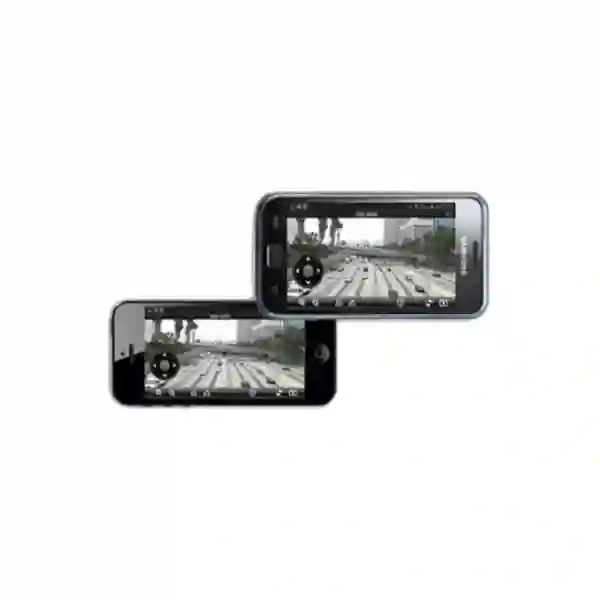
Hanwha SSM-Mobile: Mobile CCTV Access for Legacy SSM Systems
Review live surveillance views, check supported recordings and control compatible PTZ cameras through an established SSM environment. Designed for authorised operators of existing installations, with important server-version and lifecycle checks before deployment.
The decision at a glance
What it does
Mobile access to live views, compatible PTZ control and certain recorded-video functions in an existing SSM environment.
What you need
A matching SSM server generation, authorised account, supported mobile application, connected cameras and approved connectivity.
Before buying
Confirm lifecycle status, app availability and tested compatibility. For new projects, assess currently supported alternatives.
Important compatibility notice
The original Hanwha SSM Mobile manufacturer entry is marked discontinued. The SSM Mobile 1.6 and Wisenet SSM 2.1 mobile app descriptions identify different server-version requirements. Do not assume that any current phone, app release or recorder will work with an unspecified SSM server. A version-matched review is the first step.
What Hanwha SSM-Mobile is — and what it is not
Hanwha SSM-Mobile is a mobile client for an established SSM video surveillance environment. Its practical purpose is to give an authorised person a convenient way to inspect selected security-camera views without sitting continuously in front of the security control room workstation. It belongs to the broader Samsung Security Manager and later Wisenet SSM product family. The viewing application does not itself become the CCTV recorder, store the complete camera archive or replace the server responsible for bringing devices and users into the management platform.
The original manufacturer description lists local and remote connection to SSM, layouts or device lists presented to the user, live video, PTZ control, multi-channel display and basic access security. Those are useful capabilities for supervisors and security teams, but each is dependent on the deployed server, camera, software release, permissions and network configuration. A feature named in an older brochure should not be treated as a guarantee that every current smartphone can perform the same action against every SSM installation.
For an existing Tanzanian deployment, the sensible starting point is identifying what is already installed. Record the server version, mobile client version if known, workstation software, recording devices and the network topology. That information is more useful than the marketing name alone. If the requirement is an entirely new installation rather than maintaining an existing system, evaluate currently supported management and mobile-viewing paths before choosing a legacy client.
Legacy product status and the decision it changes
Hanwha Vision’s original SSM Mobile product page describes the offering as discontinued. This matters because a discontinued listing can still explain how an installed system works, but it does not establish current software maintenance, compatibility with contemporary phone operating systems or entitlement to vendor-assisted technical support. A free app that remains visible in a store is also not proof that the wider management platform is within a current support lifecycle.
Hanwha’s app-store descriptions show that SSM Mobile releases were tied to named SSM server generations. For example, the SSM Mobile 1.6 listing specifies compatibility with SSM 1.6, and the Wisenet SSM 2.1 mobile listing states that it is for the Wisenet SSM Core Server 2.1 generation. That is a critical distinction: the label SSM mobile describes a family of client applications, not a universal mobile connector that automatically negotiates all generations.
The most useful purchasing question is therefore not simply whether a phone can download an app. It is whether the combination of server build, client release, phone OS, camera devices, authentication policy and remote-access method can be supported responsibly today. Where that combination is uncertain, seek a documented compatibility assessment and consider a migration plan. A discontinued label should be made visible during evaluation, never concealed behind claims of a new or fully supported product.
Who benefits from mobile access to an SSM system
Site managers may need to check an entrance or perimeter after an alarm. A security supervisor might confirm whether a guard has a clear view before coordinating a response. A facilities lead could inspect a restricted area while away from the control room. These are examples of operational needs, not claims that one app alone provides incident verification, analytics or emergency response. The organisation’s procedures and the evidence available from its own camera system remain decisive.
Mobile access is especially relevant where multiple authorised people share responsibility for a larger CCTV estate but do not all require a full-time console. A lightweight viewing role can help separate an occasional remote review from continuous monitoring. The role should have carefully selected devices, retention-aware playback rights and a documented escalation procedure. A mobile screen is well suited to quick visual checks, but it is not always appropriate for prolonged multi-camera observation or detailed forensic review.
Before enabling remote viewing, establish who may use it, from which devices and for what purpose. A warehouse operations manager, a hotel security manager and a facility maintenance supervisor may legitimately need different camera groups and different playback rights. Permissions should be assigned according to duties, privacy obligations and the organisation’s own policies. Those choices matter more to an effective deployment than enabling every available screen or exposing every recorder to every user.
Live viewing: what the operator should expect
The original SSM Mobile feature set includes viewing live video from connected devices and arranging views through layouts or device lists. The original product page also states support for 16-channel multi live monitoring. That is a stated application feature, not a promise that sixteen high-resolution streams will run smoothly on every connection, phone or server. The practical number of useful simultaneous pictures depends on stream selection, rendering performance, device capability and network conditions.
A well-designed mobile workflow begins with a small set of priority cameras. For a supervisor, that might mean an entrance, loading point and incident location instead of an unfiltered catalogue of hundreds of channels. A readable layout helps the operator understand which camera is being viewed and where it is positioned. A person should be able to move between a summary view and a larger single-camera picture without confusing one camera feed for another.
Live viewing should also be tested under the conditions in which it will be used. An on-site Wi-Fi demonstration does not prove that the connection will perform adequately from a mobile network elsewhere. Check initial connection behaviour, image delay, stream stability and what the user sees during temporary interruptions. Operators should know that a frozen image, delayed stream or blank tile is not reliable evidence that nothing is happening on site.
PTZ control and the limits of interactive video
Hanwha lists pan-tilt-zoom control as a supported SSM Mobile capability. Where the connected camera and permissions permit it, an authorised operator can change the direction or zoom of the view rather than relying solely on a fixed picture. That can help examine a scene, although PTZ movement is only available where the camera, server integration and user role support the relevant command. Digital enlargement of an image is not the same as optical movement of a PTZ camera.
PTZ actions need operating rules. Two people attempting to control the same camera can interfere with each other’s review. An operator might also move a camera away from a position it was expected to monitor. Define who has priority, whether preset positions may be used and when a camera must return to its normal view. For sensitive areas, use role-specific rights and ensure that mobile users do not gain control merely because they can see the live stream.
During commissioning, test movement on each intended PTZ model instead of treating PTZ as a universal yes-or-no property of the entire site. Verify whether the mobile client allows the required movement, how quickly the picture responds and whether the operator can recognise a failed command. Record any camera for which viewing works but controls do not. That distinction prevents a working video feed from being mistaken for complete control compatibility.
Recorded video, searches and evidence handling
Some version-specific SSM mobile app descriptions identify calendar search, playback and bookmark functions, while Hanwha’s SSM documentation discusses access to recorded material. These capabilities should be verified for the precise mobile client in use. Playback requires the underlying recording system to hold the relevant footage, grant the user access and make the material available through the SSM connection. Installing a mobile viewer cannot recreate video that was never recorded or has already expired from retention.
For a real incident, the first question may be when the event occurred and which camera offers a useful angle. A mobile review can help locate the general period, but legal or internal investigations may require a more controlled export process using the organisation’s approved tools. The mobile viewer should not be assumed to provide every native-file export option, audit trail or evidence-handling feature available on a full console.
Create procedures that separate routine checks from evidential work. Note the site, camera name, approximate time, operator and reason for review. Confirm time synchronisation between recorders, servers and the viewing device so that a timestamp comparison is meaningful. Where recordings are shared or exported, follow documented custody, privacy and retention rules. The fact that video can be viewed remotely does not remove the need to protect the people captured in it.
Understanding 16-channel viewing and actual capacity
The original manufacturer’s SSM Mobile specification lists 16-channel multi live monitoring. It should be read as a feature statement about the named mobile product, not as a specification for the number of cameras an SSM deployment can manage or the number of independent users it can serve. Server capacity, recorder capacity, mobile display tiles and simultaneous remote sessions describe different technical limits, so figures must never be substituted for one another.
On a phone, sixteen small images may be a useful overview but may not show enough detail to confirm an individual’s actions. On a tablet, the same layout may be easier to assess. A deployment should distinguish ‘the client displays a group of channels’ from ‘an operator can make an operational decision using those images’. Camera naming, image contrast and the chosen grid often matter as much as the nominal maximum tile count.
Where site safety or response depends on seeing a particular scene clearly, prioritise the appropriate full-screen camera view. Test stream changes under realistic network traffic and verify what happens when a channel cannot load. Some systems offer alternative profiles or lower-bandwidth streams; whether the exact client can select or benefit from them depends on configuration. Document the verified viewing behaviour instead of promising a constant frame rate or image quality.
Connection methods: local network and remote access
The legacy SSM Mobile product description identifies both local and remote connections and compatibility with dynamic domain naming services, commonly abbreviated DDNS. Local access normally means a user can reach the authorised SSM environment from the site’s network. Remote access introduces additional design decisions: how the mobile client finds the server, how identity is checked and which traffic path is allowed. DDNS assists with addressing; it is not, by itself, an access-control or encryption guarantee.
A later Hanwha Vision Europe support article describes adding an SSM server to Wisenet Mobile using Wisenet DDNS. That article is useful evidence that a manufacturer-documented connection route exists for certain installations, but its instructions are not universal settings for every SSM generation. A connection recipe for one client and server combination should not be pasted into an unrelated deployment without checking its documentation, firmware and cybersecurity implications.
Before enabling off-site access, decide whether remote viewing is necessary, identify the organisation’s approved connectivity architecture and have a qualified administrator review the exposure of any service. Prefer an approach aligned with current vendor guidance and security policy. Test both authorised access and access denial. Never treat successful video display as the only commissioning result; an exposed or over-permissive surveillance server may represent a much larger risk than a temporary failure to connect.
The SSM Core Server is a prerequisite, not an optional extra
Version-specific mobile listings explain that the relevant Samsung Security Manager or Wisenet SSM Core Server must already be installed. The mobile app is a client of that management environment. For buyers unfamiliar with video management software, this is the key architectural distinction: the app provides a viewing interface, while the configured platform controls device registration, users and access to camera feeds or recordings. It does not transform an arbitrary standalone camera into a managed SSM system.
An organisation considering a site upgrade should inventory the server software, supported devices, storage and network paths together. A recorder that is visible in a local console is not automatically reachable from a different generation of mobile viewer. A working login may also be insufficient if the user has not been assigned a site, layout or camera group. Successful operation requires the server’s configuration and the mobile application to agree on the functions being requested.
IT teams should record the installed version and build directly from the system administration interface or licensed documentation. Keep this information in a controlled asset register together with the administrator responsible for the installation. Do not post usernames, passwords or sensitive network details in an open quotation form. A supplier or integrator can often begin a compatibility conversation using a version number and a high-level topology rather than receiving operational secrets.
Why server version matching matters
The app marketplace contains separate products labelled for SSM 1.5, SSM 1.6 and Wisenet SSM 2.1. The vendor descriptions explicitly state version-specific compatibility, which is why SSM-Mobile should not be advertised as a single always-compatible download. Naming and supported functions evolved as the SSM software family changed. The presence of H.265 in some later app descriptions, for example, should not be carried backwards into the original manufacturer’s H.264/MJPEG product specification without release-specific evidence.
When a customer says ‘the SSM app does not connect’, the first troubleshooting step is to identify which exact app is installed and which server release is running. A user may have selected an app intended for a newer generation, or a server upgrade may have changed the supported client path. Operating system updates can add another variable. Neither an app name nor a generic statement that a phone is Android or iOS is sufficient to establish current compatibility.
Keep a simple compatibility record with four columns: server product and version, mobile app and version, phone operating system and version, and verified features. Populate the results through supported vendor guidance and actual testing. This approach avoids repeating old assumptions every time a handset is replaced. If the current system cannot be maintained securely, use the findings to plan an approved migration rather than attempting undocumented workarounds.
Video formats, profiles and transcoding
Hanwha’s original SSM Mobile listing names H.264 and MJPEG, while later version-specific app descriptions mention H.265 as well. Treat these as release-specific statements rather than a common promise for every product bearing the SSM name. Actual playback also depends on the source camera, server path and configured stream. A codec named in a specification does not establish that a particular camera’s profile, resolution and settings will behave correctly on a given phone.
The original listing also refers to multi-profile support and transcoding. In practical terms, surveillance systems may offer streams tuned for different uses, and transcoding can adapt video for a constrained mobile connection where the relevant components support it. These mechanisms may improve the viewing experience, but they also introduce configuration and performance considerations. Do not guarantee that a high-bitrate or high-resolution camera will automatically become smooth on a weak connection.
A deployment review should identify the cameras users actually need, the expected network conditions and the source profiles available. Measure whether the selected view is clear enough for its operational purpose, rather than pursuing a headline resolution alone. Consider bandwidth shared with other applications and the impact of multiple users accessing the same site. Keep any stream changes within the camera and management software’s documented capabilities.
Mobile-network performance in Tanzania
Remote surveillance depends on end-to-end connectivity, not merely on whether the phone shows a mobile-network symbol. Conditions can vary between buildings, operators, routes and periods of heavy use. A site might have an adequate broadband connection for the CCTV control room but insufficient upstream capacity for many simultaneous remote video streams. A phone may also switch between Wi-Fi and mobile data during an incident, revealing session behaviours that a short office demonstration does not expose.
For a Tanzania deployment, begin with measured connectivity at the actual premises and at the places where authorised operators expect to work. Test a priority camera using an approved remote-access path, note connection time, image quality and interruption behaviour, and repeat on a representative mobile connection. This is more reliable than an unverified claim that one cellular network or locality will always support a specific stream configuration.
Where bandwidth is constrained, consider smaller monitoring groups, appropriate stream profiles and clear expectations about latency and picture quality. Ensure that network design decisions do not weaken access security. Mobile data charges and organisational device policies may also influence how often video is viewed; verify those arrangements independently rather than assuming any particular tariff. An effective system is one users can reach when genuinely needed without confusing an intermittent picture with real-time certainty.
Security, credentials and device governance
Surveillance footage can reveal sensitive business activities and the movements of employees or visitors. Mobile access therefore needs a security model, not simply an app installation. The original SSM Mobile specification names an application password function, but this should not be represented as proof of modern multifactor authentication, end-to-end encryption or compliance with any particular standard. Those properties require version-specific verification and the right surrounding infrastructure.
Assign named accounts according to the capabilities of the installed SSM platform, use appropriate unique credentials, limit access by role and revoke permissions promptly when responsibilities change. Decide how approved devices are enrolled, protected, lost and retired. Where a company’s endpoint-management policy supports it, include screen-lock requirements and a process for responding to a missing phone. Do not distribute shared administrator credentials to multiple guards as an easy substitute for account governance.
Review remote connectivity with the IT or security administrator before changing firewall rules. A public-facing camera-management service can create risk even if it appears convenient. Confirm relevant current vendor advisories, supported releases, connection encryption and logging capabilities, and use security controls that are appropriate to the deployment. Define an incident response path for suspected account compromise. A secure mobile viewer is part of a managed system, not a shortcut around that system.
Layouts, camera naming and user permissions
Hanwha’s original SSM Mobile description identifies per-user layout or device-list viewing. This can make a complex estate easier to navigate: a receptionist might need entrances, a supervisor might need a perimeter group, and an authorised maintenance lead might need equipment areas. The layout should reflect an actual responsibility and should avoid showing every camera simply because a server has made it available. Users benefit from predictable names and a consistent hierarchy.
Good camera naming makes the difference between ‘Camera 17’ and a recognisable location such as ‘Loading Entrance West’. Keep names aligned with the organisation’s approved location plan, and avoid naming conventions that expose sensitive security information unnecessarily. Review whether cameras have been moved, removed or renamed after refurbishment. A layout that silently points to an obsolete or relocated viewpoint can be more misleading than an obviously disconnected channel.
Rights should be tested using a normal operator account, not only the administrator’s account. Confirm the user can view the intended cameras, cannot access excluded views and sees appropriate playback or PTZ options. Document which permissions are essential for the job and which are intentionally disabled. This reduces support effort and helps ensure that a mobile convenience feature does not broaden access to footage beyond a legitimate operational need.
Commissioning checklist before approving mobile access
Start with a technical inventory: the name and version of the SSM server, its supported client requirements, the installed application release, the operating-system version on the phone, and the exact camera or recorder types involved. Confirm whether the manufacturer still supports the combination. If the product is part of a legacy installation, distinguish documentation that describes what it originally did from current security support and app-store compatibility.
Next verify the experience with an authorised test user. Connect on the approved local network, open the assigned layout, check a live camera, attempt an authorised PTZ command where relevant, and confirm whether a known recorded time can be reviewed. Test what happens when permission is denied, a camera goes offline and the connection switches networks. Capture results without exposing real usernames, passwords or private camera images in an unsecured test record.
Finally confirm responsibilities after handover. Record who administers server accounts, who updates the app and phones, who reviews security notices, and who is contacted when an incident affects monitoring. Provide a short guide that states what the mobile client can and cannot be used for. Include an agreed review date for legacy technology. Commissioning is not complete merely because the first test picture appears on a phone.
Diagnosing a connection that fails
When the app cannot reach the SSM system, separate the possible causes rather than changing every setting at once. Confirm that the server is running and that a supported local client can reach it. Then verify that the particular mobile app release is intended for that server generation. Check the user account and permissions, the approved network path and the host or DDNS details. A wrong version pair can look much like a networking failure from the user’s perspective.
If the application connects but shows an empty device list, confirm the user’s site and camera assignments before investigating codecs. If live images are available but playback is missing, verify recorded footage exists at the selected time, that playback is permitted and that the relevant client supports the requested function. If a PTZ camera displays video but ignores movement, check camera capability and PTZ rights. These symptoms point to different parts of the configuration.
Use system logs and vendor documentation where available, and record each change so it can be reversed. Avoid copying internet advice that recommends exposing arbitrary ports or reducing authentication requirements simply to make a connection succeed. When the deployed version is beyond the manufacturer’s supported lifecycle, treat recurring connection problems as a signal to assess modernisation as well as troubleshooting the immediate symptom.
Handling blank, delayed or unreliable video
A blank camera tile may result from a permissions issue, unsupported stream, device fault, server problem or connectivity interruption. The remedy depends on which part of the video path fails. Compare the same channel in an approved workstation client and then, if appropriate, test a simpler stream profile on the mobile client. Record whether the problem affects one camera, one site, all users or only a particular handset.
Delayed video is particularly important when remote viewing influences a security response. A person watching a few seconds behind the scene must not mistake that video for a current view. Ask operators to recognise visible connection indicators, stalled time stamps and unusually long switching delays. A stable image does not prove that the feed is live. Incident procedures should include an alternative verification channel when remote video is uncertain.
For repeated failures, evaluate upstream bandwidth, wireless reliability, supported codec profiles, server capacity and phone performance as separate variables. Do not imply the mobile app can solve inadequate storage, a failing recorder or an unreliable site internet link. Keep troubleshooting grounded in the actual system configuration. If changing an encoding setting affects recording quality or retention, involve the recording-system owner before making that change.
Comparing SSM Mobile with Wisenet Mobile and modern options
The legacy SSM Mobile name should not be confused with the current Wisenet Mobile application or the version-labelled Wisenet SSM clients. Hanwha’s public material describes Wisenet Mobile as a mobile viewer with its own supported product families and features. The company has also published instructions for connecting an SSM server to Wisenet Mobile in certain configurations. These are related ecosystem products, but their names alone do not establish interchangeability.
Customers evaluating an upgrade should ask whether the existing recorder and cameras are supported by the proposed modern client, whether required playback and PTZ controls remain available, and what authentication and remote-connectivity design is recommended. Consider whether management functions belong in a dedicated VMS, recorder viewer or larger site security platform. A direct mobile app replacement is not always sufficient if the Core Server, operating system or other infrastructure is also obsolete.
Use a requirements-based comparison: essential camera groups, number and roles of remote users, live versus recorded viewing, incident procedure, security requirements, maintenance ownership and budget. Then verify candidate software against current official documentation. Avoid assigning unverified subscriptions, prices, new capabilities or migration guarantees to any replacement. The most suitable path may be continued limited use with controls, an upgrade within the SSM family, or a separately assessed platform migration.
Tanzania buyer guidance: maintaining an existing CCTV estate
For businesses in Tanzania, the practical purchasing decision begins with the condition of the current installation. A legacy SSM system may still be operational, yet its mobile component may rely on a phone app or server release whose maintenance status deserves review. If continuity of monitoring is essential, plan changes carefully and retain a verified fallback. Do not replace a control-room workflow with an untested phone-only process.
Specify the business outcome rather than simply requesting a download. For example, an authorised site supervisor may need to review two entrances outside office hours, while a head-office security team may need visibility across separate sites. Those are different designs with different network, permission and support requirements. Include local internet reliability, power continuity at the server, access-control ownership and the organisation’s internal data-handling rules in the assessment.
No Tanzania stock position, local installation entitlement, fixed price, licence term, regulatory approval or service coverage is claimed for this product. Such details need confirmation for the actual proposed transaction and deployment. Ask FourTeck Tanzania to review the available system information and explain the options that can be verified. A careful consultation is preferable to ordering software on the assumption that an original discontinued mobile client constitutes a current commercial package.
What information to prepare for a compatibility review
Collect the exact SSM product generation and Core Server build, the names and versions of any mobile clients already installed, the operating systems of the intended phones or tablets, and a simple description of the camera and recorder estate. Note whether users require on-site viewing only or approved remote viewing from outside the site. These details help narrow the compatibility problem without requiring a public disclosure of private network credentials.
Describe the specific functions that matter: live view, sixteen-channel overview where suitable, PTZ movement, calendar playback, camera layouts, or access for more than one user. Also identify which features are genuinely required and which would merely be convenient. A small number of priority cameras may be enough for supervisors even if the wider recording estate is extensive. Provide evidence of current behaviour where practical, but redact faces and confidential locations from screenshots.
Before contacting a supplier, have an internal owner approve any information shared. Do not send passwords, recovery codes, private certificates, public IP configurations or recording extracts through an unverified channel. The initial conversation should answer whether the deployment is legacy maintenance, troubleshooting or a new platform selection. Then request a documented recommendation identifying the server-app pairing, supported features, outstanding risks and required testing.
Practical limits, responsibility and next action
SSM-Mobile is an interface to a larger surveillance environment; it should be assessed on that basis. It cannot compensate for cameras that are offline, retention that has expired, network links that repeatedly fail or user privileges that have not been assigned. Nor does a feature list prove secure access on a present-day phone. Use the manufacturer’s original capabilities as a historical product baseline and verify every crucial operational expectation on the exact installation.
A reliable mobile CCTV workflow has two layers: a working technical route to the authorised views and a clear operational procedure for what staff do with those views. Staff should know how to verify that pictures are current, when to escalate an alert, how to protect footage and when to return to a full console. Ensure the organisation does not mistake occasional remote visibility for continuous professional surveillance coverage.
If you are responsible for an existing SSM environment, request a compatibility-led assessment with the server version, intended phone platforms and priority viewing requirements. If you are planning a new surveillance system, request an evaluation of current supported alternatives rather than starting from a discontinued mobile client. FourTeck Tanzania can be asked to review the requirement and clarify what solution or assistance is available for the specific project, without any assumption of stock, licensing or guaranteed support.
Frequently asked questions about SSM-Mobile
Is Hanwha SSM-Mobile the same as Wisenet Mobile?
No. The original SSM Mobile offering belongs to the SSM management-software family, while Wisenet Mobile is a separately described Hanwha viewing application. Hanwha has documented an SSM connection workflow for Wisenet Mobile in certain deployments, but that does not make the two applications identical. Confirm the supported server generation, exact app release, recorder or camera models, and required functions before using one in place of the other.
Is the original SSM Mobile product discontinued?
Hanwha Vision’s original SSM Mobile product entry is marked discontinued. This describes that original catalogue offering, not every later Hanwha mobile viewing product. A marketplace download or historical document should not be presented as evidence of active maintenance. Assess support, software updates and cybersecurity requirements for the exact installed version before relying on a legacy deployment.
Does SSM-Mobile work without an SSM server?
The version-specific mobile app descriptions require a compatible Samsung Security Manager or Wisenet SSM Core Server environment. The client connects to an existing managed surveillance system rather than acting as a standalone network video recorder. If you have only an individual camera or NVR, identify the supported viewing method for that device instead of assuming that an SSM client can register it directly.
Which Android or iOS version is supported?
The original manufacturer product page says Android and iOS, but it does not establish compatibility with every current operating-system release. Legacy app listings and modern mobile devices may have different requirements. Check the current marketplace information for the exact app, its release history and the relevant server documentation. Test the actual proposed phone or tablet before treating compatibility as verified.
Can I monitor sixteen cameras at once?
Hanwha’s original SSM Mobile specification states 16-channel multi live monitoring. The usable result depends on server release, permissions, mobile hardware, screen size, streams and network quality. Sixteen tiles on a small display do not necessarily provide enough detail for an operational decision. Confirm the supported layout and test the cameras that matter most to your site.
Does the mobile viewer support PTZ cameras?
The original product feature list includes live video with PTZ control. However, actual movement depends on the connected camera’s functions, the SSM integration and the user’s assigned permissions. It is possible for a camera to show live video while PTZ control remains unavailable. Test the intended camera with a standard user account rather than assuming all movable cameras behave the same way.
Can I watch recordings on my phone?
Some version-specific SSM mobile descriptions include search and playback features. Actual playback requires an accessible recording, appropriate rights and a supported app-server pairing. It is not safe to assume every historical release provides the same timeline, bookmark or export functions. For formal evidence handling, use the organisation’s approved review and export procedure.
Is DDNS enough to secure remote access?
No. DDNS helps a client locate a network destination; it does not replace authentication, encrypted communication, network controls or device security. Hanwha has published specific connection guidance for certain client-server combinations. Have an authorised administrator assess the current vendor instructions and the organisation’s cybersecurity requirements before permitting off-site access to surveillance infrastructure.
Why does the app connect but show no cameras?
Possible causes include missing site assignments, incorrect user permissions, an unsupported client-server pairing or device registration issues. First confirm whether the assigned camera groups are visible in the compatible workstation client and whether the mobile user has appropriate rights. Avoid changing public network exposure simply because a layout is empty; the likely causes need to be isolated methodically.
Why is mobile video slow on cellular data?
Remote viewing depends on upstream site connectivity, mobile signal conditions, network congestion, stream settings and supported transcoding or profile choices. A system that performs well on office Wi-Fi may act differently on a mobile connection. Test a small priority camera group under realistic conditions. Do not assume video is live if time stamps or picture movement appear delayed.
Can old SSM 1.6 clients connect to SSM 2.1?
Do not assume that they can. Hanwha’s marketplace descriptions tie the SSM 1.6 application to its named generation and the Wisenet SSM 2.1 app to the 2.1 Core Server release. Obtain supported compatibility guidance for the exact builds in question. When the pairing is not documented, an approved migration or a different client path may be safer than trial-and-error configuration.
Does downloading the application include a recording licence?
A mobile app listing is not proof of any recording, server or commercial licence entitlement. SSM server rights, supported device counts, modules and commercial conditions must be verified for the specific environment. Do not base a procurement decision on an assumption that a free viewing download covers the platform’s entire licensing model. Ask for clarification against the existing server or a proposed current system.
Can I use SSM-Mobile for a new CCTV project in Tanzania?
Because the original manufacturer listing is discontinued, a new project should first consider current supported mobile and video-management solutions. Define the cameras, user roles, playback needs and secure network design, then verify compatible products and app releases from current documentation. The legacy page can still help explain existing systems, but should not be treated as a recommendation to deploy an obsolete client.
Does the software guarantee compliance or data privacy?
No such guarantee is established by the product name or original feature list. Privacy and cybersecurity depend on the deployed software generation, approved access controls, configured storage, organisational procedures and applicable legal requirements. Do not assume a legacy app’s password feature provides every modern security capability. Seek appropriate legal, privacy and technical review for sensitive footage and remote access.
What should I send for a FourTeck Tanzania review?
Provide the exact SSM Core Server version, current mobile application if any, intended phone platforms, the camera or recorder types and the functions users need. State whether remote access is required and describe the problem or planned project. Avoid sending administrator passwords or network secrets in an initial request. Ask for a compatibility and support-status assessment before requesting any purchase, upgrade or installation.
How should a business plan for a mobile app becoming unsupported?
Keep an inventory of server versions, phone platforms and approved viewing clients, and assign someone to review manufacturer lifecycle notices. Maintain a controlled fallback to an approved on-site console and document procedures for monitoring outages. Where ongoing security updates or operating-system compatibility cannot be established, plan a tested migration. A migration should preserve essential monitoring and playback requirements without assuming old and new systems are interchangeable.
Request a Hanwha SSM compatibility review
Tell FourTeck Tanzania which SSM server release you use, what viewing functions your team needs and whether your goal is support for a legacy installation or selection of a current alternative. Ask for verified compatibility and availability information before making a purchasing decision. Do not include passwords or private network credentials in a general enquiry.
Next step: contact FourTeck Tanzania through its established enquiry process for a project-specific assessment.
Reviews
There are no reviews yet.