
Business phone accessory • Tanzania buyer guide
HP Poly Edge E Expansion Module
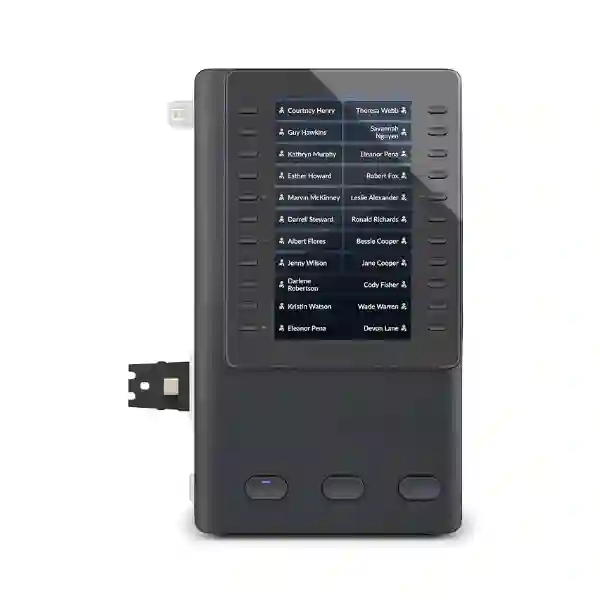
Add a practical call-handling console to a compatible Poly Edge E desk phone. The HP Poly Edge E Expansion Module brings 22 physical programmable line keys, three pages of assignments and colour status visibility to supported E400- and E500-series phones. Confirm your host model and intended features before ordering.
Compatibility at a glance
Edge E400 / E450
One expansion module maximum per host phone.
Edge E500 / E550
Two expansion modules maximum. The second requires PoE+ or an approved host power adapter.
Before you buy
Confirm the phone model, software, PBX features, power source and mounting needs.
What this expansion module does
The HP Poly Edge E Expansion Module is an accessory for a compatible Poly Edge E business desk phone. It puts extra programmable call-handling keys beside the telephone so an attendant or busy member of staff can see more assigned contacts, select frequently used destinations and work with configured call appearances without relying entirely on nested on-screen menus. It is a physical extension of a supported host phone, not an independent telephone, PBX or subscription.
Each module presents 22 physical line keys and three selectable display pages. That provides up to 66 programmable key positions per module, rather than 66 separate physical buttons visible at once. For reception desks, operations teams and administrative offices in Tanzania, this distinction matters when estimating how many contacts must be accessible immediately and how often a user will need to change pages during busy periods.
A practical answer for reception and call-handling teams
A receptionist may need to contact colleagues, monitor selected extensions and reach frequently called departments while also handling incoming calls. A basic phone screen can require more navigation as the team grows. With the expansion module, an administrator can assign supported call-related functions to dedicated key positions and organise them for the person answering the telephone. The benefit is easier visual access to configured destinations, not a guarantee of faster response in every environment.
This accessory is particularly relevant when one individual manages several call destinations or repeatedly transfers calls. It can also suit an office coordinator, internal help desk or shared customer-service position. The right configuration depends on the host phone, its software, the communications platform and the organisation’s workflow. The module does not automatically add telephone numbers, trunk channels or staff extensions to a phone system.
Exact phone compatibility must come first
HP documents support for the Edge E400, Edge E450, Edge E500 and Edge E550 desk phones. Those models belong to the supported E400 and E500 series families. Compatibility should be checked against the actual phone model printed on the device or visible in its system status, rather than judged by the fact that a different phone also carries the Poly brand. Similar-looking expansion consoles are not necessarily interchangeable.
Before requesting a quotation, record the existing phone model, the software version if known, and whether the proposed location needs one module or two. If the organisation uses a hosted communications service, also ask its administrator whether the intended programmable functions are enabled for that specific deployment. Physical compatibility and successful provisioning are connected considerations, but they are not the same approval.
How many modules each host phone supports
An Edge E400 or Edge E450 can connect one Poly Edge E expansion module. An Edge E500 or Edge E550 can connect up to two. This distinction should guide purchasing from the start: attaching another module beyond the documented limit is not an acceptable substitute for choosing a phone designed for a larger attendant layout. Check the exact base phone before ordering any second unit.
HP’s administrator documentation describes 86 total line-key positions for a supported E400-series phone with one module and 144 positions for an E500-series phone with two modules, including host-phone positions. These are programmable key positions within the documented arrangement, not a promise of the same number of simultaneously registered SIP accounts or live external calls. Actual call capacity is determined by the wider phone and voice-service configuration.
The difference between 22 keys and 66 assignments
The front of the expansion module has 22 multifunction line keys arranged around its colour screen. Three page buttons allow the operator to view different groups of assignments on that same set of physical keys. One module therefore offers up to 66 programmable positions across its pages. When choosing a layout, first separate contacts needed at a glance from contacts that can sensibly live on a second or third page.
A useful rule is to place urgent or high-frequency call-handling entries on the first page, make the next group easy to identify and reserve a final page for lower-frequency destinations. This is an example of workflow planning rather than a fixed factory layout. An administrator should confirm how the host phone’s line-key pagination and provisioning settings interact with a connected expansion module.
Five-inch colour screen for readable call information
The module includes a five-inch colour IPS LCD and illuminated line-key indicators. The screen provides a named visual area for programmed lines, monitored contacts, favourites and related statuses according to the configured feature. It is intended to make a dense set of call destinations more manageable than an unlabelled keypad would be. Clear labels are especially valuable where a single person handles several departments or teams.
Readability depends on the chosen labels, viewing angle, lighting and the number of entries being managed. Short, distinctive names generally help users recognise a destination quickly. Avoid assuming that screen space alone removes all need for staff training. When several pages are used, explain which department or call group appears on each page and make the naming scheme consistent with the office directory.
LED indicators and what they help operators see
Dual-colour line-key indicators provide visual information about assigned calls and monitored contacts. HP’s hardware guidance describes green indications for active, incoming or held call states, and red indications for certain monitored or held states. The exact meaning varies with the LED pattern and the function assigned to the key, so colour should be interpreted in the context of the user’s configured phone service.
An administrator should demonstrate the relevant patterns during rollout rather than asking users to memorise a generic colour rule. For example, the team can practise recognising a ringing line, a contact who is busy and a call on hold. The page indicators also help users recognise where call activity may need attention. These signals assist decisions but do not replace normal call-handling procedures.
Busy Lamp Field: useful, but platform-dependent
Busy Lamp Field, commonly shortened to BLF, is a feature used to monitor the status of configured contacts or extensions. It can be valuable at a reception position where the operator wants to see whether an intended recipient appears available before transferring a caller. HP documents BLF key assignments on supported Poly Edge E phones, including use with flexible line keys.
BLF is not automatically enabled simply because a module has been attached. The telephone and communications platform must support the relevant feature, and the administrator may need to configure subscriptions, monitored resources, access rights and key assignments. A buyer should establish how the existing PBX or hosted phone service exposes BLF before making it the central reason for purchasing multiple modules.
Speed dial and frequently used destinations
Programmable speed-dial positions can be helpful for people who regularly call the same internal team, supplier contact, service desk or office number. Assigning a destination to a labelled key can reduce repeated digit entry and make a shared telephone position easier to operate. Where a receptionist covers several departments, logical grouping can also make it easier for another trained employee to take over temporarily.
The available method for creating or managing speed-dial entries depends on the host software and provisioning approach. Some organisations deploy centrally managed templates; others permit approved user changes. Decide which model fits your controls before installation. Record who owns the directory, how changes will be requested and how obsolete numbers will be removed so that the display stays useful after the initial setup.
Shared appearances, registrations and transfer functions
HP’s product documentation lists functions such as additional line registrations, shared or bridged call appearances, call transfer, BLF and speed dial among the capabilities associated with the module. These options can support an attendant-style workflow in which an operator selects different configured destinations from clearly identified keys. They should be treated as functions of the integrated phone system, not as independent services created by the accessory.
An organisation planning shared appearances should ask its phone-system administrator which lines or call appearances are permitted on the chosen device and how calls will be presented. Transfer processes should be tested with actual internal and external calls, including the steps for announcing a transfer or retrieving a call if the recipient does not answer. The ideal key layout follows the agreed operational process.
Powering the module from the desk phone
The Poly Edge E expansion module receives power from its compatible host phone. The manufacturer’s quick-start material identifies host power options including supported Power over Ethernet and an approved external power adapter. This means the module does not normally require a separate dedicated wall adapter, but the host telephone and its power supply must be suitable for the complete connected arrangement.
For a business replacing or expanding an existing desk setup, check how the phone is powered now. Identify whether the network switch delivers PoE, whether an approved power adapter is in use and whether other attached accessories draw power. Avoid assuming that every PoE-enabled switch port provides the same capacity. Ask the network administrator to confirm the available power budget before the final purchase decision.
Important PoE+ requirement for a second module
HP states that when two modules are connected to an Edge E500-series phone, the host phone must use 802.3at PoE+ or an approved AC power adapter. This is a meaningful purchase and deployment requirement, not just an optional optimisation. An E500 or E550 can physically support two modules, but the second module should not be planned without verifying the intended power source.
Where the switch only offers ordinary PoE, the project team should assess whether an approved external adapter or a suitable PoE+ port is available. HP’s administrator guidance also describes checking the host phone’s power-source information through its status menu. Include this check in the purchasing worksheet so that a second module does not arrive before the supporting power arrangement has been considered.
Power considerations for attached USB devices
HP describes a side USB connection associated with the expansion-module arrangement that can be used for supported low-powered devices such as a USB headset. The administrator documentation cautions that the host may shut down the expansion module when it cannot supply enough power to an attached USB device. For that reason, an accessory that works on one installation should not automatically be assumed suitable for every desk.
If the proposed setup includes a USB headset or another peripheral, confirm the applicable connection method and power requirements with the current device documentation. Test the full configuration rather than evaluating the expansion module on its own. The safest purchase decision accounts for the host phone, power source, connected modules and other accessories together.
Desktop setup and included mounting components
Manufacturer documentation shows a desk-stand installation with an alignment tab, expansion-module connector and mounting hardware. The module is intended to sit alongside the compatible phone as an attached extension rather than operating as a separate network endpoint. Installation should follow the instructions for the exact supported host model so that mechanical alignment and electrical connection are correct.
A manufacturer’s component list describes an expansion-module console, desk stand, interconnection bracket and screws, plus a setup sheet. Actual regional packing should be confirmed for the item being quoted. Before deployment, check the available desk space, the handset position, the routing of network and power cabling and whether the operator can comfortably reach the additional keys without disturbing other equipment.
Wall mounting and physical placement
Some installations may use a compatible wall-mount arrangement rather than the standard desk stand. HP documentation identifies wall-mount guidance and compatible accessories, but that does not mean a wall-mount kit is necessarily included in every package. Customers who require a wall-mounted reception or security position should ask for the precise compatible hardware and installation instructions.
Think about visibility and physical access as part of the location survey. The module should be positioned where its labelled keys can be read and pressed comfortably, the phone can be used safely and cables are not pulled across walkways. Dust, moisture, heat and direct sunlight can also influence where office communications equipment should be placed. Do not use an improvised bracket when a documented mounting arrangement is required.
Reception desk deployment example
Consider a reception area that receives calls for accounts, purchasing, customer care, management and several internal extensions. The first page could be reserved for the most frequently contacted teams. The second might organise staff by department, while the third provides a smaller group of less common destinations. This is an illustrative layout; actual labels depend on available features and the organisation’s directory.
Before implementing the layout, the office can write down the most common calls, identify which are transferred and determine which statuses would be helpful to monitor. An administrator can then test each button with the real phone service. After a few days of normal use, feedback from the person answering calls may reveal that certain keys belong on the first page or should use clearer labels.
Administrative assistant and executive support example
An administrative assistant may frequently contact multiple teams while scheduling meetings or coordinating visitor calls. In such a role, speed dials and carefully arranged call appearances can make the desk telephone easier to navigate. A module can provide more dedicated positions for these tasks without presenting a complicated touch-only interface. The design should reflect actual calling patterns rather than a long list of rarely used names.
If the role handles confidential conversations, access to monitored information and shared lines should be authorised by the organisation. The module itself does not establish privacy rules or determine which staff may observe another extension’s status. The communications-platform administrator should decide what can be displayed and how changes are controlled. Include these decisions in an onboarding checklist for staff covering the role.
Internal IT help desk and service coordinator example
A help desk that receives calls about devices, accounts or other operational issues may benefit from quick access to escalation contacts. The keys can be planned around support teams, supervisors and frequently called service destinations. Rather than filling every position immediately, begin with the smaller number of genuinely important call routes and expand only as the team understands its needs.
Where a help desk uses queue software, ticketing tools or a contact-centre system, remember that the expansion module is not a replacement for those platforms. It provides physical telephone controls for supported call features. Reporting, ticket ownership and queue logic continue to depend on the organisation’s software and service configuration. Confirm integration needs separately instead of assuming the module supplies them.
Shared reception and shift-change usability
When several people use the same desk over different shifts, a consistent key layout can be more useful than a highly personalised one. Grouping core destinations by function and labelling pages clearly allows relief staff to understand the phone more quickly. A short reference guide beside the handset may describe common operations, such as which key represents the main service team or how to retrieve a held call.
Think through ownership before changing assignments. A central administrator may need to approve revisions, especially where shared appearances or monitored contacts are involved. If the base phone supports user-specific sign-in or reassignment features, determine how those settings interact with the module. Test shift changes explicitly so the next user does not inherit confusing labels or an unexpected key order.
Planning a one-module installation
One module offers a meaningful number of programmable positions for a typical attendant workflow, but the first question should be whether a supported E400- or E500-series phone is already available. Next, list the high-priority contacts and functions. If most of them fit within 22 visible positions, the additional pages may provide comfortable room for growth without requiring another expansion module.
Include the configuration effort in the implementation plan. Someone must choose labels, assign functions, verify which features the phone system supports and teach users how to move between pages. Purchasing only the hardware will not produce a carefully arranged reception console on its own. A simple acceptance test should demonstrate that the important keys perform the intended actions.
Planning a two-module installation
Two modules are supported on the Edge E500 and Edge E550, not the Edge E400 or E450. This design makes more sense when the operator has a genuinely large set of configured call appearances, BLF resources or destinations and needs more information visible or conveniently organised. However, two modules also occupy more desk space and increase the importance of accurate provisioning and power planning.
Confirm PoE+ or an approved AC adapter before approving the design. Ask the administrator how line-key distribution, smart paging and flexible line-key assignments will behave across the two attached modules. Do not assume that every page appears in the same order under every configuration. Test realistic operations with the full connected setup, including overnight power restoration and any connected headset.
Line-key numbering and pagination behaviour
HP’s administrator guidance explains that line keys are numbered in relation to the host phone’s capabilities and that connecting an expansion module can affect how the host phone’s own pagination is presented. On certain configurations, the first key position of the expansion module follows the base phone’s physical line keys instead of simply duplicating the original screen layout.
This matters during provisioning, particularly when an existing organisation has prebuilt line-key templates. Copying a configuration from a phone without an expansion module may not place every label where expected. The administrator should verify the current firmware guide, apply the intended assignment sequence and check each page from the user’s viewpoint. Include screenshots or a key map in deployment documentation.
Smart paging and flexible line-key assignments
HP documents smart paging for supported arrangements with more than one expansion module. Smart paging distributes configured line-key pages across the connected modules. The manufacturer’s guidance also notes that flexible line-key assignments can take precedence over smart-paging behaviour. These are administrator-level configuration choices, not separate paid functions that should be assumed from the hardware alone.
A good practical step is to decide whether the organisation prioritises automatically distributed pages or fixed positions for particular functions. An attendant who relies on muscle memory may prefer a stable assignment map. A team that changes the monitored directory frequently may value a different arrangement. The network or voice administrator should verify the software version and provision the appropriate scheme.
What the module does not add
The expansion module is not a standalone SIP telephone, an internet service, a PBX, a call-centre licence or an additional network trunk. It does not create new registered user accounts simply because it displays more programmable positions. It also does not guarantee that the existing provider supports every feature that HP documents for the compatible desk phone family.
These limitations are worth stating clearly before a purchase. A buyer who needs extra concurrent outside calls may need changes to a trunk or calling plan. Someone who needs complex queue analytics may need software. Someone who wants a single operator to watch more extension states may be considering the right type of accessory, provided that the phone system supports the required monitoring functions.
Compatibility with hosted VoIP and PBX environments
Many offices obtain voice services through a hosted platform or an on-premises PBX. The expansion module’s usefulness in either environment depends on how the compatible Edge E phone is provisioned and which call features the service exposes. Vendor documentation describes the phone’s programmable features, but this should not be interpreted as a blanket endorsement of every hosted or on-premises platform.
Before ordering, provide the phone model, current service or PBX name and the exact features needed to the relevant voice administrator. Ask whether BLF, shared call appearances, transfer and remote provisioning are supported in that deployment. Test at least one representative call workflow on a supported phone where possible. This helps distinguish hardware suitability from service-side configuration issues.
Network readiness in Tanzanian office environments
A practical deployment should check the existing office network rather than assume that telephone accessories are the only requirement. The host phone needs the organisation’s supported voice network connection, stable power and a properly configured voice service. Where PoE or PoE+ is used, verify the switch port and its available power budget. The expansion module itself is attached to the phone, rather than being provisioned as an independent network handset.
For an office in Tanzania, these checks are no different in principle from other business networks, but the actual site conditions still matter. Review electrical continuity, switch capacity, cabling, desk location and the organisation’s support arrangements. Do not infer that local installation, delivery, stock or a particular telecommunications-provider integration is included in a hardware quotation.
Choosing between extra keys and a different phone
An expansion module is attractive when the existing compatible phone works well and users need more programmable positions. If the current telephone is not one of the supported models, the buyer should compare the cost and practicality of changing the host phone with the desired operating layout. An accessory that cannot connect to the installed handset will not solve the original problem.
Also consider the work itself. A person who uses only a handful of numbers may be well served by the phone’s normal features. A high-volume reception role may benefit from more visible assignments, while a full contact-centre operation may need specialised software as well. The correct choice follows the call workflow, not simply the maximum number of keys advertised.
How to calculate the key positions you need
Start with a list of every destination or function the user wants on a dedicated key. Divide it into frequent, occasional and rarely used groups. Count how many need immediate visibility on the first page, rather than just counting the entire corporate directory. One module has 22 physical keys per page and three pages of assignments, but usable convenience depends on how the available positions are organised.
Then identify entries that should be BLF monitors rather than speed dials, and entries that represent call appearances rather than people. These categories have different configuration requirements. If the list still exceeds a comfortable one-module layout, assess an Edge E500-series two-module design or a different operational solution. Avoid buying an extra module merely because a company has many employees.
A clear quote request avoids incorrect items
For an accurate hardware enquiry, specify the product as the HP Poly Edge E Expansion Module and include the model of the intended host telephone. The HP catalogue identifies the expansion module using product reference 85W93AA. This reference is an HP product identifier and should not be treated as a verified FourTeck Tanzania stock-keeping unit. Confirm the exact quoted item and any required mounting accessories before accepting an offer.
State the required quantity, desired desk or wall arrangement and whether power is supplied by a suitable PoE switch or approved adapter. If two modules are requested, make the E500 or E550 host-phone requirement explicit. Any commercial quotation should separately confirm local availability, price, applicable terms, delivery arrangements and warranty coverage rather than relying on general information from another market.
Installation and commissioning checklist
Before fitting the module, verify the phone model and review the current manufacturer setup instructions. Confirm that required brackets and stand parts are present, the chosen desk position is stable and the host phone has a suitable power source. Follow the documented alignment and connection sequence. Do not force connectors or attach unsupported hardware just because the shapes seem similar.
After connection, check that the module powers on, the display and pages operate and programmed labels appear where intended. Try the main calling functions with the actual communications service. If the desk has a headset, repeat the test with the full accessory arrangement. Record the phone model, software version, power arrangement and key map for future support. This commissioning record can save substantial diagnosis effort when staff or layouts change.
Training operators for everyday use
Physical keys are most valuable when staff understand their functions. A brief demonstration should cover selecting a programmed destination, moving between pages, recognising the relevant LED states and handling a held or transferred call. Use a real test call and the organisation’s agreed call-handling script. The operator should know which actions are safe to perform without changing system settings.
Training can also explain what to do when a destination appears unavailable, when a key label is unfamiliar or when a call cannot be completed. Rather than making promises about call speed, measure whether the layout reduces unnecessary searching during normal work. Invite feedback after the first period of use and revise the configuration through the authorised administrator.
Ongoing administration and directory changes
Staff lists, departments and telephone numbers change over time. Without maintenance, a module can become crowded with outdated destinations and confusing labels. Assign responsibility for reviewing the key map and approving modifications. If the organisation uses central provisioning, keep the deployed template and the documentation in agreement so that a replacement phone can be configured consistently.
Plan a simple change process: identify the old key position, record the new contact or feature, test the action and notify affected operators. Review particularly important keys after major PBX or hosted-service updates. This attention to maintenance often matters more than filling every position on the first day. The goal is a reliable daily workflow rather than the largest possible directory.
Troubleshooting a module that does not appear
If the expansion module does not display as expected, first verify that the host phone is one of the supported models and the connector is seated according to the installation instructions. Confirm the power arrangement and whether another attached peripheral could exceed the available budget. For two-module E500-series setups, recheck the PoE+ or approved adapter requirement before investigating software behaviour.
Next, ask the administrator to review the phone status, firmware and provisioned line-key configuration. A blank label or unexpected page order can be a programming issue rather than a faulty screen. Avoid repeated unplugging, unsupported wiring or factory resets without an approved support procedure. Keep a written description of the symptoms and the configuration so a technician can reproduce them.
Operating environment and equipment care
The manufacturer’s quick-start guidance lists an operating temperature range of 0 to 40 degrees Celsius for the module. Office placement should respect that range and avoid unnecessary exposure to moisture or intense direct heat. Keep liquids away from the keypad and connections. If the installation is in a non-air-conditioned or exposed area, assess whether the planned location is appropriate for office communications equipment.
Use manufacturer-approved cleaning and maintenance guidance, and ensure that any cleaning method is suitable for the screen and casing. Before moving a connected phone and module, consider the physical bracket, connector and cables so that the assembly is not twisted or dropped. These basic measures help preserve the usability of the hardware but do not replace the actual product-care instructions.
What to confirm before purchasing in Tanzania
Ask for confirmation of the exact HP Poly Edge E accessory, the proposed quantity and the supported base-phone model. Request clarification on mounting components and the power supply arrangement. If the buying decision depends on BLF or shared-line operation, obtain a compatibility assessment from the administrator of the intended communications platform. An informed purchase starts with the existing system and the daily call workflow.
Commercial details should be confirmed for the specific Tanzania order. The product information here does not establish a local selling price, live inventory, import status, lead time, installation service, supplier authorisation or warranty entitlement. These matters belong in a current quotation and should be reviewed separately from the manufacturer’s general technical specifications.
Frequently asked questions
Is the Poly Edge E expansion module a separate phone?
No. It attaches to a supported Poly Edge E400-series or E500-series desk phone and adds programmable key positions. The host phone and its configured voice service handle calls. The module is not a separate PBX, SIM-based device or independently registered endpoint.
Which phone models are supported?
HP documents the Poly Edge E400, E450, E500 and E550. Verify the exact model rather than relying only on brand or appearance. Other Poly desk phones, including differently named accessory families, should not be assumed compatible without specific manufacturer documentation.
How many physical keys does one module have?
Each module has 22 physical line keys. Three pages allow up to 66 programmable key positions on one module. The 66 figure does not mean that 66 separate buttons are all visible at once. Organising frequently used destinations on the first page can improve usability.
Can I connect two modules to my Edge E400?
No. HP documents a maximum of one expansion module for Edge E400 and E450 phones. Up to two can be attached to Edge E500 and E550 models. Buyers wanting two modules should first confirm that they have a supported E500-series host.
Do I need PoE+ for two modules?
For a second module on an Edge E500-series phone, HP requires 802.3at PoE+ or an approved external AC adapter powering the host. Verify the actual switch port or adapter rather than assuming that ordinary PoE is sufficient. A network administrator can help check the power source.
Does the module create 66 new SIP accounts?
No. The figure describes programmable key positions across three pages, not additional SIP registrations or network calling capacity. The number of allowed registrations, simultaneous calls and external channels remains governed by the host phone and the deployed voice platform.
Does it support BLF status monitoring?
The supported Edge E family provides BLF configuration options and the module can display assigned monitored contacts. The organisation must still confirm that its PBX or hosted service supports the necessary BLF function, that permissions are correct and that the administrator provisions the relevant keys.
Can the keys be used for speed dial?
Yes, speed dial is one of the functions documented for the compatible Poly Edge E system. The administrator or approved user must assign the destinations according to the phone’s configuration method. The correct process may differ between centrally managed and locally managed deployments.
Does the expansion module require a separate power adapter?
The module receives its operating power from the compatible host desk phone rather than normally needing its own separate supply. The phone itself must be powered appropriately. Two-module E500-series installations have additional requirements, and other connected USB accessories should be considered when checking power capacity.
Can I use it with any hosted VoIP provider?
Do not assume universal feature compatibility. The accessory has documented physical compatibility with selected Poly Edge E phones, but BLF, shared appearances and other functions depend on service-side support and phone provisioning. Ask the relevant service administrator to confirm the precise required workflows.
Is the display touch-sensitive?
The documented user interface uses a colour display, physical line keys and page keys. Do not assume a touchscreen interface. Buyers who require a touch-operated console should assess the proposed hardware and user workflow separately before ordering.
Can I add it to an existing reception desk?
Yes, where the existing desk phone is a supported Edge E400, E450, E500 or E550 and the installation meets the power and configuration requirements. Check mounting space, cable routing, available power and the desired key map. Confirm the host phone model before buying the module.
What comes in the package?
Manufacturer documentation describes the module console, desk stand, connection bracket, screws and setup sheet. However, package contents can vary with exact sales bundles or regions. Request a current packing confirmation for the actual Tanzania quotation, particularly if wall mounting is required.
What is the HP product reference?
HP lists the Edge E Expansion Module under product reference 85W93AA. This is useful for checking that a quotation describes the intended accessory. It is not evidence of the SKU assigned to a particular FourTeck Tanzania listing; that listing-specific value must be independently supplied.
Is there a confirmed Tanzanian price or stock level?
No price, inventory figure or delivery time is asserted in this description. Such information can change and must be supplied by the seller for the specific transaction. Request a current quotation and verify what is included before budgeting for the complete phone-and-module configuration.
Can the module replace a contact-centre system?
It is best understood as an attendant-friendly physical keypad and display extension. It can help users operate supported call functions, but it is not a substitute for call-centre reporting, advanced queue management, ticketing software or additional provider capacity. Evaluate those requirements separately.
What information should I provide with an enquiry?
Share the host phone model, quantity of modules, required call functions, current power method, intended mounting arrangement and the voice platform name if known. For a two-module design, explicitly identify the PoE+ or approved adapter arrangement. These details make a technical compatibility discussion more productive.
Request a compatibility-led quotation
Tell FourTeck Tanzania which Poly Edge E host phone you use, whether you need one or two modules, and what programmable call functions matter most. Request confirmation of the exact quoted item, power requirements, current price, availability, applicable terms and any installation or mounting accessories before placing an order.
Contact FourTeck Tanzania through its verified sales or enquiry channel to discuss the correct configuration. No particular local stock level, delivery promise or service eligibility is implied by this page.
Reviews
There are no reviews yet.