
Business IP telephony • Tanzania buying guide
HP Poly Edge E400 IP Desk Phone
A dual-display, PoE-enabled wired SIP desk phone built for busy office users who want clear conversations, visible contact shortcuts and familiar physical controls. Choose the right model and validate your existing phone system before ordering.
At a glance
Choose the E400 for a fixed wired desk, frequent transfers, regularly contacted colleagues and an organisation that can configure the phone on a supported SIP platform. Confirm power, voice-network quality and headset compatibility before ordering. The E400 has no built-in Wi-Fi or Bluetooth.
- Two colour displays and fourteen physical line keys
- Poly voice processing and documented SIP call features
- Two Gigabit Ethernet ports, PoE and wired headset interfaces
- Features depend on the chosen phone service and configuration
Verified technical specifications
This table focuses on the E400 rather than mixing in wireless features advertised for the E450. Specifications are based on HP Poly product and support documentation; the order variant and enabled features should be confirmed with the supplier and telephony administrator.
| Attribute | E400 detail |
|---|---|
| Device class | Wired SIP business IP desk phone |
| Primary display | 3.5-inch colour IPS LCD; 320 × 240 |
| Secondary display | 2.4-inch colour IPS LCD; 240 × 320 |
| Physical line keys | 14 total: 8 primary and 6 secondary |
| Line and contact capacity | Up to 32 SIP lines through primary pagination; second-screen contact keys; assignment limits depend on configuration |
| Network ports | 2 × RJ-45 Gigabit Ethernet (10/100/1000) |
| USB | 1 × USB 2.0 Type-C |
| Headset options | RJ-9; USB Type-C; EHS via appropriate optional adapter |
| Power | PoE; manufacturer lists 13 W maximum; optional compatible external power arrangement |
| Built-in Wi-Fi / Bluetooth | Neither included in Edge E400 |
| Voice technologies | Poly HD Voice, Acoustic Fence, NoiseBlockAI and Acoustic Clarity |
| Documented audio codecs | G.711, G.722, G.729AB, G.722.1, iLBC and OPUS |
| Management capabilities | Poly Zero Touch Provisioning, Poly Lens and supported service-provider management options |
| Operating range | 0–40°C specified by HP |
A business desk phone designed around real call handling
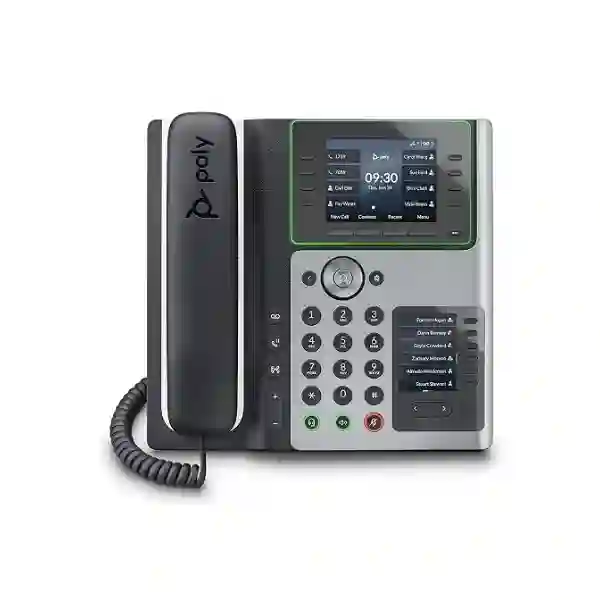
The HP Poly Edge E400 IP Desk Phone is a wired SIP office phone for teams that depend on reachable colleagues, clear conversations and quick access to regularly used contacts. It is particularly relevant when a desk user needs more visible line and contact controls than a simple entry-level handset provides. Reception staff, administrative teams, supervisors and office-based professionals can use its two displays to keep common functions close at hand. For a Tanzanian business planning an IP telephony project, the important starting point is not the appearance of the phone but the call workflow it must support every day.
Choose this device when a dependable Ethernet connection is available at the desk, the intended calling platform can support the required SIP configuration, and the user benefits from physical line keys. It is not a standalone replacement for a telephone service: calls require an appropriately configured telephony platform and network. The E400 provides useful hardware for that environment, while numbers, extensions, calling rights, transfer rules and other business features depend on the selected service and administrator settings. Ask for a compatibility review before placing a multi-phone order.
Why the two-screen layout matters
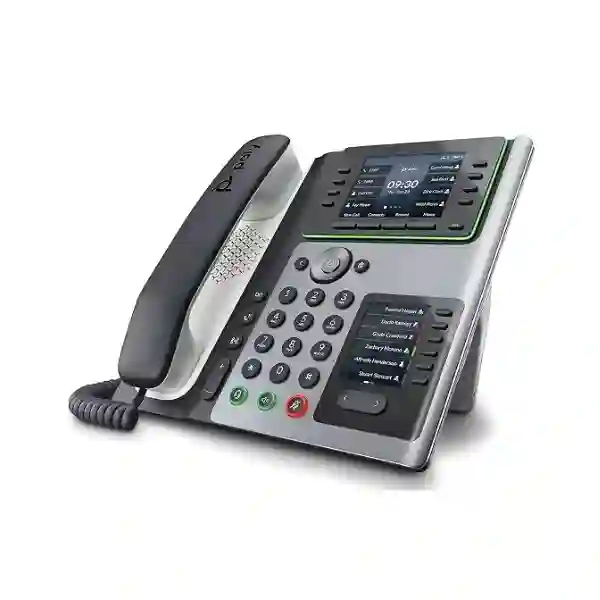
The main 3.5-inch colour IPS LCD display puts call information, menus and line controls in front of the user. Eight physical line keys sit alongside this display, with pagination allowing the configured assignments to extend beyond what is visible at one moment. A second integrated 2.4-inch display adds six physical keys for frequently used contacts or functions. This design separates routine contact access from the main calling view, reducing the need to search through menus when a colleague or department must be reached quickly.
Think about an office receptionist who regularly contacts accounts, security, management and a meeting-room coordinator. The second screen can be planned around those frequent destinations, while the primary screen remains available for active calls and additional extensions. It is still necessary to decide which keys represent SIP appearances, speed dials or monitored colleagues and to confirm the PBX supports the intended configuration. More keys do not automatically mean more concurrent calls or more purchased extensions; those limits come from the deployment.
Fourteen physical keys, with room for more assignments
HP describes fourteen line keys distributed as eight beside the primary display and six beside the secondary display. The primary set supports up to 32 SIP lines through pagination, while the second display supports convenient contact and speed-dial access. Manufacturer documentation also describes as many as 44 line-key assignments across the two displays with pagination. These statements refer to configurable key appearances and screens, not a promise of forty-four simultaneous external calls or a particular number of provider accounts.
In practical terms, a good key plan makes an office phone easier to operate. Keep the most urgent destinations on the first visible page, distinguish shared numbers from personal extensions, and avoid assigning dozens of entries simply because space exists. A finance assistant may value customer-service, manager and reception shortcuts. A supervisor may prioritise colleagues with supported presence monitoring. Work with the phone-system administrator to document the intended keys before deployment, then test them using real internal and external calls.
Clear voice without relying on marketing shorthand
The E400 supports Poly HD Voice and a speaker design intended to improve the perceived balance of spoken audio. Poly Acoustic Clarity includes full-duplex conversation handling, acoustic echo cancellation and noise suppression. The phone also supports a range of speech codecs, including G.711, G.722, G.729AB, G.722.1, iLBC and OPUS. The actual audio quality experienced by a caller depends on the chosen codec, handset or headset, other endpoint, network behaviour and telephone service, so it is sensible to test the entire calling path.
Two named technologies address different situations. Poly Acoustic Fence is designed to reduce distracting surrounding sound when the handset or a compatible wired headset is used. Poly NoiseBlockAI is designed for speakerphone use. Neither technology makes a busy room soundproof, and results can change with background conditions. For work involving confidential information or sustained calls in a shared office, a suitable headset and a quiet speaking position may still be preferable. Test how speech sounds to people at the far end, not only to the person holding the phone.
Reception and front-office workflows
A receptionist often needs to identify callers, place one call on hold, reach a colleague, and transfer the conversation without losing track of the original caller. The E400 provides dedicated hold and transfer controls, a colour display and programmable keys that can support this sequence when paired with a suitably configured phone system. Busy Lamp Field, or BLF, is among the capabilities identified by HP, but whether a colleague’s status can be displayed depends on the server, subscription and provisioning profile.
Plan a simple test around the busiest real workflow: answer an external call, consult a second user, complete or cancel a transfer, then recover a call when the recipient is unavailable. Confirm the correct behaviour for attended and blind transfers, voicemail and out-of-hours routing. A visible colleague key is useful only when the state shown is accurate. Document the difference between a speed-dial destination and a monitored extension for staff so they do not interpret a static contact shortcut as proof that a colleague is free.
Shared desks and hybrid working routines
An organisation with assigned desks can generally configure each E400 around a regular user and extension. Shared desks need more planning: the phone may need different identities, contact sets or calling permissions as people change seats. HP positions the Edge E400 family for modern offices and hot-desking scenarios, but the exact sign-in, hot-desking and account-switching experience is determined by the PBX and deployment configuration. Do not assume that any SIP platform offers the same user-login process simply because the desk phone can be provisioned centrally.
Before a shared-desk rollout, decide whether workers will sign in on the device, be assigned a fixed shared extension or simply forward calls to a central service. Consider what happens to personal contacts, voicemail indicators and call records when someone leaves a desk. A supervised pilot involving two or three actual users will reveal whether the chosen arrangement is manageable. For home-office use, remember that the E400 is Ethernet-based rather than Wi-Fi-enabled, so a wired network port or properly designed home networking arrangement is required.
A wired phone, not a Wi-Fi or Bluetooth model
The difference between the Edge E400 and E450 is important during purchasing. HP’s model-specific support information identifies the E400 as having no integrated Wi-Fi and no integrated Bluetooth. The E450 is the related model that adds those wireless technologies. Some general descriptions of the E400 series discuss Bluetooth pairing because they cover both models; such language should not be interpreted as a feature of the E400 itself. Confirm the exact model shown on a quotation, packaging reference and product label.
The E400 datasheet mentions NFC technology, but NFC presence must not be confused with integrated Bluetooth headset support. Buyers seeking a Bluetooth phone connection, mobile pairing or wireless LAN access should review the E450 or another specifically verified alternative. Conversely, the wired E400 can be a practical choice where desks already have Ethernet cabling and IT policy favours predictable physical network connections. Matching the network and headset requirement to the exact model prevents an expensive change after office installation.
Ethernet connectivity and computer pass-through
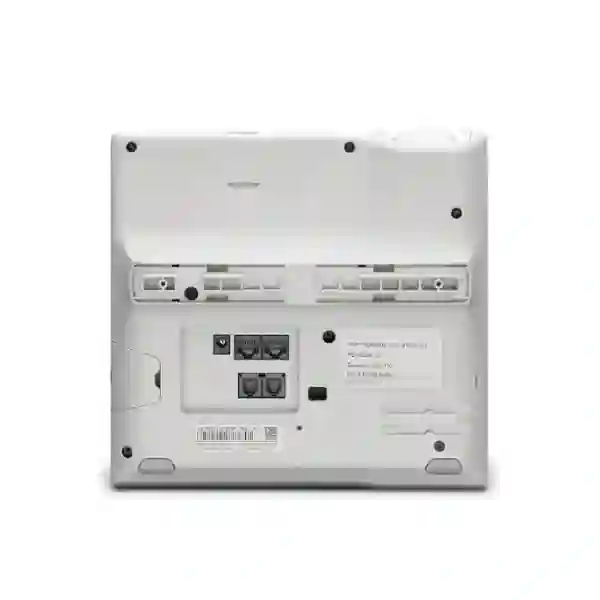
Two 10/100/1000 Ethernet ports allow the E400 to connect to a compatible wired network and provide a pass-through network connection for a nearby computer. This can be helpful at desks that have one available cable run but need both a telephone and a workstation connection. Gigabit capability on the ports does not mean call audio requires gigabit bandwidth; the value lies in the supported Ethernet interface and in avoiding an unnecessary lower-speed bottleneck for traffic passing through to the computer.
Confirm how the organisation separates voice and data traffic, whether the phone receives the correct virtual LAN information, and what network policy applies to the pass-through port. Where the attached computer handles sensitive workloads, the network team should assess authentication and segmentation before using a shared desk outlet. Record whether the handset, PC or both must stay online during power interruptions. When a desk layout involves cable length, fixed furniture or multiple switches, a site survey can be more useful than relying on a generic connection diagram.
Power over Ethernet and power planning
The E400 supports built-in auto-sensing Power over Ethernet; HP lists IEEE 802.3af and a maximum power figure of 13 W in its specification material. This lets a compatible PoE network supply the phone through Ethernet, reducing the need for a separate plug-top adapter at every desk. The phone can also be powered using an optional suitable Poly power supply, subject to the manufacturer’s accessory and installation requirements. Do not assume an external adapter is included in the box unless the actual quoted bundle says so.
Power deserves a site-level check, particularly where several phones are installed on one switch. Estimate the total PoE budget using switch specifications and the number of connected endpoints rather than merely counting available network ports. Include any intended expansion accessories in the assessment and ask the installer to check the supported power arrangement. If business calls must continue during a local power outage, the switch, router, PBX or cloud connection and access network may also need backup power. A powered phone alone cannot maintain a call if upstream connectivity is unavailable.
Headsets for private and high-volume conversations
The Poly Edge E400 provides a USB Type-C connection and an RJ-9 headset interface, and HP documents Electronic Hook Switch capability with an appropriate optional adapter. This gives organisations different ways to accommodate a user who spends much of the day speaking by telephone. The right choice depends on headset model, electrical and software compatibility, desired call-control behaviour and whether staff prefer a headset, handset or speakerphone. A matching connector does not by itself guarantee full compatibility with every headset.
Where users need answer and end-call control from a headset, confirm the EHS arrangement, adapter and software profile rather than assuming those controls will work automatically. Check microphone clarity, receive volume, wearing comfort and whether the cable reaches the desk position. A shared front desk may prioritise a simple wipe-clean wired headset, while a supervisor could need occasional hands-free conversations. Buy a sample pairing first if an entire team will use the same accessory. Bluetooth-only headset buyers should not mistake the E400’s NFC specification for Bluetooth support.
Call handling that matches the phone system
HP lists common telephony capabilities such as hold, transfer, divert or forwarding, call waiting, redial, voicemail access, do-not-disturb and local three-way audio conferencing. It also documents shared or bridged line appearances, call pickup and call park. These are capabilities the device can expose in suitable deployments; successful operation depends on the PBX, operator services and programmed features. A phone may display a button or menu even when a particular server has not enabled the corresponding action.
Build the purchase checklist around real workflows rather than a long feature list. Does the front office need attended transfers? Will a department share an inbound number? Should a supervisor monitor certain internal extensions? Are outbound international calls restricted? Which calls should route to voicemail after hours? These questions determine how many phones, accounts, key assignments and call-routing rules are needed. It is better to validate six essential scenarios thoroughly than to assume every listed feature will work with an untested SIP platform.
SIP and PBX compatibility: verify before scaling
The E400 is a SIP-capable IP desk phone and HP documentation cites support for the Session Initiation Protocol alongside standard network features. SIP support is an important starting point, but it is not the same as certification for every hosted PBX, on-premises system or service-provider profile. Version-specific firmware, provisioning templates, authentication choices and supported feature codes can vary. A business replacing older desk phones should obtain written confirmation that the intended platform accepts the chosen E400 firmware and delivers the needed user functions.
Ask the telephony integrator to register one test phone and verify inbound calling, outbound calling, transfers, shared-line behaviour, voicemail access and emergency-dialling requirements under the actual configuration. If the organisation uses a cloud PBX, check firewall policy, account security and network routes. If it uses an on-premises PBX, confirm resilience and maintenance responsibilities. Do not infer endorsement of a named calling service merely because both products use SIP. A compatibility check should name the actual service version and features to be deployed.
Provisioning and central device administration
Organisations deploying more than a handful of phones should plan how configuration will be delivered and maintained. HP lists Poly Zero Touch Provisioning, Poly Lens and service-provider management options for the E400 family. The presence of those technologies makes central administration possible within the appropriate supported environment, but actual access, licensing, software versions and permissions depend on the chosen management approach. The configuration owner should know who can create accounts, change key layouts, push firmware and recover a device after a reset.
Create a repeatable deployment record that identifies each desk, extension, network port, asset label, firmware version and management profile. Standardise basic settings, then apply department-specific keys only where required. Maintain a documented rollback plan if an update affects calling or compatibility. An orderly rollout also avoids exposing administrative credentials to everyday users. Before shipping a device to a remote location, confirm that the receiving network can reach its provisioning service and that local staff know how to identify an unregistered or disconnected phone.
A considered approach to security
HP’s E400 datasheet describes capabilities including 802.1X authentication, TLS, SRTP, encrypted configuration files, password access and HTTPS provisioning. These are useful building blocks for an enterprise deployment, but they should not be described as automatic protection for every call. The PBX and network infrastructure must support the relevant mechanisms, and administrators must actually enable and maintain them. A phone connected to an insecure or incorrectly configured network remains exposed to risks that hardware specifications alone cannot remove.
For an organisation handling customer information, define who administers the devices, how user credentials are created and rotated, and what happens when an employee leaves. Restrict unnecessary management access, use secure provisioning where supported, and apply a controlled firmware-update policy. Confirm the calling platform’s approach to signalling, media encryption and audit records. Network separation can help reduce exposure between workstation traffic and telephone management traffic, but VLAN configuration should be checked by a qualified network team. Security is a deployment process, not a single box to tick on a purchase order.
Preparing the office network for reliable voice
Voice calls are sensitive to packet loss, unstable latency and jitter. The E400 includes support for IP telephony network functions such as quality-of-service tagging, VLAN discovery and adaptive jitter buffering, according to HP documentation. These features cannot compensate for every upstream internet or switching problem. Before adding many devices, test the actual cabling, access switches, routing and telephone service under a realistic workload. Observe quality during busy hours rather than testing only when the office is quiet.
Ask the network team whether the voice service runs locally, over a dedicated connection or across ordinary internet access. Verify DNS, time synchronisation, IP addressing, required ports and any NAT behaviour called for by the selected PBX. Determine how the organisation will notice packet loss or failed registrations and who will handle incidents. A basic call-quality pilot should involve internal calls, calls to external numbers and calls at several times of day. Document the results to distinguish a network issue from a phone settings problem if trouble arises later.
Planning for Tanzania operating conditions
Businesses deploying IP desk phones in Tanzania should begin with their own site conditions rather than generic assumptions about national coverage or service availability. A well-cabled office may be ready for PoE immediately, while another location might need network outlet upgrades or a different switch. The user experience also depends on the selected internet connection, telephone provider and business power arrangements. None of these vary solely because the handset model changes. Check the installation address, connectivity options and continuity requirements for the exact site.
If the company operates more than one branch, consider how extensions will connect across locations and how staff will reach colleagues when a link is unavailable. Agree on a dial plan, centralised or local call routing, service support contacts and a process for changing extensions when teams move. Ask suppliers to explain any recurring charges for hosted telephony or SIP trunks separately from the physical phone cost. Do not assume local stock, provider compatibility, delivery time or regulatory approval without documentation for the actual order and deployment.
Accessibility and inclusive everyday use
HP documents text-to-speech options, larger font settings, screen-colour adjustments, visual status indicators and support for hearing-aid-compatible use in the Edge E family. Some functions require administrator configuration or the appropriate software version. For users who find small onscreen text difficult, the main display and physical controls may be easier to navigate than a purely touchscreen interface, although individual preferences differ. Accessibility should be tested with the intended user, not assumed from a specification sheet.
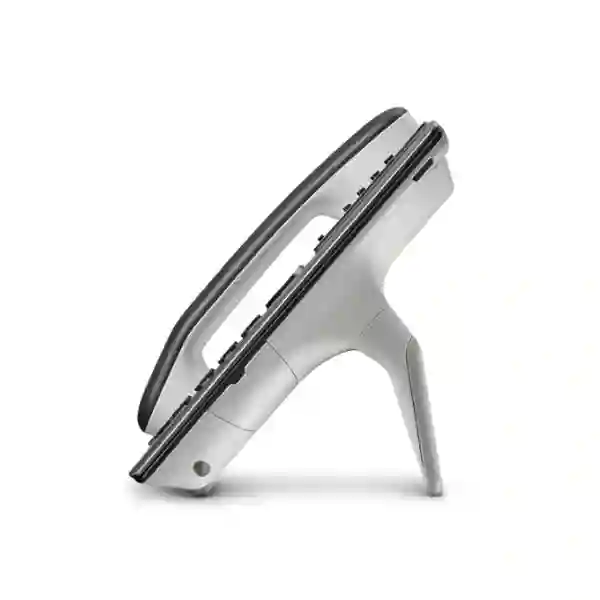
Consider desk height, screen angle, lighting, headset fit and whether the user needs audible or visual call alerts. The adjustable desk stand can help position the screen, and the visible line indicators provide another channel of information. A worker who cannot easily hold the handset may prefer a compatible headset or speakerphone. During a pilot, invite users to test receiving, transferring and ending a call with their preferred controls. Training materials should use the same button labels and key arrangements as the deployed phones so instructions remain practical and easy to follow.
Design, desk placement and routine care
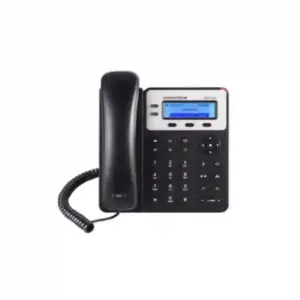
The E400 is a business desk phone with a handset, keypad, two colour displays and an adjustable stand. Its physical controls are intended to remain readily available while the user works on a computer. Plan enough room for the handset cable, headset lead if used, network cable and viewing angle. A desk that looks spacious before installation can become cluttered if a monitor stand blocks the display or if cables run across the user’s working area.
HP describes integrated Microban antimicrobial product protection on the console and handset. That feature should be understood as a material treatment, not as a substitute for cleaning or ordinary hygiene. It does not justify a promise that a phone is sterile, infection-proof or safe to share without care. Follow the manufacturer’s cleaning and maintenance guidance, particularly around the display, speaker openings and ports. In a frequently used reception area, assign responsibility for routine cleaning and consider whether a personal headset is more practical than a headset shared between many staff members.
E400 versus E450: make the model decision deliberately
The E400 and E450 belong to the same general Edge E400 family, so descriptions of the series often share display, control and audio features. The crucial distinction is wireless connectivity: HP’s model comparison confirms that the E400 lacks integrated Bluetooth and Wi-Fi, while the E450 includes both. A buyer working at a fixed, wired desk may not need the additional wireless options. A worker whose only practical connection is Wi-Fi, or whose workflow specifically depends on Bluetooth pairing, should not order the E400 expecting that experience.
Ask the purchasing team to record the exact model number on every quotation and approval document. Check whether a headset proposal relies on RJ-9, USB Type-C or Bluetooth and whether the selected model supports that route. If office cabling will be installed anyway, compare the total project cost rather than deciding from handset pricing alone. If desks move frequently or are located where a network outlet is unavailable, evaluate the practical network installation cost before choosing a wired model. Do not treat a series-level advertising photograph as model-specific proof of a feature.
How the E400 compares with simpler desk phones
The main reason to shortlist the E400 over a basic IP handset is its combination of a primary call display and a second physical-key display. Staff who contact only one or two internal destinations may not need the additional controls, and a simpler model can sometimes be sufficient. Staff who supervise multiple colleagues or transfer calls throughout the day may appreciate the dedicated access. The right buying decision depends more on contact patterns and supported features than on the headline number of keys.
Before selecting models for an entire company, divide users into practical roles. A receptionist may require many visible contacts and a tested transfer process. A manager may want reliable conferencing and a headset. A meeting room may require an entirely different type of endpoint. A back-office employee may need little beyond normal calling. By matching devices to jobs, the organisation can standardise where helpful without buying unnecessary capability for every desk. Document the exceptions so procurement and support teams understand why different groups receive different models.
Optional expansion and future desk requirements
HP’s Edge E Series user guide describes support for one optional Poly Edge E expansion module with the E400 family. Such an accessory can be useful where a role needs more physical contacts than the built-in displays provide. However, the accessory is a separate purchasing and compatibility decision. Confirm its exact part, attachment requirements, supported firmware and power arrangement before treating it as part of the standard E400 package. Do not assume a module is included with an ordinary desk-phone order.
Think about whether the future requirement is truly additional buttons or something else. A growing customer-service team may need better call-queue software, reporting and routing rather than more keys on a receptionist’s desk. A supervisor may need presence information from the PBX, not merely extra speed dials. Decide what the user will do with each proposed key, and confirm the call platform makes that function available. Expansion works best when it supports a defined operational need rather than becoming a substitute for a clear telephony plan.
Useful examples across business departments
In an administration office, the E400 can be planned around a personal extension, a central reception line and the departments contacted most often. A finance team might prioritise accounts receivable, accounts payable and a manager. A professional-services receptionist might configure a first group of internal destinations and a second group for meeting-room or facilities contacts. These are example key layouts, not factory presets. The phone system’s actual configuration determines what each button does.
For a multi-site business, a desk user may need fast access to colleagues at a different branch. A supervisor might want status indicators for an internal group where supported. A shared-office coordinator may need one-touch contact shortcuts and clear incoming-call handling. These examples should be tested with live staff before being copied across departments. Map the relevant calls, identify who receives overflow or missed calls, then decide how to assign the display keys. This approach brings the hardware into line with the company’s communication process and reduces avoidable retraining.
Pre-purchase questions that prevent surprises
Before requesting a quote, determine the number of desk locations, whether they have usable Ethernet cabling, and whether PoE switch power is available. Specify the calling platform or PBX, its software version if known, and how staff currently use hold, transfer, voicemail and shared extensions. If users require Bluetooth or Wi-Fi, flag that requirement explicitly because the E400 does not provide those features. Check whether users need wired headsets and what models are already owned.
Also separate physical equipment from services. A handset quote may not include a hosted PBX subscription, SIP trunk, network switch, power adapter, installation, programming, accessory or future service charges. Ask for these items to be identified clearly, without assuming that any one business supplies all of them. Request confirmation of the exact product variant, local commercial terms and relevant after-sales arrangements. Where the project spans several offices, a pilot unit and a documented acceptance test are sensible before the balance of the phones is procured.
A practical installation and acceptance checklist
Start by confirming the cable outlet, switch configuration and power source. Connect the E400 to the intended network, verify that it starts normally, and check that the phone obtains the expected network settings. If a computer will use the pass-through port, connect it according to the network team’s plan and verify that workstation connectivity remains appropriate. Register the test extension with the chosen phone system using a controlled provisioning method, then check the correct identity and caller display.
Next test internal calling, inbound external calls, outbound calls, hold, transfer, voicemail and the most important programmed keys. Place calls during normal office traffic and listen for interruptions in both directions. Verify the user can adjust volume, mute a call and switch between the handset and approved headset. Record firmware and configuration details, and document how staff should report a fault. Where the organisation depends on continuous telephone availability, include a controlled power or connection-failure scenario to verify its actual recovery procedure before declaring the installation complete.
What to check in the supplied package
HP’s product material identifies the phone console, handset, handset cord, desk stand, CAT-5E LAN cable and setup information as included items for the specified E400 package. Contents can vary with a commercial bundle or regional variation, so the actual supplier quotation should govern the purchase. Do not assume a headset, electronic hook-switch adapter, expansion module, network switch or separate power adapter is bundled unless these are explicitly listed. Check the carton and product label on arrival before assigning the phone to a user.
A simple receiving procedure protects a larger deployment. Match delivered quantities to the order, check physical condition, verify the intended model and record the serial number according to company asset policy. Keep spare network leads and the appropriate approved accessories available for installation issues. Confirm the telephone service and user accounts are ready before booking a large deployment day. When physical items and configuration tasks are tracked separately, procurement, IT and office management can see what remains to be completed without blaming the handset for a missing account or switch.
Ongoing support and ownership
Once phones are installed, make one team responsible for the configuration baseline and another clearly defined process for user requests. Everyday changes might include renaming a contact shortcut, moving an employee to another desk or changing who receives a departmental call. More sensitive tasks include updating software, changing SIP credentials and altering security settings. Keeping these responsibilities explicit reduces inconsistent desk configurations and makes it easier to troubleshoot a problem that appears after an update.
Periodically review whether the key layout still matches the organisation. A department that has grown or changed may need different shortcuts, while unused assignments can be removed. Maintain a small number of known-good test cases for call quality, transfer and voicemail. If a phone loses registration, check network reachability and PBX service status before replacing hardware. The E400 can remain a useful business tool when the network, calling platform and staff training receive the same attention as the device itself.
Troubleshooting calls methodically
If an E400 appears disconnected, confirm that the Ethernet cable is firmly seated, that the intended switch port is active and that the power arrangement is functioning. A device that powers on but cannot place a call may have a registration, routing or service issue rather than a hardware failure. Record any onscreen messages and the time of the fault. Avoid repeated factory resets before the configuration owner has captured relevant details, since a reset can remove settings needed for diagnosis.
For poor sound, test both directions of a call, compare the handset and headset where available, and repeat with another destination. Determine whether the issue affects one extension, an entire office or only external calls. That information helps identify whether to investigate accessories, local switching, internet connectivity or the PBX. When a programmed contact key fails, verify the destination and permissions before assuming the key itself is defective. Escalating a concise record of symptoms and test results is usually more productive than replacing several phones without establishing the cause.
Frequently asked questions about the E400
Does the E400 have Wi-Fi?
No. HP identifies the Edge E400 as a wired model without integrated Wi-Fi. It connects through Ethernet. If a wireless LAN connection is essential, assess the Edge E450 or another explicitly supported model rather than relying on a series-level specification.
Can I pair a Bluetooth headset directly with the E400?
No. The E400 does not include integrated Bluetooth. It offers wired headset connection options including USB Type-C and RJ-9, with EHS arrangements available when the relevant accessory and compatibility requirements are met. Confirm the precise headset before purchasing.
Does NFC mean that Bluetooth is supported?
No. NFC is listed in HP material, but it is a different technology and should not be treated as proof of Bluetooth support. Check the model-specific wireless feature table when selecting the phone for a particular headset or mobile-pairing workflow.
How many physical line keys are on the phone?
There are fourteen: eight beside the primary 3.5-inch display and six beside the secondary 2.4-inch display. HP describes pagination and additional key assignments. The count of physical keys is separate from the number of external calls or services available through the PBX.
Does the E400 work without a PBX or phone service?
The E400 is a SIP desk phone, not an independent telephone network. It needs an appropriately configured calling service or PBX and a suitable data connection. Confirm the provider, registration method and required features before deployment.
Will it work with my current phone system?
Compatibility depends on the exact service, software version, configuration and calling features required. Ask your provider or installer to verify registration, transfers, voicemail and other workflows on a test E400 before approving a larger order.
Is Power over Ethernet supported?
Yes. HP specifies built-in Power over Ethernet and a maximum power figure of 13 W. The network switch or other power source still needs a suitable capacity and configuration. Confirm external adapter requirements separately if a PoE source is not available.
Can the phone share its network point with a PC?
The device has two Gigabit Ethernet ports and supports a pass-through arrangement. Your network administrator should confirm how voice and computer traffic are segmented, authenticated and managed before installing both devices on the same cable run.
Is a headset included?
A headset is not listed among the standard contents in the HP package details reviewed. The phone and handset are described, along with basic setup accessories. Confirm every included accessory on the specific supplier quotation and ask separately about approved headsets.
Can it show whether colleagues are busy?
HP lists Busy Lamp Field capability. Whether useful extension-status monitoring appears on the configured keys depends on the PBX and its permissions or feature support. Test the behaviour on the actual calling platform.
Can staff make a three-way call?
HP documents local three-way audio conferencing as a phone capability. The final experience may depend on call-service configuration and network conditions. If conferencing is an essential office workflow, include it in the acceptance test.
Is the device suitable for a reception desk?
It can be a strong candidate where staff need many visible contact shortcuts, physical hold and transfer keys, and a wired network connection. Reception suitability still depends on the PBX, call volumes, headset needs and whether a supervised pilot confirms the transfer workflow.
Can it be used at a home office?
Yes, where a suitable Ethernet network, compatible calling platform and power source are available. It does not connect directly to Wi-Fi. Consider internet stability, router configuration and the organisation’s policy for remote extensions before assigning it to a home worker.
What should we supply when requesting a quote in Tanzania?
Share the number of phones, intended office locations, PBX or SIP service, PoE availability, headset requirements and key staff workflows. Ask for confirmation of the exact E400 variant, included accessories, commercial terms and any separate installation or service charges.
Does antimicrobial treatment remove the need for cleaning?
No. HP describes Microban material protection on relevant phone surfaces, but that does not replace normal cleaning, handling or hygiene practices. Follow the manufacturer’s care guidance, particularly where devices are shared.
Can the E400 be expanded with more keys?
HP’s user guide describes support for an optional expansion module for the E400 family. Verify the exact accessory, software and power arrangement with the supplier; it should not be assumed to be included with the base handset.
Request an E400 quotation for your office
Tell FourTeck Tanzania how many phones you need, which PBX or SIP platform you use, whether your desks have PoE Ethernet connections and what headsets or installation help are required. Ask the team to verify the exact model and commercial details before the order is finalised.
Quotation, compatibility, pricing, product availability and delivery details require individual confirmation. No unverified purchase or contact link has been inserted.
Reviews
There are no reviews yet.