
ROOM COMPUTE · MICROSOFT TEAMS ROOMS · TANZANIA
HP Poly Studio 7 Room Compute with Microsoft Teams Rooms
A compact, high-spec Windows room computer for larger and more configurable hybrid meeting spaces. Choose compatible cameras, audio and touch control around your actual room design rather than assuming a single device contains every component.
Quick buying answer
Choose the HP Poly Studio 7 Room Compute for Microsoft Teams Rooms when the objective is a dedicated, Windows-based Teams meeting room that may require a more flexible camera and audio design. HP positions this model for larger, customizable spaces, and Microsoft lists its configuration with the Poly TC10 among certified Teams Rooms systems. The compute is only one part of a complete room: plan a separately purchased compatible controller, cameras, microphones, speakers, displays, networking and Microsoft Teams Rooms licensing. For a Tanzania quotation, first confirm the entire room specification and the exact hardware variant.
Technical specification at a glance
| Processor | Intel Core Ultra 7 366H |
|---|---|
| NPU | Intel AI Boost; up to 50 NPU TOPS |
| Memory | 32 GB DDR5-5600 (2 × 16 GB) |
| Storage | 256 GB PCIe NVMe M.2 SSD |
| Operating system | Windows 11 IoT Enterprise |
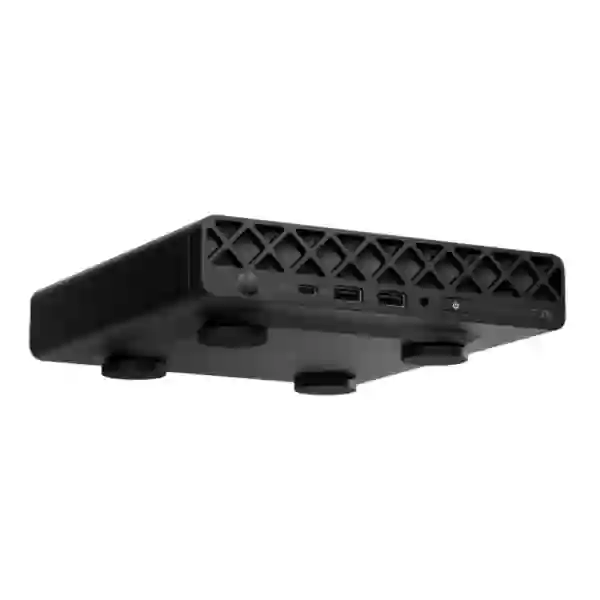
| Form factor | Mini; approx. 17.7 × 18.1 × 3.4 cm |
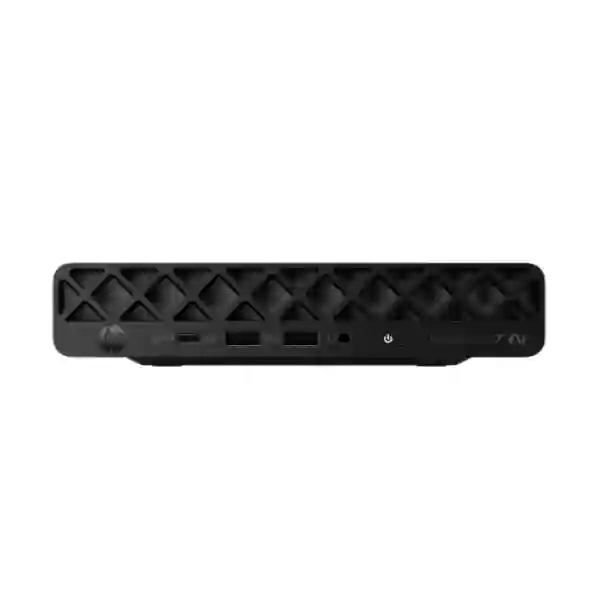
| Front connections | 1 USB-C 10 Gbps; 2 USB-A 10 Gbps; combo audio |
| Power adapter | 150 W external power adapter |
| Wireless | Intel Wi-Fi 6E AX211 and Bluetooth 5.4 as documented for HP configuration |
| Room control | Compatible Poly TC10, sold separately |
| Platform | Microsoft Teams Rooms on Windows |
| Recommended deployment | Customizable and larger Teams Rooms; verify complete supported design |
Published HP configuration and product-family documentation; verify the exact regional variant, selected options and connected-peripheral requirements before purchase.
What the HP Poly Studio 7 actually provides
The compute foundation, not an all-in-one video bar
The HP Poly Studio 7 Room Compute for Microsoft Teams Rooms is the dedicated computer that runs the Microsoft Teams Rooms on Windows experience in a shared meeting room. Its purpose is to support an organized, repeatable in-room meeting workflow rather than rely on an employee connecting a personal laptop every time. It can be placed near the room display or within an appropriate equipment installation and connected to the room’s chosen peripherals. The compact compute form factor makes it useful when the organization wants to select the conferencing camera and audio equipment according to the physical room. It should not be mistaken for a camera, speakerphone or display. The camera, audio system, room control and screen are separate design decisions, and their compatibility must be verified for the final solution.
Why a modular room can be the better purchase
An integrated video bar is convenient when a room has simple needs and the chosen product covers its seating and sound conditions. A modular Teams Rooms design becomes interesting when furniture layouts, meeting sizes, camera positions or acoustic requirements vary. The Studio 7 provides compute capacity while allowing compatible cameras, microphones and speakers to be selected around the room. That separation can help a facilities and IT team plan changes without assuming the entire meeting space must be replaced. It is not permission to connect arbitrary USB equipment without checking certification and supported configurations. A good proposal identifies each peripheral, the path it takes to the compute, the display arrangement and who will maintain the complete system after installation.
Who should evaluate this model
This model is especially relevant to IT managers, audiovisual integrators, procurement teams and facilities decision-makers building or refreshing larger Microsoft Teams meeting spaces. HP describes the Studio 7 as suited to large rooms and customizable layouts, including multiple-camera scenarios. A conventional small meeting room with one camera may not require its additional processing specification; HP’s Studio 5 is positioned for more standard configurations. Before choosing, separate the room’s present needs from speculative future features. Count seats, measure camera-to-person distance, listen for reverberation, check lighting and map the speakers’ positions. These details have more effect on the final meeting experience than buying the highest-numbered compute device alone.
Verified hardware and what it means to buyers
Intel Core Ultra 7 and AI acceleration
HP lists the Intel Core Ultra 7 366H processor for this configuration, with an Intel AI Boost neural processing unit rated at up to 50 NPU TOPS. The processor provides a modern computing base for the Windows room workload, and the NPU is designed for appropriate AI processing tasks. That figure is a hardware capability, not a promise that every Teams feature uses the NPU, that every camera feature is enabled or that meetings will achieve a specific quality score. Feature availability also depends on Microsoft software, approved peripherals and any applicable licenses. Buyers should evaluate the actual Teams Rooms functionality they plan to use rather than interpret the TOPS number as a universal benchmark for video call performance.
Memory, storage and operating environment
The published Studio 7 configuration combines 32 GB DDR5-5600 memory, arranged as two 16 GB modules, with 256 GB PCIe NVMe solid-state storage. It runs Windows 11 IoT Enterprise. These are useful specifications when standardizing room computers because the organization can document a consistent baseline for deployment, management and troubleshooting. They do not establish that the device is an ordinary office workstation or a supported general-purpose personal computer. It is intended for the room application and should be managed according to Microsoft Teams Rooms guidance. HP’s published enclosure dimensions are approximately 17.7 by 18.1 by 3.4 cm. Allow additional space for connectors, airflow and mounting access.
Connectivity without assuming every port is free
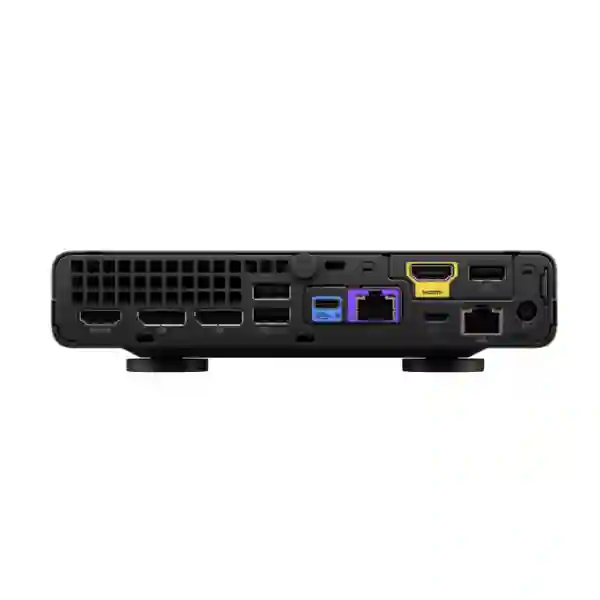
HP documents a front USB-C connection supporting 10 Gbps signaling, two front USB-A connections at 10 Gbps and a combined headset connection; the platform also provides external display and other rear connectivity. The relevant point is to design from the exact regional configuration and its current hardware guide, not from an attractive product photograph. One connection may be assigned to a camera, another to audio or a controller arrangement, and displays require suitable output paths. Document actual port use before confirming a system bill of materials. If HDMI content ingest, an additional camera, a special cable length or multiple displays is required, check the specific supported interface and accessories for the quoted hardware variant rather than assuming the feature is bundled.
Choosing between Studio 5 and Studio 7
The right comparison is room complexity
HP presents the Studio 5 Room Compute as an option for standard Microsoft Teams Rooms setups with one or two cameras, while positioning the Studio 7 for larger, customizable rooms that may use multiple cameras. Both are Windows-based room compute offerings in the same product family. Studio 7 carries the higher published processor and memory specifications, but those numbers alone should not decide the purchase. A smaller boardroom with simple camera coverage could be well served by a different system. A long conference table, training room or divisible collaboration space may warrant more detailed design, and Studio 7 should then be considered as part of a compatible complete solution.
Build the requirements before selecting the computer
Start with meeting behaviors: will participants mostly face one screen, turn toward a presenter, share content from the table, or move between several seating areas? Next, identify where remote participants need to hear and see people clearly. Only after that should the integrator choose the camera arrangement, microphones, speaker coverage and compute. If the proposed room needs a single simple camera, compare total deployed cost and administration demands with more straightforward Teams Rooms alternatives. If the proposal needs multiple coordinated devices, a higher-spec modular compute may offer a more practical foundation. The decision should be recorded in a room design brief so the quoted item can be checked against the real use case.
Consider lifecycle, not just initial hardware
A meeting room is an operational service. Its useful value depends on software updates, peripheral compatibility, reliable sign-in, support ownership and replacement procedures. Modularity can offer flexibility when a camera or display requirement changes, but there is still integration work to manage and new peripherals must be validated. Compare not only the compute purchase but also controller, audio, video, displays, network changes, cabling, mounting, licensing and the time required for commissioning. Request a clear responsibility matrix stating which party configures Microsoft 365 accounts, installs hardware, validates meetings and handles later faults. This gives decision-makers a more informative comparison than processor specifications or room-size labels alone.
Plan compatible video equipment
Use HP Poly camera recommendations as a starting point
HP identifies the Poly Studio V12, V52 and V72 video bars and the Poly Studio E60 and E70 USB cameras among recommended options across Studio Room Compute configurations. The appropriate combination depends on room scale, camera framing, audio architecture and supported software. A list of recommended products is not a guarantee that every possible pairing or multiple-camera configuration operates identically. Check current HP installation guidance, the Microsoft Teams certified peripherals list and the supported software versions for the intended design. For a straightforward room, one suitable conferencing device may be sufficient. For a more complicated space, professional audiovisual design can establish whether additional cameras provide a real benefit and how the meeting experience will switch or select views.
Design for sightlines before selecting lens specifications
In a wide boardroom, participants near the ends of the table may appear small if the camera is placed poorly. In a training room, remote attendees may need to see both a presenter and seated participants. In a room with glass walls, reflections and backlighting can reduce image clarity. Start by drawing the seating plan and testing possible camera locations. Check whether a camera can frame a presenter standing near a screen without losing the rest of the group. Consider how far people are from the camera, whether the room changes configuration and how cables will be routed safely. The compute does not correct bad camera placement by itself; good room geometry and a compatible camera design remain essential.
Avoid ambiguous multi-camera promises
Multiple-camera use is an important reason to investigate Studio 7, but the phrase should be treated as a design objective rather than an automatic included feature. The actual camera count, switching behavior, intelligent framing and meeting application capabilities depend on the approved configuration and software. A quote should name the exact cameras, any necessary switching or control components, and the Teams Rooms features the installer will demonstrate at acceptance. Request a test with a normal meeting, content sharing and the intended participants’ positions. If the organization has accessibility or hybrid-training requirements, include those in the acceptance plan. Clear expectations prevent a buyer from equating additional USB ports with a guaranteed finished multi-camera experience.
Audio design is just as important as the camera
Match microphones to the room’s acoustics
Remote meeting quality often suffers when a room is reflective, a microphone is too far from participants or people turn away from the pickup area. For large meetings, evaluate ceiling, table or integrated video-bar microphones through a qualified system design. The studio compute itself is not a substitute for correctly positioned conferencing microphones. Ask the integrator to assess room dimensions, ceiling height, background noise, speaker placement and the distance between people and pickup zones. The chosen audio path should be compatible with Teams Rooms on Windows and the selected camera approach. For high-priority rooms, a live intelligibility test with someone joining remotely is more useful than a specification sheet alone.
Speakers, echo and participant comfort
A speaker system must make distant voices intelligible at normal listening levels without producing uncomfortable loudness or echo. Verify where sound should reach, whether participants sit close to a video bar and whether separate room speakers are being proposed. Echo control and device processing are characteristics of the selected supported audio equipment and complete configuration, not automatic attributes of the compute chassis. The room’s furnishing can influence the result, particularly where hard floors, glass and bare walls reflect sound. Include a short real-world test: have a remote participant speak, interrupt naturally, and listen for cut-out speech or feedback. That test should be performed with the room at a normal occupied volume.
Do not buy peripherals from an unverified shopping list
Audio accessories that seem physically connectable are not necessarily supported for the required collaboration workflow. Confirm the precise manufacturer model, firmware and Teams certification or support position before placing an order. Check whether the room needs a USB video bar with integrated speakers or an independent audio system. When using additional processing equipment, determine which device performs echo cancellation, volume control and mute indication. The user should experience a coherent meeting interface rather than multiple competing controls. The purchasing document should specify all required cables, power supplies, mounting hardware and integration labor. This minimizes the risk that the compute arrives but the room cannot be put into service.
Touch control, displays and content sharing
What the HP Poly TC10 contributes
HP specifies the Poly TC10 touch controller as the compatible touch interface for auto-pairing with Studio Room Compute. It is sold separately, so a quote for the compute unit should not be interpreted as including a touch console. The controller gives people an in-room meeting interface and supports a more predictable experience than searching for a keyboard and mouse during every call. HP states that multiple controllers, up to four, can be connected using a local PoE switch, which is also sold separately. Any such multi-controller design should be reviewed for room layout and actual operational need. The Microsoft certified hardware list names the Studio 7 in a configuration with the TC10 touch controller.
Single-screen versus multi-screen rooms
Display selection should follow the way the room works. A single well-positioned screen can serve a focused meeting space, while other environments may benefit from a separate view for meeting participants and shared content. The final number of supported screens, their resolution and the cable or adapter requirements must be checked against the chosen hardware configuration and Microsoft Teams Rooms deployment guidance. Place displays at comfortable viewing angles and ensure people near the sides of the room can read shared text. Verify power sockets, cable reach and mounting arrangements before installation. An included DisplayPort-to-HDMI adapter does not eliminate the need to validate all output paths and the requirements of the displays that will actually be installed.
Plan presentation ingest as a separate requirement
Many meeting rooms need participants to share content from laptops. That requirement should appear explicitly in the design brief rather than be assumed from the presence of a compute device. Determine whether the intended workflow uses wireless meeting content sharing, a wired ingest connection or another supported room integration. Check the exact hardware configuration for necessary inputs, adapters and supported software behavior. Test a typical employee laptop, the screen content format normally used and the remote attendee’s view. If the meeting room often hosts visiting presenters, consider how they will share content without local administrative privileges. Keep instructions brief and visible so the room remains usable when the regular meeting organizer is absent.
Microsoft Teams Rooms software and licensing
Windows-based Teams Rooms is a shared-room system
This Studio 7 offering is the Microsoft Teams Rooms on Windows variant, running Windows 11 IoT Enterprise. HP’s platform materials explain that the Microsoft Teams Rooms Basic software is pre-installed, but the room still requires suitable licensing and activation. A Teams Rooms device is intended for a dedicated shared space, not an employee’s personal Microsoft Teams login. Plan one properly configured resource account per physical room and establish naming conventions that make rooms easy to find in the calendar. The resource account’s meeting policies, mailbox configuration and sign-in requirements affect the user experience. IT should verify these arrangements before the hardware is connected, because failed account sign-in can make a fully wired room unusable.
Understand Basic and Pro before committing
Microsoft Teams Rooms Basic includes essential meeting experiences and can be assigned to a limited number of certified room systems within an organization. Microsoft’s published licensing guidance sets the maximum at 25 Basic licenses per organization. Teams Rooms Pro adds advanced management and other capabilities, and is sold separately. A normal Microsoft 365 employee license should not be treated as a replacement for the required room-device license. The correct edition depends on the organization’s room estate, security requirements and desired administrative capabilities. Confirm current Microsoft terms when the purchase is made, since feature entitlements and licensing requirements can change. Hardware performance does not unlock a paid Teams Rooms feature without the appropriate Microsoft entitlement.
Resource accounts and bookable rooms
A meeting room is most useful when users can reserve it through familiar scheduling tools and then see the upcoming meeting on the touch controller. Microsoft documents the use of a Teams Rooms resource account with appropriate calendaring and licensing. Ask the Microsoft 365 administrator to set the room’s name, email address, capacity and other relevant directory details, and to validate calendar processing policies. Test a meeting invitation from both inside and outside the organization as appropriate for policy. The room should show the expected appointment and support the configured join experience without requiring someone to type a personal password. Account security policies must be designed for supported room sign-in behavior rather than copied indiscriminately from employee laptop policies.
Network readiness for Tanzania meeting rooms
Treat the internet connection as part of the room system
A powerful meeting-room computer cannot compensate for a highly unstable connection. Microsoft Teams Rooms requires reliable access to Microsoft cloud services, and meetings need sufficient available bandwidth with predictable latency and packet delivery. Microsoft guidance recommends planning about 10 Mbps up and down per Teams Room as a useful readiness target; actual traffic varies by meeting and media behavior. In Tanzania, test the connectivity available at the specific building rather than infer quality from a city, a service-provider name or an advertised access speed. Check the busiest time of day, especially when several meetings are likely to run simultaneously. Document any backup internet arrangement and the process for switching during an outage.
Coordinate with firewalls, proxies and identity controls
Room devices can fail even when general web browsing works. Microsoft’s deployment guidance identifies the need to prepare network access, firewall and proxy settings, certificate handling and resource account authentication. If the organization uses security filtering or strict outbound rules, involve the network and identity teams early. Validate access to the required Microsoft services, not merely an internet speed-test page. Avoid unsupported workarounds that bypass organizational controls without review. Where management services such as Poly Lens Cloud are used, check the additional access requirements and the organization’s data governance policies. Separate documented network prerequisites from optional remote-monitoring functions so the installation team knows which services are essential at first boot.
Prefer stable cable paths and power continuity
A meeting room usually benefits from a carefully planned wired connection for fixed infrastructure, with appropriate network access and management. HP includes an Ethernet cable with the documented compute package, but cabling in the room may require longer certified runs, organized patching and equipment-space planning. For a touch controller using Power over Ethernet, verify the exact switching requirements and PoE budget. Network switches, displays, cameras and compute equipment also depend on reliable electricity. Where outages or voltage changes are a concern, have qualified personnel size suitable protection or backup power for the complete room configuration. Any backup design should account for the network path as well as the computer; powering the compute alone does not maintain a meeting if the network equipment stops.
Install and commission systematically
Survey the room before drilling or routing cables
Good preparation begins with a site survey that captures dimensions, wall types, furniture, accessible power sockets, network ports, screen positions and acoustic conditions. Record where the compute will mount and how the technician will reach it for service. HP describes magnetic mounting accessories and color-coded connections that can simplify setup; however, installation still needs a safe mounting position, sufficient clearance and a deliberate cabling plan. Verify the weight-bearing surface and choose suitable fittings for the real wall or furniture material. A neat installation should also make it possible to remove a cable or replace a peripheral without dismantling the meeting room. Photograph and label the finished cabling for later support.
Follow a clear commissioning sequence
Before the scheduled installation, verify each item’s model, firmware requirements, accessory list and licensing. Prepare the room resource account and Microsoft tenant permissions. At the room, mount the compute, connect displays and supported audio/video devices, establish networking and connect the TC10 controller as designed. Then perform the manufacturer’s supported setup and pairing process, activate and sign into Teams Rooms, and validate the intended management tools. Do not assume a successful login means the room is finished. Have an in-room participant join a live test with a person at a different location, exercise the microphone and speaker, share content and check the display layout. Record the software and firmware versions used at handover.
Define acceptance tests that represent real meetings
An acceptance checklist should include startup behavior, scheduling, joining, mute and unmute, near-end and far-end audio, camera framing, screen sharing, call ending and recovery after a controlled reboot. Test room resource account sign-in and the visibility of upcoming meetings. Where multiple cameras, controllers or screens are specified, test each agreed workflow rather than merely confirming that devices have power. Ask a remote tester to give feedback on voice clarity, echo and image framing. Include reasonable checks with the room lights on and the intended number of people seated. The goal is an operational service that staff can use, not a demonstration that a product box was opened and an application launched.
Security, monitoring and ongoing management
Use supported room-device security practices
Meeting rooms commonly contain equipment available to many employees and visitors, so physical access and administrative access need deliberate controls. HP describes security capabilities for this product family including HP Sure Start and HP Wolf Security for Business, subject to the documented feature and configuration requirements. Microsoft also publishes security recommendations for Teams Rooms on Windows. These systems should be maintained as managed room devices with approved configuration and software update procedures. Confirm organizational requirements for administrator access, device encryption, network segmentation and policy exceptions with IT security staff. Do not install arbitrary workstation utilities or modify reserved room accounts without checking vendor guidance, since unsupported changes can interrupt the Teams Rooms application.
What Poly Lens Cloud can help with
HP documents the Poly Studio Room App and its integration with Poly Lens Cloud for device inventory visibility, monitoring and management of compatible connected Poly equipment. This can be useful to teams responsible for several meeting rooms because device status is not hidden inside the physical room. The associated software and supported functions should be reviewed against current HP documentation and the organization’s management plan. Registration and appropriate cloud connectivity are required for related cloud features. Poly Lens is not a substitute for all Microsoft Teams room administration tasks, and it does not make unsupported peripherals supported. Define which team owns HP/Poly device updates, which team owns Microsoft Teams Rooms policies and who receives alerts when a room needs attention.
Build an update and fault-response routine
A room that worked at handover still needs maintenance. Establish a controlled routine for checking the Teams Rooms app, Windows servicing, peripheral firmware, health notifications and certificate or sign-in problems. Plan updates around meeting schedules and maintain an inventory showing which devices belong to which room. If several rooms have similar equipment, keep their configurations consistent where practical and record any deliberate differences. For troubleshooting, separate problems into account, network, camera, microphone, display and compute categories; that helps avoid unnecessary hardware replacement. Keep a simple escalation path with the organization, integrator and relevant manufacturer support channels. The useful operational measure is whether a room can reliably host its scheduled meetings, not merely whether its computer is powered on.
Buying and operating considerations for Tanzania
Specify what is included and what is not
HP’s published package contents for the Studio 7 compute include the room computer, AC adapter, power cable, DisplayPort-to-HDMI True 4K adapter, magnetic mounting kit, Ethernet cable, setup sheet and warranty card. This list does not include an HP Poly TC10 controller, a conferencing camera, room audio components or a display. A quote should therefore distinguish the compute-only purchase from a complete installation-ready meeting room. Verify any region-specific configuration and power-cord details against the exact item offered for Tanzania. Do not infer the final package from another country’s retailer SKU. Ask the seller to state every required accessory and to identify anything supplied by the customer’s own IT or facilities team.
Request local commercial terms rather than assuming them
The available public technical documentation establishes product specifications, not FourTeck’s current Tanzanian stock, price, shipment timing or service coverage. Obtain those commercial details in a written quotation for the exact hardware configuration. If import, tax, local delivery, installation or after-sales responsibilities matter to the project, request clear line items and terms. Confirm currency, warranty applicability, replacement procedure and support contact details with the seller before issuing a purchase order. The existence of a global manufacturer warranty statement does not establish what a local sales arrangement includes. Equally, the presence of an international product code does not identify FourTeck’s own SKU. Leave those fields unassigned until verified listing information is provided.
Think about local support and room downtime
For a business that depends on daily hybrid meetings, the cost of room downtime may exceed the direct cost of a cable or peripheral. Agree who users should contact if the room cannot join a meeting and how quickly someone can diagnose account or network issues. Identify whether critical rooms need a fallback meeting method and who can activate it. Store approved documentation on the compute, cameras, controllers, license and cabling where internal support staff can retrieve it. Where branch offices have different network conditions, use a consistent readiness checklist but test each site independently. Avoid committing to service availability, response time or installation coverage until the seller has confirmed the specific terms for the customer’s location.
Practical decisions before you request a quotation
Confirm the complete room bill of materials
Send the seller an outline of the room, the number and positions of participants, the display requirements and the typical meeting use case. Ask for an itemized solution showing Studio 7 compute, controller, cameras, audio equipment, display connections, switches, cables, mounts and any professional integration components. Highlight what will be supplied by the customer so no essential item is omitted or double-counted. For complex rooms, ask the integrator to reference a supported configuration and provide a basic connection diagram. Confirm the precise regional variant, including any configurable options, before the order is accepted. This turns a generic product enquiry into a specification against which the delivered room can actually be inspected.
Put software, network and handover on the same checklist
The bill of materials is only one part of the purchase. Record the required Teams Rooms license, assigned resource account, calendar configuration, network access, device management plan and acceptance procedure. Agree whether the customer or installer handles Microsoft 365 tenant tasks, since hardware installers may not have authority to change identity or security settings. Identify the expected end-user controls and show staff how to start or join a meeting. Require a handover note with product models, software versions, basic troubleshooting instructions and the location of any support documentation. This small amount of administrative preparation greatly reduces uncertainty when the first important hybrid meeting is scheduled.
Make the selection on measurable fit
Studio 7 makes the most sense when its processing baseline, modularity and support for a more configurable Windows Teams Rooms deployment align with the meeting room’s needs. It is not automatically the lowest-cost or simplest solution for a small room. A good final decision considers people, room shape, audio quality, camera coverage, display visibility, network stability, licensing and operating support together. If the organization anticipates future changes, describe those changes concretely so they can be considered in the design without purchasing unnecessary extras. Ask for a quotation that separates mandatory components from optional enhancements. The result should be a defined meeting-room solution and an agreed commissioning scope, rather than a computer selected in isolation.
What arrives with the compute unit?
HP-listed package contents
- Studio 7 Room Compute
- AC adapter and power cable
- DisplayPort-to-HDMI True 4K adapter
- Magnetic mounting kit
- Ethernet cable
- Setup sheet and warranty card
Plan separately for the complete room
- Poly TC10 touch controller
- Compatible meeting cameras
- Microphones and speakers or video bar
- Room displays and installation cabling
- Network/PoE equipment as needed
- Microsoft Teams Rooms license and room account
Frequently asked questions
Is the Studio 7 a complete Microsoft Teams Rooms kit?
No. It is the room compute platform. A complete deployment requires compatible room audio/video devices, an appropriate touch controller and displays, as well as correct networking and licensing. HP specifically identifies the TC10 controller as separately sold. Obtain a fully itemized room design before purchase.
Does it come with a camera or speakerphone?
No camera or full-room speakerphone is listed in HP’s compute package contents. Select the audio and video devices according to the room layout and verify compatibility with the intended Microsoft Teams Rooms on Windows configuration. Do not assume the computer’s small internal speaker replaces a room audio system.
Is this the Teams Rooms or Zoom Rooms version?
This listing concerns the Microsoft Teams Rooms variant. HP also offers a separate Studio 7 Room Compute product for Zoom Rooms, but the two should not be treated as interchangeable sale configurations. Verify the precise operating platform on the order and quote before purchasing.
Which processor and memory does it use?
HP lists an Intel Core Ultra 7 366H processor and 32 GB DDR5 memory for the documented Studio 7 Teams Rooms configuration, along with 256 GB PCIe NVMe SSD storage. Confirm the exact offered regional variant and any configurable options in the seller’s specifications.
Does an NPU rating mean all Teams AI features are available?
No. The Intel AI Boost NPU offers up to 50 NPU TOPS as a hardware specification. Whether a particular feature is available depends on supported software, hardware configuration and any required licenses or enablement. Confirm desired features separately instead of making assumptions from the processor rating.
Is the Poly TC10 included?
No. HP states that the Poly TC10 touch controller needed for its auto-pairing workflow is sold separately. Microsoft’s certified system listing names the Studio 7 together with a TC10. Include the controller and any necessary power or network equipment in the room quote.
Can I use multiple cameras?
HP positions Studio 7 for larger, customizable and multiple-camera meeting rooms. The exact devices, camera count and feature behavior must be validated for the proposed Teams Rooms configuration. Ask the integrator for a documented design and live acceptance test, rather than relying only on a general multiple-camera claim.
What Microsoft license is needed?
Use a suitable Microsoft Teams Rooms Basic or Pro license assigned to the room resource account, subject to current Microsoft terms. Microsoft limits Basic licenses to 25 per organization; Pro offers expanded management features. A user’s regular Microsoft 365 license is not a substitute for a room-device license.
Will the system work with unreliable connectivity?
The compute still needs appropriate access to the Microsoft cloud and a network capable of handling live meetings. Review bandwidth, latency, firewall rules, DNS and power stability at the site. A faster processor cannot repair packet loss or a failed connection. Test a real meeting on the intended network.
Can our IT team monitor the equipment remotely?
HP documents the Poly Studio Room App and Poly Lens Cloud monitoring for compatible connected Poly devices when correctly registered and connected. Microsoft management features vary by Teams Rooms license. Confirm the desired monitoring tools, enrollment responsibilities and network permissions with the organization’s IT team.
Can the unit be used as a normal office PC?
It is sold and documented as dedicated Windows-based room compute for Microsoft Teams Rooms. Treat it as a managed shared-room device rather than a general employee workstation. Changes to supported software, operating system configuration or administrative accounts should follow Microsoft and HP room-device guidance.
Can I obtain a Tanzania price and delivery date?
Request a written quotation for the exact configuration and installation scope. This description intentionally does not state a local price, stock position, delivery commitment or country-specific warranty because those details were not verified. Confirm all commercial terms directly when enquiring.
Request an HP Poly Studio 7 room configuration review
Tell FourTeck your room size, participant count, preferred displays, camera requirements, current Microsoft 365 environment and installation location in Tanzania. Ask for an itemized quotation confirming the exact compute configuration, separately required peripherals, licensing assumptions, implementation scope and applicable local terms.
Request a configuration and quotation from FourTeck Tanzania.
Reviews
There are no reviews yet.