
Personal video conferencing | Tanzania buying guide
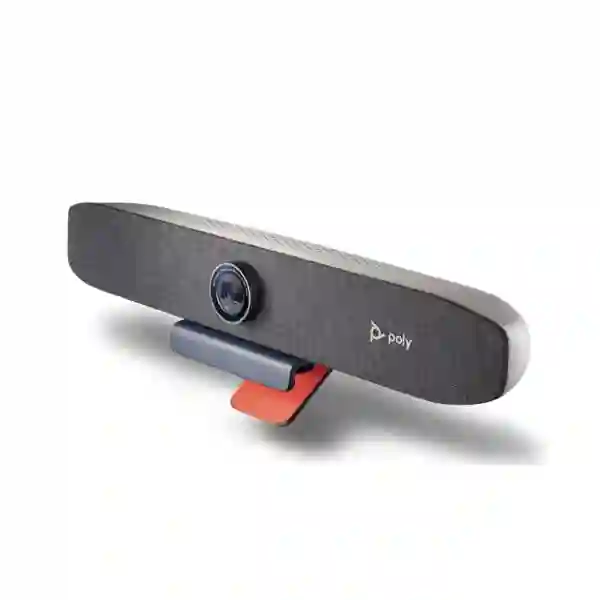
HP Poly Studio P15 Personal Video Bar
Make everyday work calls clearer with a 4K-capable USB camera, automatic framing, three beamforming microphones and an integrated loudspeaker in a single desk-focused device. The Studio P15 is intended for personal video meetings at a compatible computer—not as a standalone conference-room system.
For a Tanzania workplace, begin with the workstation: confirm the USB connection, monitor mount, meeting application, power-cord requirements and actual office environment. Request a current quotation and suitability review before committing to a deployment.
At a glance
4K UHD capture
Up to 3840 × 2160 camera resolution; the app determines meeting output.
90° diagonal view
Automatic framing with electronic zoom supports personal presentation.
Integrated meeting audio
Three-element microphone array, noise technologies and one speaker.
Privacy and fit
Physical lens shutter, removable monitor clamp and external power.
Is the P15 right for your desk?
Choose this category when a person works from a stable laptop-and-monitor or desktop workstation and joins frequent video meetings. It combines three everyday functions—camera, microphone and speaker—in a dedicated monitor-top device. For mobile users or open-office desks where headsets are mandatory, a different solution may be more convenient. The decision should be made against real working conditions, not camera resolution alone.
The following guide covers practical performance, placement, application selection, setup, procurement checks and common questions. Technical capabilities are based on HP product and support information; pricing, inventory, local delivery and regional commercial terms are intentionally left for a current supplier quote.
One personal video bar instead of several desk peripherals
The HP Poly Studio P15 Personal Video Bar is built around a familiar problem: an otherwise capable laptop or desktop can still make video meetings feel awkward. A small embedded camera may be positioned too low, an internal microphone may capture room noise, and compact laptop speakers can be difficult to hear. A personal video bar places the main meeting hardware together at the workstation so the employee can concentrate on the conversation rather than adjusting several separate devices.
This is not a standalone video calling computer and it is not intended to replace a complete large-room conferencing system. It connects to a supported host computer, which runs the meeting application and supplies the network connection. That distinction matters when evaluating equipment for office workstations: the camera and audio hardware may be good, but the quality of the call still depends on the computer, software, internet service and room conditions.
The most relevant buyer is someone who spends substantial time in video conversations from a consistent desk. Purchasing teams should think about how often that desk is used for meetings, whether integrated audio is appropriate, and how much space exists above the display. The answer to those practical questions is more useful than choosing a product only because its specifications mention 4K.
What 4K capture means in a real meeting
HP specifies a single-lens camera with up to 3840 by 2160 pixels of capture resolution, along with 1080p and 720p modes and a maximum video frame rate of 30 frames per second. The higher-resolution sensor can provide more image detail and useful flexibility for electronic framing. That is especially relevant when the presenter moves a little, sits back from the screen, or needs a well-defined picture for customer-facing meetings.
However, a 4K sensor does not mean that every caller will see a 4K stream. A conferencing platform can restrict resolution, a meeting policy may set a limit, and available bandwidth or CPU performance can change what gets transmitted. USB connectivity also matters. Use the supplied compatible USB-C connection and check that the computer provides the appropriate high-speed USB connection when maximum image performance is an objective.
For most teams, even a properly framed Full HD picture can be more valuable than a nominal 4K number. Test the device using the applications and call conditions that employees actually use. Ask whether faces remain naturally lit, whether documents are readable when deliberately shown, and whether the image looks consistent during ordinary movement. These are observable results rather than promises about any particular meeting platform.
Automatic framing and the 90-degree viewing angle
The P15 offers a 90-degree diagonal field of view and automatic camera framing. In practical terms, the lens can take in more of the area around a seated user than a narrowly framed camera. Its automatic framing function is intended to keep the speaker positioned in the picture as they change posture or shift at the desk. HP also lists electronic zoom up to four times and manual pan, tilt and zoom control through supported settings.
Think about the actual geometry of the workstation. A broad view can accidentally include an open office aisle, an unmade background or another employee. If the image shows too much, adjust positioning and framing rather than assuming maximum coverage is always desirable. A monitor-mounted camera is usually most natural when the speaker faces the screen and looks toward the lens during the conversation.
Automatic framing should be treated as a convenience, not a substitute for thoughtful camera placement. Fast movement, an unusual lighting pattern or multiple visible faces may affect results. For a formal presentation, check the framing in the selected conferencing application before guests join. If the feature distracts from a stable seated conversation, evaluate the available framing controls and select the behavior that better suits the meeting.
A three-microphone array for the person’s voice
The integrated microphone arrangement uses three beamforming elements. Beamforming helps the device focus on the intended speaking area rather than treating every nearby sound as equally important. This is useful for home offices and business desks where a keyboard, fan, doorway or passing conversation may otherwise compete with the speaker. The P15 also supports full-duplex audio and acoustic echo cancellation for two-way conversation.
The microphones should be positioned with the primary talker in front of the bar, not across a table or behind a partition. Although a multi-element array provides flexibility, it is still important to evaluate room acoustics, speaking distance and other noise sources. An empty, reflective room can sound very different from a furnished office even when the same equipment is used. Soft furnishings and practical placement can improve intelligibility.
For an IT rollout, test with different speaking volumes and common office noises. Have a remote participant listen while the user types, pauses, resumes speaking and plays meeting audio through the integrated speaker. This exposes whether the selected device settings suit the intended environment. Avoid judging microphone performance only from the meter that moves inside a meeting application; a real listening test gives better feedback.
Understanding NoiseBlockAI and Acoustic Fence
Poly NoiseBlockAI and Poly Acoustic Fence are different audio technologies that address related problems. NoiseBlockAI is intended to reduce distracting non-speech background sound. Acoustic Fence focuses on separating the intended speaking area from surrounding voices and activity. Used with an appropriately placed microphone array, they can make individual calls easier for the other party to follow.
Neither technology creates perfect silence, guarantees confidential speech or cancels every sound in every room. A nearby person speaking loudly, strong reverberation, a television or sustained mechanical noise may still interfere with a call. Suppression settings may also alter the sound of certain voices or environments. The right approach is to evaluate the features with representative users and adjust the environment when needed.
The customer question is therefore not simply whether the device includes noise reduction. It is whether the organization can conduct meetings with intelligible speech in the spaces it actually occupies. For a quiet private office, modest processing may be sufficient. For an open desk area, microphone direction, seating layout, acoustic treatment and employee headset options may be equally important to the choice of camera hardware.
Integrated speaker and natural two-way conversation
The P15 incorporates a single speaker, so a user can hear other meeting participants without always relying on laptop speakers or separate desktop audio equipment. Its full-duplex audio support and echo cancellation help make two-way conversation possible while the microphone and speaker are active. This is one of the practical differences between a video bar and a camera-only USB webcam.
An integrated speaker is particularly useful for a private workstation where a person can speak aloud without disturbing colleagues. It can reduce the number of separate desk accessories and may simplify device selection inside an application. At a shared desk, however, speaker audio can disturb neighboring workers or expose confidential conversations. A suitable headset may remain preferable for sensitive meetings or high-density offices.
Before committing to a fleet, test speech clarity at a comfortable volume and check how the system behaves when other participants interrupt or speak simultaneously. Make sure the conferencing platform has selected the P15 for both input and output, if that is the intended arrangement. If an employee prefers a separate headset, verify that the application consistently uses the desired devices after reconnecting the workstation.
Privacy, physical controls and visible status
A manually operated privacy shutter is built into the P15 lens assembly. This provides a clear physical action for covering the camera when video is not wanted. The device also has a visible status indicator associated with calling and mute behavior, and HP lists a standard Kensington security lock slot. These are useful features in workplaces where equipment may remain on an exposed desk between meetings.
The privacy shutter covers the camera lens; it should not be confused with disconnecting the microphone, ending a call or securing the host computer. Users should still follow the meeting application’s camera and microphone controls, check their mute state and exit sessions they have finished. Organizational privacy procedures should cover application permissions, meeting invitations, recordings and the handling of sensitive information.
When an employee moves between private and public conversations during the day, make the closing routine simple: stop sharing content, finish the meeting, review the microphone state and close the lens shutter. For shared desks, the business may also need a process for signing out of conferencing accounts. The bar is a helpful device-level privacy aid, not a complete security control by itself.
USB connectivity and the separate power supply
The P15 is a USB-connected peripheral rather than an independent network meeting endpoint. HP documentation identifies a USB-C connection to the host, two USB-A ports on the device and an external power connection. The specified power input is 12 volts at 3 amps through the supplied power arrangement. The computer still provides the meeting application, sign-in, screen sharing and internet access.
During procurement, check the computer’s available USB-C connection and the applicable USB version rather than relying on connector shape alone. A USB-C socket does not necessarily indicate the same bandwidth or functions on every machine. Confirm whether the desk setup needs a USB adapter or docking station and test the complete path. Avoid assuming that an arbitrary cable or passive adapter will preserve the best supported video mode.
The external power adapter also affects cable planning. Allow for both USB and power cable routing, confirm the appropriate local mains connector and adapter specifications for the exact supplied package, and keep the power lead away from chair movement. Ask the seller to identify the regional power-cord arrangement before purchase. No assumption about plug style or suitability should be made from the product name alone.
Monitor mounting and the space above the screen
HP supplies a removable monitor clamp, and the P15 is tripod ready. These options are useful for a fixed desktop display or a suitable alternative mounting arrangement. The device measures approximately 425 millimetres in width, so the physical installation deserves more attention than it would for a small clip-on webcam. Consider whether the screen top is flat enough for secure positioning and whether the camera could obstruct visible content.
A laptop display may not be the best mounting location for a larger personal video bar. The laptop screen can be thinner or less stable than an external monitor, and frequent transport is not the central design goal of this product. For mobile workers who constantly change locations, portability may matter more than an integrated desk speaker. For stationary professionals, a stable monitor-top position can improve the camera angle.
Check the space behind the display for power and USB connections. Confirm that cables can bend naturally without strain and that the mount does not interfere with a monitor arm or wall. Position the lens near eye level where possible, then perform a test call. A technically compatible mount that leaves the user looking sharply downward is less satisfactory than a well-positioned arrangement.
Lighting and background preparation
The camera’s high-resolution sensor cannot completely correct poor lighting. A user seated with a bright window directly behind them may appear dark, while a strong overhead light can create uneven shadows. Start with a moderate light source in front of the speaker or at an angle that illuminates the face naturally. Then inspect the actual picture in the application rather than guessing how it will appear remotely.
Think about what the wider 90-degree view reveals. A customer may see documents on a side table, a busy corridor or branded materials that were not intended for the call. A neutral and organized background often matters more than applying aggressive background blur. Where a virtual background is preferred, verify that the host computer and conferencing software can process it smoothly alongside the video bar.
For repeated professional use, a short workstation checklist helps: check face lighting, position the camera, review the background, close unnecessary windows and test screen sharing. These actions take little preparation but can improve the experience of a training session, job interview or customer discussion. The purpose of the hardware is to support communication, not to remove the need for professional presentation habits.
Microsoft Teams, Zoom and other meeting applications
HP lists Microsoft Teams and Zoom certification for the Poly Studio P15. It also identifies standard USB video and audio compatibility, which means supported conferencing applications can generally discover the device through normal host operating-system mechanisms. Certification is useful, but it should not be interpreted as a guarantee that every software version, account policy or advanced feature works identically on every computer.
The host computer and meeting service determine many functions beyond the camera. Recording, captions, virtual backgrounds, screen sharing, webinar controls and call admission are functions of the application or organization, not standalone capabilities of the bar. If an organization uses a different meeting service, verify its current device requirements and test camera, microphone and speaker selection with the exact software deployment.
For a mixed-platform office, consider a small compatibility pilot before ordering multiple units. Check account sign-in, peripheral permissions, docking arrangements, operating-system security policies and how meetings behave after sleep or reboot. A working demonstration on one employee’s personal laptop does not replace validation on a managed company computer with different permissions and installed software.
Configuration tools and IT management
HP identifies Poly Lens and Poly Studio software in connection with device management and configuration. These tools can help administrators or users access supported settings, work with device behavior and manage software-related tasks. Availability and feature sets can change between operating systems and software versions. IT teams should consult the documentation appropriate to their managed environment before making deployment commitments.
For a single workstation, basic USB connection and device selection may be the most important tasks. For a larger organization, consistency matters more. Decide who is responsible for configuration, how support tickets are handled, when software updates are assessed and whether employees can change camera or audio processing settings themselves. Record a working baseline so that troubleshooting does not rely on memory.
A pilot should verify the exact software build, permissions and update policy. Some users may be restricted from installing applications or modifying device firmware. Coordinate with endpoint security teams where appropriate, and do not assume that cloud management features are automatically included with every purchase or enabled under every company policy. Hardware support and software administration should be evaluated as related but separate responsibilities.
A focused home-office meeting workstation
A home-office user may conduct video calls from a dining-room desk, dedicated study or shared living space. The P15 is most attractive where the workstation remains in place and the user frequently speaks to colleagues or customers. An integrated camera, microphone system and speaker can reduce the need to connect three separate peripherals each morning. Automatic framing can also help a presenter remain comfortably positioned during a conversation.
Home conditions vary substantially. A fan, street noise, family conversation, reflective walls and unreliable power can affect the call. Noise processing may help with some distractions but it does not replace choosing a sensible meeting location. Consider whether a headset remains more practical when other people are nearby, and make sure the webcam’s wider viewing angle does not include private household details.
The purchasing decision should be based on frequency and importance of video meetings rather than solely on premium camera specifications. For an employee who joins one brief call each week, a simpler webcam may be sufficient. For a consultant whose client interactions occur on camera every day, an integrated personal bar may justify the additional desk space and setup attention.
Business offices, managers and shared workstations
Within a company, individual video bars can be considered for managers, customer service specialists, project leads, recruiters and other staff whose work requires regular face-to-face conversations. A standardized workstation can simplify onboarding and help remote participants see and hear the speaker more consistently. The P15 is particularly suited to a personal desk arrangement, not automatically to an entire meeting room.
A shared workstation requires a different operating routine from a permanently assigned desk. Users may change seats, connect different laptops or prefer different audio devices. Clear instructions for selecting the camera and speaker, checking mute status and signing out are therefore useful. The company should also determine whether the integrated speaker is appropriate for the confidentiality requirements of that location.
Before scaling an installation across several desks, verify physical monitor compatibility and USB availability on the actual company computer models. Test with the network and security settings that staff use, not only with an unrestricted test machine. Ask employees about comfort, microphone performance and perceived meeting clarity. The results can inform a proportionate rollout instead of assuming that one device configuration suits every role.
Training, tutoring and online presentations
Teachers, trainers and subject-matter experts often need to explain ideas while remaining visible to an audience. The P15’s automatic framing and integrated audio can support a presenter who speaks from a desk, references a nearby display or changes posture while talking. The higher-resolution camera can also help create a detailed source image, although the meeting service determines the resolution participants ultimately receive.
If the presenter needs to show handwritten notes, small physical objects or a whiteboard, evaluate those activities separately. The P15 is not a document camera or a purpose-built classroom tracking system. A camera positioned above a monitor may not show a tabletop or distant board at a useful angle. Screen sharing, a separate document camera or a different mounting plan may be the appropriate companion solution.
During a trial, test voice clarity when the teacher looks away from the screen, opens presentation software or plays a short instructional clip. Verify which audio source the application uses and whether participants experience echo or unusual volume changes. A technically impressive camera has less value if learners cannot hear the explanation consistently or if the presenter spends the session managing device controls.
Customer meetings, interviews and professional consultations
For a recruitment interview or one-to-one professional consultation, the aim is to create a natural conversation rather than showcase equipment. Clear voice reproduction, stable framing and a direct camera angle can make it easier for the other person to follow facial expressions and respond. The P15 brings those hardware functions together while the host application handles the appointment, participants and any permitted recording.
Consider confidentiality and surroundings before selecting a workstation. Sensitive information on a second monitor may appear on camera or become visible during screen sharing. An integrated loudspeaker may be unsuitable where colleagues can overhear a private conversation. Use a headset or a private room when necessary, and follow applicable organizational policies for identity, consent, retention and protected information.
For client-facing roles, prepare a consistent routine: connect before the appointment, confirm the selected audio devices, look at the camera during introductions and pause to verify that the other party can hear clearly. Device certification and noise reduction are valuable, but professional meetings still depend on thoughtful communication and respectful handling of private material.
Where a personal video bar is the wrong choice
The word video bar can cause confusion because there are products intended for one desk and others engineered for entire meeting rooms. The Studio P15 is positioned by HP as a personal video bar. Its camera angle, microphone arrangement, integrated speaker and typical mounting approach are most relevant to a person at a workstation. It should not automatically be specified for a boardroom or a wide table with participants sitting far from the device.
Large rooms may need wider coverage, different microphone pickup, dedicated controllers, room-compute integration and more substantial audio systems. Conversely, an employee who travels daily may prefer a lightweight webcam or headset. There is no universal best choice: physical layout, participant count, mounting position and software architecture determine the appropriate category of equipment.
A good procurement brief should specify how many people will speak, where they sit, the screen size, the host computer, the meeting applications and the level of mobility required. If those facts suggest a room-based system rather than a personal desktop peripheral, evaluate that category directly. Buying a personal bar simply because it has a 4K camera can lead to a mismatch between the specification and the actual meeting experience.
Comparing the P15 with a basic webcam or a headset
A basic USB webcam can provide sufficient video for an employee who already owns a good headset and works in a quiet room. A headset often delivers private listening and close-microphone pickup, which can be particularly attractive in open-plan offices. The P15 is different because it integrates a more substantial camera system, speaker and microphone array into a single monitor-oriented unit.
The relevant comparison therefore involves the whole workstation, not only the camera resolution. Count the peripherals required, check cable availability and note whether the user prefers speaker-based or headset-based meetings. Consider whether automatic framing will be used, how much space is available above the screen and what degree of standardization the IT department needs. A camera that looks better on paper may not improve everyday workflow if the mounting arrangement is unsuitable.
Budget decisions should also include the effort of configuration, employee guidance and support. A fleet of simpler devices might be right for short, occasional calls, while a smaller number of integrated video bars may suit employees with intensive customer interaction. Without verified local listing data, avoid assuming a particular savings figure or comparing unconfirmed prices. Request a current quote based on the chosen configuration.
IT procurement checklist before approval
Before placing an order, confirm the exact model name and quantity. Record which employees will receive the device, their operating systems, USB connection options, display types and meeting platforms. Determine whether the bar will be attached with the included monitor clamp or a separately obtained compatible mount. Ask whether the supplied power adapter and cord are suitable for the intended site and how the cables will be routed.
Next, define acceptance tests. A useful pilot checks device detection after restart, image selection in Teams or Zoom, microphone intelligibility during ordinary noise, speaker behavior during overlapping dialogue and automatic framing performance under typical lighting. Also confirm how the privacy shutter works and whether staff understand the distinction between covering the lens and muting audio.
Finally, document service expectations without making assumptions about stock or warranty. Request the exact quotation, regional package details, applicable warranty terms, support arrangements and any required accessory information in writing. Ask the relevant IT owner to approve compatibility before purchasing several units. A small validation exercise reduces the risk of buying hardware that cannot be mounted or connected in the intended workplace.
Simple setup and first-call checklist
Start with the intended monitor and host computer powered off or placed safely for cable installation. Secure the removable monitor clamp according to the product instructions, position the bar and connect the specified power adapter. Connect the supplied USB-C cable to a supported computer port, observing any organizational requirements for hubs or docking stations. Avoid forcing connectors or arranging cables under mechanical tension.
Once the operating system recognizes the device, open the conferencing application and select the P15 camera, microphone and speaker where those are desired. Use a test meeting to evaluate the frame, voice level and sound from remote participants. Open the privacy shutter for video and confirm that the camera is not blocked. Verify the mute state in the software before joining a live customer meeting.
If the organization permits configuration software, use the relevant supported tool to review available options and updates. Do not change multiple settings at once during a troubleshooting session. Record which adjustment improves the result, and test again after the computer sleeps, wakes or switches between docking arrangements. A repeatable first-call routine is especially valuable for shared workplaces and larger deployments.
Troubleshooting image, microphone and speaker problems
If no picture appears, first check the physical shutter, the USB cable and the camera selection inside the application. Confirm that the host operating system has allowed camera access and that another program is not monopolizing the device. If the available image resolution is lower than expected, inspect the USB connection and application settings; a 4K capture capability alone does not guarantee a 4K call.
If the far end hears poor audio, confirm that the P15 microphone is actually selected. Reduce nearby noise where practical, move the speaker toward the intended pickup area and test with one participant listening remotely. If there is echo or feedback, check whether multiple microphone or speaker devices are active, whether the application is using an unexpected output and whether the device configuration is suitable for the room.
If the unit stops being recognized after a dock change or restart, try an approved direct connection for diagnosis and verify the computer’s device settings. Escalate persistent problems to the organization’s IT support process and use the applicable HP support instructions. Avoid unsupported firmware, unknown replacement power supplies or undocumented reset procedures. The aim is to isolate the cause safely rather than repeatedly changing settings without a test plan.
What to confirm when buying for use in Tanzania
For a Tanzania-based organization, the practical purchasing question is whether the precise supplied package fits its computers, workspaces and power arrangement. Verify a current quotation, stock status if relevant, delivery terms and the conditions applying to the sale directly with the supplier. No local price, delivery promise, warranty entitlement or inventory status is assumed here. The final purchase decision should be based on the offer actually issued.
When requesting a quote, describe the number of workstations, the host PC models, the meeting platform and whether employees work from private or shared desks. Ask for clarity about the supplied USB-C cable, AC adapter, power cord and mounting hardware. If a different connector or mount is needed, identify it before deployment rather than improvising after delivery.
Good video conferencing also depends on reliable internet and power at the meeting location. Check the business connection, Wi-Fi or wired network performance, meeting software requirements and local backup arrangements when continuity is important. The P15 is an endpoint peripheral and does not independently provide an internet link. FourTeck Tanzania can be asked to review suitability and prepare a quotation for the described use case.
Verified technical overview
The specification summary below describes HP’s published hardware information. Video mode availability and behavior depend on computer and application support. Product packaging and commercial terms should be confirmed for the exact Tanzania quote.
- Product type
- Personal USB video conferencing bar
- Camera resolution
- Up to 4K UHD 3840 × 2160; also 1080p and 720p
- Maximum specified frame rate
- 30 fps
- Diagonal camera field of view
- 90 degrees
- Camera adjustment
- Automatic framing; up to 4× zoom; supported manual framing controls
- Microphones
- Three-element beamforming array
- Audio
- Full duplex, acoustic echo cancellation, NoiseBlockAI and Acoustic Fence
- Speaker
- One integrated speaker
- Connection and power
- USB-C host connection; external 12V / 3A power
- Other connections
- Two USB-A ports; security lock slot
- Mounting
- Removable monitor clamp; tripod-ready design
- Privacy
- Manual lens shutter and device status LED
- Platform certification
- Microsoft Teams and Zoom, per HP documentation
- Published system compatibility
- HP lists Windows 8.1 and 10, and macOS 10.10 or later; validate current deployments
- Included items listed by HP
- P15, clamp, USB-C cable, power adapter, power cable, setup sheet
Frequently asked questions
Is the HP Poly Studio P15 a webcam or a complete meeting system?
It is a personal USB video bar combining a camera, microphone array and speaker. It works with a compatible computer running a conferencing application. It is more integrated than a camera-only webcam, but it is not a self-contained meeting computer and should not be assumed to cover an entire large conference room. The most sensible use is at a dedicated workstation where an individual participates in regular video calls. For room-wide meetings, compare the device against products designed for that environment.
Does every video call automatically transmit 4K video?
No. The camera supports up to 4K UHD capture, but the result seen by remote participants is controlled by the connected computer, USB path, meeting application, service settings and available bandwidth. Some services may use Full HD or HD despite a higher-resolution sensor. If image quality is a purchase criterion, test the exact platform and host configuration rather than assuming that the highest capture specification is always the transmitted meeting resolution.
Can I use the P15 with Microsoft Teams or Zoom?
HP lists the Studio P15 as certified for Microsoft Teams and Zoom. This is useful evidence of compatibility, but the user still needs a suitable computer, current meeting application and the required device permissions. Choose the video bar as the active camera and audio device if appropriate. If the workstation is managed by a company, confirm its operating-system and software policies before deployment. Certification should not be interpreted as a promise about every future application feature or version.
What is automatic camera framing?
Automatic camera framing adjusts the composition of the image to help keep a person properly positioned when they move within the supported view. The P15 also offers a 90-degree diagonal field of view and electronic zoom capability. It is most helpful when the speaker changes posture at a desk, although camera placement and lighting still matter. Test the behavior for fast movement and for any other people visible in the background; a stable fixed frame can sometimes be preferable.
What is the difference between NoiseBlockAI and Acoustic Fence?
NoiseBlockAI is intended to reduce distracting background noise, while Acoustic Fence is designed to emphasize sound from the intended speaking area and reduce sounds originating outside it. The technologies can support intelligible individual calls but cannot promise complete noise removal. People nearby may still be audible, particularly in reflective or very noisy rooms. For confidential meetings or open offices, a headset and a more private location may be more appropriate than relying exclusively on audio processing.
Does the privacy shutter mute the microphone?
No. The physical shutter covers the camera lens and should not be treated as an audio mute control. Users must separately check the microphone mute state in the meeting application or the applicable device controls. Ending a call, stopping screen sharing and signing out of shared accounts remain separate responsibilities. The shutter is useful because it gives a visible way to cover the lens between calls, but comprehensive meeting privacy needs both device and software precautions.
Does it need an external power adapter?
Yes. HP specifies an external power supply for the Studio P15, with 12V and 3A power requirements. The product’s documented package includes an AC adapter and power cable alongside its USB-C cable. Buyers should confirm the exact regional cord and electrical suitability for their intended installation. Do not assume that the video bar receives all necessary power from the USB port or replace the adapter with an unverified alternative. Plan desk cable routing around both the data and power connections.
Can it be mounted on a laptop?
The P15 is relatively wide and designed primarily for monitor-oriented installation using a removable clamp or a suitable tripod arrangement. Although individual setups differ, a thin, frequently moved laptop display may not be a stable or comfortable mounting location. Check monitor geometry, secure attachment and cable clearance before purchase. Employees who travel frequently may find a smaller webcam more convenient, while those working at a fixed desk can benefit from a dedicated mount at eye level.
Do I need a separate microphone or speaker?
The video bar includes a three-microphone beamforming array and one speaker, so it can provide the primary audio hardware for personal meetings. A separate microphone or speaker is not necessarily required for a compatible private workstation. However, a headset may still be preferable for confidentiality, open-office etiquette or individual listening comfort. The best configuration depends on the room and user, and the conferencing application must be set to use the intended input and output devices.
Can the Studio P15 replace a meeting-room camera?
It is not automatically an appropriate replacement for a dedicated meeting-room system. The P15 is marketed as a personal video bar, where the main participant sits near a connected computer. A conference room may require broader camera coverage, different microphone placement, more speaker capacity and controls for multiple people. Assess the participant count, room dimensions, seating arrangement and software before choosing between personal and room-focused video equipment. A high-resolution camera alone does not settle that decision.
What comes with the HP Poly Studio P15?
HP’s published package list includes the Studio P15, removable monitor clamp, USB Type-C cable, AC power adapter, power cable and setup sheet. Exact commercial packages and regional power-cord specifications should be reconfirmed against the quote for the intended order. Do not presume that a tripod, docking station, adapter to every computer port or optional mounting accessory is included. Identify any additional accessory before approving an installation across multiple workstations.
How do we choose the right quantity for an office?
Count the employees who regularly make video calls from dedicated desks, then separate those with private workspaces from colleagues in open or shared seating. Pilot the device on representative computer and monitor models, verify the conferencing platform, and document staff feedback. Do not automatically equip every employee merely because the specification is attractive. Some users may be better served by smaller webcams or headsets, and shared meeting rooms may require a different video-conferencing category altogether.
Is a Tanzania price or delivery time guaranteed?
No Tanzania price, stock position or delivery date is stated on this page. Those details must come from a current, explicit quotation for the exact product and required quantity. The same applies to any local warranty, installation service or regional power-cord arrangement. When contacting FourTeck Tanzania, share the workstation requirements, requested quantity, platform and mounting preferences so that the resulting offer can be evaluated against the actual deployment.
Next step
Request a Studio P15 quotation for Tanzania
Tell FourTeck Tanzania how many workstations you need, which computer models and meeting apps are in use, and whether employees sit at fixed desks or move between locations. Ask for a current price, package confirmation, regional power-cord information, applicable terms and any necessary mounting or connection accessories.
A suitable setup is one that users can connect, position and operate comfortably in their everyday environment. Confirm technical fit and commercial terms before placing the order.
Reviews
There are no reviews yet.