
Personal video collaboration · Tanzania buyer guide
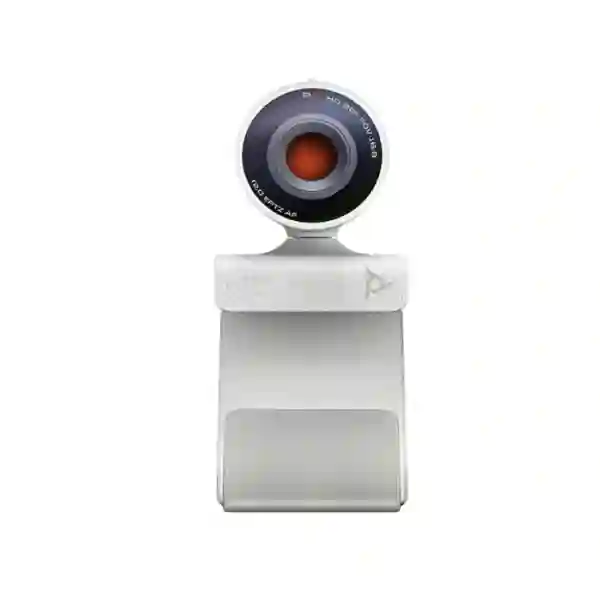
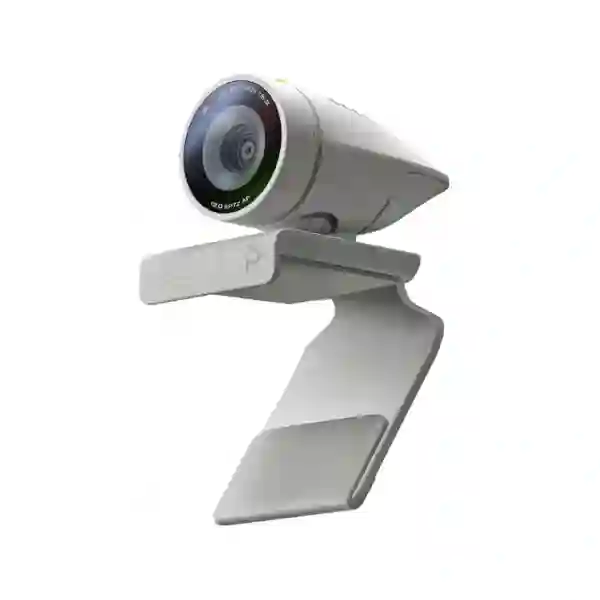
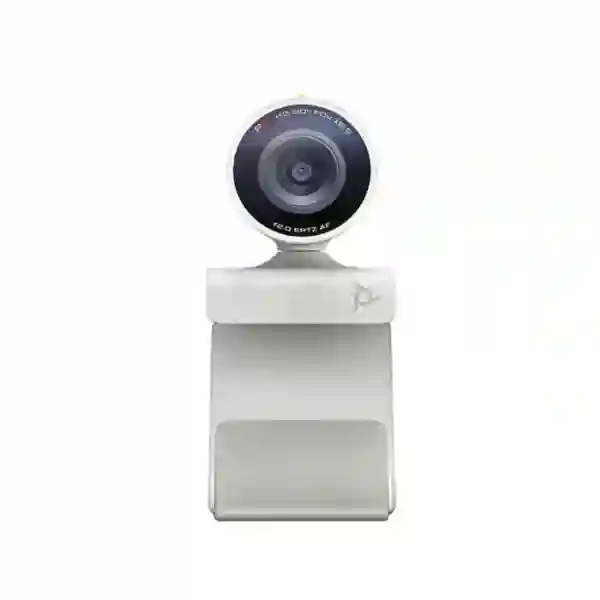
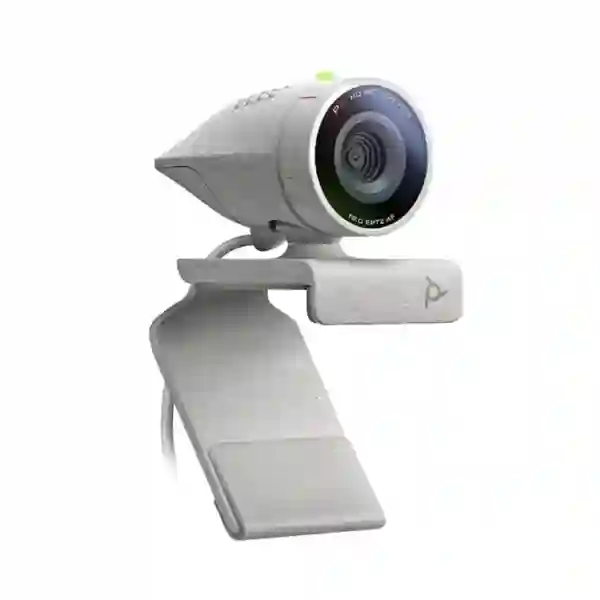
HP Poly Studio P5 USB Webcam
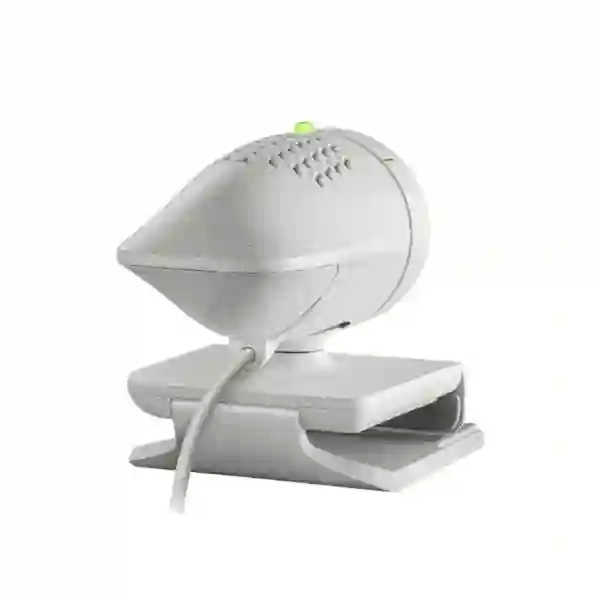
The HP Poly Studio P5 USB Webcam is a professional personal camera for clearer video calls from a desk, home office or individual workstation. Its 1080p video, autofocus, directional microphone and integrated privacy shutter address four everyday meeting needs: being seen, being heard, staying framed and controlling when the lens is exposed. Choose it when a practical USB-A webcam is more suitable than a room-wide conferencing system, and confirm compatibility and commercial details before purchasing for use in Tanzania.
At a glance: what to expect
This camera is designed for one person seated at a computer. It combines 1080p and 720p video capture at up to 30 fps with an 80-degree diagonal field of view, autofocus and up to 4× digital zoom. A built-in directional microphone and shutter make it practical for routine video calls. It connects to the computer using an integrated USB-A cable and supports applications that recognize standard USB/UVC video devices. It is not designed as a complete multi-person meeting-room system.
Is this the right webcam for your workspace?
The most useful starting point is not a list of features but the number of people who need to appear on screen. The Studio P5 is primarily a personal video device. It makes sense for a worker seated in front of a monitor, a professional making client calls, a learner attending remote lessons or a manager participating in scheduled online meetings. The 80-degree diagonal view gives a reasonable amount of surrounding space without turning every call into a wide-room shot.
Choose a different type of equipment when the camera needs to capture people around a conference table, cover a large classroom or track a presenter walking across a room. Those settings require evaluation of wider optics, microphone pickup distance and speaker output. A webcam connected to one computer does not replace a dedicated meeting-room camera and audio system.
Full HD resolution: what 1080p actually changes
The Studio P5 supports Full HD 1920 × 1080 video and HD 1280 × 720 video, both at up to 30 frames per second according to HP’s product documentation. For a typical head-and-shoulders meeting, this gives the receiving participant a more detailed picture than a basic low-resolution laptop camera when the rest of the call conditions are suitable. Facial expressions, eye contact and ordinary presentation gestures can be easier to distinguish.
Resolution does not guarantee that every participant will see a Full HD stream. Conferencing applications can adapt image quality to available bandwidth, account settings, computer performance and meeting layout. A poor connection can force a lower resolution even when the camera captures more detail. The practical approach is to select the correct video source, make sure the lens is clean, and preview the image inside the actual meeting application rather than assuming a specification alone determines the final result.
Frame rate and natural-looking movement
The published 30-frames-per-second capability is appropriate for ordinary conversations and professional video meetings. It is intended to show facial expressions and moderate movement naturally, not to compete with a specialised high-frame-rate production camera. When a presenter turns to look at a document or gestures while speaking, the camera can provide smooth enough motion for a normal conferencing workflow.
What happens beyond the camera also matters. The conferencing platform may cap incoming or outgoing frame rate, and low-light conditions can change the apparent smoothness of an image. Brightening the person’s face with a soft lamp can help the picture look more consistent. Buyers planning fast product demonstrations, sports capture or demanding studio recording should compare purpose-built cameras and their frame-rate requirements instead of judging the P5 solely by its Full HD label.
Autofocus for changing desk positions
Built-in autofocus helps the camera maintain a useful focus as the person shifts slightly toward or away from the screen. This matters during a working day when somebody alternates between reading a document, typing and speaking to colleagues. It also reduces the need for manual focusing by users who simply want to connect a camera and join a call. A small shift in position is an ordinary case that autofocus is designed to accommodate.
Autofocus still works best with a clearly visible subject and a sensible amount of front lighting. Strong reflections, very dark rooms or objects held right against the lens can make any autofocus system less predictable. Before an important interview or customer meeting, preview the chosen framing and stay within a comfortable seated distance. If your application offers camera controls, check that automatic focus remains enabled when needed.
Four-times zoom and electronic framing
HP specifies up to 4× zoom with electronic pan, tilt and zoom capability. In practical use, this lets an individual tighten the composition when the camera is mounted farther away or when a little less background should be included. For example, a desk user may prefer a centered head-and-shoulders image instead of showing an entire wall behind the monitor. Camera settings available through supported software can assist with adjustments.
This is digital framing, not the equivalent of a large optical zoom lens. Enlarging part of a digital image can reduce the effective detail available in the crop. Use the smallest amount of zoom that achieves the required composition; moving the camera to a better position can be preferable to zooming aggressively. Buyers who need close-up inspection of fine product markings or small printed text should test the actual image instead of assuming that 4× zoom is suited to document examination.
The 80-degree diagonal field of view
An 80-degree diagonal field of view is a useful balance for personal collaboration. It can include the speaker, upper body and some surrounding workspace, while helping avoid the exaggerated wide-room look associated with very broad lenses. The field-of-view figure describes the camera’s diagonal capture angle, not how many people will reliably fit in a meeting. Placement and distance change the visible composition.
Place the webcam approximately at eye level and position the chair so the person’s face has room around it without making the head tiny. If two people must share a single frame occasionally, a wider shot may work, but the microphone and framing are still optimized for a personal workspace. A recurring multi-person arrangement is a reason to evaluate room-oriented devices. Consider privacy too: a wide view can expose confidential papers, visitors or whiteboards unintentionally.
Low-light compensation and colour
Automatic low-light compensation is one of the P5’s practical features for workspaces where natural light changes during the day. HP describes optics intended to maintain useful exposure and natural-looking colour during video calls. This can be helpful in an office that is brighter in the morning than in the late afternoon, or at a desk away from a window. The technology aims to make the person visible without requiring manual adjustments at every meeting.
No automatic exposure system can restore detail that was never adequately illuminated. Very dim rooms may still produce noise, softer-looking images or less natural motion. A small, diffuse light placed in front of the face often has a greater effect than changing camera settings repeatedly. Keep strong windows behind the camera when possible, avoid a bright lamp directly behind the head and assess the picture with the same lighting that will be used during real calls.
Directional microphone: intended use and limits
The webcam contains a single built-in directional microphone designed for individual workstations. Its published frequency response is 50 Hz to 16 kHz. The directional pickup is intended to prioritize the nearby speaker rather than collect conversation equally from across a large room. That can simplify an ordinary desk arrangement because a user may not need to attach an additional microphone for every short meeting.
Directional does not mean that every unwanted sound will disappear. Loud fans, nearby conversations, room echo and traffic can still affect what colleagues hear. For confidential meetings, busy shared offices or calls requiring particularly consistent speech, a dedicated wired or wireless headset may be the better microphone choice. Test the sound with a recording or a colleague before a critical session. If the headset microphone is selected in the conferencing app, it—not the webcam microphone—will provide the meeting audio.
What the privacy shutter does
The integrated shutter physically covers the camera lens. HP’s user guide describes opening it by rotating the shutter ring until it clicks and closing it by rotating in the opposite direction. This is a straightforward visual control for a device that may remain connected to a computer all day. Between calls, a worker can close the cover without needing to move the webcam or unplug the cable.
The shutter controls the optical view; it is not a comprehensive computer security system. It does not replace account protection, application permissions, operating-system updates or organisational rules about recorded meetings. It also should not be confused with microphone muting. Before a sensitive discussion, verify the camera preview, microphone selection and mute status separately. A good habit is to close the lens after a meeting and check app permissions when setting up a shared or managed computer.
USB-A connection and plug-and-play basics
The standard P5 product documentation identifies an integrated USB 2.0 Type-A cable and support for USB Video Class and USB Audio Class plug-and-play operation. Many desktop computers and traditional laptops provide a suitable USB-A port. Once connected, the device can be selected in conferencing applications that recognize standard USB/UVC cameras. There is no need to assume that the camera connects wirelessly to the computer: its primary host connection is wired USB.
Some slim laptops provide only USB-C ports. In that case, check computer and adapter compatibility rather than assuming every third-party converter will work equally well. For company rollouts, verify the exact host models and any required adapters with a sample unit first. A direct connection is useful for troubleshooting because a hub, dock or adapter introduces another potential source of detection and power problems. Ensure the cable can reach the selected monitor position without being strained.
Integrated USB-A port for a supported headset adapter
In addition to the cable that connects the webcam to the computer, the P5 includes a USB-A port associated with supported wireless headset adapters. This can help keep a workstation tidy when using a compatible Poly headset arrangement. The feature is useful for buyers who want a personal camera and optional headset to share an organised desk setup, rather than occupy several separate computer connections.
Do not interpret this built-in port as a universal hub with unrestricted support for storage devices, peripherals or charging. Check the exact headset adapter and its compatibility before promising that it will work with a particular headset model. A wireless headset, if chosen, is a separate audio device and may not be included with the webcam. Confirm the requested accessories in the quotation and remember to set the meeting app’s microphone and speaker choices appropriately.
Meeting applications and compatibility
HP describes the webcam as compatible with applications that support standard USB/UVC operation. That makes it a practical candidate for common desktop video-meeting workflows, including platforms such as Microsoft Teams and Zoom, when the computer, operating system, application version and device permissions allow standard USB camera access. The right compatibility question is not just the name of the meeting service; it is whether that service can select and use the P5 as its camera source.
Before buying for an entire team, check any managed desktop policies, virtual desktop restrictions, conferencing-room software or browser permissions that apply. An application may recognize the camera while still requiring a separate step to choose the microphone. Updates can also change device support over time. A quick pilot on the actual hardware and company account is better evidence than an unqualified promise of universal compatibility.
Computer operating systems and software updates
The original Poly Studio P5 data sheet lists older Windows and Mac versions, while HP’s later P5 user guidance refers to Windows 10 and 11 and specific modern macOS versions. These documents describe different documentation periods and should not be read as a promise that every operating-system release is supported indefinitely. Basic USB/UVC camera operation and full companion-software functionality are also different questions.
For current deployment, confirm the exact computer operating system and relevant HP software release at purchasing time. A camera may appear as a video device without the optional management app installed, while particular settings or update functions may depend on the supported Poly Lens environment. Organisations with locked-down laptops should coordinate with IT before users install software. This helps avoid a camera being physically compatible but operationally restricted by local policy.
Poly Lens settings and IT management
Poly Lens offers configuration and management options for supported Poly devices. HP describes a desktop app for user-side settings and a cloud-oriented service for IT visibility and administration. This can be relevant when a business maintains several standardized workstations or wants users to manage supported camera controls through a familiar interface. The core webcam experience is still about using a USB camera with a meeting application; the management layer should support, not complicate, that goal.
Before planning a large deployment, confirm the currently supported Poly Lens software, device firmware, operating systems, licensing or account prerequisites, and available features for the exact P5 variant. Do not assume every advertised management capability applies to every version or customer environment. A small trial can establish which camera settings are exposed, how firmware updates are handled and whether company security policy allows the required management connection.
Desk placement and ergonomics
A camera can have good optics and still produce an unflattering image when mounted poorly. The P5 includes an adjustable monitor clamp and is described as tripod-ready. At a normal desk, begin by putting the camera near eye height, then move the chair until the user’s gaze is close to the camera when speaking. A small change in elevation can reduce the impression of looking down toward colleagues and makes the framing feel more direct.
Keep the mounting surface stable. A monitor that shakes every time somebody types may cause distracting movement in the video. Leave enough clearance to rotate the privacy shutter and route the cable so it cannot be snagged. When using a tripod, check its stability and attachment compatibility rather than assuming any stand is supplied. The right mount is usually the one that remains consistently aligned across many meetings without daily readjustment.
A simple lighting plan for work and study
Start with the face, not the background. Position a window or diffused lamp roughly in front of the person so both eyes and the mouth are visible without harsh shadows. Avoid putting an uncovered bright window directly behind the chair because a strong backlight can force the camera to expose for the background. The P5’s automatic low-light compensation can assist, but consistent front lighting usually improves the result more predictably.
For a desk used throughout the day, mark a comfortable chair position and keep the main lamp in the same place. If the person wears glasses, move the lamp slightly to one side to reduce reflections. Choose a tidy, non-distracting background and remove sensitive notices before joining external calls. For training sessions, check lighting while the presenter looks at printed notes, because tilting the face downward can create shadows that were not visible during a straight-ahead preview.
A practical audio plan
Good conferencing audio begins with a quiet room and an appropriate microphone choice. If the user sits alone and the room is calm, the built-in directional microphone can be convenient. If the space contains other conversations, echo or machinery, a headset microphone may provide more reliable near-mouth pickup. Neither choice should be made without a short test in the actual room, especially when the conversation involves customers or a formal interview.
Make sure the computer has a working speaker or headphones for hearing other participants; this webcam is not a substitute for a room speakerphone. In the conferencing application, confirm three independent settings: camera, microphone and speaker. Choosing the P5 as the camera does not automatically guarantee that its microphone is the best input. Keep the chosen microphone unobstructed, close nearby windows if external noise is high, and avoid placing speakers where they feed sound back into the active microphone.
First-call setup checklist
Begin by attaching the monitor clamp, securing the camera at a comfortable height and connecting its integrated USB-A cable to a compatible computer port. Open the privacy shutter and allow the operating system to detect the device. In the video application, open device settings and select the Poly Studio P5 camera if it is not automatically chosen. Watch the preview while adjusting the angle, distance and background.
Next, select the microphone that fits the room: the webcam’s directional microphone or a separate headset. Select a speaker or headphones for incoming audio, then make a short test call. Confirm that participants can hear speech at a normal level, the face stays in focus and camera permission is enabled. If optional Poly Lens controls are required, install only a version approved for the computer. Finally, close the shutter after the test and make sure reopening it restores the expected image.
Working with limited or variable internet quality
In many office and home setups, meeting performance depends on the network as well as the webcam. A Full HD camera cannot prevent pixelation when a conferencing platform reduces video quality because of congestion. If a call becomes unstable, check connection quality before assuming the camera has failed. A wired computer network connection, where available, can avoid some Wi-Fi interference; alternatively, positioning closer to the access point may help.
Avoid simultaneous large uploads or downloads during an important meeting if they affect the shared connection. Use the conferencing application’s video-quality controls where provided, and consider lowering outgoing resolution if stability matters more than maximum detail. Audio intelligibility should take priority over preserving a sharper picture during difficult network conditions. These are general deployment practices, not a promise about performance on a particular internet provider or service area in Tanzania.
For individual business professionals
A consultant, accountant, coordinator or administrator may join several short meetings from the same desk each day. In that situation, a camera that remains securely mounted and is simple to select in software can be more valuable than advanced production features. Autofocus helps with ordinary movement, the directional microphone provides an immediate audio option and the privacy shutter can be closed between sessions.
Consistency matters in client-facing work. Set one repeatable framing and lighting arrangement so calls begin without a long technical routine. If work is confidential, use headphones and ensure private material is outside the camera’s view. For shared hot desks, verify each computer’s port, device permissions and preferred settings instead of expecting every station to behave identically. The P5 is well aligned with a single seated user; wide-angle group capture calls for another category of equipment.
For online classes and guided training
For a learner or instructor who speaks directly to a computer, Full HD video and a built-in microphone can support clearer face-to-face interaction. An adjustable clamp lets the camera stay near the screen while notes or lesson material remain visible. Positioning the face at the top third of the preview can help students see expressions, while a clear background reduces distractions during demonstrations.
The webcam should not be selected as the sole solution for capturing an entire board, a large classroom or very small handwriting. Those cases may require document cameras, screen sharing or a room-oriented setup. Instructors should test that the audio remains understandable while turning toward notes, and should screen-share digital materials rather than relying on the webcam to make tiny text legible. For shared educational computers, check user permissions and the lesson platform before planning a multi-device purchase.
For remote interviews and assessments
A remote job interview or assessment depends on a dependable face-and-voice connection. The P5 can offer a more deliberate personal setup than an inconveniently positioned built-in laptop camera. Mount it at eye level, use a neutral background and confirm that the camera remains focused while the candidate looks from the screen to the lens. The privacy shutter is also a clear physical control when the session has ended.
The most common failures in this setting are avoidable: the wrong microphone is selected, the browser has no camera permission, strong light behind the person hides their face, or a notification interrupts the meeting. Test with the exact interviewing platform and browser ahead of the session. Because interview software may have its own recording or proctoring requirements, confirm those separately; a general UVC webcam does not by itself establish compatibility with specialized assessment systems.
For virtual customer consultations
During a remote customer consultation, visible facial cues can make the conversation more natural, especially when participants are discussing a quote, service requirement or project plan. The P5 supports the personal, seated part of this interaction. Its field of view is best used for a centered speaker rather than trying to show a whole showroom or multiple people spread across the space.
When the discussion includes documents, product details or technical diagrams, use screen sharing rather than pushing tiny print toward the webcam. Confirm that nothing confidential appears behind the presenter or in an unintended reflection. If two staff members must join from the same workstation, test camera placement and microphone pickup before the call. For frequent joint consultations, dedicated collaboration equipment may be more appropriate than repeatedly adapting a single-person camera.
For home workspaces with changing conditions
A home workspace is rarely acoustically or visually perfect. The P5’s low-light compensation, autofocus and shutter can reduce some of the practical friction of joining calls from a personal desk. The camera can remain mounted during the workday, and the user can physically cover the lens between sessions. A neutral wall, front lighting and a headset for a noisy environment can make the complete setup more reliable.
Home working also makes cable management important. Position the laptop or monitor within reach of the integrated USB-A cable and avoid hanging a cable where it can be pulled from a moving desk. When a laptop has only USB-C connectors, verify the chosen adapter. If the computer is frequently moved, consider whether the clamp should be left on the monitor or packed separately. The camera is portable, but repeatable placement saves time across daily calls.
For teams standardizing personal video equipment
A business buying several webcams should begin with a simple workstation inventory: computer make and model, operating system, available ports, monitor design, conferencing app, user audio preference and any device-management restrictions. This catches common rollout issues before hardware arrives. A single sample camera used on representative workstations provides better procurement evidence than buying only from a feature list.
Set a standard setup guide covering shutter use, cable routing, device selection, test calls and acceptable backgrounds. Record which employees need an optional headset and which can use a quiet-room microphone. Confirm how approved software updates will be handled and who supports first-line troubleshooting. Purchase documentation should distinguish the webcam itself from accessories and from any separate support terms. A camera rollout is successful when employees can join meetings consistently, not simply when all devices are connected.
How the P5 compares with a built-in laptop webcam
A built-in laptop webcam has obvious convenience: no additional cable or accessory to carry. But its lens position is tied to the laptop screen, which may sit below eye level. An external camera such as the Studio P5 provides more freedom to mount the lens on a monitor or place it on an appropriate support, and its published optics and microphone features can be assessed independently from the computer being used.
The advantage is conditional, not automatic. A modern laptop might already include excellent imaging, suitable microphones and integrated video effects. If its camera is already good enough for the intended task, an external device may offer only a modest improvement. Compare sample images and recorded speech in the same light, using the same meeting application. Assess the need for privacy, positioning and compatibility rather than assuming any external webcam is superior to every built-in camera.
When a 4K camera would be a better choice
The P5 is a 1080p-class webcam, not a 4K capture device. For ordinary personal meetings, Full HD can be a practical balance of image detail, device requirements and conferencing-platform constraints. A buyer whose main task is looking directly into a camera while speaking may value simple mounting, autofocus and a reliable microphone more than four times as many output pixels.
By contrast, creators recording highly detailed demonstrations, users who crop aggressively after capture, or teams preparing high-resolution training material may have reasons to evaluate a genuine 4K camera. The useful comparison includes field of view, sensor behavior, exposure controls, software support, microphone strategy and actual recording workflow. More pixels do not fix dark lighting or poor audio. Define the final use of the footage before paying for capabilities that routine video meetings may not display.
Why this is not a meeting-room camera
A personal webcam aims at the person seated in front of the computer. A meeting-room system needs to cover several participants, often over a longer distance, and usually must solve both speaker output and far-field microphone pickup. The Studio P5’s single directional microphone is specified for personal workspaces. Its 80-degree field of view and 4× digital framing should not be interpreted as room coverage guarantees.
For a small meeting space, ask how many people will attend, where they sit, how audio is played back and whether remote participants need to see a board or screen. A camera alone does not answer those questions. If the group frequently meets around a table, choose a room-focused collaboration system or a suitable camera plus dedicated room audio. The P5 remains a sensible candidate when every participant has an individual workstation.
Hardware specification reference
For comparison purposes, the core published specifications are Full HD 1080p and HD 720p video up to 30 fps, autofocus, up to 4× digital zoom with electronic framing and an 80-degree diagonal field of view. The camera includes automatic low-light compensation, an integrated privacy shutter, a directional microphone and status indication. USB/UVC support helps standard applications recognize the video device.
The standard published design includes an integrated USB 2.0 Type-A connection, adjustable monitor clamp, tripod-ready mounting and a USB-A port for a supported wireless headset adapter. HP’s original data sheet gives a camera-body size of approximately 37.7 mm wide, 34 mm high and 62 mm deep; the camera with monitor clamp is approximately 60 mm wide, 43 mm high and 68 mm deep. Different distribution variants may have different product identifiers, so the quote should identify the exact unit being offered.
Operating environment and sensible care
The original manufacturer data sheet lists an operating temperature range of 0°C to 40°C and a relative humidity range of 5% to 95%, non-condensing. These are equipment operating specifications, not a rating for outdoor exposure, rain, direct sunlight or wet handling. A dry indoor desk with adequate ventilation is the appropriate working context. In a warm workspace, avoid directing strong sunlight onto the camera for prolonged periods.
Clean the camera lens gently using suitable optical-care methods and avoid abrasive materials that can scratch it. Keep the privacy shutter free to rotate without excessive force. Cable strain is a common mechanical risk, so route the integrated cable behind the monitor when feasible and leave enough slack for screen adjustments. If the webcam is shared, agree on a simple routine for returning it to the correct angle and closing the shutter at the end of a session.
Package contents and optional extras
The original Poly product sheet lists the webcam, removable monitor clamp and setup sheet as package contents. This information provides a useful baseline, but any specific reseller bundle should be confirmed before payment. Headsets, tripods, USB adapters, docking stations and extra lighting should not be assumed to be included just because they may be useful with the camera.
For a single desktop user, the standard clamp and an available USB-A port may be enough. A traveller might require a protective storage arrangement. A laptop with USB-C ports may need a confirmed compatible adapter. A customer-service desk in an open office may benefit from a headset, while an instructor may prefer a stable external mount. The right shopping list is driven by the computer and room, not by adding every possible accessory.
Procurement questions for Tanzania-based buyers
When requesting a quotation, identify the number of units, whether they are for individual desks or shared workstations, the operating systems and the conferencing platforms in use. Mention any USB-C-only computers, expected headset requirements and preference for a monitor clamp or tripod mount. Ask the supplier to confirm the exact manufacturer variant and what the package includes. This reduces the possibility of an accessory or connection mismatch.
Commercial matters need their own written confirmation. Ask FourTeck Tanzania about current price, availability, applicable taxes, delivery arrangements, warranty terms, and support procedure for the exact offer; none is assumed in this description. If an organisation requires procurement documentation or product-origin details, request those for the actual variant rather than inferring them from a similar international listing. A verified quotation is the appropriate source for local commercial commitments.
If the camera is not detected
Start with the physical connection. Confirm that the USB-A cable is securely inserted in a suitable port and that the computer is powered on. If a dock or adapter is in use, try a compatible direct connection to isolate that component. Check the operating system’s camera permissions and the conferencing application’s selected camera. Some applications will continue showing an older or built-in webcam even after a new device has been attached.
Close other applications that might be using the camera and restart the meeting application. HP’s guidance also describes unplugging and reconnecting the device as a basic restart method. If the camera is recognized but the picture is black, inspect the physical shutter before changing drivers. On managed workstations, do not bypass organisational security controls; have IT review approved USB devices, policy restrictions and software deployment. Record the computer type, application and symptom when requesting support so troubleshooting begins with useful evidence.
If image or sound quality seems poor
For a blurry image, clean the lens, verify that the camera is securely mounted and allow autofocus time to settle. Move bright windows away from the background, add soft front lighting and reduce excessive digital zoom. Check whether the meeting platform has lowered the outgoing video quality because of the network. A local preview can help distinguish camera framing from limitations introduced during transmission.
For sound problems, confirm which microphone is active, whether the application is muted and whether the user is sitting within reasonable pickup distance. Reduce room echo and loud background noise where possible. If voice clarity remains inconsistent in a shared office, test a headset microphone. Audio feedback usually needs attention to speaker volume and microphone placement rather than a camera-setting change. Keep the troubleshooting process systematic: alter one factor, make a short test, then compare the result before changing another factor.
Security, privacy and responsible use
The physical privacy shutter is useful because it creates a visible barrier between the lens and the room. It does not control every aspect of a video meeting. Users still need to consider meeting invitations, application permissions, screen sharing, microphone muting and where recordings are stored. An organisation should apply its normal privacy and information-handling rules when using the webcam for sensitive customer or employee conversations.
Place screens containing private records outside the camera’s view and review what the camera shows before joining an external call. If a shared workstation is used, sign out of accounts after meetings according to company policy. In training environments, tell participants when video or audio may be recorded and obtain any permissions required by the organisation and applicable law. These habits provide a more complete privacy approach than relying on a single hardware control.
A decision guide before placing an order
Select the Studio P5 when the goal is a dependable personal video setup with Full HD imaging, autofocus, a directional microphone, USB-A connectivity and a lens cover. It fits a seated user who values straightforward configuration and wants to improve camera positioning without introducing the complexity of a room system. Confirm that the computer has a compatible connection and that the meeting application can access standard USB video devices.
Pause and compare alternatives when the requirement is 4K production, wide classroom coverage, several people around a conference table, advanced remote camera tracking or extensive studio lighting controls. For shared offices, prioritize the microphone plan as much as the picture. For company-wide purchases, conduct a short pilot and get a written quotation for the precise model, accessories and commercial terms. A good purchasing decision is defined by the actual workflow, not just the number of specifications.
Quick technical comparison table
Use this concise table when comparing quotes for the exact model. Manufacturer information can evolve, and a distributor-specific bundle should be checked against its own written quotation. The data here describes the standard P5 features rather than an unverified local product identifier.
| Topic | Published detail / buying check |
|---|---|
| Capture | 1080p Full HD or 720p HD; up to 30 fps |
| Framing | Autofocus, up to 4× digital zoom / electronic pan-tilt-zoom |
| Lens view | 80° diagonal field of view |
| Audio input | One directional microphone; 50 Hz–16 kHz response |
| Computer connection | Integrated USB 2.0 Type-A cable; USB/UVC/UAC support |
| Privacy | Integrated manually operated physical shutter |
| Mount | Adjustable monitor clamp; tripod-ready |
| Extra connection | Built-in USB-A port for supported wireless headset adapter |
| Software | Supported Poly Lens local/device management functions |
| Original box contents | Webcam, removable monitor clamp, setup sheet |
| Operating conditions | 0–40°C; 5–95% RH non-condensing |
Frequently asked questions
Does the HP Poly Studio P5 USB Webcam support Full HD?
Yes. HP lists 1080p Full HD and 720p HD capture at up to 30 frames per second. The quality received by other participants may be reduced by meeting-platform settings, bandwidth or computing conditions. Use the application’s preview and a test call to confirm what the selected computer delivers.
Does it have a microphone?
Yes. It contains a single directional microphone optimized for a personal workspace. It is intended to prioritize a nearby speaker rather than serve as a far-field conference-room microphone. For a busy office, a suitable headset microphone may provide better control over unwanted sound.
How does the privacy shutter work?
The built-in shutter is a physical lens cover operated by rotating its ring. Closing it blocks the camera’s optical view. It does not mute the microphone, replace meeting-app permissions or determine whether a meeting is being recorded. Verify these other controls separately.
Can I use it with Zoom or Microsoft Teams?
The P5 supports standard USB/UVC video-device operation and is a candidate for compatible desktop meeting applications such as Zoom and Microsoft Teams. Final operation depends on the host operating system, app version, device permissions and IT restrictions. Test the exact company environment for fleet purchases.
Does the camera work on a USB-C-only laptop?
Its integrated host connection is USB-A. A laptop with only USB-C ports needs an appropriate compatible connection solution. Adapters and docks differ, so verify operation using the actual computer and chosen adapter instead of assuming that every connection combination is supported.
Is the 4× zoom optical?
No. The published feature is digital zoom or electronic framing. It can tighten the view of a person sitting farther from the screen, but aggressive cropping can reduce visible detail. Proper camera distance and mounting position often produce a better image than maximum zoom.
Can I use the Studio P5 for a meeting room?
It is designed primarily for an individual workstation. An 80-degree diagonal field of view and a single directional microphone should not be treated as a guarantee of coverage for several seated people. Regular group meetings call for assessment of room cameras, speaker output and microphone pickup.
Do I need Poly Lens to make basic video calls?
HP’s user guide describes core use without the companion application. Poly Lens can provide additional supported settings, updates and device-management options. Confirm current availability and software compatibility for the specific operating system and company policy before relying on those functions.
Is a tripod or wireless headset included?
The original manufacturer product sheet lists the webcam, removable monitor clamp and setup sheet. A tripod and separate wireless headset should be treated as optional purchases unless the exact quotation explicitly includes them. Verify the contents of any bundle before ordering.
What is the price and warranty in Tanzania?
The current local selling price, stock, warranty coverage and delivery terms have not been verified for this listing. Ask FourTeck Tanzania for a written quotation and confirmation of the specific product variant. Do not rely on foreign retailer listings or a general international data sheet as proof of local commercial terms.
Can the camera improve video quality on slow internet?
It can capture a Full HD picture, but conferencing software may lower transmitted resolution or frame rate when the connection becomes congested. For unreliable connectivity, check network stability, reduce competing traffic and use meeting-app quality settings where available. Clear audio is often more important than maximum video detail.
How should I position it for the best result?
Mount it near eye height, face a soft light, avoid a bright window directly behind the user and keep distracting material outside the frame. Make a preview while seated in the usual position. Check autofocus, microphone selection and the shutter before the first important call.
Request an HP Poly Studio P5 quotation in Tanzania
Tell FourTeck Tanzania how many workstations you need to equip, your computer connection types, the meeting applications in use and whether users require separate headsets or mounting accessories. Ask for confirmation of the exact model variant, package contents, price, available stock, delivery arrangements and local warranty terms before committing to an order. No price or availability claim is made here.
Next step: contact FourTeck Tanzania for a verified product quotation.
Reviews
There are no reviews yet.