
USB conferencing · Camera · Room audio
Let everyone in the meeting be seen and heard
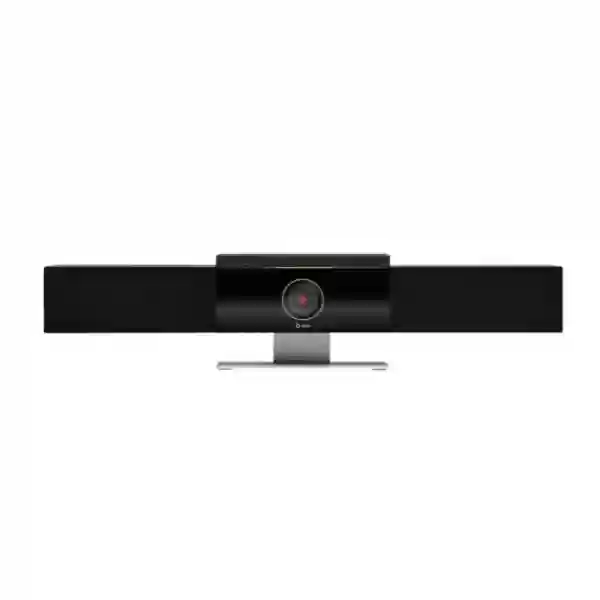
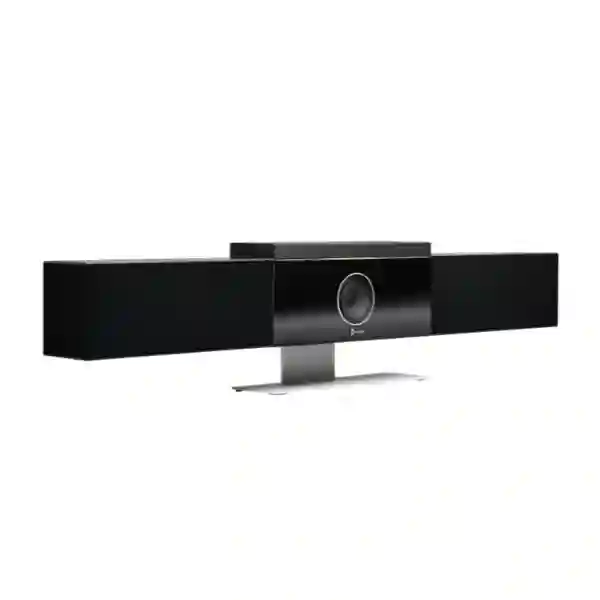
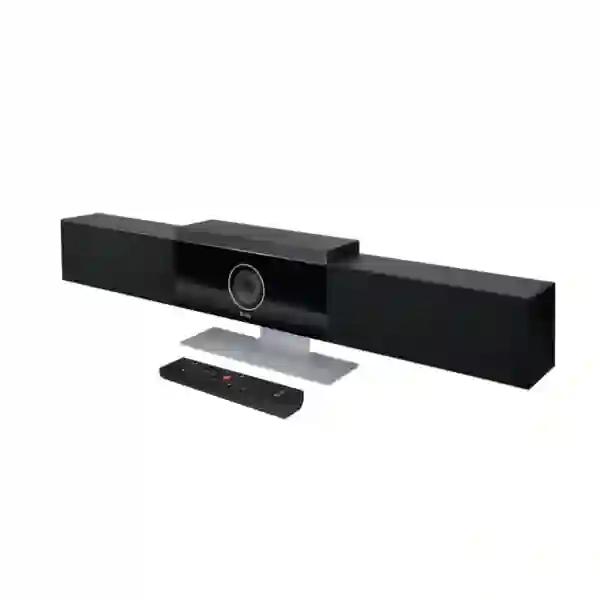
The HP Poly Studio USB Video Bar is an integrated 4K-capable camera, six-microphone array and stereo speaker system designed to improve computer-based group meetings. It combines a wide view with smart camera framing and Poly audio technologies, while a compatible host computer runs the meeting platform.
Planning a meeting room in Tanzania? Start with your room layout, the software people use and the distance to the farthest speaker. Request a configuration-led quote so the chosen bundle fits your actual space.
Technical facts at a glance
| Camera | 3840 × 2160 (4K UHD), up to 30 fps |
|---|---|
| Field of view | 120° diagonal; 110° horizontal |
| Zoom | 5× listed zoom capability |
| Intelligent framing | Group, people and speaker framing; presenter tracking |
| Microphones | Six-element beamforming array; pickup up to 4.57 m |
| Speakers | Integrated stereo speakers |
| Noise technologies | Poly NoiseBlockAI, Acoustic Fence and Acoustic Clarity |
| Host connection | USB Type-C port on bar; Type-C-to-Type-A cable listed in package |
| Power | External adapter; device-side 12 V DC, 5 A |
| Manufacturer product number | 842D4AA (not a verified seller SKU) |
| Room focus | Medium spaces; assess suitability against actual layout |
| Software | HP lists Microsoft Teams and Zoom certifications |
Published manufacturer specifications describe the original Studio USB; exact bundle contents and technical capabilities should be checked for the quoted variant. Maximum ratings are not guaranteed results in every meeting environment.
A simple three-part suitability check
1. Room
How many people usually contribute, how far are the farthest seats and does the table layout fit within the useful camera view and microphone range?
2. Workflow
Will a user bring a compatible laptop, or will a managed room PC stay connected? Who owns the meeting software and device settings?
3. Infrastructure
Is there external power, a sound USB cable route, an appropriate display connection, suitable lighting and dependable room connectivity?
A meeting room should work for everyone in it
A video meeting can feel less collaborative when a shared laptop sits at one end of the table. People at the far end become difficult to see, the computer microphone favours the nearest speaker, and remote colleagues have to interrupt because they missed a comment. The HP Poly Studio USB Video Bar addresses that familiar room problem by placing a camera, microphones and speakers in one dedicated unit. The objective is not simply a sharper picture; it is a more balanced way for people in a room to take part in calls with colleagues, customers and partners elsewhere.
For a business evaluating conferencing equipment in Tanzania, the important question is whether the unit fits the room and workflow already in place. Poly Studio is a USB peripheral intended to work with a computer and a supported meeting application. It is well suited to organisations that want to continue using familiar computer-based meeting software while improving what remote participants see and hear. It is not a self-contained conferencing appliance that can host a meeting without an appropriate computer or room system.
Who the original Poly Studio USB bar suits
HP describes the original Poly Studio USB bar as a solution for medium meeting spaces. Actual room suitability depends on more than a marketing room label. A narrow room with participants facing the camera is different from a wide boardroom with seats spread beyond the microphone coverage. Teams with regular hybrid meetings, training discussions, recruitment interviews, client reviews and internal presentations can benefit from a dedicated shared-room camera and audio system. The strongest fit is a room where a laptop or installed PC will remain responsible for running the meeting software.
Consider how many participants usually speak, how far the most distant chair sits from the bar and where the screen is positioned. A wide lens may capture everyone visually, but sufficient microphone pickup and intelligible playback are separate requirements. When the table is very long, people sit behind the camera, or multiple groups need independent audio pickup, the practical solution may involve a compatible expansion microphone or a more specialised conferencing design. FourTeck can help review the intended room layout before a buyer commits to a configuration.
4K camera detail without the 4K misconception
The integrated camera has a manufacturer-listed maximum capture resolution of 3840 by 2160 pixels, commonly called 4K UHD. HP also lists video operation up to 30 frames per second at 4K. The wide-angle optics provide a 120-degree diagonal field of view and approximately 110 degrees horizontally. That is useful for getting several people around a meeting table into the same image without resorting to an extreme corner placement. The camera is built into the bar, keeping the equipment arrangement more orderly than a collection of separate devices.
A 4K camera does not mean every meeting participant will receive a 4K video stream. Meeting software, computer capability, USB connection, network conditions, account settings and remote endpoint limits determine what is actually sent and displayed. Think of the camera resolution as available imaging detail, not a promise about a meeting platform’s transmitted resolution. For a buying decision, examine framing, lighting, face visibility and reliable motion in the intended application rather than focusing only on the largest pixel number in a specification sheet.
Wide framing and digital zoom are different tools
Poly Studio combines a wide field of view with a listed 5x zoom capability. The broad view helps establish who is in the room, while zoom and automatic framing can place greater emphasis on participants or a presenter. Because zooming and cropping change the portion of the captured scene being shown, a tighter shot does not preserve the same wide-room coverage. The strongest setup typically starts with the physical camera positioned to see everyone clearly, leaving intelligent framing to improve the composition instead of compensating for a poor location.
For rooms with a display at the front and a table extending towards the back, place the device near the display and test the framing from the front, centre and farthest seat. A person leaning forward should not dominate every frame, and a colleague standing to present should not disappear from view. It can be useful to choose one framing style for seated discussion and another for presenter-led meetings. The available framing options should be tested on the installed firmware and within the actual call application.
Poly DirectorAI and the flow of conversation
Poly DirectorAI is HP Poly’s smart camera technology for composition and participant focus. The published feature set for this model includes group framing, people framing, speaker framing, presenter tracking and a configurable perimeter option. In everyday terms, group framing aims to keep the room’s participants in view, while speaker-oriented behaviour helps remote viewers follow the person contributing. Presenter tracking can be relevant where a trainer or speaker moves within an appropriate area rather than staying seated at the table.
Automatic framing is helpful, but it is not a substitute for a good room arrangement. A highly reflective surface, poor backlighting, obstructed faces or a presenter walking outside the useful camera view can still affect the experience. Also, a camera may need a moment to settle when several people speak quickly. Before standardising a room, hold a realistic test meeting with normal speaking turns, a standing presentation and movement near the edges of the field of view. Prefer the framing setting that feels natural rather than the most active animation.
Microphones built for several voices
The bar uses a six-element beamforming microphone array. HP quotes a microphone pickup range of up to 4.57 metres, or about 15 feet, for the specified product. This describes a manufacturer capability under suitable conditions, not an assurance that every voice at that distance will sound equally clear in every room. Beamforming helps the system focus on speech in relevant directions, which is valuable when different people contribute from several positions around a table. It reduces dependence on a laptop microphone placed beside one attendee.
Distance is only one element of speech quality. Air conditioning, nearby corridors, glass walls, hard floors, overlapping conversations and the way participants turn their heads can change what the remote side hears. Ask the person in the farthest chair to speak at a normal volume during commissioning, then repeat with other seats and with the door open or closed as appropriate. If the result is weak, investigate room acoustics and microphone placement before assuming that a software setting alone will solve the problem.
NoiseBlockAI, Acoustic Fence and Clarity
HP lists Poly NoiseBlockAI, Acoustic Fence and Acoustic Clarity as audio technologies on the original Studio USB. NoiseBlockAI is designed to reduce certain distracting background sounds; Acoustic Fence is intended to focus capture on conversation within a defined area; and Acoustic Clarity supports natural communication with audio processing suitable for conferencing. These functions are valuable in shared workplaces where keyboards, nearby discussion and room reverberation can distract participants. Their benefit is best judged by how intelligible the conversation is in a normal workday.
No noise-handling system can remove every unwanted sound or rescue every overlapping sentence. Loud music, nearby construction, extremely reverberant rooms and several people speaking over one another may still create interruptions. Acoustic Fence should also be configured with awareness of where intended speakers sit: excluding sound outside a desired area is useful only when all important participants are inside it. Good meeting etiquette, sensible furnishings and appropriate device placement remain relevant alongside the built-in processing.
Stereo speakers and comfortable listening
Poly Studio includes built-in stereo speakers so people in the room can hear the remote side without depending on a laptop’s small speakers. HP specifies speaker bandwidth of 100 Hz to 20 kHz for the device, although a frequency specification alone cannot predict intelligibility at each seat. The advantage of an integrated solution is that one room audio endpoint can be selected in the conferencing application. That simplifies the meeting experience and reduces the chance of producing an echo by accidentally using separate computer speakers and bar microphones.
During setup, verify playback at a natural speaking volume from the nearest and farthest seats. People should not need to strain to hear, and the volume should not be so high that speech from the bar echoes back through the microphone path. Where the room is noisy or long, better speaker placement or a different audio design may matter more than increasing the output volume. The bar is a conferencing audio device, not a replacement for a room-wide public-address system or a dedicated music playback installation.
A practical USB-first architecture
The USB-first design is a key buying reason for this product. HP lists a USB Type-C interface on the bar and includes a USB Type-C-to-Type-A cable in the published package contents. In a typical installation, an appropriately powered Poly Studio connects by USB to a compatible Windows or macOS computer. That computer runs the meeting software, manages sign-in and supplies or shares the display output according to the room’s wider equipment design. The bar becomes the camera, microphone and speaker available to the conferencing application.
USB simplicity should not be confused with an entirely cable-free installation. A suitable AC power source and the external power adapter are required, and a separate display connection may be necessary from the computer to the screen. USB cable length and quality deserve attention, especially where the room PC is stored in a cabinet some distance from the display. Avoid treating every unpowered hub or improvised extension as reliable without testing. A clear cable route and accessible computer connection can prevent many day-to-day meeting problems.
Microsoft Teams, Zoom and other meeting apps
HP lists Microsoft Teams and Zoom certification for the Poly Studio USB Video Bar in its datasheet. The product uses standard USB video and audio interfaces, making it relevant to other computer-based conferencing software that supports compatible camera, microphone and speaker peripherals. In that arrangement, the meeting application on the computer is the actual collaboration platform. The device does not replace the need for any application account, licence, subscription, or room service that the organisation’s chosen workflow requires.
For mixed-platform environments, test the real applications used by staff rather than assuming that certification for one platform proves identical behaviour on every other. In particular, mute controls, remote functions, camera framing options and administrator-managed settings may vary by client and software version. A room that alternates between Teams, Zoom and a browser-based meeting service should have a simple guide explaining how to choose Poly Studio as its audio and video endpoint. This is more useful than a generic compatibility promise that ignores how staff actually join calls.
Bring-your-own-device rooms versus installed room PCs
A bring-your-own-device room allows an organiser to bring a laptop, connect the room’s USB peripheral and use the application already available on that computer. Poly Studio supports that model because the camera and audio system can be exposed to the host over USB. This approach can suit flexible businesses whose teams already have laptops and use several collaboration platforms. Its operational drawback is that the organiser must connect and configure the host at the start of the call.
An installed room-PC design keeps a dedicated computer connected to the bar and room display. That can reduce the need to move cables between laptops, but the business must manage the PC, conferencing application, logins, operating-system updates and room-user permissions. Neither approach automatically provides a one-touch appliance experience. Decide who will own meeting credentials, who will maintain the computer and how guests will join before choosing the room design. The video bar should fit that workflow, not dictate a workflow that is inconvenient for the users.
Power planning and suitable operating conditions
The product uses an external power supply, with HP listing a 12 V DC, 5 A device-side power requirement and a supply input described as 100–240 V AC, 50/60 Hz. For a Tanzania installation, verify the supplied adapter, suitable power lead and electrical safety requirements for the exact equipment and location. A wall socket should be available near the planned mount, and cables should be routed so that participants cannot dislodge them. Because the device requires external power, a USB cable alone should not be assumed to run the complete bar.
Power interruptions matter to meeting reliability. If meetings are operationally important, consider how the computer, network equipment, display and video bar will behave during a short outage and whether appropriate power backup is needed for the room. The manufacturer lists an operating temperature range of 0 to 40 degrees Celsius and operating humidity of 15 to 80 percent. Avoid placing the bar where direct sunlight, excessive heat, moisture or poor ventilation could create conditions outside its stated operating environment.
What the built-in wireless radios do and do not mean
HP identifies Bluetooth 4.2 and Wi-Fi 802.11a/b/g/n/ac in the Studio USB specifications. Their presence is worth noting for supported device features and administration, but it should not lead buyers to assume that the bar is a self-contained wireless videoconferencing endpoint or that it can conduct a meeting without a host computer. The normal call architecture is based on the USB connection to a computer that runs the meeting platform. Specific management capabilities depend on supported software and device configuration.
For IT teams, a wireless radio can also introduce policy considerations. Some organisations restrict wireless device configuration or require security reviews before hardware is connected to a managed network. Confirm whether the intended management functions genuinely require wireless access, what credentials are needed and who is authorised to change settings. Where only a basic wired room setup is required, plan the necessary USB, power and display connections first. Do not rely on Bluetooth as a substitute for the USB host connection when designing the room.
Privacy, controls and meeting-room expectations
HP specifies an integrated camera privacy capability for Poly Studio USB. That is useful where a meeting room is used for confidential internal discussions and occupants want a clear distinction between active video calls and periods when the room is not in a meeting. The product’s remote-control functions and the meeting application’s own camera and microphone controls should be explained during handover. In practice, camera privacy, microphone mute and ending the actual meeting are separate actions that should not be confused.
A straightforward room notice can help staff know which device is selected, how to mute, how to restore a camera feed and how to end a call safely. Administrators should confirm how the system behaves when an application closes, the computer sleeps or a new user signs in. If security or confidentiality requirements are particularly strict, review the organisation’s endpoint and conferencing policies with the relevant IT team. A hardware privacy feature is valuable, but it does not replace appropriate application configuration, account security or internal meeting procedures.
What HP lists in the package
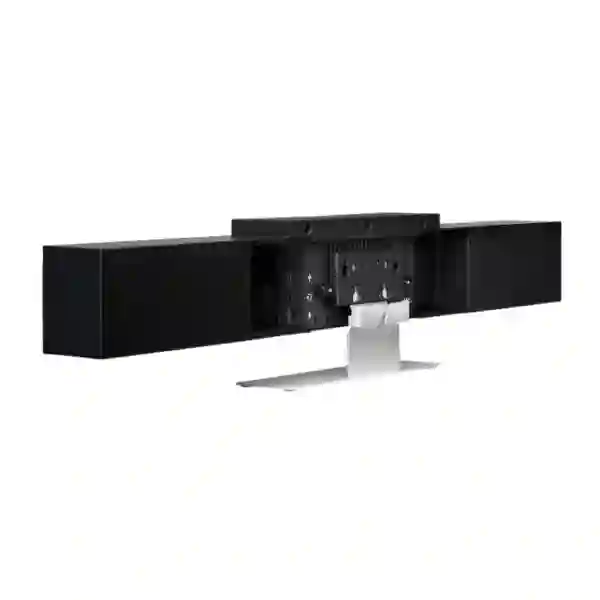
HP’s Africa specification page lists the Poly Studio unit, a remote control with two AAA batteries, an AC power adapter, a wall-mount kit, a setup sheet, a table stand and a USB Type-C-to-Type-A cable as package contents. These are manufacturer-listed contents for the referenced product number, not a promise that every locally supplied bundle is identical. Before ordering, confirm the specific packaging, accessory revision and any requirements unique to the proposed room layout. Package confirmation is especially important when procurement covers several rooms and installation dates are coordinated.
The included mounting choices allow a team to evaluate a surface placement or a suitable wall installation. A table stand can be convenient when a room is rearranged or the equipment needs to remain portable; a wall mount can keep the table clear and position the lens more consistently. Check mounting strength, access for maintenance, cable routing and the screen location. If an optional microphone or longer cable is required, request a compatibility-checked bill of materials rather than assuming that accessories sold for other Poly bars will fit this model.
Step-by-step planning before installation
Begin by sketching the room, showing the screen, table, doors, windows and every regular seat. Note the longest participant-to-camera and participant-to-microphone distances. Next, decide whether users will bring laptops or rely on a permanently installed room PC, then confirm that the host computer has a suitable USB connection and supports the organisation’s meeting application. Verify the screen connection separately, since the bar itself is not being presented as the source of the meeting display output.
Choose a position for the bar that gives an unobstructed view at a natural height. Check where its power adapter will be plugged in, how the USB cable will reach the host and whether the planned mounting surface can support the unit. Then confirm that staff will be able to reach the host connection without handling exposed cables carelessly. With those decisions made, install the mount or table stand, connect the external power and USB link, then select the device in the meeting application’s camera, microphone and speaker settings.
Finish with a live test call rather than stopping when the computer recognises the device. Check image composition at all seats, voice quality from the farthest participant, remote-party audio playback and the behaviour of framing and mute controls. Test with the software platform actually used by the organisation. Record which settings worked and give local users a short operating guide. If any part fails the test, adjust the room or system before declaring the installation ready.
Lighting and camera placement change the result
The most common visual problems in a meeting room are not always caused by the camera hardware. A bright window directly behind participants can turn faces into dark silhouettes, while a low camera angle may show more ceiling and tabletop than useful body language. Place the bar near the display at a comfortable line of sight and check the actual image during a call. Diffuse, even lighting across the table often contributes more to a professional picture than relying on the highest available camera resolution.
For a wide table, position participants within the useful camera view rather than expecting digital zoom to compensate for seats outside the lens coverage. For a long narrow room, verify that people at the back still appear large enough for remote colleagues to recognise expressions. Avoid mounting where chairs regularly obstruct the lens or where vibration from a movable panel affects the picture. If the room is multipurpose, define at least one repeatable layout for formal hybrid meetings so that camera and microphone performance remain predictable.
Microphone placement, acoustics and meeting behaviour
The six-element microphone array is most effective when it has a reasonable acoustic path to intended speakers. A large table, reflective glass, hard walls and air-conditioning noise can work against that goal. Carpeting, curtains or other appropriate acoustic treatments may help reduce excessive reflection, but they should be chosen for the actual room rather than treated as a universal fix. If meetings regularly include several simultaneous voices, facilitate orderly turn-taking so remote participants can distinguish speakers.
During commissioning, ask each person to speak naturally while the remote participant reports clarity, not just loudness. Compare quiet moments with normal office noise and observe whether Acoustic Fence settings exclude a legitimate contributor. Keep noise-generating equipment and unused speakers away from the microphones where practical. If the distant end of the table remains difficult to hear, ask about a compatible optional table microphone and confirm its connection requirements before purchase. Manufacturer pickup figures are a useful starting point, but room testing remains the better purchasing safeguard.
Tanzania office deployment considerations
For a Tanzania-based business, video meeting quality also depends on infrastructure beyond the bar. Stable connectivity, an appropriately managed computer, working conferencing accounts and dependable room power all contribute to a successful call. The bar cannot eliminate interruptions from a weak internet connection or a failing host computer. Where offices frequently connect with overseas colleagues or clients, network quality and platform settings can shape the user experience even when the camera and microphones are working correctly.
Consider how staff will receive support if a room stops working just before a scheduled meeting. Keep a basic troubleshooting guide close to the equipment, identify who manages the conferencing account and decide who can approve firmware or application changes. If the room is a client-facing space, test the system with the typical network route and meeting platform. These are general deployment checks rather than claims about any particular Tanzanian internet provider, local service coverage or stock status. The objective is a room that performs reliably under the conditions in which it will actually be used.
Common business scenarios
These examples illustrate where the video bar’s documented features may be useful. Final fit depends on room dimensions, seating, host-computer arrangement and the chosen collaboration service.
Hybrid project reviews
When several colleagues share one conference table, the wide camera and group audio system can make remote colleagues feel more included. Confirm that the farthest seat is within useful microphone range and that the meeting host is clearly assigned.
Client and supplier calls
Use a front-of-room mounting position to capture the participants while the computer runs the chosen meeting service. For formal reviews, test lighting and audio in advance so attendees spend less time correcting technology during the call.
Interviews and team meetings
Where two or more interviewers contribute, the six-microphone array and smart framing can support a shared-room setup. Participants should speak naturally and avoid competing conversations that make any room audio system difficult to follow.
Training and presentations
Presenter-related camera framing may help when one facilitator moves during a session. Make sure the presenter’s normal movement remains in the useful camera area, and consider whether specialised presentation or whiteboard capture is needed.
BYOD meeting spaces
A team member can use an appropriate connected laptop and select Poly Studio in their conferencing application. Keep the USB connection accessible, provide a short device-selection guide and establish who disconnects the equipment after use.
Standardised room-PC spaces
A dedicated PC can remain connected for recurring internal meetings. IT should manage room accounts, meeting-client updates, firmware considerations and recovery steps so that the room works consistently for nontechnical staff.
How the device fits different business scenarios
A professional-services team may use Studio USB for recurring project reviews where several colleagues speak from one table and external participants join remotely. A human-resources group may value the ability to conduct panel interviews while keeping all interviewers visible. A training group can benefit from presenter-focused framing when a facilitator moves during a short discussion. In each case, the advantage comes from matching the camera and audio functions to the style of conversation rather than relying on a generic meeting-room equipment list.
The same bar can be a less suitable choice for a large lecture theatre, a very long boardroom or a room that must run meetings without a connected computer. Those environments may call for different camera positions, distributed microphones, integrated room appliances or dedicated controls. When asking for a quote, describe the meeting type and room geometry. A product with strong specifications can still be the wrong purchase if the physical and operational environment does not suit how it is designed to work.
Choosing USB Studio instead of another category
A basic webcam is often adequate for one person at a desk, but its microphone and speaker arrangement may not be ideal for a group. The original Poly Studio USB offers a more coherent room endpoint by combining a wide camera, six beamforming microphones, stereo playback and smart framing. This is most useful when several people gather around one screen and the call runs through a connected laptop or room PC. Its value is the complete shared-room experience rather than a single headline specification.
An all-in-one conferencing appliance takes a different approach: it may run a native room application without the same everyday laptop dependency, subject to model and licensing. A premium modular system may use separate cameras, microphones and control devices to cover a much larger or more complex space. Those options can be preferable where one-touch room joining, very long tables or specialised integration is a firm requirement. Compare the whole room workflow and support burden, not simply whether every product claims 4K video. Newer HP Poly models should also be evaluated against the original Studio USB on their own published specifications.
What a buyer should confirm before requesting a quote
A good quote request should describe the product clearly as the original HP Poly Studio USB Video Bar, rather than simply saying Poly Studio, which could refer to several different product families. HP identifies product number 842D4AA for its current Africa specification listing. That is a manufacturer product number, not a verified FourTeck SKU. If a procurement team uses another regional part code, confirm exact package equivalence rather than assuming every identifier denotes the same power plug, accessory set or commercial bundle.
Include the approximate room dimensions, a basic seating plan, computer operating system, principal meeting application and expected number of active speakers. Say whether the room needs a BYOD connection or installed PC. Ask for confirmation of included mounting hardware, power adapter, USB cable and any required microphone expansion. Local price, stock, delivery, warranty and installation arrangements should be confirmed by the seller for the exact quote; they are not implied by the technical description on this page. This approach reduces mismatched expectations and makes the purchasing discussion more useful.
Keeping the room manageable for IT
For IT administrators, reliability comes from standardising a small number of documented steps. Record which computer hosts the application, which USB port is used, which device is selected for microphone and speaker, and which framing mode is preferred. HP lists Poly Lens for device management. Any deployment should check current support and permissions for the required management functions on the chosen firmware and software versions. Avoid broad assumptions about remote administration or automated updates until the exact management method has been validated.
Device software, operating-system changes and conferencing-client updates can all affect meeting behaviour. Schedule a test after meaningful changes rather than discovering incompatibility during a customer presentation. Keep cable connections labelled, preserve authorised settings, and document the recovery procedure if the bar is not detected. In a shared BYOD room, provide a short user guide for selecting the correct camera and audio outputs. In an installed-PC room, specify who owns the room account and who can restart or update the computer. Those simple decisions often matter as much as hardware selection.
Common questions and tradeoffs to assess
Think through both the benefits and limitations. The wide camera makes it easier to frame people, but an unusually wide room or distant seating may still need another design. The six-microphone array covers normal group discussion within its intended range, but heavy reverberation or speakers far from the bar can require changes. USB connectivity is straightforward with a compatible host, but it does not remove the computer, application or external power requirement. The built-in speakers simplify playback, though very large rooms may need more sophisticated audio distribution.
The product’s camera, microphone and speaker specifications can be compared on paper; the experience of a real meeting cannot. If possible, arrange a demonstration or evaluate a representative room with the applications your team uses. Test both a calm two-person call and a busy group meeting. Ask remote participants to comment on video composition, the clarity of interrupted sentences and their ability to follow speaker changes. A successful room is one where technology fades into the background and people can concentrate on the discussion.
Useful checks when a meeting does not work as expected
If a conferencing application cannot see the camera or microphones, first check external power, the physical USB connection and whether the host has selected the correct device. Reconnect only in accordance with organisational device policies. If the video appears but audio is missing, verify that Poly Studio is chosen for both input and output and that neither the application nor the device is muted. If the remote side reports an echo, look for a second active speaker or microphone, such as the laptop’s built-in audio being used at the same time.
If framing appears erratic, review the chosen intelligent-framing mode, lighting and whether participants are moving beyond the expected area. For distant voices, test a nearer seat and review noise and acoustic conditions. If a browser-based meeting behaves differently from a desktop application, inspect its permission and device-selection settings. Administrators may also need to check supported software versions and device firmware with HP’s documentation. Keep notes on the exact symptoms rather than repeatedly changing many settings at once; that makes diagnosis and vendor support more effective.
Planning for multi-room consistency
An organisation equipping several rooms should avoid buying the same bar for every space without a basic room survey. A small conference room with one table may be well served by Poly Studio USB, while a large training room could need a different solution. Group rooms by size, typical seating, main platform, host-computer arrangement and support requirement. Then test one representative configuration before extending the design to the rest. This produces a more manageable rollout and reduces the risk of using a convenient product in an unsuitable location.
Standardised mounting height, cable labels, approved computer settings and clear instructions make each room easier for employees to use. Keep a record of the manufacturer product identification, accessories included and any site-specific setup choices, but do not confuse these identifiers with a seller’s inventory SKU. Document how to book a room, connect a laptop, mute the microphone, recover from a lost USB connection and reach the internal support team. A meeting-room purchase is more successful when the people who will use and maintain it are considered from the beginning.
The decision in one sentence
Choose the original Poly Studio USB when your priority is to improve a medium-sized, computer-based meeting room with wide 4K-capable video, intelligently managed framing, beamforming microphones and integrated audio. Confirm the room’s real seating geometry, required meeting application, host computer and power arrangement before ordering. If the room needs autonomous meetings without a computer, unusually extensive microphone coverage or dedicated control-room features, compare a different product category before assuming this USB bar will meet those requirements.
For Tanzanian organisations, the next practical step is a configuration-led quotation. Share the room’s dimensions, approximate seating arrangement, application choice and whether users bring laptops or rely on a fixed computer. Ask the supplier to verify the exact model and included accessories and to confirm local commercial terms separately. That makes the decision evidence-led and helps establish realistic expectations for the finished meeting space.
Frequently asked questions
Is Poly Studio USB a standalone video conferencing system?
No. The original Poly Studio USB is designed as a USB audio and video peripheral for a compatible computer or other supported host. The host runs the conferencing software. Buyers who need an appliance that starts or joins meetings without a laptop or room PC should evaluate a different category of room system. The USB model’s built-in microphones, speakers and smart camera functions do not remove the need for the meeting application and its connectivity.
What is the difference between 4K camera capability and a 4K meeting?
The camera’s specified maximum resolution is 3840 by 2160 pixels. The image ultimately seen by a remote participant depends on the meeting platform, configuration, computer performance, network conditions and receiving device. Some applications send a lower resolution even when a 4K-capable device is connected. A buyer should therefore test framing, facial detail and motion quality in the actual meeting service rather than treating the camera specification as a guaranteed transmission format.
Will it work with Microsoft Teams and Zoom?
HP lists Microsoft Teams and Zoom certification for the original Poly Studio USB. The bar uses standard USB video and audio interfaces, so it may also operate with other applications that accept appropriate USB peripherals. Behaviour of controls, device selection, intelligent framing and software management can vary by application or version. Confirm the deployed platform, host operating system, current support requirements and any necessary account or room licences before purchasing.
How large a meeting room can it cover?
HP positions this model for medium meeting spaces and specifies microphone pickup up to approximately 4.57 metres in suitable conditions. A room label is less useful than its actual seating plan. A long table, poor acoustics or participants far from the device can affect speech clarity even when everyone fits inside the camera’s wide angle. Share a room sketch with the supplier and test far-seat audio before assuming that a nominal room category guarantees the correct coverage.
Does Poly Studio USB include a microphone and speaker?
Yes. The unit integrates a six-element beamforming microphone array and stereo speakers. These allow it to serve as a computer’s conferencing microphone and audio playback device, reducing dependence on the built-in laptop hardware. Make sure the meeting application selects Poly Studio for the relevant input and output devices. If the computer’s microphone or speakers remain active at the same time, participants may experience weak capture, inappropriate volume or echo.
Can an additional microphone be connected?
HP’s published specifications list a line-in connection for an optional microphone. This makes expansion worth discussing for rooms where speech pickup at distant seats is a concern. Compatibility, accessory model, cable routing and effective coverage must be verified for the exact Studio USB version and intended layout. An expansion microphone should not be treated as a universal fix for a highly reverberant room or an unsuitable meeting-space design.
Does it connect through Wi-Fi instead of USB?
The unit has specified Wi-Fi and Bluetooth radio capabilities, but its normal use as a video conferencing peripheral is through a USB connection to a host computer. The presence of wireless radios does not mean it can independently host meetings or replace the computer connection. Administrators should refer to current HP guidance for supported wireless administration features and should assess those functions against the organisation’s network and security policies.
What should our IT team prepare before installation?
Prepare the intended host computer, conferencing application, USB connection, external power outlet, display connection and suitable mounting location. Record the seating arrangement and the position of people who speak most often. Check whether the computer can recognise the bar as a camera, microphone and speaker, and whether the chosen application has permission to use those devices. For managed rooms, decide who handles account access, firmware, application updates and first-line troubleshooting.
Is the included power adapter suitable for our location?
The manufacturer lists an external power supply with 100–240 V AC input and 12 V DC, 5 A device-side requirements. That does not by itself establish the exact plug or regional bundle supplied with a local order. Ask the seller to confirm the supplied adapter, power lead and suitability of the complete installation for the destination site. Where meetings are critical, also review how power interruptions affect the bar, computer, display and network equipment.
Is the manufacturer number the same as a FourTeck SKU?
Not necessarily. HP’s Africa listing identifies manufacturer product number 842D4AA for the original Poly Studio USB Video Bar. A manufacturer product number is different from a particular retailer’s internal SKU. No exact FourTeck SKU was supplied for this task, so none should be assumed. When requesting a quote, use the model name and ask for the exact manufacturer variant and seller’s item identifier, if one is used.
What are the most common causes of poor calls?
Weak internet connectivity, incorrect application device selection, a host computer that cannot run the meeting smoothly, distant microphones, strong echo and difficult lighting can all reduce meeting quality. A 4K-capable camera cannot repair poor network performance, and audio processing cannot entirely remove overlapping voices. Test the room under normal conditions with a real external participant and document the settings that work. Where a limitation persists, address its actual cause before buying additional hardware.
Can the video bar be used for several different meeting applications?
A PC-based room can be planned to use more than one conferencing application, provided the host, software and peripheral compatibility support the intended workflow. This makes the USB approach attractive when different customers insist on different platforms. However, certification and control behaviour are not uniform across every service. Provide a clear guide so staff know how to select the camera, microphone and speakers each time, and test the platforms most important to the organisation.
Request a Poly Studio USB configuration and quote
Tell FourTeck about the room dimensions, seating, host computer, Microsoft Teams or Zoom workflow, and any need for additional microphone coverage. Ask for confirmation of the exact manufacturer variant, supplied accessories and current Tanzania commercial terms before ordering.
Contact FourTeck to discuss the HP Poly Studio USB Video Bar for your meeting space.
Reviews
There are no reviews yet.