
USB conferencing | Small meeting rooms
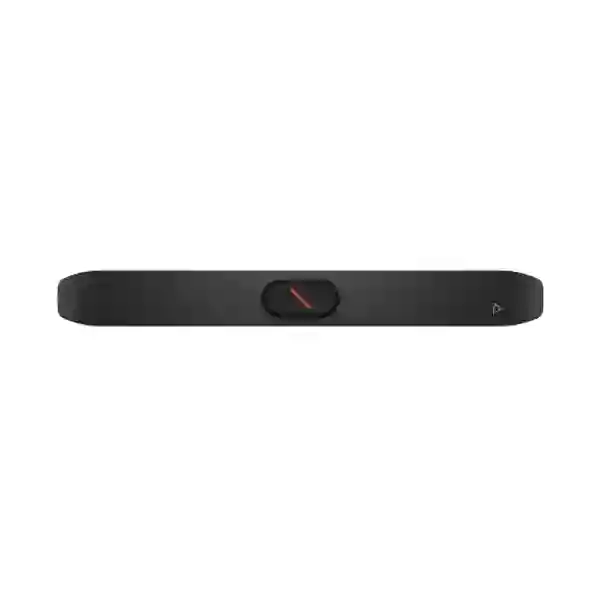
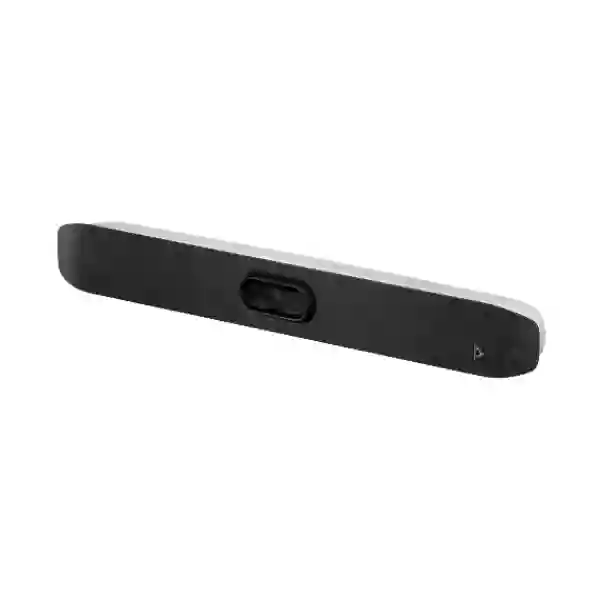
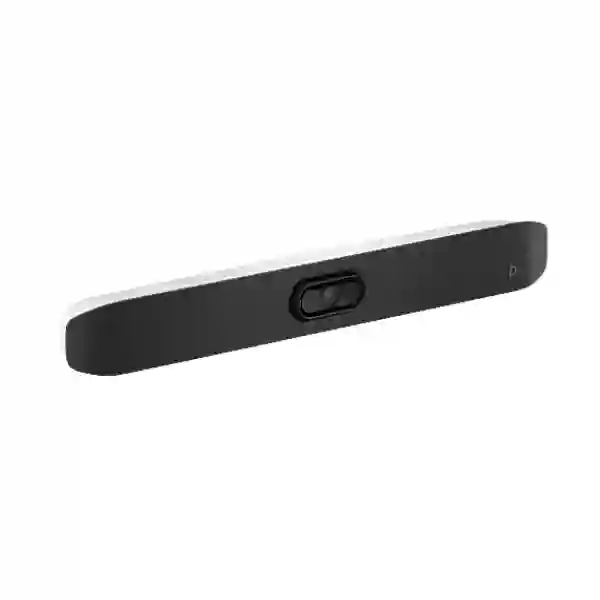
HP Poly Studio V12 USB Video Bar
A wide-angle 4K USB video bar for small hybrid meeting rooms, combining smart framing, built-in room audio and flexible PC-based conferencing. Confirm the correct power accessory and full package before ordering.
4K UHD · 20 MP sensor · 120° horizontal view · DirectorAI · Four microphones
The purchasing answer
Choose the HP Poly Studio V12 USB Video Bar if your team needs one shared camera, microphones and speakers for a small meeting room and plans to use a compatible computer for calls. It is not a standalone meeting appliance. Include a suitable power source, computer, display connection and any required platform licence in the overall design.
Designed for small hybrid meeting rooms
The HP Poly Studio V12 USB Video Bar is designed for people who need a dependable shared video meeting experience in a small room without turning that space into a complex audiovisual installation. Its camera, microphones and stereo speakers live in one unit. Meeting participants use a compatible laptop or dedicated conferencing computer to run their chosen application, while the bar provides room-facing video and audio. That distinction matters during buying: this is a USB peripheral, not a standalone appliance with its own built-in meeting service. For businesses in Tanzania preparing a huddle room, compact boardroom or small hybrid meeting area, this can be practical when the team already relies on computers and established meeting accounts. A buyer can focus the quotation on the actual room, compatible power equipment, mounting and the way people will join calls rather than assuming that every item is included in the bar.
HP positions the V12 for small rooms of approximately three to five people. Actual suitability depends as much on seating, table shape, room depth, acoustics and lighting as the number of chairs. In a short wide room the generous horizontal view can capture people near the edges; in a long room the far end may need a different microphone or system design. The intended outcome is simple: remote participants should see people clearly, hear understandable voices and stay involved without someone operating the camera throughout the call. This listing explains the product’s documented capabilities alongside its limitations and practical buying questions. Plan the device as one part of a complete room solution, and request confirmation of the exact local package, power accessories and support terms before making a purchasing decision.
Camera clarity and room coverage
The V12 combines a 20-megapixel single-lens camera with 4K Ultra HD capture of up to 3840 by 2160 pixels at a nominal 30 frames per second. Its horizontal field of view is 120 degrees and its diagonal field of view is 132 degrees. Those figures are useful for a small meeting room where several people sit close to a wall-mounted display. The camera can include participants seated towards the sides instead of showing only the centre of the table. It also supports five-times digital zoom, which allows a tighter view when appropriate. Digital zoom is different from optical telephoto zoom: enlarging a portion of the captured image can reduce effective detail. Camera placement and framing remain important even when the sensor specification looks impressive.
The stated 4K resolution describes camera capability, not a guarantee that the far end of every call will see a 4K stream. The meeting application, host computer, selected settings, available bandwidth and receiver conditions can limit the transmitted image. During a room evaluation, hold a call using the actual platform and inspect how the leftmost, central and rightmost participants appear. Check facial visibility when people face the screen and when they turn towards one another. Large windows behind seats, bright ceiling fittings or a camera mounted too high may affect the image more than changing its resolution setting. A useful camera test checks real conversation under normal office lighting rather than only a still preview with one person sitting perfectly in the middle.
Intelligent framing with Poly DirectorAI
HP Poly DirectorAI provides people, group and speaker framing options to help make hybrid meetings more natural. Group framing aims to keep the assembled participants visible; people framing can emphasise individuals; speaker framing helps draw attention to whoever is talking. A team brainstorming around one table may prefer a steady group view because colleagues’ reactions matter. A manager giving an update may find speaker framing more effective. An interview panel might compare several modes before deciding which feels least distracting to remote participants. The advantage is particularly relevant in a room where no one is assigned to operate a camera. The technology can help the device respond to discussion instead of forcing participants to reposition hardware or continually adjust the picture.
Automatic framing should be treated as an assistance feature, not a requirement for every meeting. Rapid interruptions, people facing away, difficult lighting, unexpected movement or seating outside the camera view can influence results. A stable wide shot can be preferable when participants are sharing physical materials or several people speak at once. Have the installer demonstrate the available modes in the actual room before selecting an organisation-wide default. A good acceptance test asks a participant to move between normal speaking positions while someone watches from a remote location. If a particular framing mode feels jumpy or unhelpful, choose another mode or use a fixed view. The best setting is the one that supports the team’s real meeting style without drawing unnecessary attention to the technology.
Four microphones and intelligible speech
Remote participants often judge a meeting by its sound before they notice the camera. The V12 uses four integrated digital MEMS microphones, and HP specifies pickup of up to 4.57 metres, or 15 feet, under suitable conditions. That is a useful planning reference, but it is not a promise that every voice at that distance will have identical clarity. A softly spoken colleague, hard reflective walls, air-conditioning noise, laptop typing and an unusually deep table can change the result. A well-positioned video bar in a quiet compact room generally makes better use of its microphones than the same device installed far from the speaking zone. When comparing equipment, ask where the microphone actually sits relative to normal seats instead of considering only the advertised maximum range.
The V12 includes HP Poly NoiseBlockAI and Acoustic Fence processing to help limit distracting sounds and focus on useful speech. These technologies are aids, not substitutes for soundproofing, sensible placement or acoustic treatment. Test a real call with a colleague sitting in each intended chair while someone listens from outside the room. Check natural speaking volume, overlapping conversation, chair movement, paper rustling and the hum of office equipment. The remote listener should be able to follow the discussion without repeated requests for louder speech. Where the room is unusually long or noisy, review placement and the possibility of compatible microphone expansion; if several separate listening zones are needed, a larger system may be more appropriate. The objective is comfortable dialogue, not simply the highest microphone specification.
Stereo output and room acoustics
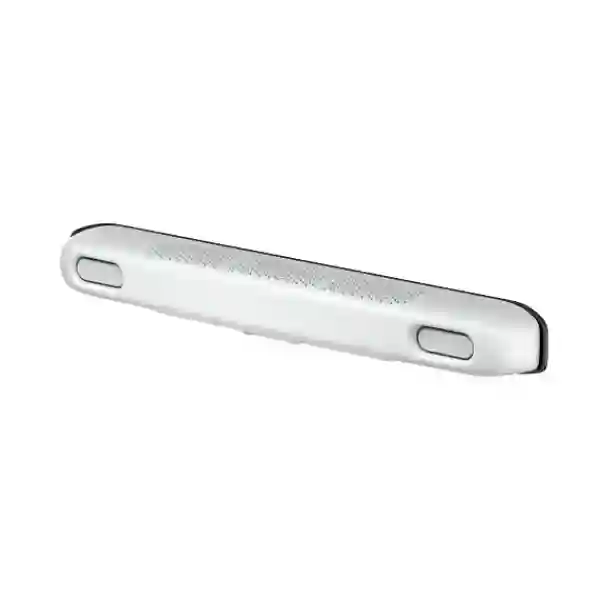
Built-in stereo speakers rated at two times five watts allow a compact room to hear remote callers without automatically installing another pair of conference speakers. This reduces the number of separate devices and can simplify cable management. Position the bar so that cabinet trim, furniture or the display structure does not cover the speaker openings. Sound should be audible at normal listening levels from all intended seats, but a rating in watts is not a guarantee that a small-room bar can evenly fill a large boardroom. If someone at the back needs unusually high volume, review whether the room size and placement are appropriate before making the whole system louder. Test incoming male and female voices, low-volume speakers and short video clips where those are common meeting materials.
Audio and camera positioning should be evaluated together. The most convenient place above a monitor might not be the best acoustic position if the device sits far from participants or directly beside a noisy ventilation outlet. Meeting-room surfaces also matter: bare floors, glass partitions and empty walls can create reverberation that processing cannot fully remove. Consider curtains, soft furnishings or modest acoustic treatment where speech echoes strongly. During the trial, have one person speak from the near end and another from the far end while an external listener comments on intelligibility. The right result is a balanced meeting where people can talk naturally and remote colleagues are not forced to adjust volume continuously.
BYOD meetings with a laptop
In a bring-your-own-device room, a participant enters with a laptop, connects the V12 through the appropriate USB data path and runs the meeting through an approved application. The bar functions as the shared camera, microphone and speaker, while the computer provides the meeting interface, authentication, invitations and application processing. This model suits organisations that use multiple collaboration platforms, invite external participants or want staff to work with familiar accounts. People do not need to learn a separate conferencing appliance for basic meetings, although the laptop must be capable of using the USB device and the selected platform. The V12 does not replace that host computer, and it should not be described as an independent Teams or Zoom endpoint.
Make the meeting-room connection obvious. A correctly routed and clearly labelled USB cable can avoid a surprising number of support calls. If the company uses laptops with different connector types, verify the actual adapters and docks rather than assuming that any USB-C connection will work identically. Display sharing is a separate part of the room plan: the video bar is not an HDMI screen, video switcher or built-in wireless presentation service. Test how users connect their laptop to the display and how the application selects the bar for camera and audio. In a busy shared room, check the process of disconnecting one laptop and reconnecting another. A simple instruction card can explain device selection, mute controls, screen sharing and who to contact when a guest needs help.
Dedicated conferencing PC or managed room
The V12 can alternatively be connected to a suitable dedicated conferencing PC or approved room-compute solution. In that arrangement, the camera and audio remain attached to a managed host instead of moving between employee laptops. The approach may suit scheduled internal meetings, rooms with standard application accounts or offices that need predictable equipment configuration. The bar’s certification is not equivalent to supplying the room computer, operating system, touch controller or conferencing subscription. HP describes PC-based Microsoft Teams Rooms and Zoom Rooms uses with suitable compute and software. A buyer should therefore request a complete bill of materials when asking for a room-system quote rather than interpreting the USB video bar as a whole room kit.
A permanent host changes the support model. Someone must maintain the computer, manage updates, renew platform entitlements, control credentials and provide recovery procedures if the application stops signing in or the wrong audio device is selected. For several meeting rooms, a standard hardware and software configuration can make remote support easier. Before choosing fixed-room compute, decide who owns the room, who can book it, whether visitors need to host calls, and whether one platform will dominate daily use. A BYOD approach can be more flexible for guests, while a managed room may offer more consistent operating procedures. Neither is automatically superior: the right design follows the business workflow and support capability.
Teams, Zoom and Google Meet considerations
HP lists the V12 as certified for Microsoft Teams and Zoom and as Works with Chromebook. Its computer-based USB peripheral role also makes it relevant for supported collaboration applications such as Google Meet, subject to current host and application requirements. Distinguish hardware interoperability from account and licensing requirements. A Teams-certified camera does not provide a Teams licence. Zoom certification does not automatically create a complete Zoom Rooms appliance. Where a company uses several services, specify which call types matter and test the bar with the actual computer and app versions. That avoids buying based on a logo and discovering later that a particular room workflow needs an additional component.
A practical interoperability test verifies that the bar appears as the selected camera, input microphone and output speaker, that mute behaviour is understandable, and that the desired framing options work through the supported setup. If the organisation intends to deploy a PC-based room, verify the complete computer-plus-bar configuration with the platform’s current requirements. If it intends BYOD, test several representative company laptops and any approved docks. Document the successful configurations for support staff. Visitors may use a different meeting service from the host team, so consider whether the room needs a neutral USB workflow. Clear guidance and sensible defaults often matter more to end users than a long list of theoretical integrations.
Power options and installation requirements
The V12 needs suitable power independently of its ordinary USB data connection to the host computer. HP documents compatible PoE++ power arrangements and a USB-C power adapter option. The commonly referenced no-power-supply version is sold without the separate power supply, so it is essential to verify which package a supplier is quoting. An ordinary Ethernet port should not be assumed to provide the necessary PoE++ power budget. If an existing switch or injector is to be used, have the network administrator verify the supported class and sufficient capacity. If the design uses a USB-C adapter instead, confirm the appropriate approved kit, local power connection and cable routing. HP documentation refers to a 65-watt-class solution for this product family.
For an office in Tanzania, purchasing should specify the compatible power accessory at the same time as the bar and mounting hardware. Ask whether the power cord and any required local mains arrangement are part of the quotation. If a room relies on backup power, remember that the meeting computer, display and network equipment must also remain operating; keeping only the video bar powered does not preserve a call when the router or host shuts down. Include the actual switch, injector or power adapter in the installation drawing. Confirm access for maintenance and avoid placing cables where moving screens or furniture could strain the connectors. A complete power design prevents an otherwise correct purchase from arriving without the parts needed to commission it.
Connections and optional expansion
HP’s published specification lists two USB Type-C connections at 5 Gbps, two USB Type-A connections at 5 Gbps and a gigabit RJ-45 Ethernet interface with PoE++ support. One USB-C connection is used for the computer-facing data link and another supports the designated power arrangement. There is also a dedicated Phoenix-style microphone expansion connection. Port availability should not be confused with universal support for arbitrary USB accessories or display connections; check current HP instructions for the actual usage of each connector. Ethernet can be part of the supported networking and power design, but it does not turn the V12 into a standalone online conferencing endpoint. Likewise, the presence of Wi-Fi and Bluetooth features does not imply built-in wireless screen presentation.
HP provides a supported expansion option with a compatible HP Poly Studio A2 Table Microphone. Current HP guidance describes a single A2 table microphone connected directly to the V12, not an unrestricted chain of expansion microphones. This is a separately specified accessory and should be considered when seating depth or acoustic conditions warrant it. Before ordering, test integrated microphone pickup and identify where a tabletop device would sit without picking up excessive keyboard noise or being placed next to loudspeakers. Confirm cabling, accessory compatibility and whether connecting it changes the selected audio input. If the room needs many microphone locations or an audience much larger than a small-room design, a different system may be a better value than stretching the V12 beyond its intended use.
HP Poly Lens device management
HP Poly Lens offers supported configuration and device-management capabilities that can help IT staff maintain Poly equipment. For one meeting room, a local setup may be sufficient to select camera settings and check device behaviour. For several rooms, centrally managed visibility can help with an equipment inventory, supported software updates and consistent configuration practices. The available workflow depends on the host and organisation’s setup. HP describes Poly Lens Desktop use for BYOD scenarios and Poly Lens Room or cloud administration in supported PC-based deployments. A buyer should not assume that all management functions are automatically active simply because the video bar is connected to a laptop.
Agree on an operational owner before installing several units. Someone should record the approved configuration, administer credentials, plan updates and respond to faults. If cloud connectivity is planned, review outbound network permissions and organisational information-security requirements. Use one room as a pilot and record which framing modes, audio selections and host settings were successful. Confirm that staff can recover from an unplugged USB connection or the wrong microphone selected in an application. A standard setup guide can reduce repeated troubleshooting and keep the user experience consistent between rooms. Device management is valuable when it supports practical service goals; it should not become an unnecessary complication for a single occasional-use room.
Camera placement and the shared room
A removable monitor clamp is listed among the standard box contents for the referenced V12 package. Its practical fit still needs checking against the actual display, bezel and mounting arrangement. A position near the centre of the screen is a sensible starting point, but camera height and angle can affect how natural participants appear. Mounting too high can create a downward view, while positioning too low may allow laptops, notebooks or people to block the camera. Leave space for speaker openings and avoid installing the bar behind furniture or deep inside a recess. A stable bracket and careful cable routing also reduce the risk of accidental disconnection when the monitor or furniture moves.
The best layout is decided with people sitting in the room. Test both the shortest and tallest normal participants, all seating positions and typical lighting during working hours. Large backlit windows can make faces difficult to see, so a change to blind position or table orientation may help more than altering software settings. Hard surfaces can increase echo; soft furniture or acoustic treatment may help in an otherwise bare room. Put the computer or user cable where staff can reach it without stretching across the table. If a monitor moves on an articulated mount, allow adequate cable slack and verify the clamp remains secure. A carefully positioned video bar is easier to support, more comfortable to use and less likely to require constant adjustments.
Privacy, security and policy
The bar includes an attachable camera privacy cap that can physically cover the lens when the camera should not be in use. This is useful in a shared room where employees want an obvious sign that a meeting is not on camera. HP also lists a physical security-lock provision and device status indicators. These are helpful hardware features but do not replace organisational rules about recording, guest laptops, meeting accounts or software updates. A company should define who can access the room, how meeting permissions are managed and who may change configuration. Keep the lens cap available and show staff how to use it rather than leaving it in a drawer after installation.
Privacy and call security also depend on the host computer and chosen conferencing application because those systems control calls and any recording functions. Ensure that the organisation’s policies govern sign-in, participant access and recording notifications. If the bar is registered for device management, involve the appropriate IT security staff in network configuration and administrator account controls. For a room that hosts outside clients, simple procedures such as closing a previous meeting, checking the selected camera and replacing the privacy cap can make users more comfortable. The goal is to combine easy operation with responsible control, not to present a physical cover as a complete information-security solution.
Meeting performance and internet quality
The V12 may capture a high-quality camera image, but the overall call depends on the host computer, collaboration platform and internet connection. In an office with an unstable connection, users can experience delayed speech, dropped video frames or lower transmitted resolution even though the camera and microphones are functioning normally. Check real office upload capacity, download capacity, latency and packet loss when the network is busy. Different platforms apply their own bandwidth and resolution requirements, so consult the current platform guidance for the intended meeting type rather than assuming every 4K-capable video bar needs one fixed speed. The room’s Wi-Fi, wired connection and other network equipment all influence the result.
For a Tanzanian business planning regular hybrid meetings, run the pilot during ordinary working hours rather than during a quiet after-hours period. Check the reliability of the connection used by the conference computer, especially when many employees share the same access point. A dedicated managed room may benefit from a suitable wired host connection where that is practical, but each office should follow its IT design. Document the normal fault-isolation sequence: determine whether a problem concerns the USB device, host system, meeting account, local network or remote participant. Backup-power planning should include network devices as well as the bar. This approach reduces needless hardware replacement when a difficult call was caused somewhere else in the system.
Installation and acceptance test
Begin with the exact offered V12 variant and its contents. Identify the mounting position, compatible power accessory, host computer, display connection and cable route before installing the bar. Follow HP’s current mounting instructions, connect the USB data cable to the supported host and apply the chosen power arrangement. On the computer, select the V12 as the intended camera, microphone and speaker device in the conferencing application. Test volume, mute behaviour and framing mode. If Poly Lens will be used, establish the approved management workflow and check that the device is detected as expected. Verify the room display and presentation sharing separately; they are functions of the wider meeting setup.
The final acceptance test should be a genuine remote call with people in every normal seat. The external participant should comment on facial visibility, the volume of quiet speakers, voice clipping, unwanted background sound and camera framing responsiveness. Try someone sitting near a window and someone speaking from the far end of the table. A BYOD room should be tested with disconnecting and reconnecting a representative laptop, while a permanent PC-based room should be tested after normal sign-in and restart. Record the configuration, connected cables, power equipment, tested platform and support contact. Leave concise user instructions near the meeting space. A tested end-to-end room is more valuable than a bar that merely appears correctly mounted on the display.
Practical use cases for organisations in Tanzania
A three-person project huddle may benefit from the wide camera view because everyone is seated close to a wall-mounted screen. A small client meeting may benefit from stable group framing and the audio processing features, particularly in a room beside a busy office corridor. A hybrid interview can use a mode that helps remote colleagues concentrate on whoever is speaking. A regional team can use the bar as a shared room camera and audio endpoint while its normal meeting platform handles invitations and remote attendees. These are examples of usage patterns, not claims about local stock, installation coverage or guaranteed performance in a particular Tanzanian city.
A long training room introduces different requirements. When a presenter stands at a whiteboard, moves outside camera coverage or speaks from the back, a small-room bar may not give the desired result. An office used mainly by one person could require something simpler. When assessing suitability, ask users to describe their three most frequent meeting formats and how many people normally attend in person. Determine whether everyone remains seated and whether the remote audience needs to see a shared physical board or just faces. Run a demonstration using those scenarios before standardising equipment for several rooms. Matching the design to behaviour is more useful than treating one specification or participant count as the whole selection process.
Compare the complete room system, not just the video bar
A basic laptop webcam can work for one person but may not be well positioned for a group around a table. The V12 adds integrated room microphones, speakers, a wide camera and smart framing within a single dedicated bar. That can be useful when several staff regularly join the same remote call. However, an organisation that rarely hosts group meetings could reasonably choose a simpler device and direct the savings toward better room lighting or network reliability. At the other end of the spectrum, a medium or large boardroom may need greater microphone coverage, more flexible audio expansion and a different camera arrangement. The V12 should be judged against small-room expectations rather than being pushed to replace equipment designed for a much bigger space.
When comparing possible solutions, review the intended seating, horizontal field of view, microphone pickup, speaker capability, platform support, required compute, power supplies, mounting and IT management approach. Include the price of any host PC, controller, cables, display equipment, network work, optional microphone, software entitlements and installation. A low advertised unit price can be misleading if mandatory parts were excluded. Ask suppliers to distinguish items actually included from accessories described only as compatible. A room survey and brief live trial can reveal more about practical suitability than a side-by-side list of camera pixels. The best option is the one that supports everyday meetings consistently at a transparent total installed cost.
Package contents and the purchasing checklist
HP’s published standard-box information for the referenced no-power-supply V12 package lists the bar, a removable monitor clamp, removable camera privacy cap, USB Type-C cable of about 1.83 metres, Ethernet cable of about two metres and quick-start guide. Regional or bundled configurations can vary, so the exact contents must be confirmed in the supplier quotation. The product name supplied for this request does not establish a Tanzania listing SKU or the particular variant that will be offered. Do not assume a separate PoE++ injector, USB-C power adapter, room PC, controller or table microphone is included merely because it appears in accessory information. Request an exact manufacturer part number and an itemised list.
A procurement-ready description of the room should include table dimensions, number and position of seats, display type, available USB host, preferred conferencing platform, power availability and any background-noise concerns. Facilities can provide a room sketch, IT can validate compatibility and network policy, and purchasing can request an itemised quotation. If several rooms are involved, test one representative location and record what worked before replicating its configuration. Request confirmation of applicable local warranty, stock, price, delivery and support arrangements for the exact offer; none should be inferred from a generic overseas product listing. This approach helps the company compare quotations consistently and avoid ordering a video bar that cannot be put into service immediately.
Verified technical specifications
| Best fit | Small meeting rooms, approximately 3–5 people |
|---|---|
| Camera | 20 MP single-lens, fixed-focus; 4K UHD (3840 × 2160) up to 30 fps |
| Camera view | 120° horizontal; 132° diagonal |
| Zoom | Up to 5× digital |
| Auto framing | Poly DirectorAI: people, group and speaker framing |
| Microphones | Four digital MEMS; HP states pickup up to 4.57 m |
| Audio | Poly NoiseBlockAI and Acoustic Fence; 2 × 5 W stereo speakers |
| Connectivity | Two USB-C, two USB-A, gigabit RJ-45 supporting PoE++ |
| Power | Compatible PoE++ equipment or approved USB-C adapter; verify package |
| Expansion | Optional compatible Poly Studio A2 Table Microphone |
| Management | HP Poly Lens |
| Platform support | Microsoft Teams and Zoom certified; Works with Chromebook |
| Privacy | Removable camera privacy cap |
| Physical dimensions | Approximately 57.7 × 6.7 × 7.8 cm, W × D × H |
Specifications describe published HP product capabilities. Verify the exact supplied model, applicable package and commercial terms. Performance depends on the complete room and computer setup.
Frequently asked questions
Does the V12 work without a computer?
No. It is a USB camera, microphone and speaker device for a compatible laptop or conferencing PC. The computer and application run the meeting. A dedicated room setup can be built using additional appropriate equipment, but the V12 by itself is not an independent meeting appliance.
How many participants is it intended to support?
HP positions this product for a small room of about three to five people. Actual suitability depends on table depth, seating arrangement, acoustic conditions and placement. Test a call from every seat because a number on a specification sheet cannot describe the whole room.
Does the 4K camera guarantee 4K calls?
No. The bar can capture 4K UHD images, but the conferencing platform, host computer, bandwidth and call settings affect transmitted resolution. The receiver may see lower-resolution video even when the device operates correctly. Use the intended platform for acceptance testing.
How wide is the camera view?
HP specifies a 120-degree horizontal field of view and 132-degree diagonal field of view. This helps include people seated near the display in a small room. Speakers standing outside the camera view will still require a different positioning or camera plan.
What does DirectorAI do?
Poly DirectorAI supports people, group and speaker framing modes. It can help the image follow the discussion without someone manually operating the camera. Choose a stable wide view when dynamic framing is distracting, and verify the result under real room lighting.
How far can its microphones hear?
HP lists microphone pickup of up to 4.57 metres, or 15 feet. This is a reference under suitable conditions and not a promise of equal clarity for all voices. Testing and placement matter, especially near ventilation noise or reflective surfaces.
What does NoiseBlockAI offer?
It helps reduce distracting non-speech noise, while Acoustic Fence helps focus on speech within an intended area. These technologies are not substitutes for good acoustics or a closed door. Test with the actual room noise and normal speaking styles.
Does it contain speakers?
Yes. The device includes integrated stereo speakers with output rated at two times five watts. They are intended for an appropriately sized room. If the space is large enough to require unusually high volume, review whether a different solution is more suitable.
Is the power adapter included?
Not necessarily. HP sells a no-power-supply version and power accessories may be separate. Your exact package must be confirmed. The design needs an approved USB-C power solution or compatible PoE++ equipment, with the relevant local power arrangement.
Can any Ethernet port power the unit?
No. A suitable PoE++ source with adequate supported power must be used. An ordinary Ethernet socket or lower-power PoE port should not be assumed sufficient. Have the installer confirm current HP requirements and the available switch or injector capacity.
Is the bar certified for Teams and Zoom?
HP lists certifications for Microsoft Teams and Zoom and Works with Chromebook. These describe interoperability and do not provide subscriptions, a conferencing account, a room PC or a controller. Test the exact planned combination before deployment.
Can we use Google Meet?
The bar can be evaluated as a USB camera and audio device with Google Meet on a compatible host, subject to the application’s current requirements. Confirm the organisation’s intended workflow and do not assume all room-compute modes offer identical behaviour.
Can we extend microphone coverage?
HP provides compatibility with a single appropriate Poly Studio A2 Table Microphone connected in the supported manner. It is an optional item rather than a standard in-box accessory. Test its placement and configuration before assuming it will solve a large-room requirement.
Can IT manage the V12?
HP Poly Lens supports selected device-configuration and management workflows. The implementation depends on BYOD or room-PC deployment, software setup and connectivity. Have IT document ownership, update procedures and the supported administration method for the chosen configuration.
Does it offer physical camera privacy?
The device includes an attachable camera privacy cap. It can block the lens when video should not be captured. It does not replace meeting-account controls, recording notifications or the organisation’s broader IT security procedures.
Is the V12 suitable for a large boardroom?
It is primarily a small-room video bar. A deep table, many seated participants or a mobile presenter can require more extensive microphone coverage and different camera equipment. Perform a room survey rather than relying on digital zoom or an expansion accessory alone.
Is wireless screen presentation included?
Do not infer a wireless presentation system from the listed wireless technologies. The V12’s normal meeting peripheral connection is USB to a host computer. Plan the laptop or conferencing PC’s separate display and content-sharing path.
What should a Tanzania quotation include?
Ask for the exact offered model and package, compatible power source, mounting method, optional accessories, host and application assumptions, plus verified local price, availability, delivery and warranty terms. A seating plan and simple room sketch make the proposal more accurate.
Request a configured Tanzania quotation
Contact FourTeck Tanzania with your room dimensions, seating plan, collaboration platform, host-computer setup and available power. Request confirmation of the exact V12 variant, the compatible power accessory, mounting and any optional microphone, together with the current Tanzania price, availability, warranty and delivery terms. These local commercial details have not been verified for the requested listing.
Request a FourTeck Tanzania quote for the complete room setup.
Reviews
There are no reviews yet.