
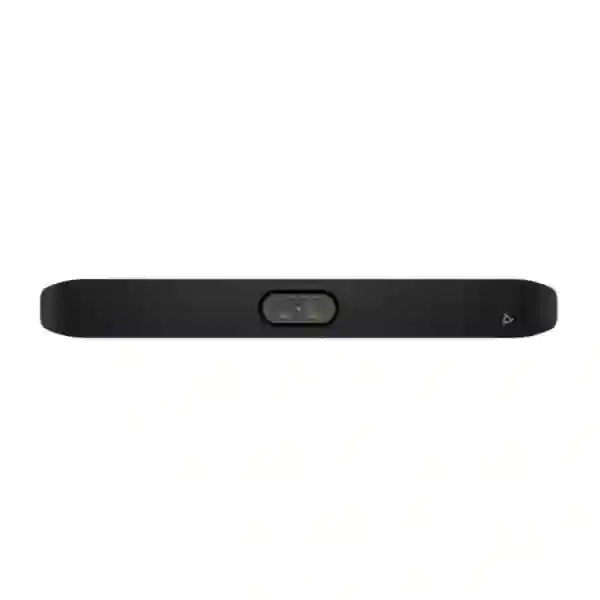
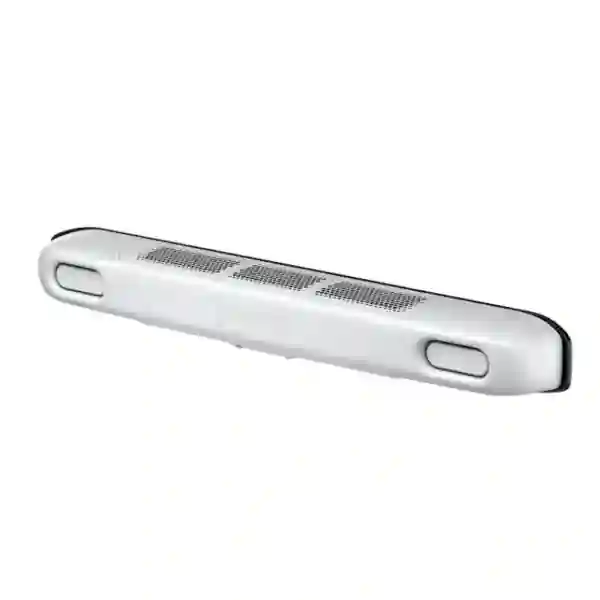
HP Poly Studio X32 All-in-One Video Bar
Equip a small meeting room with a wide-angle 4K-capable camera, integrated speech pickup, stereo audio and built-in collaboration apps. The HP Poly Studio X32 All-in-One Video Bar is designed for huddle and small rooms where a simple, repeatable meeting experience matters. For a Tanzania deployment, confirm the selected meeting service, PoE++ power arrangement, display and room layout before requesting a configuration-specific quotation.
Key features at a glance
- Camera: 20 MP sensor; 4K UHD capture; 120° horizontal field of view; 5x digital zoom
- Intelligent framing: Poly DirectorAI group, people and speaker framing
- Audio: four MEMS microphones, stereo speakers, NoiseBlockAI and Acoustic Fence
- Meetings: certified for Microsoft Teams, Zoom and Google Meet; USB Device Mode
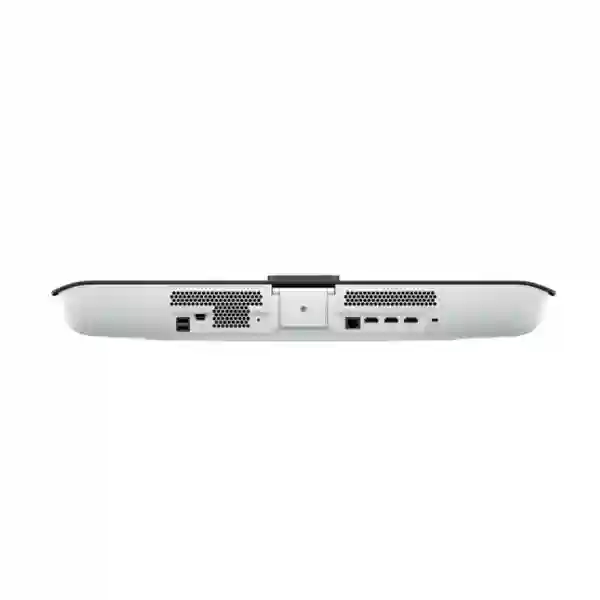
- Connections: HDMI input, two HDMI outputs, USB-C, two USB-A and Gigabit Ethernet
- Power and management: supported PoE++ (IEEE 802.3bt Class 6) and Poly Lens
What the X32 solves in a small meeting room
An effective small-room meeting system should do four jobs consistently: show everyone at the table, pick up voices without requiring people to lean toward a laptop, play the far-end conversation intelligibly, and let participants start a call without an elaborate cable routine. The Studio X32 brings the main camera, microphone array, speakers and meeting-computing capability into one video bar. That reduces the number of separately selected components, while leaving important room decisions—displays, network, power and user controls—to the installer or purchasing team.
This is a room-focused system, not simply a webcam with a speaker. In an appropriately configured supported meeting service, people can run conferencing directly on the bar rather than depending on a dedicated room computer. Teams that sometimes need a different application can evaluate USB Device Mode as a separate workflow. The useful question is not whether the X32 has many features; it is whether the room can be operated predictably by ordinary meeting participants and supported by the organisation’s IT team.
Best fit: huddle and small meeting rooms
HP positions the X32 for huddle and small meeting spaces and uses a reference room size of about 15 by 10 feet, approximately 4.6 by 3.0 metres. Use that as a planning reference, not an automatic guarantee for every room with similar floor dimensions. Long tables, unusual ceiling height, hard walls, seating outside the camera’s coverage and significant air-conditioning noise can change the result. The built-in microphone pickup is specified at up to 4.5 metres; intelligibility still depends on acoustics and how people speak.
For a compact collaboration room, an office focus space or a small hybrid-meeting area, the combination of wide camera coverage and integrated audio is attractive. A large boardroom is a different problem. If participants sit far beyond the stated pickup range or the room needs many specialised microphones and cameras, assess a larger Poly room system or a modular audiovisual design. Selecting a device based only on the word “4K” is less useful than checking the furthest seat and the clarity of a test call.
20 MP camera and wide-angle room coverage
The camera uses a 20-megapixel sensor and provides 4K UHD capture capability at 3840 by 2160 pixels. HP specifies a 120-degree horizontal field of view and a 132-degree diagonal field of view. The broad angle is particularly helpful when seats are close to the display wall or people gather around a short table. A fixed-focus lens and 5x digital zoom are part of the published specifications. Digital zoom changes the framing of an image; it should not be confused with a long-range optical zoom lens.
Camera sensor resolution is not the same thing as the picture every remote attendee will receive. The device’s actual call resolution and frame rate depend on conferencing mode, supported app, network conditions and negotiated connection settings. HP’s product specification, for example, distinguishes the 4K sensor from up-to-4K at 15 frames per second in a call. Evaluate the picture during a real call, including lighting across faces, whiteboard visibility and framing from side seats, rather than relying on a camera number alone.
Poly DirectorAI framing modes
Poly DirectorAI is designed to make small-room video more natural without assigning a participant to steer the camera. HP identifies group framing, people framing and speaker framing for this model. Group framing helps compose the room as a whole; people framing is intended to present individual participants more prominently; speaker framing can emphasise the person currently talking. The available settings and behaviour depend on the chosen operating mode and software version.
Automatic framing is useful when team members change seats or join an informal discussion, but it is not a substitute for good camera placement. A bar positioned too high, far off centre or behind an obstruction cannot create the same eye-line as a correctly placed front-of-room device. Decide whether a wide continuous view or a more dynamic view is better for the meeting style. In a formal presentation, frequent framing changes may not be desirable; in a conversational hybrid meeting, they may make remote attendance easier.
Microphones, speech pickup and noise management
The X32 includes four MEMS microphones arranged for beamforming. HP specifies a microphone pickup range of up to 4.5 metres. Beamforming helps the device focus on voices in the intended room area rather than treating every sound as equally relevant. Poly NoiseBlockAI and Poly Acoustic Fence are available to reduce distracting sounds and help keep remote listeners focused on participants. These are processing tools, not a promise that an extremely noisy room will sound silent.
Plan speech pickup around people, not the shape of the equipment. Map the furthest seat, consider whether participants face the camera, and listen for common local distractions such as fans, open doors, corridor conversations or a projector. Soft furnishings, closed doors and sensible microphone placement can matter as much as electronic processing. If the room layout places speakers beyond the designed small-room envelope, do not assume that connecting an unrelated microphone will solve it. First confirm supported expansion paths and consider a different room solution if required.
Stereo playback and the far-end experience
The bar integrates stereo acoustic-chamber speakers so the remote side can be heard through a dedicated meeting-room audio system instead of a small laptop speaker. HP’s published X32 specifications describe stereo speakers, and the integrated arrangement can keep everyday meetings tidy. A good experience still requires sensible volume, low echo and a seating arrangement where all local attendees can hear ordinary speech without strain.
In a video call, evaluate both directions. Ask the distant participant whether voices remain clear when someone turns away or speaks from the last seat. Then ask everyone in the room whether low-volume callers are intelligible without setting the speakers uncomfortably loud. An acoustically reflective space may need soft furnishings or other room treatment. The X32 is built for conversation in a small room; it should not be selected as a replacement for a public-address system, training-hall sound reinforcement or a large auditorium audio design.
Microsoft Teams, Zoom and Google Meet choices
HP identifies the Studio X32 as certified for Microsoft Teams, Zoom and Google Meet. That makes it an option for organisations seeking a dedicated, familiar meeting-room workflow rather than a laptop-driven call every time. The certified applications, their setup processes and their feature sets should be checked against the intended service and current software release. Certification of the hardware does not mean a meeting-room account, subscription, calendar or all associated cloud features are included with the purchase.
Choose the primary room platform before finalising the quotation. Confirm how the room account will be provisioned, who can schedule meetings, how invitations will appear and what participants should press to join. If the organisation uses multiple platforms, ask how the selected native mode handles incoming guest meetings, and distinguish guest-join workflows from full native operation. The X32 also offers Poly Video App mode and USB Device Mode; these alternatives can address different interoperability needs, but they are not identical to running every provider’s full native room experience at once.
Appliance mode versus USB Device Mode
There are two practical operating patterns to consider. In a supported native room or appliance deployment, the X32 runs meeting applications itself. That can remove the need for a permanently installed room PC. Users enter a prepared meeting environment with the same front-of-room camera and audio each time. This model benefits from centrally managed accounts, a clear sign-in process, a supported controller where needed and a defined software update policy.
USB Device Mode serves a different purpose: a laptop or other compatible host uses the bar’s camera, microphones and speakers for a computer-based conference. It may suit visitor-led sessions or software that is not the room’s primary application. The physical USB connection, host compatibility and expected user steps should be confirmed in the exact deployment. A demonstration is worthwhile if staff regularly switch between modes, because a solution that works technically can still be inconvenient if presenters must change settings during every meeting.
HDMI inputs, displays and content sharing
The published interface list includes one HDMI 1.4 input for video and audio, two HDMI 2.0 video outputs, one USB Type-C connection and two USB Type-A connections. The HDMI input provides a wired path for sharing content from a compatible source. Two HDMI outputs allow planning for as many as two room displays, subject to software mode and the intended layout. The presence of two connectors should not be interpreted as a guarantee that every application presents content and participants identically.
For the room design, decide whether one display is sufficient for both people and presentation content or whether two displays would materially improve discussion. Confirm display size, mounting, viewing distance and cable routing before buying the bar. If users present from varied laptops, identify the required USB-C-to-HDMI or other adapters separately rather than assuming every computer has a built-in HDMI socket. In any wireless-sharing workflow, test the specific service, network configuration and client devices instead of assuming that all casting methods will be available in every mode.
PoE++ and wired connectivity planning
Power over Ethernet can simplify a small room by moving the device’s power requirement into the structured cabling design. HP specifies a compatible IEEE 802.3bt Class 6 PoE++ injector or switch as a supported power source. That is a particular PoE power class, not a generic promise that any ordinary PoE port can run the device. Some regional product variants are listed without a power supply, so the exact orderable package and power arrangement should be confirmed before procurement.
The wired network interface is 10/100/1000 Mbps RJ-45 Ethernet. Use an appropriately installed data cable and check the switch’s power budget, port capability, network policy and cable termination. Consider whether the chosen controller, displays and other accessories have their own power needs. A reliable wired network is a sensible baseline for a fixed meeting room; although Wi-Fi capability is published, policies and supported operating arrangements differ by service and software version. Do not design the installation around an unverified wireless-only assumption.
Wi-Fi, Bluetooth and network readiness
HP lists Wi-Fi support across 802.11 a/b/g/n/ac/ax families and Bluetooth 5.0 for the relevant X32 specification. Wireless features can be useful, but the network decision for a managed conferencing room should consider reliability, security and supported service requirements. An office that uses guest Wi-Fi, captive portals or segmented access rules may need additional preparation before a room device can authenticate and reach its conferencing service.
Before installation, ask IT to identify the intended VLAN or network segment, allowed internet destinations, naming and address assignment, firewall rules, proxy requirements and any enterprise authentication constraints. Run a sustained real-time meeting test during typical office traffic, not only a speed test. Throughput alone does not show packet loss, delay variation or congestion at busy times. Network readiness also includes clear ownership for credentials, updating the room’s configuration and restoring service after a link or switch failure.
Mounting and sightline decisions
The X32 package specifications include a display-mounting clamp, along with a privacy cover, Ethernet cable and HDMI cable. Additional mounting accessories should be considered separate unless the exact quote confirms them. Position the bar near the centre of the display area, with an unobstructed view across the intended seating zone. The camera should be close enough to the on-screen faces to make remote participants feel that local speakers are looking toward them.
Check wall construction, the display’s mounting pattern, ventilation clearance and cable accessibility. Avoid placing the device where it will be blocked by a soundbar, presentation stand, tall table decoration or an opening door. A demonstration with participants in the actual chairs helps assess whether the wide angle captures everybody without making distant faces too small. Be mindful of windows behind people and overhead lights that create uneven exposure. A small change in seating or screen height may improve the experience more than an additional software setting.
Room acoustics and lighting before installation
Small rooms are not automatically easy rooms. Parallel glass walls, hard tiled floors and empty surfaces can cause reflected speech, while nearby traffic or air conditioning may raise the noise floor. The X32’s audio processing is designed to help, but the best starting point is to make the room suitable for intelligible conversation. Close unnecessary gaps around doors, manage persistent equipment noise and consider soft treatments where reflections are severe.
Camera quality also depends on the light in the room. If a bright window sits directly behind a participant, the camera may have to balance a high-contrast scene. Try to place the table so faces receive even, comfortable front or side lighting. Keep adjustable blinds available where windows dominate the view. During a pilot, test both morning and afternoon conditions. These environmental checks are inexpensive relative to purchasing a room system that appears technically correct yet performs poorly whenever sunlight or background noise changes.
A practical installation and setup sequence
Start with an approved room drawing that marks the screen, table, seats, network point and power arrangement. Confirm the chosen meeting application and controller strategy, then verify the device variant and package contents. Mount the X32, connect the supported power source and required Ethernet and HDMI cables, and confirm that the display receives the expected output. Follow HP’s current setup guidance for the selected provider and assign the necessary room account using the organisation’s managed credentials.
Next, apply supported firmware and security settings, register the device in the intended administration system and set sensible audio, camera and display defaults. Test a call with both local and remote participants, including a presentation from the likely laptop types. Verify microphone pickup, far-end echo, speaker levels, framing and content visibility. Document the settings, network ownership and support contact so the next administrator can troubleshoot without rebuilding the room. Finally, provide a short user instruction card describing how to start, join, present and end a meeting.
User experience, touch controls and room etiquette
The best meeting-room interface is one that occasional users can operate without an IT technician. A supported HP Poly touch controller may be appropriate for a dedicated meeting room; confirm compatibility, whether it is included in the quoted bundle, and what mounting and network connections it requires. Controller availability alone does not replace configuration of the primary conferencing provider. The room calendar and join workflow must still be designed around the organisation’s service.
Define a few predictable actions: how a host starts a scheduled meeting, how a guest joins, how the microphones are muted, how the camera is disabled when appropriate, and how content is shared. Provide visible privacy guidance where meetings may include confidential discussions. When staff use USB Device Mode, explain how to select the X32 as the computer’s camera and audio device and how to return the room to its normal state. This operational detail has a greater effect on meeting reliability than a long list of seldom-used features.
Remote management with HP Poly Lens
HP identifies Poly Lens as a management option for the X32. For an IT team responsible for several meeting spaces, central device visibility and a consistent update policy can reduce avoidable room interruptions. Management requirements should be established before installation: who is authorised to administer devices, how devices are enrolled, what information is collected and whether the selected service or management features require additional agreements or licensing.
Maintain an inventory of room names, device identities, firmware versions and the designated owner for each space. Test firmware updates in a representative room before applying changes across many rooms, especially when the organisation uses a specific Teams, Zoom or Google Meet workflow. Document how to recover from failed connectivity, lost sign-in credentials and unexpected configuration changes. Central management is useful, but it does not eliminate the need for a local contact who can check cables, displays and network power when a room is physically unavailable.
Security, privacy and administrative ownership
Meeting rooms may handle sensitive internal discussions, customer information or confidential presentation material. Include the video bar in normal endpoint governance rather than treating it as an unmanaged accessory. HP publishes administrative access controls and network-related security capabilities for the product family. The organisation must still select appropriate credentials, limit administrator privileges, follow supported update guidance and verify the relevant conferencing provider’s own identity and meeting-security settings.
Use the supplied privacy cover and the selected application’s mute or camera controls as parts of a clear room policy. Users should know whether a meeting is connected, when audio is active and how to leave a session. Avoid storing personal user credentials in a shared room if a properly managed room account is the intended model. Review logging, device enrolment, remote administration and network access with the IT or information-security team. Hardware security features do not by themselves establish that a whole conference-room deployment meets a particular regulatory or organisational compliance requirement.
Tanzania workplace planning without guesswork
For an office, school, professional services firm or distributed organisation in Tanzania, the main design questions remain practical: where the room is located, whether the meeting network is dependable, how power is supplied and who will operate the equipment. Remote participants may join from different regions or countries, so the quality of the internet path at each end matters. Avoid basing a purchase solely on international product photography or configuration examples from a different market.
Confirm the exact power option for the proposed equipment, including a compliant PoE++ switch or injector where needed. Consider appropriate backup power for the switch, display and any room controller if continuity through an interruption is important. Ask for a quote that identifies the particular product variant, supported accessories and implementation tasks. Stock, delivery date, taxes, installation coverage, local warranty terms and service response should be confirmed in writing for the actual Tanzania order; they are not established by the manufacturer’s general global product specification.
How to decide between the X32 and larger systems
Begin with the room rather than a preferred model. The X32 is designed around small-room collaboration, wide-angle capture and integrated audio. A larger Poly Studio X-series solution may be more appropriate when the seating area extends beyond the X32’s intended reach, when the room has unusual acoustics or when users need more elaborate audiovisual expansion. For very simple bring-your-own-laptop rooms, a USB-focused bar may deserve evaluation if native room applications are not required.
Compare candidates using a short scorecard: expected participants and furthest seat, camera coverage, audio intelligibility, primary conferencing service, dual-display need, content-sharing workflow, power availability, administration tools and total installed cost. Do not infer that a higher model number always produces a better outcome in a compact room. The right system is the one that meets measured use cases with clear support boundaries. Where the requirement involves additional cameras, microphone expansion or complex room automation, confirm the exact supported combinations rather than treating all Poly products as interchangeable.
What a complete purchase quotation should state
A useful quotation should distinguish the video bar from the wider meeting-room solution. Request a clearly described product variant, quantity, included cables and mounting hardware, intended power source, any touch controller, required display equipment and separately priced installation materials. Ask whether an existing switch can deliver the required PoE++ power class. Confirm who provides room accounts and conferencing licenses, who configures network access, and whether user training or acceptance testing is part of the scope.
Include operational items as well as equipment: software provisioning, secure administration, mounting, cable management, functional test calls and a documented handover. Clarify whether the quotation covers maintenance, change requests, ongoing Poly Lens administration, warranty handling or only the initial supply. For budget comparisons, use the same assumptions across offers. A lower device-only price may not be the lower installed cost if it excludes power hardware, mounting, controller, cabling or necessary configuration work. Never assume unquoted services or accessories are included.
Acceptance tests before a room goes live
A successful installation is one that normal staff can use. Place people in each intended seat and conduct a call to an independent remote participant. Ask the remote side to assess faces, room framing, voice clarity and any echo. Test a quiet speaker, a presenter standing near the display and conversation from the furthest seat. Repeat after adjusting the camera mode or speaker volume so the final settings reflect the room rather than a demonstration bench.
Next, check the operational journeys: starting a scheduled meeting, joining a guest call when supported, muting, sharing a laptop screen, presenting to one or two displays as configured and ending the meeting cleanly. Disconnect and reconnect the intended network or power source in a controlled test if the installation plan requires recovery verification. Record the accepted device and software versions, the room owner and the support route. Sign-off should describe the tested configuration; it should not imply that every possible conferencing application and accessory combination has been validated.
Ongoing care, support and upgrade planning
The X32 should be managed as an active networked device, with periodic review of firmware, account access, meeting-service compatibility and performance. Build a simple maintenance schedule covering cable condition, ventilation, front-lens cleanliness, display connections and test calls after material software changes. Any cleaning should follow the manufacturer’s current care instructions, with power and connected accessories handled appropriately. Avoid untested consumer cleaning sprays or improvised cable extenders.
When users report poor calls, separate local room issues from service and network issues. A remote participant’s bad connection, a muted room account or a laptop selecting the wrong USB audio device can resemble defective hardware. Record the exact symptom, operating mode, software version and affected meeting provider before escalating. Keep procurement details and the actual seller’s warranty terms available to authorised support staff. If the organisation expects additional participants, a different room layout or another collaboration platform, reassess suitability before expanding the installation.
Choosing your next step
The HP Poly Studio X32 All-in-One Video Bar is a strong candidate when a small room needs a permanent 4K-capable camera, voice pickup, stereo playback and supported built-in meeting services in a tidy system. Its decision value comes from using the right mode in the right size of room, not from the camera specification alone. Confirm the room layout, primary application, display arrangement and power capability together before committing to a bill of materials.
To request a suitable Tanzania configuration, share the room dimensions, approximate seating count, main meeting application, existing display details and whether a compliant PoE++ network port is available. Include any need for USB Device Mode, a dedicated controller, a second display or routine support. A configuration review can then identify which elements belong in the equipment quote and which require separate network, software or installation work.
Verified technical overview
| Area | Published capability |
|---|---|
| Intended environment | Huddle and small meeting rooms; HP planning reference about 15 ft × 10 ft |
| Camera | 20 MP, fixed-focus, 4K UHD (3840 × 2160), 5x digital zoom |
| Field of view | 120° horizontal; 132° diagonal |
| Framing | Poly DirectorAI group, people and speaker framing |
| Microphones | Four MEMS microphones; pickup up to 4.5 m |
| Audio | Built-in stereo speakers; Poly NoiseBlockAI and Acoustic Fence |
| Conferencing | Microsoft Teams, Zoom, Google Meet certification; Poly Video App and USB Device modes |
| Video and USB ports | 1 × HDMI input 1.4; 2 × HDMI outputs 2.0; 1 × USB-C and 2 × USB-A |
| Network and power | Gigabit RJ-45 Ethernet; supported PoE++ IEEE 802.3bt Class 6; wireless features are mode-dependent |
| Physical details | Approx. 576.8 × 66.1 × 74.8 mm; approx. 1.14 kg (HP published variant) |
| Included in HP published package | Video bar, Ethernet cable, HDMI cable, privacy cover and display mounting clamp; verify quoted bundle |
Specifications describe published X32 capabilities. Confirm the exact regional part and current software mode; no Tanzania stock, pricing, warranty, regulatory approval or service availability is implied.
Frequently asked questions
Is the HP Poly Studio X32 intended for large boardrooms?
No. HP positions it for huddle and small meeting rooms, with a reference space of about 15 by 10 feet. Larger or acoustically difficult rooms should be evaluated for microphone coverage, camera framing and possible use of a different room system. A pre-installation call test is more reliable than selecting by floor area alone.
Does the X32 require a separate room PC?
Not for its supported built-in appliance meeting workflows. The bar can run compatible conferencing applications itself. A room account, supported software configuration, network and suitable displays are still required. In USB Device Mode, a compatible connected computer provides the meeting application and uses the bar for its audio and camera.
Which conferencing platforms are certified?
HP identifies Microsoft Teams, Zoom and Google Meet certification for the Studio X32. Confirm the current supported configuration and the provider’s applicable room account or licensing before deployment. Service-specific features and the experience for guest meetings may vary; certification does not mean one room account unlocks all providers.
Can it share a presentation from a laptop?
Yes, the product has an HDMI input for wired content sharing, and USB Device Mode provides a separate laptop-driven meeting workflow. Check the exact computer outputs, required adapters and application settings for the intended room. Wireless presentation methods should be tested against the selected platform and network rather than presumed universal.
Can I connect two room displays?
The X32 has two HDMI video outputs and HP identifies support for two displays. Plan the actual screen arrangement around the chosen meeting provider and how it handles video and shared content. Confirm display resolution, cabling and supported layout during commissioning because two physical outputs do not imply identical application behaviour.
What is the microphone pickup range?
HP specifies pickup up to 4.5 metres for the built-in four-microphone array. This is a design reference, not a guarantee of intelligible speech through heavy noise or room echo. Test the furthest seat and consider a different audiovisual design if the table or meeting area extends beyond the intended coverage.
Does the video bar use PoE power?
Yes. HP specifies PoE++ compatible with IEEE 802.3bt Class 6, using a suitable injector or switch. Ordinary PoE power should not be assumed sufficient. Check the exact package variant because some manufacturer listings describe a model supplied without a power adapter, and confirm that all other room components have their own required power.
Is a touch controller included?
Do not assume so. HP identifies compatible touch control options, but the quotation must state whether a controller is included and which model is supplied. Confirm the controller’s compatibility, power and network requirements for your selected conferencing service before ordering. A controller may materially improve ease of use in a dedicated room.
Does the X32 send 4K video in every meeting?
No such universal guarantee follows from the camera’s specification. The camera supports 4K UHD capture, while actual transmission depends on the meeting provider, settings, network and supported frame rates. HP lists up to 4K at 15 frames per second in a call for a specified product variant. Test the actual meeting service when image detail is important.
Can the X32 be remotely administered?
HP lists Poly Lens management for the product. The organisation should verify enrolment, supported administration features, account permissions and any associated service requirements for its intended deployment. Assign an IT owner and define an update policy rather than relying on the room device to manage itself after installation.
What should a Tanzania buyer confirm before ordering?
Confirm the exact regional product variant, compatible power arrangement, chosen meeting provider and account, mounting and displays, included accessories, installation scope and support conditions. Ask the seller to verify stock, price, local delivery and warranty for the actual quotation. These commercial details cannot be inferred from a global HP datasheet.
What information helps obtain an accurate quote?
Share room dimensions, seating arrangement, the furthest seated participant, main collaboration platform, number of displays, available network and PoE++ capability, and whether visitors need to connect laptops. These details help determine whether the X32 is the correct fit and prevent missing power, cable, controller and configuration items.
Request an HP Poly Studio X32 configuration review
For a Tanzania meeting space, request a quotation that specifies the room size, main conferencing platform, display count, mounting method, PoE++ power source and expected user workflow. Ask for explicit confirmation of the selected part, included accessories, software requirements and local commercial terms. No unverified product pricing or availability is assumed.
Reviews
There are no reviews yet.