
Business audio • Tanzania buying guide
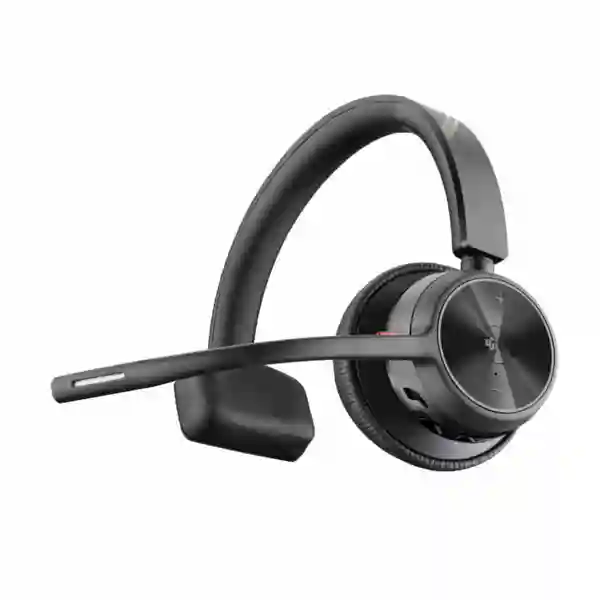
HP Poly Voyager 4310 UC Microsoft Teams Headset
A single-ear wireless headset for Teams-oriented calling, computer meetings and compatible mobile conversations. Explore the microphone technology, BT700 connectivity, charging choices and the buying checks that matter before you request a quotation.
Check the exact Teams or UC configuration, USB connector and package contents before ordering.
Key features at a glance
*HP’s up-to-24-hour talk-time figure applies with the online indicator off. Wireless range and battery performance vary by conditions. Teams controls and accessories are variant-dependent.
Specification and ordering snapshot
| Headset style | Monoaural on-ear, adjustable over-head band |
|---|---|
| Microphone | Noise-cancelling boom with dual-microphone Acoustic Fence |
| PC connectivity | BT700 USB Bluetooth adapter; supported USB audio cable |
| Mobile connectivity | Bluetooth with compatible phones |
| Wireless range | Up to 50 m with BT700 under suitable conditions |
| Talk time | Up to 24 hours with online indicator disabled; up to 18 hours enabled |
| Charging | USB cable; desktop stand only in selected bundles |
| Supported workflow | Teams-oriented version and general UC configurations |
| Management | Poly Lens in supported deployments |
| Supplier-specific checks | Exact part number, USB-A/USB-C, stand, contents, Tanzania terms |
A headset for conversations that keep moving
Work calls rarely happen at the perfect desk, in the perfect room, at the perfect time. A colleague needs a quick answer, a customer calls while you are reviewing a document, or a meeting begins while you are moving between tasks. The Voyager 4310 gives call-focused workers wireless listening and a microphone close to the mouth without the bulk of a two-ear listening device. It is a business headset first: the practical aim is to make a working day of conversations easier to manage.
The HP Poly Voyager 4310 UC Microsoft Teams Headset is particularly relevant when one person uses a computer for scheduled meetings and a smartphone for everyday business calls. A BT700 adapter provides the intended computer-side wireless connection, while Bluetooth supports compatible mobile devices. An audio-over-USB option provides flexibility when a corded connection is preferable. That combination makes the model worth evaluating for hybrid work, shared office spaces, customer-facing teams and individual home offices.
This page separates verified family capabilities from package-specific details. It does not assume a particular retail bundle, USB connector, charging stand, stock position or local selling price. A buyer should choose the exact Teams or UC build for the intended collaboration environment, identify the port on the computer and check the contents of the supplier’s quotation. Those seemingly small details affect whether the headset is ready for use on arrival or requires an accessory change.
Understand the model before choosing a bundle
Voyager 4310 refers to the single-ear model in the Voyager 4300 family. The name alone does not identify everything inside the box. There are general UC configurations and Microsoft Teams-oriented configurations, and packages with different BT700 adapter connectors. Some include a charging stand while others include the headset, dongle, cable, travel pouch and documentation without a stand. Treat a quoted part number and written box-content list as more reliable than a generic catalogue photograph.
For a team that principally works in Microsoft Teams, the Teams-certified configuration matters because it is designed to expose Teams-specific behavior, including a dedicated Teams control in supported setups. A standard UC headset may carry broad platform compatibility and its own certifications, but do not infer that two differently labelled variants have identical application controls. Verify the model and how it is presented in HP’s specification for the exact part number, especially for managed workplace deployment.
USB-A and USB-C describe connector styles, not a different wearing experience. Before ordering, review the ports available on the laptop, docking station or desktop and decide where the BT700 adapter will remain connected. A docking station may change that decision, especially when a worker splits time between office and home. If the quotation says a charging stand is supplied, verify that it refers to this model and bundle. If it is not confirmed, plan to charge by the supplied USB cable.
Single-ear comfort and everyday awareness
The 4310 has an over-the-head, monoaural wearing style: one padded on-ear speaker and an adjustable headband. HP lists the headset at approximately 122 grams in its product information. For people who frequently need to speak to nearby colleagues or monitor what is happening around a desk, leaving one ear uncovered can be an advantage. The user can hear the call in one ear without completely withdrawing from the surrounding room, which suits many administrative and support jobs.
The same open-ear choice creates a tradeoff. It does not give the immersive listening or passive separation associated with two-ear headsets. Someone who edits audio, concentrates on lengthy training videos or needs both ears acoustically covered may prefer a stereo design. Also, a single-ear design does not mean outside noise disappears for the wearer. It is best evaluated as a communication tool that balances call listening with environmental awareness, rather than as an isolation headset.
A comfortable headset is one that fits the actual user. Adjust the headband so that the ear cushion sits naturally rather than pressing too tightly. Position the microphone boom to pick up the voice consistently, and try a realistic call before buying large quantities for different staff. Teams with varied work patterns should include at least one long-call user in their evaluation. A specification can indicate weight and design, but only a practical fit test establishes how it feels during repeated meetings.
Microphone clarity and Acoustic Fence
The microphone system is one of the strongest reasons to evaluate this headset. HP describes a flexible boom with dual-microphone noise cancellation and Poly Acoustic Fence technology. Rather than depending on a laptop microphone positioned far from the speaker, the boom brings speech pickup closer to the mouth. Its processing is intended to reduce distracting surrounding noise in transmitted audio, supporting business conversations when a room is not silent. This is a microphone-side benefit rather than a promise of perfect isolation.
Consider the noise sources your workers face. A nearby colleague, keyboard activity, household movement or routine office chatter can make remote listeners work harder to follow a conversation. A correctly positioned boom and suitable software settings give the microphone better conditions to emphasize the user’s voice. Yet no headset should be expected to erase every loud sound, especially sudden noise close to the microphone. For important customer service, test in a normal busy period rather than in an unusually quiet room.
For an objective trial, have a colleague listen at the receiving end of several calls. Compare speech intelligibility, voice naturalness and interruption from nearby activity. Test normal speech, softer speech and brief turns away from the screen. Make sure the meeting application has selected the intended Voyager microphone, not the laptop’s built-in mic. This simple check matters more than a claim of noise cancellation alone, because acoustic conditions, microphone placement and software routing all influence what another participant actually hears.
What Microsoft Teams certification contributes
Microsoft Teams certification is especially useful in a workplace where meetings, presence and calling are centered on Teams. HP identifies Teams-certified versions of the Voyager 4310 and describes a dedicated control for accessing the Teams application in the relevant configuration. A supported, correctly configured deployment can make routine call interaction simpler than using only on-screen meeting buttons. Procurement teams should confirm the Teams build and supplied BT700 adapter when that experience is part of the buying requirement.
Certification is not a guarantee that every Teams feature will behave identically on every operating system, app release or device pairing method. Application policies, USB adapter connection, permissions and Teams device settings can all affect an individual’s experience. A headset can provide the audio path while a Teams account, meeting access and network connection remain separate requirements. For managed organizations, validate call answering, muting and application controls against the actual Teams client that staff use before a full rollout.
When checking a user’s setup, open Teams device settings and select the Poly speaker and microphone for a test call. Confirm that the physical mute control and the Teams mute status are understood by the user. Explain how the Teams-specific button behaves within the deployed app rather than assuming it will work from any mobile screen. This reduces avoidable support requests and makes the difference between a headset that merely plays audio and one that integrates predictably with the organization’s collaboration workflow.
The BT700 adapter and computer connection
HP supplies a BT700 USB Bluetooth adapter with specified Voyager 4310 packages to support the computer connection. This tiny component can be easy to overlook during purchasing, yet it is part of the intended workflow for PC and Mac calling. The USB port style must match the chosen bundle. When an organization issues different generations of laptops, record which workers require USB-A and which require USB-C, and make the choice explicitly on the quotation rather than relying on a picture.
A laptop’s built-in Bluetooth may appear to offer an equally simple connection, but device-specific call controls and audio handling can differ from the experience with the supplied BT700. For the intended computer workflow, start with the HP-provided adapter and the manufacturer’s guidance. If a worker uses a dock, try the adapter in the preferred port and check for stable calls after docking and undocking. The position of the computer and surrounding radio devices can also matter to connection quality.
The USB adapter is a working accessory, so give it the same attention as a mouse receiver or security token. Establish whether employees keep it in their assigned laptop, docking station or travel kit. If the adapter is lost, do not assume a generic replacement will provide the same management and call-control experience. For organizational orders, document replacement and support procedures alongside the initial distribution so staff know which component to report if wireless PC audio stops working.
Use with a computer and smartphone
The 4310 family supports computer calling and Bluetooth mobile use, which is valuable to employees who switch between online meetings and telephone conversations. A common arrangement uses the BT700 adapter at the workstation and Bluetooth pairing with a compatible smartphone. The headset can remember multiple paired devices, while the exact active connection behavior and switching priorities should be tested for the selected unit. A paired device is not automatically guaranteed to take priority over another call.
Set expectations clearly for users who receive two calls close together. A headset cannot merge unrelated calls on separate systems into one seamless conference merely because both devices are paired. Staff should understand where to answer or end a call, what happens when a mobile ringtone arrives during a computer meeting and how to reselect the intended audio output. A short orientation with real calls will reveal any application or phone-specific behavior that written product specifications do not capture.
For hybrid workers, switching contexts may be more important than maximum theoretical range. A user may finish a Teams check-in, step away from a desk and need a mobile call without changing equipment. This is the sort of workflow the Voyager series is designed to support. It is still wise to check smartphone operating-system permissions and application audio selection, and to avoid presenting simultaneous connection as a substitute for individual device and app compatibility testing.
An optional corded USB audio mode
Wireless operation is the main attraction, but HP also describes audio over USB cable for this family. This option can be useful when a worker chooses a direct physical connection for a long desk session or needs to troubleshoot a wireless path. It is more flexible than treating the headset as wireless-only. A compatible computer port and appropriate cable are still required, and the exact cable supplied should be checked in the chosen product package.
A corded mode can help an IT technician isolate a problem. If the microphone works over USB but not through the BT700 connection, the technician can focus on adapter pairing, port placement or wireless settings. If audio problems occur in both modes, the headset’s input selection, application permissions and microphone positioning deserve closer inspection. The goal is systematic testing rather than replacing equipment at the first sign of a dropped connection.
Do not confuse a USB audio cable with an ordinary analogue headset connector or an Ethernet-style desk-phone lead. The device should be connected through the supported USB route described for the model. Similarly, a desk phone is not automatically compatible because the headset has Bluetooth. HP describes a separate Voyager Office base for supported desk-phone workflows. That accessory and any required interface arrangements should be verified independently before buying for a traditional telephony environment.
Talk time, charge time and realistic power planning
HP lists up to 24 hours of talk time when the online call indicator is turned off, and up to 18 hours when that indicator is on, for relevant configurations. It also lists up to 47 hours of music listening and under 1.6 hours as the nominal charge time. Those are useful planning figures, not a guarantee that every person’s battery will last for an identical period. Usage mix, volume, connection conditions, settings and battery age can affect actual results.
For call-heavy roles, the difference between a quoted maximum and a dependable charging routine matters. A contact-center worker may speak for much of a shift, while an office administrator alternates between calls, documents and breaks. Both can benefit from wireless use, but they may charge at different times. Decide whether employees should connect a cable after a shift, charge at lunch or use a package with a compatible stand. Consistent routines are easier to maintain than waiting for an alert during a live meeting.
If your organization wants on-call indicator lights enabled as a visual signal to colleagues, use the shorter relevant talk-time figure when planning charging expectations. A headset that meets a shift’s needs on paper can still need a charging habit at the end of the day. Ask a pilot group to record real call duration and battery warnings over normal workdays. Such evidence is more meaningful for deployment planning than extrapolating from a single maximum value published under specified test conditions.
Charging cable, travel pouch and stand choices
The Voyager 4310 is sold in different packages, so the charging arrangement should be written into the order. HP product documentation for certain configurations includes a USB charging cable, a travel pouch, a quick start guide and a BT700 adapter. Selected variants additionally include a desktop charging stand. The stand can give the headset a convenient home between calls, but it must not be promised on a generic Voyager 4310 listing without verifying the exact bundle.
A cable-based setup suits employees who regularly take the headset between locations and do not want another item on the desk. A stand can suit a fixed workplace where the user prefers a visible charging position. Neither choice changes the need for a compatible power source and sensible cable organization. For a busy desk, consider where the headset will rest so the ear cushion and microphone boom are not bent beneath files or other equipment.
When comparing supplier quotations, ask whether the offer covers the headset alone, a complete BT700 bundle or a variant with a stand. Also check for the intended cable connector and any USB adapter accessories needed for your computers. The included travel pouch, where listed, is useful for reducing casual wear during movement between home, office and meetings. Small packaging differences can create unexpected support work if they are discovered only after an organization has distributed dozens of headsets.
Wireless range: what the number means
HP advertises up to 50 metres, or 164 feet, of Bluetooth range when used with the included BT700 adapter in suitable conditions. That figure describes an upper-end capability, not a guaranteed office coverage radius. Walls, metal furniture, crowded radio environments, computer placement and other obstacles can shorten reliable working distance. A user should not assume that every room on a different floor will stay connected simply because it appears to fall inside a numerical distance.
For a realistic assessment, test the headset along the routes staff actually take. A receptionist may move between a desk and filing area, while a manager may walk across an open office. Listen for changes in voice quality and connection as the user turns, passes doorways or moves behind partitions. Evaluate both sending and receiving audio. Range tests should use the actual computer position and BT700 installation that will be retained after the trial.
HP also cites a greater theoretical range for selected configurations used with a separate Voyager Office base. That does not mean a standard BT700 bundle automatically delivers the extended figure, and the Office base is not assumed to be included. If coverage between rooms or compatibility with a desk telephone is central to your requirement, discuss the relevant base and surrounding infrastructure explicitly. Wireless freedom is valuable only when a call remains intelligible where the employee truly works.
Call controls and visible status
HP lists physical call answer and end, mute, volume, power and pairing controls for the Voyager 4310. These buttons reduce the need to locate controls on a computer screen during an ordinary conversation. Voice alerts can indicate conditions such as mute state, connection and low battery. Depending on the configuration, a visual call indicator can help people nearby understand that the headset user is occupied. These are small conveniences with substantial everyday value in a busy office.
The important point is consistency. Teach staff where the mute button sits, how to confirm they are muted and what application indicators still need attention. A headset microphone can be physically available while a conferencing app has selected the wrong input. Similarly, a user may think a call has ended while the application remains active. An initial test using real meeting software lets workers learn the difference between device-level controls and the status shown by their calling application.
For shared working areas, the visual indicator can help reduce accidental interruptions, but it is not a privacy barrier. Colleagues should still establish appropriate workplace etiquette, and sensitive conversations should take place in suitable spaces. If an organization needs maximum battery endurance, it should understand the manufacturer’s stated difference between talk time with the indicator enabled and disabled. Choose the setting around operational priorities, not only a headline battery number.
Audio safety, comfort and responsible listening
HP specifies SoundGuard-family acoustic protection for the Voyager 4310 configurations. This technology is intended to address potentially uncomfortable audio peaks, but it does not replace responsible volume settings or organizational hearing-safety practices. A headset user should begin at a moderate listening level and increase only as needed to understand speech clearly. If remote callers sound unusually loud, check application and system volume settings rather than tolerating discomfort throughout a day.
Because the 4310 is a monoaural on-ear headset, it allows the uncovered ear to hear the environment. That may help with awareness, but it also means people can raise listening volume to compensate for room noise. In persistently noisy workplaces, changing the listening environment or choosing a more isolating headset may be more appropriate than simply turning the volume higher. The best solution depends on the worker’s actual tasks, required awareness and acoustic surroundings.
A well-managed headset program includes breaks, cleaning, correct fit and a way to report discomfort. Workers may use the same device repeatedly over long shifts, and small adjustments can improve everyday experience. Encourage people to reposition the ear cushion and microphone boom rather than forcing an awkward angle. If an employee reports recurring discomfort or difficulty hearing calls, review both headset suitability and the workspace before concluding that a volume or software setting alone is the answer.
Where the Voyager 4310 fits in a business
For sales and account-management teams, the appealing feature is the ability to use one lightweight calling headset for planned computer meetings and compatible mobile conversations. The employee can keep reference material open on a screen while speaking and move a short distance from the desk when needed. Before purchasing, verify the worker’s calling apps and whether they need a Teams-certified variant. If an employee mainly conducts long video presentations, evaluate comfort and microphone performance over realistic meeting durations.
For help desks and administrative functions, predictable mute controls and outgoing voice clarity can matter more than music quality. The 4310’s boom microphone supports speech-centric work, and a single-ear design can leave staff aware of someone approaching a service desk. Where staff handle private information, the workplace also needs appropriate acoustic privacy and confidentiality policies. Microphone noise reduction does not stop people standing nearby from overhearing the worker’s side of a conversation.
For hybrid and remote workers, portability and straightforward connections are important. Someone moving between a home desk and an office may use different computers or docks, and may want an identifiable place to store the USB adapter. The headset is suited to that evaluation, but the IT team should record which device combinations are supported in the organization. A user-friendly deployment depends as much on clear setup guidance as it does on the headset’s advertised hardware features.
Prepare IT teams for a sensible rollout
A managed headset deployment begins with an inventory of how people call. Record operating systems, laptop port types, Teams versions, mobile-device policies, docking arrangements and any desk-phone requirements. Group users by workflow rather than ordering the same bundle simply because everyone uses a computer. Employees who need one-ear awareness can be a good match for the 4310; employees who need two-ear coverage or stronger listening isolation may need another model from the start.
HP identifies Poly Lens as the relevant software environment for device management and configuration in supported deployments. IT administrators can assess whether the organization’s policies permit the desktop software and any applicable managed-device functions. Check software privileges, update processes and device visibility in the actual environment rather than assuming every feature will be enabled automatically. Firmware management should follow approved change procedures, particularly where stable call handling matters for business operations.
Pilot the headset with a small mix of users before standardizing on it. Include someone using a laptop dock, a person regularly switching between computer and phone, and a worker taking calls in an active office. Record audio routing, battery experience, range, call-control consistency and any setup questions. The result should be a concise deployment checklist tailored to your workplace. This is more robust than selecting solely on catalogue specifications and discovering local compatibility issues after distribution.
First-day setup and verification
Start by checking the exact box contents against the order. Identify the headset, BT700 adapter, cable, guide and any stand supplied with that particular package. Charge the headset according to HP instructions and connect the BT700 adapter to a compatible computer USB port. Follow the product’s pairing and connection guidance, then confirm that the operating system recognizes the device. Avoid changing multiple audio settings at once; a structured setup makes later troubleshooting much easier.
Next, open the relevant calling application and choose the Voyager device as the microphone and speaker. Make a short test call and verify incoming audio, outgoing voice, mute status and the expected Teams-specific controls for the selected variant. If a smartphone is part of the workflow, pair it separately through the approved Bluetooth process and test an incoming mobile call. Make sure the user knows which device currently owns the conversation rather than relying only on a connection sound.
Finally, walk a short route through the work area while speaking, return to the desk and test reconnection after normal device sleep or docking changes. Confirm that the charging cable is easily accessible and that the worker can recognize a low-battery alert. Give the user a short written reminder covering audio selection, mute controls and the location of the BT700 adapter. First-day habits often determine whether a headset remains easy to use months after it was issued.
Troubleshooting common calling problems
If callers cannot hear the user, first check whether the microphone is muted at the headset or in the application. Confirm that the calling software selected the Voyager microphone rather than an integrated laptop input or another connected device. Test with a built-in recording function or a second call where permitted by workplace policy. If the recording is clear outside Teams but not inside it, focus the next checks on application permissions and device selection instead of immediately replacing the headset.
If audio cuts out when the user walks away, move closer and test the same route again. Inspect where the BT700 adapter is placed and whether the connection becomes unstable around partitions or crowded equipment. Try a supported USB audio connection as a diagnostic option where appropriate. If computer audio is stable with a cable but not wirelessly, pairing and radio conditions deserve more attention. Document what changed and the result of each test before moving to the next possibility.
If call controls behave unexpectedly, verify the exact Teams or UC variant, the supported software version and how the headset is connected. A computer paired through its own Bluetooth stack may behave differently from a BT700-based connection. For battery concerns, check the charging source, cable, online indicator settings and how long the headset has actually been in use. Use HP’s official model-specific instructions for resets, pairing and firmware tasks rather than arbitrary button combinations found for another Poly headset.
How to keep the headset in working condition
Routine maintenance is straightforward but should not be improvised. Keep the ear cushion and microphone boom clean using methods permitted by the manufacturer’s care guidance and your workplace hygiene policy. Do not soak electronic parts, apply harsh cleaning agents without checking compatibility or bend the microphone into an unnatural shape. When not in use, store the headset where it will not be trapped beneath equipment. The travel pouch, if included, can help reduce incidental damage during transport.
A wireless headset relies on a rechargeable battery, so plan for long-term ownership as well as first-day performance. Teams should have a way to report reduced runtime, damaged cushions and misplaced adapters. For workplaces with rotating staff, record the assigned unit and supplied accessories through the normal equipment-management process. A clear handover checklist prevents the familiar problem of a returned headset appearing complete until the next employee discovers that its USB adapter is missing.
Keep the documentation for the exact package with procurement records. Software instructions and accessory compatibility may change as products and platforms evolve, so administrators should consult current HP support guidance before significant configuration changes. If a headset stops working, identify the serial number and applicable support information through the appropriate business process. Avoid assuming that a regional warranty statement on a manufacturer page establishes the exact terms of a particular Tanzania retail transaction.
Compare mono, stereo and higher-isolation alternatives
Choose the Voyager 4310 when a single-ear form factor aligns with the job. It is sensible for staff who must remain aware of nearby colleagues while handling calls and for users who prefer not to cover both ears. A stereo business headset, such as the two-ear model in the same broader family, may be better for people who spend long periods listening to meetings and who want a more enclosed listening experience. Neither choice is universally better; it is a workflow decision.
The 4310’s Acoustic Fence technology is about reducing unwanted sound captured by the microphone. It should not be confused with active noise cancellation for the user’s own listening. If someone works beside persistent machinery, loud music or a very busy open office, evaluate headsets designed for a higher degree of listener isolation. Do not assume that microphone noise cancellation will make the uncovered ear quiet. This distinction prevents buyers from specifying the wrong product for an otherwise legitimate need.
There is also a choice between a wireless headset and a conventional wired USB model. Wireless freedom has value for staff who move, but it introduces charging habits and adapter management. A wired option may suit fixed workstations where minimizing accessories is more important than mobility. The 4310 itself offers supported USB audio operation, which adds flexibility, but a dedicated wired model can still be a more economical or administratively simple choice for certain organizations.
A useful evaluation plan for procurement
Begin with a short use-case specification. State whether staff will use Microsoft Teams as their main communication platform, whether mobile calls are part of the job, and whether one-ear awareness is preferred. Confirm whether their computers have free USB-A or USB-C ports, including the docked configuration. Decide if a charging stand is desirable or if charging by cable is adequate. These details turn a broad product name into a precise and comparable purchasing requirement.
Ask each potential supplier to quote the same configuration and spell out what is included. The information should identify the manufacturer part number, the Teams or UC edition, the BT700 adapter type and the charging-stand position. Request applicable product documentation, the terms of the specific local quotation and the process for resolving missing or damaged accessories. Avoid assuming that a lower number represents the same bundle. Comparing unlike configurations can create false savings that disappear during deployment.
For a larger rollout, select a small trial group and define success before the trial. Example criteria include reliable microphone pickup during a normal call, comfortable wear over an agreed work period, functioning Teams controls, satisfactory battery routine and stable connectivity along typical walking routes. Invite structured user feedback rather than relying on one enthusiastic or dissatisfied person. Once those criteria are met, the organization can make a better-supported decision on quantities and supporting accessories.
Practical Tanzania buying considerations
For an organization purchasing in Tanzania, the first priority is to establish the exact product configuration available through the intended supplier. The name alone does not confirm current stock, local pricing, delivery arrangements, warranty handling or any particular location’s service coverage. Request written confirmation of those commercial matters for your order rather than relying on general descriptions online. Keep product performance facts separate from commercial terms that must be confirmed for the actual transaction.
IT teams should also consider the working conditions that affect everyday calls. Where internet connectivity is variable, the headset can still deliver its intended local audio connection, but it cannot repair a poor meeting connection between the computer and the service. Check the organization’s network reliability, laptop power arrangements and meeting software settings as separate parts of the communications experience. If electricity is interrupted, charging access and laptop power management remain practical operational concerns.
A sensible request for a Tanzania quotation explains the number of intended users, preferred USB connector, requirement for Microsoft Teams certification, preferred stand arrangement and any compatibility questions involving a phone system. This gives the seller a clearer basis for confirming the correct item and accessories. FourTeck Tanzania can then be asked to confirm its specific offer and terms. No currency amount, available quantity, shipping schedule or office location is implied by this information page.
A clear decision checklist
Before deciding, ask four questions in order. Does the employee need one-ear awareness, or is stereo listening a better fit? Is the team dependent on Microsoft Teams-specific controls, or is broad UC audio compatibility sufficient? Which computer port will hold the BT700 adapter? Finally, will employees benefit from a desktop charging stand or routinely charge through a cable? Answering those questions usually clarifies the exact Voyager 4310 bundle to request.
Then check the environment. Can the user place the boom consistently, hear comfortably in the normal work area and stay connected along the short routes they actually take? Does the headset remain selected as the input and output after routine application changes? Is there a manageable way to update firmware and track accessories? For business users, these operational questions can matter as much as theoretical battery and range specifications. They deserve explicit attention before making a volume purchase.
The final step is to obtain an itemized quotation and confirm the part number against current manufacturer documentation. Do not use an external retailer’s stock code as the SKU of a FourTeck listing. Verify what is included in the intended Tanzania offer and ask questions about missing items before approval. If the fit and configuration are correct, the Voyager 4310 is a credible candidate for everyday wireless business calling without requiring the employee to wear two earcups.
Additional ways to evaluate daily performance
Teams that rely on consistent communication benefit from testing more than one type of meeting. Include a short one-to-one conversation, a group call with several people and a call where the user shares a screen while speaking. The goal is to establish whether the audio devices remain correctly selected and whether the worker can manage mute state without distraction. A headset may sound good in a two-minute test but still expose training needs during the longer workflows that occupy a normal day.
Use a simple evaluation record with the date, computer and operating system, BT700 port, application used and the user’s comments. Record whether the headset was operating wirelessly or by USB, and which other devices were connected. This makes feedback more actionable than descriptions such as ‘sometimes it drops out’. It also lets IT compare two equipment arrangements without confusing a docking-station problem with a headset problem. A few well-recorded tests can prevent repeated troubleshooting later.
Make an accessibility and user-preference check part of equipment selection. Some workers prefer a particular ear, some are sensitive to headband pressure, and others need two-ear coverage to follow speech comfortably. The employer’s objective should be reliable communication for the actual people using the device, not uniformity for its own sake. Offering a practical alternative for unsuitable cases can improve adoption and reduce waste, particularly when a headset is expected to be worn for many working hours.
Final buying guidance
The HP Poly Voyager 4310 UC Microsoft Teams Headset is best understood as a compact business-calling system built around a monoaural headset, a speech-focused microphone and flexible connection options. It offers a practical combination of wireless PC operation through the BT700, compatible mobile Bluetooth use and supported USB audio. Its strengths address callers who need to keep working and moving, not listeners who are looking for complete acoustic isolation.
The most important purchase detail is the exact version. Check the Microsoft Teams edition, adapter connector and whether the package includes a charging stand. Treat the manufacturer’s advertised talk time and wireless range as conditional reference figures, then validate the headset with the applications and rooms used in your organization. If desk-phone calling is essential, evaluate the separately specified Voyager Office base rather than assuming a direct connection to an existing office telephone.
For a purchasing decision in Tanzania, request a quote that identifies the precise configuration, accompanying accessories and commercial terms. Ask for a compatibility check when multiple operating systems, docks or calling systems will be used. A short pilot with actual users is the clearest way to confirm comfort, speech quality, mute behavior and connection reliability. This turns an attractive specification into an informed and maintainable communications choice.
Frequently asked questions
Is the Voyager 4310 a single-ear or two-ear headset?
The Voyager 4310 is a monoaural on-ear headset with one earcup and an over-the-head band. It is designed for users who want to keep one ear available for awareness of the room. Buyers looking for two-ear listening should compare a stereo alternative and test which style is more comfortable for their work.
Does it support Microsoft Teams?
HP offers Microsoft Teams-certified Voyager 4310 configurations. For a deployment that depends on Teams-specific controls, confirm the Teams-oriented version and its exact part number before ordering. The computer must still have the appropriate Teams application, account access and audio-device settings. Certification does not substitute for a test with your organization’s actual Teams environment.
What does Acoustic Fence do?
Poly Acoustic Fence is microphone noise-reduction technology intended to help limit distracting sounds that remote listeners receive. It uses the headset’s speech-focused boom microphone system. Results depend on room conditions, boom placement and the nature of surrounding noise. It is not a promise that callers will hear no background sound in every circumstance.
Will it cancel noise for the person wearing it?
Do not confuse a noise-reducing microphone with active noise cancellation for listening. The 4310 uses one on-ear cup and leaves the other ear uncovered, so the user remains exposed to surrounding noise. A more isolating stereo headset may be appropriate when the wearer needs quiet rather than room awareness.
What wireless range should I expect?
HP advertises up to 50 metres with the supplied BT700 adapter under suitable conditions. Real workplaces can have walls, furniture, interference and layouts that reduce usable range. Test movement along the routes that matter, such as from a workstation to a nearby file area, and do not treat the quoted figure as a guaranteed coverage radius.
How long does the battery last?
HP lists up to 24 hours of talk time with the online indicator switched off, and up to 18 hours with that indicator enabled, for relevant variants. Actual endurance depends on usage and conditions. Plan a convenient charging routine and check battery performance during a realistic pilot rather than promising the published maximum to every user.
Is a charging stand included?
Not necessarily. The Voyager 4310 is sold in packages with different included accessories. Some named configurations include a desktop charging stand; others are cable-charge bundles. The customer should confirm the exact manufacturer’s part number and the written contents of the Tanzania supplier’s quotation before assuming a stand will be delivered.
Can I connect it to a smartphone and laptop?
The family supports computer operation through the BT700 USB adapter and Bluetooth pairing with compatible smartphones. Device switching and concurrent behavior should be tested for the chosen variant and applications. Remembering more than one pairing does not mean that two unrelated calls can be merged automatically or that every application provides identical call controls.
Can I use it with a USB cable?
HP describes audio-over-USB operation for the Voyager 4300 family. A supported cable and compatible computer port are required. This can be useful when a worker wants a corded session or IT needs to separate wireless issues from headset audio issues. Verify the cable supplied in the chosen bundle and follow the manufacturer’s setup instructions.
Is the BT700 dongle necessary?
The BT700 is the intended computer-side adapter in specified packages and supports the associated headset experience. A computer may have built-in Bluetooth, but application controls and the audio path can behave differently. For a business deployment, start with the supplied adapter, make sure its USB connector suits the computer and test the complete setup.
Can this headset work with a desk phone?
Desk-phone integration is not an automatic feature of a standard BT700 package. HP describes a Voyager Office base, sold separately, for supported desk-phone scenarios. Compatibility depends on the specific phone, required interfaces and chosen accessories. Give the supplier the phone-system details and request confirmation before ordering for a traditional telephony environment.
What should IT test before buying many units?
Test comfort on different users, microphone clarity in realistic noise, range on common routes, Bluetooth and USB behavior, Teams call controls, mute status, charging habits and laptop-dock compatibility. Record the exact model and adapter version used in the test. A representative pilot reduces the risk of discovering configuration differences after a large order.
Does the model work with a Mac or mobile device?
HP lists support within the Voyager 4310 family for macOS, Windows, Android and iOS use cases. The connection method and available application controls can vary, so the buyer should confirm the exact device and software combination. Compatible Bluetooth audio does not guarantee that every vendor-specific button or management feature is supported identically.
How should a user store or clean it?
Store the headset where the boom and earcup will not be crushed, and use the travel pouch when included for movement between work locations. Follow HP’s cleaning recommendations rather than applying unfamiliar solvents or soaking electronic components. Keep the charging accessories and BT700 adapter together so that a mobile worker does not arrive with only the headset.
What information should I send with a quotation request?
Identify the number of users, whether a Teams-certified edition is required, the preferred USB-A or USB-C adapter, whether a charging stand is wanted and whether calls must work with a smartphone or desk phone. Ask the seller to verify the exact part number, contents and local commercial terms. This avoids comparing incomplete or incompatible offers.
Request the correct configuration
Ask FourTeck Tanzania for a quotation identifying the exact HP Poly Voyager 4310 edition, USB connector, BT700 adapter, charging-stand status and included accessories. Share your device and Microsoft Teams requirements so the proposed bundle can be checked for fit. Price, stock, delivery and locally applicable terms must be confirmed for the specific offer.
Reviews
There are no reviews yet.