
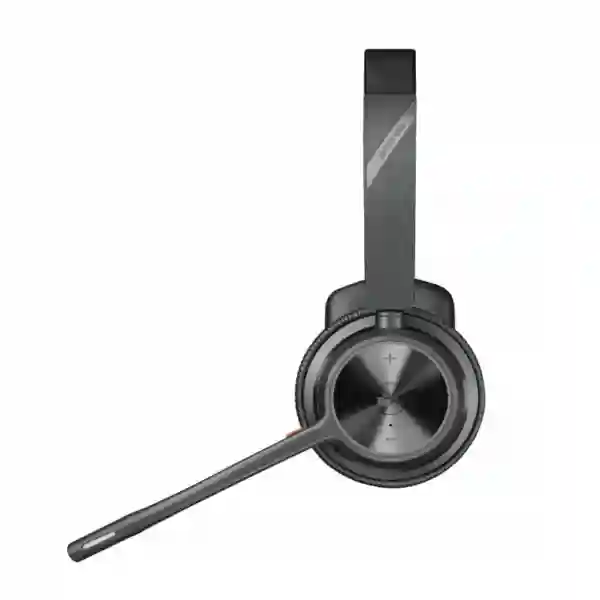
HP Poly Voyager 4310 UC Mono Bluetooth Headset
Busy service teams, reception staff, administrators and hybrid workers need a headset that makes speech understandable without isolating them from the people around them. The HP Poly Voyager 4310 UC Mono Bluetooth Headset meets that specific need: a professional single-ear calling headset with a moveable boom microphone, Bluetooth connectivity and an included BT700 computer adapter in relevant retail configurations. It is built around conversations rather than immersive entertainment. If your work alternates between customer calls, video meetings and quick face-to-face questions, the open-ear approach deserves consideration.
The main buying decision is not simply whether to purchase a wireless headset. It is whether the single-ear format suits your workplace, whether your computer uses USB-A or USB-C, and whether you require a standard UC or Microsoft Teams-certified package. Some Voyager 4310 packages contain a desktop charging stand and others do not. The confirmed item or manufacturer part number should determine what is supplied. For a Tanzanian business ordering for one user or an entire department, compare these details before requesting a quote so the chosen configuration matches the devices and calling software in use.
At-a-glance product guide
The following describes the product family and checked HP configurations. Exact bundle contents and certain technical values must be verified against the model being quoted.
| Form | Mono, on-ear business communications headset |
|---|---|
| Microphone | Dual microphone; Poly Acoustic Fence noise-reduction technology |
| Computer connection | BT700 Bluetooth USB adapter in relevant packages; adapter connector varies |
| Phone connection | Bluetooth with compatible smartphone |
| Published talk time | Up to 24 hours with online indicator off; up to 18 hours with it on |
| Published wireless range | Up to 50 m with suitable BT700 adapter and conditions |
| Charging | Cable or charging-stand bundle depending on exact version |
| Operating systems | Windows, macOS, Android and iOS on relevant manufacturer specifications |
| Edition selection | Standard UC and separately identified Microsoft Teams-certified variants |
| Important purchasing check | Request exact manufacturer part number and package contents |
A quick answer: who should choose this headset?
Choose the Voyager 4310 UC when spoken communication is your primary task and you want one ear available for your surroundings. Examples include a front-desk employee who speaks to visitors between calls, an accounts team member who attends frequent online meetings, or a supervisor who needs to hear co-workers while answering a mobile phone. The monaural design can be especially practical in an office where completely blocking ambient sound would be inconvenient. Its value is in usable voice communication, straightforward call controls and the freedom to leave the desk during a conversation.
Consider a different type of headset if you need strong isolation from surrounding conversations, binaural listening for sustained concentration, or a richer stereo experience for music and media. A single earcup cannot create the enclosure of a two-ear headset. Likewise, microphone noise reduction does not mean that the wearer’s uncovered ear is protected from distractions. The Voyager 4310 helps the person on the other end hear you more clearly; it should not be described as an active noise-cancelling headset for the listener.
This distinction matters when selecting equipment for a mixed workplace. A reception team may deliberately want an open ear, while a specialist handling confidential calls in a busy shared room may prefer a dual-ear model and a quieter workspace. Match the headset format to the work instead of buying on a feature list alone. If several job roles are involved, test a sample configuration with a representative user, including a real call, a meeting, and the normal movement required during the day.
Single-ear design: keep the workplace in the conversation
The Voyager 4310 has one padded, on-ear speaker and an adjustable headband rather than two earcups. The uncovered ear can still pick up nearby voices, office announcements and a colleague asking a quick question. That makes the design a thoughtful choice for roles in which phone calls and face-to-face service happen side by side. Employees are less likely to need to remove both earcups every time someone approaches the desk. At the same time, they should manage sensitive calls appropriately because their surroundings remain audible.
A mono headset does not mean that people on a call receive only part of your message. It simply means that the headset places the listening output at one ear. Speech-focused calls and collaboration meetings are the intended applications. Music playback is possible, but listeners who primarily enjoy stereo recordings, detailed audio production or immersive gaming should consider headphones designed for those activities. The correct comparison is with other business communication headsets, not with home-theatre headphones.
Comfort is personal even with an adjustable headband and padded cushion. HP lists a weight of about 122 grams for reviewed Voyager 4310 configurations, making it relatively light, but the best fit depends on the user’s head shape, eyewear and working pattern. Position the ear cushion gently over the ear and adjust the headband until stable without excessive pressure. For teams buying multiple units, a short user trial can reveal fit preferences that specification tables cannot show.
Noise-cancelling microphone and Acoustic Fence technology
An office headset is judged in part by the sound the remote participant receives. The Voyager 4310 series uses a flexible boom and a dual-microphone noise-reduction design that HP describes as Acoustic Fence technology. The aim is to focus on the user’s voice and reduce unwanted background sounds that would otherwise travel into the call. This is useful when colleagues are typing, discussing tasks or moving through an open office, although the microphone cannot guarantee perfect speech clarity in every acoustic environment.
For best results, position the boom close to the corner of the mouth according to the fitting instructions rather than pointing it far away or directly into the path of breath. The mic should remain at a consistent distance when the user turns their head. Make a test recording or call from the actual workstation. Ask the listener whether speech sounds natural and whether noises from the room remain distracting. A little positioning work can improve clarity more reliably than increasing the microphone gain indiscriminately.
It is important to separate two different forms of noise control. Acoustic Fence is intended to improve the outgoing voice signal. It does not seal the ears, remove room noise from the wearer’s environment, or provide guaranteed privacy from nearby listeners. Staff taking medical, financial or personnel calls still need a suitable private location and approved data-handling procedures. Good microphone processing supports intelligibility; it is not a replacement for thoughtful workspace design or proper business communication etiquette.
Connect a PC or Mac with the BT700 adapter
For many workplaces, the main audio endpoint is a laptop or desktop computer running a softphone, web meeting or contact-centre application. The Voyager 4310 UC family supports computer connections using a compatible BT700 Bluetooth USB adapter. A USB adapter can simplify headset pairing and help provide a managed computer-audio path. The included connector differs by bundle: some packages use USB-A and others USB-C. The seller should specify the exact adapter before an order is placed.
First check the ports on the computers where the headset will be used. Older workstations may expose USB-A, while recent laptops may offer primarily USB-C. A shared corporate fleet can contain both. The existence of a physical port is only one part of compatibility: operating-system permissions, softphone settings and organisational policies may affect microphone and speaker selection. If an adapter is required by the specific configuration, do not assume it can be omitted just because the computer already has Bluetooth built in.
After connecting the adapter, select the Poly audio device for both speaker output and microphone input in the operating system and in each calling application. Run that application’s test-call function where available. Check that the sound comes through the headset, that the boom microphone is selected instead of the computer’s built-in microphone, and that mute status is clear. If multiple devices appear with similar names, an IT administrator can document the correct selection for other staff members.
Pair a smartphone for business mobility
The headset can also connect to a supported smartphone over Bluetooth, allowing employees to use it for mobile calls when a business application or telephone service permits. This is useful for people who work at a computer but also handle a separate company mobile. HP lists support for mobile operating systems such as Android and iOS in the relevant technical descriptions. Bluetooth behavior and available features still depend on the individual phone, its software and the headset variant.
A practical first-time setup involves putting the headset into pairing mode, opening the smartphone Bluetooth settings and choosing the headset when it appears. Follow the official quick-start instructions for the exact unit. Once paired, make a short inbound and outbound test call. Confirm not just that you can hear the caller but that the phone actually uses the boom microphone. Some calling apps maintain their own audio-routing selection, so verify within the app that matters to your team.
Multi-device use is useful, but it should not be confused with guaranteed audio mixing or simultaneous calls from every connected endpoint. The headset can remember and manage connections within the limits of its firmware and configuration, while applications decide how incoming calls are presented. If a staff member receives a mobile call during a computer meeting, they should know which call is active and how to handle the other one. Train people on this workflow before deploying the headset in a high-volume calling role.
UC, Microsoft Teams and meeting compatibility
The letters UC commonly refer to unified communications, meaning the headset is aimed at calls and collaboration across supported business endpoints. The Voyager 4310 product family includes standard UC configurations and versions specifically identified as Microsoft Teams-certified. They are not necessarily the same retail package. If your organisation requires a Teams-certified device or dedicated Teams-specific behavior, request the precise Teams model instead of assuming that every headset bearing the 4310 name has identical certification.
Teams, Zoom and other conferencing applications may offer audio support, certification or call-control integration according to the specific hardware and software combination. HP lists Zoom certification for particular UC configurations and Teams certification for particular Teams variants. A headset being able to transmit sound is not the same thing as every on-headset button controlling every function of the application. Always test answer, end, mute and application-specific actions in the environment that employees actually use.
For business procurement, build a simple compatibility checklist: operating-system versions, collaboration application, USB port type, application security settings and whether dedicated Teams certification is necessary. Note any centrally managed meeting-room, virtual-desktop or call-centre environment. The right headset should work with the overall communications stack, not just the laptop’s Bluetooth specification. This is also why exact configuration details are worth collecting before seeking a departmental quotation.
Call handling, mute and status awareness
The Voyager 4310 is designed to put frequently used call functions within reach. HP describes controls for call answer or end, mute, volume adjustment, power and pairing, along with spoken status alerts. The precise response of a control can differ depending on whether the active connection is a mobile phone, a USB computer adapter or a particular softphone. During setup, users should learn how to mute the microphone, verify mute status, and end a call without reaching for an on-screen control every time.
A visible online or in-call indicator can help colleagues recognise when someone is busy. It is a courtesy signal rather than a formal privacy or availability system. The amount of talk time specified by HP also differs depending on whether the online indicator is on. Teams should decide whether the additional visible cue is more important for their environment than the maximum published battery figure. Staff who work near a busy walkway may find the signal useful even when it consumes additional power.
Mute alerts are valuable because accidentally speaking while muted can interrupt a customer conversation. Yet audio prompts, tones and application indicators need to be understood together. Encourage new users to practise muting and unmuting before a live customer call, then check whether the conference application mirrors the device’s status. An employee should never assume a physical mute control has muted a separate recording device or every application operating on the computer.
Battery runtime, charging and USB corded mode
HP lists up to 24 hours of talk time with the headset’s online indicator switched off and up to 18 hours with it switched on for reviewed Voyager 4310 configurations. It also lists up to 47 hours of music listening under its specified conditions. These figures are maximum published ratings, not a guaranteed number of hours under every call pattern. Volume, connected equipment, Bluetooth conditions, battery age and feature settings can all influence what an individual user experiences.
The published charging time for the checked manufacturer configurations is less than approximately 1.6 hours under the manufacturer’s test conditions. The headset uses a rechargeable lithium-ion battery, and charging method depends on the package. Some versions include a cable only; others also include a desktop charging stand. A charging stand is convenient for keeping the headset in a predictable place between calls, but it must not be assumed to be bundled with the generic Voyager 4310 UC name.
An important fallback is corded USB audio mode, supported by the relevant Voyager 4300 UC family configurations. If the battery is running low during an extended meeting, the user may be able to continue through a compatible USB connection instead of ending the call. The correct cable, host support and audio-device configuration still matter. For shared-service teams, establish a charging habit at the end of each shift and keep the specified cable accessible without leaving it where it can be damaged.
Wireless range: interpret the published figure correctly
HP describes wireless range of up to 50 metres, or 164 feet, with the relevant BT700 computer adapter under suitable conditions. A longer figure of up to 91 metres appears for operation with a compatible Voyager Office base, which is a separate accessory in relevant configurations. These are different equipment setups and should not be conflated. The headline range is not a promise that every building will offer uninterrupted call audio at the maximum distance.
Real office range is influenced by walls, doors, structural materials, radio interference and the placement of the computer or adapter. A crowded wireless environment or a workstation tucked beneath a metal desk can reduce performance. Employees who routinely walk between rooms should test the exact route with a live call rather than relying on distance alone. A practical deployment test might involve stepping away to a printer, a nearby office and a corridor, then checking for distortion or disconnection.
The most useful wireless freedom is often the ability to stand, pick up a document or turn to a colleague while maintaining a conversation. That can support a more flexible work rhythm without implying that the headset replaces a mobile phone throughout a large site. In a multistorey office, ask staff about their actual movement paths. Where a wider footprint or desk-phone integration is needed, examine the correct office base configuration rather than assuming the ordinary USB adapter does everything.
What the Voyager 4310 does and does not connect to
The primary use case is a computer and a smartphone. A computer generally uses a matching BT700 adapter or supported corded USB audio, while a phone pairs through Bluetooth. Some Voyager Office base configurations extend the product family to certain desk phones and additional connection workflows. The office base is not a default inclusion in every retail bundle and must be selected for the exact telephone system being deployed. Do not assume a conventional analogue or IP desk phone will pair directly with the headset.
When desk phones are involved, gather the phone brand, model, firmware and physical connection requirements. Check whether a suitable telephone interface cable, base station or electronic hook-switch accessory is required. Also confirm whether users need to answer calls from the headset or can reasonably do so at the telephone itself. An accessory mismatch can turn an otherwise appropriate headset into an inconvenient purchase, particularly when several departments use different phone systems.
For USB connections, a dongle or cable that fits the socket does not automatically prove that all features are supported. Virtual desktop sessions, browser permissions, secure endpoint software and computer policies can interfere with audio routing or call control. An IT pilot can identify these issues before a larger rollout. Document the successful headset, adapter, cable and application combination so future replacements can be configured consistently.
Physical fit, everyday comfort and care
Employees may wear a headset for several short calls or for long blocks of meetings. The Voyager 4310’s on-ear cushion, adjustable headband and single-sided construction are intended to make frequent calling manageable. The open-ear format also reduces the sensation of being enclosed by two cups, although some users find asymmetrical listening unfamiliar at first. Fit is individual, and no weight figure can guarantee all-day comfort for every person. Encourage people to adjust the headband and microphone deliberately before judging it.
A good fitting routine is simple: place the speaker comfortably over one ear, align the headband and bring the boom near the mouth without touching the face. Avoid bending or forcing the microphone arm beyond the manufacturer’s instructions. Users who wear glasses should check where the cushion and headband meet the frames. For shared headsets, establish hygienic handling and cleaning procedures approved for the materials. Ideally, assign personal ear cushions or devices where frequent sharing would create unnecessary hygiene concerns.
Keep liquids away from the electronics, and avoid leaving the headset in direct heat or unprotected inside a bag with heavy objects. HP identifies an artificial-leather surface on some published 4310 cushions, so use the current care instructions for the actual model instead of strong household solvents. A travel pouch is listed with certain official bundles, but the contents should still be checked before ordering. Small practices such as replacing worn cushions and storing cables properly protect day-to-day usability.
Tanzania business scenarios
For organisations operating in Tanzania, the Voyager 4310 UC is relevant wherever workers rely on computer-based communication and need to remain aware of the room. Consider reception desks, customer-support offices, sales administration, internal service desks, education administration and hybrid staff. The design can be useful whether the user works from a central office or a remote desk. These are general application examples, not claims that the headset is stocked locally or that any particular organisation has deployed it.
An office handling incoming enquiries may place a high value on clear outgoing speech, quick mute control and comfortable listening across repeated calls. A manager who divides the day between an online meeting and a phone may care more about computer and smartphone pairing. A training coordinator may need to attend video sessions while still hearing occasional questions nearby. Each role prioritises the same technical features differently, so purchasing decisions should start with the work pattern.
Local purchasing conversations should separate product suitability from commercial details that require confirmation. Ask FourTeck Tanzania for a quotation specifying the exact manufacturer part number, USB connection, charging accessories, order quantity and requested support arrangements. Do not interpret the presence of this product description as proof of immediate availability, a fixed price, delivery time or a local warranty outcome. Those terms belong on the current confirmed quotation and the supplied commercial documentation.
Choosing USB-A, USB-C, a charging stand or Teams edition
The name Voyager 4310 UC identifies a family rather than a single universally identical box. Manufacturer listings show USB-A and USB-C versions, some with a charging stand, and Teams-designated editions alongside ordinary UC configurations. Package contents and listed Bluetooth revision may also differ among exact part numbers. That means a customer should not order by the generic product name alone when a particular connector or platform certification is operationally important.
Start with the endpoint. If most users have older computers with USB-A sockets, request the matching adapter version. If the fleet is USB-C oriented, evaluate the corresponding version. For a mixed fleet, standardise only after checking which approved adapter and cable combinations work across the machines in use. If the headset stays at a permanent workstation, an included stand may improve storage and charging discipline. A mobile employee who regularly packs the device may place less importance on a desktop stand.
For Teams-heavy organisations, ask explicitly whether the requirement is basic use in Teams or a Teams-certified headset variant with supported Teams-specific controls. For other collaboration platforms, examine the manufacturer’s relevant certification description and test the softphone’s call-control behavior. The generic term ‘works with meetings’ should not be treated as a substitute for formal compatibility validation. Include the requested configuration in purchase orders and ask the supplier to confirm it on the final quote.
Specifications explained for procurement teams
The headset belongs to the Poly Voyager 4300 UC family and uses a mono on-ear speaker with a boom microphone. HP’s checked variant pages describe two microphones, Acoustic Fence noise reduction, a 32 mm speaker and a rechargeable lithium-ion battery. Published operating-system compatibility covers Windows and macOS computers as well as Android and iOS mobile devices in relevant configurations. These points explain the intended use but do not remove the need to match the exact product version to the software and ports in the customer’s environment.
HP also lists controls for power, pairing, volume, mute and call answer or end. A voice-alert system can report conditions such as connection and battery status. The headset’s published audio frequency ranges describe hardware capability rather than a promise that every telephone call delivers identical audio quality. The codec, service, device settings, network and room noise all influence a real conversation. For a business buyer, reliable speech intelligibility during the intended application is more valuable than treating a bandwidth number as a complete quality score.
Specifications that should be confirmed against the chosen manufacturer identifier include the Bluetooth revision, exact BT700 connector, charging method and items in the box. This is especially important because published listings cover different production and bundle combinations. Do not transfer an accessory included with one regional manufacturer’s package to another version without confirmation. If an organisation is seeking multiple units, a quotation with a single documented configuration reduces avoidable variation across users.
Comparison: mono 4310, stereo 4320 and a wired headset
The Voyager 4310 is the single-ear member of the family, whereas the related Voyager 4320 is designed with two earcups. The question is not which has the larger product number, but which listening format is appropriate. A mono headset keeps one ear open and can suit a receptionist or service-desk employee who must hear visitors. A stereo business headset can be more comfortable for users who want both ears covered during concentrated calling, although it may make nearby communication less convenient.
A wired USB headset is a separate alternative worth considering. It avoids reliance on wireless charging and may simplify some controlled workstation environments, but it restricts movement and adds a cable to the desk. A wireless Voyager 4310 can make standing and moving nearby easier while introducing battery management and radio considerations. Compare actual working patterns rather than assuming wireless is always the better investment. Teams that never leave their workstation may reach a different decision from mobile supervisors.
The 4310 also should not be compared directly with specialist hearing protection or active-noise-cancelling music headphones. The boom microphone focuses on outgoing call quality, and the single-ear arrangement deliberately preserves awareness of surrounding sound. If staff work beside heavy machinery or in an extremely loud environment, review occupational safety requirements and select appropriate protective equipment separately. An ordinary communication headset is not automatically a certified hearing-protection device.
How to set up the headset for a typical workday
Begin by charging the headset using the instructions and accessories for the exact configuration. Check that the headset, BT700 adapter and any included cable or stand are present before installation. On a laptop, connect the adapter to the appropriate USB port and allow the operating system to recognise the device. If company endpoint policies block new peripherals, follow the organisation’s approved IT process. Avoid borrowing unknown adapters or installing unmanaged software merely to bypass those controls.
Next, open the operating-system audio settings and choose the headset for input and output. Repeat the selection inside the softphone or meeting application, as some applications remember their own device settings. Make a brief test call from a normal workstation, not just a quiet room, and listen for speech volume and background pickup. Check the call, mute and volume controls. If a mobile connection is also needed, pair the phone and verify incoming-call routing before the headset is relied upon for customer work.
Finally, teach users a routine: charge or dock the headset at the end of work, check battery alerts, position the boom properly, and know when to switch into USB audio mode. Confirm whether the online indicator is enabled and whether that preference affects planned battery expectations. For shared workplaces, create a concise setup note describing the adapter type and approved calling application. A small amount of onboarding can prevent repeated support requests about microphones, mute and wrong-audio-device selection.
Questions IT teams should ask before a rollout
A pilot should begin with an inventory of devices, not a bulk order. Record computer operating systems, hardware ports, meeting applications, mobile-phone types and any desk phones used by employees. Identify users who need a Teams-certified model rather than the standard UC version. Then test the exact headset-and-adapter combination at representative desks. A successful demonstration on one personal laptop does not automatically establish support for every corporate image or virtual desktop environment.
Next, validate the normal user journey. Can employees join a meeting without choosing the wrong microphone? Do call controls behave as expected? Does the Bluetooth connection stay stable in the rooms people visit? How does the headset behave after the laptop sleeps or an operating-system update? Do incoming mobile calls interrupt computer audio in a way users understand? These practical questions matter more to productivity than isolated theoretical specifications. Capture the observations in a short acceptance checklist.
Where supported by the selected model and management environment, Poly device software and management tools can assist with configuration, updates or fleet oversight. Any deployment of such software should follow the organisation’s security and administration policies. Do not claim that purchasing this headset automatically includes a specific management service or licence entitlement. Decide who will manage firmware, accessories and replacements, and document the chosen configuration so new staff can be equipped consistently.
Calling quality depends on the rest of the system
The headset is one component of the conversation chain. A well-positioned microphone may reduce room sound at the caller’s end, but meeting audio can still suffer from weak internet connectivity, a congested application, incorrect computer settings or poor acoustics. If a user reports unclear calls, separate microphone problems from network problems before blaming the headset. Record a local sample and compare it with an actual call. The comparison helps identify whether speech changes only after reaching the communication service.
For work involving hosted phone systems or softphones, confirm that audio device selection, app permissions and network performance are stable. Where power interruptions are a concern, provide continuity for the computer, router and network equipment as appropriate; a charged wireless headset cannot keep an internet call alive if the network is unavailable. This is a general business-continuity consideration rather than a claim about any particular Tanzanian network provider or service. Equipment planning works best when the whole calling path is considered.
Room design also matters. Hard reflective surfaces, multiple people speaking at once and a workstation immediately beside loud equipment can make any microphone work harder. Where possible, separate frequent callers from the noisiest walkways and encourage staff to use appropriately quiet spaces for critical conversations. A headset can improve communication, but it cannot entirely cancel an unsuitable work environment. Evaluate user training, acoustic conditions and network reliability together with the physical device.
A buyer’s checklist for the exact item being quoted
Before approving a quotation, ask for the full product name and exact manufacturer part number. Verify whether the headset is the standard UC version or a Microsoft Teams-designated edition. Confirm whether the included BT700 adapter terminates in USB-A or USB-C and whether a charging stand, charging cable, carry pouch and quick-start information are included. These are commercial facts about the particular bundle, not universal specifications of every 4310 headset sold under a broad catalogue title.
Next ask whether the device is intended for a laptop, desktop, smartphone or compatible desk-phone base setup. State the operating system and main calling software and identify any special restrictions such as virtual desktops or centrally managed applications. If a desk phone must be used, request explicit confirmation of the required base and interface accessories. Ask for any relevant support and return conditions in writing. Never infer them from an overseas manufacturer’s product listing or another seller’s description.
For several employees, define how many devices are needed and whether everyone should receive the same configuration. An organisation may prefer one adapter type for simpler support or a mixed purchase where teams have different laptops. Consider whether spare charging cables or approved replacement ear cushions are needed, but do not assume those accessories are included. A clear quote request reduces delays caused by model confusion and makes it easier to compare like-for-like offers.
Operating practices for customer-facing teams
In a busy support environment, simple habits shape the caller’s experience. At the start of a shift, check battery status, make sure the boom is correctly positioned and verify the intended microphone before answering an important call. Use the mute control when discussing internal matters away from the customer, and confirm that mute is actually active in the application. If a call moves from a desk to a nearby area, check that the wireless signal is still stable rather than assuming the entire building is within range.
When employees must switch between a smartphone and computer, agree a basic procedure for handling simultaneous notifications. For example, a customer-service agent should know when to finish a computer call before taking a mobile call, rather than accidentally leaving someone on hold. The exact behavior depends on the connected devices and application. Train users with the real equipment so they understand which button does what and which display offers the most reliable indication of call state.
For reception desks, maintain a balance between telephone quality and attention to walk-in visitors. Leaving one ear open can help, but the employee should still give a caller their full attention when discussing important details. Privacy policies and appropriate call environments remain necessary. Headset technology can make routine tasks smoother, yet respectful service and clear procedures determine whether the customer experiences a genuinely professional interaction.
Practical care and long-term ownership
Headset ownership extends beyond the first day of pairing. Users should know where the charging cable is stored, which BT700 adapter belongs to the headset, and how to recognise voice prompts related to battery or connection state. Label shared equipment discreetly if your organisation’s inventory process requires it. A misplaced adapter can be as disruptive as a flat battery if employees expect to connect immediately before a meeting. Build these small accessories into the asset record.
Clean the ear cushion, headband and external surfaces only in accordance with the manufacturer’s instructions and the organisation’s hygiene policy. Avoid soaking the microphone or ports and do not use abrasive methods that damage the cushion. Store the device safely rather than leaving the boom pressed beneath books or heavy electronics. Periodically check whether the cushion shows wear or the boom has become difficult to position. Replacement and service options should be confirmed for the exact configuration and local commercial arrangement.
If the headset begins behaving differently after a software update or device change, follow the manufacturer’s troubleshooting sequence rather than repeatedly changing unrelated settings. Confirm battery power, adapter recognition, correct audio routing and pairing before considering a reset. For managed fleets, IT staff should document firmware and configuration changes where appropriate. A repeatable support process reduces avoidable downtime and allows teams to distinguish an accessory issue from a computer or application problem.
How to evaluate value before purchase
The right financial comparison is not just the price of a wireless headset against the price of a wired one. Consider how frequently staff handle calls, how much moving away from a desk matters, and whether the existing headsets lead to repeated audio-device confusion. A suitable wireless configuration may help employees move between tasks while staying on a call. That potential benefit is role-specific and should not be expressed as a guaranteed productivity percentage or payback period.
Likewise, the charging stand may have practical value in a shared office because it gives the headset a predictable place at the end of a shift. A person who travels regularly may prefer a cable-only kit if that is the confirmed offering. Teams-certified models may be worthwhile where formal support for that platform is required; other organisations may find a standard UC version more appropriate. Small configuration decisions can change daily convenience, so they deserve attention when comparing quotes.
For a Tanzanian buyer, request a written commercial offer stating the exact item, applicable currency, charges, fulfilment conditions and support arrangements. No price, stock status or delivery commitment is stated here because those details have not been verified for a particular listing. Treat this page as guidance on the product family and how to select the right variant. Use the confirmed quotation to make the final purchasing decision.
Frequently asked questions
These answers focus on the decisions most buyers need to make before choosing a particular Voyager 4310 UC package.
Is the Voyager 4310 UC a mono or stereo headset?
It is a mono, or single-ear, on-ear headset. One earcup delivers the call audio while the other ear stays uncovered. This is useful when the wearer needs to hear people nearby, such as at reception or a service desk. It is not equivalent to a stereo listening headset. If both-ear coverage is important, compare an appropriate dual-ear business model instead.
Does the microphone remove all background noise?
No. Poly’s dual-microphone Acoustic Fence technology is designed to reduce distracting background noise in outgoing speech. Performance depends on boom position, room conditions and the call environment. It does not provide active noise cancellation to the wearer’s uncovered ear, guarantee silence to the caller or replace a private area for confidential discussions. Test it in the actual workspace.
Can I use the headset with my laptop?
Relevant Voyager 4310 UC configurations support computer calling with a compatible BT700 Bluetooth USB adapter or supported USB audio mode. Confirm whether your package has a USB-A or USB-C adapter and whether the computer’s operating system and calling application are suitable. Choose the headset as both microphone and speaker in the application’s settings and run a short test call.
Can I use it with a mobile phone?
Yes, the product family supports Bluetooth connections with compatible smartphones, including relevant Android and iOS devices. Pair the phone using the official instructions and test incoming and outgoing calls. Some application-specific controls may differ from normal mobile call behavior. If you also use a computer, practise switching between your connected devices so you know which audio source is active.
How long does the battery last?
HP publishes up to 24 hours of talk time with the online indicator disabled and up to 18 hours with it enabled for the checked manufacturer configurations. These are maximum figures under specified conditions, not a guaranteed duration for every user. Battery age, volume and operating conditions can change actual runtime. Plan charging around your shift rather than depending on the maximum rating.
Does the box include a charging stand?
Not necessarily. Manufacturer listings include both charging-stand bundles and versions that charge using an included cable without a stand. The generic 4310 UC name does not establish which one is being supplied. Before buying, request the exact manufacturer part number and a written list of included accessories. The product quotation should clearly state whether a stand is part of the chosen package.
Which Bluetooth version does the 4310 use?
The published Bluetooth revision can differ between exact Voyager 4310 manufacturer configurations. For example, checked HP specification pages for distinct USB variants do not all show the same revision. Because the requested product title does not include a manufacturer part number, this page does not assign one revision to every unit. Confirm the technical sheet for the exact item before procurement.
What is the wireless range?
HP specifies up to approximately 50 metres with the relevant BT700 adapter under suitable conditions. A longer published figure relates to a compatible optional Voyager Office base, not the ordinary adapter package. Walls, interference, desk placement and building structure can reduce range. For employees who move between rooms, test the actual route with a live call rather than assuming the theoretical maximum will be available.
Does it work with Microsoft Teams and Zoom?
The Voyager 4310 family is intended for professional communications and includes UC versions and specially identified Teams-certified versions. HP also identifies Zoom certification for certain UC configurations. Audio functionality, formal certification and application-specific button behavior are not identical concepts. State which platform and controls your business requires, then confirm the selected model and its behavior with the software in use.
Can it connect directly to a desk phone?
Do not assume direct desk-phone support from the generic headset name. In the relevant Voyager 4300 family, a compatible Voyager Office base and appropriate telephone interface accessories may enable certain desk-phone connections. The base is not supplied in every package. Provide the exact desk-phone make, model and connection requirement when requesting advice, and obtain confirmation of the accessories required before ordering.
Can I keep using it while charging?
Relevant Voyager 4300 UC configurations support a corded USB audio mode, which can be useful when battery power is low. The feature depends on the correct cable and supported host configuration. Test the mode with the computer and calling software that will be used, since switching audio devices may require a setting change. A charging-only connection should not be assumed to provide audio in every situation.
Is it a good headset for a noisy office?
It can be a good choice when the main concern is reducing background noise picked up by the boom microphone, while the wearer still needs one ear open. It is less suitable if the wearer must block surrounding conversations to concentrate. Assess both sides of the call: how clearly the remote participant hears the user and whether the user can comfortably understand incoming speech. A workplace pilot gives the most useful answer.
What should a Tanzania customer confirm before ordering?
Request the exact manufacturer part number, USB-A or USB-C adapter type, UC or Teams designation, included charging accessories and compatibility with your existing computer and calling platform. Ask for the current quotation, available fulfilment terms and applicable support or warranty arrangements in writing. No local price, stock or delivery commitment is implied by this description. For larger teams, consider testing one confirmed configuration before ordering multiple units.
Is the headset intended for music, gaming or hearing protection?
The Voyager 4310 is primarily a voice and collaboration headset. It can play media, but its one-ear design is not a substitute for immersive stereo headphones. Its noise-reducing microphone also should not be confused with a certified hearing-protection device. If entertainment listening, competitive gaming, workplace hearing protection or full sound isolation is the primary requirement, select equipment specifically designed and documented for that use.
What should I do if my microphone stops working in a meeting?
First confirm that the headset is powered and connected, then check the physical mute state and the meeting application’s mute indicator. Ensure the app is using the Poly microphone rather than the laptop microphone. Inspect operating-system input permissions and reconnect the correct adapter if necessary. If the issue persists, follow the official HP Poly troubleshooting instructions or your organisation’s IT support process rather than changing several settings at random.
Request a configuration-specific quote in Tanzania
The HP Poly Voyager 4310 UC Mono Bluetooth Headset may be a practical choice for employees who make frequent calls while staying aware of colleagues nearby. Before purchasing, tell FourTeck Tanzania which USB port your devices use, whether Microsoft Teams certification is required, how many headsets are needed and whether a charging stand is part of your preferred package. Ask for a quotation identifying the exact manufacturer part number, included accessories and applicable commercial terms. This is the reliable way to select the right headset configuration without assuming that every Voyager 4310 UC listing contains the same components.
Next step: request an exact-configuration product quotation from FourTeck Tanzania.
*Published performance figures are manufacturer maximums under specified test conditions. Actual performance varies. USB connector, included stand and certification depend on the specific product configuration. Product information is not a statement of local price, availability, delivery, certification or warranty entitlement.
Reviews
There are no reviews yet.