
Tanzania business communications • Stereo Bluetooth headset
HP Poly Voyager 4320 Office Bluetooth Headset
A practical on-ear stereo headset for computer meetings, mobile calls and professional voice communication. Compare the correct UC or Teams configuration, USB adapter and optional office-telephone accessories before buying.
Quick specification overview
Important: product specifications are drawn from published manufacturer information for the Voyager 4320 family. The exact supplied variant, connector, accessories and collaboration certification must be verified by manufacturer part number.
Which configuration should you request?
For PC and mobile calling, ask for the appropriate USB-A or USB-C BT700 bundle and confirm the UC or Microsoft Teams orientation. For a fixed workstation, decide whether a desktop charging stand is useful. For a desk phone, request an exact compatibility check and a quote that specifically identifies the Voyager Office base and required interface equipment. These are separate purchasing decisions, not interchangeable names for one accessory.
If you are procuring for several users, submit the team’s actual operating systems, conferencing applications, telephone models and preferred charging arrangements as part of the enquiry. A configuration-specific quote provides a clearer basis for comparing purchases and reduces the risk of discovering an omitted component later.
A practical wireless headset for everyday business communication
The HP Poly Voyager 4320 Office Bluetooth Headset suits people who spend much of their working day speaking with colleagues, customers or partners. Rather than depending on a laptop’s built-in microphone or holding a phone throughout a long discussion, a dedicated stereo headset lets the wearer keep both hands available for notes, records and other tasks. The combination of wireless mobility, a flexible boom microphone and convenient physical controls is especially relevant to staff who move between scheduled meetings and spontaneous calls.
Its real value comes from matching the headset to the way a business communicates. Someone making calls mainly from a laptop needs to verify the included USB Bluetooth adapter and software setup. Someone switching between a smartphone and computer should check pairing behaviour and call-routing preferences. A team handling calls on desk telephones must check whether a compatible Voyager Office base and any telephone interface accessories are part of the proposed configuration. These checks prevent an apparently similar headset bundle from missing an essential connection.
At a glance: what the Voyager 4320 does
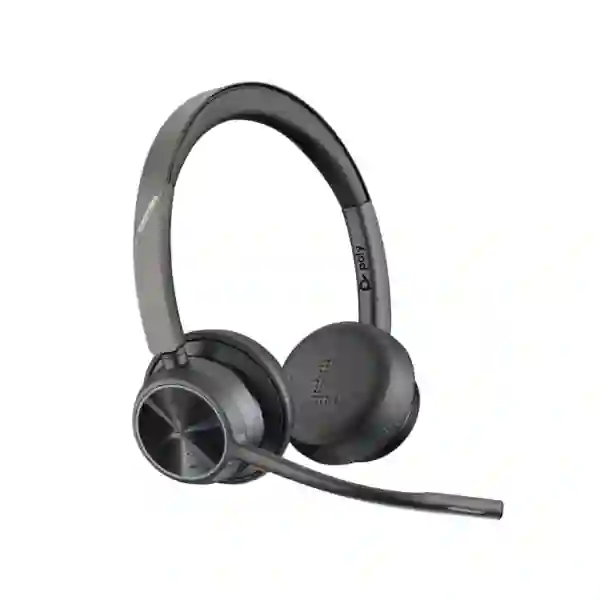
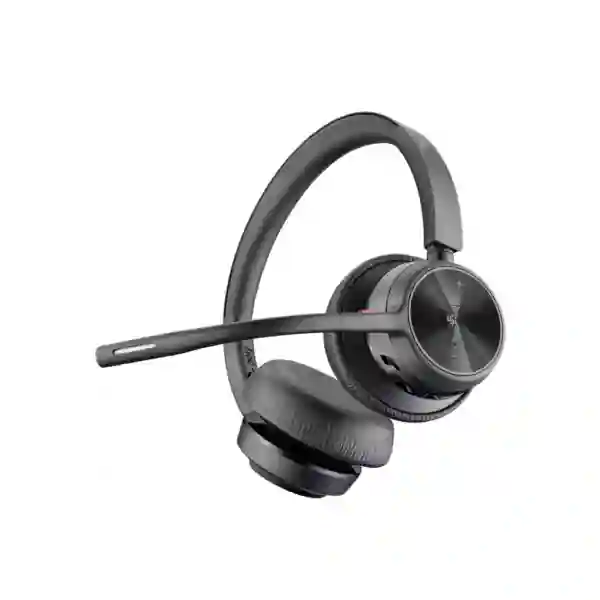
Voyager 4320 is the stereo, two-ear member of the Voyager 4300 family. The adjustable on-ear design places an ear cushion on each side while a repositionable boom positions the microphone near the mouth. HP identifies Poly Acoustic Fence microphone noise cancellation, SoundGuard Digital acoustic protection, a visible in-call indicator, integrated mute and call controls, and wireless and USB corded operating possibilities. A travel pouch is supplied with certain manufacturer-listed configurations, making the product convenient for employees who alternate between a home workspace and an office desk.
Do not confuse the product’s headline capability with the contents of a specific sales package. HP publishes multiple Voyager 4320 configurations that differ in connector type, charging arrangement and collaboration-platform orientation. For example, a standard UC headset, Microsoft Teams-oriented headset, USB-A bundle, USB-C bundle and charging-stand bundle are not necessarily identical purchases. This product description explains the platform’s shared capabilities while treating exact pack contents, supported certification and optional accessories as details to verify before purchase.
Why a stereo design can improve a working day
Two-ear listening can help a professional concentrate on speech when nearby conversations, office equipment or household activity compete for attention. It can also feel more natural for stereo media playback and training sessions. People who handle confidential discussions may appreciate being able to listen without playing speech through laptop speakers. The on-ear arrangement is compact compared with many larger over-ear headsets, which may be convenient when moving between desks or packing equipment for a trip.
Stereo does not automatically mean that the wearer is isolated from surrounding sound. The Voyager 4320 uses on-ear cushions, and the amount of passive isolation varies with fit and the environment. An employee who must continuously hear nearby colleagues, alarms or public-facing activity may prefer a mono style, such as the Voyager 4310, after assessing their working conditions. The best wearing style depends on task, comfort preference and safety requirements rather than a claim that more ear coverage is universally better.
Microphone clarity: understanding Acoustic Fence
Clear outgoing speech is usually the first priority when buying a business headset. The Voyager 4320 incorporates a noise-cancelling boom microphone with Poly Acoustic Fence technology, intended to reduce the prominence of surrounding sounds picked up during a call. Positioning the flexible boom correctly helps the system capture the user’s voice while reducing the need to lean toward the computer. This is useful for customer discussions, internal briefings, remote interviews and routine calls where poor microphone intelligibility slows communication.
Noise cancellation is not a promise that every background sound disappears. A busy reception, an echoing room, wind, construction noise or another loud voice close to the microphone can still affect what a caller hears. For important deployments, test the headset in representative rooms with the actual meeting or calling application. Compare sample calls with existing equipment and check whether microphone levels, software processing and environmental acoustics are appropriate. The most reliable outcome comes from pairing suitable hardware with realistic operating practices.
What the wearer hears versus what the caller hears
Business headset terminology can be confusing. Acoustic Fence primarily addresses the microphone path: it helps the person at the far end hear the headset user. It is not equivalent to active noise cancellation that electronically suppresses outside sound reaching the wearer’s ears. The Voyager 4320’s ear cushions can provide some passive sound reduction through their physical fit, but this should not be marketed as dedicated active noise cancellation. Those features solve different problems and should be assessed separately.
For offices that are especially noisy, ask two independent questions. First, will the microphone produce sufficiently clear speech for customers on the other side? Second, can the employee comfortably understand callers despite surrounding activity? The first can be investigated with an outgoing recording, while the second requires a listening test in the actual workspace. A headset that performs well in a quiet demonstration may behave differently near printers, conversations, fans and reflective surfaces.
Wireless freedom without losing a familiar workflow
A wireless headset is useful when workers need to reach a document cabinet, stand during a meeting or move briefly away from a desk while remaining on a call. HP advertises up to 50 metres of range when a compatible Voyager 4320 configuration is used with the BT700 USB adapter, under appropriate conditions. This is a laboratory-style maximum, not a guarantee for every office. Doors, walls, building materials, wireless interference and the connection path can substantially reduce effective coverage.
An employee should decide how far they really need to walk rather than buying on range alone. For a small office, stable coverage between a workstation and nearby meeting space may be sufficient. In a multi-room environment, conduct a short range test, paying attention to areas behind reinforced walls or stairwells. When an Office base is used, HP separately quotes a higher maximum of up to 91 metres for applicable configurations. That figure should not be assigned to an ordinary BT700-only setup.
Computer meetings: choose the correct USB adapter
Most computer-centred buyers will connect using the supported BT700 USB Bluetooth adapter included with the specific bundle or, where supported, operate the headset through its USB cable. Before choosing a product code, check whether users have accessible USB-A ports, USB-C ports or a mix of both. A physically incompatible adapter can turn a straightforward installation into an avoidable accessory purchase. Docking stations, shared desks and restricted company devices may influence the best connector choice.
For deployment, test the headset in the organisation’s actual operating environment, such as a Windows or macOS laptop used for video conferences, softphone calls and daily collaboration. Select the headset as the appropriate speaker and microphone in both the operating system and the communications application. Check that answering, ending and muting calls work as expected with the chosen software. These basic tests are more useful than assuming every feature works identically across all computers and applications.
Mobile calls and working across devices
Voyager 4320 models support Bluetooth connection to compatible smartphones, making the headset relevant to people who divide their day between desktop meetings and mobile voice calls. A supervisor might receive a cellular call while working on a laptop, or a field coordinator might return to a desk without changing audio equipment. HP describes PC and mobile connectivity as a key part of the Voyager 4300 family, although simultaneous operation, connection selection and the number of stored pairings can depend on the particular model and software configuration.
Users should establish a clear routine for choosing which device owns audio. Pair the mobile phone, confirm the computer connection, place test calls from both devices and examine what happens when a second call arrives. Set realistic expectations: connecting to multiple devices does not mean all active audio streams will mix together, and not every calling application handles headset buttons in the same way. People who regularly switch devices should try that exact workflow before standardising a larger purchase.
Desk telephones: the Office base is a separate decision
The word “Office” in a product name can create a costly misunderstanding. A basic charging stand is a convenient place to store and recharge a headset. A Voyager Office base is a different system accessory designed to support additional connection arrangements, including compatible desk telephones. HP describes desk-phone use through the Voyager Office base and the relevant telephone interface connection. It should not be assumed that every Voyager 4320 package includes the base, a telephone cable, an electronic hook switch accessory or the necessary compatibility for a particular handset.
If the intended user answers calls through an office PBX desk phone, record the exact telephone manufacturer and model before requesting a quote. Verify whether the required Voyager Office base, interface cable, call-control accessory and power arrangement are supported for that model. Also check how the employee will answer calls and move between telephone, computer and mobile workflows. Compatibility should be established against HP Poly guidance and the actual telephone configuration, not inferred merely because both devices are used in offices.
Microsoft Teams, universal UC and other collaboration platforms
The Voyager 4320 family includes configurations intended for general unified communications and others specifically offered as Microsoft Teams-certified variants. This distinction matters to organisations that depend on Teams-focused call controls and device behaviour. A generic UC bundle may still operate with common meeting platforms, but it should not automatically be labelled as the exact Teams-certified version. Buyer-facing documents should identify the manufacturer part number and certification of the quoted package before making a platform-specific claim.
For mixed environments, compile a short application list before purchasing: Microsoft Teams, Zoom, the company’s softphone, browser-based meetings or another calling client. Ask whether the goal is simply to hear and speak, or whether dedicated buttons, integrated call status and management functionality must behave in a specific way. Test the selected headset version with the current software build and company policies. This approach reduces surprises when an employee joins a meeting from a different platform.
Battery capacity and realistic working patterns
HP publishes up to 24 hours of talk time for certain Voyager 4320 configurations with the online indicator off, and up to 18 hours with that indicator on. It also cites up to 47 hours of music playback and up to 50 days of standby under specified test conditions. These numbers indicate the product’s potential operating envelope rather than a guaranteed duration on every call. Audio volume, battery age, use of the indicator, connection activity and environmental conditions may alter the result.
The practical question is whether the headset can support the user’s typical shift with a suitable charging routine. A staff member with brief scheduled meetings may need far less endurance than a call-heavy team member. For a shared charging area, designate a place where equipment is returned after each shift. For remote staff, explain how to check charge status and avoid starting a long meeting with a depleted battery. Account for the operational cost of a missed call, not only the maximum figure printed in product literature.
Charging stand, charging cable and corded use
HP lists a charge time of less than 1.6 hours for various Voyager 4320 configurations under stated conditions. Some kits come with a desktop charging stand, while others list a USB charging cable without that stand. A charging stand is useful where the headset should have a predictable resting place, especially on a permanent workstation. A cable-oriented kit may be preferable for someone carrying a headset between work locations. These arrangements should be specified explicitly in a purchase order.
The Voyager 4300 series also offers a corded USB audio mode on supported configurations. This can be valuable when a worker needs to continue using the headset while connected by cable, or when a workplace prefers a wired connection for a particular task. Do not assume every cable or port offers identical data and charging behaviour. Confirm the exact included cable, supported USB mode and laptop connector. A simple operational test should cover both wired and wireless modes before the headset is assigned to a critical role.
Accessible buttons and practical mute awareness
Small controls can have a large effect on call quality. The Voyager 4320 family provides call answer and end functions, mute, volume adjustment, power and pairing controls. HP also describes a mute control on the microphone boom and dynamic mute alerts intended to warn the wearer when speech is detected while muted. These features can reduce awkward moments during meetings, especially when a user frequently moves between discussions and needs to respond quickly.
Staff should still learn where the physical controls are and how the current application represents mute state. A headset-level mute command and an application’s mute indicator may not always be experienced in precisely the same way, particularly when the user switches devices. During onboarding, practise muting, unmuting, adjusting volume and ending a sample call. Remind users that a mute warning is a helpful aid, not a substitute for checking the actual microphone status before discussing sensitive information.
Call-status indicators in shared spaces
A visible on-call indicator can help nearby colleagues understand when someone is participating in a live conversation. HP identifies this as a feature of the Voyager 4300 family, and some published battery figures differ according to whether the online indicator is enabled. In an open office, that visual cue can reduce interruptions when paired with respectful workplace habits. It is especially relevant to support teams, reception back offices and administrative areas where employees work close to one another.
However, an indicator does not create a complete privacy system. It cannot stop someone from overhearing speech or guarantee that others will notice the light. Organisations dealing with customer records, financial information or confidential discussions should still consider room layout, screen privacy, appropriate conversation areas and internal conduct policies. When evaluating battery life and team preferences, decide whether the benefit of visible call status outweighs the additional power consumption quoted for that operating condition.
Comfort, fit and long-session considerations
HP describes an adjustable padded headband and improved memory-foam ear cushions for the Voyager 4300 family. The Voyager 4320’s stereo on-ear arrangement may be comfortable for many routine meetings, training sessions and extended calls, but comfort is individual. Head shape, spectacles, earrings, personal preference and the length of uninterrupted use all matter. A short hands-on trial is especially valuable before equipping an entire team, because a headset that feels fine for ten minutes may feel different after several calls.
Fit also affects microphone position and listening consistency. Adjust the headband so the ear cushions rest securely without unnecessary pressure, then position the flexible boom as recommended in the relevant product guide. Encourage users to take sensible listening breaks and to keep volume at an appropriate level. For staff who must remain aware of surrounding activity or prefer less ear coverage, consider whether a one-ear alternative would better support the role instead of expecting every employee to use identical equipment.
SoundGuard Digital and sensible listening levels
The Voyager 4320 family includes SoundGuard Digital acoustic protection technology, as listed in HP product materials. Its purpose is to support safer audio handling in the headset system, including management of certain sound-level events. This is a useful characteristic for people who make frequent voice calls, but it should not be interpreted as proof that every noise exposure scenario is eliminated. The available features and settings should be confirmed for the specific package and device-management software in use.
Businesses can improve the listening experience by combining headset features with sensible volume practices. Encourage employees to begin at a moderate level, raise it only as needed and avoid compensating for a noisy workplace by listening excessively loudly. Review room acoustics and caller audio quality where repeated volume problems occur. Where an organisation has formal hearing-conservation requirements, have its responsible health and safety personnel evaluate those requirements rather than treating the headset itself as a complete compliance solution.
Ideal business roles and team scenarios
For a sales professional, a wireless headset can free both hands to navigate a customer record during a discussion. For a project coordinator, the stereo design may improve the clarity of meeting participants while allowing notes and reference files to remain on screen. A remote employee may appreciate the portability, Bluetooth mobile pairing and option for corded USB use. An operations manager who frequently alternates between a computer and phone should pay particular attention to device selection and call transitions.
The most important distinction is between moderate office calling and specialised telephony requirements. A fixed contact-centre desk, a high-noise industrial space or a switchboard connected to an older desk telephone may require a different headset architecture or accessories. Instead of describing one device as suitable for every business, evaluate environment, daily call duration, required privacy, telephone model, collaboration software and user comfort. The Voyager 4320 is a candidate for common professional communication tasks, subject to those checks.
Remote work and hybrid office routines
Employees who travel between a home workstation and a company office benefit from a familiar audio setup. The Voyager 4320 family’s fold-flat portable styling and certain packages’ travel pouch can make it easier to carry headset equipment without relying on unfamiliar meeting-room microphones. Consistent use of one device may also reduce the time spent changing audio preferences when joining meetings from different locations. The actual adapter, charging accessories and carrying items included should always be checked for the ordered configuration.
A hybrid deployment works best with a short standard setup process. Keep the computer adapter with the headset, label equipment where necessary and ensure that staff know which cable can be used for charging or corded audio. On the first day at a new desk, verify playback, microphone input and mute before an important call. If a user relies on laptop docking stations at two locations, test the USB port choice and sleep or reconnect behaviour in each location rather than assuming the connection will always remain unchanged.
Customer-facing calls and professional voice presentation
When a customer calls about an order, appointment or service issue, intelligible speech can matter more than elaborate audio features. A dedicated boom places the microphone nearer to the employee’s voice than a typical laptop microphone, while Poly Acoustic Fence helps reduce pickup of surrounding distractions. This can make the Voyager 4320 a reasonable device to evaluate for administrative support, client account teams and other voice-heavy roles. Its stereo earcups can also help separate the conversation from some of the room’s ambient activity.
Customer experience still depends on the whole communication path. A weak internet connection, poor VoIP settings, an overloaded wireless network or an echoing room can degrade calls even when the headset is functioning normally. Before blaming or praising the hardware, perform test conversations with the actual application, normal network and normal workspace noise. Ask listeners at the far end whether speech remains understandable during ordinary office activity. Use those observations to decide if the proposed headset is a practical improvement.
Reception, administration and shared-workstation decisions
Some office roles require rapid movement between calls, walk-in requests and desk work. A Voyager 4320 can be helpful when a reception administrator uses computer-based calling and wants both hands available, but a stereo headset may not be ideal when the employee must constantly monitor the surrounding reception area. In such cases, a mono headset or different device type could better balance situational awareness and call intelligibility. The equipment decision should follow the work pattern rather than a blanket preference for stereo sound.
Shared workstations create additional considerations. A headset worn directly on the ears is typically a personal device from a hygiene and comfort perspective, even where the computer itself is shared. Decide whether employees receive individual headsets and how their adapters, charging cables and storage are managed. Where multiple people use the same computer, establish a procedure for selecting the correct audio device, disconnecting personal phones and checking privacy settings between shifts. These details affect daily practicality more than headline specifications alone.
IT deployment and standardisation across teams
For an IT buyer, standardising on one headset family can simplify user training, basic support and hardware handling. The Voyager 4320 offers a recognisable set of physical controls and can be evaluated for computer, mobile and selected office-telephone workflows. Yet standardisation does not mean ordering the same accessories for every job role. A group using USB-C laptops, a group using USB-A desktops and a group using desk telephones may require distinct bundles or base arrangements despite sharing the same headset family.
Build an equipment matrix with the user group, computer port, calling platform, telephone model, intended wearing style and charging approach. Record the exact manufacturer part number for each approved configuration and verify the included components. Then test a small sample with representative devices and software. Confirm whether centrally managed device settings and firmware updates are needed, who owns that process and how users will receive support. A deliberate pilot is usually more useful than discovering a missing accessory after a broad distribution.
Firmware and device-management considerations
HP Poly documentation identifies software tools for device settings, updates and support within the Voyager family. Depending on the current product generation and organisation’s environment, Poly-branded or HP Poly device software may be involved. Buyers should use the manufacturer’s current support guidance for the exact headset and avoid assuming that an older utility, a particular operating-system version or a management feature is available indefinitely. IT administrators may also have policies that restrict software installation on company computers.
Before rollout, identify a supported way to check firmware, resolve pairing issues and apply settings where needed. Test updates on a small number of units before changing an entire team’s equipment. Document how to return the headset to a usable state if an update is interrupted or an adapter becomes unpaired. Staff do not necessarily need administrative access themselves; the organisation may prefer a help-desk-managed process. These decisions preserve predictable calling behaviour over the working life of the equipment.
Setup guide: a useful first-day checklist
Begin by identifying the actual components received. Check the headset, charging cable, any BT700 adapter, any charging stand and any optional Office base against the purchase documentation. Fully charge the headset using the supported arrangement. On a computer, connect the supplied compatible adapter or supported cable, turn on the headset and select the correct microphone and speaker in the operating system. Then open the main calling application and confirm it uses the intended audio device rather than the computer’s internal microphone.
Next, place a test call, adjust the earcups and microphone boom, and try the call, mute and volume controls. Pair a compatible mobile phone if that is part of the user’s job and test how switching calls behaves. For a desk phone, follow the specific Voyager Office base and telephone instructions rather than attempting direct connection without verification. Finally, ensure the user understands charging, the in-call indicator, voice alerts and the process for contacting workplace IT support. A repeatable checklist saves time when employees change computers.
Troubleshooting the most common calling problems
If a colleague cannot hear the wearer, first inspect mute status in both the headset and calling application. Confirm that the microphone boom is positioned correctly, that the headset is selected as the application input and that any connected USB adapter is recognised. When the wearer cannot hear a caller, check output selection and volume on the computer, application and headset. If calls become unstable, reduce distance from the connected device, move away from likely sources of interference and test the connection in a simpler environment.
If a smartphone and computer appear to compete for audio, temporarily disconnect one device and repeat the test to isolate the problem. If the headset stopped working after a software change, consult current HP Poly support guidance for approved settings and firmware steps. For desk-phone issues, verify the exact Office base and cable configuration before replacing the headset itself. Keep basic diagnostic notes such as headset variant, adapter type, operating system, calling client and failure symptoms so a technician can reproduce the issue.
Tanzania purchasing: confirm the right configuration
For organisations buying business headsets in Tanzania, a useful quotation identifies the exact item being supplied rather than only the Voyager 4320 family name. Ask for the manufacturer’s product number, whether the offered headset is UC or Microsoft Teams-oriented, the USB adapter type, the charging method, and the contents of the box. If the intended user has a desk telephone, request a compatibility review and a separate indication of any Office base or interface accessories required. This helps purchasing staff compare like-for-like proposals.
Commercial details should be confirmed on the quotation itself. Do not assume a published overseas package includes the same accessories as a local offer, or that a manufacturer’s general warranty statement establishes the exact local service arrangement. Request current price, currency, applicable taxes, availability, delivery terms and support or warranty conditions directly for the offered configuration. A transparent quote can make procurement more predictable without claiming stock, service coverage or delivery times that have not been verified for the Tanzania listing.
How to compare the Voyager 4320 with alternatives
The Voyager 4320 is worth assessing when the buyer wants a stereo on-ear Bluetooth headset for professional communication. A Voyager 4310-style mono model may be preferable for a worker who must hear nearby activity. A wired USB headset can be a simpler choice for a fixed workstation that never needs mobility. A headset with dedicated active noise cancellation may be more appropriate where the wearer’s own listening isolation is the main concern rather than outgoing microphone clarity. These distinctions are more useful than comparing product names alone.
For desk-phone-heavy teams, compare the complete headset-plus-base solution with other supported telephone headset arrangements, including any required cables or answer-control accessories. Look at total system cost, telephone compatibility, coverage within the building and support requirements. For laptop users, compare comfort, microphone quality, connector suitability and ease of device switching. The most economical solution is the one that fulfils the work requirements with minimal unnecessary accessories and fewer disruptions, not necessarily the package with the largest specification number.
Planning a pilot before a multi-user order
A small pilot can reveal fit issues before equipment is distributed widely. Select users with different responsibilities: one computer meeting user, one mobile-heavy colleague and, where relevant, one desk-phone user with a verified Office base. Ask them to complete their normal calls for several working days. Observe microphone intelligibility, comfort after multiple sessions, charging habits, software interaction and whether users can reliably recover from a disconnected device. Capture differences between the actual working environment and the quiet room used for initial setup.
The pilot should also check practical logistics. Verify that staff receive the intended USB adapter and cable, can recognise the correct configuration, and know where to seek assistance. Document recurring questions for an onboarding guide. If an accessory or compatibility limitation emerges, revise the proposed bill of materials before ordering more units. Do not rely on an unverified assumption that the same headset package will suit every employee simply because its core audio performance appears satisfactory.
A final buyer checklist before requesting a quote
Confirm the intended user’s computer operating system, available USB ports, calling applications and any smartphone use. Decide whether stereo on-ear wearing is suitable and whether the worker needs more awareness of the surrounding area. Determine whether a charging stand is desired and whether actual desk-phone integration requires a Voyager Office base. Request the exact manufacturer part number and package contents rather than relying solely on a descriptive title. For Teams-specific workflows, check that the offered configuration is the required certified version.
Then review testing and support needs: microphone performance in the actual room, charging expectations, connection stability, the company’s firmware-update process and any local purchasing conditions. A configuration-aware quotation should make inclusions and exclusions clear and give the buyer a basis for comparing alternatives. That is the recommended next step for the HP Poly Voyager 4320 Office Bluetooth Headset: identify the work environment, verify the accessories and request a quote matched to the user’s real calling setup.
Frequently asked questions
Is the HP Poly Voyager 4320 a stereo headset?
Yes. The Voyager 4320 is the two-ear, on-ear stereo model in the Voyager 4300 family. Its ear cushions and adjustable headband support business calls, meetings and media playback. If an employee needs to hear surrounding conversations continuously, compare a mono headset before ordering. The correct choice depends on the working environment and the wearer’s preferences.
Does every Voyager 4320 package include a Voyager Office base?
No such inclusion should be assumed. HP lists multiple Voyager 4320 kits, and a basic desktop charging stand is not the same item as the Voyager Office base used for particular telephone connections. Ask the seller to specify every included component and whether the Office base, relevant telephone cable and other accessories are quoted separately.
Can the headset be used with a desk telephone?
Desk-phone connectivity is possible with a compatible Voyager Office base and the appropriate telephone interface arrangement. Compatibility depends on the actual desk telephone model and may require additional cables or call-control accessories. Do not assume direct Bluetooth pairing to any office telephone. Have the exact phone model checked before committing to the equipment.
Will it work with Microsoft Teams?
The Voyager 4320 family includes Microsoft Teams-focused certified variants as well as general UC configurations. Basic audio functionality and dedicated integrated Teams functions are not identical promises. Identify the exact manufacturer product number, confirm the required certification and test the calling controls in your organisation’s Teams environment before rolling out the device.
Can I use a Voyager 4320 with Zoom or a softphone?
HP markets the Voyager 4300 family for common communications workflows, including compatible conferencing platforms. However, application support can differ between basic speaker-and-microphone audio, button integration and certified functionality. Test the exact headset version with the intended software, operating system and company settings, especially if answering calls from the headset itself is essential.
Is the microphone noise cancelling the same as active noise cancellation?
No. The noise-cancelling boom and Poly Acoustic Fence are intended to help callers hear the user more clearly by reducing unwanted microphone pickup. This is not the same as active noise cancellation intended to remove background sound from the wearer’s ears. The Voyager 4320’s on-ear design can provide passive isolation, but a buyer seeking dedicated ANC should compare alternatives.
How long does the battery last on a call?
HP lists up to 24 hours of talk time with the online indicator disabled and up to 18 hours with it enabled for published Voyager 4320 configurations. Actual results vary with operating conditions and battery state. Plan charging around the user’s normal shift rather than treating a published maximum as a guaranteed call duration.
What wireless distance should I expect?
With a compatible BT700 adapter, HP advertises up to 50 metres under suitable conditions. HP separately publishes an up-to-91-metre figure for configurations using a Voyager Office base. Internal walls, building materials and interference can reduce either figure. Test coverage in the actual office before relying on long-distance use for operationally important calls.
Can the headset still be used when the battery is low?
The Voyager 4300 series supports a corded USB audio mode on compatible configurations, allowing the wearer to use a suitable wired connection where supported. The precise cable and port arrangement matter. Confirm the included cable and the supported behaviour for the purchased package, then test it before the user needs it during an important meeting.
Is a USB-A or USB-C version better?
Neither connector is inherently the best choice for every company. Choose the version that matches the computer and docking arrangement being used. Check whether the BT700 adapter is USB-A or USB-C and whether the relevant ports are available. Mixed-device teams may require more than one product configuration even when everyone uses a Voyager 4320 headset.
Can I connect a smartphone and computer?
Supported Voyager 4320 models provide mobile Bluetooth connectivity and a computer connection path. Exact pairing capacity, simultaneous connection behaviour and audio switching can vary by configuration. Pair the phone and computer according to manufacturer instructions, then test incoming calls on both. Do not assume two separate conversations will be mixed or handled in the same manner by every application.
What comes in the box?
The answer depends on the exact manufacturer part number. HP publishes packages containing a headset, USB adapter, cable, pouch and quick-start information, while certain configurations also include a charging stand. The Voyager Office base should not be assumed to be included. Ask for a written accessory list specific to the offered item before approving the order.
What should a business in Tanzania verify before purchase?
Request the exact product number, chosen UC or Teams variant, USB connector, accessory list and telephone compatibility where relevant. Also ask for the offered price, local availability, delivery terms and applicable warranty or support details on the current quotation. This avoids treating manufacturer information from another market as confirmation of a specific local commercial offer.
Can the headset be shared between employees?
A workplace can technically arrange headsets around shared computers, but personal fit, hygiene, phone pairings and device settings make allocation decisions important. Individual headsets with controlled storage may be more practical in many environments. If the device is shared, establish cleaning, pairing and sign-out procedures and ensure staff know how to verify the intended microphone and speaker before starting a call.
Request a Voyager 4320 configuration quote
Ask for a quote for the headset variant that matches your computer ports, calling applications and any desk-phone requirements. Specify whether you need a charging stand, Voyager Office base, USB adapter or telephone interface accessories. A quotation should identify the exact manufacturer configuration and confirm current Tanzania purchasing terms.
Contact FourTeck Tanzania to discuss your headset configuration and request a current quotation.
Reviews
There are no reviews yet.