
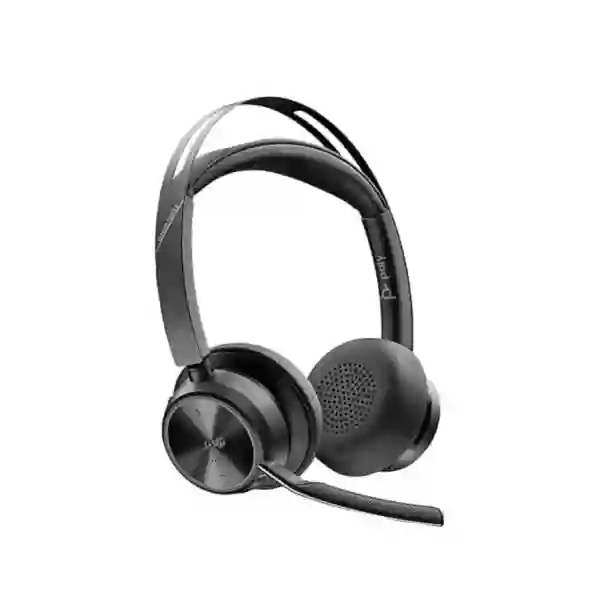
HP Poly Voyager Focus 2 Office Microsoft Teams Headset
For teams that switch between Microsoft Teams meetings and compatible desk-phone calls, this wireless stereo Office headset combines a dedicated communication base, microphone noise reduction and adjustable active noise cancellation. Confirm your phone, computer and exact bundle before requesting a Tanzania quotation.
At a glance: choose the right configuration
| Feature | What to know |
|---|---|
| Primary use | Computer meetings plus a compatible desk telephone |
| Audio | Stereo on-ear headset; adjustable active noise cancellation |
| Voice pickup | Boom microphone with Acoustic Fence noise reduction |
| Office base | Computer and desk-phone connections; verify exact cable set |
| Mobile use | Bluetooth pairing for a supported smartphone |
| Teams functions | Teams-oriented controls subject to application and configuration |
| Charging | Base cradle or compatible USB cable; approximately two hours for a full charge |
| Compatibility | Confirm desk-phone model, accessories, computer ports and software |
Configuration, included accessories and commercial terms must be verified for the particular order. No price, stock or service coverage is implied.
Who this Teams office headset is for
A busy professional may handle a customer call on a desk telephone, join an internal Microsoft Teams meeting from a laptop and answer a time-sensitive mobile call during the same working day. Switching among separate headsets creates friction and makes it easier to miss a conversation. This Office configuration is intended to reduce that friction by placing a flexible wireless headset around a desk-phone and computer calling setup, with Bluetooth mobile pairing available as an additional connection.
The best candidates include reception staff, customer-support coordinators, sales managers, consultants, administrators and people who alternate between a business telephone and computer meetings. Their common requirement is not simply loud audio. They need intelligible speech, convenient call controls, reasonable wearing comfort and a way to choose the right line. If a team works solely from laptops and has no desk phones, a UC configuration without the full Office base may be more appropriate.
For buyers in Tanzania, the practical starting point is an equipment inventory. Identify the precise desktop phone make and model, the computer operating system, available USB ports, the collaboration application and how often calls move to a smartphone. Those facts determine whether the Office package provides useful value and whether extra accessories are needed. The product name alone does not establish compatibility with every telephone, every calling application or every possible local installation.
What makes the Office edition different
The term Office refers to a communication base with desk-phone and computer connectivity. It does not merely mean a headset supplied with a convenient charging stand. In an Office setup, a user can select a computer or desk-phone audio path using the base controls after the relevant equipment is connected and configured. This is the important functional distinction when evaluating similarly named Voyager Focus 2 packages.
Voyager Focus 2 UC configurations commonly connect a PC through a compatible USB Bluetooth adapter and may be sold with a charger only. Such packages can be excellent for laptop-focused work, but a charging stand is not the same as a desk-phone interface. Conversely, an Office package normally includes an office base and telephone interface cable. Packaging and cable selections can differ by part number, production period and quotation, so insist on an itemized description of what will be supplied.
Microsoft Teams refers to the specific collaboration-oriented edition rather than a guarantee that every generic headset will display identical Teams behavior. Look for the Teams-certified configuration and its associated call or Teams control. If a seller uses the words Office, UC, stand and Teams interchangeably, ask for a photograph or written specification of the actual base and headset configuration before the purchase is finalized.
Voice quality: what callers actually hear
In an active office, the microphone matters as much as the speakers. Poly Acoustic Fence technology uses the headset microphone system to emphasize speech from the wearer and suppress competing noise around the desk. This is particularly relevant when nearby colleagues are having conversations or when multiple service staff work close together. The objective is to help callers follow the person speaking without continually asking for a repetition.
Microphone noise reduction does not make a room acoustically silent, and it cannot fully solve issues caused by poor network connectivity, excessive room echo or an incorrectly positioned boom. Position the microphone near the corner of the mouth as the manufacturer describes, then place a test call from the intended workstation. A recording that sounds excellent in a quiet demo room may behave differently beside another active telephone conversation.
For organizations deploying several units, compare a short test call in the actual room against a current headset rather than choosing on marketing wording alone. Listen for intelligibility, the balance between natural speech and noise suppression, and whether the microphone stays correctly aligned when the headset is moved. Ask the recipient of the call, not just the person wearing the headset, to judge how clearly words come through.
Noise cancellation for the wearer
The headset has advanced digital hybrid active noise cancellation, with high, low and off settings. This feature affects the sound reaching the wearer’s ears and can make it easier to focus on a meeting while people talk nearby. The setting is selected on the headset, so a user can adjust it when moving from a relatively quiet desk into a livelier shared room. It is separate from microphone noise reduction.
A low ANC setting may be a sensible starting point in an office where occasional awareness of coworkers matters. A higher setting can help when general background noise increases. Neither setting is a replacement for a private meeting room when confidential discussions are taking place. Noise cancellation also does not block all voices or sudden sounds, particularly in a noisy, open workplace. Users should expect a reduction in distractions rather than perfect isolation.
Consider the communication culture of the workspace. A receptionist who frequently responds to visitors may prefer less isolation than a specialist reviewing complex documents between calls. The ability to switch levels is valuable because users do not all need the same acoustic environment. Encourage staff to select safe listening volume levels and to check their surroundings when active noise cancellation is in use.
Comfort during recurring calls
A headset that sounds good for ten minutes can still be tiring after a long queue of meetings. Voyager Focus 2 uses a padded adjustable headband with a suspended cushion and soft on-ear pads intended for extended working sessions. Its stereo layout covers both ears while retaining a boom microphone for business calling. This combination makes it attractive to professionals who need to move between listening, speaking and focused computer work.
Head shape, glasses, hairstyle and sensitivity to on-ear pressure all affect comfort. A stereo headset may provide useful immersion, but someone who must monitor coworkers constantly may prefer a one-ear design. Ask potential users to wear a sample through a realistic call and a short walking interval. Pressure points, temperature around the ear and the ease of finding the mute control often matter more over time than a few minutes of first impression.
The microphone boom can be positioned for wearing on either side. HP describes automatic adjustment of the stereo orientation when that position changes. Users should still check that the boom is correctly placed in front of the mouth, not too far away. An adjustable design helps a shared procurement suit more people, but it does not eliminate the value of trying the fit before rolling out a large number of headsets.
Microsoft Teams controls and practical expectations
The Teams edition is intended for organizations that make Microsoft Teams an important part of everyday communication. The headset’s call control can interact with the Teams desktop application, and the Teams version of the Office base has corresponding collaboration controls. This convenience can reduce the number of times a user needs to find the right application window to handle an incoming meeting or call.
Dedicated Teams functionality depends on the supported Teams application, computer connection and device configuration. A button cannot launch or control a service that is not installed, signed in or supported in the expected way. Teams certification should not be interpreted as an entitlement to a Microsoft 365 subscription, calling plan or telephone number. Those are separate software and service decisions made by the organization.
When evaluating this unit, test the exact workflows your staff use: receiving a Teams call, joining a meeting, muting during a conversation and returning to a desk-phone line afterward. Confirm that indicators and controls behave as expected with the organization’s software versions. A team that mainly uses another meeting platform may still be able to use the headset for audio, but should check which convenience controls are supported instead of assuming identical behavior.
How the Office base connects devices
The Office base is the central piece for computer and desk-phone communication. Manufacturer instructions describe connecting a computer using a USB cable and a compatible desk phone with a telephone interface cable. The Bluetooth headset pairs to the base, and a mobile phone can be paired separately. Because the base remains on the desk, the wearer can work wirelessly while the attached telephone and computer remain in place.
Base connectivity is useful only when it matches the actual equipment. Record the desk-phone brand and model, its headset or handset port, available interface cable and any required external call-control accessory. On the computer side, confirm the supplied cable ends and whether a USB-A port or approved adapter is available. Keep the distinction between the wired base connections and the Bluetooth radio link clear in the deployment plan.
The same person may use several communication channels in a day, but this does not mean that every line is mixed together into one conference or that every application can be controlled at once. The base selects an intended source, while the phone, computer and application retain their own call behavior. Document how incoming calls should be answered and how staff should switch sources, especially when handover between shifts is frequent.
Desk-phone compatibility is a pre-purchase check
Some office telephones include a dedicated headset port; others expect an accessory through the handset port. The manufacturer’s Office user guide shows more than one cabling method and explains base configuration adjustments for different telephones. This is why the exact desk-phone model is a more useful purchasing detail than a broad description such as IP phone or PBX phone. Check the telephone’s physical port and published accessory support before selecting cables.
On certain phones, staff may need to press the phone’s headset key or lift the handset when there is no electronic hookswitch integration. Optional electronic hookswitch cables and mechanical handset lifters are used for compatible remote call control, and they should not be assumed to be part of a standard package. A buyer who expects a single-button answer from several metres away should confirm the exact telephone, cable and intended call-control feature beforehand.
A good acceptance test includes an inbound call, an outbound call, headset mute, volume, the desk-phone selection control and a call answered from the expected distance. If there is no dial tone or the other party hears distortion, review the base configuration and cable route before treating the headset as faulty. The aim is verified operation with the chosen telephone, not a general promise of compatibility with every IP telephony system.
Connecting a smartphone with Bluetooth
Bluetooth support adds flexibility for business users who also receive mobile calls. The manufacturer’s series information lists Bluetooth 5.1 and multipoint capability, allowing two active device connections while remembering more paired devices. In the Office configuration, one of the active connections can be the Office base, with a smartphone paired as the other. This can avoid the need to remove the business headset whenever a work mobile rings.
Two connections do not mean every call will be answered automatically or that simultaneous conversations will be combined. Application behavior and which source currently has audio still matter. Test what happens when a mobile call arrives during a computer meeting and teach users how to accept, reject or return to the original call. Also confirm the mobile operating system and Bluetooth settings used by the organization.
For staff who handle sensitive customer information, pairing controls are part of the process. Keep personal and shared-device pairing policies clear, especially for desks occupied by different employees. Remove obsolete pairings when equipment changes hands and check the base pairing instructions if the headset must be reconnected. Small administrative habits help prevent accidental calls from being sent to the wrong personal or work device.
Call controls, sensors and visible indicators
Practical controls support work when hands are busy. Voyager Focus 2 provides call answer or end, microphone mute, volume adjustment, power and an ANC selector. On-call indicator lights are designed to show nearby colleagues when a conversation is in progress. The status light can discourage interruptions, although it is a visual courtesy rather than a reservation of a quiet area or a confidentiality guarantee.
Smart wear sensors can trigger supported behaviors when the headset is put on or taken off. Depending on settings and application support, these may include answering certain calls or pausing and resuming media. The manufacturer notes that some features require configuration and that web-based applications may behave differently. Staff should become familiar with the actual configured behavior before relying on a sensor to mute a sensitive conversation.
Dynamic mute alerts can help when a user begins talking while muted. This is particularly valuable during hybrid meetings where participants repeatedly move between listening and contributing. Still, users should verify the visible or audible mute state before discussing private matters. A physical microphone-position habit, clear on-screen status and a quick test call together create a more dependable routine than depending on one automatic feature alone.
Battery life, charging and shift planning
The wireless design is useful when a person moves around a workstation, but it still depends on battery management. The manufacturer’s Office guide describes charging in the base cradle or using a micro-USB cable and gives an approximate two-hour full-charge time. Battery runtime changes according to active noise cancellation, indicator lights, wireless usage, talk patterns and other settings, so a quoted maximum should not be treated as a guaranteed duration.
HP materials for the Voyager Focus 2 series contain talk-time figures measured under differing configurations and conditions. Buyers should compare battery claims only when the ANC and indicator settings are stated for the specific quoted variant. Rather than basing a shift schedule on the largest advertised number, establish a charging routine at breaks and between shifts. For a reception desk, leaving the headset on its base when idle is straightforward.
Where calls can run beyond planned breaks, verify the manufacturer-supported wired audio mode as a backup. Monitor low-battery announcements and do not wait until a critical customer conversation to discover a depleted battery. In shared environments, assign a charging location and explain who is responsible for returning the headset. This is a small process change, but it often determines whether the hardware fits daily operations.
Wireless range in real buildings
HP’s published series information describes an Office configuration with wireless range up to approximately 91 metres under suitable conditions. This is a technical maximum, not a promise that a user can maintain a clear call through every wall or across a multi-floor building. Concrete, metal structures, wireless congestion and the relative position of the base can make practical coverage substantially smaller than a laboratory or open-space figure.
Set realistic movement expectations before buying. A user may want to collect a document from a nearby printer or turn to a colleague while keeping both hands free. That is a different requirement from roaming between distant rooms or crossing floors. Walk the intended route while carrying an active test call and note exactly where audio becomes unstable. If the test fails, moving the base may help, but it cannot defeat every obstacle.
Manufacturer guidance also gives physical separation recommendations for the Office base and neighboring electronics to reduce interference. Position the base thoughtfully rather than placing it directly behind a computer monitor or alongside crowded power equipment. A reliable deployment considers radio conditions, sensible workstation layout and the work activities being supported. Headset range should not be confused with mobile network or Wi-Fi service coverage.
USB audio as an alternative to wireless
Wireless convenience is only part of the workflow. Voyager Focus 2 also supports corded audio over USB when configured according to the manufacturer’s guide. That can be helpful when battery charging is needed or the immediate radio environment produces unstable audio. The mode is not the same as permanently wiring the Office base to a computer; it involves a compatible direct headset-to-computer USB connection and the documented setup procedure.
Before relying on this fallback, check the cable supplied with the exact product, the available computer port and the current instructions for the headset revision. Establish whether staff are allowed to connect devices directly to managed computers and whether an adapter has been approved. A test performed before deployment is preferable to experimenting during a busy support call when the wireless connection has already become unreliable.
Wired mode does not repair a slow internet connection or a failing Teams service. If callers report breaks only when staff walk away from the base, investigate wireless range and density. If interruptions occur even when the headset is wired and the wearer remains at the workstation, examine the computer, application, network and audio settings. Separating these causes makes support faster and prevents unnecessary replacement purchases.
Computer setup for Teams calls
Begin by identifying whether each workstation uses Windows, macOS or another managed environment and what USB connectivity is available. Connect the Office base using the correct approved cable, supply power as directed and ensure the headset is paired to its base. Select the appropriate headset microphone and speaker in the operating system and the Teams application. Do not assume that plugging the cable in guarantees every audio preference is set correctly.
Run an internal test meeting before the headset is assigned to a user. Check microphone selection, speaker volume, mute behavior, call answer and the Teams-specific action. Test an incoming call while the computer is locked or while other software is open if those situations reflect normal work. Where calling controls do not work, the manufacturer notes that some softphones require supporting HP software or configuration to enable their advanced functions.
Record the result and repeat it for other standard workstation images, especially when an organization uses different laptop generations. USB port restrictions, permissions to install device software and application updates can affect rollouts. A simple setup checklist is more valuable than a vague declaration that the headset is universally plug-and-play. The purpose is consistent audio, predictable controls and a documented way to resolve issues.
Deploying with an existing desk-phone system
The desk-phone portion should be planned with whoever maintains the organization’s telephony environment. Start with the exact telephone hardware and review available ports, handset wiring and relevant call-control accessories. The Office base connects to the endpoint, rather than automatically configuring a PBX, SIP account or call routing. If the phone itself cannot place or receive calls correctly, the headset cannot resolve that underlying telephony problem.
Follow the HP Poly Office guide for the appropriate dedicated-headset-port or handset-port connection. Confirm base configuration for the telephone in question, since the guide documents model-dependent settings. Electronic hookswitch cables are optional and phone-specific; a model that works in one office should not be assumed to work with another series. Document whether calls must be started at the phone or may be answered remotely.
After installation, use a real incoming telephone call to check the entire path. Listen for two-way audio and check distortion, echo, sidetone and controls at comfortable volume. Repeat the test after switching from a computer call. Keep a record of the accepted phone model and accessories so that a future replacement handset does not unexpectedly break the process. Compatibility is an operational requirement, not a marketing badge.
Supporting staff and IT administrators
A headset rollout benefits from a short user guide written around everyday situations rather than a long list of buttons. Explain how to power on the unit, choose the telephone or computer, mute, change ANC, return the headset to the charger and identify low battery. Include the local help-desk contact defined by the organization. New staff should be able to perform these activities without guessing which device is currently carrying a call.
HP provides desktop management and configuration tools for supported Poly devices, including software settings and updates. The exact software naming, supported features and installation requirements can change, so use the current manufacturer’s guidance approved by IT. A managed organization should test an update on a small sample before deploying it broadly, document the resulting behavior and avoid unexpected configuration changes in the middle of a work shift.
Good operations also mean handling physical wear. Establish who cleans shared ear cushions, who checks the microphone boom for damage and how equipment is reassigned. Use manufacturer-approved cleaning recommendations rather than spraying harsh products into electronics. Make sure spare cables or approved accessories are known to procurement. The aim is a repeatable service process that supports productivity throughout the headset’s useful operating life.
Practical use cases across office teams
Reception and front-desk staff often use a business telephone while checking computer records. For them, the Office base may be the main reason to choose this configuration. They can work with the desk phone and join an occasional Teams conversation without changing the type of headset they wear. The important qualifying question is whether the reception telephone supports the intended cable and remote-answer arrangement.
Customer-service supervisors may move between coaching a colleague, reviewing a ticket and taking escalated calls. They may value microphone clarity, a visible call indicator and wireless freedom around a nearby workspace. Finance and administration teams may prioritize a comfortable stereo headset for recurring Teams meetings and focused document work. Consultants or project leads who regularly switch between mobile calls and the computer may benefit from multipoint Bluetooth pairing.
These scenarios do not require claiming that every industry has the same communications setup. A school administrator, professional services firm or distributed project team could have very different equipment and privacy needs. Evaluate the workflow, the desk layout, the telephone and the meeting platform. A headset is a good fit when its specific connections and controls remove a real inconvenience from the day rather than merely adding technical features.
A Tanzania-focused evaluation checklist
For a business purchasing equipment in Tanzania, prioritize what can be verified for the exact organization. Identify computer ports, telephone models, Teams use, the number of users, charging arrangements and whether hardware will remain at assigned desks. If the location experiences occasional power interruptions, confirm that the base and the connected computer or telephone have an appropriate operational power plan. The headset cannot keep the complete calling system running if its host equipment loses power.
Internet stability also matters for Teams and other cloud calling applications. Clear speakers cannot compensate for packet loss or high latency, and mobile network coverage is outside the headset’s specification. Test actual call quality from the organization’s working environment. If users depend on both an on-premises telephone system and online meetings, prepare separate checks for each connection rather than treating one successful test as proof of both.
Ask for a quotation that states the precise Office Teams variant, quantity, included base, cables, separately needed accessories, applicable support terms and total local commercial terms. Do not assume pricing, stock, import treatment, delivery schedules or warranty service without a verified supplier commitment. This evidence-based approach helps purchasing teams compare offers fairly while protecting users from receiving a similarly named UC package instead of the required Office configuration.
What to verify in the package
The Office product family is described by HP with an office base, telephone interface cable and computer USB cable, with a carrying case listed in manufacturer series information. A user guide also identifies a power supply among illustrated package contents. However, a general family document is not a substitute for the bill of materials for the particular order. Regional pack differences, revisions and bundles make it important to confirm each item in writing.
A product supplied with a BT700 adapter and a simple charging stand may be a UC bundle rather than an Office desk-phone system. A bare Office base accessory may be sold without a headset. Another bundle may join a Teams headset and base as separate components. These can be legitimate offers, yet none should be described as an identical item merely because the words Voyager Focus 2 appear in the title.
Request that the invoice or quotation identify the complete headset variant and exactly what is in the box. If a telephone needs an electronic hookswitch cable, confirm its separate part and compatibility. Ask whether the proposed connection uses the phone’s headset port, the handset port or another validated path. This attention to detail is especially valuable when buying several units for different departments, because accessory mistakes can multiply quickly.
When another configuration may be better
A laptop-only employee with no fixed desk phone might not gain much from the additional Office base. A Voyager Focus 2 UC variant or another supported USB headset can be a simpler fit for that situation. Conversely, a person who spends much of the day on a physical desk phone may consider the Office base essential. The comparison should start with required connections, not with an assumption that the configuration with more accessories is always superior.
A wearer who must continuously hear surrounding speech may favor a single-ear headset or use an ANC setting that provides more environmental awareness. Someone who needs total privacy for sensitive customer conversations should prioritize a suitable quiet room and organizational policies, rather than depending on noise reduction. Similarly, employees needing a headset for outdoor movement should assess whether an office-oriented base system matches their environment.
If the organization uses a different collaboration application, test that application’s call control behavior before choosing the Teams-specific edition. The audio hardware may function across supported platforms, but dedicated controls may not. If cordless movement is unnecessary and battery maintenance is a concern, a well-chosen wired headset may be sufficient. The right choice is the simplest proven solution to the actual calling requirement.
Troubleshooting common setup problems
No desk-phone dial tone generally calls for a connection check first. Confirm that the telephone works without the headset, the Office base has power and the headset is paired with the base. Review whether the phone uses a dedicated headset port or the handset path, and inspect the appropriate configuration setting. A functioning Teams call does not prove that the desk-phone interface is connected correctly because the two paths are different.
When the far end reports echo, buzzing or distorted sound, check microphone position, telephone volume and the base’s transmit or receive adjustments where applicable. Manufacturer instructions also recommend separating the base from nearby computer and telephone electronics to reduce certain interference issues. If audio cuts out only while walking, return closer to the base and compare results. Do not immediately change software or replace the battery when the issue follows a physical route.
For Teams-specific difficulties, confirm that the desktop application is running, that audio devices are selected, that the headset is connected through the intended path and that current approved software supports the control functions. If smart sensors behave unexpectedly, review their configuration rather than assuming a hardware fault. Maintain a short issue log containing computer type, phone model, error symptom, connection method and steps already tested so support can diagnose efficiently.
Frequently asked buyer questions
Is this the same product as a Voyager Focus 2 UC with charging stand?
No. The Office designation refers to a base designed to connect a compatible desk phone and a computer. UC packages may include a charging stand without that desk-phone connection. Confirm the actual base and complete package before ordering.
Does the Microsoft Teams version require the Teams application?
Yes, Teams-oriented functions require the relevant Microsoft Teams desktop application and supported configuration. A Teams edition does not itself include a Microsoft 365 subscription, phone number or Teams calling license.
Can it connect to a business desk phone and a computer?
That is the primary purpose of the Office configuration. The base uses the relevant computer and telephone connections, but the telephone model, cabling and call-control accessories must be checked before compatibility is assumed.
Can it be paired to a smartphone?
The Voyager Focus 2 supports Bluetooth mobile pairing. In an Office setup, the paired base can occupy one active connection while a smartphone uses another; call behavior should be tested for the actual mobile device and application.
Does active noise cancellation remove every surrounding voice?
No. ANC helps reduce background sound reaching the wearer, while Acoustic Fence technology is aimed at reducing noise passed to callers. Neither feature replaces a quiet environment for confidential or particularly demanding calls.
How long does charging take?
The manufacturer’s Office guide gives approximately two hours for a full charge. Actual talk time varies with ANC, indicators, usage and the exact test configuration, so review the battery conditions shown in a supplied quote or current device documentation.
How far can the wearer move from the base?
HP publishes an ideal Office range of up to approximately 91 metres. Real coverage varies with walls, floors, radio conditions and base location. Test the intended route in the workplace rather than depending on the maximum figure.
Will a Teams headset work with another meeting platform?
The audio connection can be useful with other supported communication applications, but dedicated call-control and integration functions vary. Test the intended platform and computer configuration before purchasing for that use.
Is an electronic hookswitch cable included?
Do not assume so. An optional electronic hookswitch cable or mechanical handset lifter can be necessary for specific remote-answer workflows. Verify the exact desk-phone model, required accessory and quoted package contents.
Can the headset continue working through USB if wireless audio is unreliable?
The manufacturer documents a direct corded audio-over-USB mode. Use the correct compatible cable and setup steps, and test the computer’s audio settings. Wired operation cannot solve unrelated internet or calling-platform failures.
What should a Tanzanian business provide when requesting a quote?
Share the number of headsets, computer port details, desk-phone make and model, Teams requirements, preferred accessories and intended usage. Request a written confirmation of the precise Office Teams configuration, support terms and total commercial offer.
Request a configuration-checked quotation
Ask about the HP Poly Voyager Focus 2 Office Microsoft Teams Headset for your workplace in Tanzania. Share your desk-phone make and model, number of users, computer connection details and Teams requirements so the proposed Office base, cable set and optional call-control accessories can be checked. Confirm the actual offered package and commercial terms before placing an order.
Request an HP Poly Office headset quote from FourTeck Tanzania.
Reviews
There are no reviews yet.