


FourTeck Tanzania | Managed Wi-Fi
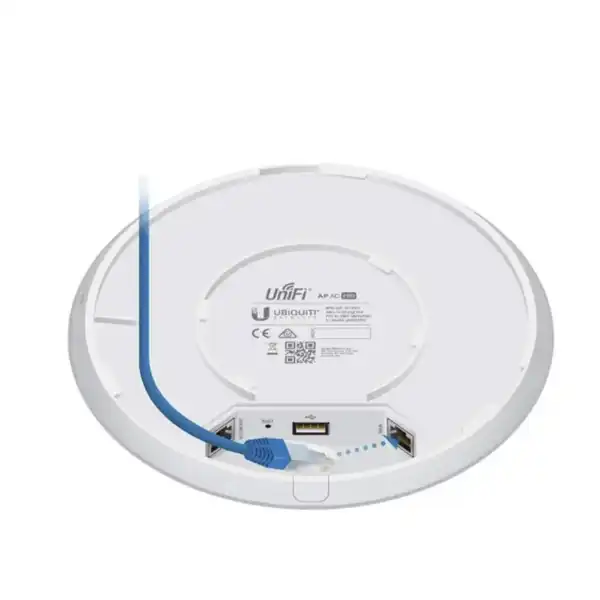
Ubiquiti UAP-AC-PRO Tanzania: UniFi AC Pro Wi-Fi 5 Access Point
Need reliable, centrally managed Wi-Fi across an office, reception, classroom or other business space? The Ubiquiti UAP-AC-PRO Tanzania product guide explains what the UniFi AC Pro offers and what to verify before ordering. This dual-band Wi-Fi 5 access point provides 3×3 MIMO radios, PoE installation, two Gigabit Ethernet ports and UniFi network management. It is suitable for carefully planned indoor deployments and only protected outdoor locations. The guide also explains realistic speed expectations, security design, cabling, controller compatibility and buying checks so that the selected access point matches the intended site.
Key features before you decide
- Wi-Fi 5 dual-band 3×3 MIMO for managed local wireless connectivity
- 2 × Gigabit Ethernet ports and compatible 802.3af/at PoE power
- UniFi ecosystem management with compatibility verification
- Suitable for wall or ceiling mounting and sheltered outdoor positions only
UAP-AC-PRO specifications at a glance
These are manufacturer-stated properties, not a guarantee of end-user speeds or availability in a particular sales package.
| Product | UniFi AC Pro (UAP-AC-PRO) |
|---|---|
| Wireless standard | Wi-Fi 5 / 802.11ac; dual band |
| Radios | 2.4 GHz and 5 GHz; 3×3 MIMO on each |
| Maximum listed data rates | 2.4 GHz: 450 Mbps; 5 GHz: 1,300 Mbps |
| Ethernet | Two 10/100/1000 Mbps RJ45 interfaces |
| Power | 802.3af/802.3at PoE; supported 44–57 V DC |
| Maximum consumption | 9 W |
| Dimensions | 196.7 mm diameter × 35 mm |
| Mounting | Ceiling or wall; protected outdoor only |
| Nominal manufacturer coverage | 140 m², subject to actual conditions |
| Published maximum client figure | 250+; not a simultaneous-throughput promise |
| Temperature | -10 to 70°C, within installation guidance |
Who should choose the UniFi AC Pro?
The Ubiquiti UniFi AC Pro is a dual-band Wi-Fi 5 access point for buyers who want managed wireless connectivity rather than another stand-alone home router. It is especially relevant when an organization already operates UniFi equipment, needs consistent network names across several rooms, or wants a structured way to monitor access points. The model UAP-AC-PRO combines ceiling or wall mounting with Power over Ethernet, making it practical to install at locations chosen for signal quality rather than near an electrical socket.
An access point extends an existing wired network over Wi-Fi. It does not replace the internet connection, firewall, router, or DHCP service required for a functioning business network. A typical design starts with an internet service, a gateway or router, a suitable Ethernet switch, and one or more access points. The AC Pro handles wireless client connections while the upstream network supplies addressing, routing, access policies, and the connection to online services.
The right purchase depends on the site and its existing equipment. A school upgrading just one floor of an established UniFi installation may value matching deployment and management. A new office planning years of wireless growth should compare the AC Pro against current UniFi Wi-Fi 6 or Wi-Fi 7 devices before committing. This distinction matters: the AC Pro is a Wi-Fi 5 model and should be selected for a defined requirement, not portrayed as a newly introduced wireless generation.
Dual-band operation and 3×3 MIMO explained
The UAP-AC-PRO broadcasts on 2.4 GHz and 5 GHz. The 2.4 GHz band can be useful for older devices and for locations where walls make higher-frequency coverage difficult, but it often carries interference from neighboring networks and other equipment. The 5 GHz band generally offers more usable channel choices and better short-range capacity when compatible clients have adequate signal. A good installation uses the strengths of each band rather than expecting every device to connect at the same speed.
Ubiquiti specifies 3×3 MIMO on both radios, with three antenna paths supporting multiple spatial streams. A laptop or phone with fewer compatible streams cannot exploit the entire radio capability by itself. The access point’s antenna design, channel settings, and client mix all contribute to performance. This is why checking the wireless features of actual employee devices often provides more useful purchasing guidance than comparing theoretical numbers on product boxes.
Both radios can operate as part of one planned Wi-Fi environment with multiple network names where needed. Administrators can design a staff wireless network separately from a guest network, and can apply site policies through UniFi Network. Remember that radio features, supported security modes, and management capabilities may also depend on firmware and controller versions. Check the intended release combination before treating a software function as a guaranteed capability of a particular installation.
Understanding advertised wireless speeds
Ubiquiti specifies maximum link rates of 450 Mbps on 2.4 GHz and 1,300 Mbps on 5 GHz for the AC Pro. These numbers describe ideal wireless physical-layer connections under suitable radio conditions, not guaranteed internet speeds or the amount of data every user receives. Wireless management traffic, protocol overhead, retransmissions, contention, device capabilities, and network conditions all reduce useful throughput. The two band figures should not be added together and advertised as one user’s practical download speed.
An office with a 100 Mbps internet service may find that internet capacity, rather than the access point’s maximum radio link rate, limits cloud applications. Another office with heavy local file transfers might encounter channel congestion, client limitations, or switch uplink capacity first. The two Gigabit Ethernet interfaces also do not create a 2 Gbps internet connection for the access point. Network designers should evaluate the entire path from each device to the resource being accessed.
A sensible performance test measures actual tasks: opening cloud applications, making video calls, transferring files, and maintaining stable connectivity during busy periods. Test at representative desks and meeting rooms rather than directly beneath the device only. Record signal quality, channel utilization, latency, and actual throughput. If results are poor, moving or adding access points may be more effective than simply increasing transmit power, especially when client radios cannot communicate back reliably.
Coverage estimates versus real buildings
Ubiquiti’s current technical listing gives a nominal coverage area of 140 square metres for the AC Pro. Treat that as an indicative planning reference, not a promise of flawless coverage inside every 140-square-metre room. Concrete walls, metal roofs, tinted glass, storage racks, furniture, and floor layouts change signal paths. Even a space with modest floor area may need multiple access points when partitions or dense building materials separate users from the radios.
Coverage also differs by task. Reading messages may remain workable at weaker signal levels, while reliable voice calls, video meetings, and high-speed transfers need better radio conditions. A device may display a Wi-Fi icon while still suffering repeated packet loss or long application delays. Plan for the weakest important location, such as a rear office or corridor, rather than judging a deployment solely by whether the network name appears on a phone.
For multi-room or multi-floor premises, draw a basic floor plan and mark walls, expected user density, and network cable access. Identify where employees actually spend time and where guest Wi-Fi is needed. Use a site survey or suitable planning tools to refine access point count and channel selection. It is more accurate to design coverage around applications and measured signal than to quote a universal metre-based range for the Ubiquiti UAP-AC-PRO Tanzania listing.
Client count and practical capacity
The manufacturer lists a maximum client count of more than 250 for this access point. That figure should not be understood as a guarantee that 250 people can simultaneously stream video or hold meetings at full speed. The useful number of active clients depends on how much airtime each uses, their signal quality, traffic patterns, security settings, and interference. A crowded classroom with lightweight messaging can behave very differently from a meeting room with many simultaneous high-definition video calls.
Wi-Fi is a shared medium. Slow or distant devices can occupy disproportionate airtime, and the presence of many idle connections is not the same as high application demand. Instead of choosing access point quantity from a headline device count, estimate active users per area, typical applications, device types, and peak periods. Include shared devices such as printers, scanners, terminals, and smart displays when building the client inventory.
When an organization expects steady growth, distribute clients across multiple well-positioned access points and use suitable channel planning. Avoid placing many radios too close together at maximum transmit power; that can increase interference rather than improve capacity. Monitor real client distribution after installation, then adjust placement or radio settings where a single access point is overloaded. Capacity planning should always be tied to measured airtime and user experience.
Where to place the access point
The AC Pro supports wall and ceiling mounting. Central placement near the users it serves is usually a better starting point than hiding it in a rack, above metal ductwork, or behind thick concrete. Its round enclosure is designed for fixed installation, but appearance alone does not determine suitable position. Keep the radio clear of major obstructions where practical and allow access for servicing, cabling checks, and replacement.
Before mounting, check the intended coverage direction and the location of the Ethernet cable. Ceiling installations can simplify coverage across an open office, while a wall location may be appropriate in a corridor or protected outdoor area after checking the manufacturer’s mounting instructions. Do not assume the device radiates equally in every direction or that moving it a few metres will have no effect. Antenna pattern, surface materials, and local interference all matter.
In dense buildings, placement and channel planning should be completed together. Two access points with overlapping service areas can enable users to move between spaces, but excessive overlap may produce contention. Pay special attention to conference rooms, reception areas, and zones separated by stairwells or thick walls. When possible, validate the proposed mounting locations using a temporary installation and representative client devices before drilling permanent fixtures.
Power over Ethernet and cabling
Power over Ethernet lets the AC Pro receive power and data over the Ethernet connection at its Main port. Ubiquiti specifies support for 802.3af and 802.3at PoE and a supported voltage range of 44 to 57 volts DC. Maximum device power consumption is listed at 9 watts. Use a compatible PoE switch or the specified suitable adapter; do not connect an arbitrary low-voltage power supply because the Ethernet plug fits.
A PoE switch is attractive when several access points share a communications cabinet because one powered switch can serve multiple cable runs. Calculate the total available PoE budget for every connected device, not only the nominal per-port standard. A compatible 48-volt Gigabit PoE adapter is another installation option where a PoE switch is unavailable. The manufacturer’s guide describes a single-pack including an adapter, but buyers should verify the exact package supplied in any local quotation.
Use correctly terminated, suitable Ethernet cable and test both the cabling and the switch port before final installation. Avoid making critical assumptions from an AP’s status light alone: network adoption and internet access also depend on data connectivity. For sites that experience power interruptions, consider backup power for the gateway, switch, controller where applicable, and upstream internet equipment. Keeping the access point powered is useful only when the remainder of the network stays available.
Two Gigabit Ethernet ports: what they do
The UAP-AC-PRO has two Gigabit RJ45 network interfaces. The Main port provides the usual wired connection and receives PoE power. The Secondary port is described by Ubiquiti as a bridging interface, which can help in specific cabling arrangements. This feature should not be confused with two independent internet WAN connections or an automatic doubling of wireless capacity. Typical deployments still use one wired uplink from the access point to the existing LAN.
The Secondary interface does not supply PoE power to another access point. Anyone planning to connect a second powered device must provide suitable power independently. Also confirm that the bridging arrangement meets the site’s switch, VLAN, security, and bandwidth requirements before relying on it. A conventional managed Ethernet switch is generally easier to document and control when several wired endpoints need different network policies.
If a network diagram shows the AC Pro between two critical devices, ask whether that layout introduces an unnecessary failure dependency. It may be better to cable both endpoints to a switch so that replacing the wireless access point does not disturb another service. A second Ethernet port can be helpful, but its presence is not a reason to use the access point as a substitute for a fully featured distribution switch.
UniFi Network management and adoption
The AC Pro is part of the UniFi ecosystem and can be managed through the UniFi Network application. Central management can make a multi-access-point deployment easier to document by showing devices, wireless settings, clients, and operational information in one interface. It is particularly useful for organizations that want common network names and configuration standards across separate rooms or buildings. The application is a management layer, not a replacement for the underlying router or switch.
During a standard installation, the access point is powered, connected to the appropriate network, discovered, and adopted into the intended UniFi site. The controller or UniFi host must be available and compatible with the AP firmware and provisioning requirements. Device discovery is often simplest when the controller and access point share a reachable network, while separated subnets may require additional routing or configuration. Validate the selected management version before deployment, especially when combining newer equipment with this older Wi-Fi 5 model.
An administrator should record the device identity, planned location, management network, assigned switch port, and firmware version. Secure the UniFi administration account, control who can modify wireless settings, and document recovery procedures. After adoption, apply approved wireless configuration and confirm clients can connect to the correct networks. Management visibility helps diagnose faults, but a reliable installation still depends on sensible physical placement, cabling, power, and upstream network design.
Staff, guest and device network separation
Many organizations need different levels of trust on the same premises. Staff laptops may need authorized access to internal services, visitors may need only internet connectivity, and printers or specialist equipment may require narrowly defined communication. UniFi Network provides tools for multiple wireless networks and integration with VLAN-based designs. The actual separation must also be implemented correctly on the gateway, switches, and firewall; naming two SSIDs does not itself guarantee isolation.
For guest service, use a separate network with appropriate access restrictions and consider client isolation where it serves the use case. A visitor should not be able to browse confidential office systems simply because both devices connect through the same physical access point. Configure network rules deliberately and test them with representative devices. Hotspot or portal features may require particular controller versions and settings, so include those dependencies in the rollout plan.
Security choices need to balance protection with client compatibility. The AC Pro is a Wi-Fi 5 generation device, and a modern UniFi interface can display options that are not equally suitable for every AP and client combination. Verify supported authentication and encryption modes against current firmware for this exact model. Avoid retaining weak legacy modes simply to make an old device connect without reviewing the resulting security tradeoff.
Moving between access points and roaming
When several access points broadcast the same intended wireless network, employees can move through a building without manually choosing a different network at every doorway. Ubiquiti lists roaming-related capabilities including 802.11k, 802.11r, and 802.11v for this product. Those mechanisms can help compatible clients make better transition decisions, but roaming is also influenced by client firmware, radio overlap, signal thresholds, and network configuration.
Adding more access points does not automatically guarantee uninterrupted voice calls. A phone may cling to a weak distant signal, and poorly planned channels can make movement between locations less stable. Conduct walking tests for the applications that matter, including calls or real-time collaboration, then review whether the device changes access point at sensible locations. Record problematic transitions by room and device type instead of assuming every roaming issue has the same cause.
Do not activate every advanced radio setting at once merely because it is available. Changes to fast-roaming settings, band steering, transmit power, and channel width can affect compatibility. Establish a stable baseline, make one planned adjustment at a time, and compare observations. For businesses relying on real-time mobility, test actual handsets and software, since the network equipment is only one part of a successful roaming experience.
Protected outdoor installation requirements
Ubiquiti’s installation guide allows the UAP-AC-PRO outdoors only under an eave or another protected location. It explicitly warns against installation in an open environment. This is a crucial difference between protected outdoor use and a fully exposed rooftop, pole, or compound installation. Do not interpret an outdoor-use description as permission to leave the access point exposed to direct rain or uncontrolled weather.
For sheltered exterior mounting, the manufacturer’s instructions call for appropriate positioning beneath the overhang, with cable routing directed away from exposure. Outdoor Ethernet connections should use suitable shielded cabling and grounding as specified by the installation guide. The electrical environment and nearby lightning exposure must be considered by a qualified installer. A covered veranda and an unsheltered open yard are different installation cases and should not be treated as interchangeable.
For open courtyards, perimeter coverage, distant buildings, or outdoor spaces without adequate shelter, evaluate a purpose-designed outdoor access point instead. Consider client location, required reach, mounting height, weather exposure, power, surge protection, and whether the application is ordinary client Wi-Fi or a point-to-point link. Selecting a device for its intended environment is more reliable than stretching an indoor-oriented deployment pattern beyond the manufacturer’s instructions.
Business scenarios in Tanzania
An office with several departments can use one or more AC Pro units to extend managed wireless access from a wired network. Staff gain consistent connection settings while administrators can monitor devices from UniFi Network. The design should start with expected concurrent users, meeting rooms, building materials, and switch locations. In a single open-plan room, one well-positioned unit may be a reasonable candidate; in compartmentalized buildings, several access points may be more appropriate.
A small hotel, guesthouse, or serviced reception area may need a guest network separate from internal management devices. The AC Pro can be considered for protected indoor areas such as lobbies and corridors, with placement and quantity based on wall construction and room layout. Guest Wi-Fi policies, internet capacity, and reliable upstream service are as important as the access point itself. Avoid promising strong signal inside every guest room without a survey.
Schools, training centres, and shared workspaces often experience bursts of simultaneous connections. A wireless plan should distinguish light web browsing from live classes, video meetings, cloud applications, and large downloads. The AP’s theoretical client capacity is not a substitute for estimating airtime demand during peak use. Segment staff and visitor access where necessary, and plan for management, content filtering, or gateway policies at the relevant parts of the network.
Local infrastructure and environmental planning
For a Tanzanian deployment, evaluate the specific premises rather than assuming one national installation pattern. Dense concrete construction, metal roofing, multipurpose rooms, long corridors, and mixed wired or wireless devices can all affect results. Where power interruptions are part of a site’s risk assessment, protect the critical network path with an appropriately sized backup solution. A powered access point cannot maintain an online service if the internet terminal or gateway has already shut down.
Internet connection quality varies from one site to another, so measure the actual service and design around its real bandwidth, latency, and availability. Guest hotspots, cloud business systems, voice applications, and security devices create different traffic profiles. The Wi-Fi access point cannot compensate for unreliable upstream internet or a congested gateway. If users complain of slow connections, separate local Wi-Fi testing from internet-path testing to identify the correct remedy.
Installers should configure radio channels, permitted output levels, and any required dynamic frequency selection in accordance with applicable local requirements. The manufacturer’s international specifications are not proof of a specific Tanzanian certification or site approval. Confirm local obligations independently where they apply. Likewise, do not assume availability, installation service, delivery coverage, or warranty terms from the product’s technical specification alone; request those commercial details for the intended purchase.
Wi-Fi 5 today: when to retain or upgrade
The AC Pro can still make sense where an existing network already uses compatible UniFi Wi-Fi 5 devices, user requirements are moderate, and management compatibility is confirmed. Replacing a failed device with a familiar model may simplify site standardization in some circumstances. That said, the age of the platform should be part of the purchasing decision. A new building or a network designed for demanding future workloads deserves a comparison with newer-generation access points.
Wi-Fi 6 and Wi-Fi 7 equipment can offer different radio efficiency, client capabilities, and long-term product-roadmap considerations, depending on the exact model selected. A newer device is not automatically the correct choice for every site, because switching, power, client hardware, budget, and deployment requirements still matter. Compare exact manufacturer specifications, software support, PoE needs, and intended coverage rather than making a blanket claim that one product is always faster.
Before purchasing the UAP-AC-PRO for a current controller, confirm that the selected UniFi Network release supports the intended firmware and functionality. Also verify how long the chosen equipment will meet the organization’s maintenance policy. Ubiquiti publishes separate legacy-product guidance, and older models should not be confused with similarly named earlier products. Product names such as UAP-Pro and UAP-AC-PRO refer to different generations, making exact model verification important.
What to check before requesting a quote
Begin with the exact model: Ubiquiti UniFi AC Pro, UAP-AC-PRO. Specify the number of units and whether they are intended for ceiling, wall, or sheltered outdoor mounting. Describe the floor layout, expected peak users, internet connection, and existing gateway and switch equipment. This gives the person preparing a quote enough context to assess whether the requested device is appropriate instead of simply matching a model name.
Ask whether the quoted package includes a compatible PoE adapter, mounting hardware, and any installation-related accessories that the project requires. Package contents can differ between single units and multi-packs, and the seller’s exact offer must take priority over general documentation. Confirm the connector type, available PoE switch ports, cable route, and whether independent power backup is needed. Do not budget an adapter twice if an appropriate one is already included.
Commercial terms require separate confirmation. Request the applicable selling price, currency, availability, payment terms, warranty conditions, and delivery or collection options directly from the intended supplier. None of these is established by Ubiquiti’s technical datasheet. For a renovation or expansion, it is also worth documenting the existing controller software and device count so the procurement decision can be checked against real network compatibility.
Recommended installation sequence
First, document the network requirements and verify the access point’s intended role. Mark user areas, obstacles, mounting locations, Ethernet routes, and the required power source. Decide which SSIDs will be broadcast and which VLANs or gateway rules will apply. Check whether the controller and firmware combination supports the selected device. This planning stage is inexpensive compared with relocating installed hardware after users discover coverage gaps.
Next, prepare and test the wired connection, confirm the PoE source, and temporarily power the access point near the proposed location. Adopt it into the correct UniFi site, update or align firmware according to the organization’s policy, and apply approved network settings. Test staff and guest connections separately. Verify that addresses, routing, DNS, and intended access restrictions work as designed before announcing the wireless network to users.
Finally, mount and secure the access point following the manufacturer instructions, including the additional protection rules for sheltered outdoor locations. Re-test coverage after installation because even small changes in orientation and nearby materials can alter the signal. Save the configuration record, device identity, firmware details, cable labels, and a simple support plan. Revisit wireless performance after the site reaches normal occupancy, when the true interference and traffic conditions become visible.
How to troubleshoot common Wi-Fi complaints
If a client sees the network but cannot reach the internet, check whether it receives a valid network address and whether the gateway, DNS, and upstream service are functioning. If only a guest connection fails, inspect guest restrictions and associated VLAN configuration. If every client on one AP disconnects simultaneously, test its cable, PoE power, and network link. Dividing the fault by symptom helps avoid unnecessary device replacement.
For weak or slow Wi-Fi in a particular room, inspect building obstructions, client signal, channel overlap, and how many devices share the radio. Compare 2.4 GHz and 5 GHz performance with the same representative client. An overloaded internet connection can resemble poor Wi-Fi, so perform a local test where possible. Avoid judging results only from a single speed-test number; packet loss and latency can be especially important for business applications.
If adoption or management fails, confirm that the AP is powered, that its Ethernet link works, and that the UniFi Network host can communicate with it. Check the exact firmware and management version before assuming a discovery problem is purely a wiring fault. Escalate with clear details such as model number, error messages, switch port, IP addressing, and tests already completed. A structured fault record shortens troubleshooting and prevents repeat changes that obscure the original issue.
Frequently asked questions
Is the UAP-AC-PRO a router or an access point?
It is a managed wireless access point. It normally connects to an existing Ethernet network that has a gateway or router, internet service, and suitable addressing. It broadcasts Wi-Fi for client devices and is managed using compatible UniFi tools. Do not purchase it as a direct replacement for the router or firewall without planning those separate functions.
Does this model support 2.4 GHz and 5 GHz at the same time?
Yes. It is a dual-band Wi-Fi 5 access point with a 2.4 GHz radio and a 5 GHz radio. Ubiquiti lists maximum link rates of 450 Mbps and 1,300 Mbps respectively. These are theoretical physical-layer rates, and actual user throughput varies with devices, interference, signal quality, and traffic.
How many users can one AC Pro handle?
Ubiquiti lists a maximum of more than 250 clients, but this is not a promise of good performance for 250 simultaneous heavy users. Size the deployment according to peak active users, applications, interference, and required service quality. Busy classrooms, conference spaces, and hospitality sites may need multiple access points.
Can I install it outside in direct rain?
No. Ubiquiti’s installation instructions allow exterior placement only beneath an eave or another protected location and specifically advise against installation in an open environment. Outdoor cabling, grounding, positioning, and weather protection must follow the manufacturer’s guide. For fully exposed positions, assess a purpose-designed outdoor model.
What powers the AC Pro?
The Main Ethernet port can receive suitable 802.3af or 802.3at Power over Ethernet. Ubiquiti also documents use of a compatible 48-volt Gigabit PoE adapter. The maximum stated device consumption is 9 watts. Confirm the switch’s PoE budget and the exact adapter or power accessories included with the seller’s package.
Does the second Ethernet port provide PoE passthrough?
No. The Secondary Gigabit Ethernet port is intended for bridging, not supplying PoE power to another access point. If a second device needs PoE, use a suitable independent injector or powered switch port. Confirm the proposed topology and network policies before using the bridging connection for another device.
Does it work with UniFi Network management?
The AC Pro is a UniFi access point designed for management in the UniFi ecosystem. Adoption and feature availability must be checked against the exact UniFi Network release and AP firmware being deployed. In a mixed older-and-newer network, verify compatibility before ordering equipment or scheduling a controller upgrade.
Can it provide separate Wi-Fi for staff and guests?
It can participate in a UniFi design using different wireless networks and suitable guest controls. Proper separation also requires the gateway, switch and firewall configuration to enforce the intended restrictions. Test that guest devices cannot access confidential internal resources. The exact portal and security options available can depend on software and firmware versions.
Will one device cover an entire building?
Not necessarily. Ubiquiti lists a nominal coverage area of 140 square metres, but walls, floor levels, metal structures, interference and user demand affect the result. Even relatively small buildings may require more than one AP. A floor plan and representative on-site testing are preferable to assuming a universal range.
Should I buy the AC Pro or a newer Wi-Fi 6 model?
Choose based on the network’s current equipment, intended lifecycle, user density, applications, controller compatibility, and budget. The AC Pro may fit some existing Wi-Fi 5 installations. For a new long-term project, compare exact specifications and support considerations for newer UniFi models rather than assuming the older product is the best choice.
Request a UAP-AC-PRO quotation
Ask FourTeck Tanzania about the exact Ubiquiti UniFi AC Pro package and share your expected user count, mounting environment, existing UniFi controller and PoE equipment. Confirm price, availability, warranty and any needed accessories directly in the quotation before ordering.
Please request a quote through the verified FourTeck Tanzania contact or enquiry channel. No unverified checkout or contact link is inserted here.
Reviews
There are no reviews yet.