
Professional room camera · Dual 4K sensors · Poly DirectorAI
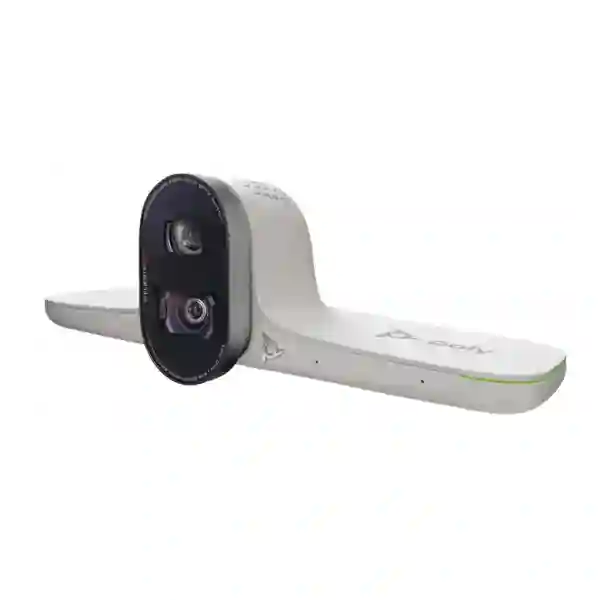
HP Poly Studio E70 Smart Dual Conference Camera
The HP Poly Studio E70 conference camera is designed for organisations that want participants at both ends of a conference table to be seen clearly without relying on one static, narrow view. It combines two 20 MP sensors, 4K UHD video capability, and Poly DirectorAI framing in a dedicated camera for professional hybrid meeting spaces. A wider lens helps capture the room and a narrower view supports more focused composition, subject to the selected framing mode and installation.
This product is especially relevant when a boardroom already has, or is being designed around, a compatible conferencing computer or Poly room system. It is not an all-in-one video bar. The sound system, meeting application, network design, power source, and mounting arrangement still need to be specified as parts of the complete room. In Tanzania, obtain a configuration-specific quotation rather than assuming that the camera alone will make an existing room ready for video calls.
Key capabilities at a glance
Dual 20 MP sensors
Two high-resolution camera sensors with 4K UHD video capability.
Intelligent composition
Poly DirectorAI with group, people and speaker framing options.
Two perspectives
120° wide and 70° narrower horizontal fields of view.
Privacy by design
Integrated motorised electronic privacy shutter.
Room integration
USB-C interface, RJ-45 connectivity and supported Poly room-system workflows.
Manageable deployment
Poly Lens management in supported deployments; Teams and Zoom certifications.
Technical specifications for specification review
The following figures are based on HP product documentation for the Studio E70. Platform features, accessories and integration details should be confirmed for the exact supplied variant and software environment.
| Attribute | HP-published detail |
|---|---|
| Camera configuration | Dual-lens camera; two 20 MP sensors |
| Video capability | 4K UHD, 3840 × 2160 pixels (2160p) |
| Horizontal fields of view | 120° and 70° |
| Digital zoom | 7.3×, as published by HP |
| Intelligent framing | Poly DirectorAI: group, people, speaker; perimeter controls where supported |
| Published camera range | Up to approximately 7.62 m (25 ft) |
| Connections | 1 × USB Type-C (5 Gbps signalling); 1 × RJ-45 |
| Power information | External 12 VDC, 5 A supply specification; PoE 802.3af, Class 3, in supported arrangements |
| Device management | Poly Lens |
| Privacy | Motorised integrated electronic shutter |
| Platforms | HP lists Microsoft Teams and Zoom certification; Google Meet interoperability |
| Dimensions | 321 × 102 × 89.1 mm |
| Weight | Approximately 907 g |
| Published package list | Camera, Ethernet cable, wall-mount kit, USB-A to USB-C cable; confirm actual supplied package |
Before you buy: six questions to answer
- What are the room’s dimensions, seat count and table configuration?
- Which meeting platforms and room host models must be supported?
- Where will voice pickup and speaker playback come from?
- How will the camera connect, receive power and be mounted?
- Which framing modes and privacy controls are important for users?
- What installation, testing and commercial details belong in the quote?
Designed for rooms where every seat matters
The challenge in a long meeting room is not simply obtaining a high-resolution image. People sitting close to the display can appear much larger than colleagues at the far end, and a broad static shot can make everyone look distant on a remote participant’s screen. The Studio E70 addresses this with a dual-camera design and intelligent framing options. A room designer should still consider camera height, table orientation, seating density, and any visual obstructions before deciding whether this model offers the right perspective.
A boardroom with a single central table, an executive meeting room, or a larger collaboration space may benefit from its approach. However, the right answer depends on the actual room geometry rather than the meeting room’s name or advertised capacity. Share a seating sketch and approximate distance from the camera to the farthest participant when asking for a quote. Those simple details are often more useful for sizing the installation than the number of chairs alone.
Understanding the dual-camera system
The E70 uses two 20-megapixel camera sensors and a combination of wide and narrower fields of view. HP specifies horizontal fields of view of 120 degrees and 70 degrees. The wide perspective is useful for framing a group at a table, while a narrower perspective can give a less distant appearance when the framing system is concentrating on part of the room. This is an intelligent dual-lens camera; it should not be described as two independent meeting cameras delivering two simultaneous user-selectable feeds in every application.
The combination is particularly helpful when people enter or leave a room, switch seats, or turn to speak. Image composition can adapt instead of requiring a meeting host to continually intervene. Results still depend on lighting, the position of faces, furniture and software mode. For unusual layouts such as U-shaped tables, multiple rows or two facing displays, plan a real-world framing test rather than assuming every seat will be equally visible in every mode.
What 4K UHD means in practice
HP lists a video resolution of 3840 by 2160 pixels, commonly called 4K UHD, and two 20 MP sensors. The sensor specification describes the camera hardware; the video resolution describes a supported video format. Neither statement means every participant will receive a continuous 4K stream in every call. The meeting platform, room computer, USB connection, negotiated settings, network conditions, and application policies can all affect the format actually used during a meeting.
The practical value of strong source resolution is improved detail for framing and composing images, including when an intelligent camera crops a portion of a larger scene. This can be useful in larger rooms, where people occupy only part of the captured image. Assess expected results at the resolution used by your actual platform. A 4K-capable camera does not replace stable connectivity, appropriate room lighting, or a suitably configured conferencing endpoint.
Poly DirectorAI framing options
Poly DirectorAI supplies several framing approaches, including group framing, people framing, and speaker framing. Group framing aims to make the seated participants appear as a coherent group. People framing can present participants with a more individualised composition where supported. Speaker framing is intended to draw attention to the person talking. HP also lists DirectorAI perimeter controls, which can help an administrator define the useful camera area in supported configurations.
These choices affect meeting experience rather than just technical specifications. A formal board meeting may favour a stable view of the entire room, while an interactive workshop may benefit from more active composition. Before rollout, test the modes with real participants, including quieter speakers, people who move around, and seating positions near the image edges. Feature availability and behaviour should be confirmed against the room platform and installed firmware, as those details can change.
Speaker tracking and room audio are different tasks
The Studio E70 uses microphones to help determine where sound originates for camera tracking. That does not make it a standalone conference speakerphone or a replacement for the room’s voice-capture system. Plan for compatible microphones and speakers, or an appropriate audio processing system, so remote participants can hear the meeting. A camera that follows the active speaker is valuable only when the companion audio chain also delivers intelligible speech and avoids echo or excessive room reverberation.
For a long table, evaluate where people speak from and whether ceiling, table, or other room microphones are better suited. The microphone design must cover the actual seats and work with the chosen conferencing system. Likewise, speakers must be placed so in-room participants can hear without creating distracting acoustic feedback. Ask that audio and video be tested together as one solution, rather than accepting a demonstration of the camera alone.
Conference camera versus complete room solution
A camera is one important component in a meeting room, but it does not manage every part of a call. A complete solution usually also needs conferencing compute or a compatible room codec, a microphone system, speakers, one or more displays, control or scheduling arrangements, network access, and appropriate licenses or accounts. The E70 is best viewed as a flexible professional camera within such an architecture, not a one-box system for video, audio and meeting control.
This distinction helps prevent purchasing gaps. If you are building a room from scratch, list the components already owned and identify which must be supplied. If upgrading an existing room, confirm that the proposed host supports the E70’s connection method and desired camera functions. An inexpensive missing cable is easier to solve than an incompatible codec or software edition discovered after installation. Include accessories and commissioning in the total project scope.
Microsoft Teams Rooms planning
HP identifies Microsoft Teams among the certified collaboration environments for the Studio E70. In practice, the camera must be combined with a compatible Teams Rooms architecture and the appropriate supported system components. A general statement that a camera is certified should not be interpreted as confirmation that every existing PC, Teams client configuration, room controller, or firmware level supports every framing feature. The exact room design and the current Microsoft and HP compatibility information matter.
For a new Microsoft Teams Rooms deployment, document whether the room will use a Windows-based system or an integrated Poly video endpoint and identify its platform version. Ask the integrator to validate camera discovery, selected video format, framing mode, privacy behaviour, management access, and reconnection after restart. Test a real Teams meeting with several participants before sign-off. This turns a product compatibility label into a more dependable room experience.
Zoom Rooms planning
The Studio E70 is also certified for Zoom, according to HP’s published product information. Zoom Rooms may support different features depending on whether the E70 is attached through USB to a compatible system or is used in a particular supported Poly room architecture. Check the software versions and installation guidance for the chosen approach rather than treating USB and IP arrangements as interchangeable. Room-level setup determines how the camera is selected and controlled.
A useful acceptance test includes joining a meeting, changing between available framing modes, verifying speaker-to-image behaviour, confirming that audio comes from the designated room microphone system, and checking performance after the equipment is restarted. If a room is expected to host both Teams and Zoom meetings, validate the entire workflow, not just video appearing in a preview window. The operating experience should match the staff’s real meeting habits.
Other meeting services and interoperability
HP’s product information also references Google Meet interoperability, but compatibility should be interpreted carefully. An operating system may recognise a USB camera even when a particular room appliance does not support all of that camera’s advanced controls. Certification, basic video interoperability, advanced AI framing, and appliance-level compatibility are separate questions. Do not assume that a platform not specifically listed by HP has been certified merely because a preview image appears in its app.
For organisations that alternate among several meeting services, the safest specification process starts with the host device and software actually used in the room. Confirm whether the solution is a dedicated room system or a bring-your-own-device arrangement, then check the supported connection and expected feature set. A short pilot meeting on each essential platform can reveal operational differences before a standard is rolled out across multiple locations.
USB-C connection and host requirements
The E70 provides a USB Type-C interface with a published 5 Gbps signalling rate. HP also lists a USB Type-A to USB Type-C cable among the camera’s supplied items. However, the connector shape alone does not prove that a port, dock, extender, or cable will provide the required performance in a particular installation. HP’s release notes discuss the importance of suitable USB 3.0 cable or extender choices for full camera capabilities.
Measure the required cable route from the camera to the conferencing host, including any concealed wall or ceiling path. Avoid assuming that a generic long USB cable will be satisfactory. Check the recommended cable class, extension method, power arrangement, and device compatibility together. If a room uses a docking station or a switching system, test reconnection and camera selection after changing sources. These details often determine reliability more than the nominal camera resolution.
Ethernet, IP connectivity, and PoE
The camera has an RJ-45 port, and HP lists IEEE 802.3af PoE at 15.4 W, Class 3, as a power specification alongside external power information. Ethernet connectivity can be relevant to specific Poly room-system designs, but an RJ-45 connector does not mean that the camera operates as an unrestricted network camera with every video service. Supported IP camera arrangements can depend on the selected Poly host, its software mode, firmware versions, and prescribed network connection.
Treat the network design as a deliberate configuration choice. Verify whether the intended Poly host supports USB or IP camera attachment in its present version and whether a suitable PoE source is included. Follow HP’s topology and security guidance for the selected room system. Do not connect the E70 to an arbitrary network port expecting a generic live video feed. Record how the camera is powered, addressed, managed, and recovered after a network interruption.
Power planning and electrical checks
HP’s published specification identifies an external supply architecture with 100–240 VAC input and 12 VDC, 5 A output, as well as PoE operation in supported arrangements. The exact accessories supplied can vary by package and region; the published contents list should not be taken as a guarantee that every required local power item is included in a quotation. Confirm which adapter, cable, and power arrangement are provided with the actual offered unit.
For a Tanzanian meeting room, a sound installation plan should also consider stable electricity, protected equipment locations, and continuity during brief power disruptions where the business requires it. If the camera shares power infrastructure with the codec, display, networking and audio system, consider the complete room rather than protecting one device in isolation. Have the installer verify electrical compatibility and the selected connection topology against current manufacturer instructions.
Privacy shutter and meeting trust
The Studio E70 includes an integrated, motorised electronic privacy shutter. This provides a useful visible safeguard when the camera is not actively being used. The privacy shutter is a feature of the camera hardware, but an organisation’s wider privacy controls still depend on room access, device administration, conferencing software, policies, and how users understand the system’s status indicators. It should not be described as a guarantee against every privacy or security risk.
During handover, explain how the shutter behaves when a meeting starts or stops and what occupants should expect when the camera is available to the host system. For sensitive boardroom use, test the privacy behaviour after reboot, software updates, and changes of conferencing mode. Administrators should also review access to configuration interfaces and security updates. A clear privacy procedure is part of a professional installation, not merely a checkbox on a product specification.
Poly Lens and IT administration
HP positions Poly Lens as the management environment for the E70, enabling administrators to work with supported Poly devices. Device visibility, configuration, updates, and insights are useful when an organisation has more than one meeting room or needs consistent settings. The actual available functions depend on the device, connection, service, software versions, and applicable organisation policies. Do not assume every analytics or control feature is active without confirming the deployment requirements.
Before adopting remote management, decide who owns device administration, how credentials are handled, what networks the meeting hardware can access, and how firmware updates will be scheduled. For organisations with limited on-site IT support, consistent device naming and a written room configuration can help troubleshooting. Retain a record of installed software versions and selected AI framing settings so a replacement or reset camera can be brought back to the intended standard.
Camera placement and seating geometry
HP quotes a camera range of up to approximately 7.62 metres, but the specification should not be interpreted as a universal guarantee that people at that distance will appear identically in every room. Physical layout and lighting affect the visible result. The location of the display, height of the mounting surface, and proximity of chairs to the camera can change how faces are captured. Avoid placing the camera behind obstacles or so high that it produces an unflattering downward angle.
Review the room from a remote participant’s point of view. Can the farthest seat be recognised clearly? Do near participants dominate the frame? Are people likely to stand near a whiteboard or screen? Where should the camera point when nobody is speaking? A quick on-site mock-up or representative test often provides a better answer than selecting a location solely from an architectural drawing. Document the chosen angle before finalising cable routes.
Wall mounting and physical dimensions
HP specifies dimensions of 321 by 102 by 89.1 millimetres and a weight of approximately 907 grams for the E70. The published package contents include a wall-mount kit. Actual mounting conditions still require assessment: the wall material, display position, reach of data and power cables, permitted clearances, and whether the installation must avoid drilling into a particular surface. Never assume a listed accessory will fit every monitor or furniture design.
Keep maintenance access in mind. A technically correct camera position may still be difficult to service if the lens housing is blocked by furniture or if the cable is concealed without a practical route for replacement. In facilities with multiple rooms, adopting a consistent mounting height can make operation easier, but only when each room’s geometry supports it. Confirm any extra clamp, bracket, or specialist hardware separately on the quotation.
Lighting and image quality
High camera resolution cannot compensate fully for a room with very poor or uneven lighting. Strong light behind seated participants can leave their faces in shadow, while glossy tables, reflective walls, and direct sunlight can make exposure more challenging. Design the room to illuminate faces comfortably and consistently without creating glare on displays. Consider how the room looks at different times of day if it has large windows or uncontrolled natural light.
When testing the E70, use the lighting conditions that staff will actually experience, not only a temporary brightly lit demonstration. Check the wide view and the tighter compositions used by DirectorAI. See whether the farthest participants remain legible when someone sits near a window and another sits under ceiling lighting. If the room has blinds or lighting scenes, provide a simple recommended setting for video calls. Improving the environment can yield more benefit than changing a camera setting.
Managing dynamic meetings
In an active hybrid meeting, people may lean forward, exchange documents, stand to present, or move to the board. Intelligent framing is intended to make remote viewing more natural as the composition changes. It can reduce the burden on a meeting chair who otherwise might need to operate a camera manually. However, automatic framing does not know every presenter’s intention, and a rapid sequence of speakers can be different from a formal single-speaker briefing.
Agree on a preferred framing mode for each room type. A training room may want the instructor visible while a boardroom may prefer group framing for much of the meeting. Check whether distracting motion or reflections can influence subject detection. If participants often interact with a secondary display, set the camera perimeter thoughtfully where supported. Train staff on how to switch modes, since the best camera behaviour can differ from meeting to meeting.
Comparing a smart camera with an all-in-one bar
An all-in-one video bar typically bundles several room functions into a single unit. The E70 takes a modular approach: it concentrates on video capture and smart composition while allowing a compatible room system to supply the other elements. This makes sense when there are existing microphones, speakers, displays, or managed conferencing endpoints that need to be retained or upgraded. It can also make a more tailored solution possible for large or acoustically challenging rooms.
The tradeoff is integration complexity. More individual devices mean more cabling, compatibility checks, power decisions, commissioning steps, and potentially more equipment to manage. For a small meeting room where simplicity is the overriding concern, an integrated solution may be easier to operate. For a larger boardroom with planned audio coverage and established IT management, a separate high-quality camera may be the more appropriate building block. Compare complete room outcomes, not camera prices alone.
Digital zoom versus optical zoom
HP lists 7.3x digital zoom for the Studio E70. Digital zoom works differently from moving optical elements to magnify a distant subject. When evaluating long conference rooms, distinguish between a digitally framed image and a system designed around optical pan-tilt-zoom movement. The E70’s dual lenses and intelligent composition are oriented toward collaborative framing rather than being a direct substitute for every long-throw optical PTZ installation.
If a room regularly needs to show a lecturer far from the camera, a presenter walking across a stage, or detailed writing on a board at a considerable distance, discuss whether a different camera class would suit the requirement better. Conversely, if the main task is showing people around a table naturally, intelligent dual-lens composition may be a better priority than high optical magnification. State the intended use before specifying a zoom figure.
Procurement for an existing meeting room
When replacing an older camera, begin with the installed conferencing system rather than the new camera’s marketing description. Record the host model, operating system, conferencing platform, software version, existing connection route, and current audio arrangement. Determine whether the host can support the E70 through the intended USB or IP method. Also check physical mounting and whether the cable route can accommodate the required signalling and power conditions.
An upgrade proposal should separate reusable assets from new purchases. Existing displays and microphones may remain useful, but only if they work properly with the target room architecture. Ask for a bill of materials that identifies the camera, mounting, any necessary connectivity or extension equipment, power accessories, and commissioning services. This avoids mistaking a camera-only quotation for a finished room solution and clarifies which party is responsible for integration.
Planning a new boardroom
A new room offers the opportunity to specify video and audio together. Start with the expected number and location of seats, the shape of the table, the display arrangement, and the platforms staff actually use. Choose the camera location after assessing sightlines. Determine whether the E70 will connect to a room computer or a compatible Poly codec, then design the supporting audio and control arrangement. This sequence is usually more effective than buying components independently and deciding later how to connect them.
For fit-out projects, coordinate early with the furniture, electrical, networking, and audiovisual teams. Hidden cable routes, recessed displays, and custom wall finishes can limit later options. Agree on the equipment access point, power distribution, network requirements, and a way to replace cables if necessary. Include commissioning with several in-room participants as a deliverable. A thoughtfully planned room is easier to operate and less likely to need disruptive changes after occupation.
Classrooms, training rooms, and collaborative spaces
The camera can be relevant to rooms where participants are distributed beyond a compact table, including training and collaboration spaces. These applications require extra care because the desired video subject may change between the audience, a facilitator, and a presentation area. The wide perspective is useful for showing several people, while a more focused composition can help when one person is speaking. Test the movement patterns typical of the room rather than assuming that a standard boardroom setup transfers unchanged.
If a trainer routinely moves far across the front of the room, evaluate whether this camera’s framing modes and practical range are sufficient. For dedicated stage tracking or detailed demonstrations at a distance, ask whether another camera design is preferable. Audio pickup is especially important in training rooms because participants may ask questions from locations far from the primary speaker. Plan room microphones with those interactions in mind.
Tanzania deployment considerations
For buyers in Tanzania, the most useful local questions concern the real deployment environment. Verify the installation site’s power arrangement, the condition and location of network equipment, access for cables, room lighting, and the video services used by staff. A camera can be technically capable and still produce a poor experience if the room computer, internet connection, audio system, or electrical infrastructure is not suitable. Product capability and project readiness should be evaluated separately.
Ask for a quotation based on the actual room and a clear list of the included goods and services. Confirm any locally relevant supply, lead-time, warranty, delivery, tax, and installation terms with the seller instead of relying on assumptions. This page does not claim a particular Tanzanian stock status, price, delivery territory, or on-site response time. Those commercial details should be verified for the proposed order before approval.
Cybersecurity and device administration
The published E70 specifications mention security-related capabilities including 802.1X support and certificate management. Their availability and setup must be evaluated in the context of the chosen network and system configuration. A conferencing camera is part of an organisation’s IT estate when attached to managed devices or networks. It should be included in normal policies for device ownership, access, approved firmware, configuration backups, and controlled maintenance rather than left as unmanaged meeting-room equipment.
Decide how administrators will obtain access during troubleshooting, who is permitted to change framing and network settings, and how any management service fits the organisation’s security policies. Where network connectivity is required, document the approved path and avoid unnecessary exposure. Follow HP and the room-system vendor’s supported methods instead of making ad hoc network changes. The result should be a useful camera that can be maintained without sacrificing routine IT controls.
Accessibility and remote participant experience
Good hybrid meetings depend on more than image sharpness. Remote attendees need to understand who is talking, recognise non-verbal cues, and follow the group without excessive camera movement. Poly DirectorAI’s framing options can help create a more inclusive viewing experience, especially when the in-room participants are spread around a long table. Yet a framing mode that constantly shifts composition may be distracting in some meeting formats, and the most comfortable setting can vary by audience.
Consider feedback from the people joining remotely as part of room acceptance. Ask whether faces are large enough to see, whether visual transitions are comfortable, whether people at the edges appear consistently, and whether speech is clear. This is also a reason to evaluate captions and meeting-platform accessibility tools separately: the camera does not provide every accessibility function. Use the remote viewer’s experience as a central measure of deployment quality.
Commissioning and acceptance testing
A successful installation should finish with a repeatable acceptance test. Begin by checking that the camera is recognised by the approved room host and operates through the planned connection. Confirm the firmware and platform version, select the intended framing mode, and test the camera with all typical seats occupied. Examine the wide composition, active-speaker behaviour, exposure under normal lighting, and the operation of the privacy shutter. Record the observed results rather than relying only on a brief preview.
Next, join a real call from the room using the organisation’s meeting service. Listen from an external endpoint to verify audio coverage and echo control, then confirm camera behaviour after ending the meeting and restarting the room equipment. Test any source switching or dual-platform workflow in scope. Capture the final configuration, any limitations, and the escalation route for support. This gives facilities and IT teams a concrete basis for accepting the work.
Ongoing maintenance and troubleshooting
A meeting-room camera may be used by many staff who have no reason to know how it is connected. Document the normal startup sequence and what users should see when the room is ready. If video is missing, the first checks should cover the selected input, cable connection, camera power, conferencing host, privacy state, and any recent software changes. Avoid repeated unplugging or factory resets without recording the problem and the approved recovery procedure.
For IT teams, maintain a small service record containing the product model, room name, installation date, mounting location, management ownership, firmware version, and supported meeting platforms. Periodically check that the lens area is clean and the mounting and cabling are secure. When updates are required, coordinate them with the room system and test a representative meeting afterwards. This reduces confusion when diagnosing whether a problem belongs to the camera, host, platform, network, or audio chain.
What to include in a procurement request
For the most useful quotation, describe the room’s approximate dimensions and seating arrangement, not simply its capacity. State whether you need only the E70 camera or a complete conferencing system. Include the primary meeting platform, whether a dedicated room PC or Poly codec is already installed, the expected cable distance, preferred camera location, and any existing microphones and speakers. If the room is being built, indicate the fit-out stage and any constraints on wall drilling or cable routing.
Ask the seller to identify what is included, what remains optional, and what has to be sourced separately. Seek confirmation of compatibility for the named host and software version, along with the proposed power and mounting arrangement. Commercial terms such as a valid quotation, any relevant taxes, support responsibilities, delivery arrangements, and warranty conditions should be written into the offer. This level of detail makes competing proposals easier to compare fairly.
Choosing the right specification for the budget
The camera’s value should be measured against the full-room experience it enables. A lower initial camera price is not necessarily the lowest project cost if it requires unplanned extension hardware or leaves the room with poor audio. Conversely, the E70 may be more equipment than a compact space needs. Compare options using room coverage, platform compatibility, ease of administration, privacy expectations, installation complexity, and the required total system rather than reducing the decision to megapixels.
For multi-room deployments, agree on one or two standard room designs when practical. Consistency can simplify support and user training, but do not force a large-room camera into every small space. Some rooms may need an integrated bar; others may benefit from a separate intelligent camera and dedicated audio. When evaluating suppliers, ask them to explain the assumptions behind their design and identify any unsupported features or exclusions in the offer.
Frequently asked questions
Is the HP Poly Studio E70 a complete video conferencing system?
No. It is a dedicated professional video camera, not an all-in-one video bar or standalone meeting system. You need an appropriate conferencing host or compatible Poly room system and a workable audio solution. Displays, controls, room software, network services, and installation hardware may also be necessary depending on your environment. Before ordering, list everything already in the room and request a quotation that distinguishes the camera from the complete video meeting solution.
Does it provide 4K video in every Microsoft Teams or Zoom meeting?
No camera can guarantee that every call will transmit and display 4K. HP specifies 4K UHD camera capability, but actual call resolution can be governed by the conferencing service, host hardware, connection, application settings, and network conditions. The higher-resolution camera sensors can still be useful for intelligent reframing. If a particular output format is essential, request a test using the exact conferencing host and service planned for your room.
What is the difference between the 120-degree and 70-degree views?
They are the published horizontal fields of view of the E70’s two camera perspectives. The wider perspective helps accommodate more of the meeting space, while the narrower perspective supports more focused compositions. The camera’s smart framing system uses its capabilities according to selected settings and platform support. The two figures should not be treated as a promise that every application offers direct, independent control of both lenses or delivers two live feeds to meeting participants.
Can the Studio E70 follow the person speaking?
Poly DirectorAI includes speaker framing, which is intended to keep the active speaker visually prominent. The camera includes microphones for locating the sound source used in tracking, but the room still needs a suitable meeting-audio solution. Performance depends on seating, room acoustics, lighting, firmware, framing settings, and host support. A practical demonstration with people speaking from different chairs is the most useful way to evaluate whether the behaviour suits your meetings.
Can the microphones inside the E70 replace conference microphones?
Do not plan to use the camera’s tracking microphones as the meeting room’s voice-capture system. HP’s administration guidance describes their role in sound-source location for camera tracking. For a proper call, specify compatible room microphones and speakers or another supported audio arrangement. Audio coverage is a separate design task, especially in long rooms with many seats, air-conditioning noise, or reflective surfaces. Test speech from the farthest chair using a remote listener.
Does the camera work with Microsoft Teams Rooms?
HP lists Microsoft Teams among its certified collaboration platforms. However, the selected Teams Rooms computer or Poly host, operating environment, software version, connection type, and supported feature set must all be reviewed. A certification statement is not an assurance that every framing option works with any older host or software release. Provide the exact system model and version when requesting confirmation, and include a live Teams meeting in the installation test.
Does it work with Zoom Rooms?
HP also identifies Zoom certification for the Studio E70. Deployment may use a supported USB room host or another approved Poly system arrangement, depending on the selected configuration. Because connectivity and camera features can differ by platform and software version, verify the current compatibility information for your host before purchase. Test the selected framing mode, camera recognition, restart behaviour, and audio-system selection within an actual Zoom Room meeting.
Can it be used with Google Meet?
HP refers to Google Meet interoperability in its product specification, while specifically listing Microsoft Teams and Zoom certification. These are different descriptions and should not be treated as equivalent certifications. Check whether your exact Google Meet host recognises the camera and what video and control capabilities are available. Where Google Meet is essential, request a demonstration on the intended hardware rather than relying on a broad cross-platform compatibility statement.
What room size is the E70 intended for?
HP positions the camera for larger meeting rooms and lists a visual range of up to approximately 7.62 metres. Its suitability depends on how seats are arranged, how far faces are from the lens, and what kind of framing the meeting requires. A long, narrow boardroom can present different challenges from a wide training room with the same number of participants. Share room dimensions, camera position, and seating layout for an informed recommendation.
Does it need a USB cable or Ethernet connection?
The camera has both a USB Type-C interface and an RJ-45 port. USB is relevant to supported room-host configurations, while IP camera use is supported in particular Poly room designs and software modes. It is not safe to assume the Ethernet port is a generic video-streaming connection for any host. Verify the installation method and required firmware with the relevant HP guidance. Check cable distances, extension options, power supply, and network topology together.
Can I power it using PoE?
HP lists IEEE 802.3af PoE, Class 3, alongside external power specifications for the E70. Whether PoE is appropriate for your room depends on the supported host architecture and how the device is connected. Confirm the selected switch, injector, network path, and cabling against current Poly instructions. A camera’s PoE capability does not automatically mean every conferencing setup should be wired the same way, and power accessories should be specified on the quotation.
Is a wall mount supplied?
HP’s published contents list includes a wall-mount kit, an Ethernet cable, and a USB Type-A to USB Type-C cable with the camera. Exact packaged items should be checked against the offered product and local supply arrangement before purchase. A wall-mount kit does not guarantee compatibility with every monitor, wall surface, or furniture design. If you require a display clamp, special bracket, concealed cable route, or alternate location, request those items and installation details separately.
Does the camera support privacy protection?
Yes. HP specifies a motorised, integrated electronic privacy shutter. It provides a visible camera privacy feature, but it is not a substitute for access controls, approved updates, room policies, and secure device administration. Ask the installer to demonstrate how the shutter behaves when the camera starts and stops, including after a restart. For sensitive meeting spaces, make these behaviours part of the acceptance procedure and ensure users understand the room’s expected privacy state.
What does Poly Lens add?
Poly Lens is HP’s device-management software environment for supported Poly equipment. It can help IT teams manage devices, configuration, updates, and visibility across multiple locations where applicable. The exact features available to your camera depend on the selected deployment and software requirements. Confirm management architecture, network access, administrative responsibility, and the organisation’s privacy requirements before enabling services. For a single-room setup, a clear maintenance and update procedure remains important even if central management is not used.
Can I connect the E70 directly to an ordinary laptop?
The E70 provides a USB video interface, but a laptop-based scenario still requires the correct connection, power method, operating-system support, conferencing application, and a usable microphone and speaker system. Advanced features or management functions may depend on software or supported host configurations. If users will regularly bring different laptops to the room, test the docking or connection workflow with those devices. Do not assume that attaching a USB connector produces a complete room system automatically.
Is the camera suitable for lectures or presenter tracking?
It may suit training and collaborative rooms where intelligent speaker and group framing is useful, but it is not necessarily the best camera for a distant lecturer walking across a stage. The E70’s digital zoom and framing approach are different from a camera built around long-range optical pan-tilt-zoom or dedicated presenter tracking. Describe whether the requirement is to show a table of participants, follow an instructor, or capture detailed board work. That distinction guides an appropriate camera choice.
What is included in an E70 quotation for Tanzania?
The contents of an actual quotation must be confirmed by the seller. Buyers should ask whether the offer covers the specific camera variant, supplied cables and wall mount, any required power accessories, compatible room host, room audio, additional brackets, installation and commissioning. Verify commercial terms including quoted price, applicable taxes, delivery arrangements, manufacturer coverage and support obligations for the proposed transaction. This page does not assert current local inventory, delivery timelines, or a fixed selling price.
What should I send when requesting a recommendation?
Provide approximate room dimensions, number and arrangement of seats, main meeting platforms, existing conference equipment, camera-to-host cable distance, mounting preference, and whether the project is a new room or an upgrade. Note if there are large windows, an unusually long table, or regular training and presentation use. These details enable a more precise compatibility and design review. Request that the quotation clearly identifies what is included, which accessories remain optional, and any installation assumptions.
Can the E70 be managed across multiple rooms?
HP positions Poly Lens for device oversight across supported Poly environments. A multi-room rollout can benefit from consistent configuration, naming, update planning and support ownership. However, the actual management features and required services must be confirmed for the proposed environment. Document each room’s host, connection, firmware, framing preference and power method. For an organisation standardising several meeting rooms, test one representative deployment before making the same choices at scale.
What should an installer verify before handover?
An installer should verify camera recognition, correct power and connection, usable framing from all typical seats, image quality under normal lighting, privacy shutter behaviour, and stable operation during actual meetings. They should also test the selected microphone and speaker system, restart recovery, software versions, management access, and any required Teams or Zoom workflows. Ask for a short configuration record and a clear escalation procedure. The room should be accepted as a complete collaboration experience rather than on a camera preview alone.
Request an HP Poly Studio E70 configuration review and quotation
If you are planning a boardroom, training room or professional hybrid meeting space in Tanzania, request a configuration review for the HP Poly Studio E70 conference camera. Describe the room size, seating, existing host system and meeting platforms so the proposed components can be assessed as one working solution.
Ask FourTeck Tanzania for a product quotation and confirmation of the exact offered variant, required accessories, compatibility, installation scope and applicable commercial terms. No price, stock status, lead time or service coverage is assumed on this page.
Reviews
There are no reviews yet.