
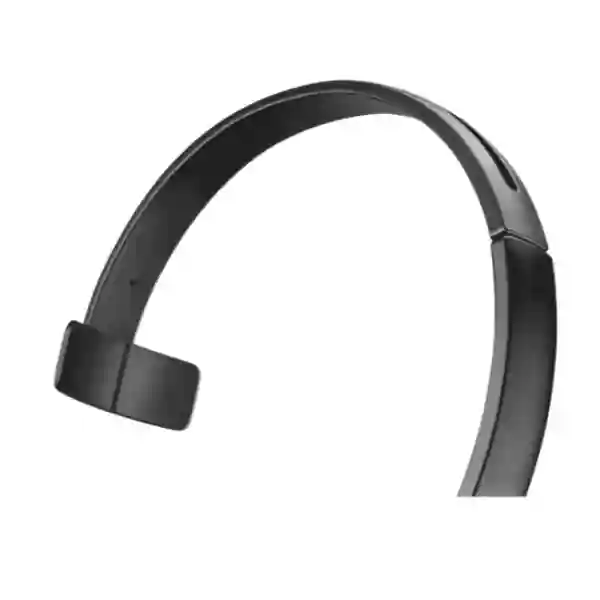
Wired office audio | Monaural | USB-A
HP Poly Blackwire 5210 Mono USB-A Headset
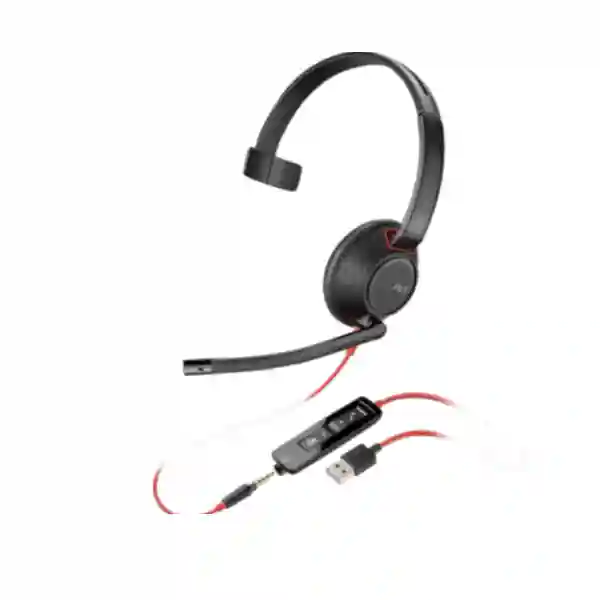
A practical one-ear headset for business calls, online meetings and roles that require awareness of colleagues nearby. Review the connectors, controls, comfort and software checks before requesting an exact Tanzania quotation.
Key features at a glance
- Single-ear on-ear wearing style leaves one ear uncovered.
- Wired USB-A computer connection; separate 3.5 mm audio option for compatible devices.
- Noise-cancelling boom microphone and adjustable padded fit.
- Inline call answer/end, microphone mute and listening-volume controls with supported software.
- HP-documented 28 mm speaker and SoundGuard Digital technology.
- Designed for voice-led desk work; confirm configuration and compatibility before bulk procurement.
Best fit in one sentence
Choose the Blackwire 5210 when you need comfortable, one-ear wired voice communication from a USB-A workstation and still want to hear the room. Choose another connector or wearing style when the computer or work environment calls for it.
Specification reference
| Wearing style | Monaural; on-ear, single earpiece |
|---|---|
| Connections | Wired USB Type-A; 3.5 mm audio for compatible devices |
| Microphone | Boom microphone with noise-cancelling functionality |
| Microphone bandwidth | 100 Hz–10 kHz |
| Speaker size | 28 mm |
| Speaker bandwidth | 200 Hz–6.8 kHz (speech); 20 Hz–20 kHz (media) |
| Impedance | 32 ohms |
| Approximate total USB-to-headset cable length | 217 cm |
| Controls | Call answer/end, mute, volume up/down; integration can vary |
| Manufacturer product number in referenced HP datasheet | 80R98AA (not a verified shop SKU) |
Reference specifications are based on HP’s published USB-A monaural documentation. Confirm the exact packaged variant before purchase. Retail price, stock and delivery are not specified here.
What the Blackwire 5210 is designed to do
The HP Poly Blackwire 5210 Mono USB-A Headset is intended for voice-led work where a reliable wired audio connection matters more than wireless mobility. One on-ear speaker delivers the caller’s voice while the opposite ear remains uncovered. This arrangement is particularly useful when a team member needs to speak to people in a room, hear a nearby colleague or remain aware of routine activity at a shared workplace. It is a practical communications tool rather than a device intended to isolate the wearer completely from the surroundings.
The Blackwire 5210 belongs to the Blackwire 5200 family. The USB-A configuration connects to a compatible computer through the familiar rectangular USB port. The detachable 3.5 mm connection provides a separate route for compatible mobile devices and tablets. These are different ways of connecting the same wired headset, not evidence that the headset is wireless, Bluetooth enabled or suitable for every device without checking the available ports. A sensible buying decision starts with the actual workstation and calling software.
For buyers in Tanzania, the main question is not simply whether a headset says ‘office’ on the packaging. It is whether staff will be comfortable wearing it, whether callers can understand the microphone clearly, and whether the chosen model matches current computers. An individual desk user and a twenty-person service team can have very different requirements. The guidance below helps both choose the right connection, understand the headset’s controls and plan deployment without assuming unverified local stock, delivery or pricing.
At-a-glance buying decision
Choose this mono USB-A headset when the typical user handles telephone calls, web meetings or softphone conversations from a computer equipped with a usable USB-A port. It makes particular sense if the user values awareness of the office over the complete two-ear listening experience of a stereo headset. The wired connection also suits fixed desks where charging, pairing and wireless range are unnecessary variables. It is not designed to let the wearer walk around a building while staying connected.
Consider another model if the computer offers only USB-C ports, the user primarily works from a phone without a compatible 3.5 mm socket, or the role demands two-ear listening to audio throughout the day. A compatible adapter might solve a port problem in some installations, but an adapter should never be assumed to be included with this USB-A listing. The Blackwire family offers different connection options, and the specification must match the precise packaged item rather than another similarly named version.
The decision can be reduced to four checks: a physical port that matches the headset, a calling application supported by the workstation, a preference for one-ear listening, and a desk layout that accommodates a cable. If all four are satisfied, the Blackwire 5210 is a straightforward candidate for business calls. If any are uncertain, request confirmation before placing a larger order. This simple check prevents more difficulty than choosing based on a generic claim of universal compatibility.
Why monaural listening matters at work
A monaural headset has one earpiece. It is often selected because the user wants caller audio in one ear while keeping the other free to notice colleagues, visitor announcements or surrounding activity. A receptionist may need to hear a person approach the desk; a supervisor may need to respond to a teammate during a call; an administrator may want to remain aware of office requests. These are everyday situations where one-ear listening is a benefit rather than a compromise.
That same openness is a limitation in a very loud environment. External noise will still reach the uncovered ear, and it can make a remote conversation harder to follow if the room is busy. The ear cushion provides some passive reduction at the covered ear, but this is not a two-ear isolation headset. The microphone’s noise-cancelling design concerns sound sent to the caller; it should not be confused with active noise cancellation that removes environmental sound for the listener.
Before standardising on mono, ask people to try the wearing style during their normal type of call. Some appreciate awareness and a lightweight feel; others prefer two-ear coverage for concentration. Neither preference is universally better. Comfort, communication accuracy and work context should guide the choice. A role-based pilot is often more useful than purchasing one design for an entire office simply because every employee uses the same meeting platform.
When a two-ear headset is a better choice
Stereo designs are worth evaluating when staff spend long periods listening to recorded training, multimedia, detailed presentations or calls in a room with persistent competing noise. Covering both ears can create a more focused listening experience, although actual isolation depends on the construction of the particular headset. If a worker repeatedly turns up volume to overcome noise in the uncovered ear, that may be a sign that the mono format is not ideal for that workstation.
A stereo headset is not automatically better for making speech intelligible to a caller. Microphone placement, microphone processing and the acoustic environment remain important regardless of whether the user has one or two earcups. The Blackwire 5210 should therefore be evaluated on its speech-capture design and physical comfort, while a Blackwire stereo alternative should be evaluated on the listener’s concentration needs. Compare specific configurations rather than assuming every item in a series has identical connectors.
For mixed workplaces, consider assigning mono headsets to front desks, team leads and administrative roles while testing stereo models with dedicated call-handling or training personnel. This is a suggested procurement approach, not a claim that any particular department must choose mono or stereo. Employees who work in quiet rooms may be satisfied with either. The best procurement decision follows actual tasks, room acoustics and compatible computer ports.
USB-A connection for computer-based calling
The specified USB-A connector makes the headset a convenient match for many desktop PCs and laptops with a USB Type-A port. A USB connection lets the computer recognise the headset as an audio input and output device, which can then be selected in system sound settings and in the calling application. This avoids relying on separate analog microphone and headphone jacks on the computer. It does not mean the headset can make calls by itself; a suitable application and working connection are still required.
Before deployment, inspect the real port layout. Some lightweight laptops and modern docking arrangements provide only USB-C. A USB-A socket on a monitor or hub might also behave differently if the upstream connection is absent or the hub is not working. An IT team should test the complete workstation, including docking hardware, before ordering quantities. Keep a small written record of the supported computer, operating system and application combination for future support.
For a straightforward setup, connect the USB-A plug, wait for the operating system to recognise the audio device, select the headset in microphone and speaker settings, and place a test call. Check both incoming and outgoing sound. If the machine is managed by an organisation, policies may restrict software installation or audio-device changes; ask the administrator to approve the test. Users should not assume that the operating system’s default audio selection is automatically correct for every meeting application.
The 3.5 mm connection: useful but different
The Blackwire 5210 USB-A variant also has a 3.5 mm audio connection described in HP’s product literature. This offers a way to use the headset with supported mobile devices or tablets that have an appropriate analog headset socket. It may be useful when someone moves between a PC-based call and a separate device during the day. Compatibility depends on the mobile device’s connector and audio support, so it should be tested with the actual equipment before any fleet purchase.
An important distinction appears in the manufacturer’s user guidance: the inline USB call-control functions should not be expected to operate in the same way when connected directly through 3.5 mm. Audio can work while the call answer or end feature is unavailable. Device-specific behaviour can also differ, particularly on mobile systems. Avoid promising identical mute, call and volume integration across every connection type. Users should know which controls are handled by the headset and which are handled inside the calling application.
Modern smartphones sometimes lack a 3.5 mm socket, and the fact that a phone has USB-C does not automatically make this USB-A version a direct fit. A phone-specific adapter may be required or may not support the microphone correctly. Confirm the intended phone’s supported audio interface rather than assuming a generic adapter solves the problem. For teams that primarily call from phones, it may be preferable to select a headset designed around that exact phone platform.
Check the exact variant before purchase
Blackwire 5210 listings can look similar while describing different connectors, adapters or packaging. The phrase ‘USB-A’ in this product name is meaningful: it identifies the computer connector that should be confirmed on the supplied unit. A listing for a USB-C headset supplied with an adapter is not necessarily the same packaged item. Even within the same family, manufacturer product numbers and certification details can vary. Procurement documents should preserve the connector type and exact model description.
HP’s published datasheet for the monaural USB-A configuration identifies manufacturer product number 80R98AA. That is a manufacturer product identifier in its documentation, not a verified FourTeck Tanzania SKU. It should not be substituted for a shop’s inventory code. When asking for a quotation, include the full name, mono wearing style, USB-A connector and any manufacturer identifier the seller confirms for the exact offered unit. Ask for a photograph or written specification where a variation is possible.
Check also whether the quotation refers to a current production package, an alternative regional package or a successor item. The existence of a manufacturer specification does not establish local availability, accessory inclusion for every bundle or delivery time. A formal quote should make these details explicit. This is especially important for procurement teams purchasing for multiple desks, because a small connector mismatch can create repeated installation problems across the entire deployment.
Microphone design and speech intelligibility
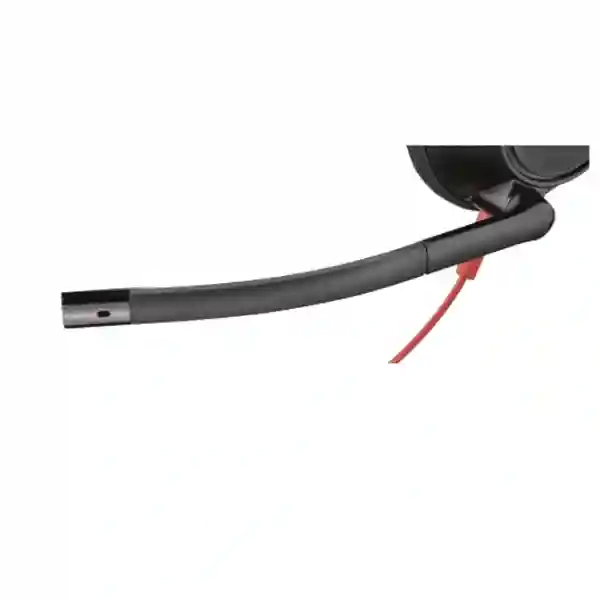
The Blackwire 5210 uses a boom microphone with noise-cancelling functionality. Placing the microphone near the user’s mouth helps it capture speech with a favourable balance against surrounding conversations and incidental room sounds. The manufacturer’s literature also references digital signal processing and audio optimisation. These technologies can support clearer communication, but they do not eliminate every source of noise or compensate for poor room acoustics, weak network performance or incorrect microphone positioning.
A microphone is only one part of the call path. The other participant also hears effects from the chosen meeting application, laptop processing, internet connection and the surrounding environment. For a fair evaluation, test the headset with the same application, network and workstation the employee will use. Ask someone on the remote end whether speech is clear, whether typing is distracting and whether a fan or conversation close to the desk remains audible. A controlled test provides more useful evidence than an unsupported claim of perfect background-noise removal.
Correct boom placement deserves attention during training. The manufacturer’s user guide recommends positioning the boom near the corner of the mouth, approximately a finger width away, rather than leaving it far from the face. A misplaced microphone can make a good headset sound weak, hollow or inconsistent. Encourage users to adjust the headband first, then set the boom position, then make a brief test recording or call. These simple steps help technicians distinguish fit problems from software problems.
Comfort and fit for repeated calls
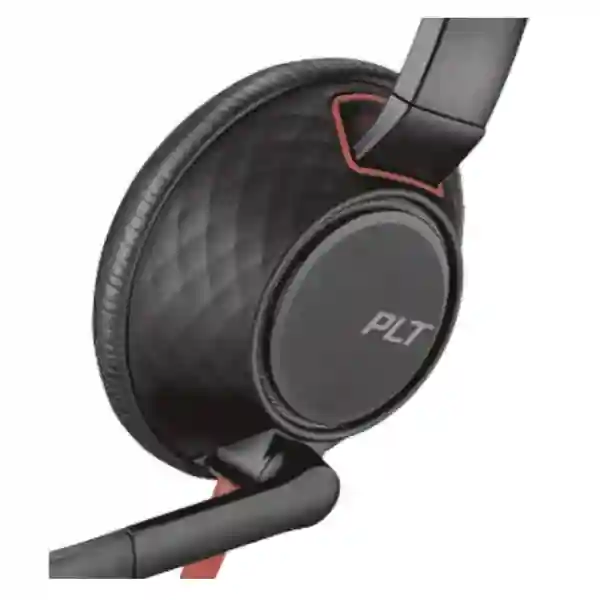
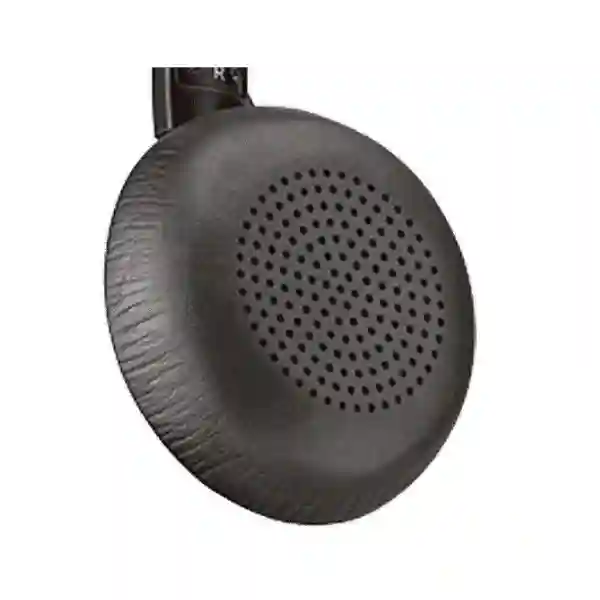
Comfort becomes more important when employees alternate between several calls every hour. The Blackwire 5200 design uses a padded headband and a soft ear cushion with an artificial-leather surface. HP describes a lightweight, adjustable fit intended for extended office use. The headset can be adjusted to sit over the ear without excessive clamping. Individual comfort will still depend on head size, personal preference, room temperature and how frequently the user takes breaks.
An effective fitting process starts with the headband length. Centre the earpiece over the ear, adjust the band so it feels secure without digging into the head, and position the microphone boom close to the mouth. Users should be able to move normally at their desk without pulling on the cable. If the earpiece shifts or the wearer continually repositions it, check whether the headband is too loose. If pressure builds, adjust the band and consider whether the style is suitable for the person.
Because the model leaves one ear open, some users find it convenient when they also need to hear activity around the desk. Others may notice fatigue from trying to hear a quiet remote caller over ambient noise. A comfortable fit cannot fully solve a noisy environment. Encourage moderate listening volume and brief breaks where feasible, and try a different acoustic setup if someone must continually increase volume. A pilot that includes typical long calls is more meaningful than a thirty-second fitting exercise.
Inline controls during a working call
On the USB connection, the Blackwire 5210 provides an inline controller with dedicated buttons for call answer or end, microphone mute and listening volume. This places common actions on the cable rather than requiring the user to find controls on a computer screen. For someone switching between spreadsheets, customer records and a communication window, physical controls can reduce interruptions. LED indicators provide status cues, including a red mute indication described in the manufacturer’s user guide.
Call-control integration depends on the connected software. The manufacturer notes that a compatible softphone and, in some cases, supporting HP software may be required for full button functionality. A headset that plays audio successfully is not automatically guaranteed to answer every meeting service from its cable control. A deployment test should include incoming calls, outgoing calls, hang-up and mute behaviour in the actual application. Document which actions work for staff, and show an in-app fallback if a button is not supported.
An effective call workflow is simple: confirm the correct headset is selected before joining, start with a moderate volume, speak with the boom in position, and use the mute control deliberately when necessary. After a discussion or private aside, verify that mute is disengaged before speaking. If the application shows a different mute state from the headset, use the application interface to check what remote participants can hear. Staff should learn both the headset controls and the corresponding software controls.
Using the headset with collaboration platforms
The Blackwire 5210 is marketed for business communications and appears in manufacturer documentation alongside several established collaboration environments, including Microsoft Teams, Zoom and other professional calling platforms. However, a platform name on a datasheet should not be interpreted as a promise that every current software release, operating system and tenant policy will enable every headset button. Audio input and output, call control and certification status are related but separate questions.
For teams using Microsoft Teams or another meeting application, carry out a short acceptance test. Join a meeting, verify the headset is selected as the microphone and speaker, speak at normal volume, mute and unmute, and confirm that the remote participant hears the change. Next, test an incoming call if the organisation uses telephony features. Record the result against the actual app version and managed workstation. That record is more valuable for an IT help desk than a generic ‘works with meetings’ description.
People sometimes use more than one client during a day, such as a meeting service for scheduled video sessions and a separate softphone for customer calls. The headset may appear as the same audio device in both, while button functions differ. Train users to choose the intended microphone in each application. If the audio device disappears after docking changes or a system update, reconnect it and inspect each application’s device settings before deciding that the hardware is defective.
Software support and device administration
HP documentation references companion software for headset configuration, firmware and application integration. Older product literature mentions Poly Lens, while the more recent Blackwire 5200 user guide describes HP Poly Studio Desktop. Organisations should follow the currently supported software for their exact device and operating environment rather than installing multiple utilities without an IT policy. The availability of any specific feature can depend on application version, managed-device permissions and the connected hardware.
For a single user, the first goal is to establish a working call without unnecessary complexity. For a managed fleet, an administrator may need to plan supported software, firmware maintenance and permission levels. Headset configuration utilities are helpful when enabled features or softphone integrations require them, but the existence of such a tool is not a substitute for testing the corporate call application. Before deploying updates widely, validate them on a representative workstation and keep a brief recovery procedure.
Do not promise automatic software setup or guaranteed remote management merely because the headset is part of a professional product line. A company with restricted desktops, limited administrative rights or older applications should confirm the exact deployment workflow. Where call-control software cannot be installed, users may still be able to handle audio through the system and the application itself. Clarifying this distinction at the procurement stage avoids disappointed expectations and unnecessary support incidents.
Technical specifications that influence selection
HP’s published specifications describe the Blackwire 5210 USB-A as a wired, on-ear monaural headset with USB Type-A and 3.5 mm audio connection options. The earpiece uses a 28 mm speaker. The published speaker bandwidth distinguishes speech use from media playback, while the microphone bandwidth is specified for voice. These figures describe equipment characteristics; they should not be converted into promises of a particular level of call quality in every room or application.
The reference datasheet lists the microphone bandwidth as 100 Hz to 10 kHz, speaker bandwidth as 200 Hz to 6.8 kHz in speech mode and 20 Hz to 20 kHz in media mode, and impedance as 32 ohms. The documented total USB-to-headset cable path is approximately 217 cm. That length should help buyers picture a desk setup, but it is not a wireless working range. The actual routing of the cable, position of a docking station and how a user sits will determine whether it is convenient.
Manufacturer literature also lists an adjustable headband, synthetic-leather ear cushion, a carrying case and a noise-cancelling microphone. The supporting documents specify a standard two-year limited manufacturer warranty, but the applicable terms of a Tanzanian purchase should be checked in the seller’s written offer. Do not assume the manufacturer’s published warranty statement establishes local service process, replacement time or extra coverage. For purchasing decisions, the exact supplied package and after-sales terms matter as much as a frequency-response number.
Hearing comfort and SoundGuard features
The Blackwire 5200 line includes SoundGuard Digital acoustic protection technology in HP’s technical documentation. That feature is relevant because office communication involves unpredictable changes in caller volume, ring levels and background audio. However, the detailed behaviour and availability of software-enabled acoustic features can depend on the compatible desktop application and its configuration. A procurement description should distinguish a published feature from a guarantee that it is configured and active on every workstation.
Even when a headset has hearing-protection technology, sensible listening practices remain important. Start with low or moderate volume, increase only as necessary to understand speech, and avoid raising the level simply to overpower nearby room noise. If users regularly struggle to hear calls, investigate the workspace acoustics, application settings or whether a stereo wearing style would be more appropriate. A headset cannot make a noisy environment harmless by itself, and feature names are no substitute for safe listening habits.
Managers can support a better experience by setting reasonable call breaks, ensuring headsets fit correctly and giving staff a way to report uncomfortable loudness or distortion. IT teams should document any supported configuration features they enable rather than assuming default settings. Where the manufacturer requires companion software for particular functions, confirm that requirement for the version in use. This approach makes acoustic protection part of an informed workplace setup rather than an unsupported marketing promise.
Practical setup on Windows computers
Begin with a desktop or laptop that has an available USB-A port. Connect the headset directly for the initial test and allow Windows to recognise it. Open the sound settings and check that the intended headset appears under output for listening and input for the microphone. Then open the softphone or meeting application and select the headset there as well. Different applications may retain their own device preferences, so setting the system default alone is not always sufficient.
Make a test call with a colleague rather than relying only on a desktop notification sound. Ask whether the person can hear you clearly and whether your speech stays at a consistent level while you use the keyboard. Verify the listening volume and microphone mute. If the microphone is absent, inspect privacy permissions, the application’s selected device and the physical connection before changing equipment. If an organisation uses a USB dock, repeat the test with the dock connected as it will be in daily work.
When the headset behaves inconsistently after the laptop resumes from sleep or moves between docks, disconnect and reconnect the device once, then review audio selections. Avoid installing unapproved software or changing managed policies in an attempt to fix an ordinary device-selection issue. If call answer or end buttons do not respond, check the application’s supported integration and the manufacturer’s current utility guidance. Audio working while call buttons do not is a different fault category from no audio at all.
Practical setup on macOS computers
The manufacturer identifies macOS among supported operating environments for the Blackwire 5210 USB-A product. The physical port still matters: a Mac with only USB-C sockets does not have a direct USB-A connection without suitable hardware. Where an approved adapter or dock is available, an IT team should test it with the exact headset before deployment. After connecting, inspect the computer’s sound settings and select the headset for both input and output as appropriate.
In the conferencing app, open the audio preferences and confirm that the same headset is chosen. Use an application test or a short colleague call to check microphone volume, playback and mute. If the system microphone is still selected by mistake, the person on the other end may hear room noise instead of the boom microphone. This can happen even when the wearer hears the other person through the headset. Treat input and output as separate selections when troubleshooting.
For organisations maintaining Windows and Mac fleets, it is worth creating one short setup guide for each operating system. The guide should show where to find the audio device settings, how to check mute and what to do if a dock is removed. Employees should not have to guess whether a headset is defective when the computer has silently switched back to another microphone. Consistent instructions make everyday support faster and reduce unnecessary hardware returns.
A realistic role for the headset in hybrid work
Hybrid workers may use a headset at a permanent office desk on some days and in a quiet home workspace on others. The Blackwire 5210 is appealing when a user prefers a wired connection and wants to keep one ear free. Its carrying case, referenced in the manufacturer documents, can help organise the headset when it is not in use. However, moving between computers is easiest when both machines have suitable ports and the necessary calling applications are configured.
An effective home-work arrangement is built around a predictable call location. Place the laptop where the cable can reach without crossing an uncomfortable route, reduce television or fan noise during calls, and keep the microphone boom in the correct position. A noise-cancelling microphone helps with speech pickup, but it cannot remove every distraction that a remote caller might hear. Room layout, door position and meeting etiquette often make as much difference as the equipment itself.
For frequent travel, the wired arrangement may be less convenient than a headset selected specifically for mobile or wireless use. The Blackwire 5210 should not be sold as a mobility solution simply because it has a carrying case or a 3.5 mm connection. Ask employees how often they change work locations, whether their current laptop includes USB-A and whether they need to speak while walking. Choose equipment for the actual pattern of work rather than a broad ‘hybrid-ready’ label.
Reception and front-desk applications
A receptionist needs to manage callers while remaining aware of visitors, colleagues and workplace activity. The mono design can support that balance by sending remote speech to one ear and leaving the other available for nearby interactions. The inline mute control may be useful when an employee has to briefly address somebody at the desk, provided the application and connection support the intended behaviour. Physical call buttons can also reduce the need to switch windows while handling administrative tasks.
The headsets should be considered one part of a complete front-desk workflow. Staff may use a browser-based application, a desktop softphone or a separate telephone system, and these are not automatically interchangeable with USB audio. Confirm the exact platform, supported headset integration and computer connection before assuming the Blackwire 5210 can answer calls from a particular desk phone. A USB-A connector is designed for compatible USB hosts, not every telephone socket.
Reception desks can be busy and shared by shifts. Establish simple practices for adjusting the headband, checking the microphone position and keeping the cushion clean according to manufacturer guidance. If multiple people use the same unit, consider hygiene preferences and whether personal headsets would be more suitable. For a trial, evaluate a morning or afternoon of real reception work: test speech clarity, ease of muting, cable position and ability to hear the person standing at the desk.
Customer-support and help-desk work
In customer support, the headset is part of a sequence that also includes a customer record, a ticketing screen and a voice application. The Blackwire 5210 offers the essential audio components for workers who value a compact single-ear arrangement. A boom microphone can help keep the user’s speech prominent relative to a computer’s built-in microphone. The inline controls make common audio actions accessible without forcing the worker to move away from their ticketing application.
Not every support centre should choose mono. In a crowded room where many agents speak at once, employees may benefit from the listening focus of a stereo design. The decision should be made with the room occupied at normal staffing levels, not while the office is empty. Consider the noise heard by the user, the noise heard by customers, and whether calls involve lengthy technical conversations. An adequately designed microphone does not prevent staff from hearing colleagues on the uncovered side.
During a headset trial, ask agents to handle typical calls and rate clarity, comfort, mute confidence and ease of switching between software windows. Log any applications in which call controls fail. Support supervisors should test the experience of the remote customer rather than relying solely on the agent’s impression. This creates a more defensible purchasing decision and gives the IT team a clear baseline for future audio troubleshooting.
Administrative desks and general business meetings
Administrative employees often mix scheduled online meetings with short internal calls, email, document work and in-person conversations. A mono headset can fit that rhythm because it does not completely separate the wearer from their workspace. The Blackwire 5210 is a sensible candidate when the computer offers USB-A, the headset fits the wearer comfortably, and business calls are more important than immersive media. Its wired design removes the need to manage pairing during ordinary desktop use.
A person attending an extended training session may prefer both ears covered, especially when detailed material is being presented. That difference does not make this model unsuitable for meetings; it means the wearing style should be chosen deliberately. Staff who sometimes participate in a meeting and sometimes need to hear a colleague may place particular value on mono listening. Ask people to compare how they work rather than selecting the same headset merely because it is assigned to the same department.
Before rolling out to an administration team, verify every workstation’s USB-A access, confirm the meeting apps in use and show employees how to choose audio settings. A short one-page guide covering headset fit, mute and volume will prevent common problems. If staff use a laptop with an external monitor and keyboard, test the cable route with their usual posture. A setup that works at a bare test desk may be inconvenient at a fully equipped workstation.
Training rooms and education offices
Training coordinators, instructors and education administrators may need a headset for interactive sessions, remote consultations or routine calls. The Blackwire 5210 is relevant where a one-ear listening style helps the user remain aware of a room while communicating with someone online. For example, a trainer might need to hear local questions while participating in a remote planning discussion. The suitability of the headset depends on the activity and how noisy the room becomes.
In a computer lab or shared teaching office, the practical issues include the physical port, microphone privacy settings and whether individual users can select the correct device. Standardised headset models can simplify support if they match every machine, but a collection of USB-C-only laptops and older USB-A desktops may call for different variants. Do not assume that a brand-name headset automatically integrates with teaching or conferencing platforms without a test of the actual software environment.
Where many users share equipment, create a clear sign-in and storage practice. Protect the microphone boom from being bent unnecessarily, avoid sharp cable bends, and check that cushions are cleaned appropriately. If the main need is listening to long course material rather than two-way calls, a stereo alternative may be more comfortable for some users. In procurement, distinguish ‘voice participation’ from ‘immersive listening’ so the purchased equipment matches the actual educational task.
Room acoustics and desk placement
The quality of a business call depends on more than a microphone specification. Hard walls, nearby conversations, fans and open doors can all affect how clearly someone is heard. The Blackwire 5210’s microphone is designed to reduce some background noise, but users will still benefit from a quieter location when discussing sensitive or detailed subjects. If a room is extremely noisy, improve the workspace or change the listening arrangement instead of expecting any one headset to perform impossible acoustic correction.
At a fixed desk, place the computer or USB hub so the cable follows a comfortable route rather than stretching diagonally across the work surface. The published cable length is useful as a planning reference, but actual reach decreases when the cable passes around a monitor stand, under a desk or through a cable guide. A headset should not pull on the user when they turn to a secondary screen. Test movement across the normal working zone before finalising installation.
Acoustic conditions can change during a day. A room may be quiet for a morning meeting and busy when customer-support staff arrive. Test under representative conditions, including normal keyboard use and typical nearby conversations. When voice clarity matters, ask the remote participant to describe what they hear, then adjust the microphone boom and local environment. Documenting these changes teaches users practical ways to improve calls and prevents unfairly attributing every problem to the headset.
Care, cleaning and safe handling
A wired headset is often used repeatedly throughout the day, so a little care matters. Avoid pulling the headset away from the computer by the cable, and disconnect using the connector housing rather than the cord. When storing the unit, keep the microphone boom in a protected position and avoid tightly winding the cable around sharp objects. The carrying case referenced in the manufacturer’s documentation can help protect the headset during storage or transport.
Clean the headset according to current manufacturer instructions and workplace hygiene policy. The ear cushion has an artificial-leather surface, which should not be treated as a licence to apply harsh cleaning chemicals. If multiple employees share a headset, establish a consistent practice for personal hygiene and comfort. Inspect cushions and connectors periodically for wear. Damaged cables, exposed wiring or unstable connectors should be removed from use and assessed rather than repeatedly forced into a port.
The user guide also encourages safe listening levels. Lower volume before starting audio and avoid sustained high levels, particularly when the room is noisy. If someone reports discomfort, adjust the fit, listening level and work environment. For workplace technology teams, keeping a small record of damage patterns can reveal installation problems, such as desk cable traps or excessive tension at a docking station. Routine care is a practical way to protect the investment in communications equipment.
When the caller cannot hear your microphone
First verify that the user has not muted the microphone using the headset or the calling application. The inline controller can display a mute indication while the software can have its own mute state. Next check that the microphone boom is positioned near the mouth. Ask the user to speak at a normal level and make a test recording if permitted by workplace policy. Moving the microphone closer is often more useful than setting the computer’s input gain excessively high.
Open the meeting or softphone settings and confirm that the Blackwire device is selected as the input. A laptop’s built-in microphone might still be active even while audio playback comes through the headset. Inspect operating-system microphone permissions and check the USB connection if the device is missing. With a dock, try a direct port as a diagnostic step where permitted. If the headset was connected by 3.5 mm, confirm that the device’s analog socket actually supports a headset microphone.
If colleagues still cannot hear speech, test the unit on another approved workstation and compare results. A failure isolated to one application suggests a settings or integration problem. A failure across several suitable hosts may indicate a cable, connector or microphone fault. Record the steps tried before escalating. This structured approach reduces repeated troubleshooting and makes it easier to decide whether support, configuration or a replacement unit is appropriate.
When you cannot hear the other participant
Check the simplest causes first: the headset listening volume, the application playback level and the computer’s selected output device. A conferencing application may use a different speaker setting from the system default. If the computer is playing sound through its built-in speakers, choose the Blackwire headset explicitly. Ask the other participant to speak while making changes; a notification chime is not always a representative test of voice audio.
Inspect the USB-A connection and, where relevant, verify that the detachable 3.5 mm plug is fully seated in its intended connector. HP’s user guide identifies incomplete 3.5 mm seating as a possible cause of audio problems. Avoid forcing a connector that appears misaligned. If a dock or hub is involved, confirm that it is connected to the host and supplying normal USB functionality. Try a known working port as a diagnostic step if workplace policy allows.
When playback sounds distorted or echoes, lower unnecessary volume and inspect the meeting application’s audio settings. Extremely high volume can make speech less comfortable without improving intelligibility. If the problem happens only during one application or one caller’s session, investigate that connection or software first. If every audio source behaves badly on several computers, hardware support becomes more likely. Separating these scenarios avoids replacing a working headset for a problem elsewhere in the call chain.
When the inline call buttons do not respond
The ability to hear and speak through a USB headset is different from the ability to answer or end calls using a hardware button. The manufacturer’s guide explains that call control is dependent on supported softphone software and may require an HP desktop utility. Therefore a failed answer button does not, by itself, establish that the headset is defective. Check whether the organisation’s exact calling application supports the device’s call-control integration.
Confirm the headset is attached through the intended USB-A route, not only through the analog 3.5 mm connection. Review application permissions and any available integration settings. If a managed PC needs an approved HP utility for call handling, ask IT to determine whether it is supported and allowed. Some settings may require administrative privileges. Do not advise staff to install unknown third-party utilities merely to activate a button that is not essential for audio.
As a practical fallback, staff can use the answer, mute and hang-up controls inside the calling application where the hardware integration is unsupported. Teach this during onboarding so an unexpected button behaviour does not interrupt a customer conversation. If call handling is central to the role, include a full button test in the acceptance criteria before buying a fleet. For a reception desk, reliable call control may be more important than it is for an employee who joins occasional meetings.
Questions for IT procurement teams
Begin with the exact item rather than a general category such as ‘USB office headset’. Specify Blackwire 5210, monaural or mono wearing style, wired USB-A computer connector and the required 3.5 mm use case. Ask the supplier to confirm the packaged configuration and any manufacturer product identifier for the offered item. An apparently similar USB-C package with an adapter may satisfy a different need, but it should not be silently substituted for the named USB-A version.
Next document the organisation’s deployment environment. Which computer models are in use? Do they have accessible USB-A ports after docking? Which operating-system versions and calling applications are installed? Are employees permitted to use the manufacturer’s device utility? What is the expected number of users, and are headsets individually issued or shared? These questions determine whether the headset is a simple direct fit or whether setup and support effort must be budgeted.
Finally confirm the commercial terms in writing. Ask for the local quotation, the actual units offered, stock confirmation, expected delivery arrangements, applicable warranty coverage and the process for defective equipment. None of these can be inferred from an international product datasheet. For a Tanzania purchase, an accurate written offer is the proper source for prices in Tanzanian shillings, after-sales terms and logistics. A careful specification saves time during receiving, deployment and later service requests.
A sensible pilot before bulk deployment
Large offices can reduce uncertainty by testing a small group of representative users before standardising. Include at least one busy front-desk or administrative employee, someone who attends many meetings, and a person using the most common computer and docking setup. Give each participant enough time to handle ordinary work rather than only an artificial test call. Check the fit of the single earcup, microphone pickup, cable reach and confidence in mute behaviour.
Use a consistent test checklist across users. Record whether the operating system recognises the headset, whether the chosen app selects the correct audio devices, whether call controls function and whether the remote party hears speech clearly. Note any issues caused by crowded rooms, fan noise or staff speaking to someone beside them. Avoid assigning numeric ‘quality scores’ without a consistent method; practical observations are often more useful for deciding whether a model fits the team’s work.
After the trial, compare reported problems by role and workstation configuration. A headset that works well for administrative meetings may not be the best option for an agent in a particularly noisy room. If users must continually remove the earpiece or unplug it to talk to colleagues, review work practices or headset selection. The goal is not to validate a preselected product at any cost, but to find a comfortable, reliable setup that staff can use correctly.
How to standardise multiple workplaces
When a headset model has passed a pilot, build a small deployment standard that covers physical connection, audio settings, software requirements and support ownership. A technician should know where the USB cable connects, which meeting app is being tested and what a successful microphone check sounds like. If docks differ across teams, specify which combinations were verified. This helps new employees start using headsets without repeating the entire evaluation process.
Training does not need to be complicated. Demonstrate headband adjustment, boom position, mute, volume and the meaning of the relevant status lights. Show where to select the microphone inside the main communication application. Give a clear procedure for a lost audio device after docking changes or an operating-system update. These steps are especially useful in shift-based environments where someone other than the original user may take over the workstation.
Maintain a basic support and replacement process. Record any recurring problems, including broken cables, connector damage, application integration failures and discomfort complaints. Keep manufacturer product identifiers separate from the organisation’s internal asset codes and the seller’s SKU. This prevents confusion when buying replacements. If future laptop models move away from USB-A, revisit the chosen headset connector rather than assuming the existing standard will remain suitable forever.
What is included and what requires confirmation
HP’s published product literature for the Blackwire 5210 monaural USB-A headset lists the headset, a carrying case, a quick-start guide and warranty documentation. That provides a useful reference for discussing the product with a supplier. However, retail bundles, regional packaging and offered alternatives should still be confirmed against the exact quotation. Do not rely on an online photograph to prove that a particular adapter, spare cushion or accessory is present in the box.
The headset itself is a wired model with an on-ear mono speaker and microphone boom. It is not described as a wireless unit that needs Bluetooth pairing or charging. Do not confuse this USB-A version with similarly named USB-C packages that may include a USB-A adapter. If a workstation or mobile device requires additional hardware, request confirmation that the necessary part is compatible and separately itemised or explicitly included before purchasing.
Warranty details also deserve precision. Manufacturer documentation states a standard two-year limited warranty, but a buyer should check which warranty terms apply to the specific Tanzania transaction and who handles claims. Local service arrangements, transport charges, turnaround times and replacement conditions are not established by a global datasheet. A clear quotation and invoice should identify the supplied item and the applicable written terms so that future support is straightforward.
Comparing Blackwire 5210 with other headset choices
Compare headsets by task, connector, wearing style and workflow rather than by brand alone. The Blackwire 5210 focuses on one-ear wired computer calling with an available 3.5 mm option for suitable devices. A stereo variant may be more appropriate for two-ear concentration. A USB-C model may be a direct match for newer laptops. A wireless headset may suit employees who need to move away from a desk, but introduces a different set of considerations such as power management and connectivity.
For dedicated call work, evaluate how reliably the device integrates with the chosen softphone. For general meetings, microphone and speaker selection may be more important than one-touch call handling. For multimedia tasks, listening comfort and two-ear audio may matter more than office awareness. The Blackwire 5210 can be a good fit for its intended use without being the best solution for every user. A product page should communicate those trade-offs clearly rather than implying universal superiority.
Also distinguish visible specifications from operational outcomes. A microphone bandwidth figure, a comfortable cushion and a published platform name cannot prove a better customer experience without a deployment test. Compare sample headsets in the same acoustic environment using the same application. If an alternative is considered, make sure its exact connector and included accessories are known. This approach gives Tanzania buyers a fair basis for a technical and commercial decision.
Five final checks before requesting a quote
First, verify that the user wants mono listening and will benefit from one free ear. Second, verify an accessible USB-A host port for normal computer calling. Third, establish whether 3.5 mm use is required and whether the intended phone or tablet supports that audio connection. Fourth, test the actual meeting or softphone application, including the microphone, speaker and call-control functions that matter to the role. These checks turn a broad product name into a reliable workstation requirement.
Fifth, obtain a written quotation for the precise packaged unit, including the manufacturer identifier when confirmed. Ask about availability and delivery without treating a product page as proof that goods are currently on hand. Clarify after-sales support, the applicable warranty and any proposed accessories. If many desks are involved, request a small sample or pilot where commercially practical. A documented test is especially valuable when different laptops or software clients will be used.
Keep the full name ‘HP Poly Blackwire 5210 Mono USB-A Headset’ on the request so that the supplier can distinguish the intended connection and wearing style. If the quote describes a different USB-C configuration, review the difference instead of assuming equivalence. A successful purchase is one in which staff can connect, hear, speak, mute and work comfortably, with commercial details confirmed in writing before the order is approved.
Frequently asked questions
Is the HP Poly Blackwire 5210 Mono USB-A Headset wireless?
No. This is a corded headset designed around a wired computer connection through USB-A. Its documented 3.5 mm audio option also uses a physical cable. It does not rely on Bluetooth pairing, and it should not be chosen for workers who must take calls while walking away from the connected device.
Does the Blackwire 5210 cover both ears?
No. The 5210 is monaural, meaning it has one on-ear speaker. The uncovered ear remains available to hear nearby activity. This is useful for some reception and general office roles, but may not suit someone who wants more isolation from a busy room.
Can I use this headset with a USB-C-only laptop?
The named variant has a USB-A computer connection. A USB-C-only computer does not have the matching physical port. Ask an IT administrator to verify an approved adapter, dock or a different USB-C headset variant before ordering, and confirm the exact supplied configuration.
Can it connect to a smartphone or tablet?
HP documents a 3.5 mm audio connection for compatible devices. The mobile device must support the relevant analog headset connection, and call controls can differ from USB operation. Some modern phones need an adapter or use a different headset interface, so check the actual device.
Does the microphone remove all background noise?
No. The headset has a noise-cancelling boom microphone intended to improve speech pickup in typical office conditions. It cannot guarantee silence on the far end of a call. Microphone position, room noise, application processing and the network still influence the result.
Will the inline call buttons work in every meeting app?
Not necessarily. Volume and audio operation are not the same as full softphone call-control integration. HP’s user guide notes that call-control features depend on compatible software and sometimes an HP desktop application. Test the buttons in the software your team actually uses.
Does it support Microsoft Teams or Zoom?
Manufacturer documentation includes business collaboration platforms among the product’s supported or certified environments. Exact functionality can depend on the application version, workstation and product configuration. Verify your deployment with a test call, including mute, answer and hang-up where needed.
What comes in the box?
Manufacturer product literature lists the headset, carrying case, quick-start guide and warranty information. Confirm the contents of the specific offered unit with the seller, especially if a quotation refers to another region or an adapter-equipped version.
Does the headset need charging?
This is a wired headset, so it is not purchased as a battery-powered Bluetooth headset that needs a charging routine. The connected device supplies the relevant interface. Users should still check that the computer recognises the audio device and that the application uses it.
How do I make my microphone louder or clearer?
Check that the Blackwire microphone is selected, remove mute, position the boom near the corner of the mouth and place a test call. Then adjust microphone input within the approved system or calling app settings. Avoid using extreme volume settings to compensate for poor microphone placement.
What warranty applies in Tanzania?
HP’s reference datasheet describes a standard two-year limited manufacturer warranty. The exact conditions, local handling process and seller obligations for a Tanzania transaction must be confirmed in the written offer; they should not be assumed from an international specification.
Can I buy it at a confirmed Tanzania price?
A verified local price, stock position and delivery commitment have not been supplied for this listing. Request a current written quotation for the exact HP Poly Blackwire 5210 mono USB-A configuration, including the applicable currency, terms and any required accessories.
Request an exact-model Tanzania quotation
Ask for the HP Poly Blackwire 5210 Mono USB-A Headset by its full description. Share the number of users, the computer ports, the calling application and any need for 3.5 mm connectivity. Request written confirmation of the packaged variant, availability, price, delivery and applicable warranty arrangements before placing an order.
Contact FourTeck Tanzania for a product-specific quotation and compatibility discussion.
Reviews
There are no reviews yet.