
Purpose-built Zoom Rooms compute | Tanzania buying guide
HP Poly Studio 7 Room Compute with Zoom Rooms
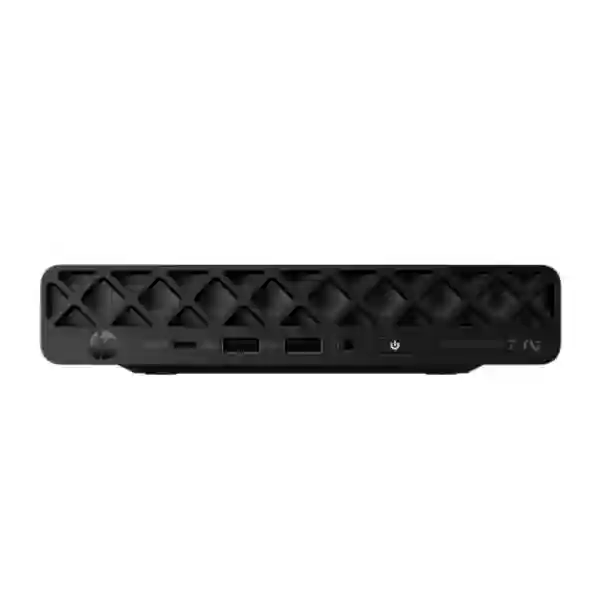
Create a dependable, adaptable meeting room with a dedicated Windows-based conferencing computer. The HP Poly Studio 7 Room Compute with Zoom Rooms is positioned by HP for larger, customizable and multi-camera meeting environments. It combines Intel Core Ultra 7 processing with a compact chassis and an HP Poly room-management ecosystem.
Important buying detail: This is the compute unit, not a complete room bundle. A Zoom Rooms licence, compatible touch controller, camera, audio devices and displays need separate planning and purchasing. Request an itemized configuration for your room before committing to the project.
Verified highlights
AI-capable room-compute processor
HP-listed memory configuration
Compact solid-state storage
Hardware capability; software dependent
Technical specification and package checklist
| Room platform | Zoom Rooms on Windows; room licence sold separately |
|---|---|
| Processor / AI | Intel Core Ultra 7-366H; up to 50 NPU TOPS |
| Memory / storage | 32 GB RAM; 256 GB PCIe NVMe M.2 SSD |
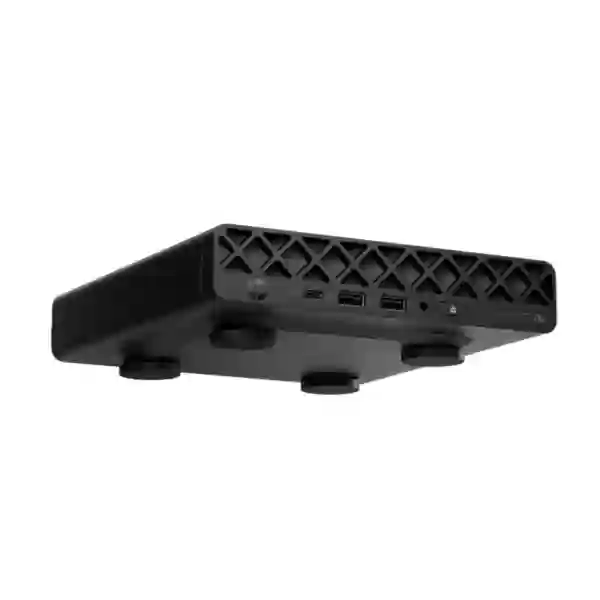
| Size / weight | 17.7 × 18.1 × 3.4 cm; about 1.07 kg |
| Front I/O | 1 × USB-C 10 Gbps (charging); 2 × USB-A 10 Gbps; combo audio jack |
| Adapter / ambient conditions | 150 W external power adapter; operating range 10–35 °C |
| HP-listed box contents | Compute unit, AC adapter, power cable, DisplayPort-to-HDMI True 4K adapter, magnetic mount, Ethernet cable, setup sheet, warranty card |
| Required separately | Zoom Rooms licence, touch controller, compatible audio/video devices; displays as needed |
Based on HP’s published product specifications for the Zoom Rooms variant. Confirm final country-specific part, installation instructions and accessories in the commercial offer. No Tanzania stock, price, delivery or regulatory claim is made here.
What you are buying—and what you are not
The HP Poly Studio 7 Room Compute with Zoom Rooms is the processing centre of a dedicated Zoom meeting room, rather than an all-in-one camera or speakerphone. It runs the room experience on Windows and connects the other parts of the installation. For a procurement team, this distinction is the first step toward an accurate quotation. A room computer may be a critical component, but it cannot capture voices at the table or show participants on a wall display without the appropriate connected devices.
HP states that a Zoom Rooms licence is required and sold separately. A complete room also needs a touch controller and audio and video equipment, which are not supplied with this compute unit. That means the final solution should be described as a configured system made up of several line items. Treat the advertised compute specification as the core hardware specification, not as evidence that an entire room installation, support service or subscription is included.
Designed for customizable Zoom meeting spaces
HP positions Studio 7 Room Compute with Zoom Rooms for larger and customizable rooms, including scenarios with multiple cameras. That makes it a relevant candidate for boardrooms, executive meeting facilities, training areas and other spaces where a small single-camera appliance may not satisfy the room design. The actual number and placement of cameras should still follow supported Zoom Rooms features, compatible hardware and the geometry of the space, not an arbitrary assumption based on the processor.
Smaller meeting rooms can also use dedicated room computing when a modular design is valuable, although that does not make this the least expensive approach. The stronger argument for Studio 7 is the flexibility to plan cameras, audio, control and displays as an integrated, serviceable set. For IT managers responsible for several rooms, a consistent compute platform may simplify planning, documentation and operational processes, provided each room has been individually designed and tested.
Core hardware specification at a glance
The Studio 7 Zoom Rooms configuration is listed by HP with an Intel Core Ultra 7-366H processor, 32 GB RAM and a 256 GB PCIe NVMe M.2 solid-state drive. HP describes the processor’s integrated neural processing capability as up to 50 NPU TOPS. The specification is relevant to understanding the compute class and headroom of the product, but it does not define a guaranteed number of active cameras, simultaneous displays, participants or AI functions for every possible room.
The chassis measures 17.7 by 18.1 by 3.4 centimetres and weighs approximately 1.07 kilograms. HP lists a 150-watt external power adapter and a working temperature range of 10 to 35 degrees Celsius. Those values help an installer plan space, ventilation and electrical provision. They should not be confused with typical power consumption, a promise of cooling capacity or guaranteed performance in a closed cabinet. Always confirm the exact country-specific part and included components against the formal quotation.
Why the Intel Core Ultra platform matters
The processor is designed for modern PC workloads and incorporates an NPU, which can accelerate supported AI operations when the operating system, conferencing software and device features actually use it. HP describes the Studio 7 as ready for evolving AI-enabled collaboration. That is an architectural advantage, but it should not be presented as an entitlement to every current or future Zoom AI feature. Features may depend on licensing, software versions, administrator settings and compatible peripherals.
A sensible buying discussion separates the ability of the hardware from the experiences licensed and enabled in the meeting-room account. Ask which required Zoom Rooms functions are available today, which features are optional and whether specialist multi-camera functions are supported in the proposed configuration. The Intel Core Ultra platform is one part of the solution; the application release, peripheral firmware, room network and user configuration together determine the experience that people actually see.
Zoom Rooms on Windows, not a general office PC
This product is supplied for Zoom Rooms on Windows rather than as a standard desktop for spreadsheets, web browsing or ad-hoc laptop replacement. HP’s 2026 room-compute documentation describes a solution combining Windows 11 IoT Enterprise, Zoom Rooms software, HP Poly Studio Room App, controller software and the associated peripherals. A procurement specification should preserve that dedicated meeting-room role and avoid treating the device as an ordinary employee computer.
A dedicated room account and consistent room configuration can reduce confusion during scheduled meetings, but they also require IT ownership. Decide who will administer the Zoom tenant, manage the room licence, approve software updates and respond when a camera or touch controller needs attention. The bundled software image and current versions should be confirmed at installation because HP may update its factory image or release guidance after the initial deployment.
Build the complete room around the compute
Start with the activities taking place in the room. A board meeting, a lecture, an interview and a routine departmental check-in place different demands on camera angles, microphone pickup and display placement. Write down the expected seating plan, typical number of local attendees, remote audience needs and the type of content participants will share. From that information, choose the audio and video endpoints and confirm their current compatibility with the HP Poly compute and Zoom Rooms platform.
Next, account for the HP Poly TC10 room controller, the Zoom Rooms subscription, displays, cabling, mounts and any network switching required by the final design. Decide whether a dedicated calendar integration, room scheduling function or auxiliary control interface is required. These elements should be itemized rather than buried under a vague description such as video conferencing kit. Accurate component lists help facilities staff, purchasing teams and the eventual installer agree on the scope before equipment is ordered.
Selecting the right camera arrangement
HP identifies the Poly Studio V12, V52 and V72 USB video bars and the Poly Studio E60 and E70 cameras among recommended devices for the Studio Room Compute family. A video bar combines selected capture and audio functions in one housing, while a standalone camera may need separate microphones and speakers. Selecting between them is a room-design decision, not simply a comparison of megapixel figures. Verify the supported combination for the exact Zoom Rooms software version and the intended installation.
Camera placement should consider eye contact, long tables, presenters, whiteboards and room lighting. In a boardroom, a front camera might capture the whole table, but participants seated far away can appear small. In a training room, a presenter position may call for different framing than seated group discussions. If multiple cameras are planned, define how switching or composition will work and validate the required Zoom Rooms licence and certified feature support before confirming a final bill of materials.
Audio quality begins with the physical room
Good collaboration is difficult when remote participants hear echo, air-conditioning noise or people sitting far from the microphone. The compute unit does not remove the need for suitable audio capture. Determine whether a compatible video bar can cover the seating area or whether distributed microphones, dedicated loudspeakers and additional audio processing should be assessed. A qualified audio-video design should address pickup coverage, speech clarity, room reverberation and the paths used for echo cancellation.
Begin with a simple acoustic inspection. Hard glass surfaces, long reflective tables, high ceilings and noisy ventilation can all change the result. Place microphones where people actually speak, avoiding poorly positioned units that invite participants to raise their voices. Where more advanced audio components are proposed, check their support matrix rather than assuming any generic USB microphone will function identically. The goal is understandable conversation from every seat, not just an impressive list of hardware specifications.
The HP Poly TC10 touch controller
HP identifies the Poly TC10 as the touch controller required for the advertised automatic pairing workflow with Studio Room Compute. It is sold separately. The TC10 provides a convenient in-room interface for meeting interaction and is especially useful where attendees should not need to operate the compute through a keyboard and mouse. A purpose-built controller supports a more consistent guest experience when staff move between similarly configured conference rooms.
Controller planning includes where it will be mounted, how its Ethernet and power connection will be delivered, whether it should be accessible from the meeting table and how the cable will be protected. HP describes support for connecting multiple TC10 controllers through a local Power over Ethernet switch; the switch is separately purchased. Do not assume a second controller or scheduler is included in the standard compute price. Confirm the supported controller count, intended functions and network requirements with the deployment design.
Zoom Rooms licensing and the room account
The hardware and the conferencing service are separate purchases. HP explicitly states that the Zoom Rooms licence is required and is sold separately. Before ordering, identify the Zoom account that will own the room, who can assign licences and whether the organization wants a dedicated room calendar or scheduling workflow. The subscription should match the actual features required, especially where specialized camera modes or administrative controls form part of the project.
A room that powers on successfully is not necessarily ready to host production meetings. It must be enrolled and configured with the correct Zoom Rooms account details, verified accessories and network access. Procurement and IT should agree on the owner of recurring subscription costs, renewal reminders and support permissions. If a bidder quotes the room computer but leaves the licence out, the headline equipment cost understates the investment needed to operate the room.
Plan display and presentation requirements early
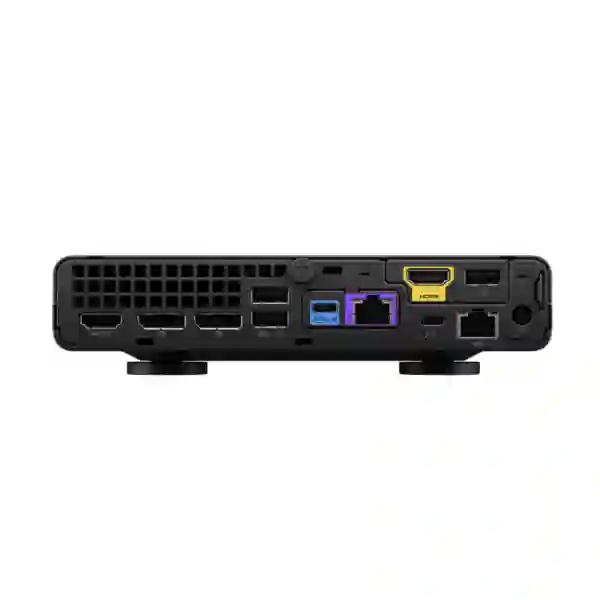
The display plan should be completed before the compute is mounted. Ask how many screens will be used, whether one will show remote participants while another shows content, and whether a confidence display is needed for a presenter. HP supplies a DisplayPort-to-HDMI True 4K adapter in the listed box contents, but that accessory alone does not establish the number, resolution or layout of all supported displays in a particular installation.
Confirm physical output connections, cable lengths, supported screen arrangements and the intended presentation workflow against the exact HP technical documentation and current Zoom Rooms guidance. Where wall-mounted displays are involved, involve facilities or the room integrator in planning cable routes, safe access and service clearance. Test actual content sharing at the intended resolution. A usable hybrid meeting room should make it clear where to plug in, how to share and what remote attendees will see.
Network design for dependable conferencing
A stable network is essential because the room depends on meeting traffic, authentication and management services. IT should review available bandwidth, latency, packet loss, firewall permissions and the traffic requirements published for the deployed Zoom Rooms version. A wired network connection is generally a practical baseline for a fixed conferencing compute, subject to the site network design and equipment constraints. Wireless availability should not be treated as a substitute for a tested enterprise network path.
Segmenting room equipment according to organization policy can simplify asset management, but network boundaries must still allow authorized communication among the compute, controller, peripherals and cloud services. Check DNS resolution, time synchronization, proxy handling and all required outbound destinations. Do not rely on informal assurances that normal browsing works: a computer can reach websites while the conferencing application or cloud management service is still blocked by an unsuitable firewall rule.
Power, heat and physical conditions in Tanzania
For a deployment in Tanzania, treat site power quality and environmental conditions as project inputs to be checked, not assumptions about every building. Ask the facilities team about power stability, available sockets, grounding and whether the room requires a suitable uninterruptible power supply. The compute, displays, controller and network switch may depend on different power circuits or PoE equipment, so a continuity plan should cover the entire conferencing chain rather than the PC alone.
HP states an operating temperature range of 10 to 35 degrees Celsius for the compute. Allow ventilation and avoid placing it in sealed spaces that trap heat. Consider dust management, access for cleaning and the effect of nearby audio-video equipment on airflow. The external 150-watt adapter is the specified power-supply rating, not a measured constant energy draw. An installer should check local electrical suitability and the final load before specifying backup power or power distribution components.
Compact installation and cable management
The mini form factor makes the room compute easier to position discreetly than a full desktop tower. HP includes a magnetic mounting kit, power adapter, power cable, Ethernet cable and a DisplayPort-to-HDMI adapter in its published box contents. Mounting should follow HP’s installation instructions, including airflow, access and mechanical safety. A tidy installation is valuable because it reduces accidental disconnections and simplifies service visits when a port needs inspection.
Document every connection and leave a small service allowance so that the compute can be removed or checked without dismantling the room. Where cables cross occupied areas, use appropriate routing and strain relief. Label the display, camera, controller and network leads using a room-specific convention. After installation, maintain a simple diagram showing the compute’s location, power source, network port and connected peripherals. That document becomes particularly useful when an administrator supports several rooms remotely.
A practical commissioning sequence
Start with a room readiness checklist covering furniture, displays, electrical supply, network access, cameras, speakers and touch controls. Then verify the exact compute part, package contents and model against the purchase order. Inspect physical connections before applying power. Follow the current HP setup guide for the Studio Room Compute image and the current Zoom Rooms onboarding workflow rather than relying on a procedure written for an older Poly room kit.
Configure the room account, join the compute to the intended network and complete the controller-pairing process. Verify the camera and audio devices are detected, review permissions and connect the room to the intended calendar or scheduling arrangement if used. Only after those foundations work should the installer test specialized features. Record software and firmware versions at handover; this gives IT a reference point if a later update changes the behaviour of the room.
Acceptance tests that reflect real meetings
A successful installation should be measured by ordinary meeting tasks. Test joining a scheduled call, starting a meeting, ending it, muting and unmuting, sharing content, adjusting camera views and hearing every speaking position in the room. Place someone in a remote location during the test so that the project team can assess actual transmitted sound and picture rather than judging only what the local display looks like.
Use several representative scenarios: a person speaking softly near the rear of the table, a presenter standing at a whiteboard and two people speaking in quick succession. Observe whether the remote participant can understand the conversation and follow the presentation. Confirm the touch controller remains responsive after the room has been idle. Capture any defects as specific issues with an owner and retest date. A signed acceptance checklist is a stronger handover than a photograph of a powered-on screen.
Remote visibility with HP Poly Studio Room App
HP describes the HP Poly Studio Room App as an application for configuring and managing compatible Poly audio and video devices attached to a PC-based conference room. Once the eligible device is registered, Poly Lens Cloud can provide inventory visibility and management functions. This can help IT staff notice device health issues and understand which peripherals are attached, particularly when rooms are spread across several areas of an organization.
Plan management access as part of deployment. Identify who owns the organization’s device-management account, which administrators need permissions and how alerts will be reviewed. Connectivity to management services depends on the required network paths being open. Do not assume that every camera, peripheral or third-party accessory offers identical information or remote capabilities. Remote management complements on-site service arrangements but does not eliminate the occasional need to inspect cabling, displays or faulty hardware physically.
Security and administrative ownership
A conference room computer is a managed endpoint connected to an organization’s network, even if staff seldom interact with the desktop. HP discusses protections such as HP Sure Start and eligible HP Wolf Security capabilities in its room-compute materials, with operating-system and product eligibility conditions. These references should prompt an informed IT review, not an assumption that every security feature is enabled by default or that the room is secure without administrative configuration.
Define who can sign into the room system, install software, connect removable devices and change conference settings. Use role-based access, documented room accounts and an approved update schedule. Review device inventory and maintain a procedure for replacing hardware without leaving old credentials behind. Consider privacy expectations, such as ensuring users know when microphones and cameras are active. Effective endpoint security involves configuration, monitoring and human operating practices in addition to the protections included in hardware.
Software updates and service continuity
Room systems evolve through Windows updates, Zoom Rooms application updates, HP Poly Studio Room App revisions and peripheral firmware changes. HP’s Studio Room Compute release notes document changes and supported software versions. A planned update process is especially important in a room used for executive meetings or customer presentations, where a last-minute compatibility problem can interrupt important work.
Maintain a simple test-and-approve workflow. Verify the update against relevant release notes, check accessory compatibility, schedule changes outside critical meetings and confirm essential controls afterward. Where the organization manages many rooms, a small pilot set can help detect problems before broader rollout. Keep records of installed versions and known issues, and have a documented escalation path for failures. Avoid treating any release-specific version number as permanent; the correct approved version will change over the equipment lifecycle.
Boardrooms and executive meeting use
In a boardroom, participants may sit along a long table while others join remotely on one or more displays. This layout often requires careful camera framing and microphone coverage. Studio 7’s intended large-room and customizable position makes it a relevant compute candidate, but the experience depends on the complete design. For example, a strong processor does not compensate for poor camera angles that make the far end of a table difficult to see.
Before specifying the system, map the seating positions and the presentation area. Decide whether the room will prioritize the current speaker, a full-room view or another supported meeting mode. Check how attendees will share financial reports, documents and other content. Where confidentiality matters, include procedures for ending meetings, clearing content and managing access to the room account. The objective is a room that starts simply and remains predictable under the pressure of high-value meetings.
Training rooms and hybrid learning spaces
Training environments are different from conventional conference tables. Attendees may face a presenter, screens or a demonstration area, and people at the back may need to ask questions. The Studio 7 compute can form the basis of a modular Zoom Rooms installation, but camera and audio selection must be tailored to the instructor’s movement and the audience’s listening and speaking patterns.
A deployment plan should show where presentations originate, how the instructor sees remote participants and which microphones capture questions. Verify whether the proposed Zoom Rooms configuration supports the intended camera behaviour instead of assuming all multi-camera workflows are automatic. Consider captions or accessible layouts where they are available through the selected Zoom service and settings. Test a real training session before acceptance. Many problems only appear when people stand, walk, write on a board or alternate rapidly between slides and discussion.
Multi-room standardization without overbuying
Organizations introducing several video meeting rooms often benefit from standard documentation, room names, licensing ownership and monitoring procedures. A common compute family can make training and support easier. Even so, each room should be sized for its actual use. Installing a premium large-room configuration everywhere is not necessarily the best procurement decision, particularly where a simple meeting space needs only one suitable camera and a straightforward control interface.
Create room categories based on seating, geometry, acoustic conditions and meeting purposes. Standardize what truly helps: naming conventions, cabling labels, administration accounts, maintenance records and user instructions. Allow camera, microphone and display choices to vary when the room requires them. A pilot room provides an opportunity to validate the user experience and estimate actual installation work. After the pilot, refine the materials list before requesting a quotation for every remaining room.
Comparing modular compute with all-in-one systems
A modular Zoom Rooms design gives more freedom to choose cameras, microphone coverage, speakers and displays for a specific space. This can be attractive for a large boardroom or a customized training venue. An all-in-one video bar may be simpler for a smaller standard meeting room, depending on its supported platform, physical limits and licensing. Neither architecture is universally better; it depends on who uses the room and how much customization is necessary.
When comparing options, include the total cost of the working room and the administration effort over time. The compute alone is only one component in a modular system. A fair comparison accounts for controller, conferencing licence, peripherals, mounts, switching, displays, installation, testing and any agreed maintenance arrangements. Consider future replacement of a camera or audio device, but do not promise universal compatibility with future products. Make a purchasing decision using a documented functional requirement rather than a single attractive specification.
Price and quotation scope for Tanzania
No Tanzania selling price, stock position, tax-inclusive total or delivery commitment has been established for this item. Buyers should request a formal quotation for the exact Zoom Rooms compute configuration and the complete set of associated components. A good quote identifies the computer, required licence, TC10 controller, camera arrangement, audio solution, displays if applicable, cables, mounts, networking accessories and installation tasks as separate lines or clearly defined bundles.
Ask the supplier to specify the country-specific part, commercial warranty terms, excluded items, implementation responsibilities and assumptions about existing infrastructure. Confirm whether network configuration, account provisioning, testing, training and post-installation support are within scope. Quoted unit cost should not be mistaken for an operational room cost. Organizations should also budget for recurring software charges, planned support and eventual peripheral replacement. Do not infer Tanzanian import duties, government approvals or local certifications from a global HP product specification.
Network and privacy questions to resolve before purchase
A conference room may carry customer discussions, internal planning meetings and sensitive presentations. Determine how recordings, cloud features, transcripts and meeting controls are administered under your organization’s Zoom policies. The room computer is not itself a substitute for the service account’s privacy, retention and access controls. Confirm whether a feature is included in the licence and enabled for the intended user group before describing it to staff.
IT should also agree on the network placement of the compute, controller and any management-enabled peripheral. Consider authorized remote access, administrator credentials and the logging needed for incident investigation. Where a corporate firewall uses strict outbound rules, test the actual Zoom and HP Poly management paths. The correct result is a system that can host meetings and receive necessary support without exposing unnecessary management access. These questions are best answered during project design rather than after the room is commissioned.
Readiness checklist for facilities and IT
Before equipment arrives, establish who is responsible for room access, wall mounting, electrical outlets, network ports, cable containment and display installation. Confirm the room has suitable lighting, acoustics and ventilation for its intended use. Decide where users will operate the TC10 and whether the controller must be visible from a specific seating position. Survey the display wall to establish what mounting hardware and safe cable routes are required.
On the IT side, confirm Zoom Rooms licences, relevant account permissions, approved network routes and device-management ownership. Assemble the intended list of HP Poly peripherals and check it against the current HP and Zoom compatibility guidance. Include contingency for a hardware replacement or additional cable when a proposed connection is incompatible with the installed room furniture. A short site survey can reveal expensive omissions before purchase orders are released.
What to confirm about support and warranty
HP’s published product specifications identify a standard one-year limited manufacturer warranty, but commercial entitlements and local service handling must be confirmed for the exact quoted unit and destination. Do not treat a generic warranty statement as a commitment to on-site replacement, specific response times or immediate parts availability in Tanzania. Ask the supplier to describe the route for reporting problems and the documents needed for a claim.
Software and hardware support may involve several parties: HP for its compute and eligible devices, Zoom for the conferencing service, the deploying integrator for room design and the organization’s IT team for internal systems. Define these responsibilities at handover. Record serial numbers privately in the asset register, maintain purchase documentation and note when subscriptions must be renewed. Clear ownership reduces the risk that a fault is passed between vendors without action.
Troubleshooting starts with the whole signal path
If a room cannot join a meeting, check network connectivity, account status, licence assignment and the application before assuming the compute has failed. If participants cannot hear each other, trace microphones, loudspeakers, selected audio devices and mute states. A black display can involve power, source selection, cabling or resolution settings. An unresponsive controller may involve pairing, PoE, software or network reachability.
Create a room-specific troubleshooting sheet that begins with simple user checks and moves toward administrator diagnostics. Avoid asking untrained users to change BIOS or security settings during a meeting. For recurring problems, record the timestamp, affected room, software versions and observable symptoms. Use HP and Zoom support guidance that matches the installed release. A predictable escalation process is one of the strongest benefits an organization can build around a managed room platform.
Choosing a future-ready room architecture
The Studio 7’s modular approach can make it easier to plan room changes without immediately replacing every component, but any proposed upgrade must be validated for compatibility. Hardware headroom and an NPU do not guarantee that all future AI, camera or collaboration features will become available to a particular unit. Product roadmaps, subscriptions and platform certification can change. Choose the system because it satisfies today’s clearly defined requirements, with flexibility treated as a useful additional consideration.
Keep the room documentation current as screens, cameras and meeting practices change. Where a new peripheral is proposed, check the published support list, physical connections, software version and any feature limitations. Maintain a small acceptance test for each change. This practical method protects the original investment more effectively than relying on unsupported claims that the platform can connect to every device or handle any room size without further engineering.
How to request an accurate configuration
A useful inquiry should describe the room rather than merely repeat the product name. Include approximate room dimensions, seating arrangement, number and location of displays, existing audio-video equipment, network readiness and whether the room uses Zoom Rooms today. Mention the need for one or more cameras, a touch controller and any anticipated scheduling integration. If the project includes several rooms, provide a separate summary for each distinctive room type.
Request an itemized recommendation that distinguishes confirmed hardware specifications from features that require subscription or accessory purchases. Ask for compatibility verification, installation assumptions, testing criteria and written exclusions. Do not send passwords, administrator tokens or other sensitive account details in an ordinary quote request. Share only the technical information needed for sizing and procurement, and use your organization’s approved secure process for any later configuration credentials.
Frequently asked questions
Is the HP Poly Studio 7 Room Compute a complete Zoom Rooms kit?
No. It is the core meeting-room computer. HP states that a separate Zoom Rooms licence, touch controller, and audio and video devices are needed for a complete Zoom Room. The controller, cameras, microphones, speakers, displays and installation tasks should be quoted according to the actual space. Review the itemized bill of materials before assuming the room is ready to operate.
Which processor, memory and storage does it use?
HP lists an Intel Core Ultra 7-366H processor, 32 GB of RAM and a 256 GB PCIe NVMe M.2 SSD for the Studio 7 Zoom Rooms model. The processor can deliver up to 50 NPU TOPS under applicable conditions. These are hardware specifications rather than performance guarantees for every camera arrangement or future AI feature. Confirm the exact commercial configuration on the final quote.
Does the HP Poly TC10 come in the box?
No. HP identifies the Poly TC10 as the controller used for automatic pairing, and states that it is sold separately. The room plan should include appropriate controller mounting, network and power arrangements. Additional controllers and any related Power over Ethernet switching are also separate design and procurement decisions, subject to the supported deployment configuration.
Can this room compute support a large boardroom?
HP positions the Studio 7 Zoom Rooms computer for larger and customizable spaces, including multiple-camera arrangements. Whether it suits a particular boardroom depends on the selected cameras, microphones, displays, Zoom Rooms configuration and physical conditions. Share seating plans and the intended meeting style with the integrator, then test the system under realistic conditions before accepting the installation.
Can it be used for Microsoft Teams Rooms instead?
HP offers a separate Studio 7 Room Compute configuration for Microsoft Teams Rooms. Although HP’s wider room-compute platform documentation discusses both meeting platforms, buyers should order and commission the edition intended for their primary service rather than assume a Zoom Rooms-labelled unit arrives with the Microsoft Teams Rooms licence or a ready-to-use Teams image. Confirm any platform change through current HP guidance.
Is the Zoom Rooms subscription included?
No. HP explicitly says a Zoom Rooms licence is required and sold separately. Subscription entitlement and feature availability should be checked with the organization’s Zoom administrator. Include ongoing charges, renewal ownership and any required specialist room features in the procurement plan. A compute purchase by itself does not activate the room service.
Which camera or video bar should be considered?
HP lists Poly Studio V12, V52 and V72 USB video bars as recommendations in the Studio Room Compute family, together with Studio E60 and E70 cameras. The appropriate option depends on room size, seating and the required audio and video workflow. Compatibility should be confirmed for the exact Zoom Rooms compute, software release and any other peripherals involved.
Can IT monitor the room remotely?
HP Poly Studio Room App supports configuration and management of compatible connected Poly devices, and registered eligible systems can use Poly Lens Cloud capabilities. What can be monitored or updated depends on device support, account setup and network access. IT should test the intended management functions before relying on them for a multi-room maintenance plan.
What is included with the compute hardware?
HP lists the compute, external power adapter, power cable, DisplayPort-to-HDMI True 4K adapter, magnetic mounting kit, Ethernet cable, setup sheet and warranty card. The listed accessories help with physical deployment but do not replace the room controller, Zoom Rooms subscription, cameras or audio system. Confirm the exact boxed contents against the country-specific quotation.
What should buyers in Tanzania request before ordering?
Request a quote that names the exact Zoom Rooms configuration and separates hardware, subscription, cameras, audio, controller, displays, installation and support. Provide the room layout and ask for accessory compatibility verification, electrical and network requirements, commissioning tests, local warranty handling and commercial exclusions. Do not assume advertised pricing, delivery coverage, stock or certifications without written confirmation for the intended transaction.
Request a complete HP Poly Zoom Rooms configuration
Tell the FourTeck Tanzania team the intended room size, seating layout, camera needs, audio requirements, number of displays and existing Zoom Rooms licensing. Request a clear, itemized quotation covering the HP Poly Studio 7 Room Compute, appropriate TC10 control, compatible peripherals, installation assumptions and commissioning checks.
Next step: Ask for configuration and quote verification before purchase. Pricing, availability, implementation coverage and local warranty handling must be confirmed in the actual offer.
Reviews
There are no reviews yet.