
Professional meeting-room controls
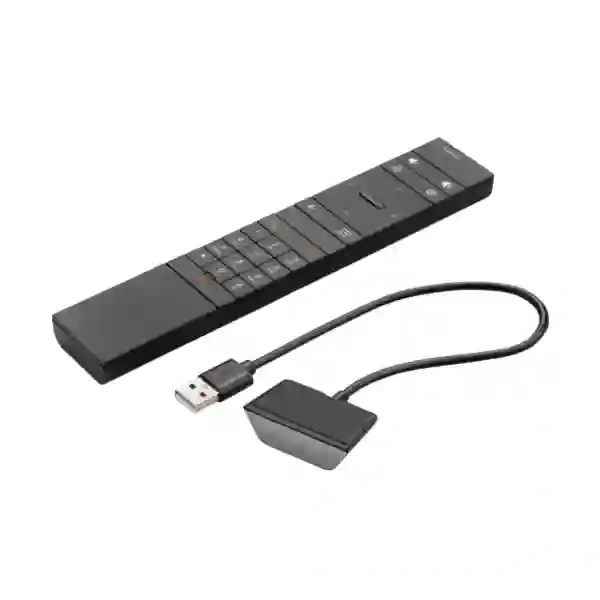
HP Poly Studio X Series IR Remote Control
Support familiar handheld operation of compatible Poly Studio X video systems when a supported Poly infrared receiver is connected. Check the room model, receiver contents and conferencing application before selecting this accessory for a Tanzania deployment.
Check the meeting platform first
HP states that the Poly IR Remote Control and Receiver are not certified for Microsoft Teams native mode. Other partner applications can also limit button functions. The receiver is required, and package contents should be confirmed in writing.
Check these before buying
Step 1
Confirm host model and firmware
Step 2
Check the Poly IR receiver
Step 3
Identify the active meeting mode
Step 4
Test the buttons users need
Product essentials
| Accessory type | Handheld infrared remote control for compatible Poly room systems |
|---|---|
| Typical host family | Poly Studio X family and Poly G7500; verify exact model and version |
| Required accessory | Compatible Poly IR receiver connected to the room system |
| Documented controls | Navigation, select, back, volume, mute, call, keypad and camera zoom |
| Important restriction | Not certified for Microsoft Teams native mode |
| Purchase scope | Confirm whether handset only or remote-and-receiver package |
| Tanzania commercial terms | Confirm actual stock, local price, delivery and warranty in a quote |
A practical control option for existing rooms
The HP Poly Studio X Series IR Remote Control is intended for people who operate compatible Poly room video systems and want a familiar handheld method for everyday actions. A presenter may need to adjust speaker volume, an organiser may need to mute the room, or a support technician may need to navigate an on-screen interface during an initial check. With a compatible Poly infrared receiver connected, the handheld unit can support those activities within the capabilities of the current system and its meeting application.
This is an accessory for an existing installation, not a replacement for the video conferencing bar, codec, camera, microphone, display or collaboration subscription. Its value comes from matching a specific room configuration and making supported controls readily accessible. Organisations often buy such accessories when replacing a lost handset, refreshing a training space or considering an infrared alternative to a Bluetooth-based remote. The correct purchase depends on the exact system, receiver and software rather than the broad category name alone.
A four-part buying decision
Begin with the room hardware. Identify the actual Studio X model or Poly G7500 and obtain the software version where possible. Next, establish whether the correct Poly IR receiver is installed and working. A remote-only replacement is a different requirement from adding infrared control to a room for the first time. Third, document the conferencing application and whether the system is operating in Poly Video mode or a partner’s native interface. Finally, write down the functions that users genuinely need.
These four checks reduce avoidable misunderstandings. A generic compatibility statement may be accurate at the hardware-family level but not guarantee every function in every application. A new handset may arrive without the receiver that makes the infrared link possible. An organisation might also discover that its preferred meeting application expects a touch controller rather than a handheld unit. Asking the questions before purchase keeps the commercial discussion tied to the intended outcome: a control method that works in the room people actually use.
How infrared communication works
Infrared control uses a light-based command path rather than the Bluetooth connection of a Bluetooth remote. The handheld unit sends a command toward a compatible Poly IR receiver; that receiver connects to the supported video system. This arrangement helps explain why the receiver is essential and why it should not be treated as an optional convenience. If the existing receiver is removed, disconnected or hidden where it cannot receive commands, the remote may appear unresponsive even if the handset itself is functioning.
The physical layout of the room influences reliability. Test commands from normal seating positions and the location where a presenter stands. Avoid placing the receiver behind opaque obstructions or assuming it will work from any angle or distance. The applicable HP receiver setup guide should govern placement and connection. Do not substitute a generic consumer electronics receiver or assume that any USB infrared adapter will communicate correctly with Poly video equipment. The correct components and their intended installation method matter more than their superficial resemblance to other accessories.
Receiver included or remote only?
The product name supplied for a listing may not reveal precisely what is included in a commercial package. HP also markets a Poly IR Remote Control and Receiver combination, but a retailer or buyer may use ‘IR remote’ when referring only to the handheld replacement. These descriptions should not be treated as interchangeable. Buyers with a working receiver may need only a replacement handset. Buyers without a receiver need a supported receiver arrangement as well.
Ask for a quote that explicitly identifies the handheld control, matching receiver and any connection items being supplied. Where an accessory identifier or manufacturer package number is provided, verify which components it describes. Do not copy a third-party seller’s stock identifier into the purchasing record for a different listing. A product photograph alone is not enough evidence of box contents. Clear component-level confirmation helps the receiving team check the delivered package and prevents an installer arriving on site with a remote that has no appropriate input path to the host system.
Compatibility with Poly Studio X and G7500
HP’s product information describes the IR remote and receiver as compatible with its Studio X family and Poly G7500. HP guides discuss models such as the Studio X30, X50, X52 and X70, and documentation for later family members should be checked when the exact deployed model is known. Compatibility should always be examined at more than one level: physical host hardware, installed Poly VideoOS release and active conferencing application. A family-level statement is useful, but it is not a substitute for testing the actual software environment.
For an organisation with multiple video rooms, keep a simple inventory. Record the model shown on the equipment label, the operating-system release and the meeting mode. Group similar rooms and test one representative installation from each genuinely matching configuration. A successful test on an X30 in one provider mode does not demonstrate the same button behaviour on a different generation or a different meeting application. Precise compatibility checking is a better investment than an unqualified promise that the accessory works with every device bearing the Studio X name.
Microsoft Teams native-mode caveat
HP’s administration documentation explicitly notes that the Poly IR Remote Control and Receiver are not certified accessories for Microsoft Teams native mode. This is a material buying limitation. Even when a Studio X-family system itself supports Teams, certification of the room system must not be confused with certification of every optional controller. Describing the remote as a Microsoft Teams-certified control device would be misleading.
If the room is configured for native Teams, identify the approved control method and ask for a platform-specific assessment before ordering. A Poly touch controller or another supported interaction method may better serve the room, depending on the exact deployment. The presence of a physical mute or call button does not establish that Teams will honour the command in the required way. This caveat belongs in procurement discussions and in the acceptance test, not hidden in a footnote. It helps avoid buying an accessory that is mechanically appropriate but not aligned with the user interface the organisation has standardized on.
Partner application behaviour varies
HP also cautions that the remote’s functionality may be limited in other partner applications. A remote may be recognised by the host system while a particular meeting app ignores certain commands, assigns them different roles or does not expose a comparable menu. Users should not equate an unresponsive key with defective hardware until application support has been checked. For example, a menu operation documented for Poly Video mode should not be presented as a universal way to open settings in every conferencing environment.
Before rollout, list the everyday tasks: start or join a meeting, navigate the home screen, select an item, adjust volume, mute microphones, and end a call. Add camera controls or numeric dialling only if they are actually required. Test those actions on the real software configuration and document which buttons operate as expected. Where a function is not supported, choose a controller better suited to the application rather than relying on an assumption that a hardware replacement will override software limitations.
Navigation and selection
The remote includes navigation controls, a selection key and a back function, as documented by HP. These are often the first actions a person needs when using an on-screen room interface. They can help move through supported menus and return to a previous screen without standing beside a display or reaching for another controller. The exact sequence available depends on the system state and the application currently displayed.
When creating room instructions, describe only what was tested. A simple instruction such as ‘use the arrow controls to highlight an item, then select it’ may be useful for a Poly interface, but the user should not be told that every external app accepts the same navigation scheme. During acceptance testing, check each direction and selection rather than pressing one button and assuming the entire control pad is working. This also helps distinguish a receiver-placement problem from a specific application limitation. A familiar physical layout becomes valuable when it matches the actual actions people perform.
Volume and microphone mute
HP documents remote buttons for increasing or decreasing volume and muting or unmuting system microphones. They address two different aspects of a conference call. Speaker volume changes what people in the room hear, while microphone mute controls what remote participants hear from the room. Confusing those actions can produce awkward meeting interruptions, so staff should understand the distinction even when both commands are available on the same handset.
Test the functions during a real audio check, not only on the home screen. Confirm that the expected visible indicator changes and that another test participant hears the intended result. Some applications may present or manage mute state differently, so rely on the installed software’s actual behaviour. For confidential conversations, never assume that a button press was accepted without checking the on-screen status. Good room instructions can be short and still precise: which key to use, what should change and what to check before discussing sensitive information.
Call and numeric controls
The documented control layout includes call and end-call functions and a numeric keypad. In a compatible interface, these may help answer, place or end a call and enter a dialled number. Their availability depends on the conferencing mode and call workflow. A meeting application built around joining scheduled sessions may not use the same dialling interface as a traditional video calling configuration. As a result, button presence does not guarantee an identical calling experience everywhere.
Ask which action the users expect from the call key. Do they need to answer an incoming room call, dial a destination or simply join an event that appears on a calendar? These requirements should not be conflated. Test the relevant workflow in a controlled meeting and make sure an end-call action behaves safely. Where the organisation relies on application-specific meeting controls, consider whether a supported touch interface is more intuitive. The remote should complement the room’s actual collaboration process rather than dictate a process that the software cannot support.
Camera zoom and menu behaviour
HP describes camera zoom controls on the IR remote and notes that the menu key shows or hides settings and camera controls in Poly Video mode. This specific wording matters. It does not mean the remote can operate all camera movements, presets or automatic framing settings on every Poly camera. The system’s camera hardware, configuration and software determine what is available.
If a presenter needs to change the framing of a speaker or product demonstration, request a test with the exact camera configuration. Determine whether the supported zoom control is sufficient and how the room returns to its usual camera behaviour. Do not infer pan, tilt or automation settings from a printed button symbol. Where a deployment uses automatic framing, users may not need manual control at all. Room administrators may also prefer particular controls to remain under a touch interface or management settings. The best purchasing decision follows the real camera workflow, not an expansive interpretation of the handset’s labels.
Planning the receiver location
Think about the front wall, screen, furniture and places where people operate the remote. The receiving component needs a practical path for infrared commands. An installer standing next to it may get immediate results while users seated at the far end of a boardroom experience unreliable control. Testing only from the equipment rack is therefore not a meaningful user acceptance test.
Follow HP setup guidance for the receiver and its connection, then verify performance from the organiser’s chair, presentation position and another representative seat. If the signal is blocked by a display, cabinet or a regularly occupied position, revise placement before securing cables. Do not claim a specific operating distance without the applicable installation documentation and room testing. Record where the receiver is mounted so that future display replacements or furniture moves do not inadvertently compromise the signal path. A little care at this stage can make the difference between a useful accessory and one users avoid.
A controlled installation process
First identify the host model and installed meeting mode. Check the purchased components against the quotation and obtain the HP Poly IR Receiver Quick Start Guide for the actual accessory. The receiver must be connected to the supported system as instructed by the manufacturer. Follow local change-control practices where a conference room is considered business-critical or has a scheduled operating window. Avoid unplugging other controllers merely because the new remote is available.
After connection, confirm that the video system is in its normal operating state. Test navigation, selection and basic supported commands before attempting an actual meeting. Check mute and audio with a second participant, and test call or camera functions only when relevant to the room’s operating mode. Record the room model, software version, receiver location and observations. If buttons behave differently in a partner application, consult compatibility guidance rather than repeatedly replacing hardware. Finish by storing the remote where people can find it and giving room users concise instructions based on the tested configuration.
Acceptance testing with an ordinary user
A useful test should be repeatable by someone who did not install the equipment. Give an ordinary room user the handset and ask them to perform the specific tasks the organisation cares about. Watch for unclear button labels, an inconvenient receiver position or unexpected on-screen behaviour. A technically correct connection is not sufficient if a first-time user cannot operate it reliably from the normal meeting position.
Create a short checklist with the expected result beside each tested action. Confirm navigation and back, adjust volume, mute and unmute, then perform a controlled call where appropriate. Try the remote from more than one seat. Record any function that is outside the provider application’s support rather than treating it as a fault. If the room has another primary controller, explain when the remote should be used and when the touch interface remains appropriate. The acceptance record becomes a useful support reference when software updates or room rearrangements change the user experience.
Troubleshooting no response
If pressing buttons has no visible effect, begin with basic checks: the host system is powered, the correct Poly IR receiver is present, its connection is secure and the remote can reach the receiving position. Check the handset’s power source according to its actual instructions and test a known basic navigation command. Try another location without physical obstacles. Do not assume a firmware defect before examining the signal path.
If the remote still does not respond, record the host model, Poly VideoOS version and active provider application. Compare the expected command with HP documentation for that software and mode. If a supported alternate controller works, the issue may be local to the infrared connection or interpretation of its commands rather than the entire conferencing system. Follow official troubleshooting and installation guidance; avoid undocumented key combinations or generic consumer remote reset advice. If support is needed, provide the model, receiver status, failing action and steps already tested. Specific observations help resolve the problem more efficiently than a report saying only that the remote is broken.
Troubleshooting partial button operation
When some commands work and others do not, the receiving path may be functioning while the software does not provide every requested action. HP expressly states that partner applications may limit remote functionality. Begin by checking whether the failing key is supposed to be available in the present mode and screen. A menu command intended for Poly Video mode is a useful example of a function that should not be described as universal.
Separate ordinary navigation from call, camera or platform-specific actions when testing. Confirm whether the issue occurs only during a meeting or also on the system home screen. Note any recent application or system updates that changed behaviour. If the command is unsupported, buying a second identical handset will not solve the mismatch. Instead, update the room instructions or assess another controller whose capabilities match the required workflow. This distinction between accessory failure and software limitation helps procurement and support teams avoid unnecessary replacement orders.
IR remote versus Bluetooth remote
A Poly Bluetooth remote uses a different wireless control method and may have a pairing process, while the IR option depends on a compatible receiver and an infrared signal path. Neither technology should be presented as universally superior. The appropriate choice depends on the host model, meeting platform, site policy and physical room arrangement. In a room designed for a supported infrared receiver, a replacement IR handset can be an efficient and familiar option.
Where a site restricts radio-frequency remote-control technologies, infrared may be relevant to the discussion. That does not mean the video bar or other equipment automatically stops using radio connectivity. Conversely, a Bluetooth solution may suit a different room if site policy and platform support permit it. Buyers should compare the specific daily controls, setup process and service requirements instead of relying on claims that one technology is always easier or more reliable. A demonstration on the actual device and software is a stronger basis for deciding.
IR remote versus TC8 or TC10 touch control
Poly TC8 and TC10 touch controllers provide screen-based interaction instead of the handheld physical-button experience of an IR remote. A touch control interface may be better suited to a software platform that exposes particular meeting workflows or requires a supported room-control device. The infrared handset may be more convenient for simple supported actions in a room where users stand or move away from the table. The two approaches should be assessed as different user experiences, not identical substitutes.
If the organisation’s priority is native Teams operation, apply HP’s IR accessory certification caveat and verify the approved controller. If a room already has a touch panel, adding an IR handset should serve a clear extra need rather than duplicate equipment without a use case. Make sure the two interfaces do not confuse users about which one is primary. The right answer can differ between a small internal room, a shared training area and a larger meeting space with more complex controls.
When RF restrictions influence selection
HP presents the infrared remote-and-receiver option as suitable for environments that do not permit RF technology. This is a legitimate reason for some organisations to consider it. The remote communicates through infrared rather than establishing the Bluetooth relationship of a Bluetooth handheld control. That fact should still be considered within the site’s wider technical and security policy.
A collaboration bar may separately support wireless networking or other radio functions, and adding an IR handset does not certify the entire room as free of RF equipment. For environments with formal restrictions, have the relevant team verify every active device and its configuration. Be precise about what is being requested: an infrared controller, a room with wireless features disabled, or compliance with a separate technical standard. These are different requirements. Avoid applying unsupported regulatory or certification labels to the remote. The practical customer benefit is an alternative control path where that path is supported and appropriate.
Managing several meeting rooms
For a multiroom site, create an inventory before ordering a quantity of handsets. List each room’s Poly hardware, system version, active meeting application, existing controller, receiver presence and main user tasks. Group rooms only when the configurations are meaningfully alike. A pilot in one room may not represent a different hardware generation or conferencing platform.
Test representative configurations, document which buttons work, and make an explicit decision about remote-only replacements versus complete receiver installations. Store each remote in an agreed location and avoid moving it casually between rooms where the receiving hardware differs. Provide simple room-specific instructions rather than a generic guide that promises unsupported functions. The benefits of standardising an accessory come from consistent procurement, training and troubleshooting, not from using one item regardless of software differences. These steps can be useful for offices, campuses and training facilities in Tanzania without implying that a specific installation service or stock level is available locally.
Creating an intuitive guest experience
Occasional visitors should not need to know the technical history of the room. If the remote is intended for general use, place it where attendees can find it and label it clearly. Provide an instruction card based on verified local behaviour: how to navigate, control volume and mute, and which controller to use for joining a scheduled call. A second controller should have a clear purpose so users do not make conflicting attempts to operate the same meeting.
Check the instructions after any provider application change. A screenshot from Poly Video mode may not help someone looking at a different partner application. Avoid promising that every printed key works regardless of screen context. A practical guest guide can also explain where to return the handset at the end of a meeting. The benefit is less confusion during routine meetings, which is often more important than a long technical list of possible commands. Ease of use should be judged by the people actually using the room.
Maintenance and room documentation
Treat the remote and receiver as identifiable room assets. Record the accessory type, host model and receiver location with the equipment inventory. Check the handset’s physical condition and power source according to the relevant product instructions. Confirm basic commands periodically and after changes to displays, furniture or cable management. These checks are particularly helpful where the receiver may be moved or hidden unintentionally during unrelated maintenance.
When a conference system is updated, make controller testing part of the release acceptance process. Document changed behaviour rather than assuming that an accessory which once worked will always expose the same menus. Keep a room-specific list of supported commands available to the helpdesk. If a handset goes missing, the inventory clarifies whether a receiver remains installed and whether a remote-only replacement is appropriate. No particular battery life, maintenance interval or service guarantee should be invented; the actual schedule should follow manufacturer instructions and local operational needs.
Useful business use cases
Replacing a lost or damaged handset in a room with a working receiver is one straightforward use case. A presenter in a training room may value supported volume or camera controls without returning to a table. A site with restrictions on Bluetooth-based handheld control may investigate an infrared solution. A facilities team managing multiple rooms may want common instructions for similar configurations. These are reasons to assess the accessory, not guarantees that every proposed task is available in every operating mode.
Different requirements point to different procurement scopes. A replacement remote is not a complete first-time installation, and a room that relies on native platform controls may be better served by its approved touch interface. For each scenario, name the host model, expected actions and application’s limitations. A supported, tested workflow is a stronger business case than a feature list copied from another room. Avoid promising savings, faster meetings or guaranteed compatibility without evidence from the intended installation.
What to specify in a Tanzania quotation request
For an accurate quotation, supply the requested product name and the exact room system model. Indicate the installed Poly VideoOS release if known, the collaboration application, and whether a compatible Poly IR receiver is already fitted. Tell the supplier whether you need a replacement handset or an initial remote-and-receiver solution. Add the quantity of rooms and the functions essential to your meetings.
Ask for written confirmation of the manufacturer package, physical contents, compatibility and any applicable commercial conditions. Current local pricing, stock, tax treatment, delivery arrangements, installation availability and warranty terms must be established from an actual verified offer; they should not be inferred from an overseas catalogue. This description does not claim a particular Tanzanian branch, service area or inventory position. If acceptance testing is needed, include that expectation in the enquiry. The result should be a specific quote that can be compared on what it actually supplies rather than on an ambiguous accessory title.
A clear sign-off process
Before the order is approved, confirm that the offer matches the host device and receiver requirement. Check whether it describes a handset only or a combined package. Review the intended meeting mode with special attention to HP’s Microsoft Teams native-mode certification warning. Ask the supplier or integrator to verify the functions that are business-critical. Avoid substituting a Bluetooth remote, unrelated IR transmitter or receiver-only part without an explicit change to the purchase specification.
Agree on a realistic acceptance test covering the physical receiver connection, normal seating positions and supported user actions. Record limitations openly. An IT manager should be able to tell whether a missing feature results from an application restriction or a failed component. This process does not have to be elaborate, but it should be completed before a large multiroom rollout. Careful sign-off can prevent a procurement mismatch and help support staff maintain a predictable meeting experience after installation.
When another controller is the right choice
An IR handset is not automatically suitable when the host is outside the documented Poly product family, the correct receiver cannot be obtained or the room’s active application does not provide essential controls. Native Microsoft Teams mode requires particular caution because HP does not certify the IR remote-and-receiver combination for that use. In those cases, review the platform’s supported control options instead of trying to force the handheld unit into an unsuitable role.
A touch controller may be preferable for a complex meeting workflow, and an existing approved interface may already meet the users’ needs. For a room with poor receiver visibility, the physical layout may require reconsideration. The objective is reliable user interaction, not adding another accessory to every conference table. A decision not to use IR after reviewing these constraints can be the most effective purchasing outcome. Buyers should seek clarity about actual operation before committing funds or scheduling an installation.
Value beyond the headline price
Accessory value depends on a complete working configuration. A low-priced remote without the required receiver may lead to another purchase. A combined package may still be unsuitable if the active meeting application does not support the important buttons. In contrast, a properly matched replacement handset can restore a familiar control method without changing the whole room system. Comparing only prices can hide these differences.
Evaluate the full scope: components, connection, receiver placement, software fit, testing, user instructions and ongoing care. In a larger estate, also consider spare-handset storage and consistent support documentation. Do not attach invented cost savings, performance figures or productivity percentages to the product. Instead, assess whether the accessory meets the specific functional requirement and whether the delivered package can be accepted without ambiguity. A quote that clearly distinguishes remote-only and remote-with-receiver options is more useful than one that provides an attractive price without specifying the necessary parts.
After software updates or room moves
A video system’s interface and supported workflows may change when Poly VideoOS or a conferencing application is updated. Include remote-control testing in the change checklist. Before an update, note the existing system mode and the actions users rely on; after the update, check those same actions again. Review current HP documentation where a compatibility change is suspected rather than assuming that every update preserves identical button behaviour.
A physical room move creates another type of change. Relocating a bar, screen or table may block the receiver even though its USB connection remains intact. Recheck the signal path from normal seats and verify that the handset is returned to an obvious location. If a room changes from Poly Video mode to a partner application, evaluate whether its existing controller still serves the intended workflow. A small, repeatable post-change test can protect the meeting experience without making unsupported promises about future software releases.
Frequently asked questions
Does this IR remote require a receiver?
Yes. HP documents operation through a compatible Poly IR receiver connected to the supported video system. If an existing room already has the correct receiver, a remote-only replacement might be sufficient. For an initial installation, confirm that the supplier includes the receiver and necessary connection items. The product title alone is not proof of package contents.
Will it work with Poly Studio X30 or X50?
HP positions the remote-and-receiver accessory for the Studio X family and discusses these models in its system documentation. Confirm the exact device, current Poly VideoOS version and meeting mode before ordering. A hardware-family statement should not be interpreted as a guarantee that every remote button works with every third-party conferencing application.
What about X52, X70 and later Studio X models?
HP documentation covers infrared accessories in connection with the Studio X family, including X52 and X70 systems. For a newer model, verify the exact revision and installed software using current manufacturer guidance. This is especially relevant to mixed-generation deployments where one room has a different control interface or firmware release from another.
Can it control Microsoft Teams native mode?
HP states that the Poly IR Remote Control and Receiver are not certified accessories for Microsoft Teams native mode. Buyers should use the controller and workflow approved for their precise Teams room deployment. Do not assume that compatible video hardware implies certified accessory control or that every displayed function can be operated through the infrared handset.
Does this accessory need Bluetooth pairing?
The infrared remote sends commands to a Poly IR receiver rather than using the Bluetooth pairing method of a Bluetooth remote. That distinction can matter in a room where a non-Bluetooth control path is preferred. The video system and other room equipment may still have their own wireless features, so do not interpret IR control as a guarantee of an entirely RF-free room.
Which buttons are documented?
HP documents navigation, select, back, volume, mute, call, end call, numeric entry and camera zoom functions. It also describes a menu function in Poly Video mode. Exact availability depends on the current interface and conferencing application. A test of the few commands users actually need is more useful than assuming that every printed button is always active.
Can the remote control all camera features?
Not necessarily. The presence of zoom keys does not establish support for manual pan and tilt, framing presets or every camera setting. Camera control depends on the room hardware, configuration and active mode. Ask for a demonstration of the exact action required and do not infer advanced camera functions from the remote’s physical appearance.
Is it equivalent to a Poly TC8 or TC10?
No. The IR remote is a handheld physical-button controller, whereas TC8 and TC10 are touch interfaces with different capabilities and workflows. If a room needs platform-specific navigation or a certified control method, evaluate the supported touch controller or other approved alternative instead of assuming that the IR handset offers the same functions.
Why does it work from only part of a room?
Receiver placement and obstructions can affect whether an infrared signal is detected. Confirm that the receiver is correctly connected and positioned in accordance with HP setup instructions, then test from the actual seating and presentation positions. Avoid relying on an unverified maximum distance or angle. A quick physical test often reveals more than a generic range claim.
Why might one button fail while others work?
The receiving path may be working while the active software does not support that specific function. HP warns that partner applications may limit remote control capabilities. Check the application, mode and screen context before treating the handset as defective. Use the supported controller for tasks that the IR remote cannot perform in the current environment.
Can I use a generic TV infrared remote?
A generic consumer remote or unrelated IR USB receiver is not a documented substitute for the supported Poly arrangement. The appropriate host system and compatible Poly receiver are important. If a replacement is required, verify the exact accessory instead of ordering a lookalike item based only on the use of infrared technology.
Is a receiver included in this listing?
The supplied product title does not establish a package inventory. Ask for a written quote listing the handheld remote, receiver and any connection items separately. Some purchases may be intended as remote-only replacements, while others require a combined remote-and-receiver arrangement. Verify the manufacturer package and actual supplied components before committing to an order.
What if the room uses a partner meeting application?
Identify the application and current release, then test the required commands on the installed system. HP cautions that partner applications may impose limits on remote functionality. Do not assume that a key performing one task in Poly Video mode will have the same behaviour in another app. Consider a platform-approved controller for unsupported operations.
Can the remote move between different rooms?
It may be carried between compatible installations, but each room must have its own suitable receiver arrangement and software support. Shared handsets can also be misplaced, so a fixed storage location and clear room inventory may be more reliable for business use. Test each distinct room configuration rather than assuming that one successful test applies everywhere.
Is a Tanzania price, delivery or warranty confirmed?
No current local price, availability, delivery commitment, installation scope or warranty term is established by this product description. Ask for a current quotation for the exact commercial package, including relevant terms. A price or stock claim from a different market does not establish the conditions for an order in Tanzania.
What details should I send for a quote?
Provide the Poly host model, software version if known, meeting application, current receiver status, quantity and required control actions. State clearly whether the request is for a replacement handset or a complete infrared control arrangement. These details help the supplier check suitability and give a useful written response instead of a generic accessory quotation.
Request a compatibility-matched Tanzania quote
Ask about the HP Poly Studio X Series IR Remote Control with your host model, software version, meeting application and existing receiver status. Specify whether you need a remote-only replacement or a complete remote-and-receiver arrangement. Request confirmation of the actual included items, compatible operating mode and current local commercial terms before ordering.
A clear purchase enquiry and a practical acceptance test help ensure that the accessory suits the room you operate. No local stock, price, delivery date, installation eligibility or warranty guarantee is assumed here. Provide the relevant configuration details to FourTeck Tanzania for review and quotation.
Reviews
There are no reviews yet.