
Clearer calls. Simpler movement.
HP Poly Voyager Legend 30 Bluetooth Headset
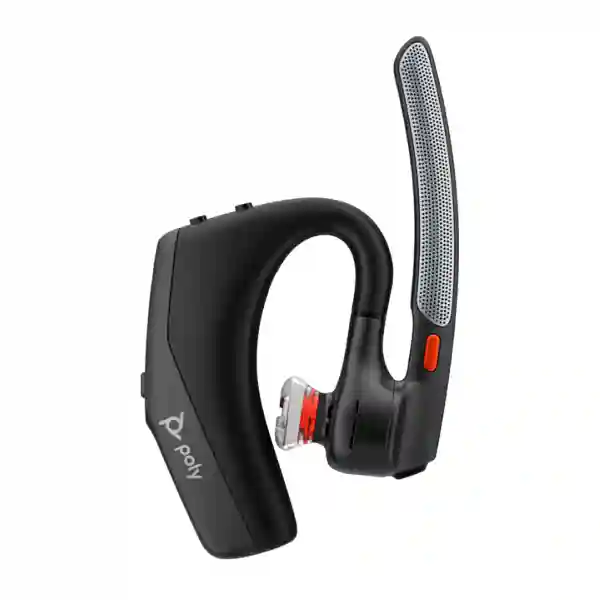
When your working day moves between a smartphone, a laptop and face-to-face conversations, a headset should make calls easier rather than add another device to manage. The HP Poly Voyager Legend 30 Bluetooth Headset is a single-ear wireless calling solution designed around clear speech pickup, straightforward controls and comfortable everyday wear. It is especially relevant to people who regularly answer calls while handling other work, need one ear free for awareness, or switch between a phone and a Bluetooth-capable computer.
Its key strengths are a four-microphone noise-cancelling design, WindSmart wind-noise management, Bluetooth 5.4, simultaneous connections to two devices and a rated talk time of up to 10 hours. Those are manufacturer specifications rather than a guarantee that every call environment will sound identical. Before purchasing in Tanzania, ask for the exact offered package and confirm whether your computer’s Bluetooth performance and calling applications meet your requirements.
Key facts at a glance
Manufacturer-rated figures are subject to real-world conditions. Optional charging case not included in the standard headset package.
Who this headset is built for
The Voyager Legend 30 is a practical choice for someone whose priority is intelligible phone conversations rather than immersive stereo listening. Think of a customer-facing professional receiving frequent mobile calls, a manager moving between meetings, a consultant travelling between appointments, or an operations employee who needs to hear a colleague in the room while speaking with a caller. Its single-ear construction supports these workflows by placing call audio in one ear and leaving the other unobstructed. It is not intended to provide the full isolation or spatial audio of a dual-ear entertainment headset.
A good buying decision starts with how and where you communicate. If you mostly speak through standard Bluetooth phone calls and compatible computer applications, the direct Bluetooth connection and headset controls may be well suited. If you need a dedicated USB radio adapter, a specific certified conferencing configuration, additional artificial-intelligence microphone processing or a case bundled in the box, check a different variant rather than assuming those features are included with Legend 30. This distinction matters when comparing product names that look similar.
Four microphones focused on the caller’s voice
In a noisy workplace, the person on the other end of the call usually needs your words to stand out from surrounding sound. HP Poly equips the Voyager Legend 30 with four noise-cancelling microphones and an aerodynamic microphone boom. That combination is designed to give the speech-processing system useful voice pickup while helping reduce distracting sound transmitted to the caller. For a busy reception area, a shared workspace or a moving professional, this is more relevant than a long list of audio playback features.
Noise cancellation on a microphone should not be confused with active noise cancellation inside both ears. This headset is designed primarily to improve the outgoing voice path, not to shut out the world for the person wearing it. Loud conversations, machinery, strong gusts and poor network quality may still affect a call. The practical test is to check outgoing speech clarity in your real environment and pair the headset with a reliable connection.
WindSmart for conversations beyond a quiet office
Moving between indoor and outdoor spaces can make communication difficult because wind striking a microphone produces a low, distracting rumble. HP Poly’s WindSmart technology uses a multi-layer approach to wind-noise management, and the Voyager Legend 30 combines this with its four-microphone arrangement. The design is useful to consider for professionals who regularly speak near building entrances, between appointments, or while moving around open-air work areas. It is a targeted calling feature rather than a promise of silence in any weather.
For best results, seat the headset securely, position the boom towards your mouth and reduce unnecessary exposure to a direct strong breeze when possible. If a conversation is business-critical and the surroundings become extreme, move to a sheltered place before continuing. Wind management can support better communication, but the listener’s experience will also depend on the connected phone or computer, mobile network, application and nearby noise sources.
Single-ear awareness without losing call focus
A mono headset can be the right compromise when you need to participate in calls and stay engaged with your immediate surroundings. One ear handles the incoming voice; the other remains open to a colleague, a visitor, an announcement or normal office activity. In customer service and small-office work, this can make it easier to respond without repeatedly removing a headset. It also avoids the enclosed feeling that some users dislike during long stretches of speaking.
The open-ear advantage has limits. You may hear the ambient noise more clearly than with closed-back headphones, which can make incoming speech harder to understand in very loud locations. It is also not a hearing-protection device and should not be treated as a substitute for awareness and safe behavior around vehicles, equipment or public spaces. Choose it for balance and convenience, not for complete acoustic isolation.
A lightweight fit that can be adjusted
The headset itself is listed at approximately 20.5 grams, with an ear-loop style that is intended to sit securely during routine movement. HP Poly supplies three eartip sizes, so buyers have options when choosing a comfortable seal and stable fit. Getting this adjustment right is worth a few minutes: an eartip that is too large may feel intrusive, while one that is too small may shift or leave call audio sounding weak. The correct choice is personal rather than a one-size-fits-all recommendation.
The manufacturer’s user guide also explains how to switch the wearing side and rotate the boom to suit the other ear. This flexibility helps users who have a preferred ear or need to change sides during the day. Wearing comfort remains subjective, especially when glasses, hearing aids or protective equipment are involved. For teams ordering several units, a short wear test with the intended users is a sensible part of procurement.
Bluetooth 5.4 and direct device pairing
Bluetooth 5.4 provides the wireless connection between the Voyager Legend 30 and supported devices. The headset is intended to pair directly with compatible smartphones and Bluetooth-enabled computers, without requiring a dedicated cellular service or a wired audio port. HP lists compatibility with Android, iOS, Windows 11 and macOS environments. The exact calling controls available on a given device depend on its operating system, Bluetooth implementation and the application handling the call.
A practical setup begins with checking the laptop or desktop’s Bluetooth capability and confirming whether your primary softphone recognises a Bluetooth audio device. Older computers, restrictive workplace settings and some business applications may require additional configuration. Bluetooth version alone does not guarantee every meeting button or software feature. If your deployment depends on a specific call platform, verify the workflow before buying in quantity.
Multipoint connections: phone and computer together
One of the most useful features for mixed-device work is multipoint pairing. The Voyager Legend 30 can maintain connections to two devices simultaneously, so a compatible smartphone and laptop can remain connected without repeating the initial pairing process each morning. For someone who handles mobile calls while working in a browser or desktop application, that removes a common source of friction. The headset also remembers pairing information for up to eight devices, which is different from connecting to eight at the same time.
Multipoint should be understood as connection flexibility, not as an eight-way conference mixer or a way to hear separate calls from multiple devices at once. Actual call handling and the behavior of incoming alerts can vary with the phone, computer and active application. If both devices ring, work out a predictable response process and test it before using the headset on customer-facing calls.
The difference between stored and active devices
Manufacturers often describe both how many devices a headset remembers and how many it can connect to immediately. These are separate figures on Legend 30: up to eight devices can be stored in its pairing memory, while up to two connections can remain active simultaneously. The first figure is convenient for someone who occasionally uses a secondary laptop or another phone. The second determines the normal day-to-day arrangement for a phone-plus-computer user.
For a shared workplace, do not assume that the presence of eight stored profiles turns the headset into a convenient communal device. Individual staff should follow their own account and device-management policies. Removing obsolete Bluetooth pairings when a headset changes owner can simplify troubleshooting and help avoid unexpected connections to previous devices.
Call controls you can reach without the screen
Physical buttons let the wearer answer, ignore or end a call, change volume and control microphone mute without looking for a touchscreen control. The headset also offers a voice-assistant control where supported by the connected device. In a workday filled with short calls, these accessible functions can be more valuable than complicated configuration menus. They help the user keep their attention on the person being served or the task at hand.
The exact button action for a feature can depend on the call state, so it is useful to familiarise yourself with the supplied quick-start guide. Employees who regularly put callers on hold should confirm the expected procedure on their chosen software rather than assuming every app maps the physical controls identically. Clear operating habits also reduce accidental muting during important conversations.
Smart sensors make everyday answering simpler
HP Poly includes smart wearing sensors that can respond to how the headset is being used. In the manufacturer’s described workflow, putting the headset on can answer an incoming call, and removing it can mute the microphone. This can be convenient for a professional who alternates between a desk discussion and a remote conversation. A headset that detects the wearing state can shorten some of the repeated steps associated with manual answering.
Sensors are an assistance feature, not a replacement for checking the call status. Users should learn how the controls behave after taking the headset off or putting it back on, particularly when discussing sensitive information. The manufacturer documents options for managing or resetting sensors if their behavior is unexpected. In a shared or high-privacy environment, decide whether automatic actions suit the team’s preferred way of working.
Voice prompts that reduce guesswork
The headset provides spoken alerts for events such as incoming calls, mute status and battery information. These prompts are helpful when the wearer cannot easily see a device screen, for example while moving between work areas or handling paperwork. Supported voice commands include answering and ignoring a call. Together with physical controls, they offer more than one way to complete common actions without constantly using the phone’s display.
Voice recognition and prompts work best when the user understands the feature’s supported commands and how the connected device reacts. They should not be confused with a general-purpose conversational assistant built into the headset. Some device voice-assistant functions require access to a compatible smartphone service, and availability can differ by setup. Start with basic calling and mute, then enable optional controls according to your actual needs.
Talk time, recharging and daily power planning
HP specifies up to 10 hours of headset talk time and a charging time of under 1.5 hours. These figures make the product a credible option for a call-heavy workday, although actual battery results depend on use, configuration, volume, device connection and the condition of the rechargeable battery. Someone who spends nearly every working hour on live calls should plan opportunities to recharge rather than assume the highest stated figure will always be achieved.
USB-C cable charging is the standard arrangement for this model. In a workplace, a simple charging routine can be more effective than waiting for a low-battery warning: recharge between shifts, at a fixed desk, or during scheduled breaks. Protect the port and cable from damage and use suitable charging equipment. For a team, define where chargers are kept and who is responsible for keeping devices ready.
Optional charging case: an important package distinction
Product photography and specification tables can show the Voyager Legend 30 beside a compact wireless charging case, which creates a risk of misunderstanding the standard bundle. HP’s user guide identifies the charge case as a separately available accessory. The ordinary Legend 30 headset package includes a charging cable; the wireless case should not be assumed to be included just because a picture or comparison mentions its dimensions. Ask the seller to itemise the offered kit.
For buyers who travel or spend long periods away from a charging outlet, the separate case may be worth considering. It can provide a more convenient way to protect and recharge the headset, and HP describes additional charging capacity for that accessory. The availability, accessory price and compatibility of the exact proposed case should be confirmed before a purchase. The standard headset’s quoted talk time should not be inflated by case capacity unless that accessory is explicitly part of the offer.
What comes in the standard headset box
HP’s product datasheet lists the wireless headset, a USB-C charging cable, a USB-C-to-USB-A adapter, small, medium and large eartips, and a quick-start guide. These are practical accessories: the eartips support individual fit, and the adapter allows the supplied charging cable to connect to equipment with an appropriate USB-A port. Packaging descriptions can vary by region or commercial bundle, so the final supplied contents should match the exact unit being quoted.
Do not assume that the USB-C-to-USB-A piece is a Bluetooth dongle; it is identified as a charging-cable adapter. Likewise, a charging case, a desk dock and a certified conferencing USB adapter are not listed as standard inclusions for the regular Legend 30 package. Procurement teams should request a clear line-by-line scope if accessories are essential to a planned deployment.
Wireless range and realistic movement
The manufacturer states a wireless range of up to 30 metres, or 98 feet, under its stated conditions. This can provide useful flexibility when moving around a room or leaving a phone on a nearby desk. Range should be treated as an upper specification, not a guarantee across walls, concrete floors, metal shelving or heavily congested wireless areas. Real-world stability is influenced by the connected device and physical environment.
For an office rollout, test the exact route a worker expects to walk while talking, especially through corridors or between enclosed rooms. If a call is critical, keeping the connected device closer usually reduces the risk of interruption. The headset does not replace a mobile network or office Wi-Fi connection: it only handles the local Bluetooth audio link. A weak call connection upstream can still produce poor sound even when the Bluetooth link is stable.
For consultants and mobile professionals
People who conduct short but frequent conversations need a headset that is ready at the moment a call arrives. With an ear-loop design, accessible call button and spoken status alerts, the Voyager Legend 30 aims to reduce the number of steps between the ring and the conversation. It is relevant to consultants, account managers, coordinators and business owners who move from laptop work to a mobile call throughout the day. One-ear listening can also make it easier to respond to someone in the same room.
The best results come from matching the product to the workflow. Carry the handset close enough for a dependable connection, check the battery at the start of a busy period, and keep the boom correctly positioned. When meeting a client in person, be deliberate about ending or muting the remote call. Convenience should not come at the expense of professionalism or privacy.
For hybrid work and small offices
A hybrid worker may need to handle both smartphone calls and laptop-based collaboration without wearing a large stereo headset all day. Multipoint Bluetooth helps make that arrangement possible, while the single-ear design allows ordinary conversations in the room to remain audible. At a small office desk, it can be particularly helpful for users who alternate between customer calls, administrative tasks and quick questions from colleagues. The wireless format also removes a cable running to the phone.
Compatibility planning remains essential. Before ordering, try a normal phone call, a call through the intended desktop application, and a device-switching scenario. Confirm microphone selection, incoming audio routing and mute behavior in the operating system’s sound settings. Some organisations standardise on headsets supplied with a dedicated USB adapter to simplify their desktop estate; that need should be evaluated separately from the Legend 30’s direct Bluetooth capabilities.
For field teams and client-facing staff
Field staff often need to hear a caller clearly while retaining awareness of the immediate surroundings. The Voyager Legend 30’s mono fit and wind-management technology can be useful when moving between indoor workstations and outdoor spaces. The headset can support follow-up calls, coordination with team members and supplier conversations without occupying a hand with a phone. It is designed for everyday communication, not as certified personal protective equipment.
A field deployment should consider more than headline specifications. Evaluate the level of local background noise, whether staff wear helmets or other ear-mounted equipment, where devices can be safely charged and how they are cleaned between users. A secure fit and sensible call practices matter as much as microphone technology. If the work environment is exceptionally loud or hazardous, investigate specialist communication equipment instead of relying on a general-purpose Bluetooth headset.
Office reception and service desks
Reception and service employees need to communicate with remote callers without losing track of visitors in front of them. A single-ear headset is often attractive because it keeps one ear free for the counter or workstation. The mute control helps with short private consultations, and the voice alerts can provide reassurance about an incoming call or the current battery state. The boom microphone focuses the design on speech rather than music-first listening.
However, a front desk using a fixed desk phone or complex call-centre system should check its connection options carefully. Legend 30 is a Bluetooth headset for supported phones and computers; it does not automatically connect to every analogue handset, proprietary telephone or call queue. The desk phone, softphone and IT policy must be assessed together before a business standardises on this model.
Using it with Windows, macOS, Android and iOS
HP lists Windows 11, macOS, Android and iOS among the compatible operating systems. For a smartphone, the normal path is to put the headset in pairing mode, open the Bluetooth settings and select the headset. For a computer, the operating system must first recognise the Bluetooth audio connection, after which the calling application should be configured to use the headset’s microphone and speaker. This separates the initial pairing step from application-level setup.
Supported operating systems do not mean every app offers identical automatic answer, mute synchronisation or meeting-platform integration. Operating system updates and application policies can change how peripherals behave. Organisations that depend on a particular meeting client should run a short acceptance test on the exact computers and software versions they use. This is especially important for large orders, managed laptops and environments with restricted Bluetooth permissions.
What the Voyager Legend 30 is not
A clear product description should say what is outside the standard model as well as what it includes. The Legend 30 is not a dual-ear noise-isolating headset, a dedicated hearing-protection device or a replacement for cellular reception. HP’s product-family material distinguishes it from the Legend 50’s additional NoiseBlockAI microphone processing and from the Legend 50 UC configuration with a USB Bluetooth adapter and supplied charge case. Do not treat all Voyager Legend names as interchangeable.
For a purchasing team, these differences are useful rather than negative. A straightforward direct-Bluetooth headset may be the correct answer when workers use compatible phones and computers and do not need enterprise-specific peripherals. A more specialised configuration may be preferable where guaranteed platform integration, additional processing or a bundled accessory is essential. The correct model is the one whose verified capabilities match the daily call environment.
Legend 30 versus an enterprise UC headset
A UC-labelled headset package can add items and integration features beyond basic Bluetooth calling. In the related Voyager Legend family, HP identifies separate 50 UC options, including a bundled BT700 adapter and charge case for that version. The standard Voyager Legend 30 should not be presented as that package. It supports Bluetooth calls on compatible PCs and smartphones, but buyers must verify particular software call controls and any platform-specific certification independently.
When comparing offers, ask whether staff primarily use mobiles, occasionally join computer meetings, or spend the day in a centrally managed softphone. For mobile-first calling, Legend 30’s design may offer a sensible balance. For desktop-heavy conferencing with strict IT support requirements, a headset supplied for the exact UC environment may be easier to deploy. Avoid choosing solely from a product-family photograph or a headline that fails to distinguish standard and UC variants.
First-time pairing checklist
Begin with a charged headset and the intended phone or computer nearby. Set the headset into Bluetooth pairing mode following the manufacturer’s quick-start instructions, then enable device discovery in the phone or computer’s Bluetooth settings. Select the Legend 30 when it appears and confirm the connection. On the first call, check that both the incoming sound and outgoing microphone are routed to the headset. Set a comfortable listening volume before taking a business conversation.
If the device does not show up, check whether the headset is already connected to something else, restart discovery and verify the correct pairing state. Do not confuse a USB charging adapter with a Bluetooth receiver. When pairing a second device, verify the first still connects as expected and test incoming calls on both. Document a simple support procedure so colleagues can resolve common pairing issues without interrupting customer service.
Getting clear sound after setup
Sound quality depends on more than the headset’s hardware. Position the microphone boom towards the mouth, fit the eartip comfortably and confirm that the correct microphone is selected in the calling software. In open-plan offices, reducing immediate background noise can still help the four-microphone system. Encourage callers to speak normally rather than raising their voice, and listen to a test recording where appropriate to confirm intelligibility.
When a laptop application produces unexpected sound, check the app’s selected input and output devices before assuming a headset fault. If the sound is intermittent, move closer to the paired computer and consider possible wireless interference. If colleagues report that the microphone suddenly became silent, inspect the physical mute state and smart-sensor behavior. These are practical first checks that can save time before escalation to technical support.
Care, hygiene and long-term usability
Any wearable headset benefits from regular care. Keep the eartip and contact surfaces clean according to the manufacturer’s instructions and avoid harsh treatment of the microphone boom. If the headset is used by more than one person, establish a suitable eartip and hygiene policy rather than assuming a single fitted tip is ideal for everyone. Store the charging cable where it will not be bent sharply or pulled across a walking route.
Battery performance can change with age and repeated charging cycles. A regular check at the start of each shift helps identify a unit that no longer meets the required operating duration. Users should also know how to read low-battery prompts and where to obtain the correct manufacturer support instructions. Treat a worn eartip, damaged cable or erratic connection as an issue to resolve, not as a reason to continue with unreliable customer calls.
Planning a small team deployment
For a business purchase, standardising on a headset should solve a repeatable communication need. Start with a small pilot that includes the most common devices and calling applications, as well as a few users with different fit preferences. Ask them to test speech clarity, comfort over a normal work period, Bluetooth reconnection, mute handling, battery life and the practicality of charging arrangements. This gives procurement better evidence than relying on a feature list alone.
Record what constitutes an acceptable experience: a caller can understand speech, the employee can hear comfortably, the device reconnects reliably and calls can be controlled in the intended application. Keep a basic inventory with staff assignment and the commercial paperwork supplied with each unit. The manufacturer’s stated pairing memory is not a substitute for your own device-management process.
What to verify before buying in Tanzania
Tanzania buyers should request confirmation of the exact product variant, supplied package, available colour, price in the seller’s quoted currency, tax treatment, delivery arrangements and applicable after-sales process. Those commercial details cannot be inferred from HP’s worldwide product specifications. The product described here is the standard Voyager Legend 30 Bluetooth headset, not a promise that any particular stock level, import status or regional bundle is currently available.
Also check whether your use depends on a standard Bluetooth phone, an office computer, or a particular call platform. Ask for the specific accessories you need, especially if a charging case is important. For organisations procuring multiple headsets, a sample unit and acceptance checklist are worthwhile. Once those points are clear, the comparison is straightforward: you are buying primarily for voice communication, multipoint convenience, comfortable one-ear wear and simple daily call handling.
Questions to ask when comparing quotations
Two offers for a Voyager-series headset may appear similar while covering different packages. Ask the supplier to confirm the exact Legend 30 model and included items, whether the offer is for a single headset or an accessory bundle, and which charging equipment is supplied. Request the local warranty and returns conditions in writing. Verify who handles technical issues if a unit cannot pair or a microphone develops a fault; do not infer local service terms from an overseas manufacturer’s general warranty statement.
For a company order, it is also reasonable to ask whether a pilot is possible, how replacement eartips can be obtained, and whether your standard mobile and computer devices have been tested. A little clarity at quotation stage helps prevent later frustration. It also makes it easier to judge value without relying on an unverified online price or treating different Voyager models as identical.
Why a simple daily routine matters
Even a well-designed headset performs best when users establish a small number of dependable habits. Start the day by checking the charge, put the boom in the proper position, verify the active device and make sure you know the mute state. When switching from a phone call to a computer conversation, allow time for the calling application to select the correct audio route. At the end of the shift, disconnect or secure the headset as required by the workplace and return it to its charging location.
These actions sound basic, but they address common causes of missed calls and poor audio. They are also easy to teach during onboarding. A team that can confidently answer, mute, end and troubleshoot calls is more likely to benefit from the headset’s technology than a team that has never tested the feature behavior on its real devices.
A practical specification summary
The most decision-relevant technical figures are the Bluetooth 5.4 radio, up to two simultaneous connections, memory for up to eight paired devices, four noise-cancelling microphones, WindSmart technology, a mono in-ear wearing style, up to 10 hours of talk time and charging in under 1.5 hours. HP also lists a 13.6 mm speaker, an operating range of up to 30 metres and a headset weight of approximately 20.5 grams. Stated upper limits are laboratory or specified-condition figures and should be confirmed in the buyer’s real usage environment.
HP identifies SoundGuard acoustic protection technology and support for voice alerts and basic voice call commands. Those features add convenience but do not eliminate the need for safe listening volume, careful call handling and software compatibility checks. The standard supplied charging cable and eartip set are relevant to daily use, while the separate case remains an optional consideration.
Verified technical specifications
This condensed table reflects HP Poly specifications for the standard Legend 30. Range, battery performance and software operation can vary by environment. Compare the exact supplied commercial bundle against your quotation.
| Product | HP Poly Voyager Legend 30 Bluetooth Headset |
|---|---|
| Wearing style | Single-ear, in-ear mono headset |
| Bluetooth | Core 5.4, direct Bluetooth connection |
| Microphones | Four noise-cancelling microphones with WindSmart |
| Multipoint | Two connected devices at a time |
| Paired-device memory | Up to eight devices |
| Talk time | Up to 10 hours |
| Charge time | Under 1.5 hours |
| Charging | USB-C cable; case is optional |
| Wireless range | Up to 30 m / 98 ft |
| Headset weight | Approximately 20.5 g |
| Speaker | 13.6 mm |
| Compatibility | Bluetooth-capable phones and PCs; HP lists Android, iOS, Windows 11 and macOS |
Frequently asked questions
Does the Voyager Legend 30 connect to two devices at the same time?
Yes. HP Poly specifies multipoint connectivity for two simultaneously connected devices. A typical arrangement is one compatible smartphone and one Bluetooth-enabled computer. The headset can remember up to eight paired devices, but that does not mean it handles eight active connections. The handling of concurrent incoming calls varies with the devices and applications involved, so test the intended call flow.
How long does its battery last?
HP states up to 10 hours of talk time for the headset, with charging taking less than 1.5 hours under the stated conditions. This is a maximum specification, not a guaranteed number for every call and device. Listening volume, usage pattern, battery age and radio conditions can influence real results. Plan a regular charging routine if you depend on continuous business availability.
Does the standard package contain a wireless charging case?
No case should be assumed. HP’s Legend 30 user guide identifies the wireless charge case as a separately available accessory. The standard contents listed by HP include the headset, USB-C charging cable, USB-C-to-USB-A adapter, three eartip sizes and quick-start guide. Ask for an itemised quotation if you want the case added, and verify accessory availability for the exact offered bundle.
Is this headset suitable for computer calls?
It can connect to compatible Bluetooth-equipped PCs and laptops, with HP listing Windows 11 and macOS support. However, the connection and controls available within an individual softphone or meeting application can differ. Test the intended program, including sound routing and mute behavior, before purchasing for a whole team. The basic Legend 30 package does not include the BT700 UC adapter offered with certain other Voyager configurations.
Will it work with an Android phone or iPhone?
HP lists Android and iOS compatibility through Bluetooth. The normal setup is to put the headset into pairing mode, select it in the phone’s Bluetooth settings and confirm a test call. For the best experience, verify the phone’s software version, call routing and any device-management restrictions. Voice-assistant behavior can differ between phones and should not be assumed to be identical on all models.
Does it actively cancel sound for the listener?
The key noise-control technology is directed at the microphone and transmitted speech. Its four microphones and WindSmart system are intended to improve outgoing call clarity in challenging settings. The single-ear wearing style leaves the other ear open, so it is not designed to block the environment like a two-ear active-noise-cancelling headphone. If your primary requirement is personal isolation in a loud environment, consider a different headset type.
Can the headset be worn on either ear?
HP’s user documentation describes switching the wearing side by repositioning the boom and earpiece arrangement. The supplied small, medium and large eartips allow a fit choice for different users. Comfort remains personal, so someone with glasses or other ear-worn equipment should test the fit before a large order. Position the microphone towards the mouth after changing sides.
What is the approximate Bluetooth range?
HP specifies up to 30 metres or 98 feet of wireless range. The usable distance may be less where there are walls, interference, metal objects or differences in the phone or computer’s Bluetooth radio. For critical calls, stay within a reliably tested area. Remember that a strong headset connection cannot repair poor mobile service or an unstable internet call.
Does it support a Microsoft Teams certified UC configuration?
The standard Voyager Legend 30 should not be represented as a Microsoft Teams certified UC package. HP’s Voyager family documentation distinguishes the Legend 30 from Legend 50 UC configurations that add a USB Bluetooth adapter and have different certification options. If your purchasing policy requires a particular meeting-platform certification, request confirmation for the exact model and bundle before ordering.
What is the difference between Legend 30 and Legend 50?
Both belong to HP Poly’s single-ear Voyager Legend family, but they are not feature-identical. HP product-family material distinguishes additional NoiseBlockAI processing on the Legend 50 and separate 50 UC configurations with a dedicated adapter and charge case. Legend 30 is positioned around direct Bluetooth calling, a four-microphone WindSmart design and straightforward controls. Compare exact part descriptions and contents rather than treating the higher model number as the only deciding factor.
Can several employees share one headset?
A headset can technically be paired with more than one device over time, but that does not automatically make shared use a good workflow. Consider hygiene, replacement eartips, Bluetooth pairing management and whether incoming calls might route to the wrong device. For frequently shared workstations, an individually assigned headset or a managed alternative may be easier. Apply the company’s normal privacy and equipment policies.
Can I get a verified Tanzania price or local warranty from this description?
No commercial promise is implied by the technical product overview. Local price, stock, delivery, warranty handling and any tax or import treatment need to be confirmed against the specific seller’s current quotation. HP publishes a manufacturer limited-warranty statement, but that does not establish an individual Tanzania reseller’s service arrangement. Ask for the exact package and written commercial terms before committing to a purchase.
Request the right Legend 30 package
If you want a clear, lightweight headset for frequent calls, ask FourTeck Tanzania about the HP Poly Voyager Legend 30 Bluetooth Headset and describe the phone or computer you plan to use. Include your required quantity, the main calling application and whether you want the separate charging case considered. A precise request makes it easier to compare package contents and suitability without assuming that every Voyager model has the same accessories.
Request a quotation and confirmation of the current Tanzania price, availability, delivery conditions, warranty handling and supplied items before placing an order. No stock or commercial terms are claimed on this page.
Reviews
There are no reviews yet.