
Professional Bluetooth headset • Tanzania buying guide
HP Poly Voyager Surround 85 UC Microsoft Teams headset
A premium boomless over-ear headset for Teams meetings, focused listening and flexible work. Explore verified features, technical details, deployment decisions and the right questions to ask before requesting a quotation.
At a glance: what matters to the buyer
Microsoft Teams
Certified Teams headset; desktop-specific Teams controls
Noise handling
Adaptive hybrid ANC and Transparency mode
Microphones
Six boomless voice mics plus four supporting ANC
Wireless
Bluetooth 5.3; BT700 USB-C adapter and USB-A converter
Runtime
Up to 21 hours talk or 24 hours listening
Desk setup
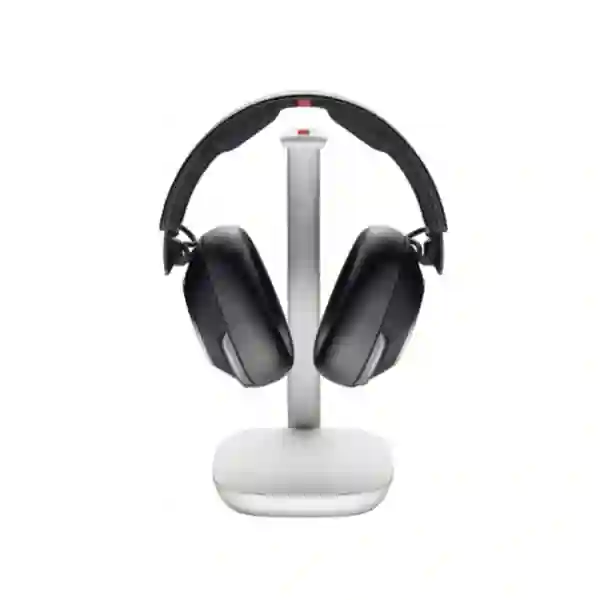
Wireless charging stand included in verified Teams bundle
Best evaluated for Teams-heavy individual work. Check comfort, laptop connectivity, actual call quality, charging habits and exact package contents before standardising it for a department.
Who this headset is designed for
The HP Poly Voyager Surround 85 UC Microsoft Teams headset is aimed at professionals who spend substantial time in online meetings but do not want a conventional microphone boom in front of their face. Its over-ear stereo design combines the listening experience of premium headphones with call-oriented microphones, desktop collaboration controls, adaptive active noise cancellation, and a dedicated charging stand. It suits people moving between a laptop, smartphone, shared office, private workspace, and occasional travel, provided that their devices and preferred calling applications are compatible.
For procurement teams evaluating headsets in Tanzania, the most useful starting point is the working pattern rather than a headline specification. Consider how many calls each person handles, whether they work in a quiet office or a noisy shared room, whether they need to hear nearby colleagues, and how their computers connect to wireless accessories. The Surround 85 UC Microsoft Teams edition is particularly relevant when Teams desktop meetings are a central part of the day. It is not a replacement for a room-wide speakerphone, a desk telephone, or specialist hearing protection.
A practical reason to choose the Microsoft Teams edition
Microsoft Teams certification is a defined feature of the appropriate Voyager Surround 85 UC variant, not simply a claim that the headset can pass sound into a meeting. Microsoft lists the Voyager Surround 80 UC and 85 UC family among certified headset devices. The Teams edition includes a dedicated Teams interaction on the earcup, helping desktop users return to the collaboration application during a busy working day. HP also describes the model as meeting the Microsoft Teams Open Office premium microphone specification.
For organisations standardised on Microsoft 365 and Teams, a certified model gives buyers a clear starting point for device selection. Actual functionality still depends on the Teams client, operating system, connectivity method, device configuration, and enterprise policies. The dedicated Teams-button behaviour described by HP is for the Teams desktop application; the same shortcut is not supported by the Teams mobile application. This distinction matters when a user splits work between a Windows notebook and a smartphone.
Understand the Teams button before rollout
The Teams-specific control is located on the right earcup. According to the HP Poly user guide, tapping it when outside a call can bring the Teams desktop application into view. With the supported USB adapter connected, a pulsing purple adapter indicator can signal Teams notifications. During a meeting, the guide also describes pressing the Teams control for two seconds to raise a hand. These are useful conveniences for people switching frequently between documents, presentations, and conversations.
Do not assume that the headset can start every meeting workflow, control all browser-based meeting interfaces, or reproduce the same shortcuts on every phone. Test your organisation’s exact desktop Teams version and permitted settings before buying for an entire department. A short pilot with representative users can also reveal whether notification lights are easy to interpret, whether the button is accessible to all staff, and whether any required desktop software is permitted by the organisation’s IT policies.
Boomless microphone system and call clarity
HP specifies a ten-microphone system for the Voyager Surround series and explains the arrangement as six built-in boomless microphones for transmitted voice plus four more microphones supporting adaptive ANC. The point is not simply the microphone count. Because voice pickup sits within the earcups, users can keep a cleaner profile on camera, avoid adjusting a boom before calls, and still work with a microphone system designed for business conversations. This is especially appealing during executive calls, training sessions, or frequent client meetings.
Good communication depends on more than headset hardware. The caller’s room noise, distance from the computer, application processing, wireless stability, speaking position, and network conditions all affect what colleagues hear. HP recommends wearing the earcups on the correct ears because microphone pickup is directional. In very disruptive spaces, compare real recordings against a headset with a dedicated boom before deciding that a boomless format is suitable for every role. No headset can promise perfectly isolated speech in every environment.
What adaptive active noise cancellation actually does
Adaptive hybrid active noise cancellation is intended to reduce distracting sound reaching the wearer’s ears. That can make it easier to concentrate on a presentation, listen to a distant colleague, or work while routine office noise continues nearby. HP’s user guide describes Adaptive as the default ANC setting and identifies a Standard mode optimised for office listening. The setting can be adjusted through the Poly Lens application, so people are not limited to one fixed listening experience.
It is important to separate noise cancellation for the listener from noise reduction for people at the far end of a call. ANC primarily changes the sound heard by the headset wearer; the boomless microphone system handles voice capture and outgoing audio processing. Strong background sound can still affect a conversation, particularly if several people speak close to the user. A quiet meeting location, appropriate input level, and a call test remain sensible even with a premium headset.
Transparency mode for real working spaces
A fully isolated listening experience is not always desirable. People may need to hear a colleague approaching, an office announcement, or a conversation happening at the same desk. The Voyager Surround 85 UC provides Transparency mode, which intentionally lets outside sounds through while the headset is being worn. HP documents Environment and Speech settings, allowing users to choose between broader environmental awareness and an emphasis on nearby conversation, depending on the situation.
Transparency mode can be practical for hybrid workers who change surroundings several times a day. For example, a user may prefer ANC while reviewing recorded training, then switch to Transparency when collaborating with colleagues in an open room. It should not be treated as a safety device or a substitute for removing the headset when full environmental awareness is necessary. Before workplace deployment, explain the difference between ANC, Standard listening, and the transparency options so users can control their own experience.
All-day fit, weight, and comfort decisions
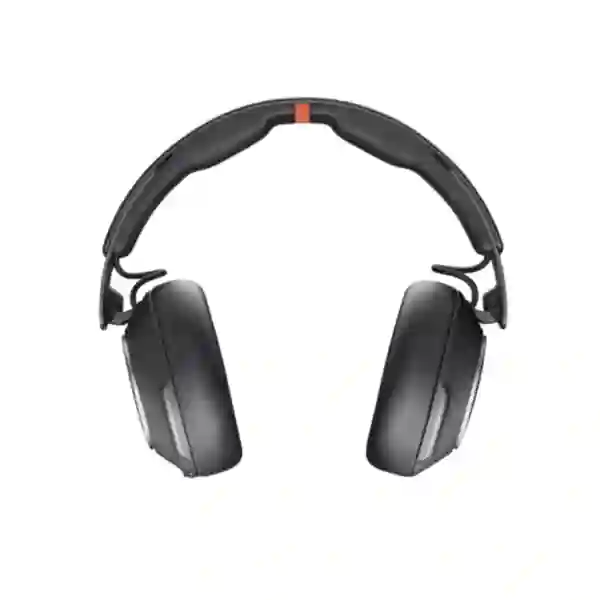
The headset is an over-ear stereo design with artificial-leather ear cushion surfaces. HP lists a weight of approximately 275 grams and physical dimensions of 191 by 77 by 181 millimetres. HP also highlights slanted audio drivers, soft cushions, an adjustable fit, and a headband design intended to reduce pressure near the top of the head. These details help explain why the model is positioned for people who wear a headset throughout a workday rather than only for occasional calls.
Comfort is personal. Glasses, hairstyle, ear shape, head size, ambient temperature, and the length of uninterrupted wear can change the experience considerably. An over-ear seal may feel immersive but warmer than lightweight on-ear alternatives, especially in a hot workspace. For team purchasing, provide a sample unit for a realistic call-and-document session instead of deciding solely from catalogue pictures. Encourage users to adjust the headband carefully and take listening breaks as needed.
Stereo speakers for calls, training, and media
The Voyager Surround 85 UC uses 40-millimetre speaker drivers, and HP specifies a speaker bandwidth of 20 Hz to 20 kHz. In everyday terms, it is built for more than compressed voice calls: staff can use the same headset to listen to webinar recordings, review multimedia training, hear notification audio, or play music between meetings. Stereo listening can make spoken material and programme audio comfortable over longer sessions when volume is appropriately managed.
Technical frequency numbers do not guarantee how every recording will sound. Application codecs, Bluetooth operating mode, source material, personal equalisation settings, and environmental noise all matter. During voice calls, devices may use a communications-focused audio profile that behaves differently from music playback. Users who expect identical sound during every activity should test the applications they rely on. Poly Lens equaliser settings provide another way to tailor listening, but a consistent and intelligible speech experience should be the priority for business use.
Bluetooth 5.3 and supported devices
HP specifies Bluetooth Core 5.3 for the headset. It is designed to work with compatible PCs and smartphones, while the included BT700 USB Type-C Bluetooth adapter offers a practical connection route for a business computer. A USB-C to USB-A adapter is included in the verified Microsoft Teams charging-stand package, providing flexibility for laptops that do not have a suitable USB-C port. HP identifies Windows 10, Windows 11, macOS, Android, and iOS among compatible operating systems.
Compatibility should be interpreted at two levels: basic audio connectivity and advanced call controls. A phone may play media and handle ordinary Bluetooth calls without supporting the headset’s desktop Teams controls. A browser softphone may require different configuration from an installed desktop client. An older workstation or heavily restricted company device may need an IT check before the USB receiver can be used. Confirm the actual ports, software policy, and calling applications before quantity orders.
Why the BT700 USB adapter matters
The BT700 Bluetooth USB adapter is more than a small accessory to be ignored in the packaging. For many office users, it is a straightforward way to establish a computer-to-headset Bluetooth audio link without depending on an unknown built-in wireless chipset. The verified Teams edition package contains a USB-C adapter and a USB-C to USB-A converter, making it easier to match different company laptops. HP’s user guide also documents adapter LED signals for connection, calls, mute, and Teams activity.
In an IT-managed environment, choose one supported connection method and document it for staff. Avoid leaving multiple competing headset audio devices selected in the operating system or conferencing application. If sound comes from laptop speakers after pairing, check the input and output selections before assuming the headset is defective. Keep the adapter associated with its headset, explain storage during travel, and verify the computer allows USB accessories. A replacement adapter may require pairing or IT assistance.
Using a laptop and phone during the same day
HP lists support for up to two paired devices for this model. This is useful to professionals who rely on a computer for scheduled Teams meetings but also receive telephone calls on a smartphone. The headset can help consolidate listening around one familiar wearable device instead of requiring separate equipment for each context. The precise behaviour of competing calls, interruptions, and media playback depends on each connected device and the relevant application.
Before assuming two simultaneous conversations can be managed in a particular way, test the real workflow. A phone notification during a desktop presentation is different from switching between active softphone calls, and some controls are designed for one call type only. HP’s guide, for example, limits its softphone call-flash action to supported softphone calls rather than ordinary mobile calls. Organisations should decide which source has priority, how missed calls will be handled, and what users should do when they hear unexpected audio.
Corded audio when wireless is not ideal
Wireless convenience is valuable, but a wired fallback can protect continuity during busy work. HP’s user guide describes a corded audio mode using the supplied USB-C cable or the supplied USB-C to 3.5-millimetre audio cable. The instructions include disconnecting the computer’s Bluetooth USB adapter and turning the headset off for the documented corded workflow. With the USB-C cable connected, the headset battery charges while audio is used; the 3.5-millimetre connection does not charge the battery.
This makes a practical difference for staff who want to reduce the number of active wireless devices or recover from an exhausted battery. It also means the cable type and destination port must be checked carefully. Not every phone or computer has a traditional 3.5-millimetre socket, and a generic replacement cable should not automatically be assumed to match the original. Before mass deployment, test the supplied wired method with the actual laptop image, operating system, and conferencing application.
Wireless range and realistic expectations
HP states a wireless operating range of up to 30 metres for the specified bundle. That figure is a maximum under suitable conditions, not a promise that a user can walk that distance through every wall or office partition. Furniture, metalwork, building layout, radio interference, and local equipment can reduce the reliable operating area. A strong Bluetooth link cannot fix interruptions caused by a weak internet connection, and a strong internet connection cannot eliminate local wireless interference.
For a business office, the sensible use case is freedom to stand, move around a desk, or reach a nearby document while remaining connected. If someone needs to cross several rooms or walk outside a building while speaking, test that exact route. Avoid designing a mission-critical workflow around the theoretical range. Also remind users that moving away from a laptop can make shared screens and chat messages harder to follow even when the audio connection remains stable.
The wireless charging stand explained
The charging stand is a key reason to choose the Voyager Surround 85 rather than the closely related Surround 80. Instead of managing a cable after every meeting, the user places the headset on its dedicated stand. HP describes a wireless NFC charging arrangement and charge-status indicators. The stand can give the headset a consistent home on the desk, helping people keep it ready between calls while also reducing loose charging cables around their primary working area.
Practical placement still matters. The stand needs a suitable USB power connection, enough clear desktop space, and a location where the headset will not be knocked over. Make sure the earcups are seated as intended and check the indicator rather than assuming docking automatically succeeded. The stand is the charging accessory for this product; do not assume it charges unrelated headphones or phones. When ordering several units, confirm that each selected package includes the stand rather than relying on the family name alone.
Stand charging versus direct USB-C charging
One easily misunderstood specification is charging time. HP’s product listing gives a charge-time figure of less than one hour, while the HP Poly user guide explains that the wireless stand takes approximately five hours to charge the headset fully. These statements refer to different charging methods. The guide also supports direct USB-C cable charging, and HP support information indicates that wired charging is the faster option. The exact observed time can vary with battery state, power source, and operating conditions.
This distinction is relevant to a user who forgets to dock the headset overnight. The desk stand is convenient for routine charging between sessions, but someone facing an immediate long meeting may prefer the supplied USB-C cable and an appropriate power source. A purchasing description that says only ‘one-hour wireless charging’ would mislead buyers; this headset should be evaluated using the actual charging method planned for daily use. Inform staff how to identify the charging and fully charged indicators.
Battery life for meetings and listening
HP rates the Voyager Surround 85 UC for up to 21 hours of talk time or up to 24 hours of music listening. These are manufacturer maximum figures and do not mean the user can expect the same result with every combination of ANC settings, audio volume, wireless connection, or usage pattern. Real working days often combine calls, media playback, idle periods, and time on the stand. A well-planned charging routine matters more than reaching an absolute laboratory maximum.
For most standard office schedules, the headline runtime indicates substantial freedom from charging during individual meetings. However, employees covering long shifts or multiple time zones should still check the battery status before an important session. The user guide describes voice and LED battery alerts, and Poly Lens can show a battery level. Train users to respond to a low-battery warning by choosing a charging break or supported wired mode instead of continuing until audio fails unexpectedly.
Call, mute, and media controls
Controls are distributed across the headset so that routine actions do not always require a mouse. HP lists touch-based adjustment for volume, play and pause, track navigation, and a configurable touch action, alongside dedicated functions for microphone mute and power or pairing. The user guide places key touch interaction on the right earcup, including swipes to adjust volume. It also documents call answering and ending actions using the headset’s control surface.
These conveniences should be introduced during user onboarding rather than left for people to discover during a sensitive client meeting. Check which actions work with the particular softphone; HP notes that some applications need supporting software for full answer, end, and mute integration. Some web-based applications may behave differently. When a microphone seems silent, verify the headset’s mute state, the conferencing application’s own mute setting, and operating-system microphone permission before changing devices.
Wear sensors and useful automation
The Voyager Surround 85 UC includes smart sensor features that respond when the headset is put on or removed. The HP guide describes defaults that can answer an incoming call on wearing the headset and pause media when it is taken off, with other supported behaviour configurable through Poly Lens. This can be convenient for people who frequently switch between a conversation across the desk and a computer-based meeting.
Automatic actions are a matter of preference, however. Someone preparing a formal webinar may not want a call answered merely because they put on the headset, and someone checking a file between meetings may dislike a paused audio track restarting. Users should review sensor behaviour and customise it for their job rather than leaving every available automation switched on. IT teams deploying the product to many staff can document a recommended baseline and explain how individuals may change supported settings.
Personal settings through Poly Lens
Poly Lens is HP Poly’s software environment for supported headset configuration and management. For individual users, the relevant functions include audio settings, headset preferences, equalisation, custom control behaviour, battery information, and firmware updates. The user guide describes different capabilities for desktop and mobile applications, while HP’s Voyager series information also refers to administrative management options for business fleets.
Do not assume every setting is available on every platform or that every feature works without supporting software. In controlled workplaces, staff may need administrator permission for installation or updates. A good deployment plan establishes who installs the software, which firmware policy applies, how user preferences are handled, and what support steps staff should follow. This turns a capable headset into a predictable workplace device instead of a collection of individually configured accessories.
What IT teams should check before procurement
Business headset purchasing is often a compatibility project disguised as an accessory order. Start with the standard laptop models, operating systems, conferencing clients, user permissions, and permitted USB hardware. Ask whether employees primarily use the installed Teams desktop app, a browser-based meeting service, or several softphones. Make a short list of essential controls: basic audio, microphone mute, call answer and end, Teams interactions, firmware access, and connection recovery after sleep.
Then evaluate daily support. Can employees identify which USB adapter belongs to which headset? Are they able to change their sound settings without administrator rights? Is the stand suitable for existing desk layouts? Does the chosen model work well for people wearing glasses? Record answers from a small sample group before committing to a fleet. A repeatable setup procedure can save more support effort than comparing a long list of specifications without testing the actual working environment.
Using the headset across mixed collaboration platforms
The model is positioned within HP Poly’s broader UC headset portfolio, and HP’s Voyager Surround series materials mention use with leading collaboration platforms. Nevertheless, the product named here is the Microsoft Teams edition. Teams-specific button interactions and certification should not be interpreted as a guarantee that every third-party meeting tool exposes identical headset controls. Basic microphone and playback operation may be possible where an application supports an appropriate audio device.
When purchasing for a mixed environment, identify the primary platform and at least one secondary workflow. Test a normal call, a video meeting, mute synchronisation, reconnecting after the laptop wakes, and any hot-desking scenario. If a business relies primarily on another platform, compare its certification and administration requirements rather than assuming the Teams edition must be the best version. A simple evaluation matrix helps avoid confusion between audio compatibility, app certification, and software-control integration.
Hearing comfort and SoundGuard Digital
HP identifies SoundGuard Digital acoustic protection technology among the headset’s specifications. This is a helpful feature to investigate when staff spend hours listening to speech and notifications. HP’s product documentation also indicates that certain SoundGuard Digital functionality may require Poly Lens Desktop App. The presence of an acoustic-processing feature should not be interpreted as a guarantee that all listening environments or volume settings are safe.
Employers and users should still manage volume sensibly, take appropriate breaks, and follow relevant workplace hearing guidance. The 132 dB SPL speaker sensitivity figure in a specification table is not a recommended listening volume or a description of the exposure experienced during everyday calls. For hearing-related adjustments, accessibility needs, or specialist occupational requirements, involve the appropriate professional rather than treating a sales specification as a substitute for an individual assessment.
An executive and customer-facing meeting scenario
Consider a manager who joins several Teams meetings, reviews project updates, speaks to clients, and occasionally works from a quieter room away from the main desk. A boomless over-ear headset can look unobtrusive on video while still keeping a dedicated microphone system close to the head. The user can move between a laptop and smartphone, make a supported headset control adjustment during a conversation, and return the device to the charging stand after the session.
The practical buying questions in this case are whether the headphones feel comfortable after several hours, whether the desk stand fits beside existing screens, and whether the employee prefers the Teams shortcut. Some managers may value a discreet appearance more than the maximum possible boom-microphone isolation. Others may take calls in very noisy public settings and should compare actual recordings before choosing. The recommended solution is determined by these needs, not by the seniority of the job title.
A shared-office and hybrid-worker scenario
A hybrid employee may use a laptop at home, commute with a carrying case, and later sit at a shared workstation. The Voyager Surround 85 UC combines listening-focused ANC, a voice microphone system, wireless computer connectivity, and a transport case in one device. At home, ANC may reduce routine distractions; in a shared office, Transparency mode can make it easier to hear nearby colleagues when appropriate.
However, the charging stand is a separate desktop accessory, so a mobile worker should decide whether it lives at a permanent workstation or travels with the headset. Before every move, check that the BT700 adapter and required cable have not been left behind. A hot-desk policy should also cover cleaning and ownership: this model is typically more sensible as an individually assigned wearable than as a frequently shared audio accessory, particularly where fit and hygiene expectations differ.
Training, webinars, and long listening sessions
Online training often involves listening for extended periods, asking occasional questions, and switching between a presentation and supporting materials. Stereo over-ear listening, touch controls, and adaptive ANC can be valuable in this setting. Users can adjust the sound level without searching through the meeting interface, and the Microsoft Teams edition’s supported desktop interactions may make certain meeting tasks easier when the session is held in Teams.
Training teams should still check that the selected app handles call controls as expected and that recorded content is played at a comfortable level. When facilitators need to hear questions from people in the room, Transparency mode or temporarily removing the headset may be preferable to full ANC. For large classroom groups, do not treat a personal headset as a substitute for a properly designed room microphone and speaker system. Its strength is individual listening and conversation, not distributing audio to an audience.
Planning use in Tanzania without assumptions
For a Tanzania-based company, the most useful local purchasing questions concern the actual devices already in use, the working environment, and post-purchase support. Check whether laptops have accessible USB-C or USB-A ports, whether staff work on Teams desktop, whether office power arrangements allow a charging stand, and whether a regular headset-cleaning routine is practical. For employees in hotter rooms, personal fit and ear-cushion comfort may deserve particular attention during a pilot.
Price, stock, delivery area, warranty handling, local service arrangements, and any applicable product approvals must be confirmed for the exact offer rather than inferred from an international product page. This description does not claim that units are currently available in a specific Tanzanian city or that a particular local warranty process applies. Ask for a quotation that identifies the Microsoft Teams variant, included accessories, commercial terms, and the agreed support contact before placing a business order.
Step-by-step initial setup for an office laptop
Begin by unpacking the headset, identifying the BT700 USB-C adapter, and checking whether the laptop requires the included USB-A converter. Charge the device sufficiently before an important meeting, then power it on according to the manufacturer instructions. Connect the supplied Bluetooth USB adapter to the laptop and allow the operating system to recognise the audio device. Open the computer’s sound settings and select the Poly headset for the appropriate input and output paths.
Next, open the installed Teams desktop application and confirm that the same headset is chosen for speaker and microphone. Make a test call, speaking at a normal level, then verify microphone mute, incoming audio, and the controls the user will need. If workplace policy permits it, configure Poly Lens and check for suitable firmware updates. Finally, place the headset on its stand, confirm the charging light, and show the user where to find battery status. Record any deviations from this process for the help desk.
Practical troubleshooting before requesting support
If the other participant cannot hear you, first inspect the headset’s physical mute state, the meeting application’s microphone selection, and operating-system microphone permissions. If you hear sound through the computer rather than the earcups, check the output device setting and whether the BT700 adapter is connected. For intermittent wireless audio, move closer to the computer, reduce potential interference, and confirm that the headset is not switching unexpectedly to another connected device.
If the dedicated Teams control does not behave as expected, check that the exact Teams edition is in use, the desktop application is running, and the relevant USB adapter is connected. The Teams mobile app does not support the documented desktop shortcut. If docking does not appear to charge the headset, confirm the stand’s USB power connection and reposition the headset properly. Keep a record of the application version, connection method, and observed indicator colours; these details are usually more useful to support staff than a general report that the headset ‘does not work’.
Voyager Surround 85 versus Voyager Surround 80
The key purchasing distinction between the Voyager Surround 85 UC and the related Surround 80 UC is the wireless charging stand offered with the 85. HP’s series information specifically identifies the stand as a feature of the 85 UC. Both are positioned around an over-ear, boomless professional listening and calling experience. It is therefore reasonable to compare them around how the user charges and stores the headset, rather than assuming the higher model number automatically means stronger microphone performance.
For someone with a permanent desk and a crowded calendar, a stand can be a worthwhile convenience because the headset has a predictable place to rest between meetings. Someone who works mostly on the road may value a simpler package and rely on cable charging instead. Microsoft Teams and general UC editions also exist across this family, so the precise variant matters as much as the model number. Always check the manufacturer part number and included accessories on the actual quotation.
How to compare other headset types fairly
A traditional headset with a boom microphone may be a better fit for a heavily occupied call centre, especially where users prioritise predictable microphone placement. Compact on-ear products can appeal to people who dislike the warmth of full-size earcups. Wireless earbuds may be more portable for short calls and frequent movement. The Voyager Surround 85 UC instead emphasises a comfortable over-ear stereo experience, boomless calling, premium listening features, a Teams-oriented desktop workflow, and a charge stand.
Do not compare products based only on headline battery hours or microphone counts. Ask each shortlisted device to perform the same sample calls in the same room, with the same application and network connection. Compare listening comfort after an hour, speech intelligibility for remote colleagues, ease of muting, charging practicality, and management requirements. A transparent trial is more informative than claims that any particular headset is universally the best option for all departments.
Understanding the package and variant
HP’s verified Microsoft Teams USB-C charging-stand bundle lists the wireless headset, charging stand, BT700 USB-C Bluetooth adapter, USB-C to USB-A adapter, USB charging cable, USB-C to 3.5-millimetre audio cable, carrying case, and user guide. This combination is useful because it supports several practical deployment methods without requiring buyers to guess which cable to order first. The manufacturer identifies the specific Microsoft Teams charging-stand package with part reference 8G7T8AA.
That manufacturer reference identifies a documented product configuration, but it should not automatically be used as a FourTeck listing SKU. A retailer may track inventory under its own separate SKU. Before ordering, ask the seller to confirm that the quoted product is the Teams-certified version with the charging stand and relevant adapters. Inspect the received package against the agreed bill of materials, especially when buying multiple headsets for different types of laptop.
A purchasing checklist worth completing
Before requesting a quote, write down the approximate number of users, primary conferencing platform, operating systems, laptop connector types, and preferred charging arrangement. Decide whether staff require Teams-specific desktop controls or mainly basic Bluetooth audio. Include requirements for quiet-room work, open-office calls, travel, staff training, and central IT management. Where a team has diverse roles, consider different headset profiles rather than assuming one premium model will fit everybody.
Request that commercial details be confirmed in writing: exact product variant, included stand, supplied USB adapter, payment terms, local availability, delivery conditions, and applicable support arrangements. Avoid relying on prices or warranty language copied from another country. For a fleet purchase, allocate time for a short user pilot and a basic IT rollout guide. The aim is a confident, supported purchase with fewer surprises after boxes arrive.
Verified technical specifications
These specifications describe HP’s documented Microsoft Teams charging-stand configuration. Performance figures are manufacturer maximums and may vary by conditions. Confirm the part reference and accessories for the exact unit offered.
| Product family | HP Poly Voyager Surround 85 UC |
|---|---|
| Configuration described | Microsoft Teams certified, with charging stand |
| Headset style | Over-ear stereo; boomless microphone design |
| Bluetooth | Core 5.3 |
| Computer adapter | BT700 USB-C Bluetooth with USB-C/A converter |
| Supported devices | Compatible computers and smartphones |
| Operating systems | Windows 10/11, macOS, Android and iOS |
| Microphones | Ten total: six for voice and four supporting ANC |
| Active noise cancellation | Adaptive hybrid ANC; Transparency mode |
| Speakers | 40 mm drivers; 20 Hz to 20 kHz listed bandwidth |
| Microphone bandwidth | 20 Hz to 16 kHz |
| Rated battery life | Up to 21 hours of talk; 24 hours of listening |
| Wireless range | Up to 30 m under suitable conditions |
| Paired devices | Up to two, as specified by HP |
| Charging | Wireless stand; direct USB-C cable alternative |
| Charging time distinction | Approximately 5 hours on stand; under 1 hour quoted for cable charging |
| Headset weight | Approximately 275 g |
| Physical dimensions | 191 × 77 × 181 mm |
| Colour | Black |
| Acoustic processing | SoundGuard Digital; software conditions may apply |
| HP manufacturer part reference | 8G7T8AA for the documented Teams charging-stand package; not a verified FourTeck SKU |
Frequently asked questions
Is this actually Microsoft Teams certified?
Yes, the appropriate Voyager Surround 85 UC Microsoft Teams edition is certified for Teams, and Microsoft includes the Voyager Surround 80 UC/85 UC headset family in its certified device list. The relevant HP product configuration is specifically labelled Microsoft Teams certified. Buyers should still check that the quoted unit is the Teams variant rather than a differently configured UC unit, because headset naming across regional catalogues can look similar.
Does the headset have a microphone boom?
No. The Surround 85 UC uses microphones built into the earcups, so there is no external arm to position near the mouth. HP describes six boomless microphones for voice pickup and four additional microphones supporting adaptive ANC. This makes the headset visually discreet in video meetings. For exceptionally loud working spaces, a comparative call test with a boom-microphone headset is sensible before purchasing in volume.
Can it connect to a Windows laptop and a smartphone?
The headset supports Bluetooth connections with compatible computers and mobile devices, and HP specifies support for up to two paired devices. The supplied BT700 USB-C adapter is a practical route for computer audio, and a USB-A converter is included with the documented Teams bundle. Desktop and phone call-control functions are not identical; test actual switching behaviour and any company-specific software policies.
How long does the battery last?
HP specifies up to 21 hours of talk time and up to 24 hours of music listening. Those are maximum figures and will vary with use, volume, connection state, ANC choices, and environmental conditions. For normal operations, check battery status before a long meeting and make use of the stand when the headset is idle. A compatible direct USB-C connection can also be useful when the battery is running low.
How long does the wireless stand take to charge?
The HP user guide says a full charge on the wireless stand takes approximately five hours. Direct USB-C cable charging is faster, with HP product information listing a charge time of under one hour for the relevant charging method. Do not confuse the two. Check the stand indicator and headset status instead of assuming every brief docking interval will refill an exhausted battery.
Can I use the headset with a cable?
Yes. The documented package includes a USB-C charging and audio cable as well as a USB-C to 3.5-millimetre audio cable. HP’s guide describes corded audio use and states that USB-C cable mode also charges the battery, whereas the 3.5-millimetre cable does not. The appropriate port and computer configuration must be available. Follow the manufacturer’s connection steps when changing between Bluetooth and corded modes.
What does ANC do during a call?
Active noise cancellation helps reduce distracting sound reaching the person wearing the headset. Separate microphone processing is used to transmit the speaker’s voice. ANC is not a guarantee that a colleague at the far end will hear no background noise. For the best experience, use the headset with a proper fit, speak naturally, and avoid placing the call in the loudest part of a room when a quieter option exists.
Can I still hear colleagues while wearing it?
Yes, Transparency mode is intended to let surrounding sounds reach the user while the headset is worn. HP documents Environment and Speech settings that users can select as needed. For example, a person may use ANC for focused work and switch to Transparency when expecting face-to-face conversation. Where complete awareness is important, remove the headset; an electronic listening mode is not a substitute for ordinary situational caution.
Does the Teams shortcut work on mobile?
The HP user guide specifically documents the dedicated Teams shortcut for the Teams desktop application and says the Teams mobile application is not supported for that shortcut. The headset may still be used for compatible Bluetooth audio and mobile telephone calls. The distinction is between audio connectivity and the dedicated desktop collaboration control. Confirm which actions staff actually need on each device before rollout.
What is the difference between Surround 80 and 85?
HP identifies the wireless charging stand as the distinctive extra in the Voyager Surround 85 UC package. Both models belong to the same premium over-ear, boomless Bluetooth headset family. If an employee has a permanent desk and wants simple docking, the 85 is worth considering. If routine stand charging adds little value, compare the Surround 80 configuration and verify both the Teams certification and exact package contents.
Is it suitable for people who wear glasses?
It may be, but comfort is individual. The over-ear cushions and headband must fit around the wearer and any glasses frames without excessive pressure. HP provides cushioning and an ergonomic headband design, yet no specification can guarantee comfort for every person over a long shift. For a team purchase, arrange a representative fitting and a realistic listening session before standardising the model.
Can an IT department manage headset settings?
HP Poly Lens provides configuration and supported device-management capabilities. The exact controls depend on the desktop or mobile app, supported software, device firmware, and organisation policy. IT staff should verify installation rights, firmware procedures, device ownership, and the set of actions that can be administered centrally. Individual users may also need guidance on volume, ANC, touch controls, and smart sensors.
What comes in the Microsoft Teams charging-stand bundle?
The HP-documented package includes the wireless headset, wireless charging stand, BT700 USB-C Bluetooth adapter, USB-C to USB-A converter, USB charging cable, USB-C to 3.5-millimetre audio cable, carrying case, and user guide. Package contents may differ by region or product configuration, so ask for an exact bill of materials before payment. The FourTeck listing SKU has not been verified from supplied listing data.
What should a buyer in Tanzania confirm before ordering?
Confirm the exact Teams edition, number of units, laptop port compatibility, required software, stand inclusion, support conditions, delivery terms, and price for the actual offer. Do not assume that manufacturer details published for another country establish local stock, service coverage, warranty handling, or regulatory approvals. A written quotation and a small user trial can help a Tanzanian business match the headset to its real workplace needs.
Request a configuration-checked quotation
Considering the Poly Voyager Surround 85 UC Microsoft Teams headset for an individual or business team in Tanzania? Request confirmation of the exact Teams edition, stand and USB accessories, current price, availability and applicable support arrangements. This ensures the offer matches your devices and daily meeting workflow before you order.
Next step: ask FourTeck Tanzania for a quotation for the verified configuration.
Reviews
There are no reviews yet.