
Home networking · Dual-band Wi-Fi 5
Ubiquiti AmpliFi Instant Router AFi-INS-R
A compact standalone home Wi-Fi router with a touchscreen, easy AmpliFi setup, dual-band 802.11ac wireless and one Gigabit WAN plus one Gigabit LAN port. Designed for straightforward home connectivity; check your broadband handoff and building layout before ordering.
Request a model-specific quote and confirm current local availability.
At a glance
- Model: AFi-INS-R — standalone router, not the AFi-INS router-and-MeshPoint system
- Wi-Fi 5 (802.11ac), 2.4 GHz and 5 GHz, 2×2 MIMO on each band
- Published maximum radio rates: 300 Mbps / 867 Mbps respectively
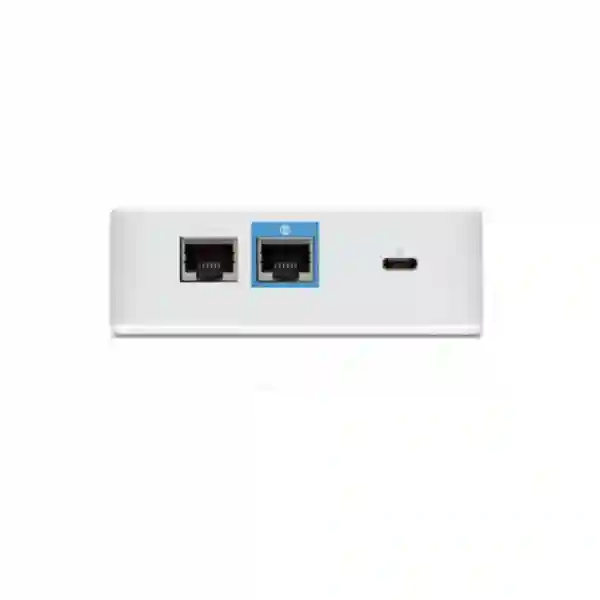
- One GbE WAN and one GbE LAN interface
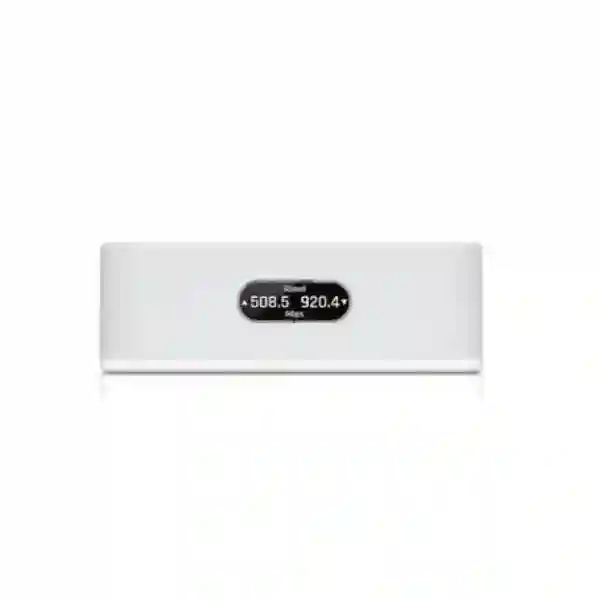
- 1.21-inch grayscale capacitive touchscreen, adjustable base LED
- Maximum power consumption: 9 W; approximately 99.5 × 97.8 × 33.05 mm
Published radio rates are not guaranteed internet throughput. Coverage and performance depend on the environment and client equipment.
Who the AmpliFi Instant Router is for
The Ubiquiti AmpliFi Instant Router AFi-INS-R is designed for people who want straightforward home Wi-Fi without taking on the complexity of a business networking platform. It combines a compact tabletop design, a small touchscreen, dual-band wireless and setup through the AmpliFi app. For a household in Tanzania considering a new router, the first question is whether the home needs a simple central wireless network or a larger system with several access points. This model is a useful candidate for the first situation. It can be the main router behind an internet provider’s modem or suitable upstream connection. It is not itself a mobile-data modem, fibre optical terminal or internet subscription. Buyers should verify that the provider can supply a compatible Ethernet handoff and the account credentials or settings required for the connection. This distinction matters particularly where the broadband service arrives through a separate fibre, fixed-wireless or cellular customer device. The Instant Router then distributes that existing connection over Wi-Fi and through its LAN port.
What makes this model different
A visible touchscreen and a clean low-profile enclosure distinguish this product from routers that rely entirely on blinking status lights and a browser-based administration panel. The display gives the device a visible point of interaction on a desk or shelf, while the companion AmpliFi app provides setup and everyday management features. A configurable LED at the base can help communicate system status without leaving a large collection of bright indicators in a living space. These are usability benefits, not evidence that it offers faster speeds than every competing Wi-Fi 5 router. Its core hardware remains deliberately modest: two wireless bands and two Gigabit Ethernet interfaces, one allocated to WAN and one to LAN. That mix suits a primarily wireless home where a single wired client is sufficient. An office that needs numerous hardwired desktops, telephones, cameras and printers should plan additional switching equipment or choose a different network design.
Single-router package versus the Instant System
The exact model number is important when comparing listings. AFi-INS-R identifies the standalone AmpliFi Instant Router. AFi-INS identifies the AmpliFi Instant System, which pairs the router with a MeshPoint. A customer buying the standalone AFi-INS-R should not assume an extra MeshPoint is included. The official quick start guide for the router lists the router, power adapter and Ethernet cable as its package contents. A mesh extension is a separate purchase or a feature of a different package. The manufacturer describes approximately 2,000 square feet of coverage for the standalone router as a planning reference, not a guarantee for every building. Interior walls, reinforced concrete, neighboring wireless networks, device radios and router placement can all alter reception. A large, multi-storey or heavily partitioned residence should be surveyed instead of relying on a square-foot figure alone. This product can be considered an initial building block, with expansion decisions made once the actual weak-signal areas are known.
Dual-band Wi-Fi in practical terms
The router operates in the 2.4 GHz and 5 GHz bands and supports the 802.11ac generation commonly called Wi-Fi 5. The manufacturer’s stated radio link rates are up to 300 Mbps for 2.4 GHz and 867 Mbps for 5 GHz. These are wireless physical-layer figures for compatible conditions and must not be presented as actual broadband speed or a guaranteed end-to-end transfer rate. The 2.4 GHz band often provides more usable reach through obstacles but is commonly shared with many other devices and networks. The 5 GHz band can be a better choice for nearby compatible laptops, televisions and phones when cleaner spectrum is available. Real throughput is influenced by signal level, channel conditions, client support, the internet package and network overhead. For accurate expectations, test a wired device first and then compare Wi-Fi performance from the locations where users actually work, study and stream. A fast provider plan does not automatically overcome poor wireless positioning.
Understanding the two Ethernet ports
On the rear of the AmpliFi Instant Router are a Gigabit Ethernet WAN interface and a Gigabit Ethernet LAN interface. WAN is the connection toward the upstream internet service equipment. LAN is the local wired connection for a computer, network switch or another suitable client device. One LAN port is a useful convenience for a smart TV, desktop or gaming system but it is not the same as a four-port or eight-port integrated switch. If several devices require cable connections, consider a compatible external Ethernet switch and plan the cable layout. A Gigabit port indicates the physical link capability, not a promise of Gigabit internet throughput; routing features, service characteristics and connected hardware affect observed results. Do not plug a provider’s line into an arbitrary port simply because the connector fits. Follow the supplied installation instructions, verify what the upstream device is providing and confirm the correct internet configuration before assuming the router is faulty.
Touchscreen and status lighting
The front panel includes a 1.21-inch grayscale capacitive touchscreen, specified by Ubiquiti as a 160 by 64 display. This is one of the product’s recognizable features, giving the otherwise understated white router a direct status surface. The base has an adjustable LED, and its brightness can be configured through the AmpliFi app. These features can help in a living room or home study because network equipment often needs to remain visible rather than being hidden in a metal cabinet. A router tucked behind a television, inside a closed cupboard or beside a dense electrical cluster may look tidy but suffer poorer wireless performance. Choose a placement that balances airflow, physical safety, reception and ease of accessing the Ethernet and power leads. The touchscreen is not a substitute for the full mobile configuration workflow, and owners should retain access to their administration credentials and the app-supported management interface.
Getting started with your internet connection
Before setup, identify the device already supplied by the internet provider and confirm whether it has a usable Ethernet output. If the provider’s unit already performs routing and broadcasts its own Wi-Fi, connecting another router may create a second routed network. That arrangement can work for ordinary browsing, but it can complicate port forwarding, gaming connectivity, remote access and device discovery. Ask the provider or a competent installer whether bridge mode, access point mode or another appropriate topology is preferred for the service. Check whether the broadband connection requires credentials, specific addressing or other configuration details. Those items vary by service and are not supplied by the AmpliFi router itself. A little planning before plugging cables in makes diagnosis much easier. Keep the provider’s device information and account details in a private place rather than publishing them in support messages or screenshots.
App-led installation
Ubiquiti’s official quick start guide supports setup using the AmpliFi app for iPhone or Android. It also describes a non-app installation route through the router’s default wireless network using a computer or tablet. During an app-led installation, connect the router to power and connect its WAN port to the appropriate upstream modem or gateway, then follow the manufacturer’s on-screen guidance. Choose a memorable network name and a strong, unique wireless password. Verify that a nearby client can reach the router and can subsequently reach the internet. Do not judge setup complete merely because the device has power or a phone displays a Wi-Fi symbol. If internet access fails, check the upstream modem, cabling, addressing, login requirements and whether a previous router’s settings need to be transferred. Record your chosen network details securely so another authorized household member can restore access when needed.
Operating the AmpliFi app
The AmpliFi app is designed to simplify everyday tasks that would otherwise require a more technical administration interface. Manufacturer documentation describes features such as device status, performance reporting, parental controls, guest access and remote management. The availability and behavior of individual app features can depend on firmware, app version and configuration, so confirm the current screen and settings on the particular device. For a household, a useful routine is to check connected clients, identify unfamiliar devices and review the guest network before handing out credentials to visitors. A guest network can help separate casual visitors from the primary household password; it should not be mistaken for a full enterprise network segmentation and compliance solution. When changing settings, make one adjustment at a time and then verify connections on important devices. That practice makes troubleshooting far more reliable than changing several settings and guessing which one solved a problem.
Planning coverage in Tanzanian buildings
The practical wireless range of any router is shaped by the building. Dense reinforced concrete, masonry walls, metal roofing, reflective surfaces and long corridors can attenuate a signal even when a manufacturer’s marketing range sounds generous. Plan placement close to the centre of the activity area, at a sensible height, with clear space around the equipment. Avoid floors, closed cabinets and electrical enclosures unless a professional site survey indicates otherwise. A standard-sized apartment with relatively open rooms is a different radio environment from a larger house with a courtyard, detached office or several concrete partitions. Measure reception from the places that matter, such as a remote working desk, an online learning area and the television. Test at the hours when neighboring networks are busy, because interference can change during the day. If dead spots remain, investigate mesh expansion or a wired access point strategy rather than assuming that simply buying a higher-speed broadband subscription will correct weak indoor Wi-Fi.
Mesh expansion: what to confirm
The Instant product family is associated with mesh Wi-Fi expansion, but compatibility should be checked for the exact mesh device, software version and network arrangement before purchase. A second box is not automatically compatible just because it also carries the Ubiquiti name. Consumer AmpliFi networking products and professionally managed UniFi equipment are different product families with different management methods and feature sets. Consult the current AmpliFi compatibility instructions for the specific hardware being added. For an extension, decide where the additional node can receive a useful signal from the main router while also improving coverage beyond it. A node placed in an existing dead zone may have too little signal to help. Where building materials are particularly challenging, a properly installed cable backbone and suitable additional wireless equipment may produce more predictable performance. Do not assume mesh expansion is included with this standalone router or that every mesh setup supports an identical wiring option.
Streaming and entertainment
For home entertainment, a stable connection matters more than a large headline radio speed number. A television near the router may benefit from the single Gigabit LAN connection, while tablets and mobile phones can use dual-band Wi-Fi. Before allocating the LAN port to a TV, consider whether a home office desktop or other fixed equipment would benefit more. Most streaming trouble has several possible causes: an intermittent provider link, crowded 2.4 GHz spectrum, weak 5 GHz reception, service platform issues or contention from simultaneous downloads. Diagnose the connection instead of assuming the router alone determines picture quality. Start with a test near the router, compare to a more distant viewing position, then check the broadband service independently. Households with many simultaneous 4K streams or demanding local transfers should assess capacity and a possible newer Wi-Fi solution rather than rely solely on the maximum published wireless data rates.
Remote work and study
A sensible network for video meetings, online classes and cloud work should prioritize consistency. Place the router where the primary work area receives a strong signal and avoid putting it behind furniture or electronics. If a work computer can be connected by Ethernet, that may remove some wireless variables, although the quality of the underlying internet service remains important. Keep sufficient power available for the upstream modem and the router, especially where power interruptions may affect connectivity. The router’s stated maximum power consumption is 9 W, but the entire broadband chain—including the provider’s equipment—needs its own appropriate power budget. Do not assume a small backup unit or power bank can safely supply the router without confirming output requirements and connector compatibility. For critical business operations, consider whether backup internet access, redundant equipment and professional network support are needed. A consumer home router should not be marketed as a substitute for a resilient business connectivity design.
Small business and reception-area use
The compact form and simple management approach may be attractive for a small customer-facing room, home business or compact office. However, it is important to distinguish a convenient Wi-Fi connection from a network engineered for high client density, business security policies, multiple VLANs and extensive wired infrastructure. An office with many desk phones, POS terminals, printers, cameras and staff devices often has needs beyond a standalone router with one LAN port. A visitor access requirement should also be assessed in the context of privacy and any operational rules the business must follow. For a straightforward environment, begin by listing concurrent users, application types, physical coverage, required wired ports and acceptable downtime. If the answer includes multiple buildings, mission-critical transactions or centrally managed access points, seek a more suitable network architecture. The right buying decision is based on the workload and management needs, not merely the brand on the equipment.
Guest Wi-Fi for visitors
Separate guest access can be convenient when friends, extended family or occasional visitors need internet without learning the main household network password. The AmpliFi software family provides guest networking controls, but the exact configuration should be verified in the current app. Set a strong primary password, review who has access and periodically retire credentials that are widely shared. If internet performance becomes inconsistent during gatherings, remember that all guests still share the available broadband service and radio capacity. A guest SSID is useful, but it is not an assurance of enterprise-grade isolation or protection against every form of network attack. In a commercial location or shared accommodation, review any privacy, access logging and client isolation requirements separately. Network design for paying guests can be more complicated than the ordinary guest feature in a home router. Take care not to describe consumer app controls as security certifications or legal compliance capabilities.
Security and firmware awareness
The manufacturer’s published security specification for the AmpliFi Instant Router lists WPA2-PSK with AES/TKIP options. Do not advertise it as a WPA3 router without model-specific confirmation. Choose an appropriately strong password and prefer the stronger available encryption configuration supported by the installed firmware and connected clients. Keep the router and app updated through trusted manufacturer-supported update mechanisms where available. Review release information when deciding whether a feature has changed or a security issue has been addressed. Secure the administrative account, avoid sharing login credentials and disable unnecessary remote-facing features when they are not needed. Where devices remain online for years, the availability of support and security updates is an important buying criterion. Ask for current manufacturer lifecycle and firmware information if the network will support sensitive operations. Finally, remember that router encryption protects a local wireless link; it does not replace safe browsing, device updates, multifactor authentication or application-level security.
Wi-Fi 5 compared with newer generations
The AFi-INS-R is an 802.11ac Wi-Fi 5 product, not a Wi-Fi 6 or Wi-Fi 7 router. This matters when a buyer is comparing models by price, device count and expected service life. Wi-Fi 5 remains capable of everyday connectivity for compatible phones, computers and streaming devices, particularly in a modest home with reasonable interference levels. But a new router based on a later standard may provide capabilities and efficiency better suited to a crowded environment or a long planned upgrade cycle. Do not assume a new laptop will achieve its newest radio features when connected to an older router. Equally, do not assume that a Wi-Fi 6 device cannot connect to a Wi-Fi 5 network; backward compatibility is normally supported, with the connection using a mutually supported mode. Compare the actual intended use, physical layout, security requirements and budget. The newer wireless standard is not the only factor in quality, and the Instant’s convenience may still appeal where simplicity is the priority.
Gigabit broadband expectations
The router includes Gigabit Ethernet interfaces but those port specifications should not be confused with a guaranteed one-Gigabit service outcome. A connection’s experienced speed depends on the subscribed plan, the provider’s network, the router’s configuration, device processing and the test endpoint. Wi-Fi throughput is generally lower than the published radio negotiation rate because the wireless medium carries management traffic, protocol overhead and potentially competing transmissions. Test with a cable where feasible to establish the behavior of the upstream service. Then test over Wi-Fi at a short distance, ideally using a client capable of the relevant 5 GHz mode, before moving around the building. This sequence separates coverage problems from broadband problems. Buyers who need sustained high-throughput transfers or exceptionally low latency should review real workloads and consider a solution selected through testing rather than purchasing solely from the 300 Mbps and 867 Mbps theoretical radio figures.
Power, operating environment and placement
Manufacturer specifications list a maximum 9 W power consumption, an operating temperature range of -10°C to 55°C and 5–95% noncondensing relative humidity. These are equipment specifications, not permission to install the router outdoors, where rain, direct sunlight and heat accumulation can still create hazards. Use the manufacturer-supplied power adapter or a properly specified approved replacement. Confirm the actual adapter’s voltage and plug suitability for the intended installation before connecting it to local electrical infrastructure. Position the router on a stable indoor surface with ventilation and away from water sources. Keep its cable routing safe from pulling, foot traffic and accidental damage. If the broadband modem or other upstream equipment has different environmental requirements, design to the most restrictive component. Home connectivity often fails because of unstable power or a damaged cable, so practical installation quality can matter as much as headline network specifications.
A quick deployment checklist
Start by identifying the intended broadband handoff and ensuring a suitable Ethernet cable reaches the desired router location. Check that the power supply is appropriate, that the router has ventilation and that the area is accessible for setup. Next, determine who will manage the system and which mobile device or computer will be used for initial configuration. Choose a Wi-Fi name that identifies the household without exposing unnecessary personal information, and create a unique strong password. Connect the upstream device to the WAN port and use the AmpliFi installation sequence. Check the internet connection before adjusting advanced settings. Test one device near the router and then in each important room. If there are wired clients, decide which device gets the LAN port or whether an external switch is required. Finally, document the network name, setup decisions, support contacts and a sensible restart procedure in a secure location. This checklist helps prevent configuration mistakes and sets realistic expectations about coverage.
Troubleshooting a new installation
If the display comes on but internet access fails, the local router may be powered correctly while the upstream broadband connection is unavailable or unconfigured. Check the modem or optical terminal first, then inspect the Ethernet cable and confirm that it is connected to the router’s WAN interface. Determine whether the service requires particular credentials or settings. If the wireless name is missing, verify that router setup has completed and inspect the device and app status. If the network appears but a distant room has weak signal, test near the router before changing provider settings. If one phone works but another does not, compare their software, stored Wi-Fi credentials and supported modes. Record the exact symptom, time, connection type and affected devices before contacting support. Avoid repeatedly factory-resetting the device without documenting settings, because that can erase useful evidence and require full setup again. When uncertain, follow the manufacturer’s recovery instructions rather than experimenting with unsupported firmware.
When an Ethernet switch makes sense
Because the product has one LAN port, users with multiple fixed devices should plan how they will connect them. A suitable unmanaged Gigabit Ethernet switch can provide additional wired ports for ordinary local devices, although selection, cabling and power needs must be assessed separately. Connect the switch to the router’s LAN side, not the provider-facing WAN side, for a typical home setup. Count the number of devices realistically and allow for one uplink connection. For example, a household might have a desktop, TV, printer and a small network storage device, all in one room. A switch can reduce unnecessary Wi-Fi contention for those fixed clients but will not improve the quality of the upstream internet service by itself. Where cables run between buildings or through exposed outdoor routes, use appropriate professional installation practices rather than improvising household patch cables. A larger network may also call for managed switching and a different router platform.
Evaluating compatibility with an ISP
The Instant Router expects an Ethernet WAN connection to an upstream modem or gateway, so compatibility is as much about service configuration as connector shape. Before buying, ask the broadband provider whether customer-owned routing hardware is permitted and whether an IP address is handed out automatically or requires a specific procedure. Some services use provider-managed equipment that must remain in place. Others may have special settings that need competent configuration. If you intend to replace an existing gateway, confirm which functions that gateway performs; it might include voice, fibre termination, wireless or service-specific authentication. Never assume that removing the ISP’s hardware will keep those functions working. For Tanzanian households using a cellular router as the primary internet source, the AmpliFi model should be viewed as a downstream Wi-Fi router only if the cellular unit provides an appropriate wired connection. The AFi-INS-R has no manufacturer-listed integrated SIM modem and should not be advertised as such.
Buying decision: choose or look elsewhere
Choose the AmpliFi Instant Router when easy setup, a compact visible design, a touchscreen and basic dual-band Wi-Fi are more important than a large built-in wired switch or highly advanced network administration. Consider another model when you need Wi-Fi 6 or newer, a verified WPA3 capability, many LAN ports without extra equipment, complex VLAN segmentation, demanding multi-user performance or a managed business platform. Larger and more heavily built homes may need additional wireless nodes or professional access point placement regardless of the primary router. Buyers should also check the availability of compatible expansion components and current software support before committing to an ecosystem. A product can still be useful for a simple household while being unsuitable for a particular modern office. Discuss the planned floor area, building construction, internet connection type, number of users and wired-device count before requesting a quote. That context leads to a better recommendation than an unqualified statement that one router fits every network.
Questions to settle before ordering
Confirm the exact model AFi-INS-R, because similar AmpliFi names refer to different packages. Ask whether the item offered is the standalone router and whether the power adapter and Ethernet cable are included in the supplied package. Check the region or plug configuration of the unit and confirm what is needed for the installation address. Verify current availability, commercial terms and any applicable support or warranty conditions directly through the seller’s current quotation; none are assumed on this page. Provide an approximate floor plan and the type of wall construction if coverage is a major concern. State whether the broadband service comes from fibre, a fixed wireless receiver, a cellular gateway or another provider device. List the number of wired endpoints, important Wi-Fi devices and any critical home-office applications. These questions also help reveal when a simple router is not the correct solution. A quote should be based on the exact product and genuine local terms rather than an imported foreign-currency price.
How the router fits into a home network
Think of the network as a chain: the internet service reaches the provider’s modem or gateway, a suitable Ethernet output connects to the AmpliFi WAN port, and the router distributes a local connection to Wi-Fi clients and one wired LAN connection. Each part has a distinct job. The provider’s equipment remains responsible for whichever broadband termination functions the service requires, while the AmpliFi unit offers home networking features behind it. When problems occur, identifying the failing section prevents unnecessary equipment replacement. A service outage will not be fixed simply by changing the Wi-Fi password, and a weak signal in a back room may persist even if the provider upgrades the internet plan. For a house with several floors or distant rooms, coverage should be assessed as a system design question rather than a single advertised range number. This approach helps buyers plan expansion and keep the wiring understandable for future maintenance.
Care and long-term ownership
A home router is typically installed once and then relied on every day, so ongoing ownership matters. Keep the enclosure clean and unobstructed, periodically inspect the Ethernet and power leads and review the list of devices connected to the network. Follow official firmware guidance and retain access to account recovery options. When a household member changes phones, make sure management access can be restored without exposing passwords. If the router is moved, repeat coverage checks instead of assuming the earlier performance will follow it to the new location. Maintain a record of which cable runs to the broadband gateway and which serves local equipment. If the internet provider changes its equipment or settings, reassess the WAN configuration. Finally, evaluate whether the router’s supported features still match new devices and growing demand. Good maintenance extends the usefulness of a suitable network design, but it does not turn Wi-Fi 5 hardware into a later-generation product.
Technical specification reference
| Model | AFi-INS-R |
|---|---|
| Wi-Fi standard | 802.11ac (Wi-Fi 5) |
| Radio bands | 2.4 GHz and 5 GHz |
| MIMO | 2×2 at 2.4 GHz and 2×2 at 5 GHz |
| Stated radio rates | 300 Mbps at 2.4 GHz; 867 Mbps at 5 GHz |
| Ethernet | 1 × GbE RJ45 WAN; 1 × GbE RJ45 LAN |
| Display | 1.21-inch grayscale capacitive touchscreen, 160 × 64 |
| Maximum power | 9 W |
| Dimensions | 99.5 × 97.8 × 33.05 mm |
| Weight | 215 g |
| Published wireless security | WPA2-PSK AES/TKIP |
| Operating temperature | -10°C to 55°C |
| Humidity | 5–95% noncondensing |
| Manufacturer-listed package contents | Router, power adapter, Ethernet cable |
These hardware facts are taken from manufacturer product information and the AFi-INS-R quick start guide. Verify any region-specific regulatory or adapter requirements for your installation; manufacturer certifications listed elsewhere do not establish Tanzania-specific approval.
Frequently asked questions
Does AFi-INS-R include a MeshPoint?
No. AFi-INS-R identifies the standalone router. The AFi-INS system is a separate package that includes a MeshPoint. Confirm the contents of the exact seller offer before buying.
Is this a Wi-Fi 6 router?
No. The manufacturer specifies 802.11ac, commonly called Wi-Fi 5. Devices with newer radios can generally use compatible legacy modes, but they do not gain newer Wi-Fi radio features from this router.
Does it accept a SIM card?
An integrated cellular modem or SIM function is not listed for this router. It is designed to use an Ethernet WAN connection from suitable upstream internet equipment.
How many Ethernet ports are there?
There is one Gigabit WAN port for the upstream connection and one Gigabit LAN port for a wired client or suitable network switch.
What speed can I expect?
The published 300 Mbps at 2.4 GHz and 867 Mbps at 5 GHz are maximum wireless link rates, not guaranteed speed-test results. The service plan, client, interference and placement all affect actual performance.
Can I use it with fibre internet?
Potentially, when the fibre service terminates in an appropriate provider device with a compatible Ethernet output and the necessary connection settings are available. It does not replace an optical network terminal.
Is the router suitable for a large multi-storey home?
Coverage depends on walls, layout and interference. A single unit may not cover every floor reliably. Assess locations and consider compatible mesh expansion or a designed multi-access-point installation.
Can visitors connect without knowing the main password?
The AmpliFi software family includes guest-access features. Check the installed app and firmware options and configure guest credentials according to the security needs of the household.
Can the router be configured without the mobile app?
The manufacturer’s quick start guide describes a non-app setup path using the default AmpliFi wireless network from a computer or tablet, alongside app-based setup.
Is it the same as a UniFi access point?
No. AmpliFi Instant is a consumer-oriented AmpliFi product. UniFi is a separate Ubiquiti platform with different management and deployment assumptions. Do not assume cross-platform mesh compatibility.
Can I connect several wired devices?
The router itself has one LAN port. For additional wired devices, plan a suitable Ethernet switch or select a router with more LAN ports.
Does it support WPA3?
The published model datasheet lists WPA2-PSK AES/TKIP. Do not assume WPA3 is available without current model- and firmware-specific confirmation.
What comes in the box?
The official AFi-INS-R quick start guide lists the router, power adapter and Ethernet cable. Confirm the regional packaging and actual offer details with the supplier.
What is its power consumption?
Ubiquiti specifies a maximum of 9 W for the router. Any modem, switch or power-backup equipment has separate requirements.
What should I tell FourTeck when requesting a quote?
Share the exact AFi-INS-R model, existing internet connection type, number of users, important rooms, wired-device needs and any concern about mesh expansion. Confirm price, availability and terms in the resulting quote.
Ask about the AFi-INS-R for your home
Tell FourTeck Tanzania what type of internet connection you have, the rooms you need to cover and whether you require additional wired devices or mesh expansion. Request confirmation of current price, stock, package variant and applicable terms before ordering. No price or stock status is represented on this page.
Request a quotation for the standalone AmpliFi Instant Router AFi-INS-R.
Reviews
There are no reviews yet.