
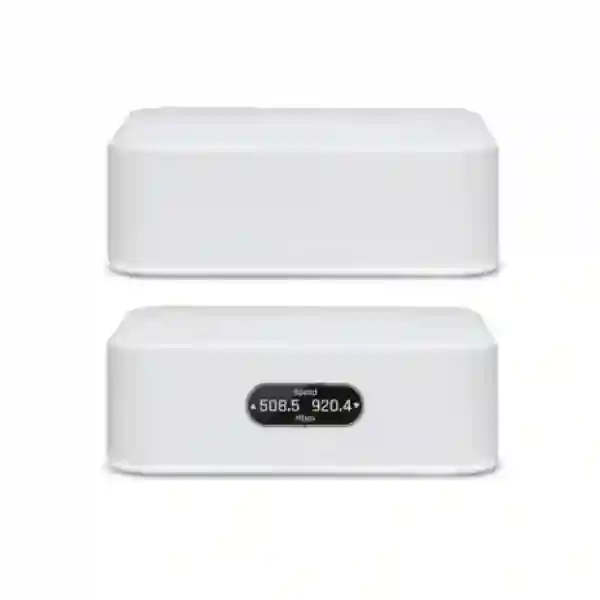
Ubiquiti AmpliFi Instant System AFi-INS
A two-unit Wi-Fi 5 mesh system combining a touchscreen router and a separate MeshPoint for better reach around the home. Understand its features, installation choices and limits before requesting a Tanzania quote.
At a glance
- Model: AFi-INS — Instant router plus one MeshPoint
- Wireless: dual-band 2.4 GHz / 5 GHz, 802.11ac Wi-Fi 5
- Manufacturer radio rates: 300 Mbps and 867 Mbps respectively; not guaranteed internet speeds
- Router ports: one Gigabit WAN and one Gigabit LAN
- MeshPoint: one Gigabit LAN
- Touchscreen on the router; app-guided setup and management
- Manufacturer-stated potential kit coverage: up to 4,000 sq ft; actual range varies
Whole-home Wi-Fi without complex networking
A single router may work well near the modem yet struggle to serve bedrooms, upper floors or workspaces behind thick walls. The Ubiquiti AmpliFi Instant System AFi-INS addresses that familiar problem with a router and a separate mesh unit. Instead of asking every device to reach the original router from the farthest room, the MeshPoint extends the wireless network into another useful part of the building. This is especially attractive when a buyer wants an everyday home network that is straightforward to manage rather than a collection of separately named extenders.
The key buying decision is not simply the floor area stated on a box. Check the number of rooms, placement of the incoming internet connection, wall construction and the places where you actually need a stable connection. A mesh kit is most useful when the main router can sit in a practical location and the second unit can be installed within reliable radio range. The result can be more consistent access across a home, although no wireless system can promise the same signal in every building.
Understand exactly what the AFi-INS package contains
This particular model is the AmpliFi Instant System, not the separately offered AmpliFi Instant Router model AFi-INS-R. The manufacturer lists one Instant router, one Instant MeshPoint, two power adapters and an Ethernet cable in the system package. The router is the main device connected to the broadband modem or existing internet handoff. The second device is positioned elsewhere to improve Wi-Fi reach. The package contents matter because the name Instant appears on more than one Ubiquiti product, and a single-router purchase does not provide the same two-position coverage arrangement.
Before requesting a quote, confirm that the exact AFi-INS two-unit system is what you require. Check the supplied power adapters, local power-plug suitability and the space available for each unit. The kit does not create a new internet subscription: an appropriate broadband connection is still needed. Buyers with unusually large buildings or a more demanding installation should plan additional coverage only after checking device compatibility and the desired network layout.
Dual-band Wi-Fi 5 in practical terms
The AmpliFi Instant uses the 802.11ac Wi-Fi standard and operates over the familiar 2.4 GHz and 5 GHz frequency bands. Manufacturer specifications describe 2×2 MIMO on both bands and nominal wireless link-rate figures of 300 Mbps at 2.4 GHz and 867 Mbps at 5 GHz. These figures are radio specifications, not guaranteed download speeds, and should not be added together to promise a single device’s internet performance. Your results depend on client hardware, radio interference, signal quality, network traffic and your broadband service.
The 2.4 GHz band is often helpful for devices farther away or across walls, whereas 5 GHz can be useful for higher-throughput connections closer to a node. Actual band selection and client behavior vary. If you are replacing an older single router because signal coverage is poor, the mesh arrangement may be more important than headline speed. If you specifically require Wi-Fi 6, Wi-Fi 6E or Wi-Fi 7 client features, choose a different product category; AFi-INS is a Wi-Fi 5 system.
A compact router with a useful touchscreen
The main AmpliFi Instant router has a small grayscale capacitive touchscreen, specified by the manufacturer at 1.21 inches diagonally with 160 x 64 resolution. It gives the system a recognizable at-a-glance interface rather than requiring a computer for every basic status check. The adjustable light on the unit also provides a visible indication during normal operation. Display and light brightness can be adjusted through the AmpliFi app, an important detail when the router is placed in a living room or bedroom.
The touchscreen is a convenience feature, not a replacement for planning your wireless installation. It is still sensible to use the mobile app for network configuration, monitoring and supported management functions. Position the router where its power and WAN connections remain secure, the touchscreen can be accessed without disturbing cables, and it is not enclosed inside a metal cabinet. A neat desktop device can fit well in shared spaces, but appearance should not dictate a location with poor wireless propagation.
Ethernet ports and wired-device planning
The Instant router provides one Gigabit Ethernet WAN port for the internet connection and one Gigabit Ethernet LAN port for a wired local device. The included MeshPoint also offers one Gigabit Ethernet LAN connection. These are useful for a desktop computer, television or other compatible device near a node. They are not a large built-in switch. A purchaser with several wired devices should count required connections before selecting this kit and evaluate a suitable external network switch where appropriate.
A Gigabit port describes the interface link capability rather than a promise of gigabit internet speeds in every scenario. Cable quality, modem capability, upstream service and device performance can all set the practical limit. The MeshPoint’s Ethernet socket should not be confused with a second internet WAN input. Verify the exact intended network topology and firmware-supported arrangements before planning advanced backhaul or a multi-router installation. The simplest supported deployment is an internet-connected Instant router with the paired MeshPoint extending coverage.
How the mesh unit helps with difficult rooms
The MeshPoint is valuable when a useful destination such as a study, lounge or upstairs room sits beyond the strongest reach of the main router. Think of the device as a relay that must maintain its own good connection to the router while serving equipment nearby. If it is placed directly in the worst dead zone, the relay may receive too little signal to help. A location partway between the primary router and the weak-coverage area will often work better.
Furniture, concrete, reinforced walls, mirrors, metal shelving and neighboring wireless networks affect reception. Even two homes with similar floor plans can need different placements. Begin with a reasonable middle position and use network diagnostics to test stability. Move the MeshPoint in small increments rather than assuming a visually central room is the best location. After placement, test the actual activities that matter—calls, learning platforms, streaming and normal browsing—in the areas the system is intended to serve.
Coverage claims need realistic interpretation
Ubiquiti’s AmpliFi materials describe coverage of up to approximately 4,000 square feet for the two-unit Instant System. This is a manufacturer-stated potential range, not a guaranteed coverage area for any particular Tanzania home, office or property. Building materials, the available spectrum, furniture, the location of the broadband modem and neighboring access points will change the outcome. A simple one-floor home can behave differently from a multi-storey property with dense block walls.
For a practical buying decision, make a rough plan of rooms, floors and the sites where users actually connect. Consider whether a single node can reach each busy zone, where the second node can safely receive power, and whether performance is needed through several interior walls. Where consistent performance is critical, ask for a site-specific assessment instead of treating a theoretical square-foot figure as a service guarantee. The kit improves distribution of an existing connection; it cannot compensate for a slow or frequently unavailable internet feed.
First-time setup for everyday users
The manufacturer’s quick-start instructions support configuration using the AmpliFi app on a compatible iPhone or Android phone. They also describe a non-app initial setup method via the default AmpliFi wireless network from a computer or tablet. For a typical installation, connect the router to power and to the broadband modem with the supplied Ethernet cable, then follow the applicable setup process. Once the primary network is working, position and power the MeshPoint so it can join the system.
Before starting, obtain your internet provider’s connection requirements. Some services supply their own active router, while others require specific login details or network settings. A Wi-Fi mesh system does not replace every kind of optical or mobile access termination. Keep the provider’s equipment connected as required by the provider, and avoid unplugging a working business network without a plan. Confirm that all included components are present and that the mobile device used for setup can access the required application.
Choosing the right router location
A router beside a modem in a corner might be convenient for cabling but poor for radio coverage. Whenever possible, choose an open, elevated, well-ventilated location that balances easy access to the WAN cable with a clear path toward the rooms people use. Avoid surrounding the unit with metallic objects or hiding it behind entertainment equipment. Keep cables tidy and protect the device against accidental disconnection, water and physical impacts.
If the internet handoff is fixed in a remote room, the MeshPoint can often help bridge to a more active living area. However, a MeshPoint still needs a dependable wireless link back to the router. In a house with thick masonry or an irregular floor plan, test more than one position. The best location is a combination of reliable backhaul, service to nearby clients and safe power access. Do not plan placement solely around appearance or the stated maximum range.
Putting the MeshPoint in a useful place
Start by identifying the room where existing Wi-Fi becomes unreliable, then select an intermediate location rather than the farthest corner of the property. Give the MeshPoint a steady power supply and keep it away from unnecessary physical obstructions. After the network is configured, walk through the target rooms with a phone or laptop and observe how routine tasks perform. Repeat tests at busy times if several people use the connection simultaneously.
If the connection remains weak, adjust placement before purchasing more equipment. Moving a node a few metres or from behind a television to an open shelf can make a meaningful difference. Check that the client is actually connected to the intended wireless network and that the underlying internet service is functioning. Wireless conditions can change when doors close or neighboring networks are busy, so a brief test at one point in the day is not a complete site survey.
Daily control through the AmpliFi app
The AmpliFi management app provides an accessible view of the network and connected devices. Manufacturer documentation describes system overview information, active upload and download measurements, network diagnostics, family profiles, guest access and remote management options. These can help a household administrator answer ordinary questions: is the system connected, are devices joining, and should guests use a separate network? The exact set of settings can vary with current app and firmware versions.
For families, the ability to group devices and pause access can help establish household routines, although it is not a complete content-safety or child-protection service. Guest access is useful when visitors need connectivity without receiving the main network password. Remote features should be enabled deliberately and protected with appropriate account security. Use strong Wi-Fi credentials, keep devices updated through supported methods and review who has administrative access whenever a phone or household member changes.
Video calls, remote work and learning
A home office or study corner may be several walls from the incoming internet connection. For those users, stable reach matters more than a high advertised maximum wireless rate. A well-positioned Instant MeshPoint can help a laptop or phone remain connected in a previously weak area. The system is suited to common household activities such as online classes, video meetings, email, web applications and entertainment when the available broadband service and local conditions support those activities.
It is important to separate Wi-Fi issues from upstream performance. If the broadband connection itself is saturated or unstable, adding a mesh unit will not solve the cause. Check upload speed, latency, service interruptions and traffic from other devices when diagnosing poor meetings. A fixed wired connection may still be preferable for a particularly critical computer. Buyers whose livelihood depends on real-time connectivity should also consider power protection and a suitable internet-service resilience plan.
Streaming and entertainment across rooms
Smart televisions, streaming players, phones and tablets are frequently used in different parts of a home. A single router beside the internet entry point may not reach every viewing area reliably. The two-unit Instant System offers a way to position Wi-Fi closer to a second cluster of devices. The MeshPoint’s LAN port may also be useful for one compatible wired client placed nearby, subject to the deployment configuration.
Streaming quality is influenced by far more than the router’s advertised radio speed. Service plan capacity, content resolution, simultaneous users, device capabilities and interference all matter. If a household has several televisions and gaming devices, map out wired needs before buying; the main router and MeshPoint each have limited Ethernet port capacity. The AFi-INS is a home-focused mesh solution, not a dedicated multiport entertainment switch or a substitute for appropriately sized broadband service.
Small offices and light-duty shared spaces
A small reception area, studio or compact workspace may have the same physical coverage problems as a home. When the requirement is straightforward internet access and a modest number of clients, a simple mesh network may be worth evaluating. The clear touchscreen, app-guided setup and second wireless node can reduce the need to manage separate Wi-Fi extender names. The fit depends on how the space is used, its security requirements and the nature of the internet handoff.
The Instant System should not automatically be treated as equivalent to a managed enterprise wireless deployment. Organisations requiring detailed segmentation, extensive centralized access-point administration, advanced authentication, multiple VLAN designs or formal service guarantees should specify those needs separately. Confirm compatibility with any existing firewall, captive portal or business network policy. A business buyer should prioritize uptime, support expectations, wired endpoints and operational responsibility over ease of first-time setup alone.
Understanding its generation and limitations
AFi-INS belongs to the Wi-Fi 5 generation. It is an understandable choice for buyers prioritizing uncomplicated whole-home coverage and basic management, but the wireless standard matters when comparing contemporary products. A device marketed with newer Wi-Fi generations may support different features or capacity characteristics, although real-world performance still depends on its configuration and environment. Avoid comparing only one peak Mbps figure across products with different antennas, node arrangements and prices.
The Instant kit also has a modest number of wired connections and a touchscreen on the main router rather than every node. It is not a cellular modem, fibre optical network terminal, PoE access-point bundle or full security gateway platform for complex enterprise networks. Buyers who require those functions should consider a different architecture. Recognising this distinction avoids disappointment and helps direct the budget toward equipment that meets the actual requirements.
Power planning and continuity
Manufacturer information lists maximum power consumption of 9 watts for the Instant router and 9 watts for the MeshPoint. Both units require their respective supplied power arrangements; the system package includes two adapters. Confirm that the specific kit’s adapters and plug type suit the intended installation, and place each device where power can be supplied safely. Power needs to remain available at both locations for the full mesh arrangement to function.
In properties where mains power is interrupted, the availability of Wi-Fi depends on more than keeping the router powered. The MeshPoint, the provider’s modem or optical terminal, and any upstream internet equipment must also remain operational. A properly specified backup power arrangement may be useful, but capacity and electrical compatibility should be checked by a qualified provider. Never assume a device will run directly from an arbitrary DC supply or a different adapter simply because a connector fits.
Security, privacy and access controls
The manufacturer’s Quick Start Guide identifies WPA2-PSK as a wireless security mode for this model. Choose a long, unique wireless password and avoid reusing credentials from sensitive online accounts. Give guests access through an appropriate guest configuration where supported, rather than sharing administrator details. For everyday home networks, consistent password practices and software maintenance matter as much as the initial Wi-Fi name.
Check the currently supported app and firmware security options on the actual device before purchase or deployment if you need a specific authentication standard. Do not assume WPA3, enterprise RADIUS authentication, VLAN isolation or formal security compliance merely because newer networking products sometimes offer them. Use reputable endpoint protection and keep phones, computers and smart devices updated. The router is one part of an overall security posture, not a guarantee against phishing, compromised accounts or unsafe connected devices.
Compatibility with an existing internet provider
The Instant router has a wired Ethernet WAN connection designed to meet an appropriate broadband modem or network handoff. A Tanzanian purchaser should first ask the internet provider how its service is delivered and what equipment must remain connected. Fibre, fixed wireless and mobile-broadband services may require their own provider-supplied device before an Ethernet-based home router can be used. The AFi-INS itself does not supply a SIM slot or replace the provider’s access equipment.
If an existing modem is also operating as a router, check whether the intended configuration is suitable for your applications and whether provider settings need adjustment. Avoid promising universal compatibility with every local ISP, authentication method or network topology. Confirm WAN setup details, service credentials if required and any policy restrictions before installation. A straightforward connection plan makes support easier if the problem later turns out to be with the upstream service rather than the Wi-Fi nodes.
Buying for a multi-storey building
Wireless signals travel differently through floors than through open rooms. Concrete slabs, metal reinforcement and stairwell layouts may weaken a direct connection between a downstairs router and an upstairs MeshPoint. For a multi-storey home, consider a router position with the most favourable path to the second unit, such as near an open staircase or central corridor where safe and practical. Test across the actual floors rather than relying on area estimates.
If the building has several levels, long corridors or outbuildings, a two-node package might not reach every destination. More nodes are not automatically a solution if each one has a poor connection back toward the primary network. A cable-based design or a more extensive access-point deployment may be better in difficult construction. Ask for a site-specific networking recommendation if performance is needed in every room or if uninterrupted coverage is a core requirement.
Troubleshooting slow connections
When internet access feels slow, identify whether the difficulty is local Wi-Fi coverage or the upstream service. First check whether the router reports a working WAN connection. Compare performance close to the router with performance close to the MeshPoint. If the entire property is slow, the ISP, modem, external network congestion or another connected device may be involved. If only a distant room is affected, investigate node placement, interference and device roaming.
The app’s diagnostic and system features can help identify basic problems, but tests should be interpreted carefully. Speed-test results vary across servers and devices. Try a wired client where practical to establish a baseline, and repeat tests with the same conditions. Check for loose Ethernet cables and power disruptions before resetting the system. A factory reset erases configuration and should be reserved for situations where the change is understood and credentials can be restored.
Maintenance and ownership
After installation, record the wireless network name, the administrator account used for management and the approximate position of each node. Store sensitive credentials securely instead of leaving them on a note beside the router. Review manufacturer guidance before applying updates or changing important settings. The physical installation should remain accessible for safe cleaning, inspection and planned power disconnection if required.
If a device is moved to another property, confirm what is needed to adapt its internet settings and reset previous administrative access. For handover to a new owner or tenant, appropriately remove or reset saved network settings. Check the manufacturer’s current support documentation when planning expansion or a replacement. Hardware lifespan and software support can evolve independently of original specifications, so do not assume a particular update commitment unless it is verified for the exact model.
Which buyers should consider a different system?
A mesh kit is not always the best solution. If a property already has Ethernet wiring to several rooms, strategically placed wired access points may be more predictable. If the requirement includes managed Wi-Fi for many employees, multiple separate guest groups, complex security policies or advanced monitoring, a business-oriented access-point family is worth evaluating. If a buyer needs modern Wi-Fi 6 or newer radio features, AFi-INS will not provide them.
Likewise, a household that needs only one small room of coverage might not need a two-piece mesh package. The objective should be the simplest network that meets coverage, speed, wired-connectivity and management requirements. Consider the likely number of connected devices, floor plan, internet plan and who will maintain the system. A good purchase decision is based on these facts rather than the largest advertised coverage figure alone.
Questions to ask before requesting a quote
Start with the actual model name: Ubiquiti AmpliFi Instant System AFi-INS. Ask whether the proposed item is the complete router-plus-MeshPoint kit, whether both power adapters and the Ethernet cable are included, and whether the correct regional accessories can be supplied. Describe the number of floors, the approximate shape of the property and where the broadband modem is installed. Identify the rooms where a weak signal causes a real problem.
Also list devices that require cables and any nonstandard ISP settings. If purchasing for a workplace, mention policies relating to guest access, separated user groups and support. Ask the seller to confirm current availability, commercial terms, warranty handling and delivery arrangements for the specific offer; none should be presumed from manufacturer information. This discussion makes it easier to establish whether the Instant kit is appropriate or whether a different topology will deliver better value.
A straightforward upgrade path for an existing home network
Many people consider mesh Wi-Fi after using one router for years and noticing weak connectivity as their device count or home layout changes. The AFi-INS is positioned as a manageable two-position system, allowing a buyer to improve reach without immediately designing a large commercial network. It is especially attractive when ordinary users will administer the system through a familiar phone app instead of specialist router interfaces.
An upgrade still deserves a short inventory. Determine where the current internet cable terminates, which devices need wired access and what the existing router does besides Wi-Fi. If it also supplies voice, television or provider-specific functions, plan before replacing it. Check whether the new router will connect behind that device or take over routing. This avoids unnecessary downtime and supports a clean installation that can be diagnosed later.
Interference and crowded wireless environments
Apartments, townhouses and mixed-use buildings may contain many nearby wireless networks. Congestion can reduce throughput even when the signal indicator appears strong. The AmpliFi Instant’s dual-band radios provide connection options, but they do not create uncontested spectrum. Microwave ovens, metal partitions and other local equipment can also influence reception at certain positions.
Good placement is a practical first defence. Keep the nodes away from dense clusters of electronics where possible, avoid placing them on the floor behind furniture and use the manufacturer’s management interface to inspect relevant connection health. If an area suffers persistent problems, consider whether a wired path or a differently positioned access point would be more effective. Do not promise interference-free operation; radio conditions remain shared and can change as nearby networks are added.
Why one Ethernet port per node matters
The AFi-INS offers a compact and tidy approach, but each unit has limited available wired connectivity. The router’s WAN port is reserved for the incoming internet handoff, leaving one LAN port for local equipment. The MeshPoint offers its own LAN port. A person who only needs Wi-Fi across the home may rarely notice this constraint, whereas a workstation with a desktop, printer, network storage and desk phone may need a deliberate wired plan.
When several devices need cables at the same position, assess network-switch requirements and make sure the resulting topology is appropriate. If a critical device needs uninterrupted or especially predictable performance, understand the difference between a wired connection to a wireless MeshPoint and a direct wired path to the network core. The former can still depend on a wireless link between nodes. The right arrangement depends on the physical location and operational requirements.
Evaluate total cost instead of just the router
The listed package is only one part of the deployment decision. A practical budget may also include power protection, additional Ethernet cabling, a suitable switch, professional setup or adjustments to the internet provider’s equipment. None of these should be treated as included in the AFi-INS kit unless the seller explicitly says so. Avoid comparing a two-unit mesh system directly against a single basic router without accounting for the locations each must serve.
For a cost-conscious household, start by addressing the actual weak-signal areas and check whether two nodes are sufficient. An expensive network is not necessarily more useful if the service package is slow or frequently interrupted. Conversely, a low initial hardware price may be poor value if a complex building demands a different design. Ask for a clearly itemised Tanzania quote based on the exact kit and required accessories rather than assuming a public overseas price applies locally.
Decision checklist for Tanzanian buyers
Before selecting the Ubiquiti AmpliFi Instant System AFi-INS, confirm that the property already has a suitable broadband connection with an Ethernet-compatible handoff. Verify where power is available for both units. Check whether the required rooms can be reached through a sensible router-to-MeshPoint path and whether the number of wired LAN ports matches your equipment. Decide whether Wi-Fi 5 is sufficient for the devices and services in use.
Treat installation environment, support needs and supplier terms as separate checks. Ask the supplier to confirm the exact contents, current price, availability, applicable warranty arrangements and any offered setup service. Do not assume that a particular city is covered or a particular ISP is endorsed without evidence. The goal is a system that fits the floor plan and daily use, not an attractive specification sheet disconnected from how the building actually works.
What success looks like after installation
A successful installation should be judged by day-to-day reliability, not merely by a green indicator light. Verify that the router is receiving internet access and that the MeshPoint has a stable connection. Walk through representative rooms and test ordinary workloads such as a video call, streaming a programme and opening routine work sites. Confirm that expected devices can connect and that the guest network, if configured, behaves as intended.
Document any locations where performance remains inconsistent and revisit placement. A temporary speed test may be flattering or disappointing for reasons unrelated to the kit, so repeat comparable tests and consider busy household periods. The system should simplify the experience for users, but wireless planning is still an ongoing practical task when furniture, walls, client devices or service arrangements change. Keep expectations aligned with the broadband line and the building.
Closing buying guidance
The AmpliFi Instant System AFi-INS is best understood as a compact, two-node Wi-Fi 5 mesh kit intended to make household coverage easier to distribute and manage. Its distinctive touchscreen router, second MeshPoint, Ethernet connectivity and app-based administration offer useful convenience for homes and similarly straightforward environments. Its limitations—older Wi-Fi generation, modest Ethernet port count and dependence on good node placement—are equally important buying facts.
If you are evaluating this model for a home or small workspace in Tanzania, provide your floor plan, current broadband equipment and target coverage rooms when requesting information. Ask for verification of the complete AFi-INS package and an offer specific to your requirements. A short conversation about walls, floors, wired devices and network expectations is the most reliable way to decide whether this kit will meet your needs.
Frequently asked questions
Is AFi-INS the same as AFi-INS-R?
No. AFi-INS identifies the Instant System kit containing a router and a MeshPoint. AFi-INS-R identifies the separately marketed Instant Router. Compare exact model labels and included components before buying.
Does the kit include an internet subscription?
No. This is local networking hardware. A suitable internet connection and any ISP-required modem or terminal are separate requirements.
How many Wi-Fi nodes are in the package?
The documented AFi-INS package contains two Wi-Fi units: one main Instant router and one MeshPoint. It also includes two power adapters and an Ethernet cable.
Can I connect a computer using an Ethernet cable?
Yes. The router provides one Gigabit LAN connection in addition to its WAN connection, while the MeshPoint has one Gigabit LAN port. Confirm whether the desired topology meets your needs.
Does the system support Wi-Fi 6?
No. The manufacturer’s specification lists 802.11ac Wi-Fi, commonly called Wi-Fi 5. Buyers requiring newer-generation features should compare other systems.
Is 867 Mbps a guaranteed internet speed?
No. It is a specified nominal wireless rate for the 5 GHz radio. Actual end-to-end throughput depends on the devices, environment, shared radio traffic and internet service.
Will it cover every floor of my house?
Not necessarily. The manufacturer gives an up-to coverage figure, but reinforced floors, walls and layout can reduce the useful range. Positioning and a site assessment remain important.
Where should the MeshPoint go?
Choose a location that still receives a strong connection from the router while being closer to the rooms with poor service. Avoid placing it at the absolute edge of existing coverage.
Can I configure the router without a smartphone?
The manufacturer’s quick-start guide also describes connecting to the default AmpliFi wireless network from a computer or tablet for initial setup. Some management functions may be app-oriented.
Can guests have separate Wi-Fi access?
AmpliFi documents guest-network functionality in its management experience. Review the current software and required settings before enabling a guest network.
Are parental controls available?
AmpliFi documentation describes Family Profiles and schedules for pausing internet access. These tools help with household routines but should not be mistaken for complete content filtering.
Can it replace a fibre ONT?
No. An optical network terminal performs the provider-side fibre termination function. This router uses a wired Ethernet WAN handoff and normally connects after the necessary access equipment.
Does it use a SIM card?
It is not a cellular modem or SIM-based mobile hotspot. A compatible provider device must supply an Ethernet internet connection.
Does the MeshPoint need power?
Yes. The system package includes two power adapters, one for each unit. Both nodes must be powered for the intended mesh coverage arrangement.
Is the touchscreen available on the MeshPoint?
The main Instant router has the small touchscreen. The companion MeshPoint has a status light rather than the same touchscreen interface.
Is the AFi-INS suitable for large managed offices?
It is primarily a simple home-oriented mesh solution. More complex offices may need enterprise-oriented access points, segmentation, detailed policies and managed switching.
Does a larger coverage claim mean faster internet?
No. Coverage and internet throughput are different. A mesh system can make a network reachable in more places, but the upstream internet service and radio conditions limit speed.
What should I check about warranty and stock?
Ask the Tanzania seller to verify current stock, any applicable warranty terms, power-adapter variant and included accessories for the exact offer. These details are not established by the general product specification.
What if the signal remains poor after installation?
Check WAN connectivity, node placement, obstruction and interference, then compare performance near each node. Follow the manufacturer’s troubleshooting instructions before considering a factory reset.
Is a direct cable always preferable for critical devices?
A direct wired path can be more predictable for certain critical workloads. A cable connected to a remote wireless MeshPoint may still rely on wireless backhaul between nodes.
Is installation guaranteed to take two minutes?
No. Manufacturer setup messaging emphasizes convenience, but the time depends on service requirements, cabling, account configuration and site conditions.
Should I buy additional mesh units immediately?
Begin with a coverage plan for the supplied two-node kit. If more units are needed, check current compatibility and supported expansion arrangements before purchasing.
How do I know whether I need this product?
List where connectivity fails today, where your internet line enters the building, how many wired devices you have and whether Wi-Fi 5 meets your requirements. Match the kit against those needs.
Can it fix ISP outages?
No. A local mesh network cannot restore an unavailable upstream internet service. Troubleshoot the provider connection separately from Wi-Fi coverage.
Request an AFi-INS product quote
Share your building layout, broadband connection type, rooms requiring better Wi-Fi and the number of wired devices. Ask FourTeck Tanzania to confirm the exact kit configuration, current commercial terms and whether this system is the right fit.
Reviews
There are no reviews yet.