
WHOLE-HOME WI-FI • TANZANIA BUYER GUIDE
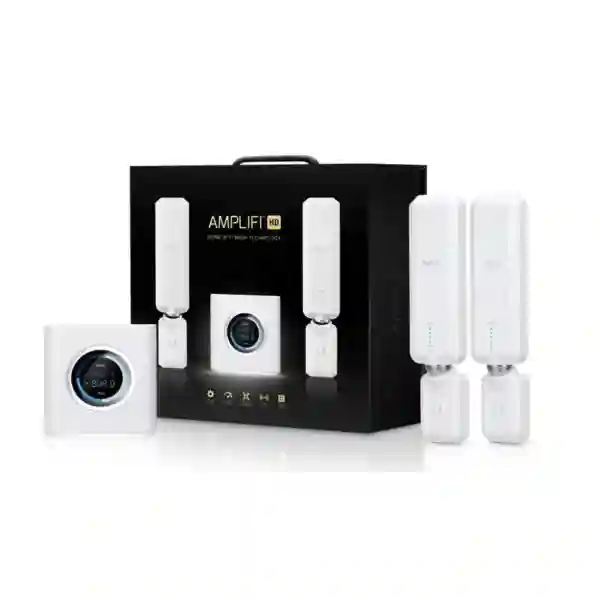
Ubiquiti AmpliFi Mesh WiFi System AFi-HD
One AmpliFi HD router and two wireless MeshPoints make this Wi-Fi 5 kit an option for improving indoor coverage across rooms. Compare it with newer systems, consider your building materials, and request a verified Tanzania quotation for the exact kit.
Quick product facts
Coverage and throughput vary by the building, radio conditions, placement, and internet plan. No Tanzania price, stock, or warranty term is implied.
The right Wi-Fi question for a larger home
A good internet subscription is only the beginning of a reliable home network. A room can have excellent internet at the entry point yet weak wireless service behind several walls, across a long corridor, or on another floor. The Ubiquiti AmpliFi Mesh WiFi System AFi-HD is designed around that everyday coverage problem. The package combines one AmpliFi HD router with two wireless MeshPoints so users can position radios in different indoor areas instead of expecting one router to reach every corner. For a Tanzanian household choosing a Wi-Fi upgrade, the useful question is not simply how fast the router sounds on a box. It is whether the layout, wall materials, broadband plan, device mix, and available power sockets suit a wireless mesh system. Ask for a quotation and confirm the exact regional hardware variant and included components before ordering.
What comes in the AFi-HD kit
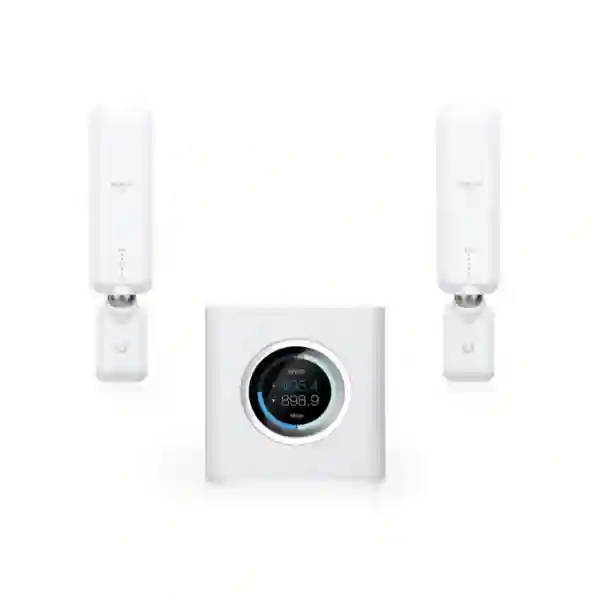
The manufacturer identifies the AFi-HD as a complete system with a router base station and two wireless MeshPoints. The router is the central unit that connects toward the broadband modem or existing upstream equipment. The MeshPoints extend wireless coverage from locations where they can still receive a good signal. Each node needs a suitable indoor power location. This is different from buying a single standalone access point and different from an enterprise controller-based installation. The combination is particularly relevant when a home has several rooms separated by walls or when one end of the building receives a noticeably weaker signal. Check the package variant, power connectors, and suitability for the intended electrical installation before purchase. The kit is a wireless networking system, not an internet connection or a mobile-data service, so an active ISP connection remains necessary.
Wi-Fi 5 instead of Wi-Fi 6
AFi-HD uses the 802.11ac wireless standard, commonly called Wi-Fi 5. It is not a Wi-Fi 6 or Wi-Fi 7 product. This distinction matters when comparing contemporary equipment, especially for very fast broadband subscriptions, busy multi-device households, or buyers who plan to keep their network for years. Wi-Fi 5 can still provide practical service for browsing, video calls, streaming, and typical connected devices when the installation and internet connection are appropriate. However, customers specifically requiring newer Wi-Fi generations should compare newer solutions rather than assume this system offers their features. The headline system speed given in older documentation is a combined radio figure, not a guaranteed speed to one phone or laptop. No wireless purchase can promise a particular room-by-room throughput without understanding the building, client devices, channel conditions, and internet service.
How a mesh layout helps
A conventional router broadcasts from one location. Its signal weakens as distance increases and as obstacles absorb or reflect radio energy. A mesh layout places additional participating wireless points closer to users in areas that would otherwise be difficult to serve. In this kit, the two wireless MeshPoints provide additional places for client devices to connect while communicating with the main system. That can make the user experience more consistent across rooms, provided each MeshPoint has a sufficiently strong connection to the router or mesh. A node placed at the very edge of a dead zone may struggle because it receives too little signal to relay effectively. The useful placement is often between the central router and the weak area, not inside the weakest possible spot. Evaluate coverage with real devices after installation and move a MeshPoint when signal quality or usable speed is poor.
Who this system suits
The AFi-HD is worth considering for a household that wants an integrated indoor wireless kit, straightforward management, and better reach than a single poorly positioned broadband router. Examples include a family home with bedrooms at opposite ends, a two-level residence where the modem is installed downstairs, or a small office with moderate everyday internet use and limited networking complexity. It can also suit a study area where a consistent connection matters more than the highest laboratory benchmark. The customer should be comfortable with a consumer-oriented network system rather than require specialist enterprise configuration. For buildings with thick reinforced concrete, unusual floor plans, many simultaneous demanding users, or strict security segmentation, a site-specific wired access-point design may be more appropriate. Coverage and suitability should be determined from the physical environment, not a generic property-size promise.
When another solution may be better
Not every weak Wi-Fi signal calls for a mesh kit. If the existing router is hidden inside a metal cabinet, relocating it could improve coverage at little cost. If an office requires multiple VLANs, centrally managed switching, elaborate firewall rules, or defined performance across a large number of clients, a purpose-designed business network may be a better fit. If the building already has Ethernet outlets near the remote rooms, wired access points may deliver more predictable backhaul capacity. Customers upgrading to high-speed fibre should also consider whether newer Wi-Fi 6 hardware better fits their internet package and modern devices. AFi-HD does not replace structured cabling, power planning, or a network design for demanding commercial use. The best result comes from selecting equipment around the actual use case, not trying to make any one kit solve every possible Wi-Fi problem.
The four Gigabit LAN ports
The main AmpliFi HD router provides four Gigabit Ethernet LAN ports, as described in the manufacturer quick-start guide. These are useful for devices that benefit from a direct wired connection, such as a desktop computer, smart television, network printer, or other compatible local equipment. A wired device connected to the central router avoids some wireless interference and may receive a steadier connection. The router also has a separate WAN connection for the upstream broadband modem or network. It is important not to confuse the four LAN ports with the WAN input when planning connections. The available wired ports are on the router and should not be assumed to exist on every plug-in mesh extension in a particular regional kit. If several fixed devices need cables in distant rooms, evaluate cable routes and network layout before deciding whether this kit alone will meet the requirement.
The touchscreen as a practical control
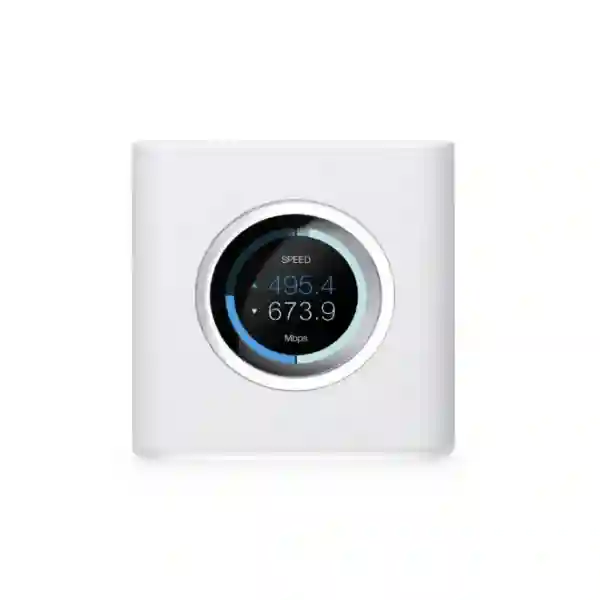
A distinctive part of the AmpliFi HD router is the front colour touchscreen. The manufacturer documents a 1.6-inch diagonal display on the system. It makes the router visually recognizable and offers at-a-glance interaction without requiring a separate rack, controller screen, or always-on computer. The unit also has adjustable lighting, which can be helpful where the router sits in a living room or bedroom. These touches improve accessibility, but they do not make the device inherently faster than another access point. Choose a router location primarily for radio performance, cable access, ventilation, and safe power, rather than putting it behind furniture solely to hide the equipment. Settings and actual operating functions can depend on the installed firmware. A display does not substitute for testing connectivity where people work, study, or stream.
Using the AmpliFi mobile app
The official setup instructions describe a configuration path through the AmpliFi application for supported iPhone and Android devices. The app provides a system overview and a way to examine connected clients and network information. It also offers diagnostic and management tools described in the documentation, including guest access and family-oriented controls. This approach may appeal to customers who prefer a visual setup process over editing numerous settings in a traditional router interface. Before selecting the product, confirm that the current application supports the phone operating system you intend to use and that the required configuration features are available in the installed firmware. Keep administrative credentials private and review settings after initial setup. An app interface simplifies common tasks, but serious troubleshooting still benefits from understanding ISP connectivity, Wi-Fi signal strength, device compatibility, and the difference between internet speed and local radio speed.
Guest network choices
The manufacturer documentation describes guest-network functionality in the AmpliFi app. A guest connection can help separate normal visitor use from the primary household credentials and can be convenient when relatives, friends, or short-term visitors need temporary internet access. The precise isolation and security behavior should be checked against the current software configuration rather than assumed. For home use, set a distinct primary wireless password and avoid disclosing administrator credentials to guests. For a public hospitality venue or a business handling confidential records, consider whether the available guest controls and security features meet your organization’s policy before deployment. A guest SSID is not automatically a full enterprise guest access solution. If formal access logging, detailed segmentation, or compliance evidence is required, plan a suitable business network rather than relying only on a consumer device setting.
Household device management
Family Profiles and scheduled internet pauses appear in the manufacturer quick-start material. These functions can be useful when a family wants to create household routines, manage shared internet access, or group devices in the app. Their value is in convenience and visibility rather than promising that every online application or connected device is fully controlled. A network-level schedule cannot replace supervision, device operating-system settings, or age-appropriate online safety practices. Review which devices are assigned to a profile so that a shared television, school computer, or work device does not unexpectedly lose access. Customers should also check feature behavior on the current application version and firmware before making a purchase decision based mainly on parental features. For work-from-home environments, a reliable connection and stable device management are often more important than a long list of advanced controls.
Placement in houses built with concrete
Many buildings contain reinforced concrete, masonry, tiled surfaces, mirrors, metal doors, or large appliances that can make wireless propagation difficult. This matters in Tanzania just as it does in other markets, although every building is different. Begin with the router in a central, ventilated indoor position, preferably above floor level and away from large metal objects. Place the wireless MeshPoints partway toward weak rooms while keeping them close enough for a good upstream signal. Avoid hiding either unit behind a refrigerator, inside a distribution cabinet, or immediately beside a large electrical appliance. Walk through the house with a phone or laptop and evaluate actual performance in the areas people use most. A floor plan, number of walls, and modem location can be more informative than the total square metres of a house alone.
Planning a two-storey installation
For a two-storey home, the best radio layout depends on stairwell location, floor construction, bedroom placement, and the location where the broadband service enters the building. A centrally placed router on the lower level and one MeshPoint higher up may help, but it is not a universal rule. Concrete slabs can attenuate the signal between floors, and a MeshPoint needs a useful upstream connection to carry traffic reliably. Think about where the signal can pass through open staircases or lighter partitions instead of forcing it through the thickest part of a floor. Start with a temporary placement test before committing furniture arrangements or fixed cable routes. Check several locations during a normal working day and under typical household load. If vertical wireless links remain weak, a wired solution or different access point layout may be more effective than repeatedly moving plug-in units.
Understanding the advertised coverage figure
The AFi-HD quick-start documentation includes a system range figure of up to 20,000 square feet. Treat such a number as a manufacturer reference rather than a guaranteed usable service area in a specific building. Range can vary greatly according to wall composition, interference, mesh placement, client radio capability, channel conditions, and the speed an application needs. A basic messaging application may remain usable at a point where a demanding video call becomes unstable. Advertised coverage also does not mean each point within that area will obtain the same download throughput. When comparing routers, request practical guidance about your construction type and the distance from the broadband termination point to the furthest occupied room. The sensible purchasing goal is adequate signal and usable performance in the rooms that matter, not merely a larger coverage number on paper.
Why speed figures need context
A Wi-Fi specification describes radio capability under particular technical conditions. Actual application speed will usually be lower because Wi-Fi carries protocol overhead, devices share airtime, and mesh hops consume wireless capacity. Internet service may also be the limiting factor. If a fibre package delivers a certain bandwidth at the modem, a mesh cannot multiply that subscribed bandwidth; it can only distribute access more effectively across the building. Conversely, a fast broadband plan does not automatically produce fast Wi-Fi in a distant room. Test the internet connection near the router and then compare performance in weak areas to identify which part of the system needs attention. For competitive gaming, large file transfers, or professional video work, Ethernet is often preferable wherever feasible. Choose expectations based on actual client devices and real-world placement rather than adding together maximum radio rates.
Band selection and client compatibility
Wi-Fi 5 systems commonly use both 2.4 GHz and 5 GHz wireless bands. The 2.4 GHz band can be useful for compatibility and often reaches through obstacles differently, while the 5 GHz band can offer better performance at shorter distances under suitable conditions. Performance is affected by local interference, channel selection, client antennas, and radio regulations. Older and newer smartphones may behave differently when connected to the same network. If a smart plug or other household device requires 2.4 GHz, verify onboarding procedures and supported app settings before installation. Avoid assuming a device is defective simply because it takes longer to connect in a new mesh environment. Also avoid assuming all client devices use the latest wireless technology; the network must serve the capabilities of the actual devices you own.
The limits of wireless backhaul
The two included MeshPoints use wireless links to participate in the system. A wireless hop needs a strong, stable connection in both directions to be useful. Each hop also competes for radio resources, which can affect throughput and latency, especially when several clients are active simultaneously. This is why placing a MeshPoint in the farthest possible corner does not always improve the experience. A connection that appears to cover more distance can still feel slower in everyday work. If you can run Ethernet to a remote section of a building, investigate a compatible wired access-point alternative. The manufacturer describes wired backhaul for supported configurations using an additional standalone AmpliFi router, but that should not be confused with a claim that the kit’s two included wireless MeshPoints support wired uplinks. Check the exact device and compatibility guide before designing extensions.
Broadband connections in Tanzania
Tanzanian customers may receive internet through fibre, fixed wireless, an ISP-provided router, or other access technologies depending on their location and provider. The AmpliFi unit connects to an existing upstream broadband service; it does not create an internet subscription. Before purchase, ask the provider whether the internet handoff is Ethernet, whether their modem must remain in service, and whether the new router should run as the main router or in a supported bridge arrangement. Authentication, address assignment, and upstream restrictions can affect setup. No compatibility with a specific Tanzanian ISP should be assumed without checking that provider’s actual connection requirements. The practical objective is to avoid unnecessary double-routing problems and to keep the internet connection supportable if the provider changes equipment. Save the existing router settings and document the wiring before making changes.
Power and installation considerations
Plan safe indoor power for the central router and the two MeshPoints. Verify the exact region and plug configuration supplied with the quoted package, and use only appropriate power hardware. Do not assume an overseas listing has the correct power connector for a local installation. Avoid improvised adapters, overloaded socket strips, and positions where a device can be exposed to rain or standing water. The AmpliFi family is intended for indoor use, so a verandah or outdoor guest space may require purpose-built weather-rated networking equipment instead. In locations where electricity interruptions affect work or study, consider whether suitable backup power is needed for the broadband equipment as well as the Wi-Fi system. Keeping a mesh node powered is not enough if the fibre termination or upstream modem has lost power. Electrical decisions should match the devices’ actual input requirements.
Heat, ventilation, and location
A router may operate for long periods, so thermal conditions are a basic part of reliability. The manufacturer specifies an operating temperature range and non-condensing humidity limits for the system; these figures should not be interpreted as permission to install the equipment in direct sunlight or in a sealed hot cabinet. Prefer an indoor, open, well-ventilated position that is protected from moisture and accidental impact. Keep enough clearance for cables and prevent the power lead from being pulled by children or pets. If the home is dusty, periodically inspect the surrounding location and clean externally using safe methods consistent with the manufacturer’s guidance. Central placement must be balanced against safety and access to power. A neat installation is one where equipment can breathe, connections remain secure, and a user can reach the router when a legitimate restart or diagnostic is required.
Security basics before going online
A home Wi-Fi network should begin with a strong unique wireless password and an equally carefully protected administration account. The AFi-HD manufacturer specifications list WPA2-PSK security; do not advertise it as a WPA3 system. Review the firmware version after installation, enable updates through supported methods, and keep a record of the device model. Avoid sharing administrative access casually and change factory or temporary credentials during setup. Separate visitors where the system supports a suitable guest configuration. If a workplace processes sensitive data, compare the security requirements with the router’s actual capabilities instead of treating any consumer mesh network as a substitute for an enterprise firewall and managed segmentation. Firmware maintenance is especially important for older models, so assess the manufacturer’s ongoing support and the product’s age before purchasing. A good wireless signal cannot compensate for weak account security.
Firmware and longer-term suitability
AmpliFi publishes firmware release notes for the HD family, and those notes are an appropriate place to examine confirmed updates rather than relying on rumours. Because AFi-HD is a Wi-Fi 5 generation product, a buyer should consider not only the acquisition price but also how long the product is likely to remain useful for their changing devices and service plan. Before purchasing, check official software support information, the condition and origin of the exact hardware, and any current restrictions that apply to the model or regional variant. Do not infer support entitlement from the existence of an old firmware download or from the continued availability of a product listing elsewhere. A buyer prioritizing the newest security and wireless features may prefer a more recent model. For a simpler installation with modest requirements, the older Wi-Fi generation can still be an informed choice when its limitations are understood.
Working from home
Video meetings and cloud documents need a connection that remains stable more than they need a marketing speed headline. If your desk is far from the broadband modem, a well-positioned MeshPoint could improve the usable signal where you actually work. Confirm that the MeshPoint itself receives an adequate connection, not just that your laptop displays a strong signal. For critical meetings, position your desk near the router or use Ethernet when possible. Consider whether other people may be streaming video at the same time, and test the connection during the hours the home is normally busiest. If work involves a corporate VPN, confirm that the router configuration and upstream ISP arrangement allow the required connections. The system may help with indoor distribution, but outages at the ISP, electrical supply, or remote service remain separate issues.
Streaming and smart television use
Streaming quality depends on more than a television detecting the network name. Signal strength, radio interference, subscription speed, streaming resolution, and other users all influence the experience. If the television is near the central router, connecting it to one of the Gigabit LAN ports is a useful option. If it sits in another room, test wireless performance in that precise position rather than assuming nearby phone coverage guarantees equal television performance. Television wireless hardware can be less capable than modern phones, and furniture or wall mounting may change how signals reach it. A MeshPoint placed partway toward the living area may be helpful. If playback still buffers, compare the speed at the router, the television, and a nearby phone, then investigate the relevant bottleneck. Mesh networking cannot repair a streaming provider outage or an underperforming internet subscription.
Online learning and shared devices
In a household where several people study and work online, reliability across separate rooms matters. A student attending a live lesson may be in a bedroom, a parent may be using email in another area, and a television may be streaming in the lounge. A mesh layout can provide more useful signal locations than a single router installed at one edge of the property. However, simultaneous activity still shares the available internet service and wireless airtime. Consider the busiest expected usage period, not just the number of devices listed in a specification. Set the network name and password clearly, keep essential devices connected to appropriate bands, and review family scheduling settings carefully. If online assessments or critical calls are frequent, have a fallback plan for ISP or power interruptions. AFi-HD improves how the available connection is distributed; it does not guarantee uptime from the upstream network.
Small-office suitability
A small office with modest numbers of laptops, phones, and a printer may value simple indoor coverage and an easy-to-understand management interface. The AmpliFi kit may be practical where the layout is uncomplicated and there is no need for elaborate corporate networking. Yet an office with multiple departments, surveillance systems, managed switches, point-of-sale systems, sensitive records, or demanding access-control policies needs additional design work. Confirm the availability of guest access, the fit of routing features, and the desired separation between operational systems. Physical placement should avoid public tampering and power interruptions. If fixed desks need reliable performance, prioritize Ethernet where practical. Do not extrapolate a residential coverage advertisement into a promise about a multi-tenant commercial building. Request a requirements-based comparison with business-focused networking equipment before finalizing a consequential installation.
Connecting to an existing ISP router
Many customers already have an ISP-supplied modem-router combo. Adding a second router without checking configuration can create two layers of routing and complicate port forwarding, gaming, remote access, or certain business applications. Depending on the supported features and provider requirements, bridge configurations may be relevant, but they must be selected deliberately. Identify which device supplies IP addresses, which device performs routing, and where the wireless network is being broadcast. If the provider’s gateway must stay active, decide whether its Wi-Fi should be left on or turned off after testing. Avoid factory-resetting provider equipment unless you have the necessary service information or provider guidance. Record the current cabling, account details needed for legitimate setup, and a recovery path before changing network settings. An orderly connection plan reduces downtime and makes fault isolation easier.
A step-by-step deployment plan
First, list the rooms with weak service and the devices used in each. Second, locate the ISP handoff and check whether a central router position is physically possible. Third, connect the AmpliFi router according to the manufacturer instructions and configure a secure Wi-Fi name and password. Fourth, pair the two MeshPoints using the documented setup workflow. Fifth, place each point in an indoor socket that offers a strong path back toward the router, not simply the furthest room. Sixth, walk through the property and test the actual applications that matter, such as video calls, browsing, or streaming. Seventh, change placement if a node is poorly connected, then repeat the test. Finally, save the configuration information securely and explain basic management to the person who will use it. These steps are a planning guide, not a replacement for the instructions for the exact regional hardware revision.
How to assess the site before buying
A useful quotation conversation starts with basic facts: the number of occupied floors, approximate floor plan, wall materials, location of the ISP router, and the rooms that currently lose coverage. Note the number of simultaneous users, whether large files or video meetings are common, and whether any fixed device can use an Ethernet cable. Ask about the age and specifications of the phones and laptops that will connect. Identify power outlets in candidate mesh locations and whether the setup will need backup power. If there is an outdoor area to cover, describe it separately because these AmpliFi devices are intended for indoor use. This short survey often reveals whether the AFi-HD kit is likely to be a reasonable fit or whether a wired, newer-generation, or professionally designed network would be better. An accurate quote begins with honest requirements, not a list of unverified promises.
Troubleshooting a weak room
If a room remains slow after mesh installation, check the entire connection path rather than blaming the end device immediately. Confirm that the broadband service works near the main router. Check the mesh status and signal indication through the available interface. Try moving the MeshPoint closer to the router, even if that seems counterintuitive, because a stronger upstream link may improve the effective user experience. Look for large metal objects, dense walls, and interference from adjacent networks. Re-test at the same time of day using the same device and application where possible. If the problem affects only one laptop, inspect that laptop’s wireless capabilities and drivers. If every device is slow, investigate the ISP handoff, router, and wireless channel conditions. Keep notes about changes so the process remains controlled and the original working configuration can be restored.
Troubleshooting intermittent internet
An occasional disconnect can have several causes: ISP interruption, local power loss, a loose WAN cable, weak mesh connectivity, radio interference, or device-specific software. Start by distinguishing whether Wi-Fi itself disconnects or whether the device remains connected to Wi-Fi but cannot reach the internet. The AmpliFi app includes network overview and diagnostic functionality documented by the manufacturer, which can help narrow the problem. Inspect the upstream modem and its status at the same time. If the issue occurs only near one MeshPoint, test an alternative power position and examine link quality. If failures happen during local electricity interruptions, examine the complete power chain. Avoid repeated factory resets as a first response because they erase useful configuration details. A structured investigation often identifies the layer at fault faster than replacing equipment without evidence.
Understanding expansion and compatibility
Customers sometimes assume that any product with the word mesh can join any other mesh system. That is not a safe assumption. AmpliFi compatibility is family- and mode-dependent, and manufacturer support information should be checked for the exact models and firmware involved. AFi-HD’s included wireless MeshPoints are intended to work within its ecosystem. Extending an existing network with additional devices may be possible in defined configurations, but not every standalone unit or third-party access point joins as a native mesh node. An AmpliFi router used as a supported wired backhaul unit is also a different configuration from the included plug-in MeshPoints. Before buying extra hardware, document the current router, planned extension unit, and the intended connection method. Confirm the compatibility path with current manufacturer guidance rather than expecting seamless operation based only on a shared brand name.
Considerations for renters and temporary homes
Some customers cannot install network cables through walls or ceilings. For a rented residence, a plug-in mesh arrangement may offer a convenient way to improve coverage without a major building modification. This is a relevant benefit where broadband enters the property at an inconvenient wall and devices are used across multiple rooms. Nevertheless, the layout still needs good power locations, and a node behind thick walls can remain poorly connected. Check that sockets are secure and accessible and that extension leads will not cross walking areas. When moving house, the system can be reconfigured, but placement should be reassessed for the new structure rather than copying the old room arrangement. A portable kit should be judged for practical signal improvement in the current home, not assumed to work identically in every future property.
Budgeting beyond the device price
When comparing offers, ask what is actually included: one router, two MeshPoints, compatible power hardware, and any documented accessories. Confirm whether the quoted price includes setup, cabling, testing, taxes, or other services, rather than assuming these are included. No Tanzania price or stock status is stated here because those details require a verified current quotation for the target listing. Also think about the cost of alternatives: a newer mesh kit may be better for long-term Wi-Fi expectations, while wired access points can involve additional cabling labour but offer steadier performance in difficult buildings. For a small home, a carefully repositioned single router could be the most economical improvement. The right decision considers total deployment effort and future needs alongside the initial equipment price. Request a quote based on your property and usage requirements.
How to compare AFi-HD with newer mesh options
Begin with the wireless generation: AFi-HD is Wi-Fi 5, while newer products may support Wi-Fi 6 or later. Next, compare the number and type of wired ports available where you need them. Then check how mesh nodes connect to the main router, whether wired backhaul is supported for the exact included units, and how much configuration control is available. Review current software maintenance and mobile app compatibility. Finally, compare price and expected length of service in the setting you are buying for. Do not accept a headline speed rating as a direct prediction of video-call quality or an advertised coverage number as a guarantee in concrete buildings. A newer kit is not always the only sensible choice, but a buyer who needs the latest wireless features should know the AFi-HD’s generation before committing.
Questions to ask before placing an order
Confirm the full product name and model, Ubiquiti AmpliFi Mesh WiFi System AFi-HD, rather than purchasing a similarly named standalone router or a single MeshPoint. Confirm that the offer is for the complete kit and ask about the exact regional version and power adapters. Ask whether the router and MeshPoints are new or otherwise described, what software support information is available, and what the seller’s actual commercial terms cover. Verify the price, stock, delivery arrangement, return terms, and warranty in writing for your purchase; none are assumed in this content. Explain the building layout and internet service type so the equipment can be assessed realistically. If an installer is involved, request clarity about initial configuration and room-by-room testing. These questions reduce misunderstandings and help align the selected hardware with the network you actually need.
Frequently asked questions: does it need an ISP?
Yes. This is a Wi-Fi distribution system, not an internet service provider. The main router needs a working connection to suitable upstream broadband equipment. Your subscribed internet bandwidth and the service provider’s connection quality still affect every device on the network. Ask your provider about connection requirements before replacing or reconfiguring their existing router.
Frequently asked questions: are the two points wireless?
Yes. The AFi-HD package contains two wireless MeshPoints intended to extend the router’s indoor Wi-Fi footprint. Their performance depends on where they are plugged in and how well they connect back to the mesh. They are not a substitute for wired access points in every building, and their presence does not guarantee a fixed throughput in a distant room.
Frequently asked questions: is this Wi-Fi 6?
No. AFi-HD is based on 802.11ac, or Wi-Fi 5. It may be adequate for a household seeking broad indoor coverage, but buyers whose requirements include Wi-Fi 6 features should evaluate newer compatible hardware. Compare the generation, features, and support arrangements rather than assuming all mesh systems are technically equivalent.
Frequently asked questions: can I connect wired devices?
The main router provides four Gigabit Ethernet LAN ports for compatible wired devices and a separate WAN port for the upstream internet connection. A desktop computer or television placed near the router can benefit from an Ethernet connection. Do not assume that the two supplied wireless MeshPoints have identical wired connectivity to the main router.
Frequently asked questions: can it cover every floor?
A multi-floor installation may benefit from the two mesh extensions, but no floor-by-floor result can be guaranteed without examining the structure. Reinforced concrete, the location of stairs, interference, and node placement can substantially change the usable signal. Start with sensible central placement and evaluate actual performance before deciding that the layout is complete.
Frequently asked questions: is it suitable outdoors?
AmpliFi devices are specified for indoor use. A garden, open courtyard, exterior wall, or uncovered balcony may require equipment specifically designed for outdoor exposure. Do not place indoor MeshPoints where rain or unsafe power conditions could damage them. If outdoor wireless coverage is an essential requirement, describe that requirement when asking for a network recommendation.
Frequently asked questions: does it improve ISP speed?
It does not increase the speed supplied by your internet provider. A better in-home wireless layout may help devices make more effective use of the connection in locations that previously had poor signal. The actual result depends on internet service, device capability, interference, and the radio path between the router and MeshPoints.
Frequently asked questions: can I add more mesh units?
Expansion must follow the manufacturer’s compatibility rules for the exact AmpliFi family, hardware revisions, and firmware. Do not assume an arbitrary Wi-Fi extender becomes a native AmpliFi mesh participant. If larger coverage is required, assess the proposed topology and whether a wired access-point approach would perform better before purchasing additional devices.
Frequently asked questions: can it manage guest access?
The manufacturer documents guest network controls through the AmpliFi application. This may be useful for temporary household visitors. The exact behavior of guest isolation and access features should be verified on the relevant software version, especially before relying on it for a business or an environment with formal security requirements.
Frequently asked questions: what should I confirm in Tanzania?
Confirm the exact hardware and plug variant, the offered contents, a current local quotation, and any applicable purchase terms. Describe your ISP equipment and building materials. Ask whether configuration and site testing are included if you need installation help. Do not assume stock, regulatory status, delivery timing, pricing, or service coverage until the seller verifies the particular offer.
Request guidance for your property
The Ubiquiti AmpliFi Mesh WiFi System AFi-HD is a practical product to evaluate when one indoor router cannot conveniently reach all rooms and you prefer a coordinated Wi-Fi 5 mesh kit with two wireless extensions. Its strengths are the integrated package, accessible management, and four wired LAN connections on the main router. Its tradeoffs include an older wireless generation, wireless mesh backhaul, and performance that depends heavily on placement. Share the size and construction of your property, the location of your broadband connection, and the rooms where your connection struggles. Request confirmation of the model variant and a current Tanzania quotation before buying. A good purchase decision is one that matches real coverage needs and understands the limits of the technology.
Reviews
There are no reviews yet.