
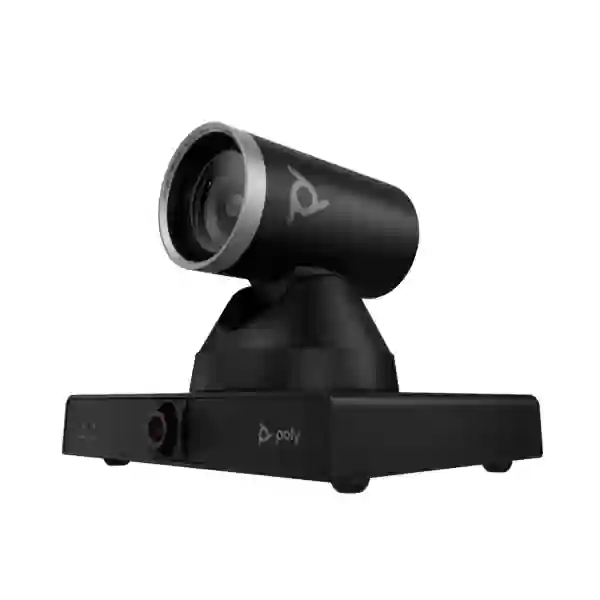
Smart camera for professional meeting rooms
HP Poly Studio E60 Smart PTZ Conference Camera
Bring the presenter closer without losing the wider meeting. Explore 4K imaging, 12x optical zoom, mechanical pan-tilt movement and Poly DirectorAI group framing or presenter tracking, then confirm the host, power and audio components your room requires.
4K UHD imaging • 12x optical zoom • Poly DirectorAI • USB connectivity
Specifications worth checking
| Capture resolution | Up to 4K UHD (3840 × 2160) |
|---|---|
| Optical zoom | 12x optical |
| PTZ movement | Pan ±170°; tilt ±30° |
| Horizontal field of view | 71° main PTZ lens; 107° panoramic AI lens |
| Intelligent framing | Poly DirectorAI group framing and presenter tracking |
| Connections | USB Type-B; RJ-45 Ethernet supporting PoE+; 12 V DC |
| Mounting | Wall-mount kit listed; optional mounting choices vary |
| Product role | Camera component; host, audio and display planned separately |
Verify exact feature availability against the proposed host system and current HP documentation.
A clearer view for hybrid meetings
In a large room, people at the far end of a table or a presenter standing near a screen can appear small to remote colleagues. The HP Poly Studio E60 Smart PTZ Conference Camera addresses that practical challenge with a motorised camera, 12x optical zoom and 4K UHD imaging. Its purpose is not simply to display a wide shot; it helps a meeting team choose a useful view of the people who matter at a particular moment. This is especially relevant when meetings alternate between seated discussion, standing presentations and collaborative training.
For a Tanzanian organisation planning a boardroom or teaching-space upgrade, the central buying question is whether this camera fits the existing room system. Consider camera placement, the length of the room, how many people must remain visible, how audio will be captured and the collaboration platform in use. The E60 is a camera component within that larger design. A quotation should therefore identify the host hardware, cables, power arrangements and any additional equipment rather than treating the camera alone as a complete video-conferencing package.
Key features at a glance
The verified highlights are 4K UHD camera resolution of 3840 × 2160, a 12x optical zoom lens, motorised pan of approximately plus or minus 170 degrees, and tilt of approximately plus or minus 30 degrees. HP specifies a 71-degree horizontal field of view for the PTZ camera and a 107-degree horizontal view for its separate panoramic detection camera. Poly DirectorAI supports presenter tracking and group framing. These numbers describe camera capability, not a guarantee that every conferencing application will send a 4K stream.
The hardware includes USB Type-B, an Ethernet interface associated with PoE+ power, and a 12 V DC power connection. HP also describes a physical lens cover, remote-control operation in appropriate configurations and Poly Lens management. The most useful way to read this feature list is as a specification to match against your room plan. Lens reach, mounting location and the available control method are usually more important than a single headline number.
Who should consider the E60
The E60 is an appropriate candidate when the main camera must see people clearly across a relatively long conference table or follow a presenter moving in an established presentation zone. Typical environments include executive boardrooms, medium-to-large training spaces, lecture-style rooms and conference suites where participants expect a professional view from a fixed camera position. HP positions the model for larger meeting rooms, but the appropriate choice still depends on dimensions and seating arrangement rather than a universal room-size rule.
If your room is small and all participants sit near a screen, a simpler wide-angle camera may be sufficient. If you need automated switching among several different camera viewpoints, extensive production connections or highly specialised broadcast functions, a different architecture may be preferable. A buying decision should start with the activity in the room, not the presence of artificial intelligence in a product name. Describe a normal meeting from beginning to end before selecting the hardware.
Understanding 4K UHD in daily use
The E60 can capture at up to 3840 × 2160 resolution, which gives the imaging system detail to work with when displaying a presenter or a meeting group. Higher capture resolution can be valuable for facial expressions and visual clarity, particularly when the camera looks across a larger space. Actual image quality also reflects the lens position, lighting, focus, signal processing and the quality of the display used by remote participants. Moving the camera closer to a subject may produce a greater improvement than increasing a streaming setting.
A meeting platform may limit resolution according to account settings, device support, application behaviour, network conditions or the selected meeting mode. Do not interpret the camera specification as a promise of 4K delivery to every participant. Ask the integrator to demonstrate the actual end-to-end picture in the chosen application, including a call to a remote endpoint. Evaluate normal movement, skin tones, white shirts, reflections, and image sharpness at the farthest occupied seat.
Why 12x optical zoom matters
Optical zoom changes the lens magnification so that a distant presenter can occupy more of the image while retaining optical detail. On the E60, the 12x optical zoom is particularly useful for the far end of a boardroom, a lecturer at a teaching wall or a trainer leading a session from the front. It helps reduce the familiar experience of watching a tiny presenter surrounded by a large amount of empty room. The useful result is a more purposeful frame rather than zoom for its own sake.
Zoom is still bounded by real room geometry. At a tighter field of view, small changes in subject position matter more, and camera movement becomes more noticeable. A moving lecturer may need tracking, while a formal presentation may benefit from a chosen preset or steady wide shot. Verify a room’s longest viewing distance and the size of the subject that remote viewers actually need to see. Optical zoom cannot compensate for severe backlighting, an obstructed line of sight or poor host-system configuration.
Mechanical pan and tilt coverage
The E60 uses a motorised pan-tilt-zoom mechanism rather than relying only on a digital crop of one fixed view. HP specifies pan movement of approximately ±170 degrees and tilt movement of approximately ±30 degrees. These are movement ranges of the camera mechanism; they should not be confused with the 71-degree horizontal field of view of the main PTZ lens. A camera capable of turning over a wide range can still have its view blocked by a monitor, wall feature, column or other part of the room.
Before selecting a wall position, identify where people sit, where a presenter might walk and where the room’s most important display is located. Test whether the camera can move between these points without capturing intrusive areas or losing participants behind furniture. Leave practical clearance for rotation and for connecting cables at the rear. Mechanical movement is valuable when the meeting requires changing viewpoints, but an intelligently positioned camera remains essential for natural-looking meetings.
Poly DirectorAI group framing
Group framing is intended to place meeting participants together in a useful shot and reduce unnecessary empty space. It helps when people arrive at different times, change seats or move around a conference table. Rather than expecting one person to keep operating the remote control, the system can adjust the camera view according to detected participants. This can simplify routine meetings in which the primary purpose is to show everyone in the room to colleagues elsewhere.
Automatic framing is not a substitute for planning sightlines. Tall plants, bright windows, people standing close to the camera or participants seated behind one another can complicate an otherwise suitable view. The desired framing also changes with the meeting: a committee may prefer to see the whole table even while one person speaks, whereas a teaching session may favour the presenter. During acceptance testing, try realistic seating changes and verify that framing remains comfortable rather than constantly moving.
Presenter tracking for dynamic sessions
Presenter tracking is a distinct Poly DirectorAI mode designed to follow a person delivering a talk or demonstration. It is useful when a trainer moves between a lectern and a display, or a lecturer uses more than one position at the front of a room. Remote attendees can stay focused on the presenter without an operator manually steering the camera for each movement. HP describes this as one of the E60’s core smart-camera functions.
Tracking performance depends on appropriate setup, software support and the presenter’s movement. In compatible Poly room-system configurations, an administrator can define a presenter tracking area. That helps avoid following unrelated activity outside the intended presentation zone. Consider whether the presenter will cross behind a screen, leave the stage or move close to attendees. Establish how staff can switch back to a group view when the session becomes a discussion, and validate tracking in the actual installed room.
The separate AI detection lens
The E60 is a dual-lens design. HP specifies a wider 107-degree horizontal field of view for its panoramic camera and 71 degrees for the PTZ camera. The wider view supports detecting people for framing and tracking, while the main camera provides the motorised optical view. This arrangement explains how the system can observe a broad area even when the main lens is zoomed in on a presenter. Buyers should not assume that both lenses provide two independent attendee-facing video streams for any meeting application.
Placement should allow the wider AI lens to see the useful activity area. A camera positioned behind a large suspended display or partly masked by an architectural feature may have less effective visibility than its specification suggests. Review the planned mounting height and angle before installing furniture or making final cable penetrations. When choosing the E60, assess the detection and presentation views together instead of measuring only the optics of the main lens.
Choose the right framing mode
A successful deployment defines who should be visible during each meeting activity. Group framing usually makes sense for an interactive board discussion. Presenter tracking may be better when one person walks through a lesson or presentation. A fixed or manually selected view can be preferable for a recorded speech, a confidential meeting or an event where the room operator wants predictable composition. No single mode is necessarily best for every hour of a workday.
Write down the modes your teams actually need, then identify how participants will change them. The supplied remote offers controls in supported laptop workflows, while room systems may use their own touch controller or interface. Some features and available controls depend on the connected system and software. Give presenters a simple procedure for restoring a stable wide view if tracking becomes distracting. The best automated camera remains one that users can understand and control.
Assess room dimensions before purchase
Start by measuring the length and width of the room, the nearest and farthest participant positions, the height of the meeting table and the intended camera mounting point. Record whether people normally face one display, several displays or each other. A camera at the front wall may work well for a conventional boardroom but be less suitable for a U-shaped classroom where people regularly turn to a side wall. Seat count alone does not capture these differences.
HP categorises the E60 for large rooms, including configurations with ten or more people, but this is a product-positioning guide rather than a dimensioned design plan. Request a camera-view assessment for the actual floor plan. A mock-up from the proposed mounting position can reveal blocked faces, excessive ceiling, limited coverage of front-row participants and awkward angles before money is committed. The goal is readable expressions and stable framing for the activities that matter.
Boardroom deployment example
Consider a room where a long conference table runs away from the main display. A basic wide-angle webcam may include everyone but leave directors at the far end occupying a very small part of the image. The E60’s optical zoom and PTZ movement offer more flexibility to create tighter views. Group framing can support the opening discussion, while a manual shot can bring an individual presenter into focus when a report is delivered from the front.
The camera should normally be aligned with the principal display so remote participants appear to receive natural eye contact. Check that the display itself does not block the AI lens or force the camera too high above eye level. Complement the camera with a separate, appropriate room-microphone and speaker solution. When demonstrating the design, test the farthest chair and the nearest chair, plus a person standing near the display, rather than showing only a centred group photo.
Classroom and lecture-room example
A teaching space often differs from a boardroom because one instructor moves while many learners remain seated. Presenter tracking can help students watching remotely follow an instructor’s position. Optical zoom may provide a clearer view of a person speaking from the opposite end of the room. If the instructor regularly uses a whiteboard, the camera position and subject framing should be chosen carefully so that the view remains meaningful when the instructor turns around.
The E60 does not replace screen sharing or a dedicated document camera. Text on a distant board may still be difficult to read in a compressed meeting stream. A practical classroom configuration should include a method of sharing slides or digital whiteboard content directly, with the E60 showing the instructor or class. Test tracking when learners enter the presenter zone and when the instructor moves behind furniture. The camera’s role is to support teaching, not to carry every visual teaching resource alone.
Training-room and workshop example
Training rooms may switch repeatedly between a presentation and group exercises. At the beginning of a course, tracking can keep a mobile trainer visible. During group discussion, a wider group frame helps remote learners see who is contributing. At the end, the operator may want a deliberate static composition for questions. These transitions are a reason to test different camera modes during project commissioning, not merely the camera’s maximum zoom in isolation.
Ask how desks and chairs will be rearranged over a normal month. A classroom-style arrangement, cabaret tables and a cleared demonstration area have different camera requirements even inside the same walls. Note where trainers usually stand, where attendees may walk and whether the instructor needs to remain in view while presenting physical objects. Make sure ordinary staff can change modes without needing administrator credentials every time. This operational detail often determines whether advanced equipment is used well.
Executive presentations and formal meetings
For a formal report, a stable view can communicate more clearly than constant reframing. The E60 allows the room design to support a presenter at the head of the table, a fixed lectern position or a group discussion, depending on the host configuration and controls. A meeting secretary should know who will operate the camera if a person unexpectedly stands somewhere outside the planned presenter zone. Do not assume the system will always identify the intended speaker in complex activity.
In sensitive settings, check the frame for papers, whiteboards and private material before starting a call. Decide whether the goal is to show one speaker, everyone in attendance or only the active discussion side of the table. A camera with a broad ability to pan is helpful, but it also has the potential to show unintended parts of the room if operated carelessly. Include privacy and composition rules in the meeting-room user instructions.
Why this is not an all-in-one meeting bar
The E60 should be specified as a professional conference camera. HP lists a two-element beamforming microphone array in the hardware specifications, but that specification does not establish the E60 as a complete, room-filling microphone-and-speaker system for your intended conferencing setup. A large meeting room normally requires dedicated consideration of voice pickup, far-end audio, echo control and the method by which the call is hosted. These functions must be assessed independently.
When comparing the E60 with a video bar, be clear about the scope of supply. A video bar may combine camera, microphones and loudspeakers in one device, whereas a modular E60-based solution can give designers greater freedom over camera reach and audio placement. Neither architecture is automatically better. The right choice follows meeting-room dimensions, existing equipment, supported host platforms, maintainability and the desired user experience. Ask for a complete system diagram before approving the bill of materials.
Conference-platform compatibility
HP lists certification or interoperability for Microsoft Teams, Zoom and Google Meet, with Tencent also appearing in its published certification information. The precise features available can vary among a PC client, a dedicated room system, a USB attachment and a supported Poly video endpoint. Certification of a camera model should not be read as a promise that every tracking option is exposed within every platform’s user interface. The camera and host combination must be checked as one deployment.
Before ordering, record the conferencing platform, room application version, operating system, compute device and the control interface that users will touch. Confirm whether manual PTZ, presenter tracking, group framing and camera selection are supported in that exact arrangement. Where a vendor provides a compatibility matrix or release notes, review the release relevant to your installation. A small pilot call can expose differences that look invisible on a generic platform-certification label.
USB connection and computer readiness
The E60 includes a USB Type-B camera connection. HP’s user guidance describes a supplied USB 3.0 Type-B to Type-A cable and warns that an unsuitable third-party cable can affect operation. Check the host computer’s USB port and the physical cable route from the camera. A long meeting table may make a direct cable run awkward, so the system design should address cable length and approved extension options before installation.
HP’s published specification highlights Android and Windows compatibility, while its 2024 camera user guide also describes certain macOS configurations. That difference makes it especially important to confirm the currently supported software path for the exact host. Avoid assuming that any USB-capable computer will offer the same camera controls and update method. Test recognition by the operating system, selection in the meeting application, camera preview, control functions and recovery after a restart.
Working with Poly room systems
HP’s release documentation identifies support for specific Poly video-system combinations, including G7500, Studio G62 and selected Studio X configurations, subject to the relevant software release and connection mode. The way those systems expose tracking or camera controls can differ from the behaviour seen when the E60 is attached to a laptop. For example, the remote supplied with the camera is not the control method for certain Poly room-system combinations.
The correct integration plan should specify both device models and the software versions in the room. Confirm whether the camera will connect by USB or a supported IP arrangement and what functions are available in that mode. Do not order an IP-based design solely because an Ethernet port is visible on the back. A supported controller, correctly configured host and appropriate firmware are just as important as the camera hardware. Request a documented demonstration of the planned combination.
Power over Ethernet and 12 V options
The E60 supports a PoE+ power arrangement and an alternative 12 V DC power connection. These options help installation designers choose how to reach the camera from the equipment rack or an appropriate local supply point. The Ethernet connection and power plan should be drawn separately from the USB signal path so that nobody confuses a network jack with automatic support for every network-video workflow. The room should have a verified supply of the correct type and capacity.
HP’s standard box-content listing includes an Ethernet cable but does not establish that a PoE+ injector or external 12 V power adapter is included in the quoted package. Verify any required power equipment on the actual bill of materials. Check rack power protection, routing of power and data, cable quality and what happens when the building supply is interrupted. A power design that is easy to maintain is valuable when the camera is mounted above a display or near the ceiling.
Planning an IP-connected configuration
HP has documented IP connection workflows for the E60 with particular Poly video solutions, and its published training material associates some such workflows with Poly VideoOS 4.4 or later. That does not mean the E60 can be connected to any network and used as a generic security camera, web server or video source in any third-party application. IP functionality, pairing and camera controls must be checked against the host system and the relevant release documentation.
Ask the network and collaboration teams to agree on the intended deployment diagram. Record the switch port, PoE+ budget, supported device-pairing method and any required administrative access. In rooms with strict network segmentation, confirm that the equipment can communicate in the approved design. A network-connected option may simplify a particular installation, but it also introduces configuration and maintenance responsibilities. The commissioning plan should reflect both the camera manufacturer guidance and local IT policy.
Audio design for clear conversations
Remote attendees need intelligible speech as much as they need a sharp picture. A camera positioned to capture the whole room is often not the ideal place to collect voices at every seat. When planning the E60, assess the number of active speakers, background noise, reverberation, ceiling height and whether participants sit behind laptop screens. Choose room microphones, loudspeakers and processing equipment based on those needs and on the supported conferencing system.
During testing, ask a person at the farthest seat to speak normally while another participant listens from an external endpoint. Repeat with several seats occupied and with the room air-conditioning operating. Check for echo, clipped speech and inconsistent volume. Do not treat an internal microphone specification as proof of complete room-audio coverage. If an existing audio system will be retained, confirm that it remains compatible with the host and continues to work when the new camera is selected.
Screen sharing and visual content
The E60 captures the people in a meeting; it does not remove the need for a dependable method of sharing slides, spreadsheets and other digital content. Remote attendees generally read dense text more reliably from direct screen sharing than from a camera pointed at a distant display. In a classroom or financial review, design the workflow so the presenter can share a file or desktop while the camera provides a useful human view. This reduces pressure to zoom excessively onto printed material.
Consider whether the room needs one or two displays, a meeting-room computer, an appropriate cable or wireless presentation system, and clearly labelled user controls. The answer depends on the meeting platform and existing equipment. Test what happens when the presenter changes slides, moves to a whiteboard and returns to the table. The best visual experience balances face-to-face connection with readable content; neither the camera nor screen sharing should be asked to do both jobs alone.
Camera placement and mounting
The published E60 box-content list includes a wall-mount kit. HP also describes optional ceiling and display mounting choices as separate accessories. Mounting hardware should be chosen according to the exact installation surface, camera clearance and safe access for maintenance. A wall-mounted unit above the primary meeting display is one possible arrangement, but the correct position depends on sightlines and the shape of the room.
Check that the camera can pan and tilt without striking the wall, display, cable duct or decorative fascia. Protect cables against strain at the connectors, and plan an accessible route for replacement or servicing. Ask the installer to assess the wall material and fixing method rather than improvising on site. Do not assume a separately sold accessory is included. A well-planned installation should look discreet, preserve the device’s movement and allow staff to see the relevant status indicators.
Lighting and image quality
Even a 4K camera depends on adequate, balanced lighting. Strong daylight behind the presenter may make faces appear dark, while direct reflections from a table can distract remote participants. Inspect the room in the morning and late afternoon, not only during a single demonstration. Adjustable blinds, diffuse front lighting and sensible screen brightness can improve the perceived result without altering the camera model. The aim is a consistent image across the seats and presentation positions.
Avoid putting the main presenter directly against a bright window when there is an easy alternative. Look at the camera preview while people move between the table and the front of the room. Check exposure shifts, autofocus behaviour and clarity at typical zoom positions. The result should remain useful when the room is occupied normally, with projectors or displays running. Use the test conditions that staff will encounter after installation, not idealised showroom lighting.
Privacy and physical security
The E60 provides a physical privacy-cover option, and HP describes a camera-head orientation that can help communicate when the unit is not in active use. A physical cover is particularly valuable in rooms where occupants want an obvious visual reassurance that a lens is blocked. Make sure employees know how the privacy control works and when the conferencing system may activate video. The camera’s mechanical movement should also be considered during layout planning for confidential spaces.
HP specifies a Kensington-style security slot, though a compatible lock is a separate planning item. Mounting position, cable access and the room’s general physical-security policy matter as well. Treat camera administration and any network-based management as part of the organisation’s IT asset controls. Review who may change settings or firmware and how meeting-room credentials are managed. Privacy is a combination of camera hardware, user practice and the connected meeting application.
Controls and everyday usability
An advanced camera is only helpful if regular meeting participants can operate it. The supplied IR remote supports relevant camera actions in supported configurations, and some integrated room systems use their own touch controller or native interface instead. Establish what users will actually see at the start of a call. They should be able to select the camera, choose an intended framing mode and recover if the scene shifts to an unhelpful view.
A one-page room guide should explain the normal mode for seated meetings, the method for switching to a presenter view and whom to contact when a camera is not detected. Avoid giving ordinary presenters a long list of engineering controls. Consider whether the room will be used by visiting trainers, board members, teaching staff or administrators with different levels of technical familiarity. Test the workflow with somebody who did not participate in installing the system.
Management and software updates
HP identifies Poly Lens as a management technology associated with the E60, subject to the device and deployment capabilities supported by the current management environment. Camera firmware and host software versions can influence available tracking features and interoperability. Do not assume every cloud-management feature is available in every deployment without checking the manufacturer’s current compatibility documentation. IT teams should record installed versions and the supported update route before handing the room over.
Different installation modes can involve different software-update paths. A computer-connected configuration may be maintained differently from a Poly room-system integration. Establish who approves updates, when they will be installed and how the room is tested afterward. Keep a record of camera settings that matter, including the chosen default framing mode and presentation zone where supported. A meeting-room device should be managed like any other business endpoint rather than installed and forgotten.
Installation readiness checklist
Before the installation date, confirm the exact room layout, camera mounting location, host system, meeting platform, power arrangement and audio solution. Make a cable schedule for USB, Ethernet or other approved connections. Verify which accessories are standard and which must be ordered separately. Identify the display, network switch, available USB ports and any existing room controller. Assign responsibility for physical installation, IT configuration and user training so there are no gaps between suppliers.
Also document building constraints. A proposed cable route may cross a doorway, require work above a false ceiling or intersect existing electrical services. Installation should be planned and performed by qualified personnel using appropriate equipment and local site requirements. Where network integration is intended, coordinate in advance with the organisation’s network administrators. A clear plan reduces last-minute substitutions that can produce unstable USB connections, insufficient PoE+ capacity or awkward mounting angles.
Commissioning and acceptance testing
Acceptance should be based on real room use rather than a simple power-on check. Start with camera recognition in the supported host, image quality in the selected meeting application and reliable recovery after restart. Test manual movement, the intended automated framing mode and the controls that ordinary users will access. Observe the nearest and farthest seats as well as the normal presenter path. Check privacy-cover operation and whether camera movement is mechanically unobstructed.
Then place a live call to an external participant and evaluate the full experience. Ask the remote attendee to report picture clarity, framing, sound and any noticeable distraction from camera motion. Repeat after switching from presentation mode to a group discussion. If the deployment uses a Poly video system, confirm its exact firmware and control method. Write down any limitations or settings changed during testing. A signed acceptance list makes future support easier because the original working configuration is known.
Operations and maintenance
Routine maintenance should protect the camera and the user experience. Keep the lens area clean according to manufacturer guidance, inspect exposed cables and verify that the mounting hardware remains secure. Review whether the camera has adequate clearance to move freely and whether furniture or displays have been rearranged since installation. A room that changes layout may need a fresh framing and tracking check. Maintenance should not involve forcing the motorised head by hand.
IT staff should review software updates through the supported management path and make sure the camera still appears correctly in the calling application after significant host changes. Record any recurring symptoms such as failure to initialise, unexpected framing, intermittent USB recognition or power interruptions. If troubleshooting requires a restart, follow the manufacturer’s procedure and avoid interrupting firmware installation. Establish a practical reporting route for room users so faults are noticed before important meetings.
Compare the E60 with simpler alternatives
A conventional webcam may be inexpensive and convenient, but its fixed lens can make distant participants small. A wide-angle video bar may simplify a smaller room by integrating multiple functions, yet its fixed physical location may not offer the E60’s combination of mechanical movement and 12x optical zoom. A broadcast PTZ camera may offer other specialist connections or control workflows, but those may introduce unnecessary complexity for standard meetings. The right comparison looks at the finished room experience rather than a marketing label.
For each alternative, compare the actual required field of view, optical reach, presenter behaviour, host compatibility, audio design, ease of control and installation work. Ask whether the system will be used mainly for interactive conversation, teaching, formal presentations or a mixture. Where existing room hardware is retained, compatibility can dominate the decision. An apparently cheaper camera may require added control or conversion devices, while a more elaborate solution may deliver capabilities the organisation will never use.
Planning the complete project budget
The camera price is only one component of a useful meeting-room quotation. Depending on the existing installation, the project may also need mounting accessories, approved cabling, a PoE+ supply or compatible adapter, audio equipment, room compute, control interface and installation labour. The cost of configuring and testing tracking features should be visible rather than left as an undefined task. If a pre-existing room system will be reused, request an explicit compatibility assessment.
Ask for a written bill of materials that distinguishes what is included, what is optional and what must be provided by the customer. Confirm the exact model or regional variant offered. Prices, stock, import-related charges, delivery and warranty arrangements must be verified for the specific Tanzania quotation and should not be assumed from foreign listings. This approach helps purchasing teams compare complete, usable solutions and avoids surprises once technicians arrive on site.
Tanzania procurement considerations
For a business, school, institution or organisation in Tanzania, start with the room’s business goal and existing IT environment. Provide the dimensions, the number of normal participants, the video platform and photographs or a simple floor sketch if available. Mention whether the room has existing Poly hardware, a Windows meeting-room computer or another conferencing host. Those details help a supplier assess whether the E60 is the right camera and which components require further verification.
Do not infer that a particular price, delivery period, installation service or warranty entitlement applies locally simply because the camera appears in an international HP catalogue. Request current written confirmation for the intended configuration. Specify who will install and maintain the camera, and whether training of room users is needed. If the room serves multiple departments, appoint someone to approve the common operating workflow. A well-scoped request gives a better basis for evaluation than the product name alone.
Questions to settle before approving a quote
Confirm the viewing distance and where the camera will be mounted. Ask which 4K or lower-resolution modes the intended calling application can actually use, what group framing and presenter tracking functions are exposed, and whether the current host software supports them. Verify if remote control, a touch panel or another user interface is required. Check the chosen power method and exactly which accessories are supplied with the order.
Also decide who is responsible for microphone coverage, speakers, echo control, display connection, network configuration and software updates. If the room will change seating formats, ask for a demonstration covering more than one layout. Request a commissioning checklist and a brief user handover. A clear procurement decision is one in which the buyer can describe both the camera’s useful capabilities and the separate components needed to create a complete meeting experience.
Frequently asked questions
Is the Poly Studio E60 a 4K camera?
Yes. HP specifies a 4K UHD camera resolution of 3840 × 2160 and lists video capability up to 4K. Whether a remote participant actually receives a 4K image depends on the connected conferencing system, application, subscription or settings, processing requirements and network conditions. Test the real platform used in your room rather than assuming the camera’s maximum sensor resolution will be the default output in all calls.
What is the difference between optical zoom and digital zoom?
Optical zoom changes magnification through the lens, which is particularly useful for creating a closer view of a presenter at the far end of a room. Digital zoom enlarges or crops an electronic image and can reduce effective detail. The E60’s highlighted capability is 12x optical zoom. Evaluate it at the intended mounting distance, because image quality also depends on lighting, focus and the final conferencing stream.
Does this camera automatically follow a presenter?
The E60 supports Poly DirectorAI presenter tracking. In a supported configuration, it can follow a person in the relevant presentation area. Tracking should be tested with the particular host and firmware because supported settings and control paths differ. A presenter who leaves the defined area or moves behind objects may not remain framed as expected. Staff should also know how to switch to a stable, manual or group view.
Can it frame everyone around a conference table?
Group framing is a supported Poly DirectorAI mode intended to keep a group in the picture while reducing unused visual space. The result depends on table geometry, line of sight, camera location and the people present. A group with participants seated behind one another or outside the useful detection area may require an adjusted mounting position. Validate the normal seating layout and test the view with the room occupied.
Is this suitable for a large meeting room?
HP positions the E60 for large meeting rooms and lists it for environments with ten or more people. That positioning should not be treated as a guarantee for every room of that capacity. A long narrow room and a square room with identical seat counts present very different camera challenges. Measure the intended viewing distance, seating arrangement, mounting position and presenter activity before choosing the model.
Does the E60 include everything needed for a video call?
No. The E60 is a camera rather than a complete room-conferencing package. You still need a compatible system or computer running the meeting application, a suitable audio arrangement, a display and any required networking or presentation components. HP lists a microphone array in the camera specifications, but the room-audio design still needs separate evaluation. Request a complete configuration, not simply a camera-only price.
Can I use it with Microsoft Teams or Zoom?
HP lists Microsoft Teams and Zoom among supported or certified collaboration platforms; Google Meet is also listed in published interoperability information. Exact camera controls and automated framing functions can vary by operating system, room application, host device and software release. Confirm the specific deployment rather than relying only on platform logos. A brief test call is useful before a large room rollout.
Does the E60 work with Google Meet?
HP’s specifications include Google Meet in interoperability or certification information. This confirms a relevant published platform relationship, but does not independently prove that every camera-control or tracking function is exposed in every Google Meet hardware or software arrangement. Check the compatible host, the application version, USB or room-system connection and the features that users actually need for routine meetings.
How does the camera connect to a computer?
HP documents a USB Type-B connection and supplies a USB Type-B to Type-A cable with the standard product configuration. The host computer needs a supported operating system and an appropriate connection. HP warns that unsuitable third-party USB cables may cause performance issues. The camera may also require a separate power arrangement. Confirm device selection in the video application and test camera controls on the exact computer.
Does the Ethernet port mean it works with every IP system?
No. The RJ-45 interface supports a PoE+ power arrangement, and some supported Poly video-system configurations have documented IP connection workflows. That does not make the camera universally compatible with third-party IP video platforms or network-video protocols. The supported connection mode depends on the host and software release. Ask for a verified system diagram before choosing a network-led installation.
Does a PoE+ injector come in the box?
The HP standard box-content listing identifies the camera, USB cable, Ethernet cable, wall-mount kit, remote and documentation, but does not establish that a PoE+ injector is part of the standard package. Confirm the exact contents of the offered Tanzania configuration. If the installation needs a PoE+ injector, compatible switch supply or a 12 V adapter, make sure the appropriate item appears separately or explicitly in the bill of materials.
Can it be wall mounted?
HP lists a wall-mount kit among the standard box contents, and it describes optional display and ceiling mounting arrangements. Verify the actual accessory set with the quotation. The chosen mounting position must support safe fixing, cable access, free pan-and-tilt movement and a clear view of the meeting activity. A qualified installer should inspect the wall and proposed equipment position before work begins.
Is the camera appropriate for remote teaching?
It can be a strong candidate for a lecture or training room because its optical zoom and presenter tracking are relevant to a moving instructor. It does not replace direct sharing of slides, readable documents or a suitable classroom audio solution. Check where the instructor moves, whether the tracking zone covers those positions and what happens during student participation. Run a realistic sample lesson before final acceptance.
Can it show the entire room and a presenter at the same time?
The dual-lens arrangement supports broad detection and a selected PTZ view, but buyers should not assume simultaneous independent output streams are available to their chosen meeting application. The normal meeting view and the tracking or framing modes depend on the host and software. If two distinct live views are mandatory, describe that requirement explicitly and verify an architecture designed to provide it.
Does Poly Studio E60 need special software?
The exact update, configuration and tracking-control method depends on whether the camera is used with a laptop, a Windows room computer or a supported Poly video system. HP provides Poly Lens-related management information and publishes release documentation for integrated systems. Check supported firmware, management tools and the current operating-system requirements before deployment. Assign IT ownership for updating the device and testing the room afterward.
How should I choose between presenter tracking and group framing?
Choose presenter tracking when remote viewers chiefly need to follow a person delivering a lesson or talk. Choose group framing when the purpose is to show participants discussing together. Some meetings switch between these activities, so an easy change of mode may be important. Test both in the actual room and provide users with a short guide. A steady manual shot can sometimes be the better choice.
Can it replace a document camera or screen-sharing system?
Not reliably for every use. The E60 is primarily for camera views of people and room activity. Distant small text, densely printed pages or detailed spreadsheet cells are usually easier to read when shared directly from a computer or through equipment intended for documents. If a teacher or presenter depends on fine visual detail, include screen sharing or a document-camera workflow in the complete system plan.
How can I request a quotation in Tanzania?
Share the product name, room dimensions, seating plan, meeting platform and existing host hardware with FourTeck Tanzania. Indicate whether you need a camera-only quotation or a full room solution including mounting, power, audio and commissioning. Ask for written confirmation of the exact offered configuration, current pricing, availability, accessory inclusions and applicable support terms. This allows a meaningful comparison without assuming unverified local stock or pricing.
Plan a room-ready Tanzania quotation
Request a configuration-specific quotation for the HP Poly Studio E60 Smart PTZ Conference Camera. Tell FourTeck Tanzania how the room is used, the meeting software, camera mounting distance and whether you need a camera-only purchase or a complete solution. Confirm current pricing, availability, power accessories, installation scope and support terms in the written offer.
Next step: Ask FourTeck Tanzania for a tailored product and deployment quotation.
Reviews
There are no reviews yet.