
UBIQUITI • AMPLIFI HD • WIRELESS COVERAGE
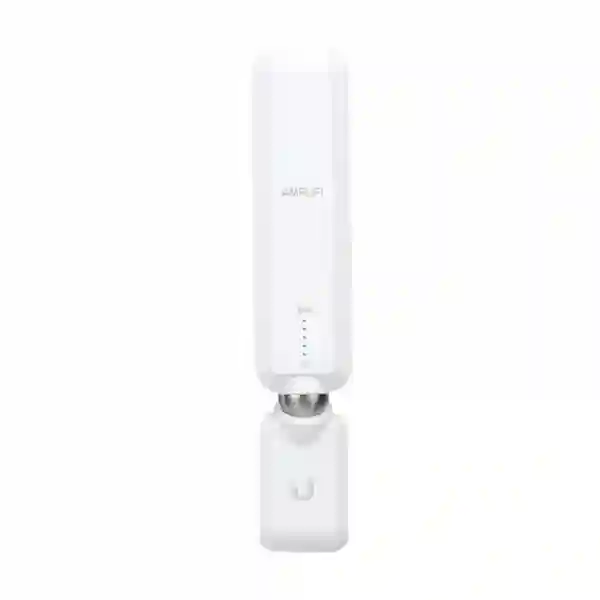
Ubiquiti AmpliFi MeshPoint HD AFi-P-HD
Improve weak indoor Wi-Fi coverage with a standalone, plug-in AmpliFi HD MeshPoint. Designed for compatible AmpliFi networks and supported third-party routers, it offers dual-band 802.11ac extension, an adjustable antenna and placement feedback. Ask for a Tanzania quote and confirm your router and plug variant before ordering.
Quick fit check
Best for an existing, otherwise healthy Wi-Fi network with a nearby indoor coverage gap and a suitable outlet between the router and the weak area. Not for buyers seeking a standalone modem, an outdoor access point, a wired Ethernet extender or guaranteed gigabit speeds.
What this MeshPoint does
The Ubiquiti AmpliFi MeshPoint HD AFi-P-HD is a plug-in wireless coverage extender designed for households and small workspaces where an otherwise useful Wi-Fi network fades before it reaches every room. It connects to an appropriate existing wireless network and retransmits coverage into a better-positioned area. It is not an internet subscription, a mobile-data modem, or a replacement for the main router. Buyers should choose it when the network already works reasonably near the router and the main problem is signal strength farther away.
Think about the rooms where a smartphone disconnects during a call, a laptop struggles to load a document, or a smart television pauses while streaming. Those symptoms may be caused by limited coverage, but not always. The MeshPoint is intended to improve the wireless reach of a compatible network; it cannot repair an unreliable broadband connection, overloaded upstream router, or an internet provider fault. Identifying the cause first can prevent buying equipment that solves the wrong problem.
The main buying decision: a standalone unit
The AFi-P-HD model is the separately sold AmpliFi HD MeshPoint. That distinction matters because Ubiquiti documents different pairing restrictions for standalone devices and MeshPoints supplied as part of a factory bundle. A standalone MeshPoint can be added to an eligible existing AmpliFi network or configured to extend a third-party router. A MeshPoint originally supplied as part of a fixed kit is tied to its paired router and should not be assumed to work as an interchangeable standalone device.
Before purchasing a second-hand device or replacing a lost component, ask whether the unit was sold independently or came in a complete AmpliFi kit. Check the exact product model and pairing history, not merely the white housing or the AmpliFi logo. If you are extending a working AmpliFi HD network, this check is particularly important: a visually similar bundled unit may not be adoptable. A separately supplied AFi-P-HD is the appropriate model to investigate for independent expansion.
Where it fits in a home or office
Wireless coverage tends to be uneven in properties with reinforced walls, several rooms in a line, separate floors, or long distances between the main router and the devices using it. The MeshPoint can be useful in a corridor near bedrooms, a shared living area, or an office corner that receives a usable but weak signal. Its purpose is to bridge the gap between the primary router’s reliable wireless area and a nearby area that needs improved coverage.
Fit depends on placement, not just the number of devices purchased. Place the extender where it still hears the main network clearly rather than inside the deepest dead zone. This intermediate location gives the MeshPoint a better wireless connection to repeat. It also reduces the temptation to treat a coverage problem as a pure power problem. If a building has thick concrete or metal partitions, more careful positioning or a wired access point may be the better engineering choice.
Dual-band Wi-Fi 5 explained
Ubiquiti lists the AmpliFi MeshPoint HD with two radios, a dual-band tri-polarity antenna, and support for the 802.11ac wireless standard, commonly called Wi-Fi 5. Dual-band operation provides access to the familiar 2.4 GHz and 5 GHz portions of the Wi-Fi environment, subject to system configuration and the radio conditions around the installation. It is a practical option for extending an existing compatible Wi-Fi 5 network without requiring every client device to use the latest wireless generation.
The published 1,750 Mbps speed specification is an equipment-level wireless capability figure, not a promise that an individual phone, laptop, or broadband connection will achieve that internet speed. Real throughput depends on upstream internet service, signal quality, client capabilities, radio interference, channel selection, other connected devices, and the wireless hop between router and MeshPoint. In a repeater arrangement, the backhaul itself consumes airtime, so actual user speeds can be substantially lower than headline radio figures.
Adjustable antenna and signal feedback
The distinctive upright antenna is adjustable, allowing the physical orientation of the MeshPoint to be refined after it is plugged in. That feature is valuable when the best outlet is at the side of a corridor or behind the line of sight from the router. Minor angle changes can sometimes help, although the result is governed by the building’s radio environment rather than a guaranteed antenna position. Set it up, check the connection, and only then make small adjustments.
Integrated signal-strength LEDs provide a convenient local indication during placement. Treat the LEDs as a placement aid rather than an exhaustive performance test. A strong displayed link does not by itself show whether an application will have low latency or whether a busy channel will deliver good throughput. After moving the MeshPoint, verify performance with the devices that matter in the intended room, including during the times when the network is most heavily used.
Compatibility with an AmpliFi network
For owners of an existing compatible AmpliFi HD network, the standalone MeshPoint can be adopted as an additional wireless mesh component. The AmpliFi application provides the setup flow and identifies devices ready to be added. Ubiquiti’s guidance describes an adoption process for independent units and also explains the special restrictions affecting bundle-paired units. Confirm the exact router family and current supported pairing behavior rather than assuming that every product carrying the AmpliFi name is universally interchangeable.
Compatibility should be checked particularly carefully when mixing older HD equipment with other AmpliFi generations, using a previously bundled device, or updating a system that has not been maintained. Firmware changes and model differences can affect available setup methods. A sensible purchase check covers the main router model, the extender’s standalone status, application compatibility, and whether your planned topology is officially supported. That is more reliable than relying on a generic claim that all mesh devices connect to one another.
Using a third-party router
Ubiquiti documents that a standalone AmpliFi HD MeshPoint can extend a third-party router’s wireless network. In this use case it is configured independently using the AmpliFi app or the device’s temporary wireless setup network. This offers a useful path for households that already have a functioning ISP router and do not want to replace it simply to improve reception in another room. It still requires suitable wireless signal, network credentials, and a compatible configuration.
Do not confuse support for third-party-router extension with universal mesh roaming or management integration. Features such as steering, single-dashboard control, and roaming behavior depend on the actual combination of devices and software. A third-party router may continue to manage the primary connection while the MeshPoint performs extension duties. Evaluate the connection from the client’s perspective: stable access, reasonable speeds, and acceptable hand-off behavior matter more than whether two different manufacturers describe their equipment as mesh-capable.
Wireless backhaul versus Ethernet
The AFi-P-HD is intended to connect over Wi-Fi and does not provide a conventional Ethernet data port for a wired backhaul. That makes installation relatively simple when running network cable would be inconvenient. It also means that the quality of the wireless link to the main router strongly influences the experience in the extended area. Avoid placing the device behind large metal objects or at the farthest outlet where the source signal has nearly disappeared.
If you need an Ethernet-connected workstation, a network cabinet uplink, or dependable performance across a particularly difficult building, compare a dedicated wired access point or an appropriate AmpliFi router-based wired-backhaul configuration instead. Ubiquiti’s wired-backhaul instructions apply to suitable standalone routers used as mesh points, not to this plug-in MeshPoint as though it had an Ethernet jack. Choosing the right network architecture beforehand avoids a frustrating installation and unnecessary accessories.
Power and physical installation
The MeshPoint uses a wall-outlet form factor rather than a desktop chassis requiring a separate network shelf. This is convenient for open indoor spaces where a suitable socket is available between the router and the desired coverage area. The manufacturer’s listed dimensions are approximately 243.8 × 54 × 57.8 mm, and its weight is approximately 224 g. Allow sufficient space around the antenna and make sure nearby furniture or equipment does not block it.
Before ordering for Tanzania, confirm which power-plug variant is being supplied and whether it fits the intended outlet. Do not assume a product image showing a particular plug proves that the delivered unit will use the same regional connection. If an adapter would be required, assess its suitability and safety rather than forcing the device into an incompatible socket. Installation should be indoors in a dry position, with access for pairing, resetting, and checking the LEDs.
Planning coverage in a multistorey building
In a building with two or more storeys, the router’s location relative to the stairwell and floor slabs can be more important than straight-line distance. A MeshPoint installed on an intermediate landing may receive a stronger signal than one placed directly in an upper room behind reinforced concrete. Start by testing wireless reception at several accessible sockets while keeping the extender close enough to maintain a dependable source link.
If results are poor, test the main router’s placement before buying more extenders. Moving the router a small distance from a corner, metal cabinet, or floor-level enclosure can sometimes improve several rooms at once. Where floors are heavily shielded, connecting a separate access point by network cable may offer more predictable performance than trying to pass the signal through thick slabs. There is no universal room count or square-metre coverage figure that can responsibly be guaranteed.
Small office considerations
In a small office, wireless coverage is only one part of a successful installation. Video meetings, cloud documents, printers, and point-of-sale applications can have different expectations for latency, stability, and security. The MeshPoint may help a lightly used meeting area or reception corner where the main wireless signal is already adequate nearby. It is less suited to replacing a structured wireless network for a busy environment with many simultaneous business-critical clients.
Check whether the existing router has adequate capacity and whether network policies need separate employee and guest access. A coverage extender should not be assumed to reproduce every advanced VLAN, captive portal, roaming, or monitoring feature found on an enterprise Wi-Fi platform. If isolation, central management, and planned multi-access-point coverage are essential, a managed access point solution is usually a more relevant comparison than a simple residential mesh extender.
Internet connection and ISP router checks
The MeshPoint cannot create an internet connection by itself. The main router must already be connected to working broadband, fibre equipment, fixed wireless access, or another supported upstream service. When diagnosing a slow connection, first test a device near the primary router. If it is already slow there, adding coverage equipment farther away will not resolve the limiting factor.
For an ISP-supplied router, verify that wireless extension is possible using the intended security settings and that you have permission to access the network credentials. Consider whether the router uses band-steering features or custom settings that may complicate pairing. If the primary service is subject to congestion or variable mobile-network performance, test speed at multiple times of day; the MeshPoint can redistribute a usable wireless signal, but it cannot increase the speed purchased from the provider.
Setup with the AmpliFi app
For a compatible existing AmpliFi network, plug in the standalone MeshPoint, open the AmpliFi application, and follow the option to adopt an available unit. Ubiquiti describes a ready-to-pair state indicated by flashing middle LEDs. Keep your phone near the equipment during setup and give the devices time to discover one another. If the device is not shown, confirm that it is powered, is genuinely standalone, and is using a supported configuration before performing invasive resets.
For a third-party router, Ubiquiti describes an independent MeshPoint setup path. The app can locate the unit and guide you through choosing the wireless network to extend. An alternative is to join the MeshPoint’s temporary setup network using a computer or phone and supply the selected network’s credentials. Make sure you choose the correct SSID in an environment with several neighbouring Wi-Fi networks, and verify internet access after the device reports that it has connected.
Placement workflow after pairing
Begin at an outlet not too far from the router. After setup, confirm that the MeshPoint connects reliably and use the strength indicators as an initial guide. Move the unit gradually toward the room that needs coverage, checking the indicators and actual client behavior after each change. A placement that balances a good source link with proximity to the weak-coverage area generally performs better than one that prioritises maximum distance.
Test with a phone or laptop while standing in the target area. Open ordinary websites, make a video call if that is a major use case, and evaluate whether the connection stays steady. Repeat the test when the network is busy, because neighbouring networks and simultaneous users can expose weaknesses not visible during a quiet midday installation. If moving the extender improves coverage but makes throughput unacceptably low, shift it back toward the router or reconsider the topology.
Speed expectations and realistic performance
The advertised 1,750 Mbps figure should be interpreted as a published device specification under defined wireless capabilities, not as a minimum guaranteed download result. A client may connect using a slower standard or fewer antenna streams, and its location may cause the radio to negotiate a lower link rate. Walls, reflections, interference, airtime sharing, and the MeshPoint’s wireless uplink can all reduce performance available to an application.
For example, a home with modest broadband speed may value stable reception in a bedroom more than a headline multi-gigabit radio number. By contrast, a household paying for very high-speed fibre may find that wireless repeating does not deliver the full subscribed rate in a distant room. Make the buying decision around intended activities and realistic placement rather than assuming that the extender will preserve all speed from the main router.
Security and ongoing maintenance
Ubiquiti lists WPA2-PSK wireless security support for this product. Use a strong, unique network password and keep the main router’s administrative credentials protected. Avoid sharing setup passwords publicly or leaving factory-access configurations active longer than necessary. If your existing network requires security features not documented for this model, verify compatibility before buying rather than assuming the extender will support the newest authentication modes.
Check manufacturer guidance for firmware updates and support procedures associated with the specific AmpliFi generation. Keeping system software current can address stability and compatibility issues, but updates should be applied through the supported workflow and with appropriate care around power interruptions. In a shared workplace, record the device’s model, deployment location, and configuration owner so that future maintenance is straightforward when staff or routers change.
Troubleshooting connection drops
If the MeshPoint disconnects repeatedly, begin with basics: verify power, inspect whether the source Wi-Fi still functions, and check the signal indication. A unit installed at the limit of coverage may connect intermittently even though client devices can sometimes detect the extended network. Move it closer to the main router and repeat the test before deciding that the hardware itself is defective.
Ubiquiti publishes separate recovery guidance for standalone MeshPoints and units belonging to an AmpliFi kit. That distinction matters when resetting devices or trying to join them to another router. Do not reset an entire working network unnecessarily. If the independent MeshPoint is already paired but not reconnecting, follow the manufacturer’s current standalone recovery procedure; if it came from a kit, use the kit-specific instructions and retain the original pairing relationship.
When this product is not the right choice
Choose a different solution if you need an extender with wired Ethernet ports, if the intended installation is outdoors, or if the coverage gap is so severe that no intermediate outlet receives a stable signal. Similarly, an environment requiring extensive enterprise management, multiple segregated networks, or assured high throughput deserves a purpose-designed wireless deployment rather than an assumption that a residential extender will meet those requirements.
This model is also not the first purchase to make when broadband itself is failing, when a router needs replacement, or when a newer radio standard is a strict procurement requirement. The AFi-P-HD uses Wi-Fi 5 rather than Wi-Fi 6 or Wi-Fi 7. For a fresh multi-room deployment, compare the whole-network design, cabling options, device compatibility, and long-term maintenance needs before selecting one extender simply because it looks easy to install.
Comparison: extender, full mesh kit or wired AP
A standalone MeshPoint is a focused choice for expanding an existing eligible wireless network. A complete mesh kit changes the larger home-network arrangement by supplying a router and compatible satellite components together. A wired access point uses Ethernet backhaul, typically delivering a more consistent connection where wiring is possible. These choices solve overlapping coverage problems but differ greatly in installation effort, management, expansion options, and performance.
If you already own an AmpliFi HD router and have one weak area, an appropriate standalone MeshPoint may be the least disruptive option. If the current router is poor throughout the building, a broader router or Wi-Fi-system upgrade may make more sense. If you have a cable run between floors, a wired access point may avoid the wireless-backhaul compromises of a repeater. Compare the actual building layout and traffic expectations before deciding.
Tanzania purchasing checklist
When requesting this item for a Tanzania installation, identify the exact model as AFi-P-HD, the separately sold AmpliFi MeshPoint HD. Specify whether it will extend an AmpliFi HD router or a third-party router, and note any existing network details that may affect setup. The supplier should confirm the delivered plug variant and the contents of the product package. This information is more useful than choosing from a generic listing that simply says mesh Wi-Fi extender.
Ask for the current quoted price in Tanzanian shillings, stock position, delivery arrangements, and applicable terms directly through the seller’s normal sales process; none of those commercial details should be inferred from a foreign storefront. For business purchasing, also document who will handle installation and any required IT approvals. No local regulatory approval, service guarantee, or warranty period is implied by this product description without confirmation for the exact sale.
Before you request a quote
Measure the problem as specifically as possible. Note the main router brand and model, where it is installed, where coverage becomes weak, and whether a plug socket exists between those two points. Record the type of applications that fail: general browsing, video meetings, streaming, or other traffic. That short description helps distinguish a coverage issue from an internet speed or network capacity problem and can reveal when a wired solution would be preferable.
Also consider whether you require a single added MeshPoint or a larger redesign. If there are multiple disconnected areas, one device may not be enough, and blindly adding extenders can introduce more contention. A sensible network plan considers radio placement, whether backhaul is wired or wireless, and where users actually spend time. Request confirmation that the AFi-P-HD is compatible with your router before treating the product as a drop-in universal upgrade.
Technical specifications at a glance
The manufacturer identifies this product as AmpliFi MeshPoint HD, model AFi-P-HD, and lists two radios, six MIMO chains, a dual-band tri-polarity antenna, 802.11ac Wi-Fi and a maximum transmit-power specification of 26 dBm. Published mechanical dimensions are 243.8 × 54 × 57.8 mm, with a weight of 224 g. These are the manufacturer’s device specifications, not installation guarantees or evidence of local approval.
The published operating environment is −10 °C to 55 °C and 5–95% non-condensing humidity. These limits do not make the product waterproof or suitable for exposed outdoor mounting. Position the unit where it will remain dry, be safely powered, and have room for its adjustable antenna. Manufacturer documentation also lists a reset control and integrated status indication; the exact visible behaviour can depend on pairing state and firmware.
Manufacturer specification summary
| Product | AmpliFi MeshPoint HD |
|---|---|
| Manufacturer | Ubiquiti |
| Model / manufacturer identifier | AFi-P-HD |
| Wi-Fi standard | 802.11ac (Wi-Fi 5) |
| Radios | 2 |
| MIMO chains | 6 |
| Antenna | 1 dual-band tri-polarity adjustable antenna |
| Published speed figure | 1,750 Mbps (wireless specification; not guaranteed end-user throughput) |
| Maximum TX power | 26 dBm |
| Dimensions | 243.8 × 54 × 57.8 mm |
| Weight | 224 g |
| Operating temperature | −10 to 55 °C |
| Humidity | 5–95%, non-condensing |
| Wireless security listed | WPA2-PSK AES/TKIP |
| Reset | Reset button |
| Data Ethernet port | Not provided on the AFi-P-HD MeshPoint |
Frequently asked questions
Does AFi-P-HD need an AmpliFi router?
No. A separately sold standalone AmpliFi HD MeshPoint can be configured with a supported third-party router using the independent setup process described by Ubiquiti. Compatibility and the resulting network experience still depend on your router, settings and wireless environment. A kit-bundled MeshPoint should not be treated as the same interchangeable product.
Is AFi-P-HD a complete Wi-Fi router?
No. It is a wireless coverage extension device. You still need a working primary router and an upstream internet connection. It does not replace the broadband modem, cellular data equipment or the main router’s connection-management functions.
Does it support Wi-Fi 6?
The manufacturer specifies 802.11ac, commonly called Wi-Fi 5, for the AFi-P-HD. It is not advertised as a Wi-Fi 6 or Wi-Fi 7 MeshPoint. A newer client can often connect to compatible older Wi-Fi standards, but its connection will not transform the MeshPoint into newer-generation hardware.
Can I connect a desktop computer with Ethernet?
This plug-in MeshPoint does not have an Ethernet data jack for a wired client or wired backhaul. For a desktop requiring a cable connection, consider an access point or router solution with an appropriate Ethernet interface rather than planning around a port this unit does not provide.
Where should I plug it in?
Choose an indoor wall outlet between the main router and the weak-coverage location, where the source Wi-Fi still works dependably. Use the signal indicators and application-level testing to optimise the position. Avoid putting the extender directly in a dead zone.
Will the extender double my internet speed?
No. Its function is to extend wireless reach, not increase the speed of your internet service. Actual throughput depends on the main router, radio conditions, devices, wireless backhaul and the service plan. Repeating may reduce effective throughput compared with a nearby direct router connection.
Can I use a MeshPoint taken from a complete AmpliFi kit?
Not as a freely interchangeable standalone unit. Ubiquiti explains that factory-bundled MeshPoints are hard-coded to their original kit relationship. Verify whether the product offered for purchase is the separately sold AFi-P-HD before attempting to extend a different router.
Can I deploy it outdoors?
The device should be treated as an indoor plug-in Wi-Fi extender, not an outdoor weatherproof access point. Environmental operating ranges do not certify exposure to rain or moisture. For an outdoor area, use equipment specified for that installation.
What does 1,750 Mbps mean?
It is a manufacturer-published wireless capability specification. It is not a guarantee of one-device internet speed, nor a promise of performance through several walls. Actual user results depend on client radio capabilities, wireless backhaul, interference, placement and broadband.
Can I use it for a small office?
It may suit a small office coverage gap if the primary wireless network is healthy and the number of clients is modest. For heavy client loads, segmented networks or centralised business administration, evaluate a managed access point design.
Will it work with my ISP-supplied router?
It may, because Ubiquiti documents support for third-party routers with standalone AmpliFi HD MeshPoints. Confirm the router’s wireless security settings and the independent MeshPoint setup procedure before purchasing. Compatibility should not be assumed for every customised ISP configuration.
Is the AFi-P-HD the same as an AmpliFi Alien MeshPoint?
No. AmpliFi product families and their supported interoperability need model-specific checks. This listing is for the AmpliFi HD AFi-P-HD, so buyers should validate their current router and firmware against the manufacturer’s compatibility guidance.
How many MeshPoints do I need?
There is no reliable universal number based only on rooms or floor area. Begin with the actual weak-coverage zone, the building materials and available intermediate outlets. Larger or more complex layouts may require a different access point arrangement.
How can I recover a disconnected unit?
First check power and placement. If the unit needs repair or re-pairing, use the manufacturer’s standalone MeshPoint troubleshooting process. A kit-supplied MeshPoint uses different pairing assumptions, and resetting an otherwise working router should not be the first troubleshooting step.
Does FourTeck Tanzania have stock and a local price?
This content does not claim a current stock level or price. Request a current quote for AFi-P-HD, including plug variant, order terms and any locally applicable conditions. These details must be confirmed for the exact item supplied.
Request a quote for the AFi-P-HD in Tanzania
Share your current router model, a short description of the weak-signal area, and the quantity required. Ask the sales team to confirm the exact standalone AFi-P-HD variant, regional power-plug compatibility, current price, availability and sales terms before purchase. A correctly matched device and a sensible placement plan are more valuable than a speculative coverage promise.
Ready to assess your Wi-Fi coverage? Request a product quote and installation suitability review through FourTeck Tanzania’s normal enquiry channel.
Reviews
There are no reviews yet.